
The Multi Location Product & Inventory Management for WooCommerce plugin provides regular updates to improve stability, add new features, and ensure compatibility with the latest WooCommerce releases. Upgrading is straightforward, but following a safe flow ensures your site remains stable.
Upgrading from Free to Pro Version
If you are currently using the free version and want to upgrade to the premium version:
Purchase the Pro License
- Visit the plugin’s official site.
- Select the subscription package that fits your needs (single site, three sites, or five sites).
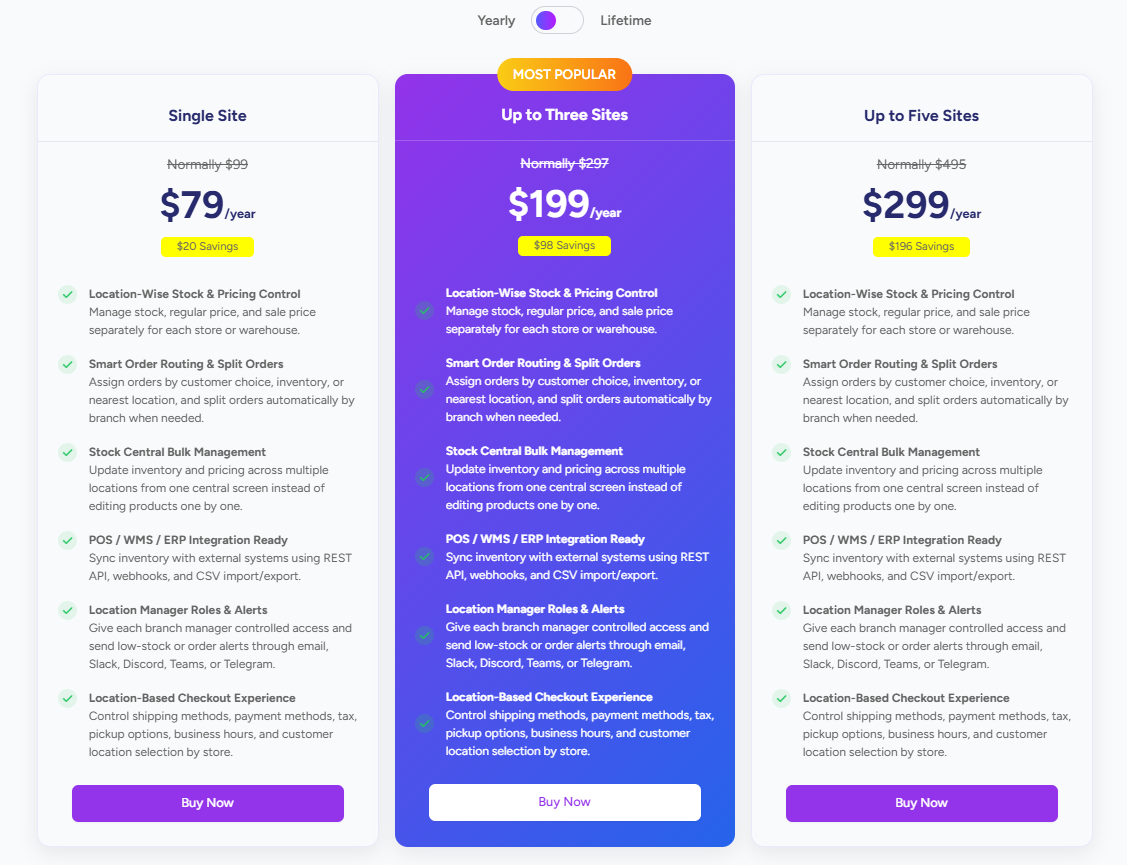
- Click Buy Now to proceed to checkout.
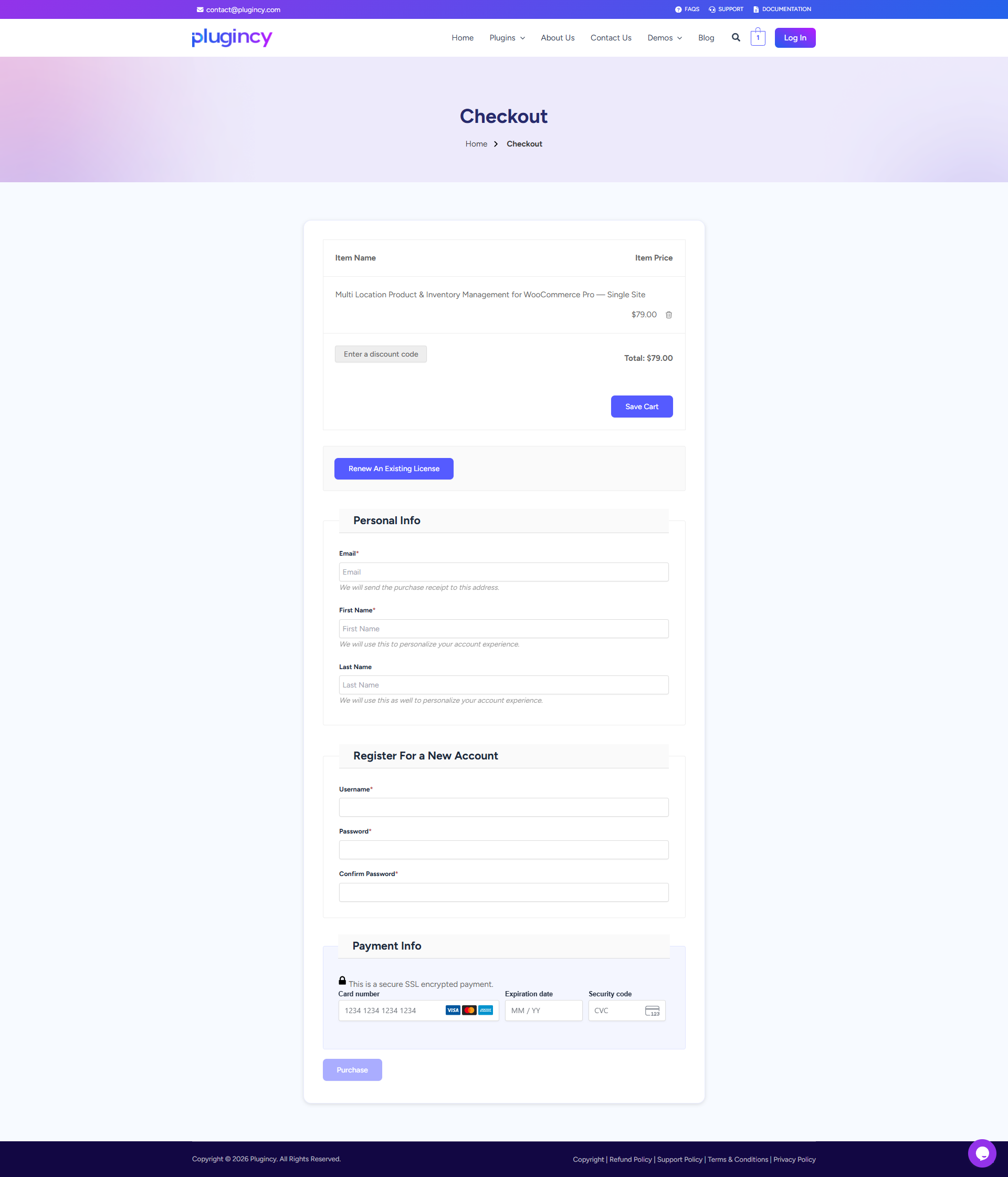
- Apply any discount code if available, then enter your payment details and complete the purchase.
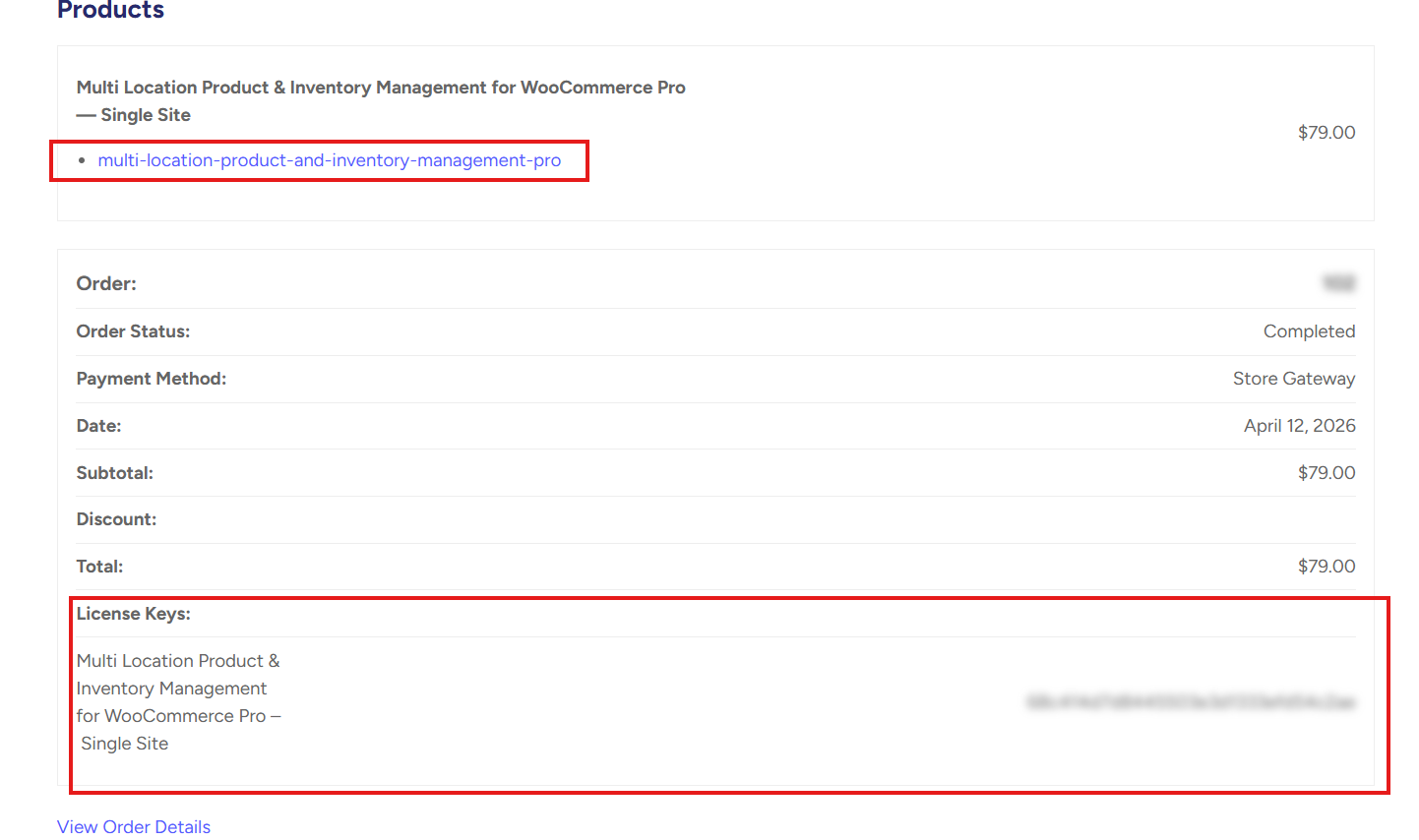
- After purchase, you’ll receive an order confirmation with a downloadable ZIP file and your license key.
Install the Pro Plugin
After you have downloaded the zip file, install the plugin. Check out the guide to see how you can install the plugin.
Activate the License Key
“To use the pro features, you have to activate the license that you receive when you purchase the plugin. Here’s how you can activate the plugin with a license key
Updating the Pro Version
If you already have the pro version installed:
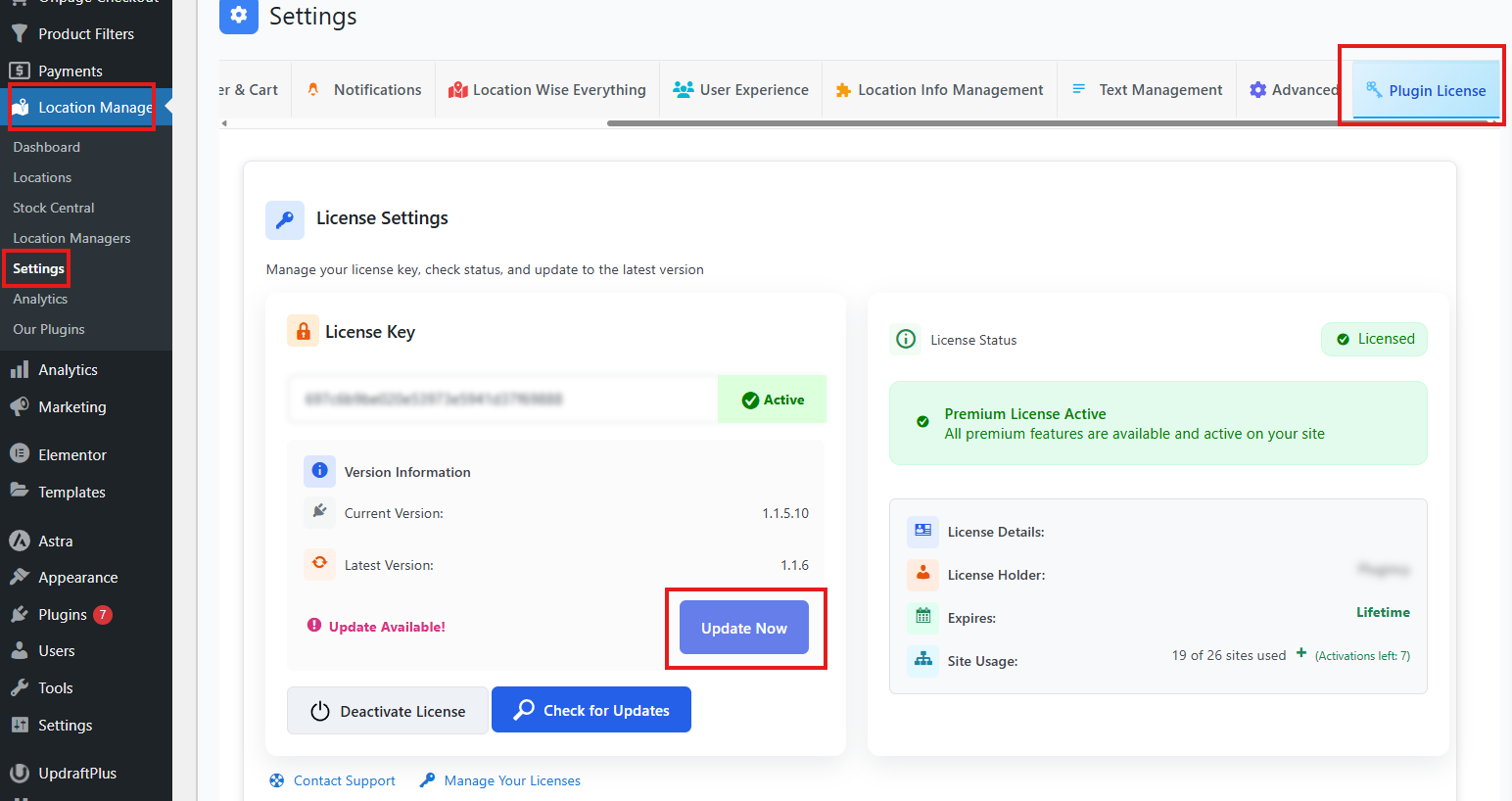
- Navigate to Location Manage → Settings → Plugin License.
- Review your current plugin version and see if an update is available.
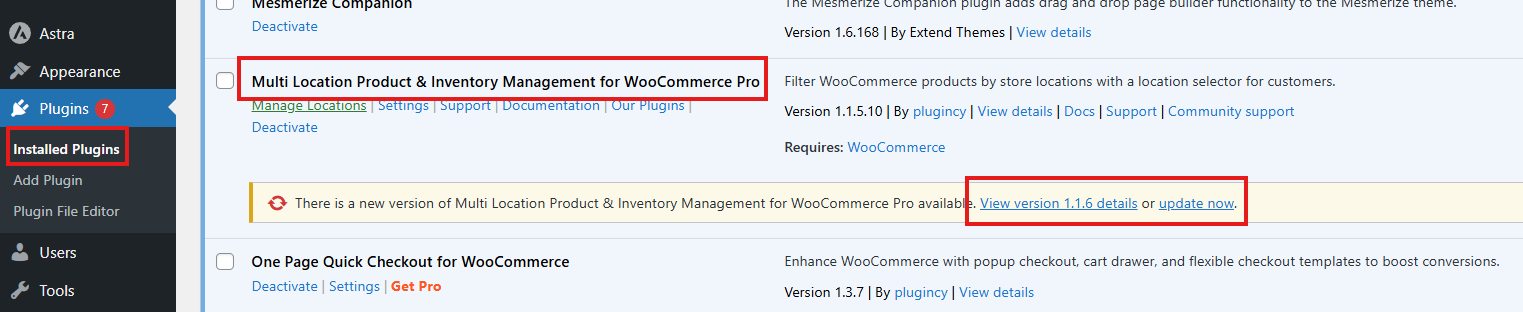
- If any update is available, click on the Update button. It will redirect to the installed plugin section.
- Locate Multi Location Product & Inventory Management for WooCommerce.
- You’ll see an Update Now button beside the plugin name.
- Click Update Now — the plugin will update within a few seconds.
Safe Upgrade Flow
- Backup First: Always back up your WordPress site and database before upgrading.
- Check Compatibility: Ensure your WooCommerce and WordPress versions are up to date.
- Validate License: Confirm your license is active to guarantee access to updates.
- Test After Upgrade: Verify that store locations, inventory thresholds, and checkout flows work correctly after updating.
Best Practices
- Keep your license active to receive updates and support.
- Perform upgrades during low-traffic hours to minimize disruption.
- After upgrading, clear your site cache to ensure new features display correctly.
- If you still feel confused, contact the plugin support team.