

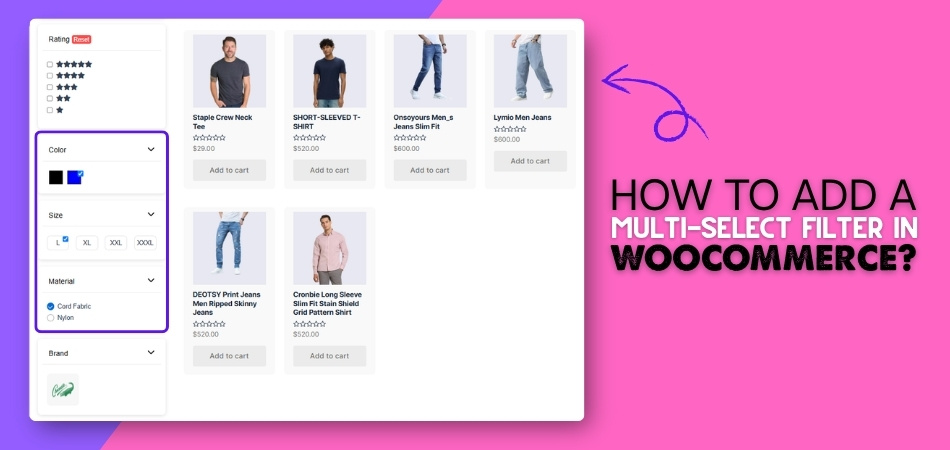
Multi-select filters allow shoppers to choose more than one option within the same filter, such as multiple brands, colors, sizes, or features at once. Instead of forcing users to pick a single value and reload results repeatedly, multi-select filtering supports broader comparison and flexible decision-making.
In this guide, you will learn how to add a multi-select filter in WooCommerce using built-in options and advanced AJAX-based methods. We will also cover when multi-select filters are useful, troubleshooting issues, and SEO considerations so they improve comparison without creating performance or indexing issues.
Quick Answer
WooCommerce’s default filters are mostly single-select. To add a true multi-select filter, you need an AJAX-based filter plugin that supports selecting multiple values within the same filter group.
Use the steps below to confirm multi-select filtering is enabled and working correctly. Advanced configuration options are explained later in this guide.
- Decide which filter should support multi-select (brand, color, tag, attribute)
- Use an AJAX filter plugin that supports multi-select logic
- Enable multi-select for the chosen filter
- Test selecting multiple values on a shop or category page
What Does a Multi-Select Filter Do in WooCommerce?
A multi-select filter allows shoppers to include multiple acceptable values in one action. Instead of narrowing results to a single choice, users can say “show me all products that match any of these options.”
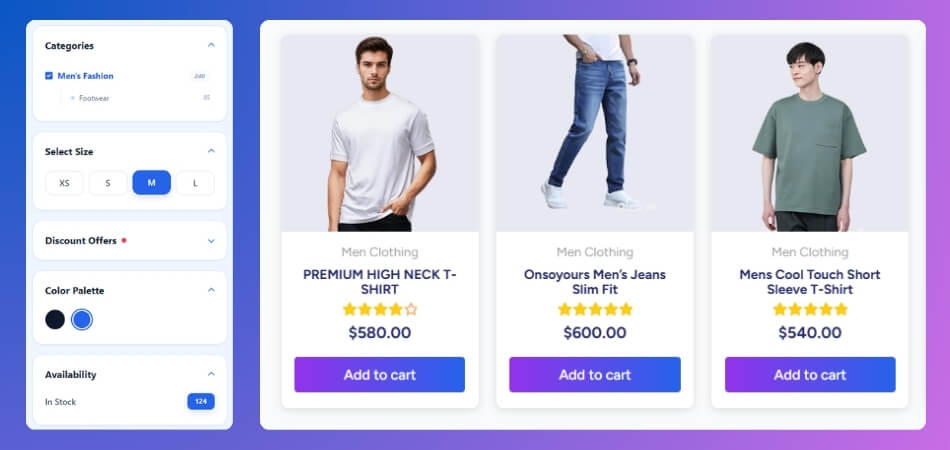
Multi-select filtering is typically used when shoppers are comparing alternatives rather than searching for one exact match. It supports exploration without forcing constant filter resets.
Example
In a footwear store, a shopper may be open to Nike or Adidas shoes. With a multi-select brand filter, they can select both brands at once and compare all matching products on the same page instead of switching back and forth.
When Multi-Select Filters Are the Right Choice
Multi-select filters work best when shoppers have a group of acceptable options instead of one fixed choice. They are useful when customers want to compare several brands, colors, sizes, features, or product types before narrowing their decision further.
Multi-select filtering is most effective when:
- Shoppers want to compare multiple brands, styles, colors, or features
- More than one option can satisfy the customer’s need
- Users need broader results before applying stricter filters
- The filter group contains related choices, such as brand, size, color, material, or compatibility
- Customers are browsing or comparing instead of searching for one exact product
Unlike range sliders, which usually narrow results by price, rating, or measurement, multi-select filters help shoppers include several possible matches at once. This makes them a better choice for comparison-based shopping, where users do not want to reset the filter after every selection.

Where Multi-Select Filtering Makes Sense
Multi-select filtering makes sense when shoppers may accept more than one option from the same filter group, such as multiple brands, colors, tags, features, or materials. It is best for flexible product choices where users want to compare several matching results together.
Use the points below to decide which WooCommerce filters should support multi-select.
Multi-select works well for:
- Brands
- Colors
- Tags
- Product features
- Materials
- Styles
- Compatibility options
- Other non-exclusive attributes
Multi-select is less useful for:
- Mutually exclusive options
- Highly specific technical requirements
- Filters that should lead to one exact match
- Options where multiple selections may confuse product results
Choosing the right filters for multi-select keeps the shopping experience cleaner and prevents unnecessary clutter in the product filter area.
How to Add a Multi-Select Filter in WooCommerce: 3 Easy Methods
You can add a multi-select filter in WooCommerce using built-in product filters, an AJAX product filter plugin, or custom code. Built-in filters are useful for basic filtering, but a plugin is usually the best option for true multi-select filtering because it supports multiple selections, AJAX product updates, flexible layouts, and better control over filter logic.
Let’s explore each method to add a multi-select filter in WooCommerce:
Method 1: Use Built-In WooCommerce Product Filters (Limited)
WooCommerce includes basic filters for price, rating, categories, tags, and attributes. This method works for simple filtering, but it is limited to true multi-select filtering, AJAX updates, and advanced filter logic.
Step 1: Prepare Product Data
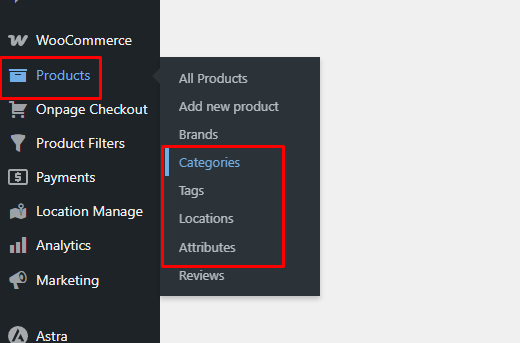
- Create categories from Products > Categories
- Add product tags from Products > Tags, if needed
- Create attributes from Products > Attributes, such as Color, Size, Brand, or Material
- Add attribute terms like Black, Blue, Large, or Cotton
- Assign the right categories, tags, and attributes to each product
Step 2: Open the Filter Area
Choose the area where the filter should appear:
- Block themes: Use Appearance > Editor
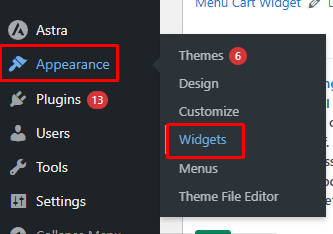
- Classic themes: Use Appearance > Widgets
- Editable shop pages: Open Pages > Shop > Edit
- Page builders: Open your shop or product archive template
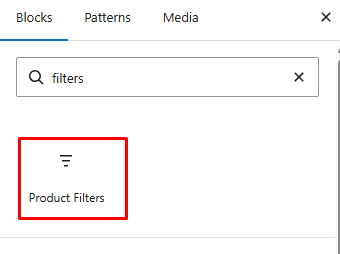
Step 3: Add a WooCommerce Filter
- Click the + icon in the editor, widget area, or builder
- Search for Product Filters, Filter by Attribute, or Filter by Price
- Add the filter that matches your store’s needs
- For color, size, brand, or material, use an attribute-based filter
Step 4: Save and Test
- Save or update the page, widget, or template
- Open the shop page on the front end
- Select a filter option and check whether the right products appear
- Test the filter on mobile to confirm it is easy to use
Limitations of Built-In WooCommerce Filters
- Limited support for true multi-select filtering
- Less control over OR/AND logic
- Fewer design and layout options
- Limited AJAX behavior depending on theme setup
- Not ideal for large stores or advanced filter needs
Method 2: Add Multi-Select Filters Using AJAX Product Filter Plugin
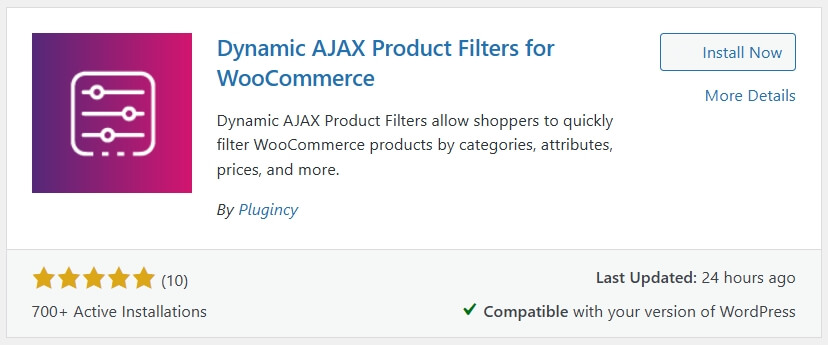
Using an AJAX product filter plugin is the recommended way to add a true multi-select filter in WooCommerce. With Dynamic AJAX Product Filters for WooCommerce, shoppers can filter products by brands, colors, tags, categories, and attributes while results update without reloading the full page.
Step 1: Install and Activate the Plugin
- Go to WordPress Admin > Plugins > Add New
- Search for Dynamic AJAX Product Filters for WooCommerce
- Click Install Now
- Click Activate
For the Pro version:
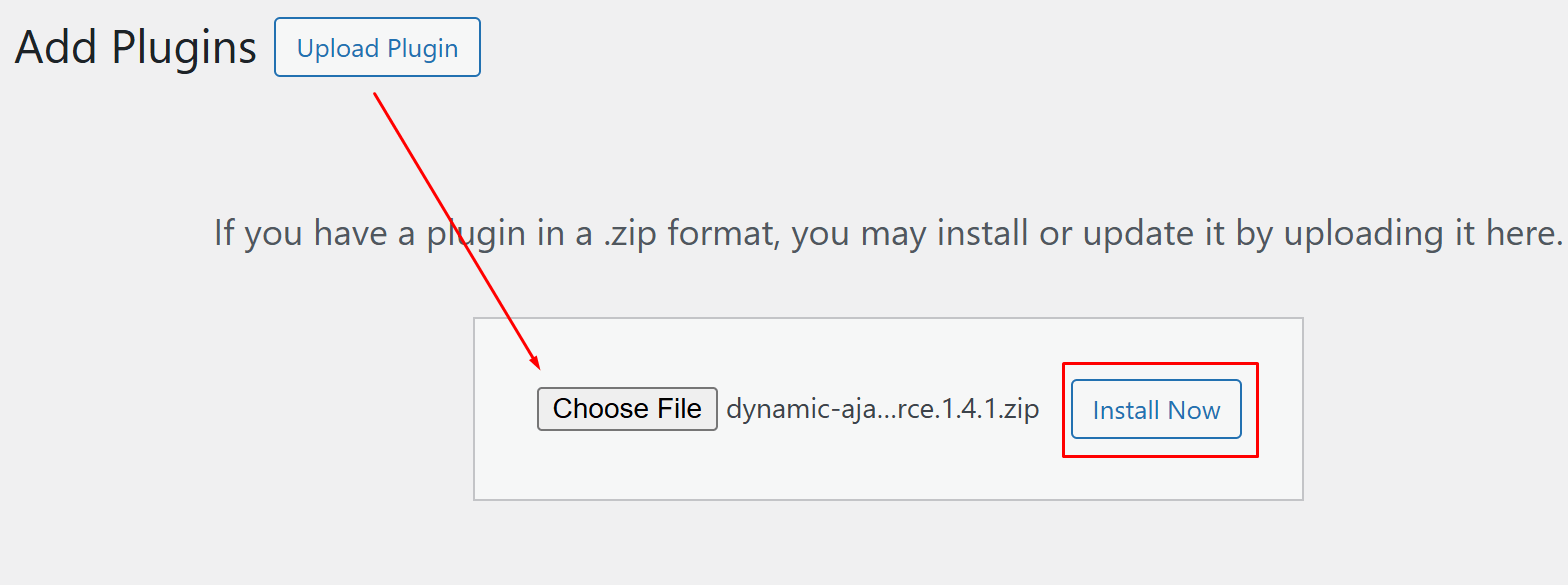
- Purchase the plugin from the official website
- Download the plugin ZIP file
- Go to Plugins > Add New > Upload Plugin
- Upload the ZIP file
- Click Install Now
- Click Activate
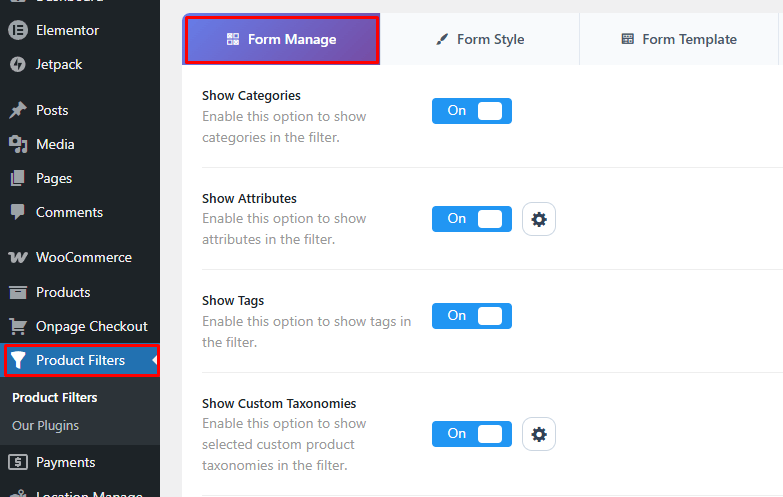
Step 2: Open the Filter Form Settings
- Go to Product Filters > Form Manage
- Find the filters you want to show on your store
- Enable the filters that support multi-select options
- Common options include brands, colors, tags, categories, and attributes
- Choose Ajax from the URL-based filter options
- Save Changes
Step 3: Choose the Filter Style
- Open the Form Style tab beside Form Manage
- Choose your preferred filter from the configure style for options
- Pick the Select as brand filter style
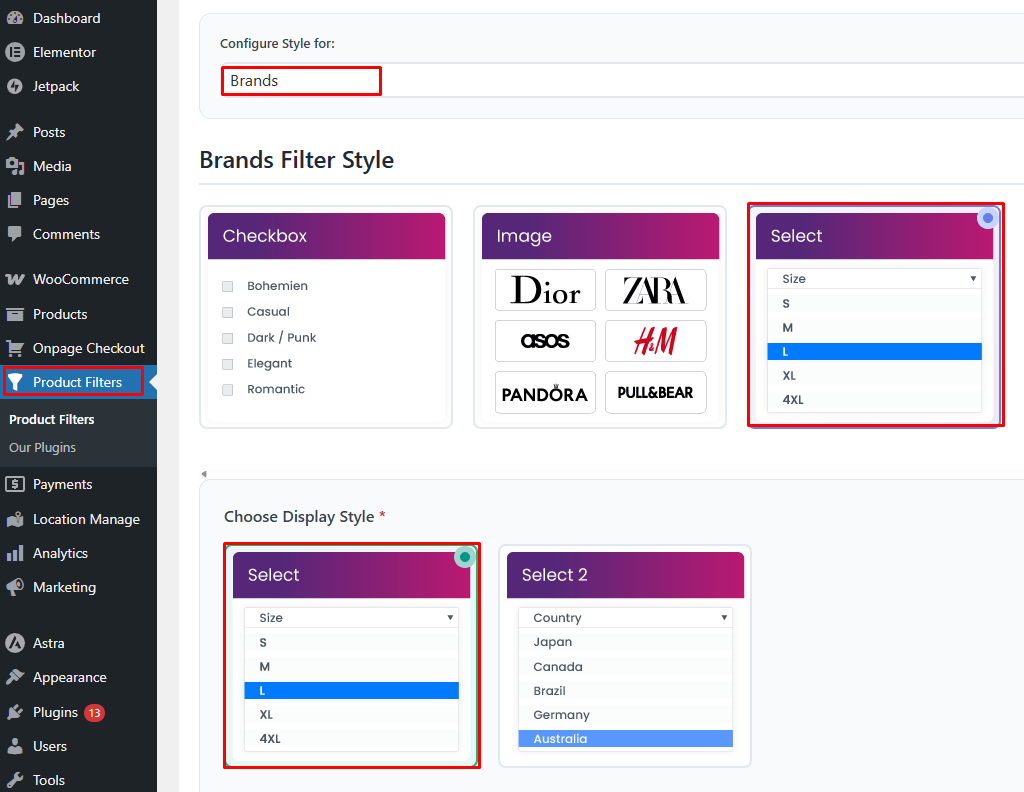
Step 4: Customize the Select Dropdown
- Choose Select for a simple and clean dropdown
- Use Select 2 for longer lists, such as many brands, colors, sizes, or tags
- Make sure the dropdown supports selecting multiple values from the same filter group
- Configure AND / OR logic and other settings from the optional and advanced settings options
Step 5: Save the Filter Settings
- Review the enabled filters and selected dropdown style
- Scroll to the bottom of the settings page
- Click Save
- Wait for the settings to update before leaving the page
Step 6: Display the Filter on Your Store
After saving the filter settings, add the filter to your shop page, sidebar, or product archive area. You can display it using a widget, shortcode, page builder element, or PHP code.
Display with a widget:
- Go to Appearance > Widgets
- Find the Dynamic AJAX Product Filters widget
- Add it to your sidebar or widget area
- Save the widget settings
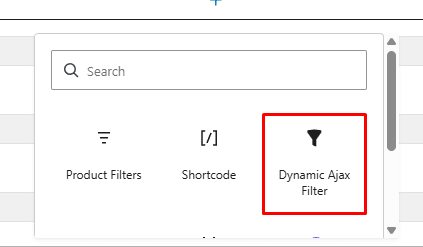
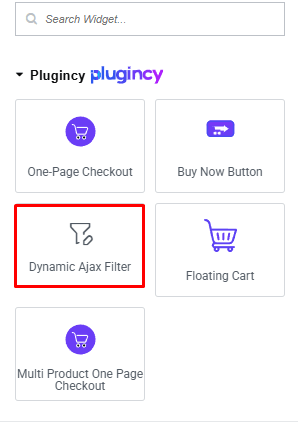
Display with a page builder:
- Open the shop page or product archive template in your page builder, like Elementor, WPBakery, or others
- Add a new section where you want the filter to appear
- Search for the Dynamic AJAX Product Filters widget/module if supported
- Save or update the page/template
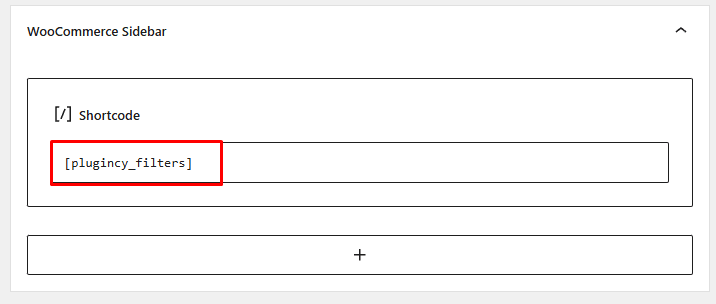
Display with a shortcode:
- Open the page, post, or template where you want the filters to appear
- Add a shortcode block or shortcode field
- Insert this shortcode: [[plugincy_filters]]
- Save or update the page
Method 3: Add a Custom Multi-Select Filter With Code
You can also add a multi-select filter in WooCommerce with custom PHP and query logic. This method gives more control, but it is best for developers because it requires editing theme files or using a custom plugin.
Step 1: Add a Multi-Select Filter Form
Add a checkbox or multi-select form to your shop template, sidebar, or custom shortcode.
<form method=”GET” class=”custom-product-filter”>
<label>
<input type=”checkbox” name=”filter_color[]” value=”black”>
Black
</label>
<label>
<input type=”checkbox” name=”filter_color[]” value=”blue”>
Blue
</label>
<label>
<input type=”checkbox” name=”filter_color[]” value=”white”>
White
</label>
<button type=”submit”>Filter</button>
</form>
This example lets shoppers select multiple color values at once.
Step 2: Modify the WooCommerce Product Query
Add this code to your child theme’s functions.php file or a custom site plugin:
add_action( ‘woocommerce_product_query’, ‘custom_multiselect_color_filter’ );
function custom_multiselect_color_filter( $query ) {
if ( is_admin() || empty( $_GET[‘filter_color’] ) ) {
return;
}
$colors = array_map( ‘sanitize_text_field’, wp_unslash( $_GET[‘filter_color’] ) );
$tax_query = (array) $query->get( ‘tax_query’ );
$tax_query[] = array(
‘taxonomy’ => ‘pa_color’,
‘field’ => ‘slug’,
‘terms’ => $colors,
‘operator’ => ‘IN’,
);
$query->set( ‘tax_query’, $tax_query );
}
Here, pa_color is the WooCommerce attribute taxonomy for Color. If your attribute is Size, the taxonomy may be pa_size.
Step 3: Test the Filter
After adding the form and query code:
- Visit the shop page
- Select multiple color options
- Submit the filter
- Check whether matching products appear
- Test pagination, sorting, and mobile layout
Important Note
This example uses a basic page reload method. To make it work with AJAX, you would also need JavaScript, an AJAX handler, loading states, and updated product result rendering.
Best Method to Choose: Fast Decision Guide
The best way to add filters in WooCommerce depends on how shoppers make decisions in your store. Use single-select filters for simple product narrowing, AJAX multi-select filters for comparison-based shopping, and custom code only when you need a fully tailored setup.
| Store Type | Recommended Method | Why |
| Small stores | Built-in or single-select filters | Keeps the filtering experience simple and easy to manage |
| Comparison-focused stores | AJAX multi-select filters | Lets shoppers compare several brands, colors, sizes, or features together |
| Large catalogs | AJAX multi-select filters | Handles broader product discovery with faster filtering and better scalability |
| Highly custom stores | Custom code method | Gives developers full control over filter logic and layout |
Choose the filter method based on how your shoppers compare products. A WooCommerce AJAX product filter plugin is the best fit when customers have several acceptable options and need multi-select filtering to compare flexible product matches before narrowing further.
When Multi-Select Filters Increase Conversions
Multi-select filters can increase WooCommerce conversions when shoppers need to compare several acceptable options before choosing a product. They reduce repeated searches, improve product discovery, and help customers reach relevant items faster.
Here are the best cases to use them.
- Large Product Catalogs: Multi-select filters help shoppers narrow many products quickly without browsing through too many unrelated items manually.
- Comparison-Based Shopping: They work well when customers compare multiple brands, colors, sizes, materials, or features before making a buying decision.
- Flexible Purchase Intent: Multi-select filtering supports shoppers who know what they like but are open to several matching product options.
- Attribute-Heavy Products: Stores with many attributes benefit because shoppers can combine useful filters and find better-matching products faster.
- Mobile Shopping Journeys: Cleaner multi-select filters reduce tapping, backtracking, and repeated page loads, making mobile product browsing easier.
- Repeat Browsing Sessions: Customers can explore broader product groups without constantly resetting filters, which keeps them engaged longer.
Multi-select filters convert best when users compare acceptable alternatives rather than seek one exact match.
SEO Notes for Multi-Select Filters
Multi-select filters can improve shopping UX, but they can also create many URL combinations that do not deserve separate indexing. For SEO, treat multi-select filter results as navigation paths, not primary landing pages.
Practical Indexing Rule
Do not index most multi-select filter URLs. Use them to help shoppers browse products, while keeping your main SEO focus on product pages, category pages, and carefully planned landing pages.
What to Index vs What Not to Index
| Scenario | Index | Noindex | Why |
| Product pages | ✔ | Core SEO pages with unique product intent | |
| Category pages | ✔ | Important structural pages for broader search intent | |
| Main shop pages | ✔ | Useful for general product discovery | |
| Multi-select filter URLs | ✔ | Often create duplicate or thin search intent | |
| AJAX filter views | ✔ | Better used for navigation, not organic landing pages | |
| Random filter combinations | ✔ | Can create crawl waste and duplicate result pages |
Multi-select filters are best for user experience, not organic landing pages. Let them help shoppers narrow products, but use product pages, category pages, and intentional collection pages for SEO targeting.
Conversion Tips for Multi-Select Filters
Better multi-select filter design can improve WooCommerce conversions by helping shoppers compare useful options, see selected choices clearly, avoid empty results, and reset filters without friction. Strong filters should guide product discovery without making the shop page feel crowded.
Use these tips to make the filtering experience more conversion-focused.
- Prioritize High-Intent Filters: Show filters that directly affect buying decisions, such as size, color, brand, compatibility, material, or availability.
- Keep Labels Clear: Use simple filter names that shoppers understand quickly instead of internal product terms or overly technical attribute labels.
- Show Active Selections: Display selected filters clearly so users know what is shaping the product results at any moment.
- Add a Clear Reset Option: Let shoppers remove selected filters quickly without refreshing the page or manually unchecking every option.
- Avoid Empty Results: Hide unavailable options or show product counts so shoppers do not select filters that lead nowhere.
- Keep Mobile Filters Easy: Use collapsible filters, dropdowns, or drawer layouts so mobile users can filter without crowding the screen.
- Test Filter Order: Place the most useful filters first based on shopper intent, product type, and common browsing behavior.
Troubleshooting: When Multi-Select Filter Is Not Working
Multi-select filter issues usually come from disabled multi-select settings, incorrect filter logic, or display placement problems. Start by checking whether the filter allows multiple values, uses the right OR/AND logic, and appears in the correct shop template or sidebar.
Use this quick checklist to find the issue faster.
| Problem | Likely Cause | Fix |
| Only one option is selectable | Multi-select is disabled | Enable multi-select for that filter group |
| Results are too broad | Wrong logic type | Switch between OR and AND logic based on your filtering goal |
| Results are too narrow or empty | Too many strict conditions | Use OR logic or reduce required filter combinations |
| Filter is not visible | Wrong placement or layout issue | Check the sidebar, shop template, shortcode, or widget area |
| Filter does not appear on a custom page | Widget area is unsupported | Use the filter shortcode instead |
| AJAX is not updating products | Script, cache, or theme conflict | Clear the cache and test with conflicting plugins disabled |
| Selected filters are hard to remove | No reset option visible | Enable or add a clear/reset filter button |
Most multi-select filter issues come from filter logic, saved settings, or page placement. Check those first before assuming WooCommerce itself is causing the problem.
FAQs About Multi-Select Filters In WooCommerce
Questions about multi-select filters usually come down to usability, setup control, and store performance. These answers cover extra details that help store owners use filters more confidently without repeating the main setup steps.
Can Multi-Select Filters Work With Product Variations?
Yes, multi-select filters can work with product variations when the variation data is connected to filterable attributes like size, color, material, or style. Make sure variation attributes are set up consistently across products.
Should Multi-Select Filters Show Product Counts?
Yes, showing product counts can help shoppers understand how many items match each option before selecting it. This reduces dead-end clicks and makes filtering feel more predictable.
Are Multi-Select Dropdowns Better Than Checkbox Filters?
Multi-select dropdowns are better for long option lists, while checkbox filters are better for short, visible lists. Choose the style based on how many filter values shoppers need to scan.
Can Multi-Select Filters Affect Page Speed?
Yes, they can affect speed if a store has too many filters, too many product attributes, or heavy scripts. Keep filters focused and avoid showing unnecessary options.
Should Selected Filters Stay Visible After Page Refresh?
Yes, selected filters should remain visible after filtering so shoppers understand why certain products are showing. Active filter labels, chips, or a clear filter area can help.
End Note
Learning how to add a multi-select filter in WooCommerce helps you create a smoother shopping experience for customers who want to compare multiple options at once. The right setup depends on your store size, product data, and filtering needs.
For simple stores, built-in WooCommerce filters may be enough. For true multi-select filtering, AJAX updates, and better control over filter behavior, an AJAX product filter plugin is usually the most practical choice.
