

Range slider filters help WooCommerce shoppers narrow products by values like price, rating, weight, size, or other numeric product data. Instead of choosing one fixed option, shoppers can drag a slider to set a minimum and maximum range that matches their needs.
In this guide, you’ll learn how to add a range slider filter in WooCommerce using built-in options, AJAX-based filtering, and custom code. We’ll also cover when range sliders work best, UX tips, and some common mistakes people usually make, and solutions for those.
Quick Answer
Range slider filters in WooCommerce let shoppers set a minimum and maximum value, usually for price or numeric product attributes. You can add a basic slider with WooCommerce’s built-in price filter, or use an AJAX filter plugin to create advanced sliders for price, ratings, dimensions, weight, or other numeric values.
Use the steps below to confirm that your range slider is visible and working correctly. More flexible setups are explained later in this guide.
- Decide what the slider should control, such as price or a numeric attribute
- Add WooCommerce’s built-in price filter for a basic setup
- Use an AJAX filter plugin for advanced slider styles and smoother product updates
- Place the slider on your shop, sidebar, or category page
- Test the slider on desktop and mobile
What Does a Range Slider Filter Do in WooCommerce?
A range slider filter allows shoppers to narrow products by setting minimum and maximum values on a continuous scale, such as price, rating, weight, capacity, or dimensions. Unlike dropdowns or checkboxes, sliders give users direct control over the exact range they want.

Range sliders are commonly used when shoppers already understand the product type and want to fine-tune results. They work best as precision controls, not broad discovery filters.
Example:
In a laptop store with products priced from $300 to $3,000, a shopper can drag the slider to $800–$1,200 to remove cheaper and premium models. This helps users compare products within a precise range.
When Range Slider Filters Are the Right Choice
Range slider filters are the right choice when products vary by numeric values and shoppers need to set a minimum and maximum range. They work best for filters like price, size, weight, capacity, rating, or dimensions.
Range slider filtering works best when:
- Values are continuous, such as price, size, weight, capacity, or rating
- Shoppers want to compare products within a specific numeric range
- Precision matters more than browsing broad product groups
- Users already know the type of product they want
- Products have enough variation to make a slider useful
Unlike category, tag, or checkbox filters, range sliders are built for fine control. They help shoppers narrow results by numeric limits instead of exploring grouped product options.
How to Add a Range Slider Filter in WooCommerce: Step-by-Step
Adding a range slider filter in WooCommerce gives shoppers a simple way to narrow products by price or other numeric values. For a basic setup, the built-in WooCommerce price filter can work. For smoother updates, better styling, and more control over slider behavior, an AJAX product filter plugin is usually the better option.
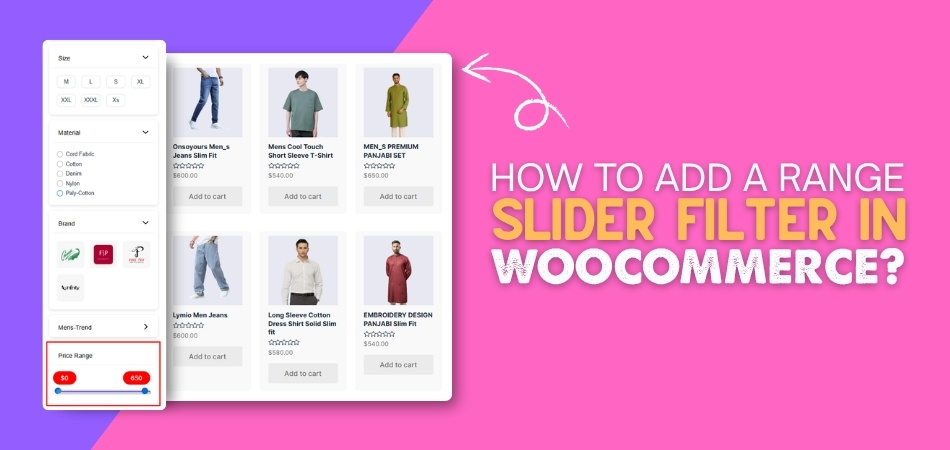
Choose the method below to add a range slider filter in WooCommerce based on how much control your store needs.
Method 1 (Built-In): Add the WooCommerce Price Slider
WooCommerce includes basic price filtering that works well for simple stores. This method is suitable when you only need price-based range filtering without advanced AJAX behavior or deep customization.
Step-by-Step Setup (Widgets)
- Go to Appearance > Widgets
- Open the Shop Sidebar or product archive sidebar
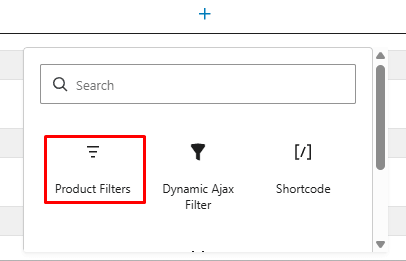
- Search for Product Filters Widget
- Keep the Price filter from there
- Save changes
- Test the slider on a shop or category page
Limitation
- Works only for price
- May reload the page on interaction
- Offers limited customization
Method 2 (Block Themes): Add the Price Slider Using Blocks
Block-based WooCommerce themes require product filters to be added inside templates. This method is useful when your store uses the Site Editor instead of classic widget areas.
Step-by-Step Setup (Block Editor)
- Go to Appearance > Editor
- Open Templates
- Choose Shop or Product Catalog
- Add the Product Filters block
- Keep the Price Filter from there
- Save the template
- Test the slider on the front end
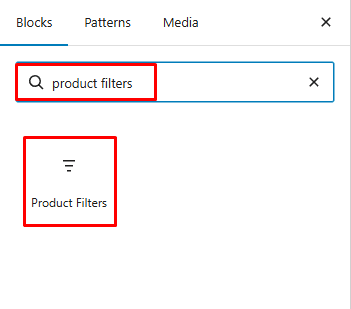
This ensures the range slider appears correctly in block-based layouts.
Method 3 (Recommended for Precision): Use AJAX Range Slider Filtering
Stores with larger catalogs often need a smoother filtering experience than the default WooCommerce price filter. With Dynamic AJAX Product Filters for WooCommerce, shoppers can adjust the price range and see updated product results without leaving the page.
Step 1: Install the Plugin
- Open Plugins > Add New Plugin from the WordPress dashboard
- Search for Dynamic AJAX Product Filters for WooCommerce
- Click Install Now
- Activate the plugin
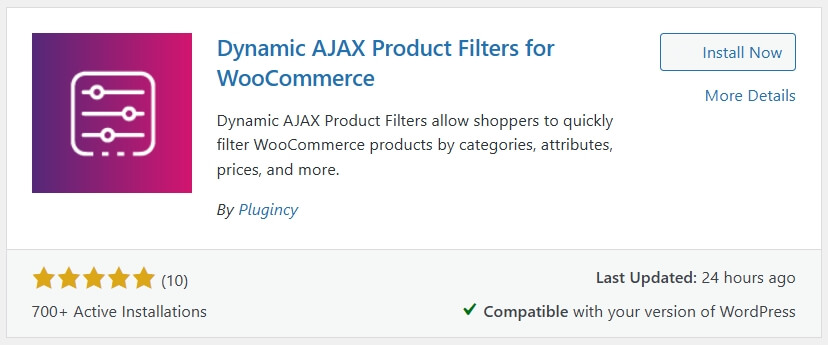
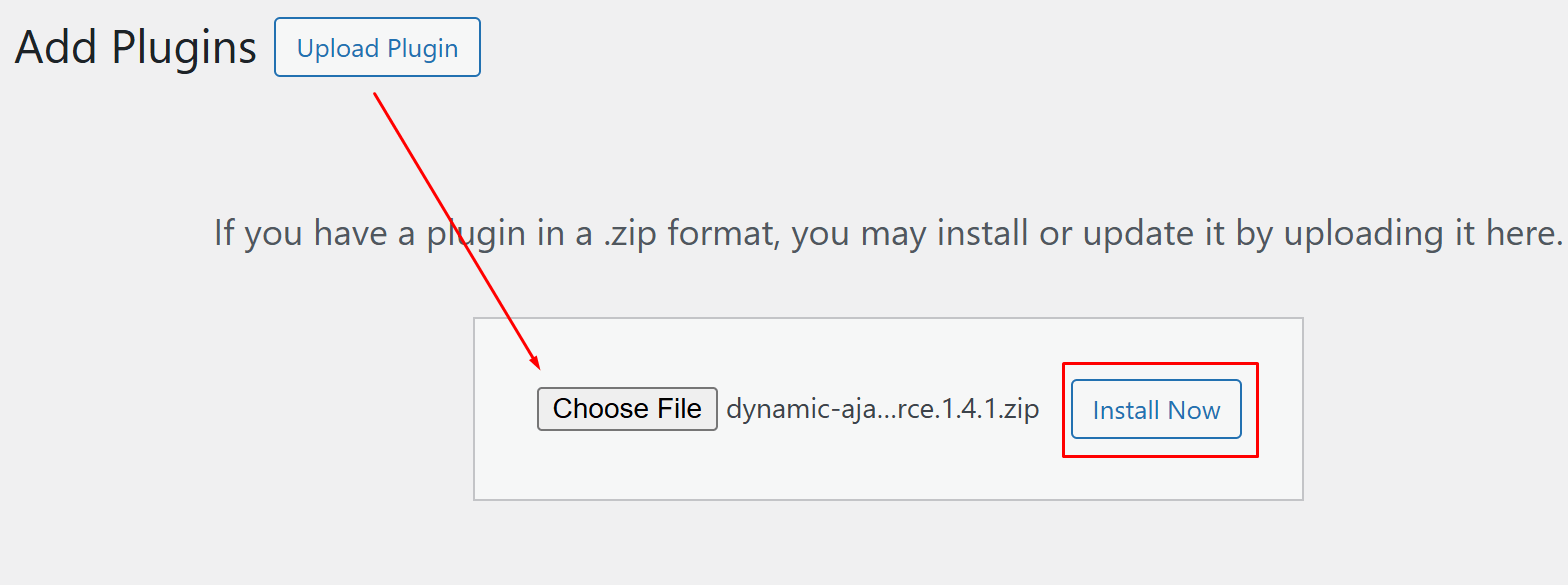
For the Pro version:
- Download the ZIP file after purchase
- Open Plugins > Add New Plugin > Upload Plugin
- Upload the ZIP file
- Click Install Now
- Activate the plugin
Step 2: Check Product Prices
- Open Products > All Products
- Review a few products that should appear in the slider results
- Make sure each product has a regular price or sale price
- Update any products with missing or incorrect pricing
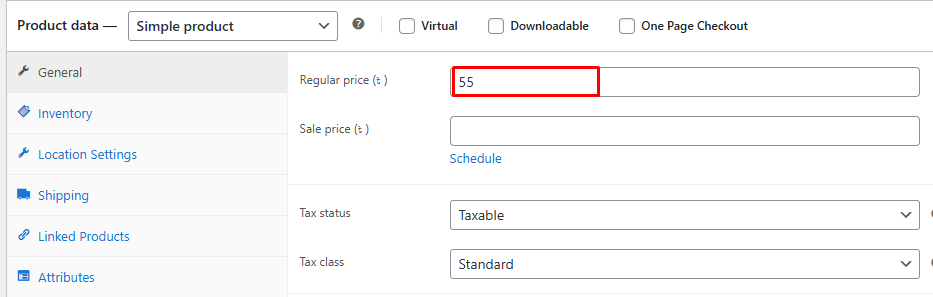
Missing prices can make the slider range incomplete or cause products to appear incorrectly.
Step 3: Enable Price Filtering
- Open Product Filters > Form Manage
- Turn on the Show Price Range option
- Save the changes
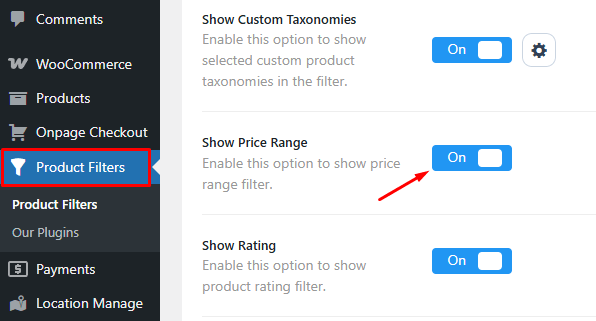
Once enabled, the price range filter becomes part of the filter form.
Step 4: Choose the Slider Style
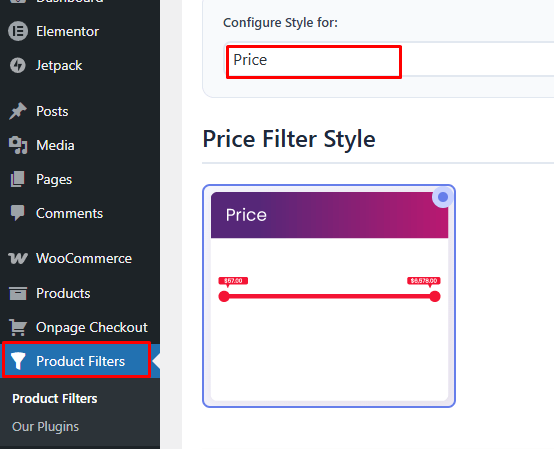
- Open Product Filters > Form Style
- Select Price from the configure style for
- Choose the slider style you want to use
- Choose the display style
- Adjust the visible range if needed
- Configure optional and advanced settings based on your store layout
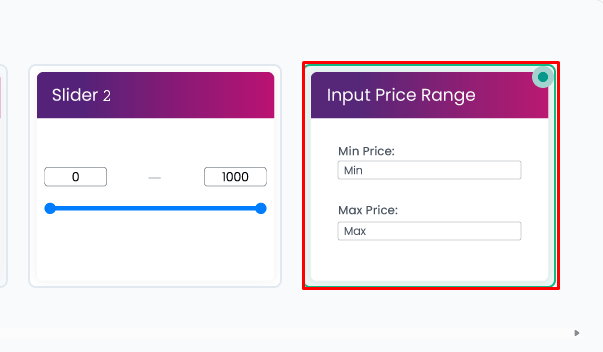
Keep the slider simple and easy to use, especially if it appears near the product grid or inside a mobile filter area.
Step 5: Place the Slider on the Page
Add the filter to your shop page, category page, sidebar, or filter section using the shortcode:
[plugincy_filters]
After adding the shortcode, save the page and check the slider on the front end.
Step 6: Test the Range Slider
- Open the shop or category page
- Move the minimum and maximum handles
- Confirm that product results update correctly
- Test the slider with sale products and regular-priced products
- Check the mobile layout to make sure the slider is easy to use
Best Method to Choose: Fast Decision Guide
The best range slider method depends on how much control your store needs over price or numeric filtering. Simple stores can use the built-in options, while stores that need smoother filtering and more precision should use AJAX product filter plugin method.
| Store Type | Recommended Method | Why |
| Small stores | Method 1 or 2 | Simple price control without extra setup |
| Block-based stores | Method 2 | Fits modern WooCommerce template editing |
| Precision-driven stores | Method 3, AJAX | Better control over slider range and behavior |
| Large catalogs | Method 3, AJAX | Faster filtering and better scalability |
Choose the method based on how precise the range filter needs to be. AJAX range slider filtering is usually the best option when shoppers need smooth price control, faster updates, and a better browsing experience.
When Range Slider Filters Improve Product Browsing
Clear numeric limits make product browsing easier when shoppers already know their budget or preferred specification range. Instead of scanning every item, users can narrow products by price, rating, size, weight, capacity, or another measurable value.
Use range sliders when shoppers need more control over numeric choices.
- Budget-Based Browsing: Price sliders help shoppers stay within a comfortable spending range without checking every product manually.
- Wide Price Differences: Stores with low-cost and premium products can help users remove irrelevant price ranges faster.
- Numeric Product Specs: Sliders work well for measurable details like weight, storage, screen size, dimensions, rating, or capacity.
- Large Product Catalogs: Range controls reduce product overload by narrowing many items into a smaller, more relevant result set.
- Deal-Focused Shopping: Shoppers can quickly search within a price window when looking for discounts, offers, or affordable options.
- Mobile Filtering: Touch-friendly sliders can reduce typing and make numeric filtering easier on smaller screens.
How Range Slider Filters Support Conversions
Range slider filters support conversions by matching product results to a shopper’s budget, numeric requirements, or buying comfort zone. They work best when the slider helps users remove irrelevant products and focus on options they are more likely to consider.
| Shopper Behavior | How the Range Slider Helps | Conversion Impact |
| Shopping within a budget | Shows products inside a selected price range | Reduces price mismatch and improves buying confidence |
| Comparing similar products | Narrows results to items within a close value range | Makes product comparison faster and more focused |
| Looking for deals | Helps users find products under a preferred price limit | Supports discount-focused and affordability-driven decisions |
| Avoiding low-end options | Filters out products below a chosen minimum value | Helps premium shoppers focus on higher-value products |
| Matching specifications | Filters by numeric values like weight, size, rating, or capacity | Brings shoppers closer to products that meet exact needs |
| Browsing large catalogs | Removes irrelevant products from wide product lists | Reduces decision fatigue and keeps users engaged |
UX Tips for Range Slider Filters
Strong slider UX helps shoppers adjust numeric ranges without confusion. Price and specification filters should feel easy to control, show selected values clearly, and avoid forcing users into overly broad or unrealistic ranges.
Use these tips to make range slider filtering easier for shoppers.
- Show Min and Max Values: Display the selected range clearly so shoppers know exactly which products they are filtering.
- Use Sensible Step Intervals: Avoid tiny increments when shoppers usually think in larger ranges, such as $10, $50, or $100.
- Add Manual Input Fields: Let users type exact minimum and maximum values when dragging the slider feels less precise.
- Keep Handles Touch-Friendly: Make slider handles easy to move on mobile so users do not struggle with small controls.
- Set Realistic Default Ranges: Start with useful minimum and maximum values based on actual product prices or numeric data.
- Make Reset Easy: Add a clear reset option so shoppers can remove the selected range without reloading or searching again.
Common Range Slider Mistakes and Fixes
Range slider mistakes usually happen when the slider is hard to control, shows unclear values, or returns inaccurate product results. Fixing these issues helps shoppers narrow products by price or numeric values without confusion.
Using Unrealistic Min and Max Values
A slider becomes difficult to use when the minimum and maximum values are too far apart. For example, a $5 to $5,000 range can make precise price selection frustrating.
Fixes:
- Use actual product data to set realistic range limits
- Avoid extremely wide ranges unless the catalog truly needs them
- Group very different product types into separate categories

Hiding the Selected Range
Shoppers may not understand which products are showing if the selected minimum and maximum values are not visible. This can make the filtering experience feel unclear.
Fixes:
- Show the selected min and max values near the slider
- Update the visible range as users move the handles
- Keep active filter labels easy to notice
Using Tiny Step Intervals
Small step intervals can make sliders feel slow and difficult to adjust, especially for price filters. Shoppers usually do not need to move through every single number.
Fixes:
- Use practical steps like 10, 50, or 100 for price ranges
- Match the step interval to your product pricing
- Use manual input fields when exact values matter
Ignoring Mobile Usability
Slider handles that work on desktop may feel hard to drag on smaller screens. If the mobile layout is crowded, shoppers may stop using the filter.
Fixes:
- Use touch-friendly slider handles
- Place sliders inside a clean filter drawer or collapsible area
- Test the slider on different phone screen sizes
Showing Empty Range Results
Empty results can frustrate shoppers when they choose a range that has no matching products. This often happens when prices or numeric values are missing or poorly grouped.
Fixes:
- Hide ranges that do not match available products
- Show product counts when possible
- Check that all products have correct price or numeric data
Forgetting a Reset Option
Without a clear reset option, shoppers may feel stuck inside a narrow range. This can make them leave instead of adjusting their filter.
Fixes:
- Add a visible reset or clear filter button
- Show active range filters clearly
- Let users return to the full product list quickly
FAQs About Range Slider Filters in WooCommerce
Questions about range slider filters often involve product data, pricing behavior, and how the slider responds across different WooCommerce setups. These answers cover extra details that help store owners use range filters more accurately.
Can a Range Slider Filter Work With Sale Prices?
Yes, a range slider filter can work with sale prices when WooCommerce or the filter plugin reads the active product price. Test discounted products to make sure sale prices appear in the correct range.
Can I Use a Range Slider for Product Weight or Dimensions?
Yes, range sliders can filter product weight, dimensions, capacity, or other numeric values if your filter plugin supports numeric attributes or custom fields.
Why Is My Price Slider Showing the Wrong Range?
A price slider may show the wrong range if some products have missing prices, outdated cached data, incorrect sale prices, or unsupported product types. Check product pricing first.
Should a Range Slider Update Products Instantly?
Instant updates are useful when shoppers adjust the range often. AJAX-based updates usually create a smoother experience than requiring users to apply the filter manually each time.
Are Range Slider Filters Good for Mobile Stores?
Yes, range slider filters can work well on mobile when the handles are easy to drag, the selected range is visible, and the filter area does not crowd the product list.
End Note
Understanding how to add a range slider filter in WooCommerce helps you give shoppers better control over price and numeric product choices. Instead of browsing through every item, users can narrow results by a clear minimum and maximum value.
For basic price filtering, WooCommerce’s built-in widget or block can be enough. For smoother updates, better styling, and more precise range control, an AJAX-based range slider setup is the stronger choice.
