

WooCommerce powers countless online stores, offering flexible product management and seamless integration with WordPress. It lets merchants sell physical or digital goods while providing tools to customize the storefront easily. From inventory tracking to customer reviews, WooCommerce handles it all. Its modular nature makes feature enhancements effortless and scalable.
Wondering how to add quick view option for WooCommerce Products?
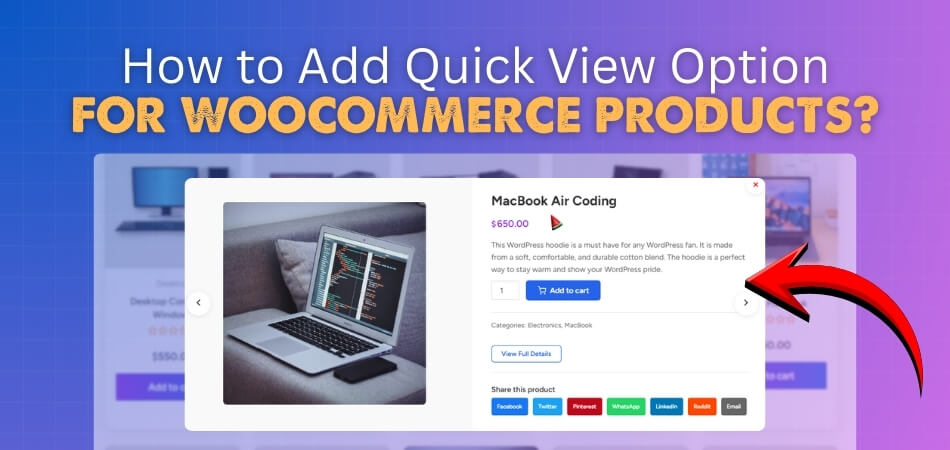
You can add a Quick View option in WooCommerce by installing a compatible plugin, enabling the feature, and customizing the button style, text, and placement. This creates a simple pop-up that shows product details without loading new pages, helping shoppers browse faster and enjoy a smoother shopping experience.
Ready to simplify your WooCommerce store and boost user experience with Quick View? Follow our step-by-step guide to get started. Learn how to choose the right plugin and set it up correctly. Discover customization tips to match the Quick View design with your store’s branding.
How to Add Quick View Option for WooCommerce Products?
Quick view helps shoppers preview product details in a pop-up without leaving the current shop page. It reduces unnecessary clicks, speeds up browsing, and keeps customers focused on purchasing. This pairs well with quick checkout for WooCommerce to increase conversions. Here’s a step-by-step guide to assist you in completing the process on your own:
Step 1: Install the One Page Quick Checkout for WooCommerce Plugin (Beginner only)
Before you enable the quick view on one page quick check out, you will need the plugin active on your WooCommerce Store. So if you don’t have the plugin installed on your store, then follow the following process to install/activate the plugin:
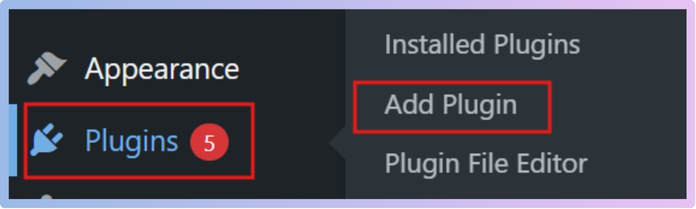
- Log in to your WordPress Admin Dashboard. In the left sidebar, go to Plugins → Add New.

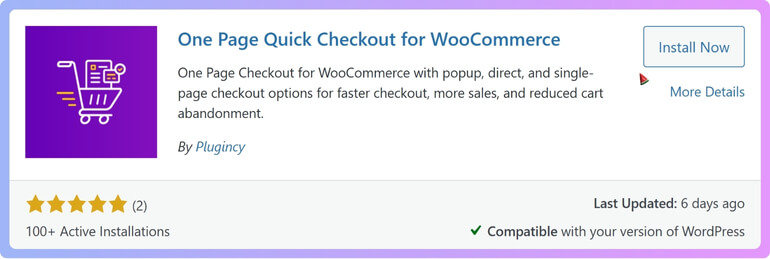
- In the search bar, type “One Page Quick Checkout for WooCommerce” and click Install Now next to the plugin.

- Once installed, click Activate to enable the plugin on your site.
This plugin comes with a built-in Quick View feature that you’ll configure in the next step.
Step 2: Open the Quick View General Settings
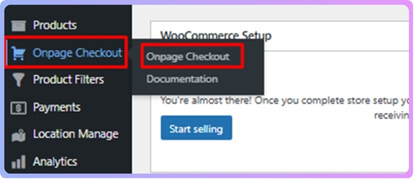
- From the WordPress dashboard, look for Onpage Checkout in the left sidebar.

- Click Onpage Checkout.
- Select Quick View from the submenu.
- Then click on General Settings.
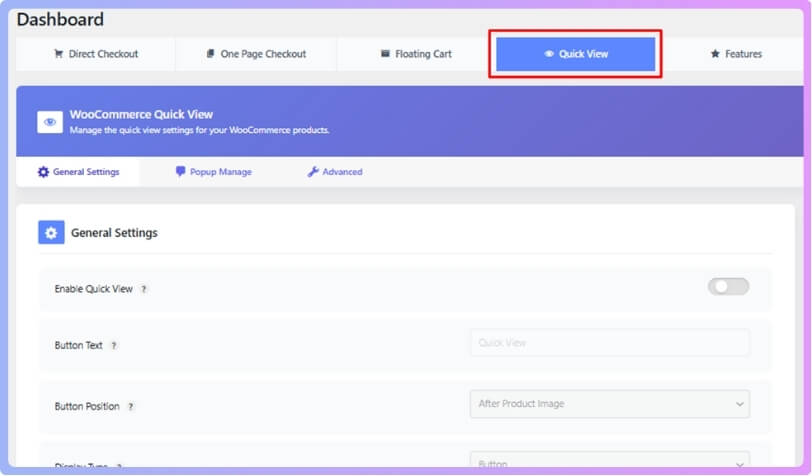
This page controls how the Quick View button and pop-up behave across your WooCommerce store.
Step 3: Enable Quick View Across Your Store
- In General Settings, locate the Enable Quick View option.
- Toggle Enable Quick View to turn the feature ON.
Once enabled, a Quick View trigger (button or icon) will appear on your product listing pages based on your configured options.
Step 4: Customize the Quick View Button Text
- Find the Button Text field.
- Enter the text you want customers to see, such as:
- “Quick View”
- “View Details”
- “See Product”
- Save your changes.
Use clear, action-oriented wording so shoppers instantly understand what the button does.
Step 5: Choose the Button Position on Product Listings
Decide where the Quick View button should appear on product cards:
- After Product Image – Displays directly below the product image.
- After the Add to Cart Button – Shows under the Add to Cart button for better visibility.
- Overlay on Product Image – Places the button or icon on top of the image (often on hover).
Select your preferred Button Position option and save. Choose a position that matches your theme layout and doesn’t clutter the design.
Step 6: Set the Display Type (Button, Icon, or Text with Icon)
Under Display Type, select how the trigger should look:
- Button: A standard clickable button.
- Icon Only: A minimal icon, ideal for clean designs.
- Text with Icon: Combines text and icon for better clarity.
Pick the option that best matches your store’s style and user expectations, then save.
Step 7: Style the Quick View Button
In the Button Style section, you can control the visual appearance:
- Button Style
- Default WooCommerce Style: Uses your theme’s default button styling.
- Alternative Style: Uses a different preset style from the plugin.
- Custom Style: Allows more design flexibility.
- Button Color
- Choose a color that matches your brand and contrasts well with the background.
- Text Color
- Set a text color that keeps the label readable against the button color.
After adjusting these, click Save Changes to update the design.
Step 8: Configure the Button Icon and Icon Position
Fine-tune the visual cue for Quick View:
- Under Button Icon, choose one of the available icons:
- No Icon
- Eye Icon
- Search Icon
- Zoom Icon
- Preview Icon
- Set the Icon Position:
- Left – Icon appears before the text.
- Right – Icon appears after the text.
Icons help users quickly recognize the action, especially when combined with concise button text.
Step 9: Save Changes and Test the Quick View
- After configuring all settings, click Save Changes in the General Settings panel.
- Visit your Shop or Category page on the front end.
- Confirm that:
- The Quick View button/icon appears in the correct position.
- Clicking it opens a pop-up with product details.
- The design matches your store’s branding.
Test on both desktop and mobile to ensure the pop-up works smoothly on all devices.
Benefits of Adding a Quick View Feature to Your WooCommerce Store
Many shoppers like quick ways to see product details without opening new pages again. A simple, quick view option makes browsing smoother and more fun for them. It keeps customers focused and comfortable while checking different items easily. This small feature can also make your store feel more modern. Let’s find out some key benefits below:
Faster Browsing
Quick view helps customers see important product details without loading a new page every single time. This saves them time and keeps them from feeling annoyed by too many clicks. When things move faster, people are more likely to keep exploring your shop. They can check size, price, images, and other details instantly, which makes shopping feel smoother and more enjoyable.
Better Shopping Flow
When customers can stay on the same page while checking details, they stay focused on buying. It removes distractions that usually come when switching between pages again and again. This simple flow makes shopping less tiring and helps people move from looking to buying more easily. If you like, you can also add coupon fields to WooCommerce One Page Checkout to make the whole buying process even smoother.
Higher Engagement
Quick view keeps visitors interested because they don’t lose track of where they were. They can quickly jump between different products and compare them without any extra steps. When browsing feels simple, customers stay longer and interact more with different items. This often encourages them to explore more categories and find products they didn’t plan to check.
Better User Experience
A clean and easy shopping experience makes your store feel friendly and stress-free. Quick view gives customers the right amount of information at the right time. They don’t have to wait for new pages to load or hit the back button repeatedly. When everything feels easy, customers are happier and more likely to return.
Fewer Page Loads
Every time a shopper opens a new page, it takes time to load. Quick view skips this step, so the store feels faster even without changing anything else. Less loading means less waiting, which improves how smooth your store feels. It also reduces the chances of someone leaving because the site feels slow.
Convenient Product Preview
Quick view lets shoppers see product photos, features, and price in a small popup. They can check if the product fits their needs before deciding to open the full page. This is especially useful for stores with many similar products. It helps customers avoid opening page after page just to compare small differences.
Improved Mobile Experience
On mobile devices, loading full product pages can feel slow or messy. Quick view gives a neat and simple pop-up that works well on small screens. It lets mobile users check details instantly without endless scrolling. This makes the shopping experience much easier and encourages customers to stay in your store longer.
Best WooCommerce Quick View Plugins (Free & Paid)
A simple, quick view feature can make your store feel faster and easier to use. To help you choose the right tool, here’s a friendly guide to the best WooCommerce Quick View plugins, including their features, pros, cons, pricing, and ideal use cases. Here’s a brief comparison between the free and paid plugins:
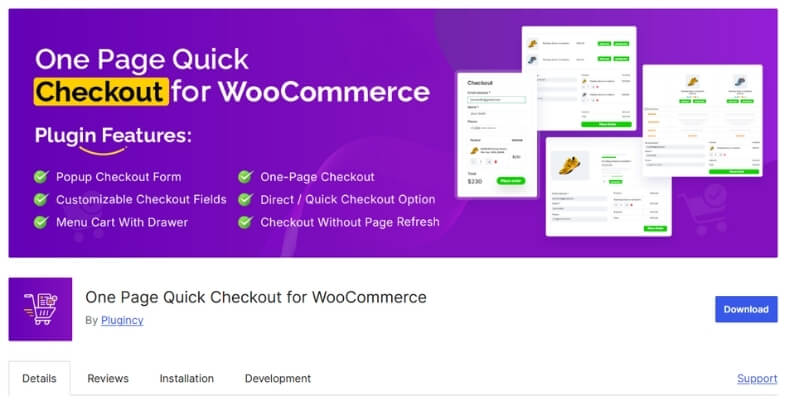
OnePage Quick View (Included in One Page Quick Checkout Plugin)
Features:
- Quick view button with multiple styles
- Popup shows product info, images, and variations
- Customizable button text, color, style, and icon
- Several placement options (below image, overlay, etc.)
Pros:
- Easy setup with flexible design options
- Works nicely with one-page checkout features
- Very beginner-friendly
Cons:
- Comes bundled inside the main plugin
- Might include features you won’t use if you only need quick view
Pricing:
- Free version available
- Paid Version starts from $39 to $139
Best For:
Stores want quick view plus faster checkout on the same site.
YITH WooCommerce Quick View (Free & Premium)
Features:
- Opens product details in a popup window
- Shows images, price, and descriptions
- Option to add a larger gallery
- Works with most WooCommerce themes
Pros:
- Easy to set up
- Simple and clean design
- Good free version
Cons:
- Free version has limited customization
- Some features only in the premium plan
Pricing:
- Free version available
- Premium starts $69.99/year with a 30% discount available for the first year.
Best For:
Stores that want a simple quick view option without too much setup.
WooCommerce Quick View Pro by Barn2 (Paid)
Features:
- Super fast quick view popup with AJAX
- Variation selection inside popup
- Add to Cart button inside quick view
- Highly customizable layouts and styling
Pros:
- Very smooth experience
- Great for stores with many variable products
- Offers strong support
Cons:
- No free version
- More settings to configure
Pricing:
- Starts at $10.00 to $15.00
Best For:
Shops that need advanced features and smooth performance.
WPB WooCommerce Quick View (Free & Paid)
Features:
- Simple quick view popup
- Add to Cart option inside popup
- Button or icon style trigger
- Basic design controls
Pros:
- Lightweight
- Good free version
- Works with most themes
Cons:
- Popup design is not very fancy
- Premium version needed for extra styling
Pricing:
- Free version
- Start around $39
Best For:
Stores wanting a lightweight option with minimal setup.
Quick View WooCommerce by CodeWoo (Paid)
Features:
- Clean popup layout with product info
- Smooth animations
- Customizable icons and buttons
- Mobile-friendly design
Pros:
- Very polished look
- Easy for beginners
- Great for modern-style stores
Cons:
- No free version
- Limited advanced features
Pricing:
- One-time purchase starts with $134
Best For:
Shops that care about design and want a stylish, quick view option.
How Quick View Affects Speed and Performance?
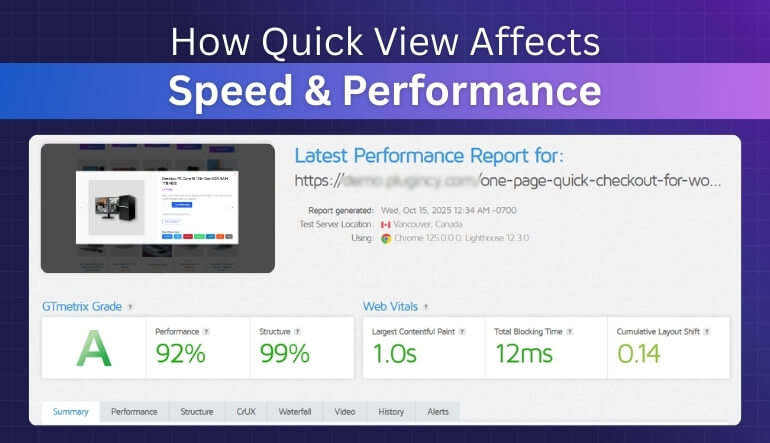
Quick View affects performance in two opposite ways: it can speed up the shopping experience for users, but it can also slow down page load and runtime if implemented poorly. The goal is to keep the plugin lightweight, load assets smartly, and avoid pulling unnecessary data into the popup. Here’s how a quick view affects the speed and performance of your WooCommerce Store:
How Quick View Can Improve Speed
Quick View cuts out full product page loads, so shoppers can see key details from category or shop pages without extra navigation. This reduces click fatigue and page transitions, which often makes the site feel faster, especially on mobile.
- Fewer full-page loads mean less time waiting on templates, sidebars, and global scripts that only exist on product pages.
- AJAX add‑to‑cart from Quick View avoids redirecting users to the cart or product pages, which can shorten the purchase loop.
Can Quick View Hurt Performance?
Yes, Quick View features can hurt performance when they’re not optimized. Every Quick View plugin loads extra HTML, CSS, and JavaScript, and heavier versions add a noticeable amount of page weight. Some plugins even preload full product content, large galleries, variation scripts, or long descriptions inside the modal, which makes each popup open more slowly.
Extra scripts and styles also increase the number of network requests, which can negatively impact Core Web Vitals if they aren’t properly optimized or deferred. On top of that, complex popups with sliders, large images, or variation logic can feel janky on low-end mobile devices. These small delays add up, making the store feel less responsive and hurting the overall shopping experience.
Practical Optimization Tips
To get the UX benefits without sacrificing speed, focus on how and when Quick View loads assets.
- Prefer plugins that:
- Load popup content via AJAX on click rather than embedding everything in the initial HTML.
- Support lazy loading of images inside the modal and avoid loading full galleries up front.
- Limit what you show in Quick View: short description, price, key attributes, and add‑to‑cart; keep specs, reviews, and heavy content on the product page.
- Defer non‑critical JS and combine/minify plugin assets with your performance stack where possible.
- Test impact with tools like PageSpeed Insights / Lighthouse and compare:
- Shop page without Quick View vs. with Quick View activated.
- Time to first interaction and CLS on mobile.
Mobile Optimization Tips for WooCommerce Quick View
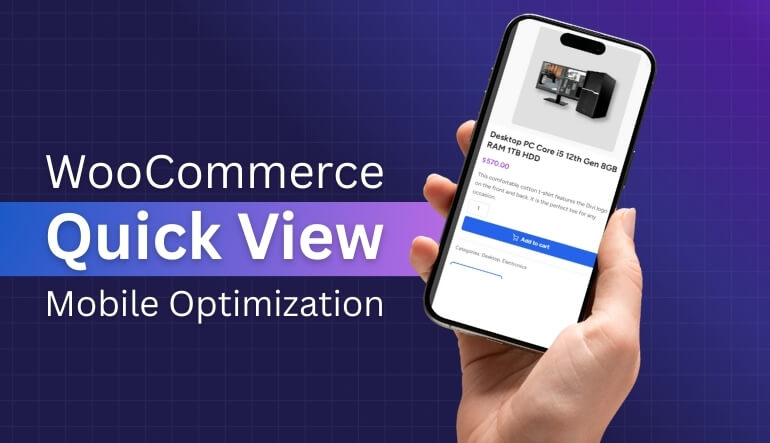
Mobile Quick View should feel simple, fast, and easy to use on every small screen. Good design helps users tap items quickly and understand product details without stress. Clean layouts, small images, and light scripts keep the feature smooth. Simple controls also guide users without confusion.
Clear Mobile Layout
A full-width layout works best on phones because it gives users clear space for product details. This design style supports easy reading and quick tapping on smaller screens. You should keep the layout simple and remove long text that slows users down. A clean pop-up helps users focus without confusion.
Light Content Load
A Quick View pop-up loads faster when you use short text and smaller images inside it. You can place the main details here and move the long content to the full page. This keeps everything smooth on phones without stressing devices. You introduce optimizing WooCommerce checkout flow when planning a cleaner structure.
Easy Tap Controls
Large tap areas improve the user experience because people can touch buttons without mistakes. This helps users avoid wrong taps on smaller screens and enjoy simple browsing. You also prevent stress when buttons stay spaced well apart. Good control placement supports smoother flow through product previews.
Faster Performance
Quick View works better when it loads content only after a user taps the button. This keeps the page fast while still showing details when needed. Using lighter images also supports smooth viewing. Caching tools make loading even quicker for many users on slower networks.
Real Device Testing
Testing Quick View on real phones gives you a clear view of how it behaves. You can fix slow scroll, wrong tap areas, or layout issues before users face them. This improves overall comfort for shoppers. A few small changes can make a big improvement in mobile usage.
Frequently Asked Questions About WooCommerce Quick View
Many WooCommerce store owners use Quick View to make product browsing faster and smoother. If you’re planning to add this feature, you might also have a few common questions. Here are simple, helpful answers to guide you.
Can I Use Quick View With Variable Products?
Yes, Quick View works with variable products, and users can select variations directly inside the popup. This helps shoppers check sizes, colors, and styles without opening the full product page. Make sure your chosen plugin supports variation selection for the best experience.
Does Quick View Slow Down My WooCommerce Store?
It doesn’t slow down your store when optimized well. Most plugins load Quick View content only when someone clicks the button. Using smaller images, lighter scripts, and proper caching keeps the feature smooth and prevents any noticeable delays for visitors.
Can I Disable Quick View On Mobile Devices?
Yes, many plugins allow you to turn off Quick View on mobile screens. Some stores prefer sending users directly to the product page on phones. You can control this setting inside your plugin options to match your store’s design and usability needs.
How Do I Change The Quick View Button Style?
Most Quick View plugins include settings to adjust button color, text, icon, and position. You can choose simple or styled buttons depending on your theme. These options help the Quick View button blend well with your store’s overall design and layout.
Can Quick View Work With My Theme’s Custom Product Layout?
Quick View works with most themes, though some layouts may need small adjustments. If your theme uses unique product grids, check plugin compatibility. Most plugins offer styling controls or support guides to help you match your theme without breaking the design.
Last Words
Adding a Quick View feature makes shopping easier and faster for your customers. It lets people see product details without leaving the page, which helps them stay focused and compare items quickly. Learning how to add Quick View option for WooCommerce products is not hard when you follow the right steps and use a good plugin.
You just need to keep the design simple and make sure it works well on phones too. Testing it on real devices helps avoid problems. A smooth and easy shopping experience makes customers happy and more likely to return to your store.
