

Managing a product in WooCommerce is a key part of running any online store, and exporting that product matters when you want to save, move, or update its details. It helps you keep your data safe and ready to use anytime you need it. Now you may ask: How to export individual product in WooCommerce?
Exporting a single product in WooCommerce is done by using the built-in export tool or a plugin that offers advanced filters and custom field control. The built-in option lets you select the product, choose fields, and download a clean CSV file. A plugin gives more export settings, custom fields, and flexible options so you can save the exact product data you need.
Are you curious about the tools, settings, or options you should pick during the export? Then, read this article to see all the clear details you need for this topic.
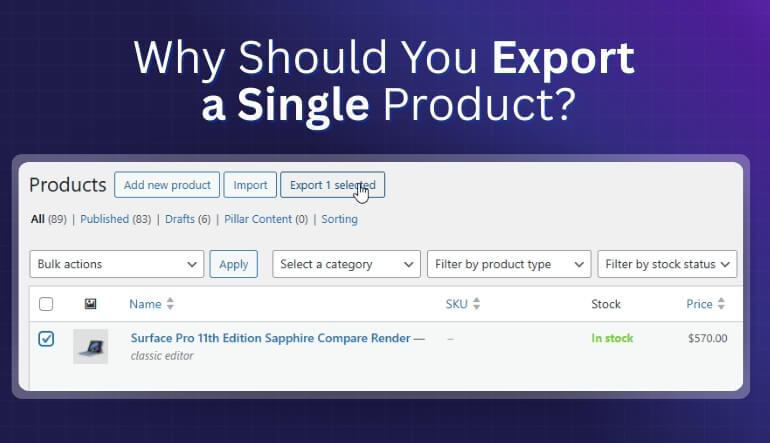
Why Should You Export a Single Product?
Sometimes it feels like more is always better in business. But that’s not always true when it comes to exporting. Sending out one product at a time has its own strong benefits. This might be the smarter move for small or new businesses. Let’s talk about why this approach works well.
Focus Makes Everything Easier
When you export only one product, things stay simple and clear. You know exactly what you’re selling and who it’s for. It saves time, money, and effort with planning and shipping. You can also give more attention to quality and customer service. Less confusion means fewer mistakes in the process.
You Learn Faster What Works
Selling just one product helps you see results more clearly. You can track what’s working without sorting through too much data. It’s easier to test prices, shipping methods, or packaging styles. This also helps you improve faster over time. You’re not wasting time guessing or handling too many products.
You Lower the Risk of Loss
Fewer products mean lower costs to start and test. You’re not tying up money in a lot of items. If things go wrong, you lose less. You also avoid storage issues or leftover stock. This makes it a safer option for new exporters or small shops.
Easier to Build a Brand
It’s easier for people to remember one great product. You can build your brand around it and make it well-known. A single item also helps with clear marketing. Your message stays simple and focused. This makes it easier to attract new buyers and grow your reach.
Better Control Over Quality
Managing one product means better checks and better quality. You can take time to test it and fix problems. You can also make changes faster when needed. That helps you build trust and keep your buyers happy. Happy buyers often return and tell others as well.
How to Export Individual Product in WooCommerce?
Exporting one product in WooCommerce is simple and helpful. You can use the built-in export tool or a plugin for more control. Both ways let you save product data in a clean file. Let’s look at the procedure so you can export your item with ease.
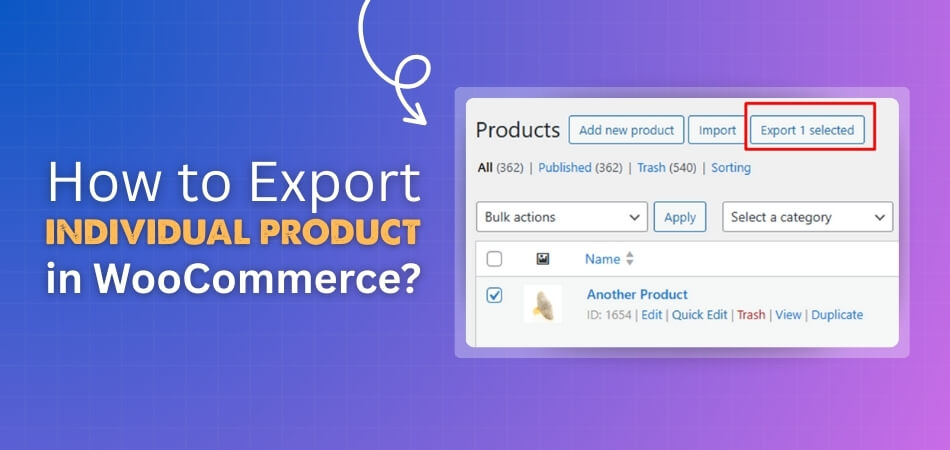
Using the Built-in Export Tool
This method is the simplest way to export one product. You use options already available inside WooCommerce. It is quick and easy for basic product exports. The following are the full details of exporting individual products in WooCommerce using the built-in export tool:
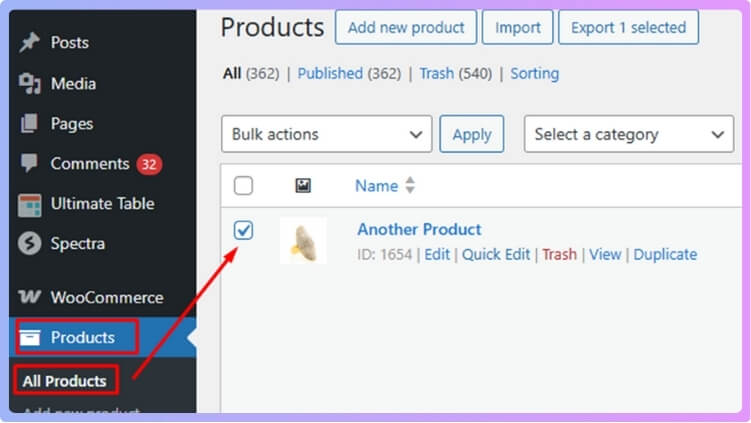
Open Product List
- Open your WordPress dashboard and go to WooCommerce products, where you can see every product listed clearly inside your store page.
- Look for the product you want to export and make sure it is shown on the main list of items inside WooCommerce.
- Check the box next to the product so the system knows which item you want to include when you start the export.
Select Product To Export
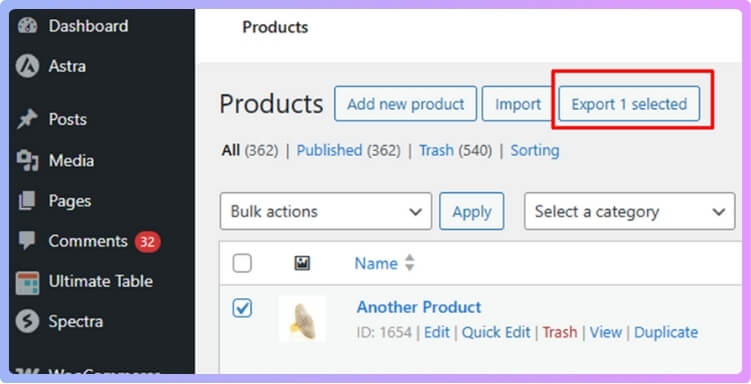
- Click the export button in the top area of the product list so you can open the export settings for your chosen item.
- Pick the fields you want in your file, like name, price, SKU, and description, so your export includes the exact details needed.
- Choose any filter options if you want to refine the export and keep the file focused on the selected product only.
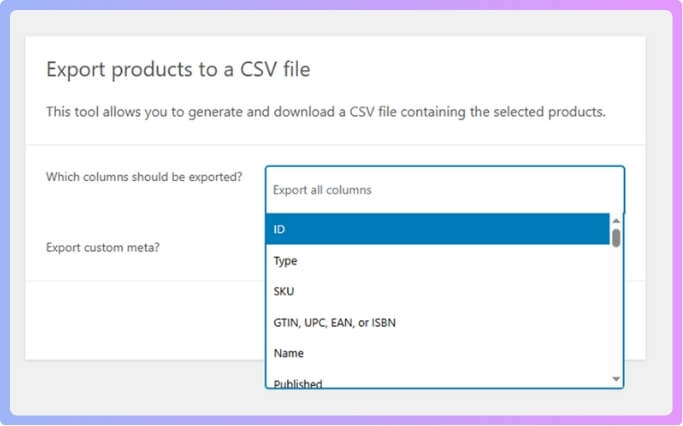
Generate And Download CSV
- Press the generate CSV button to start building your file with all the selected fields that belong to your single product.

- Wait a moment as the system prepares the export and places your product information into a clean and simple CSV file.
- Download the file to your device so you can keep, store, edit, or move your single product data with comfort and ease.
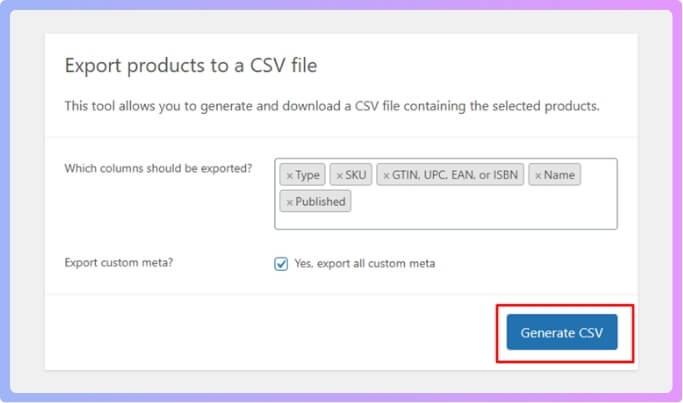
Using a WooCommerce Export Plugin
This method gives more control when you need extra filters and features. Plugins help you export products with custom fields and advanced settings. It is helpful when you want more flexible export options. Below are the full details of exporting individual products in WooCommerce using a WooCommerce export plugin:
Choose a Plugin
- Pick a plugin like WP All Export or Product CSV Import Suite that allows extra control over your WooCommerce product exports.
- Install and activate the plugin from your WordPress dashboard so the export tools become ready for your store product tasks.
- Open the plugin settings and choose product export so you can begin setting filters and fields needed for your selected item.
Set Filters and Fields
- Use the plugin filter tools to narrow your export by tags, attributes, or other product details not offered in simple exports.
- Pick the exact fields you want in your file and adjust the field names so your CSV looks clear and easy to read.
- Review every field choice before exporting so your final file has only the product details you want to save and share.
Run and Save Export
- Start the export process and let the plugin prepare your file with all chosen product fields placed in a clean CSV layout.
- Wait while the plugin builds the export and keeps every detail arranged so your file stays neat and ready for later use.
- Download the finished CSV from the plugin screen or set scheduled exports if the plugin supports automatic product export tasks.
Exporting one product becomes simple when you follow the right steps and tools. You can choose the built-in option or a plugin-based method for better control. Use the way that fits your needs best so your product data stays clear and ready.
Does Product Location Affect the Export Process?
Yes, the product location can affect the export process in some cases. The export process depends on how your store handles product data. If the system stores products in multiple regions, exports might differ slightly. The way product files are saved or named can also change with location setups. Using tools like Multi Location Product Management for WooCommerce helps handle this smoothly.
If you export from one location, it usually stays simple and quick. But stores with several locations may see small differences in export details. Settings like currency, language, or stock levels can also vary based on where the product data lives. Keeping consistent setups helps avoid export errors or missing data.
Plugins often help manage these small differences between locations well. They read product info from all sources and merge them correctly. This ensures each exported file remains complete and accurate no matter where the product sits.

What Problems Might Occur During Export and How to Fix Them?
Export issues can pop up for many small reasons, and they often feel confusing when you see them for the first time. Some problems come from wrong settings, and others come from missing product details. You can fix most of them with a few simple checks, so read below to see the steps that help.
Wrong Format
Some problems show up when the exported file opens in the wrong format. This can make the sheet look messy or unreadable. You should open the file with a tool that supports CSV files correctly. Using the right program helps the file display all columns in the right order. A small change in how you open the file can fix confusing layout issues fast.
Missing Data
Many people think their file is broken when they see blank spots in the export. This often happens when some product fields are never filled in. You should check the product page and make sure key details like name, price, and tags are complete. If you notice missing category data in the exported file, check your product settings or add product category in WooCommerce again before re-exporting. A quick update normally fixes the whole issue.
Plugin Conflicts
Certain export issues come from plugins that do not work well together. One plugin might change product data while another plugin tries to export it. You should disable extra plugins for a moment and test the export again. This helps you see which plugin is causing the problem. Turning off the trouble plugin will often make the export run smoothly again.
Old Settings
Export problems can appear when older settings are saved in your system. These settings might not match your current product list. You should reset or update outdated rules inside your export tool. Doing this helps the system read your products in the right way. Fresh settings can quickly remove export errors that keep coming back.
Large Files
Sometimes the export fails because the file is too large for the system to handle. This makes the process slow or stuck. You should try exporting fewer items at one time to reduce the load. This lets the system finish the task smoothly without breaking. Smaller export batches often solve long wait times and failed downloads.
Server Limits
Your server can also create export issues when it cannot process the request. This happens when memory or time limits are too low. You should contact your hosting support to increase these limits if needed. Higher limits help the server handle bigger exports better. Simple server adjustments can stop export tasks from failing halfway.
Wrong Filters
Many users forget they applied a filter earlier, which causes missing products in the exported file. The system then exports only part of the list, making it look like products are gone. You should check your filters and clear any that you do not need. This ensures the export includes the correct items. A clean filter setup helps avoid confusing product gaps.
Comparison Between Built-in Export vs Plugin Export for a Single Product
WooCommerce’s export tools can function differently for the same product. Some features work well in the built-in tool, while others need a plugin for better results. This table will help you see the main differences in a clear and easy way.
| Feature | Built-In Export | Plugin Export |
| Single Product Export | Partial | Full Control |
| Custom Fields Support | Limited | Full |
| Product Variations | Messy | Clean |
| Export Speed | Good | Good |
| Image Handling | Partial URLs | Full Mapping |
| Filter Options | Basic | Advanced |
| File Formatting | Simple | Clean and Detailed |
| Data Accuracy | Medium | High |
Most users prefer plugins when they need cleaner and more complete data. The built-in tool works fine for simple tasks but struggles with details. Choose based on how much control and accuracy you want.
How to Check If the Exported Product File Is Correct?
Checking your exported file helps you avoid small problems later. Many people skip this step and face issues they could have stopped early. Opening the file takes only a moment and gives you peace of mind. Keep reading below to learn simple steps that help you check everything well.
Open the File
Most people forget to open the exported file before using it anywhere else. You should open the CSV with a simple viewer so you can see each row and line. This helps you confirm that the product name, price, and other fields are listed in the right order. A quick look also helps you spot missing or blank spots in the sheet. Taking this small step saves time and avoids mistakes.
Check Product Details
Many errors happen because product details do not match your store. You should look for the correct name, SKU, price, and stock number. These details need to match the product page in your WooCommerce store. When a field looks wrong, you can update the product and export again. This helps you keep your file clean and ready to use.
Look for Missing Fields
Some exports skip fields that were not selected during export. You should check if the description, tags, and categories appear in the file. When you see empty fields, you can go back and adjust the export settings. Missing fields often cause import issues later in other tools. Checking early helps you avoid broken or incomplete imports.
Confirm Variation Data
Products with variations need extra care during export. You should confirm that each variation line appears in the file correctly. Colors, sizes, or custom options should match the product page. If the variation list looks messy, recheck your export settings. Clean variation data helps the product work right in any import tool.
Test Image Links
Many exported files include image URLs instead of real pictures. You should click a few image links to see if they open. A working link means the image is saved in the right place. Broken links need quick fixes before sharing or importing. This helps the final product show the correct images online.
Check File Format
Some people open a CSV in programs that change how it looks. You should use a proper tool that shows columns and rows clearly. This helps you see the file the way WooCommerce expects it. When the file looks shaped or broken, try a different viewer. A clear view makes checking easier and faster.
Review Extra Columns
Exports sometimes include extra columns that you did not expect. You should scroll through the sheet and see if the extra fields matter. If they look wrong, adjust your export options for the next download. Removing extra fields keeps the file neat and easy to handle. Clean files work better when shared with others.
Is It Possible to Re-import a Product After Exporting It?
Yes, you can re-import a product after exporting it if the file is correct and each detail matches your settings. Many users do this when they want to update product data without changing the main structure of their store. This method works well when the file stays clean and organized because the importer reads every field as it appears.
People often re-import products when they need to fix small issues that appear after editing details inside their exported file. This step helps the product update smoothly because the system already knows the original data linked with that item. Clean fields inside the file make the import faster since the importer does not struggle reading values placed in spots.
Users can trust the re-import process when they keep the file stable by avoiding unused columns or characters that break. The system handles the update well when each detail is placed correctly, making the product appear as expected after upload. Safe re-imports happen when users check the preview screen first, allowing them to catch mistakes that might cause product data.
Things to Adjust After Re-importing a Product
After re-importing a product, a few parts may need checking again. Some details might shift during the import, so it helps to review them. Small changes can keep the product looking correct in your store. Read the points below to see what you should adjust after the import.
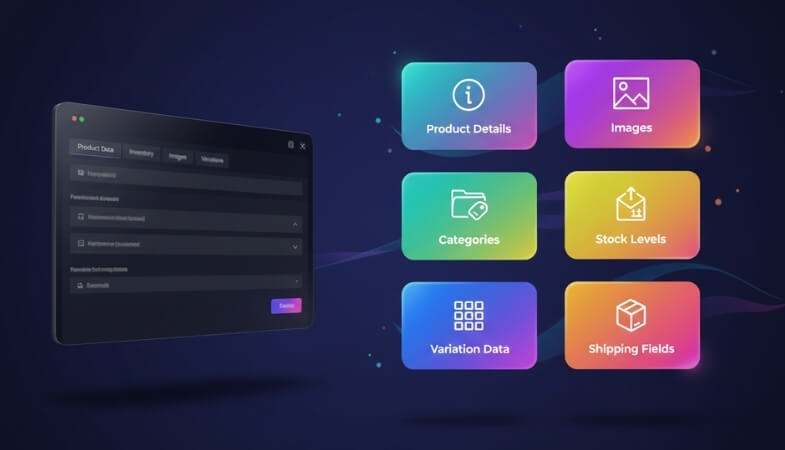
Product Details
Most updates need a quick look at the main product page to confirm everything is correct. You should check the name, price, and SKU to make sure nothing changed during import. Sometimes small fields shift places, so a short review helps. When something looks off, you can update it fast and save the changes.
Images
Many imports only move image links, so the pictures may not load right away. You should click the images to be sure they open as expected. When an image looks broken, you can upload a fresh one to fix the page. Clean images help buyers trust your product and understand what they get.
Categories
Some re-imports place products in the wrong category or none at all. You can open the category tab to see if the correct ones stay selected. If a category looks missing, choose it again and save the page. This makes sure the product shows in the right sections of your store.
Stock
A re-import can change stock values when fields were empty or filled wrong. You should check the stock number and the stock status to be sure they make sense. When something looks too high or too low, update it fast. Correct stock numbers help prevent overselling or canceled orders.
Variation Data
Products that use size, color, or other choices may not show them correctly after a re-import. You should open the variations tab to see if each line is still complete. If something is missing or jumbled, you can fix the row with a few clicks. Clean variations help buyers pick the right option easily.
Shipping
Shipping fields may not match your earlier settings if the file changed formatting. You can review weight, size, and shipping class to keep things accurate. Also, if your file included order rules, check if you still control minimum order limits in WooCommerce without any changes after re-import.
Frequently Asked Questions
Here are some common questions people ask when they want to export a single product in WooCommerce. These help clear small doubts that often come up during the export task. You can read each one to understand more and work with confidence.
Can I Export a Product Without Its Images?
Yes, you can export a product without any images because WooCommerce allows you to choose the fields you want in the file. When you do not select the image field, the export will skip those parts fully. This helps when you only need simple product data without extra details.
How Can I Find a Single Product Quickly Before Exporting It?
You can use the search bar in your WooCommerce product list to find the product quickly. Type a part of the product name or SKU to bring it up without scrolling through many items. This makes choosing the right product easier and saves time. Quick searches help you avoid exporting the wrong item by mistake.
Can I Export a Draft Product in WooCommerce?
You can export a product even when it is still in draft mode because WooCommerce includes published and draft items in the export list. This helps you keep early product data safe before publishing it. Draft exports are useful when you want to store details outside your site. It makes planning and editing easier for future updates.
Does WooCommerce Allow Exporting Hidden Products?
You can export hidden products because WooCommerce still keeps them in your product list. Hidden products are simply not shown in your shop front, but stay active in the system. This makes it simple to download product data for private or special-use items. You can manage these exports just like normal products.
Which File Viewer Works Best for Checking Product Export Data?
You can use tools like Google Sheets, Excel, or LibreOffice because they show CSV files clearly. These tools help you read each detail without mixing columns. When the viewer is simple and clean, it becomes easier to scan your product fields before moving ahead.
What Should I Do If My Exported File Looks Hard To Read?
You can import the file into a spreadsheet tool and adjust the columns by stretching them wider. Sometimes the file needs small tweaks to show everything clearly. Making these small changes helps you understand your data better, so you avoid errors.
Why Do Some Columns Look Empty Even When My Product Has Data?
This happens when the export settings do not include the fields you expected. You may have skipped certain checkboxes during export. You can return to the export options and pick the correct fields so the missing data appears next time without problems.
Final Thoughts
Sometimes the simple ways work best, especially when handling just one product. If you want to stay organized and avoid extra steps, choosing a focused export method makes everything smoother. It also helps you catch small mistakes before they grow into bigger ones.
Whether you’re updating details or moving product data, the method you pick should match your needs. The built-in option is great for quick jobs, while plugins offer more control and flexibility. Both are useful—you just have to choose what works best for you.
Now that you know how to export individual product in WooCommerce, you’re ready to do it with ease. Just follow the steps, check the file, and keep things clean. A few minutes of prep can save you a lot of time later.
