

Struggling with WooCommerce product category not showing on your store? This issue often appears when categories exist in the backend but fail to display on the shop page or navigation, making it harder for customers to find your products. It can directly affect browsing experience and reduce your store visibility.
In most cases, this problem is linked to category settings, product assignment, or display configuration rather than a major system error. Sometimes it also connects with WooCommerce category page not showing products or incorrect catalog visibility. In this guide, you’ll learn the exact reasons behind it and how to fix it step by step without breaking your store setup.
Quick Answer
Product categories usually don’t appear when display settings, product assignment, or visibility rules are incorrect. It can also happen due to theme conflicts, caching, or permalink issues. Assign products properly, enable category display, and refresh permalinks to fix it quickly.
Quick Fixes
If you want a fast solution without deep troubleshooting, try these steps:
- Assign products to the category: Make sure at least one published product is added to the category, otherwise it may stay hidden.
- Check catalog display settings: Set shop page display to show categories or both categories and products.
- Verify product visibility: Ensure products are not set to hidden in catalog settings.
- Refresh permalinks: Go to Settings → Permalinks and click Save Changes.
- Clear cache: Remove browser, plugin, and server cache to update category display.
- Test with default theme: Switch temporarily to identify theme-related issues.
Common Scenarios Where Categories Fail to Display
Before moving into deeper fixes, it helps to recognize how this issue shows up in real situations. These scenarios will guide you toward the right solution faster.
Category Exists but Shows No Products
You can see the category in the dashboard, but when you open it on the frontend, it looks empty. This usually happens when products are not assigned correctly or their visibility is restricted. It is one of the most common forms of the WooCommerce category page not showing products issue.
Category Missing from Shop Page
The category is created but does not appear on the shop page at all. This often happens when catalog display settings are configured to show only products instead of categories or both.
Category Link Opens but Displays Blank Page
Clicking the category URL loads a page, but no products or content are visible. This can indicate permalink issues, query conflicts, or caching problems affecting how the page loads.
Visible to Admin but Not to Visitors
Sometimes everything looks fine when logged in as an admin, but regular visitors cannot see the category. This usually points to caching, user role restrictions, or plugin-based visibility rules.
Only Specific Categories Are Affected
Some categories work perfectly, while others do not show at all. This often means there are inconsistencies in product assignment, category hierarchy, or configuration settings. Identifying the exact scenario helps you narrow down the problem quickly and apply the right fix without unnecessary trial and error.
What Causes WooCommerce Categories Not to Show?
Now that you understand the common scenarios, let’s break down the actual reasons behind this issue. Each cause comes from a different part of your WooCommerce setup, so identifying the correct layer will help you fix it faster.
1. Product Assignment & Visibility Issues
The most common reason is incorrect product setup. If products are not assigned to the category, the category page will appear empty. In addition, if product visibility is set to hidden or excluded from the catalog, it will not appear even if it is properly assigned.
2. Catalog Display Settings Misconfiguration
WooCommerce allows you to control what appears on the shop page. If the display option is set to show only products, categories may not appear at all. This often creates confusion because categories exist but remain invisible on the frontend.
3. Theme Layout or Template Problems
Some themes override WooCommerce templates to customize the layout. If the theme is not fully compatible or has outdated template files, it may fail to display category content correctly.
4. Permalink & URL Structure Issues
If permalinks are not properly configured, category pages may not load correctly. This can result in empty pages or incorrect URLs that prevent categories from displaying.
5. Plugin Conflicts
Plugins that modify product queries, filtering, or visibility can interfere with how categories are displayed. In some cases, a single plugin can override the default WooCommerce behavior and hide categories or products.
6. Cache & CDN Interference
Caching systems may serve outdated versions of your category pages. Even after assigning products, the page may still appear empty until the cache is cleared.
7. Category Structure & Hierarchy Issues
If you are using parent and child categories, the parent category may not show products if none are directly assigned to it. This often leads to confusion when subcategories contain products but the main category appears empty. Understanding the root cause at the system level allows you to apply the right fix quickly instead of guessing and making unnecessary changes.
Quick Fix Checklist
Before deeper troubleshooting, start with these quick fixes. Most category display issues come from simple setup, visibility, or cache problems.
- Check Product Category Assignment: Make sure at least one published product is assigned to the category. If the category has no active products, it may look empty on the frontend.
- Review Product Visibility: Open the product settings and confirm the item is visible in the catalog. Products marked as hidden will not appear on category pages.
- Update Shop Page Display Settings: Go to Appearance → Customize → WooCommerce → Product Catalog. Set shop display to show categories or show both categories and products.
- Refresh Permalinks: Go to Settings → Permalinks and click Save Changes. This helps rebuild category URLs and fix broken archive links.
- Clear Cache Completely: Clear browser cache, plugin cache, hosting cache, and CDN cache. Old cached pages can make categories appear missing even after fixing settings.
- Test with a Default Theme: Switch temporarily to a WooCommerce-friendly default theme. If categories appear, your active theme may be causing the display issue.
- Disable Conflict Plugins: Turn off filter, visibility, SEO, cache, and page builder plugins one by one. Test category pages after each change to find the conflict.
- Check Parent and Child Categories: If products are only assigned to child categories, the parent category may appear empty. Assign products directly or adjust category display settings.
Start with these quick checks first, as they solve most WooCommerce category visibility problems without needing advanced debugging.
Complete Fix Guide for WooCommerce Product Category Not Showing
If your categories are not appearing correctly, follow this structured approach. Start with quick configuration checks, then move to deeper fixes to identify the exact issue.
1. Verify Product Category Settings (Most Important)
Begin with the basics, as most issues come from incorrect setup rather than technical errors.
- Ensure products are assigned: A category without assigned products may remain hidden by default. Always link at least one published product to make it visible on the frontend.
- Check display type settings: Go to Products → Categories, edit the category, and confirm the display type is set to Default or Products. Incorrect selection can prevent items from appearing.
- Review product visibility: Make sure products are not set to hidden in catalog visibility. Hidden products will not appear inside category pages.
2. Configure Shop Page Display Properly
Your shop page settings control whether categories are visible or not.
- Go to Appearance → Customize → WooCommerce → Product Catalog
- Find the shop page display option
- Select Show categories or Show categories and products
If it is set to show only products, categories may not be visible.
3. Fix Missing Categories in Navigation Menu
Sometimes categories exist but are not accessible because they are not added to the menu.
- Go to Appearance → Menus
- Open Screen Options from the top right
- Enable Product categories
- Add categories from the left panel into your menu
This ensures users can easily find and access category pages.
4. Apply Technical Fixes (Common but Critical)
If everything looks correct but categories still do not appear, apply these fixes:
- Refresh permalinks: Go to Settings → Permalinks and click Save Changes to rebuild URL structures.
- Clear all cache layers: Remove browser, plugin, server, and CDN cache to display updated category data.
- Check theme and plugin compatibility: Temporarily switch to a default theme like Storefront and disable plugins one by one to detect conflicts.
5. Handle the “Empty Category” Edge Case
There is a specific case where parent categories do not display even though subcategories contain products.
- Assign at least one product directly to the parent category
- Or adjust settings to display subcategories instead
This ensures the category becomes visible and functional on the frontend.
6. Check Catalog Visibility Settings (Global Level)
Sometimes the issue is not in the product but in global visibility rules.
- Go to WooCommerce → Settings → Products
- Review catalog visibility behavior
- Ensure products are allowed in shop and category pages
If global visibility is restricted, categories may appear empty even when products exist.
7. Inspect Category Slug and URL Conflicts
A duplicate or conflicting slug can prevent category pages from loading properly.
- Open Products → Categories
- Check the category slug
- Ensure it is unique and not matching any page or post URL
Conflicts here can lead to incorrect routing or blank category pages.
8. Check Product Stock Status
Products marked as out of stock may not appear depending on settings.
- Go to WooCommerce → Settings → Products → Inventory
- Check if “Hide out of stock items” is enabled
If enabled, categories with only out-of-stock products will appear empty.
9. Disable Product Filtering or Visibility Plugins
Filtering or visibility plugins can override default WooCommerce queries.
- Temporarily disable filter, search, or visibility plugins
- Test category pages again
These plugins may hide products based on rules, filters, or user behavior.
10. Review User Role or Restriction Plugins
Some plugins restrict product visibility based on user roles.
- Check membership, wholesale, or restriction plugins
- Ensure categories are visible to all intended users
If restrictions are active, categories may not show for certain visitors.
11. Reindex or Regenerate Product Data
In some cases, WooCommerce data indexing may be outdated.

- Update WooCommerce database if prompted
- Regenerate product lookup tables
This ensures category queries return correct product data.
12. Check AJAX or Custom Query Conflicts
If your theme or plugin uses AJAX for product loading, it may affect category display.
- Disable AJAX-based filtering temporarily
- Test category loading without dynamic scripts
Improper queries can block products from rendering.
Why This Issue Affects Your Store
After fixing the problem, it’s important to understand why it matters. This issue is not just technical, it directly impacts your store performance and user experience. Below are the key effects you should be aware of:
- Reduced Product Discoverability: When categories do not appear or show empty pages, customers cannot find your products easily. This limits browsing and reduces the chances of users exploring multiple items in your store.
- Poor Navigation Experience: Categories play a major role in store structure. If they are missing or broken, users may feel lost while navigating, which leads to frustration and early exits from your site.
- Drop in Conversion Rate: If customers cannot find products quickly, they are less likely to make a purchase. Even small visibility issues can reduce conversion, especially on category-driven stores.
- Negative Impact on SEO: Category pages are important for SEO. If they are not visible or not indexed properly, your store may lose ranking opportunities and organic traffic from search engines.
- Increased Bounce Rate: When users land on empty or broken category pages, they often leave immediately. This increases bounce rate and signals poor user experience to search engines.
- Data Tracking and Analytics Issues: If categories are not functioning correctly, tracking tools may not capture user behavior properly. This makes it harder to analyze performance and optimize your store.
Fixing category display issues not only improves usability but also strengthens SEO, conversions, and overall store performance.
Default WooCommerce vs Optimized Product Display
After fixing the issue, it’s worth understanding why it happens in the first place. The default WooCommerce setup works well for basic stores, but it can become unstable when you add filters, custom themes, or large product catalogs. That’s where an optimized setup makes a difference.
| Feature | Default WooCommerce | Optimized Setup |
|---|---|---|
| Category Visibility Control | Limited and setting-dependent | More structured and consistent |
| Product Assignment Handling | Manual and error-prone | Better organized with clear logic |
| Filter & Search Accuracy | Basic filtering | Advanced filtering with precise results |
| Handling Empty Categories | Can show empty pages | Better handling of visibility logic |
| Performance with Large Catalog | Slows down with scale | Optimized for faster loading |
| Compatibility with Plugins | Higher chance of conflicts | Designed to reduce conflicts |
| User Experience | Standard browsing | Smoother navigation and discovery |
Recommended Solution
If your store frequently faces category visibility or filtering issues, relying only on default WooCommerce may not be enough. A structured filtering and display system can help maintain consistent product visibility. 👉 Dynamic AJAX Product Filters for WooCommerce
Why This Helps
- Improves how products appear inside categories
- Ensures accurate filtering without page reload
- Reduces conflicts with themes and other plugins
- Enhances browsing experience across devices
This type of solution becomes especially useful when you manage large inventories or multiple product attributes.
Which Approach Should You Choose?
Choosing the right approach depends on your store complexity and long-term goals.
- If Your Store Is Small: You can rely on default WooCommerce settings and fix issues using proper configuration. Regular checks and updates will keep categories working correctly.
- If You Manage a Growing Catalog: As your store grows, category management becomes more complex. Using an optimized filtering and display system helps maintain accuracy and performance.
- If You Want Better User Experience: If your goal is to improve navigation, product discovery, and conversions, investing in an optimized setup is a smart move.
Moving from a basic setup to an optimized system ensures better category visibility, smoother navigation, and a more reliable shopping experience for your customers.
Recommended Solution: Show Product Categories Using Dynamic AJAX Product Filters
If your categories are not visible or hard to access, using a filtering system is a reliable way to make them easily discoverable. Instead of relying only on theme layouts, this approach lets users find categories directly from filter panels across shop pages, sidebars, and mobile views.
Step 1: Install and Activate the Plugin
Start by adding the plugin to your store.
- Go to Plugins → Add New in your WordPress dashboard
- Search for Dynamic AJAX Product Filters for WooCommerce
- Click Install Now and then Activate
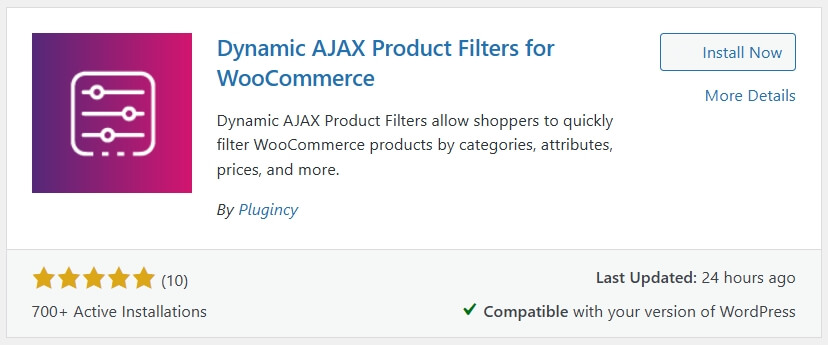
Once activated, a new filter settings panel will appear in your dashboard. Click Activate after installation finishes.
Step 1.1: Install the Pro Version (If Applicable)
If you are using the Pro version, you need to upload it manually after installing the free version (if required by the plugin setup).
- Go to Plugins → Add New → Upload Plugin
- Upload the Pro plugin ZIP file
- Click Install Now
- After installation, click Activate
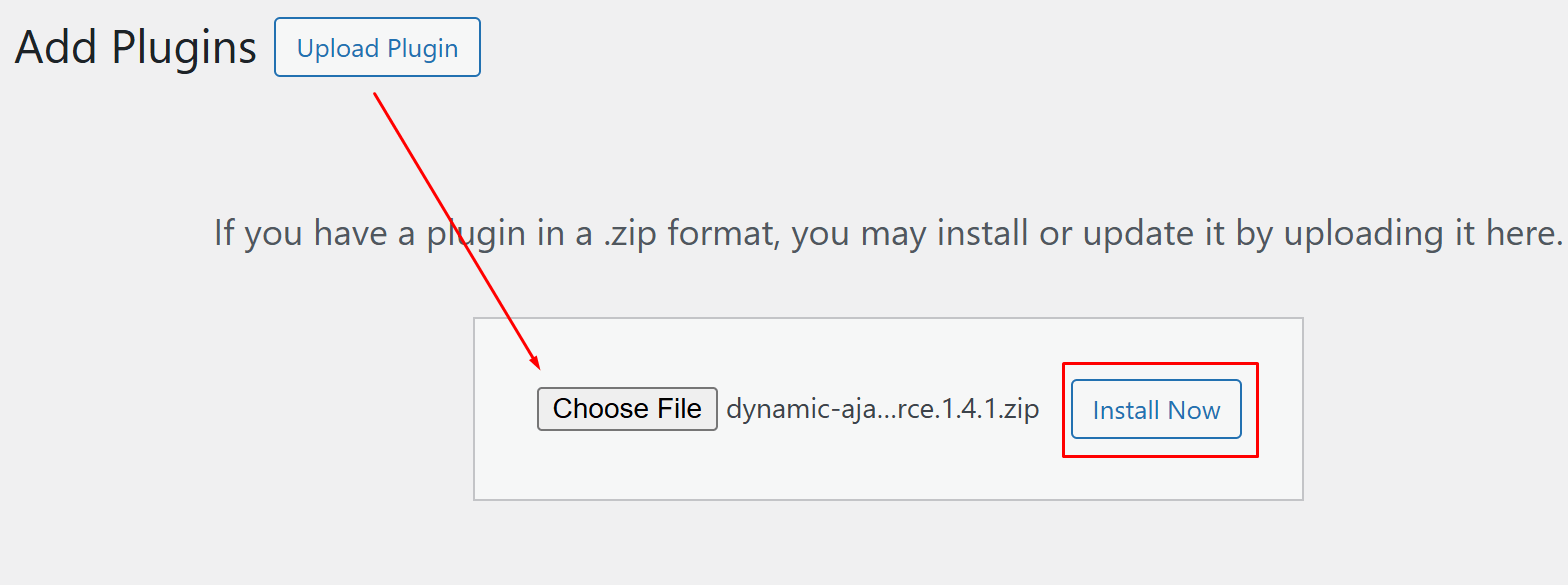
Make sure both the free and Pro versions are properly activated if the plugin requires both to run together.
Step 2: Create Product Categories
Before using filters, make sure your categories are properly created.
- Go to Products → Categories
- Enter your category name
- Add a slug for the URL
- Choose a parent category if needed
- Optionally add a short description
- Click Save to create the category
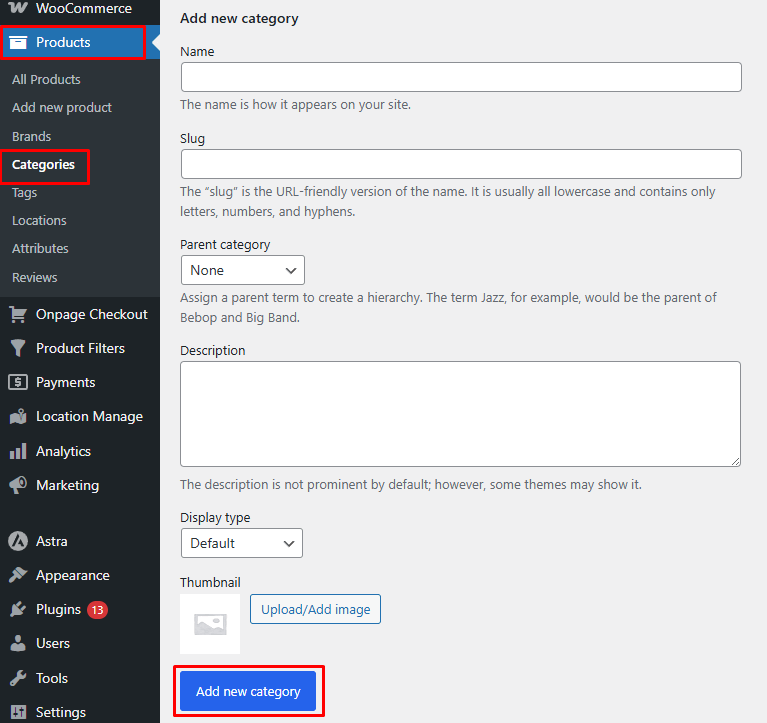
This ensures your category structure is ready for filtering.
Step 3: Assign Categories to Products
Now connect your products with the created categories.
- Go to Products → All Products
- Open an existing product or create a new one
- Locate the Categories section in the right panel
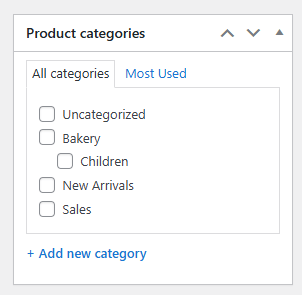
- Select the relevant category
- Click Update or Publish
Without this step, categories will not show any products.
Step 4: Enable Categories in Filter Form
Next, activate category filtering inside the plugin.
- Go to Product Filters → Form Manage
- Find the Show Categories option
- Turn it ON
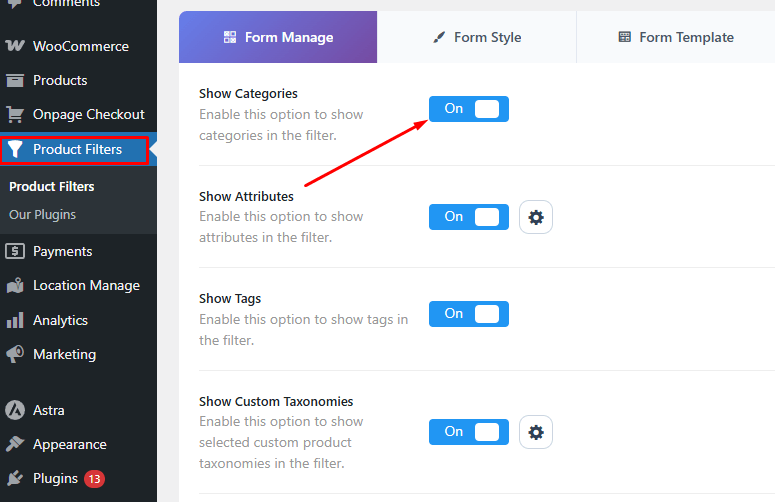
- Save your changes
This allows categories to appear as filter options on the frontend.
Step 5: Style the Category Filter
Now customize how your categories appear to users.
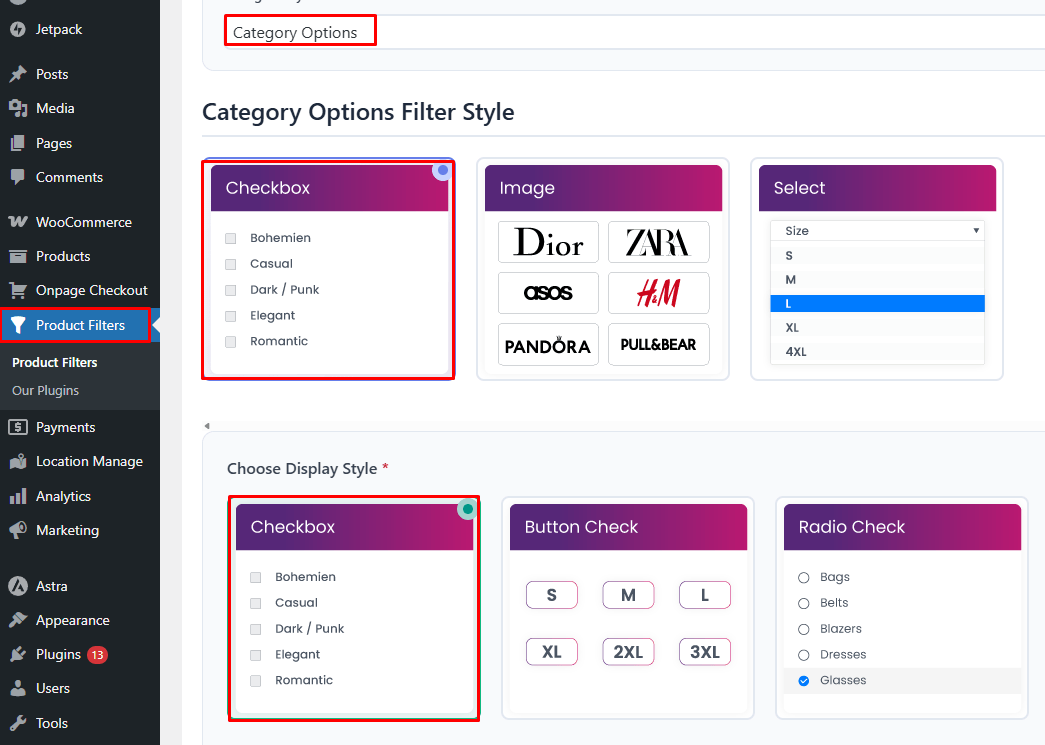
- Go to Product Filters → Form Style
- Select Category from the filter dropdown
- Choose a display type such as:
- Checkbox
- Image
- Select dropdown
- Adjust styling and layout options based on your design
This improves usability and makes categories easier to explore.
Step 6: Configure Advanced Filter Settings
Fine-tune how your filter behaves.
- Enable hierarchical category display if needed
- Control how categories expand or collapse
- Adjust behavior for mobile and sidebar layouts
These settings help create a smoother browsing experience.
Step 7: Save the Filter Settings
After completing setup:
- Click Save to store all filter configurations
- Double-check that all changes are applied
This ensures your filter works without errors.
Step 8: Display the Filter on Your Page
Finally, place the filter where users can see it.
- Open the page where you want to show the filter
- Insert the shortcode: [plugincy_filters]
- Optionally add: [products] shortcode to display products on the same page
Now your category filter will be visible and functional on the frontend.
Test & Validate Category Filter Setup
Now that your filter is live, verify that everything works correctly across different scenarios.
- Open your shop or target page
- Click different categories from the filter
- Confirm products update instantly
- Test on mobile and desktop
- Check loading speed and responsiveness
If filters work smoothly without reload issues, your setup is correct.
Best Practices to Improve Category Visibility
After setup, you can improve performance and usability with these optimizations.
- Use Clear Category Names: Choose simple and meaningful category names so users can understand them quickly while browsing.
- Keep Category Structure Organized: Avoid too many nested levels. A clean hierarchy helps users navigate easily and improves filter usability.
- Enable Hierarchical Filters: Show parent and child categories together so users can drill down into products faster.
- Optimize for Mobile View: Ensure filters are easy to access on smaller screens, such as using slide-out or collapsible panels.
- Common Issues After Filter Setup: Sometimes filters are added correctly but still do not work as expected. Here are common issues:
- Filter Not Showing on Page: Check if the shortcode is added correctly and the filter is assigned to the page.
- Categories Visible but Not Clickable: This may be caused by JavaScript conflict or theme issues.
- Products Not Updating After Click: Disable caching or AJAX conflicts and test again.
- Missing Categories in Filter: Ensure categories are enabled inside filter settings and products are assigned properly.
If your goal is to improve category visibility and product discovery, using a filter-based system is one of the most effective solutions. It not only solves display issues but also enhances navigation and user experience across your store.
FAQ
Below are the most common questions related to this issue. These are structured to match real search queries and improve AI Overview visibility.
Why is my WooCommerce product category not showing?
This usually happens when products are not assigned to the category, visibility settings are incorrect, or the shop display is configured to hide categories. Checking product assignment and catalog settings often resolves the issue quickly.
Why does my category show but no products appear?
This is often due to incorrect product visibility, out-of-stock settings, or missing product assignment. It can also happen if caching shows an outdated version of the category page.
How do I make categories visible on the WooCommerce shop page?
Go to Appearance → Customize → WooCommerce → Product Catalog and set the shop page to display categories or both categories and products. This ensures categories appear on the frontend.
Can plugins cause category display issues?
Yes, plugins related to filtering, visibility, caching, or SEO can override WooCommerce behavior. Disabling plugins one by one helps identify the conflict.
Does cache affect WooCommerce category pages?
Yes, caching can prevent updated category data from appearing. Clearing browser, plugin, and server cache ensures the latest product assignments are visible.
Why are parent categories empty while subcategories have products?
WooCommerce does not always display products from child categories inside the parent category. Assigning at least one product to the parent or adjusting display settings can fix this.
Final Thoughts
The WooCommerce product category not showing issue is usually caused by small configuration errors rather than major system problems. Once you check product assignment, visibility, and display settings, most cases can be resolved quickly. For long-term stability, make sure your store uses a clean structure, avoids unnecessary plugin conflicts, and keeps category settings properly configured. This ensures your customers can always find products easily and navigate your store without confusion. Solving category visibility issues improves user experience, supports better SEO performance, and helps your store maintain consistent product discovery and conversions.
