

Hiding a category in WooCommerce is possible through several methods, including custom code, menu adjustments, and specialized visibility plugins. While WooCommerce doesn’t provide a built-in option to hide categories globally, you can remove them from the shop page, menus, widgets, and search results with a few simple steps.
Managing which categories appear in your store helps keep the shopping experience clean and relevant. Whether you want to hide seasonal items, limit access for wholesale users, or remove unfinished collections, the right method depends on how visible you want products to remain. This guide explains each approach in clear and practical detail.
Why Store Owners Hide Categories?
Store owners hide categories for different reasons, often based on how products are presented and who should see them. Below are the most common situations explained in a bit more depth to help you understand which approach might fit your store best.
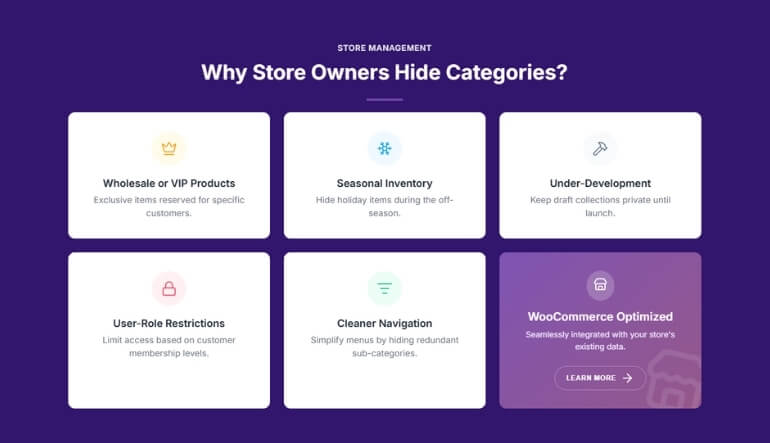
Wholesale or VIP Products
Many stores have categories meant only for wholesale buyers or VIP members. These products often have special pricing, bulk quantities, or exclusive deals that regular shoppers should not see. Hiding such categories keeps the storefront clean and avoids confusion, while still giving the right users access after login.
Seasonal Inventory
Some categories only make sense at certain times of the year, such as holiday gifts, winter clothing, or festival bundles. Hiding these categories during off-season months helps maintain a tidy catalog and prevents customers from browsing products that aren’t available or relevant at that moment.
Under-Development Collections
When a new product line is still being prepared, tested, or stocked, the category may contain temporary or incomplete items. Keeping this category hidden avoids early exposure, prevents broken links, and ensures customers only see polished, ready-to-buy products once everything is finalized.
User-Role Restrictions
Certain categories are intended for specific groups, such as corporate clients, subscription members, or internal staff. Hiding these categories allows stores to deliver tailored experiences, giving each group access only to the items meant for them while keeping the main storefront neat and focused.
Cleaner Navigation
Large stores often accumulate many categories over time, which can clutter menus and sidebar lists. Hiding low-priority or rarely used categories helps simplify navigation. You can also refine what appears in filtering areas by adjusting settings inside WooCommerce product filters, keeping browsing smooth and intuitive.
How to Hide a Category in WooCommerce (Step-by-Step Guide)
Hiding a category in WooCommerce depends on the tools and visibility controls available in your store. Depending on your setup, you may see options like Public, Protected, and Private for categories, which help determine who can access them and where they appear on your storefront. These settings make it possible to hide a category completely or restrict it only to certain users.
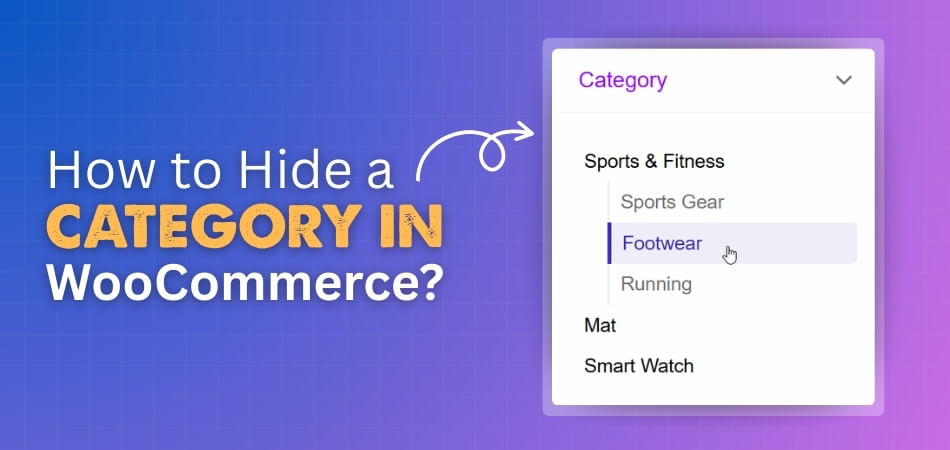
Below is a simple, generalized guide you can follow.
Step 1: Open the Categories Page
- Go to your WordPress dashboard.
- Navigate to: Products → Categories.
- You’ll see a full list of product categories on the right side of the screen.
Step 2: Edit the Category You Want to Hide
- Hover over the category you want to hide.
- Click Edit to open its settings.
- This brings you to the category editor, where visibility controls can be found.
Step 3: Locate the Category Visibility Controls
If your WooCommerce environment supports category-level visibility, you’ll find options such as:
- Public – category is visible to everyone
- Protected – category visibility depends on conditions
- Private – category is hidden from public view
These settings determine how the category behaves throughout your site—on the shop page, menus, widgets, and search results.
Step 4: Choose How You Want to Hide the Category
Option A: Hide the Category Completely (Private)
Selecting Private will hide the category from:
- Shop and category pages
- Navigation menus
- Sidebar widgets
- Search results
Only authorized users within the admin area can access it.
Option B: Restrict Category Visibility
If conditional controls are available, you may see options to limit access by:
- Password
- User roles
- Specific users
This keeps the category hidden from general visitors while allowing selected users to view it.
Option C: Hide the Category but Keep Products Visible
If you want products to remain accessible while the category stays hidden:
- Remove the category from menus
- Avoid linking to the category archive
- Adjust widget visibility settings
The products will still appear in search results, related product sections, or direct URLs, but the category itself remains out of sight.
Step 5: Save Your Changes
After choosing the appropriate visibility option:
- Click Update.
- Your new visibility settings will take effect immediately.
Step 6: Test the Category Visibility
Use an incognito or private browser window to confirm that:
- The hidden category no longer appears publicly
- The archive page is inaccessible (if fully hidden)
- Products remain visible if you choose that method
Testing ensures your setup works exactly as expected.
WooCommerce doesn’t hide categories by default, but many setups include visibility options like Public, Protected, and Private. These allow you to fully hide a category, restrict it to certain users, or keep products visible while the category remains hidden, giving you flexible control over who sees what on your store.
How to Hide a Category Without Using Plugins?
WooCommerce does not include a built-in “hide category” button, but you can still prevent customers from seeing a category by removing all the common entry points. This approach works by hiding the category from navigation, widgets, and internal links so users have no direct way to access it.
Below are the reliable methods you can use without installing any plugin.
1. Remove the Category From Your Navigation Menu
Most stores display categories in the main menu.
To hide one:
- Go to Appearance → Menus
- Find the category in your menu structure
- Remove it
- Save the menu
Once removed, customers won’t reach the category through your navigation.

2. Hide It From Sidebar or Footer Widgets
If your site uses the Product Categories widget, it may show every category by default. Many themes allow you to control which categories appear.
Steps:
- Go to Appearance → Widgets
- Open the Product Categories widget
- Look for an option such as “Only show selected categories”
- Select only the categories you want visible
- Save the widget
If your theme does not offer this option, skip this step. Widget behavior varies from theme to theme.
3. Remove Any Internal Links to the Category
If you have linked to the category in:
- Blog posts
- Landing pages
- Custom menus
- Product descriptions
Remove or update those links.
This prevents visitors from discovering the category by following old URLs.
4. Keep Products Visible Without Showing the Category (Optional)
If your goal is to hide the category page but not the products:
- Edit products that appear under the hidden category
- Assign them to another category
- You can also add a custom text field to a WooCommerce product page to collect additional details from customers without revealing the category itself.
This keeps the products accessible through search, related items, or direct links without exposing the hidden category archive.
5. Change the Category Slug to Something Non-Guessable (Optional)
This is helpful when you want the category to exist internally but not be visible to users.
Steps:
- Edit the category
- Change the slug to something unusual
- Avoid linking to the category anywhere
Customers won’t be able to guess or reach it.
Without plugins, hiding a category in WooCommerce means removing all ways a customer might access it, navigation menus, widgets, internal links, and breadcrumbs. While this method doesn’t fully “restrict” a category, it effectively hides it from public view in stores that don’t require complex visibility control.
How to Hide Categories Using Custom Code? (Beginner-Friendly Explanation)
If you want to hide a category more reliably, adding a small code snippet is one of the most effective methods. This approach works by telling WooCommerce not to display specific categories on the shop page or in product loops, which is exactly what many competitors use to solve the “hide category” request.
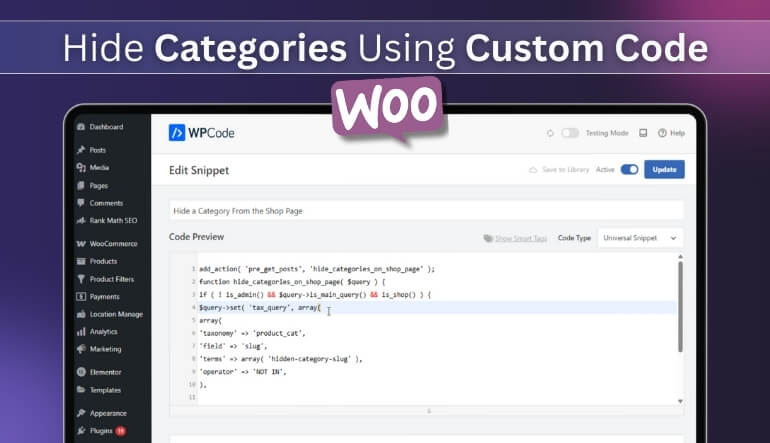
Before adding any code, always use a child theme or a code snippet plugin to avoid breaking your site.
Hide a Category From the Shop Page
The code below removes selected categories from the main shop page:
add_action( ‘pre_get_posts’, ‘hide_categories_on_shop_page’ );
function hide_categories_on_shop_page( $query ) {
if ( ! is_admin() && $query->is_main_query() && is_shop() ) {
$query->set( ‘tax_query’, array(
array(
‘taxonomy’ => ‘product_cat’,
‘field’ => ‘slug’,
‘terms’ => array( ‘hidden-category-slug’ ),
‘operator’ => ‘NOT IN’,
),
) );
}
}
Replace hidden-category-slug with the actual slug of the category you want to hide.
This removes the category’s products from the shop page, effectively making the category invisible in the main browsing area.
Hide Multiple Categories
To hide more than one category, simply add multiple slugs:
‘terms’ => array( ‘category-one’, ‘category-two’ ),
WooCommerce will exclude all listed categories from the main product loop.
Important Notes for Beginners
- This code only hides categories from the shop page, not from direct URLs.
- If someone knows the category archive URL, they can still access it unless additional restrictions are added.
- Always test changes in a staging environment or an incognito browser.
- If you use caching, clear your cache after adding the code.
How to Hide a Category While Keeping Products Visible?
Sometimes you don’t want to hide the products inside a category; you only want to hide the category page itself. This is a common setup when products belong to multiple categories or when you use a category only for internal organization. In this case, the goal is to prevent customers from seeing the category archive while keeping the products fully accessible through search, related items, or direct links.
Below are the simplest ways to achieve this.
1. Unlink the Category From Navigation
If the category does not appear in menus or category widgets, customers won’t have a direct way to reach it.
Remove it from Appearance → Menus and adjust widget visibility so it does not show up in sidebars or footers.
2. Assign Products to Another Public Category
To keep products visible:
- Open a product in the editor
- Assign it to at least one public category
- Leave the hidden category checked or unchecked as needed
As long as the product has another visible category, customers can still find it.
3. Prevent WooCommerce From Linking to the Category
WooCommerce automatically creates category archive pages.
To reduce exposure:
- Avoid linking to the category in product descriptions
- Do not include it in custom menus or pages
- Remove it from breadcrumbs if your theme allows breadcrumb editing
This stops WooCommerce from guiding users to the hidden archive.
4. Optional: Add a Redirect for the Category Archive
If you want to block visits to the category completely, you can set up a simple redirect so anyone reaching that URL gets sent elsewhere—usually the shop page or a related category.
Many stores do this using:
- Theme redirect rules
- A lightweight redirect plugin
- .htaccess (advanced users only)
This ensures the category remains invisible even if someone tries to access it manually.
Hiding a category while keeping its products visible is mostly about removing access points, assigning products to alternative categories, and preventing WooCommerce from linking to the category archive. This lets you keep your catalog organized internally without affecting how customers discover and purchase your products.
Should You Hide Categories Based on User Roles?
You should hide categories based on user roles when certain products are meant only for specific groups, such as wholesale buyers or members. It keeps your store organized and ensures shoppers see only what’s relevant. Explore the reasons below.
Wholesale Customers
Wholesale buyers often receive different pricing, quantities, or product bundles. Hiding certain categories helps prevent regular shoppers from seeing items not meant for them and keeps your pricing structure fully separated without confusion.
Corporate or B2B Clients
Some stores offer products or packages designed only for corporate clients. Restricting these categories ensures they remain exclusive and prevents unnecessary exposure to general visitors who may not qualify for those items. You can also show popular products in WooCommerce specifically for these clients, highlighting top-selling items or exclusive offers for them.
Subscription or Members-Only Access
Membership-based stores commonly hide premium content, limited products, or loyalty items from non-members. Restricting categories ensures these exclusive items stay visible only to the people paying for access.
Logged-in Users Only
Sometimes a category should only appear for customers who are signed in. This method is useful for private catalogs, special offers, or early-access product drops that you don’t want guests to see.
Staff or Internal Product Areas
Stores that manage internal stock or staff-only resources often hide categories from the public. This keeps internal workflows private and avoids exposing backend content to regular customers.
Hiding categories based on user roles helps create a cleaner shopping experience and ensures customers only interact with items meant for them. It also supports better control, privacy, and organization across your WooCommerce store.
Common Mistakes to Avoid When Hiding Categories
Hiding a category sounds simple, but a few small oversights can make the category appear in places you never expected. Checking the points below will help you avoid confusion and keep your store clean for shoppers.
- Menu Link Still Active: Many store owners hide a category but forget to remove it from the menu. If the menu link remains, customers can still reach the category even if it is hidden everywhere else.
- Direct URL Still Accessible: Hiding a category from the shop page does not block its archive link. If someone knows the direct URL, they can still open it, so make sure unwanted links are removed or redirected.
- No Mobile Visibility Check: A category may look hidden on desktop but still appear on mobile. Some themes display menus and widgets differently on phones, so always test the mobile version to avoid surprises.
- Conflicting Visibility Rules: Using several tools or settings at once can create mixed results. One setting might hide the category while another shows it, so keep your visibility rules simple and consistent.
- Editing Theme Files Directly: Changing theme files without a child theme can cause issues. Any edits made inside the main theme can disappear after an update, which brings the hidden category back.
Troubleshooting: Why Is My Category Still Visible?
Sometimes a category shows up even after you try to hide it. This can be confusing, especially when you feel everything is set correctly. The reasons below can help you understand what might be causing the issue and how to fix it without stress.
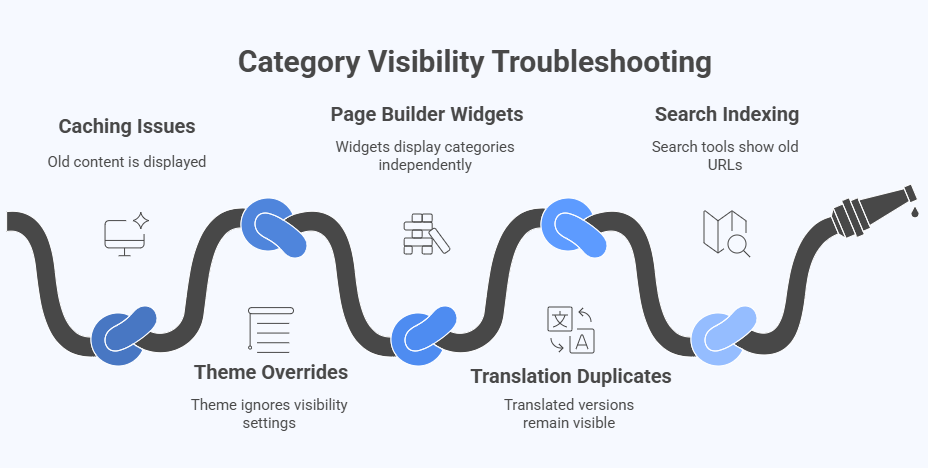
Caching Showing Old Content
Caching plugins often keep an old version of your shop layout. Even if you hide a category, the cached page may still display it. Clear both your site cache and your browser cache, then check again to see if the change shows up properly.
Theme Overrides the Visibility Settings
Some themes load their own category templates or custom layouts. These templates can ignore your visibility changes and show the category anyway. Switching to a default theme for a moment can help you confirm whether your theme is causing the issue.
Page Builder Widgets Display Their Own Category Lists
If your store uses page builders, the widgets inside them may display categories independently. These widgets sometimes have their own settings that override WooCommerce. Open the page builder and check the widget settings to remove or adjust the category display.
Language or Translation Tools Duplicating Categories
Multi language plugins often create multiple versions of the same category. Even if you hide one version, the translated version might still appear. Review each language tab and make sure the category is hidden in all versions of your store.
Search Tools Showing Old Category URLs
Search plugins or built-in search features may store old URLs. Even after hiding a category, the search index can still bring it up. Rebuild or refresh the search index so the tool stops showing old category pages in the results.
Frequently Asked Questions
It is normal to have a few more questions after learning how category visibility works in WooCommerce. These common doubts often come up when store owners start testing different ways to manage hidden categories. The answers below keep things simple and help you move forward with confidence.
Can I Hide a Category Temporarily and Bring It Back Later
Yes, you can hide a category for a short period and make it visible again whenever needed. Many store owners do this during seasonal changes or product updates. Just make sure you remember the adjustments you made so you can reverse them easily.
Will Hiding a Category Affect My Existing Product Links
Your product links will still work even if the category is hidden. Customers can open the product page directly through search or bookmarks. Only the category page and its placement in menus and lists will be affected.
Is It Possible to Hide a Category From Search Engines Only
Yes, you can hide a category from search engines by adding a noindex tag to the category page. This tells search tools not to list it in results. Visitors can still access the category if they know the link or are allowed to view it.
Do Hidden Categories Affect Store Speed or Performance
Hidden categories do not slow down your store. WooCommerce simply stops showing them in areas like the shop page or menus. Your overall loading speed stays the same as long as other site elements are optimized.
Can I Test Category Visibility Without Changing My Live Store
Yes, you can test these changes safely by using a staging site or a local setup. This lets you check how hidden categories behave before applying anything to your real store. It is a simple way to avoid confusion or surprise issues.
Concluding Words
Learning how to hide a category in WooCommerce gives you more control over what your customers see and how they move around your store. It helps you keep things clean, organized, and focused on the items that matter most to your visitors. With the right steps, you can manage category visibility without making major changes to your products.
Take a moment to test everything after making adjustments so your store feels smooth and easy to explore. A little care goes a long way in keeping your shop clear and user-friendly. If you ever need to update your setup again, these methods will guide you in the right direction.
