

Variable products make any online store more flexible by offering items in different sizes, colors, or styles. They help buyers choose exactly what they want, but keeping track of all versions can be tricky. Many store owners often wonder how to manage inventory in WooCommerce with variable products.
Manage inventory for WooCommerce variable products by creating variations under the Product Data section, enabling Manage Stock for each, and setting stock levels individually. For multi-location control, use the Multi Location Inventory Management plugin to track stock by warehouse and auto-assign orders by location.
Do you want to learn how to set up variations and track each one correctly? Keep reading because this article explains everything you need to know to manage variable product inventory in WooCommerce easily and effectively.
How to Manage Inventory in WooCommerce With Variable Products?
Managing inventory for variable products in WooCommerce can look tricky at first, but it’s quite simple once you understand how it works. Variable products are items that come in different versions, like a T-shirt that has various sizes and colors. Each version is treated as a separate variation with its own stock, price, and settings.
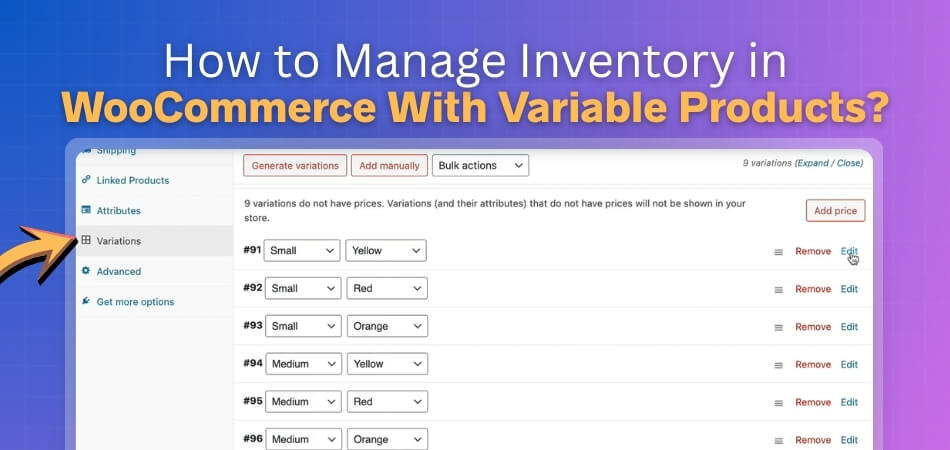
Step 1: Set Up Product Variations
To start managing inventory, you need to separate and define your product variables.
Here’s how you can do it:
- Go to Products → All Products.
- Choose your product or create a new one.
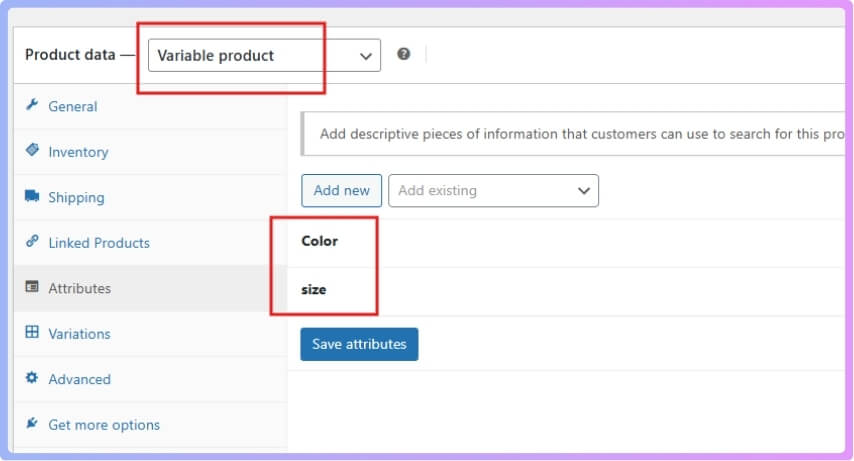
- In the Product Data section, change the type to Variable Product.
- Open the Attributes tab and add your product attributes, such as Size and Color.
- Once you’ve added the attributes, click Save Attributes.
Now go to the Variations tab and click Generate Variations. WooCommerce will automatically create every possible combination based on your attributes (for example, red-small, red-medium, blue-large, etc.).
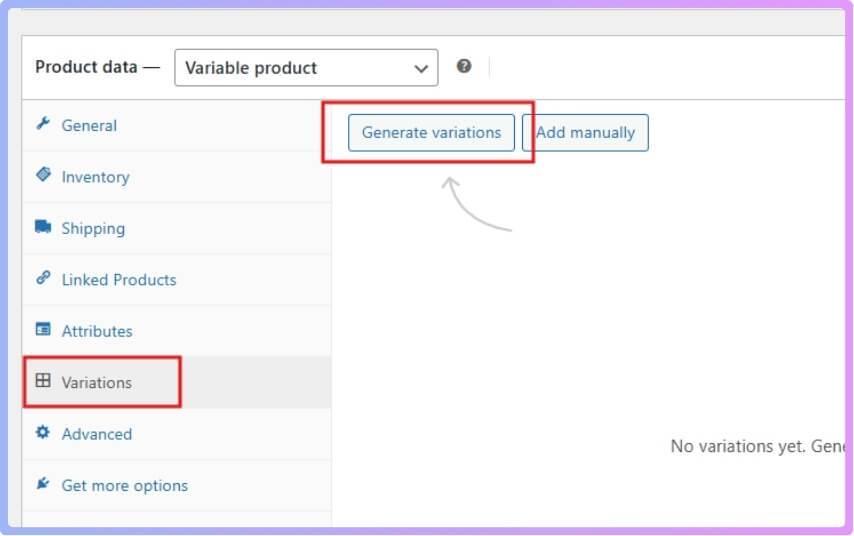
If you prefer to have full control, you can also use Add Manually to create each variation yourself.
Step 2: Manage Prices and Stock for Each Variation
Each variation can have its own price, sale price, and inventory details.
- Click Edit next to a variation to open its settings.
- Add the Regular Price and Sale Price.
- If you want to track stock, enable Manage Stock and enter the quantity.
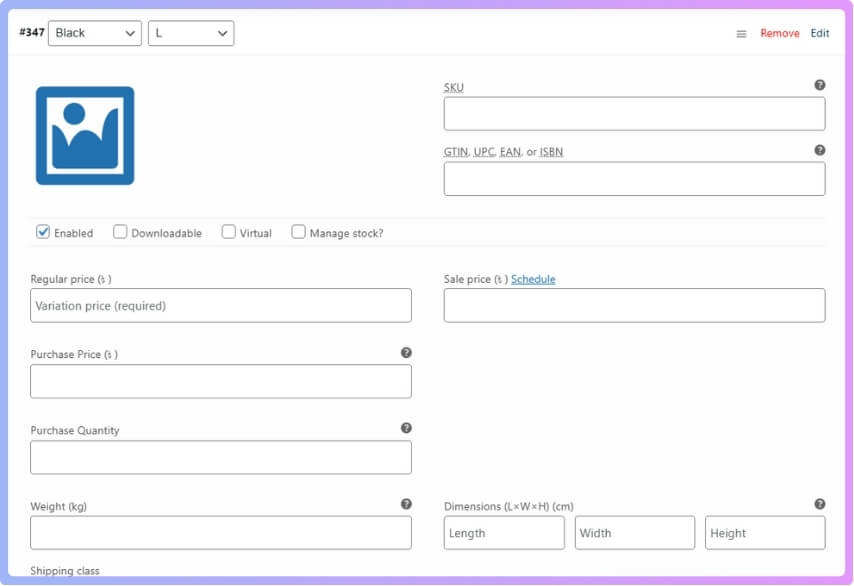
This lets you manage your product levels and pricing for each specific variation separately.
Step 3: Manage Multi-Location Inventory
If your business operates in different locations or warehouses, keeping stock updated in all places manually can be hard. This is where a plugin helps make everything easier.
A good option for this is the Multi Location Product & Inventory Management for WooCommerce plugin. It is simple to use, does not need coding, and has both free and paid versions.
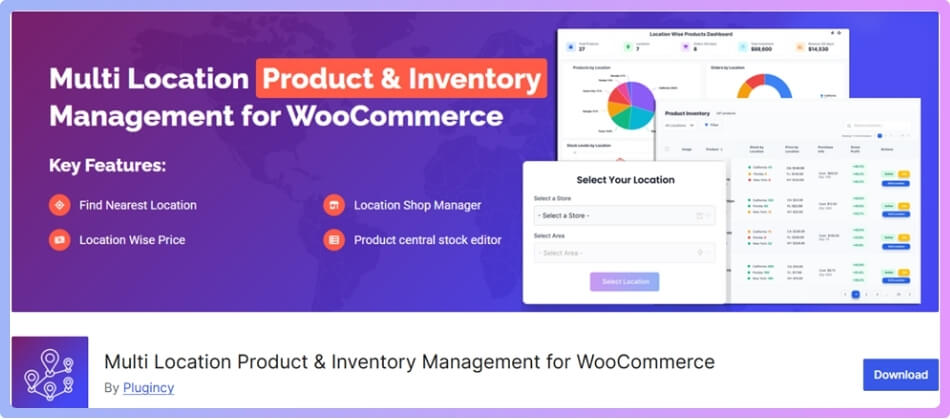
This plugin lets you:
- Manage products and stock across multiple warehouses from one dashboard
- Set up and edit detailed location information like address, city, state, and country
- Assign products to specific locations
- Track product quantities, stock status, and pricing per location
It also allows sorting products by location, getting low-stock alerts, and updating inventory in real time.
The dashboard gives you a clear view with reports, graphs, and summaries so you can monitor how your store is performing without confusion.
Step 4: Extra Features and Pro Options
What makes this plugin more helpful is how it handles both store managers and customers:
- It supports location managers and customer location selection, meaning customers can pick their nearest store.
- The plugin automatically shows the products available in that selected location.
- Orders are tagged by location, so they’re shipped from the correct warehouse.
The Pro version adds more advanced tools like:
- Geolocation-based product display
- Bulk import and export for faster updates
- Advanced analytics and reporting
- Extra customization and design options
Once you install and activate the Multi Location Product & Inventory Management for WooCommerce plugin, you’ll be able to easily handle variable products across different warehouses, manage prices per location, and grow your business efficiently, all from one simple dashboard.
How to Install the Multi Location Product & Inventory Management for WooCommerce Plugin?
The Multi Location Product & Inventory Management for WooCommerce plugin helps you manage products, stock levels, and prices across multiple store locations. It comes in free and paid (Pro) versions, so you can choose according to your needs. Below is a complete step-by-step guide on how to install both versions and activate them properly.
System Requirements
Before installing the plugin, make sure your server meets the minimum requirements. This ensures the plugin runs smoothly without performance issues.
| Requirement | Minimum Version |
| WordPress | 5.0 or higher |
| WooCommerce | 4.0 or higher |
| PHP | 7.2 or higher |
| MySQL | 5.6 or higher |
If your hosting meets these requirements, you’re ready to install the plugin.
Installing the Free Version (From WordPress)
You can install the free version in two ways: either directly from your WordPress dashboard or manually through FTP.
Option 1: Install via WordPress Dashboard
This is the easiest and quickest method.
- Log in to your WordPress Admin Panel.
- Go to Plugins → Add New.
- In the search bar, type Multi Location Product & Inventory Management.
- Find the plugin in the search results and click Install Now.
- Once installed, click Activate to enable the plugin.
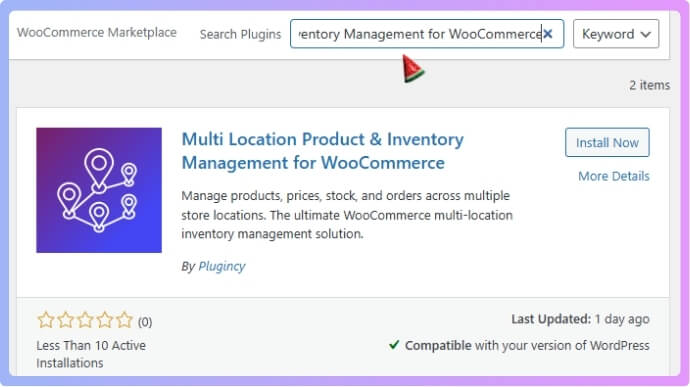
Now the plugin is active and ready to use.
Option 2: Install via Manual Upload
If you prefer to install the plugin manually, follow these steps:
- Download the plugin ZIP file from the official WordPress Plugin Directory.
- Go to your WordPress dashboard → Plugins → Add New → Upload Plugin.
- Click Choose File, select the downloaded ZIP, and click Install Now.
- When the installation finishes, click Activate Plugin.
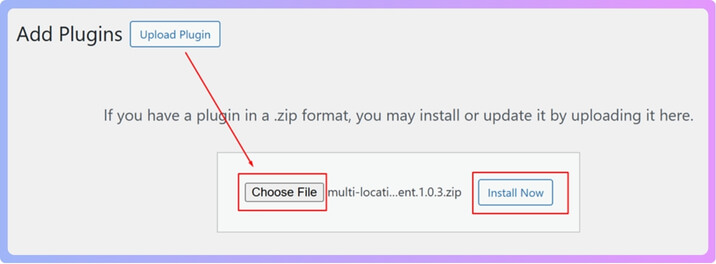
Both methods will give you access to the plugin’s free features for managing multi-location inventory.
Installing the Pro Version
If you bought the Pro version, you will get a zip file from your account. The setup is almost the same as the free version. After you install it, you will unlock all Pro tools.
Steps:
- Download the Pro plugin zip file from your account
- Go to Plugins and click Add New
- Click Upload Plugin
- Choose the Pro zip file
- Click Install Now
- Click Activate Plugin
Now you must add your license key to unlock the Pro features.
- Go to Location Manage
- Click Plugin License
- Enter the license key from your email
- Click Activate License
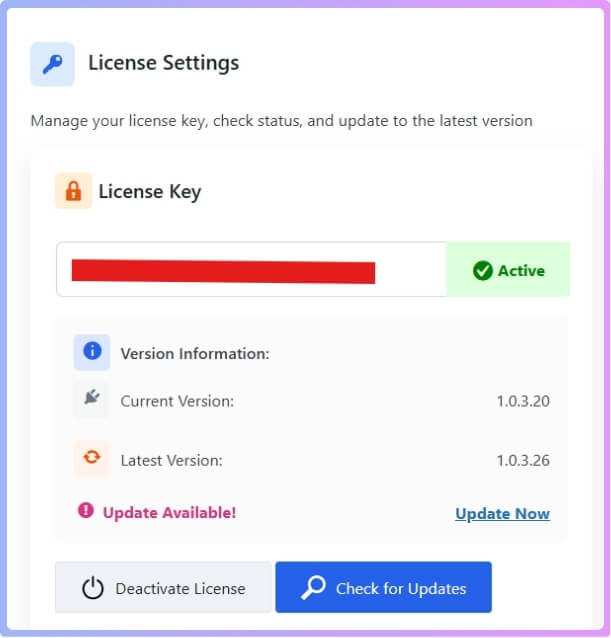
If you already have the free version installed, it will be automatically deactivated once you install the Pro version. Don’t worry — all your existing data and settings will be preserved.
Once the plugin is installed and activated, you’ll see a new menu in your dashboard called Location Manage. From there, you can start setting up your locations, assigning products, and managing stock levels easily from one place. This setup ensures that your WooCommerce store is ready to handle multiple warehouses or branches efficiently, whether you’re using the free or the Pro version.
Why Inventory Management Is Important for Variable Products?
Managing stock for variable items can feel confusing at first. Each option needs clear tracking so orders stay correct every day. Simple steps can keep products updated and easy to manage. Read the points below to understand why this work matters.
Clear Stock Tracking For Each Variation
Keeping stock updated for every variation helps stop many common issues. When size and color levels stay correct, orders run without problems. This also helps prevent mix-ups that can lead to wrong deliveries. Many store owners learn that understanding the importance of WooCommerce inventory management is key to smooth sales. When numbers stay clean, customers stay happy.
Avoiding Overselling Problems
Keeping the right numbers for each item helps avoid extra sales. When a variation shows zero stock, the store stops new orders. This simple control protects you from refund requests and upset buyers. Stores often face trouble when one option sells out silently. A clear setup keeps the store safe.
Reducing Stockout Issues
Running out of a popular option can affect your sales flow. Good tracking helps you notice low counts early and fix them fast. Simple updates can stop long gaps and keep the store active. When counts stay correct, items remain ready for buyers. This also supports better planning for the next restock.
Improving Customer Trust
Shoppers want correct stock and quick delivery at all times. When every size or color stays updated, customers feel more confident about buying. Good tracking lowers wrong orders and slow handling. This builds trust over time and keeps buyers coming back. Simple stock care can improve the whole store experience.
Making Order Work Easier
Workers can find items faster when each variation has correct stock. This helps save time on packing and shipping tasks. Clear labels and the right numbers also reduce mistakes. Fewer errors mean fewer returns and less extra work. A clean system makes your daily tasks lighter and smoother.
Good stock control supports the whole store in many simple ways. Each variation stays in order and is easy to manage daily. Clear numbers help prevent problems that can harm sales. Follow the steps above to keep your product stock strong and stable.
Common Mistakes to Avoid When Managing Variable Product Inventory
Managing stock for variable products can look simple, but mistakes often happen. Small setup errors can cause wrong stock counts or missed sales. When you know what to watch out for, you can avoid those issues easily. Let’s look at the most common mistakes store owners make and how to fix them.
Missing Stock Management Setup
Many store owners forget to turn on stock control for each variation. When this happens, the system cannot track individual product counts. Each variation must have its own stock number set correctly. Without this setup, items can show as available even when sold out. This small error often causes wrong inventory data.
Mixing Variation SKUs
Every variation should have its own SKU so tracking stays clear. If SKUs are mixed or repeated, reports and updates become confusing. It also affects sales tracking and restock alerts. Keeping a clean and unique SKU for each variation prevents mix-ups. This makes your inventory data easy to read and manage.
Ignoring Sync Between Warehouses
Not syncing with warehouse tools is another big mistake. One common mistake store owners make is not properly configuring inventory synchronization when handling stock across multiple warehouses, which can lead to mismatched stock levels for variable products. Always make sure your plugin or system updates all warehouses together. This keeps numbers correct across every location and avoids missing products.
Skipping Stock Updates
Sometimes store owners forget to update counts after manual sales or returns. This leads to wrong numbers that confuse the system and your customers. Regular updates help you avoid overselling and low-stock problems. Keeping a short routine to check and update stock levels keeps your shop safe. It also saves time during busy sales days.
Forgetting Low-Stock Alerts
Low-stock alerts are very helpful but often ignored. They tell you when a product is almost gone, so you can restock early. Without these alerts, items may run out before you notice. Turning on email or dashboard notifications makes restocking simple. It’s an easy step that keeps your store well-stocked.
Simple habits can help you manage variable stock without stress. Make sure to enable tracking, keep SKUs clean, and sync all warehouses. Set reminders to update stock and use alerts for low items. By avoiding these mistakes, your store will stay accurate and run more smoothly every day.
Impact of Poor Inventory Management on Variable Product Sales
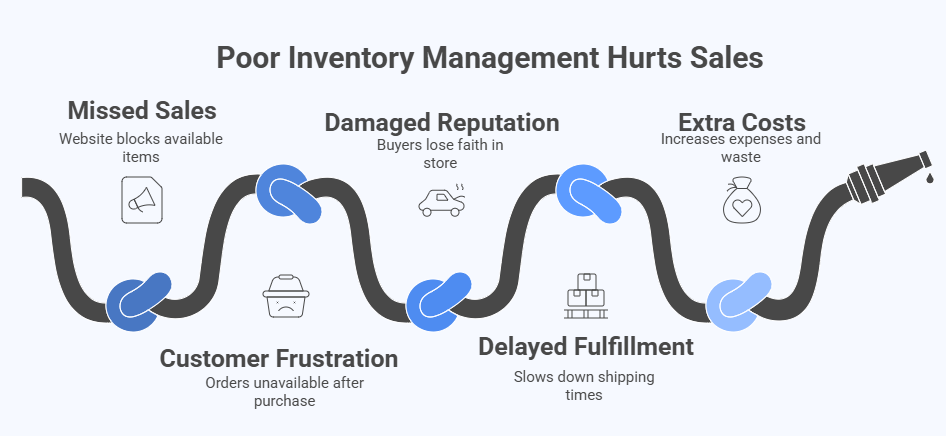
Poor stock control can quickly hurt store sales and customer trust. When product counts are wrong, orders fail, or items go missing. These problems frustrate buyers and can reduce repeat purchases. Let’s see how weak inventory control affects variable product sales and what it can cost your business.
Missed Sales Opportunities
Incorrect stock numbers often lead to products showing as out of stock. Even if you have items available, your website may block new orders. This mistake can make you lose easy sales. Keeping stock records correct helps avoid missing good chances. Every product variation should always reflect its real quantity.
Customer Frustration
When a buyer orders something that later becomes unavailable, it causes disappointment. This problem often leads to refund requests and poor reviews. Customers want what they see to match what they get. Reliable stock updates keep shoppers happy and trusting your store. Clear tracking builds confidence and repeat visits.
Damaged Store Reputation
Wrong stock data can harm your brand image. When buyers face repeated stock issues, they lose faith in your store. People share their bad experiences online, which affects future customers. Maintaining accurate stock details helps build a strong reputation. A trusted store always delivers what it promises.
Delayed Order Fulfillment
Slow or missing updates can delay shipping times. Staff may spend extra time checking items that are not even available. These delays can turn happy customers into unhappy ones. A clean inventory saves time and reduces order confusion. Fast and accurate updates also help improve delivery speed.
Extra Costs and Waste
Holding too much stock that doesn’t sell increases expenses. You may also spend money restocking items you already have. Wrong counts create confusion and waste both time and money. Organized stock tracking reduces extra costs and keeps spending in check. This helps your store grow with steady profit.
Effective inventory management keeps your store running smoothly and fosters trust. Customers stay happy when products are always ready and accurate. Small tracking efforts can save your store from big losses. Keep your stock clean and updated to maintain strong and steady sales.
Tips to Keep Your WooCommerce Inventory Accurate
Keeping your WooCommerce inventory accurate is very important for smooth business growth. When your stock numbers are correct, customers get what they order without problems. It also helps you avoid missing sales and manage products better. Follow these simple tips to keep everything accurate.
- Do Regular Stock Audits: Check your stock counts often to match digital records with real items. Doing this helps catch small mistakes early and prevents bigger stock problems later.
- Set Low-Stock Alerts: Turn on alerts that tell you when items are running low. This gives you time to restock before customers face product unavailability.
- Track Fast-Selling Items: Watch products that sell quickly so you can refill them faster. Tracking them closely helps keep popular variations always in stock.
- Use Reliable Inventory Plugins: Choose plugins that automatically sync product stock across all sales channels. This helps keep numbers correct without manual work every day.
- Update Stock After Every Sale: Make sure every sale updates the stock right away. Doing this helps keep your inventory fresh and accurate at all times.
- Check Variation Details: Review each variation’s stock settings to make sure they are correct. Sometimes, one small setting error can cause wrong stock counts later.
- Train Your Team Properly: Teach your team how to handle inventory updates carefully. A few small mistakes from staff can cause serious stock mismatches.
Keeping your WooCommerce stock in order helps avoid confusion and missed sales. Regular checks, proper tools, and careful tracking keep your store accurate. Good stock habits save time, prevent stress, and keep your business running smoothly.
FAQs About How to Manage Inventory in WooCommerce With Variable Products?
Many store owners have small doubts about managing stock for variable products. These common questions can help you clear your confusion and handle your WooCommerce inventory with more confidence. Below you’ll find answers that explain simple ways to keep your store organized and accurate.
How Can I Enable Stock Management For Variable Products In WooCommerce?
To enable stock management, go to your product settings in the WooCommerce dashboard. Under Product Data, choose Variable Product and select each variation. You’ll find an option called “Manage stock” which you can turn on. After that, set the stock quantity for every variation to keep it tracked properly.
What Happens If I Don’t Manage Inventory For Each Variation?
If you skip managing stock for each variation, WooCommerce won’t track the product count correctly. This may lead to overselling or products showing as available when they are not. Customers might face order delays or refunds because of wrong stock data. Setting stock per variation helps you avoid these issues completely.
Can I Set Different Stock Levels For Each Product Variation?
Yes, you can set different stock levels for every product variation in WooCommerce. Each size, color, or style can have its own quantity. This helps you track what sells more and what needs restocking. Keeping stock separate makes your product data clear and accurate.
How Do I Know When A Variation Is Out Of Stock?
WooCommerce automatically marks an item as “Out of Stock” once its quantity reaches zero. You can also enable low-stock email alerts for early warnings. These alerts give you time to restock before the product disappears from your store. This simple setup helps avoid missed sales and disappointed customers.
What Is The Best Way To Track Fast-Selling Variations?
You can use WooCommerce reports or a plugin that shows your best-selling products. These tools help you see which variations are selling quickly. Tracking them regularly lets you restock popular items before they run out. This simple habit keeps your customers happy and improves your sales.
How Can I Prevent Overselling Of Variable Products?
To prevent overselling, make sure “Manage stock” is active for every variation. Keep your stock numbers updated after each sale or return. You can also use inventory plugins that sync all changes in real time. This ensures no extra orders are placed for sold-out items.
Can I Manage Stock Across Multiple WooCommerce Stores?
Yes, you can manage inventory across multiple WooCommerce stores by using special inventory management plugins. These tools sync product data between stores automatically. They keep all your stock levels equal and prevent confusion. This is very helpful when you sell the same products in many locations.
How Often Should I Check My WooCommerce Inventory?
It’s best to check your WooCommerce inventory at least once a week. Regular checks help you spot low stock, missing items, or wrong data. You can also schedule full stock audits every month. This habit keeps your inventory clean and ready for busy shopping times.
Is There A Way To Bulk Edit Stock For Variable Products?
Yes, WooCommerce allows bulk editing for variations directly from the product page. You can select multiple variations and change stock, price, or status together. This saves a lot of time when updating many products. Bulk editing also reduces mistakes from editing each item one by one.
Last Words
Managing stock for variable items becomes simple once you learn the steps. Setting up attributes, tracking each variation, and using a reliable plugin helps you keep everything organized. These steps clearly answer how to manage inventory in WooCommerce with variable products and make daily product management easier.
To keep your store running smoothly, always check stock regularly and use alerts for low inventory. Stay updated, fix small errors early, and train your team to handle products carefully. Follow these habits, and your WooCommerce store will stay accurate, efficient, and ready for more sales. Best of luck managing your inventory smartly.
