

Direct checkout for single products in WooCommerce is a simple feature that makes online shopping faster and smoother. It lets buyers skip extra steps like the cart page and head straight to checkout from the product page. Many store owners often wonder about this and might even ask themselves, How to set up direct checkout for single products in WooCommerce?
To set up direct checkout for single products in WooCommerce, install and activate the One Page Quick Checkout plugin. Choose the free version from the WordPress plugin library or the PRO version for more features. After activation, open your dashboard, go to Onpage Checkout, enable Direct Checkout Manage, and adjust display settings to apply it to single products.
Do you want to know how each step works in detail and how you can make the most of this feature? If you are curious about setting it up the right way, keep reading because this article will guide you with every important detail you need.
How to Set Up Direct Checkout for Single Products in WooCommerce?
Setting up direct checkout for single products in WooCommerce can make your store much faster and smoother for buyers. Instead of sending visitors through extra steps like the cart page, you can let them buy right away from the product page. If you’re wondering how to do this, you’re in the right place. Let’s walk through the simple steps below.
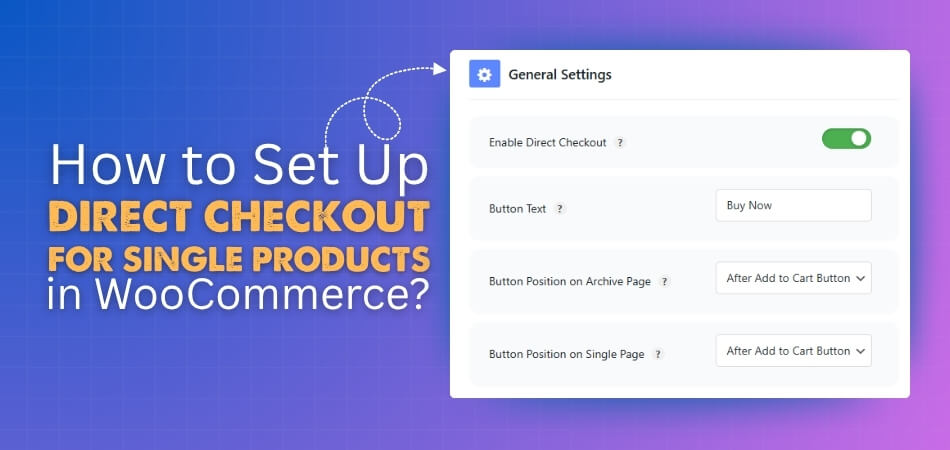
Step 1: Use Plugin Support
The easiest way to enable direct checkout for Single Products in WooCommerce is by using a plugin. There are many free and paid options available that handle this well. One popular choice is One Page Quick Checkout for WooCommerce, a direct checkout for WooCommerce Plugin, which makes the process fast and easy. This plugin usually adds a “Buy Now” button or lets you skip the cart page completely. With just a few simple settings, your store can offer a quicker and smoother checkout experience.
Step 2: Install and Activate Plugin
After choosing One Page Quick Checkout for WooCommerce, you need to install it from the WooCommerce dashboard. You can search for, upload, or locate the plugin in the plugins section, and then activate it. Below are all of the installation instructions for the plugin:
Cost-free Version
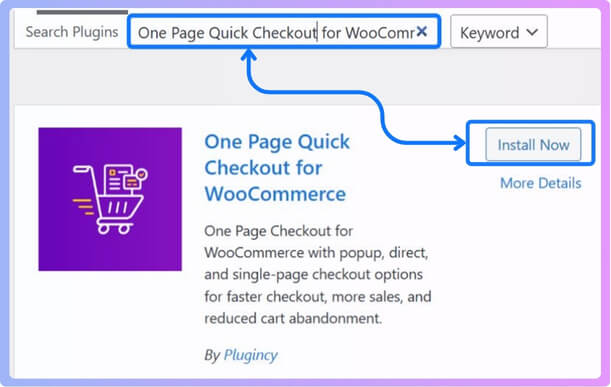
- Navigate to your WordPress dashboard > Plugins > Add New.
- Search for: One Page Quick Checkout for WooCommerce
- To activate, click Install Now.

PRO Version
- Purchase the PRO plugin from the official website.
- Download the ZIP file from the email you received.
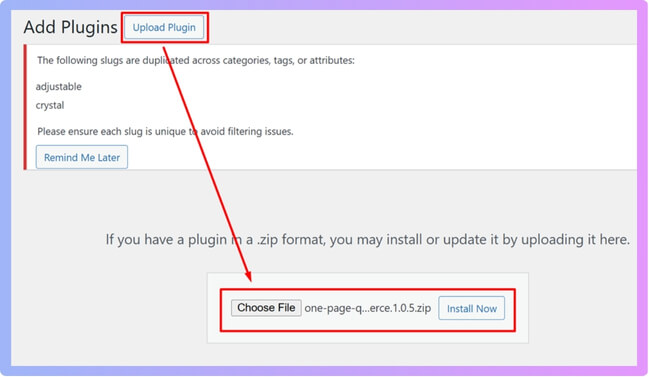
- Navigate to WordPress Dashboard > Plugins > Add New > Upload Plugin.

- Upload the ZIP file, click Install Now, then Activate
- Enter the License Key under One Page Quick Checkout settings.
Manual Plugin Installation via FTP
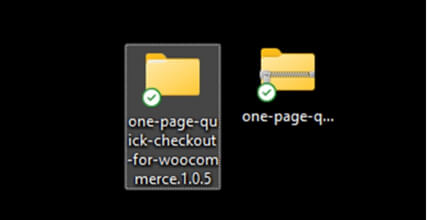
- Download the ZIP file
- Extract the ZIP file.

- Upload the extracted folder to /wp-content/plugins/ using FTP.
- Go to Plugins in the WP admin and click Activate.
Once the plugin has been installed, you can configure Direct checkout in your WooCommerce store. You can accomplish this by taking the next step.
Step 3: Enable Direct Checkout
- Log in to your WordPress admin dashboard.
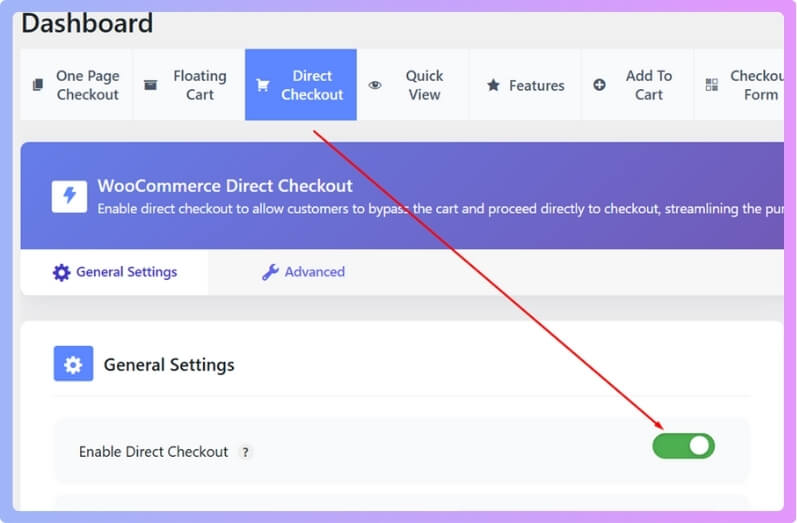
- Go to Onpage Checkout in the sidebar.
- Click on Direct Checkout Manage.
Activate and Personalize
Toggle this option to enable direct checkout across your entire WooCommerce store.
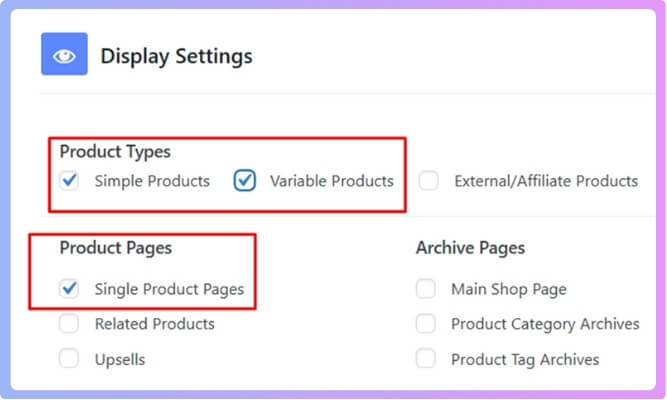
After enabling direct checkout, navigate to Display Settings and select simple and variable products from Product Types, as well as single product pages from Product Pages.
This is how to set up direct checkout for single products in WooCommerce. Try it out and see how it improves your store’s shopping experience.
Why is the One Page Quick Checkout Plugin the Best Option for Enabling Direct Checkout?
Direct checkout simplifies and speeds up how buyers shop on your store by making the process faster. Many plugins offer this feature, but not all work the same way or give the same results. The One Page Quick Checkout Plugin stands out for its ease of use and helpful tools. Keep reading to learn why this plugin is a top choice for direct checkout.
Easy to Install
The plugin is very simple to install from your WordPress dashboard. You can search for it directly in the plugins section and click install. Both free and pro versions are available depending on your needs. No complex setup is required, making it beginner-friendly.
One Page Checkout
This plugin places everything on a single page, so buyers don’t jump between cart and checkout. It reduces steps and makes the process faster. Customers can complete their orders right on the product page. This feature alone makes it a strong choice for store owners.
Free and Pro Options
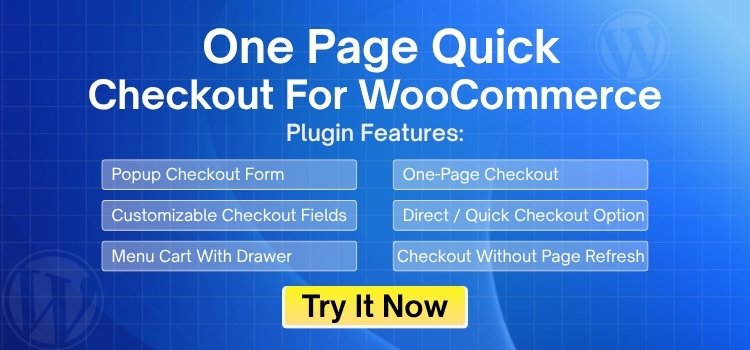
The plugin has both free and pro versions to match different needs. The free version covers the basics and is good for most stores. The pro version adds more advanced features and settings. You can choose based on your store’s requirements and budget.
Saves Time
Direct checkout with this plugin helps buyers save time during shopping. Instead of clicking through multiple pages, they can buy with fewer steps. This also reduces the chance of cart abandonment. A quick checkout often leads to better sales for store owners.
Simple Settings
The settings are easy to understand and adjust. You can enable or disable options with just a few clicks. It allows you to set direct checkout for single or multiple products. This flexibility makes it convenient for managing different product types.
Better User Experience
A smooth checkout process improves the shopping experience for every buyer. Customers don’t want to waste time on unnecessary steps. This plugin for direct checkout in WooCommerce ensures purchases are completed quickly without confusion. Happy customers are more likely to return and shop again.
Common Issues With Direct Checkout and How to Fix Them
Direct checkout is a helpful feature that makes buying faster and easier, but sometimes small issues can appear while using it. These problems are usually simple to solve with the right settings or updates. Many store owners face them at some point. Let’s look at the most common issues and how you can fix them.
Broken Links
Sometimes, checkout buttons or links may not lead to the right page. This usually happens if the plugin settings are not saved properly. Go to your WooCommerce and plugin settings to confirm everything is set correctly. Updating permalinks under WordPress settings can also fix this issue.
Wrong Quantities
A common problem is when products show the wrong quantity at checkout. This often happens if your cart and checkout settings conflict. Check your product settings and confirm stock management is enabled. Clearing the cache and refreshing the page can also help fix the issue.
Non-Functioning Buttons
Checkout or buy buttons may not work at all. This can be caused by JavaScript errors or incomplete plugin setup. Try disabling other plugins one by one to find the conflict. Also, make sure your theme supports WooCommerce properly.
Plugin Conflicts
Direct checkout plugins can sometimes clash with other WooCommerce extensions. If you see errors, deactivate other plugins and test again. Always keep plugins updated to avoid bugs. If the problem continues, contact the plugin support team for help.
Theme Issues
Certain themes may not display the checkout button or form properly. This happens if the theme isn’t fully compatible with WooCommerce. Switching to a default WordPress theme can help you confirm this. If the theme is the problem, ask the developer for an update.
Outdated Versions
Running outdated versions of WooCommerce or the plugin can also cause issues. New updates often fix bugs and improve performance. Always keep both WordPress and WooCommerce updated. Updating your direct checkout plugin regularly is the easiest way to prevent errors.
Free vs Paid Direct Checkout Plugins: Which Should You Choose?
Direct checkout plugins are popular because they make the buying process faster and simpler. Store owners can choose between free and paid plugins based on their needs. Both options have their pros and cons, so it is important to compare them before deciding.
| Aspect | Free Direct Checkout Plugins | Paid Direct Checkout Plugins |
| Cost | No upfront payment needed, good for testing features. | Requires payment, often one-time or subscription-based. |
| Features | Basic checkout features with limited customization. | Advanced tools like custom redirects, analytics, and better design options. |
| Support | Usually, community-based help is a slower response. | Dedicated customer support with faster problem-solving. |
| Updates | Updates may not come often or be guaranteed. | Regular updates for security, compatibility, and new features. |
| Ease of Use | Simple setup, best for beginners. | Slightly more complex but with detailed options and settings. |
| Scalability | Suitable for small shops with fewer needs. | Works better for growing stores with higher demands. |
| Compatibility | May have issues with some themes or plugins. | Tested more thoroughly for compatibility across WooCommerce tools. |
| Value | Good choice if you want to save money. | Better long-term value with more features and reliability. |
Choosing between free and paid comes down to your store’s goals and budget. If you need advanced functions and reliable support, paid options are worth it. When considering WooCommerce direct checkout plugin cost, balance it with the benefits you’ll get for long-term growth.
Should Every WooCommerce Store Use Direct Checkout?
Not every WooCommerce store needs direct checkout because it depends on what the store sells and how it sells. Direct checkout shortens the buying process by taking shoppers straight to payment without passing through the cart. This can be helpful for stores that want a faster and simpler buying experience for their customers.
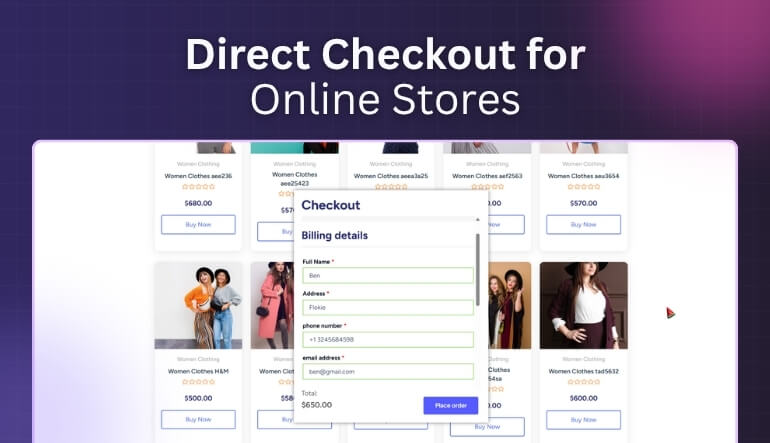
Some stores gain more by using direct checkout when the focus is on selling one main product. It also works well for digital items like ebooks or music, where buyers want instant access. Seasonal promotions and flash sales benefit too, because customers can complete purchases quickly before the deal ends.
On the other hand, some stores may lose chances for extra sales if they skip the cart page. Shops that rely on showing related products, offering bundles, or suggesting upgrades often need that extra step. So, direct checkout is a smart choice for single-product stores, digital goods, and limited offers, but not for upselling-focused shops.
Best Practices to Improve Conversions With Direct Checkout
One of the easiest methods to increase sales and expedite the purchasing process is to use direct checkout. Customers love quick steps that take them directly to payment without delays. To make the most of it, follow some proven best practices.
- Use a Clean and Clear Button: Your direct checkout button should stand out with a simple color and clear label. Avoid clutter so buyers can act fast.
- Minimize Form Fields on Checkout: Too many fields confuse buyers and delay their purchase decision. Keep only what’s needed, like name, email, and payment.
- Enable Guest Checkout Option: Forcing account creation can push buyers away. Let them check out without logging in to make the process smooth.
- Add Trust Signals on Checkout Page: Show secure payment icons, refund policies, or customer reviews near checkout. These small trust signs help build confidence to buy.
- Test Button Placement and Color: Small design changes can increase clicks. Try different button positions or colors to find what works best for conversions.
- Remove Unnecessary Distractions: Avoid banners, popups, or sidebars during checkout. These take attention away and may break the buying flow.
- Use One-Page Checkout When Possible: Combining steps into one page saves time and feels simpler. Fewer clicks often mean higher chances of successful payments.
- Speed Up Page Load Time: Slow checkout pages lead to drop-offs. Make sure the page loads fast on all devices, especially phones.
Frequently Asked Questions
Many store owners have common questions about using direct checkout for single products in WooCommerce. To help you understand better, we’ve answered some frequently asked questions. These will guide you on setup, troubleshooting, and getting the most from this feature.
Is Direct Checkout Compatible With WooCommerce Multilingual Stores?
Yes, direct checkout can be used on multilingual stores if your translation plugin supports it. The checkout button and fields adapt to the selected language. This makes it easier for international customers to buy directly.
How Do I Test Direct Checkout Before Going Live?
You can test direct checkout by creating a staging site or using sandbox payment modes. Run trial purchases to confirm smooth flow. This ensures buyers won’t face issues when you make it live on your main store.
Does Direct Checkout Affect Payment Gateways in WooCommerce?
No, direct checkout does not limit payment gateway choices. Customers can still use PayPal, Stripe, or other active gateways. The main change is in skipping the cart step, while the payment options remain fully available during checkout.
What Happens If the Plugin Is Deactivated?
If you deactivate the direct checkout plugin, your store returns to the default WooCommerce process. Customers will see the cart page again. No data is lost, and you can reactivate the plugin anytime.
How Is Direct Checkout Different From One-Page Checkout?
Direct checkout sends buyers directly from the product page to payment. One-page checkout, on the other hand, combines cart and checkout into one step. Both reduce friction, but direct checkout skips the cart entirely, while one-page checkout still shows order details.
What Happens to the Cart Page When Direct Checkout Is Enabled?
When direct checkout is enabled, customers skip the cart page, but it doesn’t disappear entirely. The cart still exists in the backend. Buyers can still use it if you allow both checkout methods side by side.
Why Should Store Owners Consider Direct Checkout?
Store owners should consider direct checkout because it reduces cart abandonment rates. Customers often lose interest during extra steps, so removing them creates a seamless experience. The faster checkout process can directly improve conversions and boost overall sales.
Conclusion
Shopping should feel simple, quick, and stress-free, and that’s exactly what direct checkout makes possible for your WooCommerce store. By removing extra steps, you not only save your customers’ time but also reduce the chances of them leaving midway. A smoother buying process means more satisfied shoppers and higher chances of repeat sales.
If you’ve been asking yourself how to set up direct checkout for single products in WooCommerce, the steps are easier than you think. With the right plugin and a few quick settings, you can create a faster, more direct path from product page to payment. This makes your store more user-friendly and helps boost conversions without overcomplicating things.
Every small change you make toward improving checkout can have a big impact on your business growth. Try direct checkout, see how it transforms your customer experience, and watch your sales numbers reflect the difference.
