

Currency exchange rates change from one country to another, which can make the same product feel expensive for some and cheaper for others. That’s why many online store owners look for better ways to adjust their prices fairly. If you’ve been wondering how to handle this in your store, you might be thinking about how to show different prices based on customer location in WooCommerce.
Show different prices by location in WooCommerce using the Multi Location Product & Inventory Management plugin. Create locations, assign them to products, set prices per location, and insert the [[mulopimfwc_store_location_selector]] shortcode. Customers select their region, and WooCommerce automatically shows the correct price for that area.
If you’ve ever noticed customers from different places paying varied prices, you’ll find this topic interesting. This article explains everything about setting up, managing, and troubleshooting location-based pricing. Keep reading to learn how to make your WooCommerce store show the right price for every customer.
How to Show Different Prices Based on Customer Location in WooCommerce?
To show different prices based on customer locations in WooCommerce, first, you have to assign locations to the products and set their prices for each one. Let’s get started:
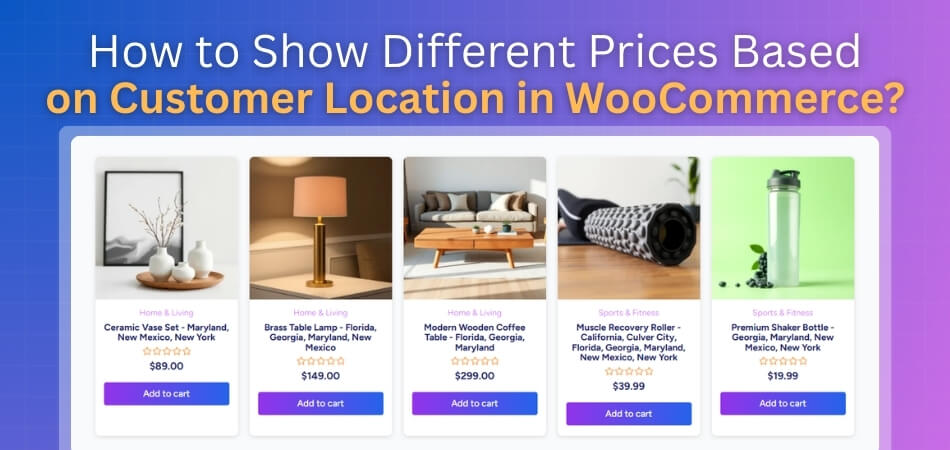
Step 1: Add Location
Go to your dashboard, then go to Products > All Products, or create a new product.
Scroll down, and on the right side, look for the Location option. Here, you can add new locations by creating them.
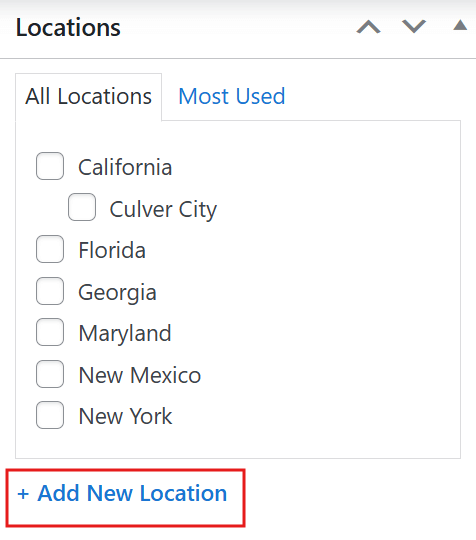
However, WooCommerce’s default setup doesn’t let you add much information about each location. For this reason, it’s better to use a plugin.
Let’s use the Multi Location Product & Inventory Management for WooCommerce plugin. It’s simple to use, needs no coding, and has both free and paid versions.
Step 2: Install the Plugin and Add Locations
After installing the plugin, you’ll see a new option in your dashboard named Location Manage.
Go to Location Manage > Locations.
Here you can:
- Give a Location Name, for example: America
- Add a Slug, for example: america
- Add a Parent Location if needed
- Write a short Description
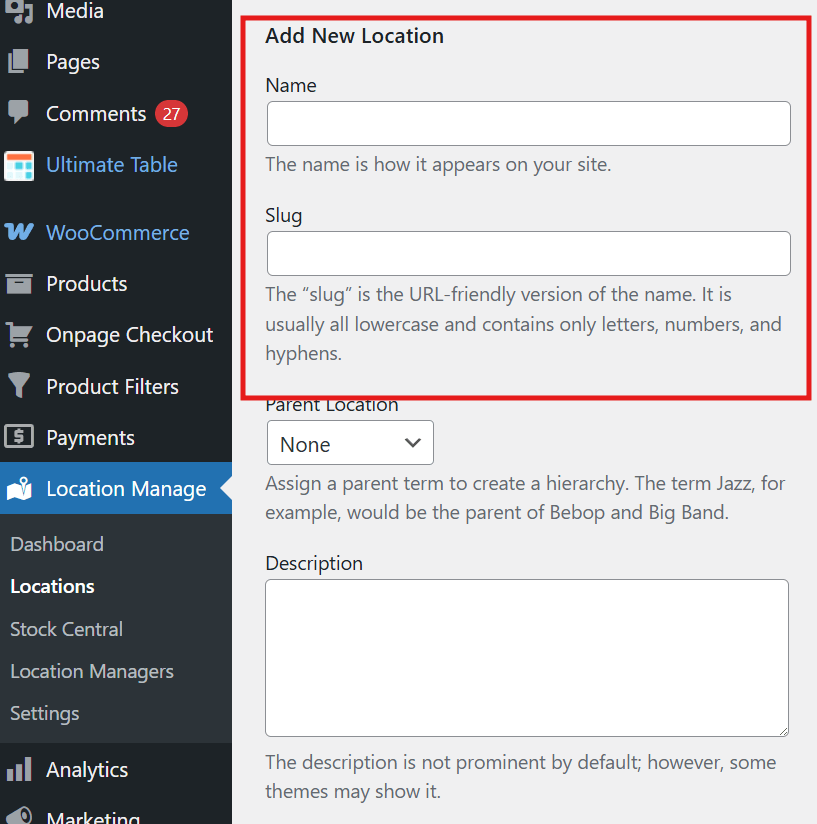
Besides these, you can add more information such as:
- Street Address
- City
- State
- Postal Code
- Country
- Phone
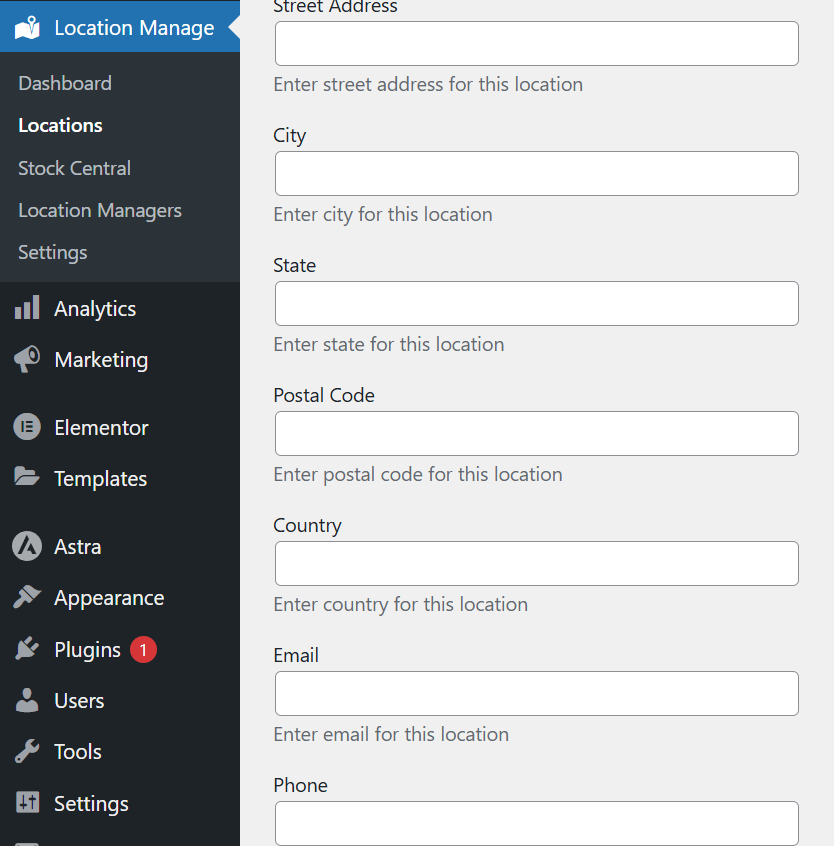
You can fill in these fields for more accurate information. Once you’re done, click on Add New Location.
The location will be added successfully, and you can change its details later if needed.
Step 3: Assign Locations to Products
Now that you’ve created your locations, assign them to your products.
Go to Products, then All Products, or create a new one. Scroll down, and on the right side, you’ll find the Location option. Select all the locations where you want your product to appear.
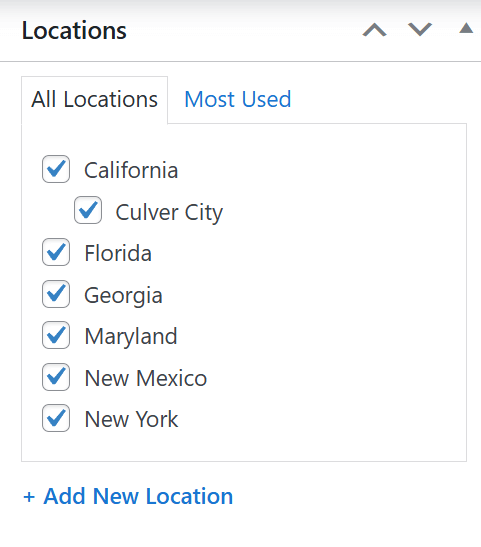
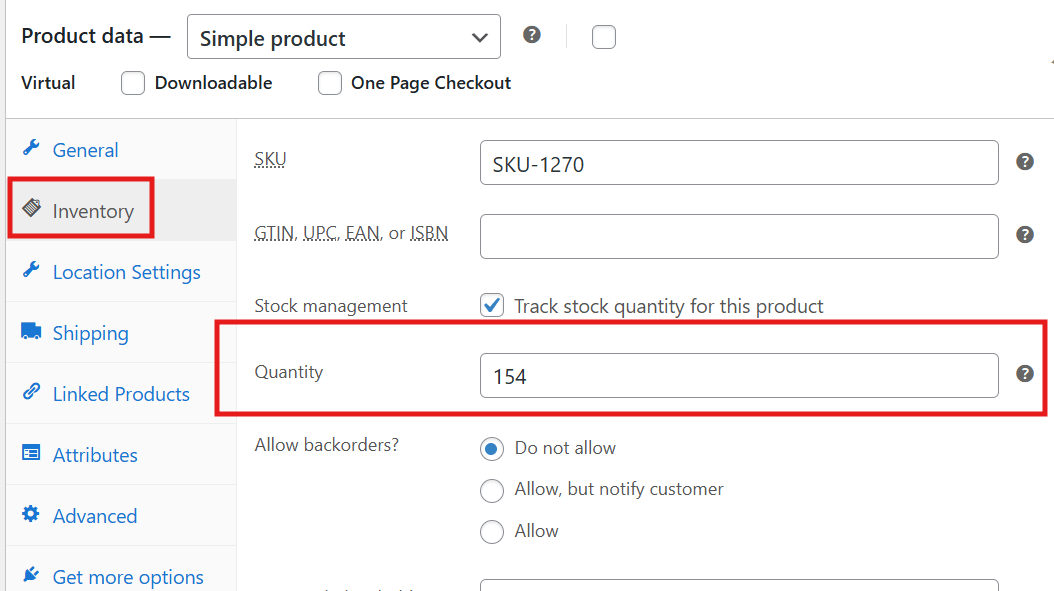
Then, in the Product Data section:
- Click on Inventory and add the product quantity.

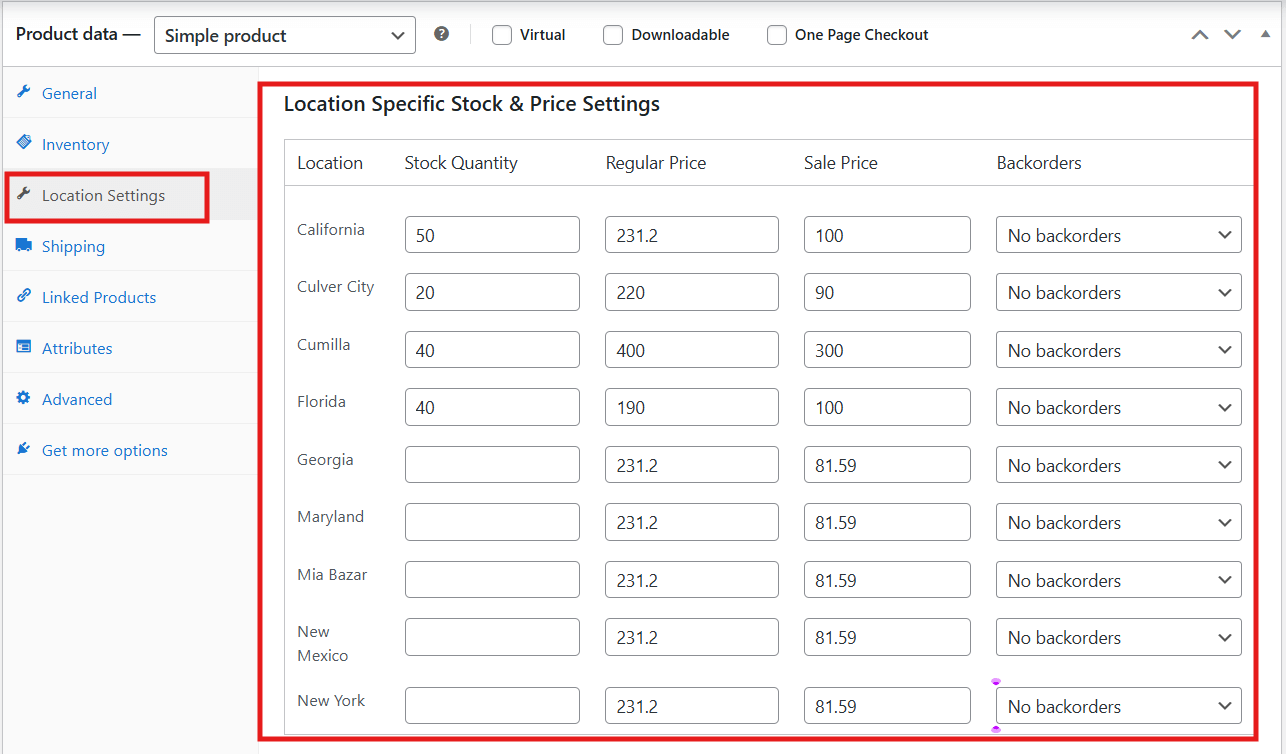
- Click on Location Settings, where you’ll see all the selected locations.
Here you’ll find options like
- Stock Quantity
- Regular Price
- Sale Price
- Backorders
Fill these fields according to your needs. Set different prices for different places if you want to adjust them based on currency or other reasons. Once you’re done, click Update or Publish.
Step 4: Add Shortcode to Make It Work
To make the plugin work properly, you need to use a shortcode.
Go to Appearance > Widgets and look for the Header section. Click on the + icon and search for a Shortcode block. Paste the following shortcode inside it:
[[mulopimfwc_store_location_selector title=”Select Your Location”]]
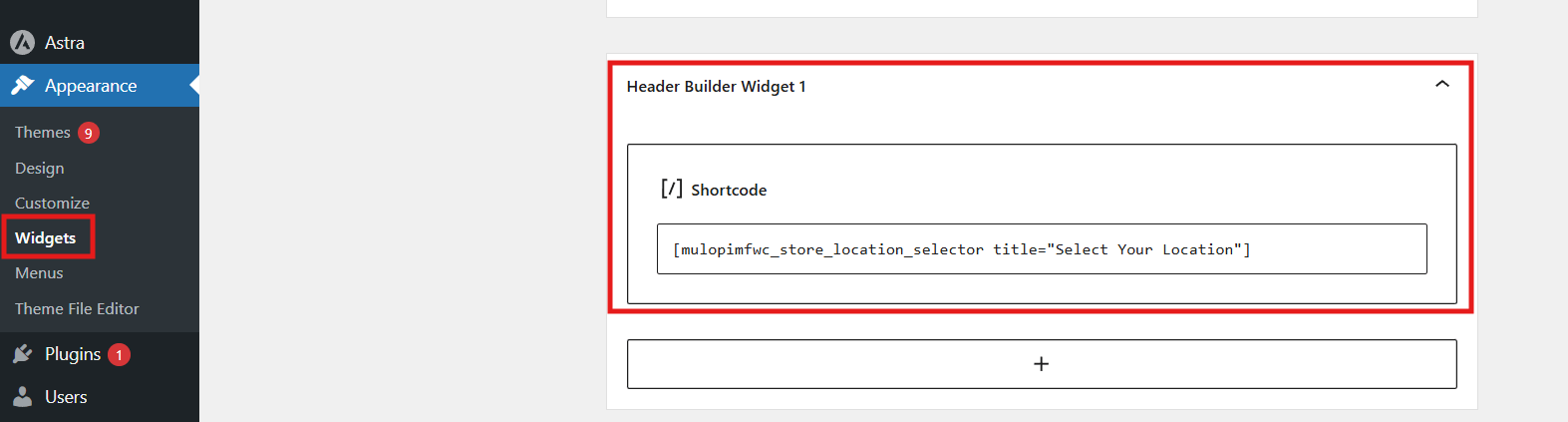
After that, click Update to save your changes. Now your WooCommerce store will show different prices based on the customer’s selected location.
Why Is Location-Based Pricing Useful in WooCommerce?
Selling online means your customers can come from anywhere in the world. Each country has its own tax laws, currency, and shipping rules. Showing the right price for each customer makes shopping easier and clearer. Let’s look at why location-based pricing can be a smart move for your WooCommerce store.
Handling Taxes
Different countries and regions have different tax rates. When prices include the right tax from the start, buyers don’t face surprises during checkout. WooCommerce lets you set a default location so taxes load based on that. For example, a buyer in Country A may pay 20% tax, while in Country B it’s only 5%.
Currency Differences
People across the world use different currencies. Showing one fixed price in only one currency can confuse buyers. With location-based pricing, your store can switch currency automatically or adjust prices based on local income levels. It makes your store feel more local and fair to every buyer.
Shipping and Extra Costs
Shipping charges change depending on where a customer lives. Some places cost more because of distance, customs, or import duties. If you know the buyer’s location, you can adjust prices or shipping fees to stay fair. For instance, a $10 product may need to cost more if shipping far away costs an extra $15.
Improving the Buying Experience
When buyers see prices in their own currency and with the right taxes, it feels easier and clearer. They don’t have to worry about conversion fees or added taxes later. This helps reduce cart abandonment and improves sales. Simple pricing builds trust and comfort for every buyer.
Protecting Your Profit
Adjusting prices based on location helps you keep a steady profit. You can include local taxes, higher delivery costs, or currency changes without hurting your income. It also stops you from losing money on expensive deliveries or exchange rate issues. That means better balance for your business and your customers.
Showing prices that match a customer’s country makes shopping smooth and clear. It avoids confusion with taxes, currencies, and shipping costs. It also keeps your profits safe and fair across different regions. Try adding location-based pricing in WooCommerce to give your buyers a better and more local shopping experience.
How Does WooCommerce Detect a Customer’s Location?
When you visit a WooCommerce store, it quickly checks where you are. It does this to show prices, taxes, and shipping options that fit your region. The process is simple and works quietly in the background. Let’s look at how this system works and why it matters for online stores.
WooCommerce Geolocation Feature
WooCommerce has a built-in tool to find where customers come from. You can turn it on from Settings → General → Default Customer Location. Here, you’ll see choices like “Geolocate” or “Geolocate (with page caching support).” Once enabled, it helps the store show country-specific details like currency or tax rates.
How The IP Tracking Works
When you pick the “Geolocate” option, WooCommerce looks at the visitor’s IP address. It then uses a service like MaxMind’s GeoIP database to guess the country or region. The system can even adjust for nearby areas if needed. This process happens fast, so shoppers see accurate details right away.
Role of WC_Geolocation Class
Inside WooCommerce, a PHP class named WC_Geolocation handles the tracking. It finds the visitor’s IP and runs it through the GeoIP database. After that, it sends the location data to the store. This is how WooCommerce decides what country the shopper is browsing from.
Page Caching Support Option
Some websites use caching to load faster. But caching can sometimes show wrong prices if the location changes. That’s why WooCommerce offers the “Geolocate (with page caching support)” option. It adds a small query code (like ?v=xxxx) to make sure prices match the visitor’s real region.
Why Location Detection Matters
Showing the right location data builds trust and prevents confusion. It helps display the correct tax rates, shipping costs, and currencies. Many stores use an automatic location-based filter in WooCommerce that instantly detects where the customer is and shows prices or products relevant to that region. This makes online shopping smoother and more accurate.
WooCommerce location detection makes online shopping simpler for everyone. It helps customers see what applies to their own region right away. This avoids mix-ups with currency or taxes that can confuse buyers. With this setup, stores can offer a faster and more local shopping experience.
Common Problems When Setting Up Location-based Pricing
Setting up location-based pricing can make your store smarter and fairer. It helps you show the right prices to visitors from different countries. But if not set correctly, it can create big confusion for shoppers. Let’s look at the common issues and how to fix them easily below.
Wrong Price Showing Because of Cache
Sometimes your website might show the wrong price because of cached pages. This means visitors can see prices meant for another country. For example, a buyer from France might see a price in USD instead of EUR. To fix this, turn on “Geolocate with page caching support” and clear your cache right after.
IP Detection Giving Wrong Location
Your site may guess a customer’s location from their IP address. But sometimes it gets it wrong due to VPNs, proxies, or mobile networks. This can cause the wrong prices to show. To fix this, let customers pick their country manually. Also, test from different places using VPN tools before going live.
Currency Conversion or Rounding Problems
Auto-converting prices can cause small rounding mistakes. It might also show odd symbols or charge you extra currency fees. This can eat into your profit margin over time. The best fix is to set custom prices for each country. This gives you better control and keeps your profit safe.
Plugin Conflicts and Missing Features
WooCommerce alone cannot handle full location-based pricing. You often need a plugin like “Price Based on Country” to do it right. But some plugins might not work well with your theme or version. Before choosing one, check if it is updated, tested, and supported for your store setup.
Tax and Shipping Rules Not Matching
If you only change the price but forget tax or shipping, it causes mismatched totals. A customer may see one price but get a higher charge at checkout. To stop this, check that every zone has matching tax and shipping rules. Make sure they fit your pricing plan for each country.
Location-based pricing is a great way to make your store feel local. But small setup errors can lead to wrong prices or unhappy buyers. Always test your store with different tools and locations. Take a little extra time to check every rule so your pricing works smoothly everywhere.
Tips to Combine Location-Based Pricing With Shipping and Tax Rules
Combining location-based pricing with shipping and tax rules keeps your store fair and easy to use. It helps customers see the correct price, shipping cost, and tax before checkout, which avoids confusion and builds trust.
- Define clear price zones: Set different prices or currencies for each country or region. This ensures every buyer pays a fair price and helps balance costs across markets easily.
- Connect shipping zones properly: Match your shipping zones with pricing zones in WooCommerce. Each area can have its own delivery rate, keeping your product prices and shipping costs consistent.
- Align tax rules with location: Set tax rates for each country or state in WooCommerce settings. The system will automatically add the correct tax when customers check out.
- Keep prices and taxes transparent: Always show the product price in the customer’s currency and clearly mention if tax is included or excluded to avoid confusion.
- Test every country setup carefully: Simulate orders from each country using a VPN or incognito mode. Check that pricing, tax, and shipping appear correctly before launching.
- Review and update regularly: Update pricing and shipping zones from time to time. Changes in shipping costs or exchange rates can affect your profit and final customer price.
- Use caching settings correctly: If your site uses caching, turn on “Geolocate with page caching support.” This ensures customers always see accurate prices and taxes for their location.
When pricing, tax, and shipping work well together, checkout becomes simple and accurate. To make location-based pricing work effectively, many store owners use geolocation to optimize a WooCommerce store, allowing the system to automatically detect where the customer is and show region-specific prices.
Frequently Asked Questions
Many store owners want to make their prices fair for buyers from different places. Showing location-based prices can help with taxes, shipping, and a better customer experience. But you might have a few questions about how it all works in WooCommerce. Here are some common questions and easy answers to help you understand it better.
What Is Location-Based Pricing in WooCommerce?
Location-based pricing means your store shows different prices to customers based on where they are. The prices change depending on the buyer’s country or region. It helps you add local taxes, currency, or shipping fees. This feature makes your store look more professional and fair for everyone.
Can I Set Different Prices Without Using a Plugin?
Yes, you can do it, but it’s limited in WooCommerce’s default setup. The built-in tools can change taxes and currency, but not full pricing for each place. To set unique prices for each region or country, you’ll need a plugin. These plugins make it easy to manage different prices without coding.
Which Plugin Works Best for Location-Based Pricing?
There are several good plugins you can use for this feature. One popular choice is Price Based on Country for WooCommerce. It helps you set different prices for different countries and handle currency automatically. Always choose a plugin that updates often and works well with your theme.
How Can I Test If Location-based Pricing Works Properly?
You can test by using a VPN to change your location online. Then visit your store to see if prices and currencies change based on each country. Another way is to ask friends from other countries to check your site. Testing helps make sure your store is showing the right price to everyone.
Do Customers Need to Select Their Country Manually?
In most cases, WooCommerce can detect the customer’s country automatically. It uses their IP address to find out where they are. But sometimes, the location might be wrong because of VPNs or mobile networks. To fix this, you can also let buyers choose their country from a dropdown menu.
How Often Should I Update Location-Based Prices?
You should review your location-based prices every few months. Currency rates, taxes, and shipping costs can change over time. Updating prices keeps your store fair and helps you avoid losing money. Regular updates also make sure your customers always see the correct prices.
Does Location-based Pricing Work With Discounts or Coupons?
Yes, it does. You can still offer coupons, discounts, and sales while using location-based prices. Just make sure your discount rules match each region’s pricing setup. Testing discount codes from different countries can help you avoid errors before launch.
Can Location-Based Pricing Affect My Website Speed?
Sometimes it can slow down your website a little if not set right. This happens when too many plugins or caching problems occur. To fix it, choose lightweight plugins and enable “Geolocate with page caching support.” This keeps your site fast while still showing accurate prices.
How Can I Make Location-Based Prices Work With Shipping Zones?
You can connect your pricing setup with WooCommerce shipping zones. Each country or region can have its own shipping rate and matching product prices. This helps keep the total cost fair for every buyer. Always test each zone to make sure the shipping and pricing match correctly.
Is Location-Based Pricing Allowed in All Countries?
In most countries, it’s completely fine to show different prices by location. However, some regions have special rules about displaying tax or final prices. Always check local laws before setting up country-based pricing. This will keep your store safe and compliant with global selling rules.
Can I Show Custom Messages Along With Location-based Prices?
Yes, you can add small notes or messages to make things clear for buyers. For example, you can write “Prices include local tax” or “Shipping cost based on your region.” This builds trust and helps avoid confusion during checkout. Clear messages always improve the shopping experience.
Conclusion
Setting up location-based pricing can make your online store more friendly and fair for global customers. It helps you show prices that match each visitor’s country, currency, and tax rules. This small change can make a big difference in customer trust and sales success.
If you’re wondering how to show different prices based on customer location in WooCommerce? It’s simple with the right setup. You can use the “Multi Location Product & Inventory Management” plugin to assign prices per country, connect tax and shipping zones, and show the right price instantly for each buyer.
To keep everything smooth, always test your setup from different locations, use proper caching options, and update your zones regularly. Double-check taxes and shipping details before going live. With these steps, your store will run perfectly. Best of luck with your WooCommerce store setup!
