

Stock out moments can happen in any online store, and they often leave both the seller and buyer disappointed. But before you worry too much about missing sales, it’s worth knowing that even unavailable items can still play a strong role in keeping your customers close. Many store owners often wonder how to show out of stock products in WooCommerce.
Show out-of-stock products in WooCommerce by going to WooCommerce → Settings → Products → Inventory and unchecking “Hide out of stock items from the catalog.” To customize how they appear, use the Multi Location Inventory plugin for options like badges, grayed-out items, and location-based stock display.
Do you want to know how displaying unavailable products can actually help build trust and customer loyalty? Keep reading this article to discover useful settings, easy plugin options, and practical tips to make your store more transparent and customer-friendly.
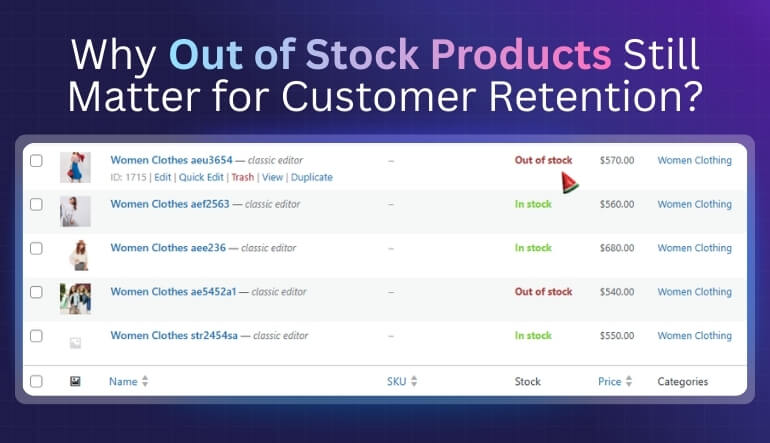
Why Out of Stock Products Still Matter for Customer Retention?
Out of stock items may seem like a lost sale, but they still have real value for your store. When shoppers find an unavailable item, it can open the door for later sales if handled the right way. Smart updates and restock alerts can turn that short wait into trust. Let’s look at how these moments can help keep buyers returning.
Builds Trust With Honest Updates
When people see that an item is out of stock, it shows that your store is honest about product availability. This builds trust and makes them more likely to check back later. When customers see that your store updates product availability accurately, it builds confidence and keeps them coming back. That’s why it’s a smart idea to advertise real-time local stock, so shoppers know exactly what’s available near them.
Keeps Interest Alive With Restock Alerts
Restock alerts are a great way to keep customers connected. When someone signs up for a notification, it means they are still interested. A quick message when the item returns can bring them right back. These small updates make shoppers feel remembered and valued, which helps build loyalty.
Encourages More Product Discovery
Showing similar or related products when an item is unavailable helps keep the shopper engaged. Instead of leaving your site, they can explore other choices that meet their needs. This not only helps you make a sale now but also builds a habit of browsing your store for future buys.
Collects Useful Data for Stock Planning
Tracking which out-of-stock items get the most alert sign-ups helps you plan better. It shows what customers really want, so you can adjust supply faster. This saves time, reduces waste, and makes your store feel more reliable to returning customers.
Strengthens Customer Connection Over Time
Even when you cannot meet demand right away, staying in touch helps. Sending updates, restock notes, or friendly follow-ups keeps your brand fresh in their minds. This steady contact makes people trust your store more, leading them to come back again and again.
Out of stock products do not have to be a missed chance. When handled well, they help build loyalty, grow trust, and keep shoppers connected to your store. Clear updates, smart alerts, and helpful product suggestions turn a simple “not available” into future sales. Keep your stock info honest, and customers will stay with you longer.
How to Show Out of Stock Products in WooCommerce?
If your WooCommerce store is hiding out-of-stock products and you want to display them again, it only takes a few simple steps. You can show these products using WooCommerce’s built-in settings or manage them more effectively with a plugin if you have multiple store locations. Here are the steps.
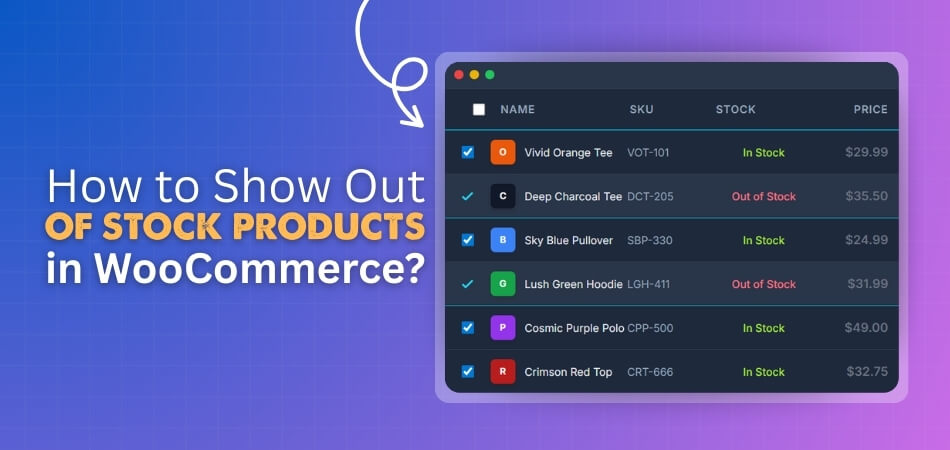
Step 1: Identify Out-of-Stock Products
Before you can show out-of-stock items, you first need to make sure some products are marked as out of stock.
- Go to Products → All Products from your WordPress dashboard.
- Select the product you want to edit and scroll down to the Product Data section.
- Click on the Inventory tab.
- Check the box for Track stock quantity for this product.
- Set the Stock Quantity to 0 — this will automatically mark it as Out of Stock.

- Click Update to save your changes.
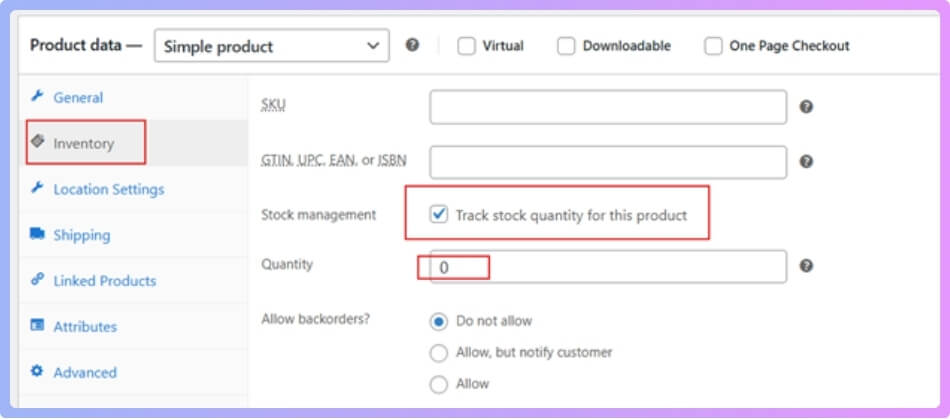
Now, WooCommerce recognizes this product as out of stock.
Step 2: Enable Out-of-Stock Products to Show on the Shop Page
By default, WooCommerce hides out-of-stock products from your catalog. To make them visible again:
- Go to WooCommerce → Settings → Products → Inventory
- Find the setting labeled “Hide out of stock items from the catalog.”
- Uncheck this box
- Click Save Changes
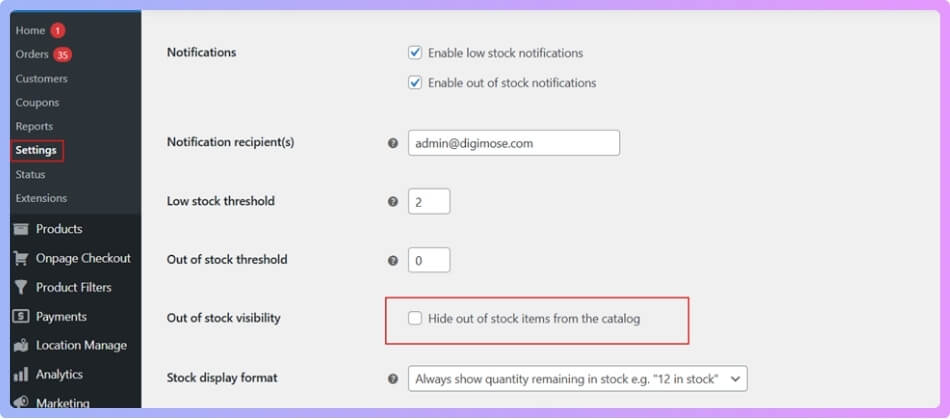
Your out-of-stock products will now appear in your shop.
Step 3: Use a Plugin for Advanced Control
If you want more customization and want to manage stock display for different locations, use the Multi Location Product & Inventory Management for WooCommerce plugin. It’s lightweight, beginner-friendly, and offers both free and pro versions.
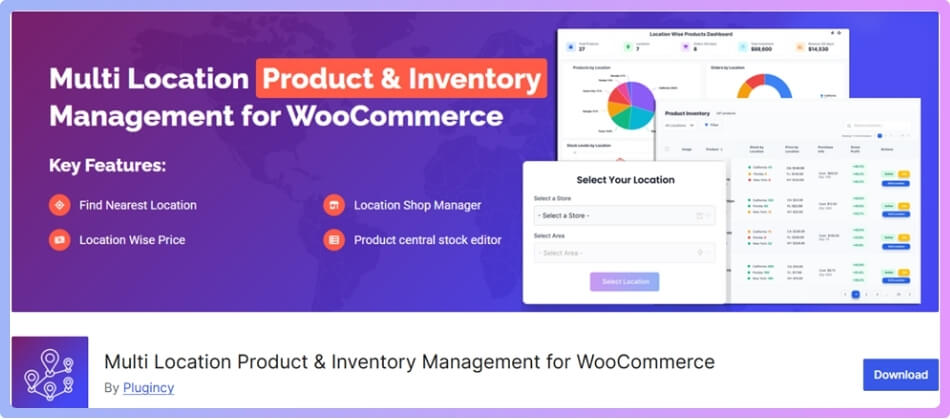
After installing and activating the plugin, you can customize how out-of-stock products appear in your store. This feature is especially useful if you manage stock in different locations. A good multi inventory management for WooCommerce setup lets you track inventory from multiple warehouses or stores and display accurate stock levels to customers automatically.
Step 4: Customize Out-of-Stock Display Settings
To configure how your store displays out-of-stock products:
- Go to your WordPress dashboard → Location Manage → Settings → Product Visibility
- Find the section named Out of Stock Product Display
- Open the dropdown menu labeled Show Out of Stock Products
You’ll see four display options:
- Default – Follows WooCommerce’s standard behavior
- Hide Completely – Removes out-of-stock items from view
- Show with “Out of Stock” Badge – Displays items with a clear label
- Show Grayed Out – Keeps products visible but slightly faded to show they’re unavailable

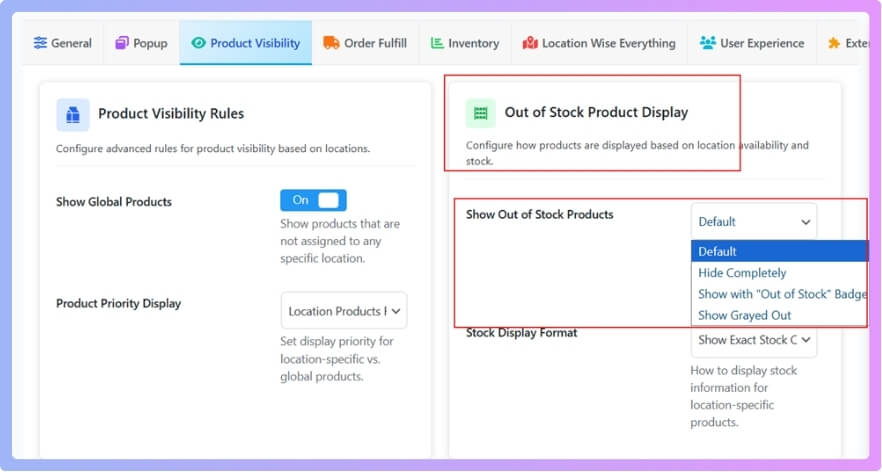
Choose the one that fits your store best and click Save Changes.
Step 5: Adjust Stock Information Display
The plugin also allows you to control how stock information appears on product pages. Under Stock Display Format, you’ll see several options:
- Show Exact Stock Count
- Show Only Availability (In Stock / Out of Stock)
- Show Stock Levels (High / Medium / Low)
- Hide Stock Information

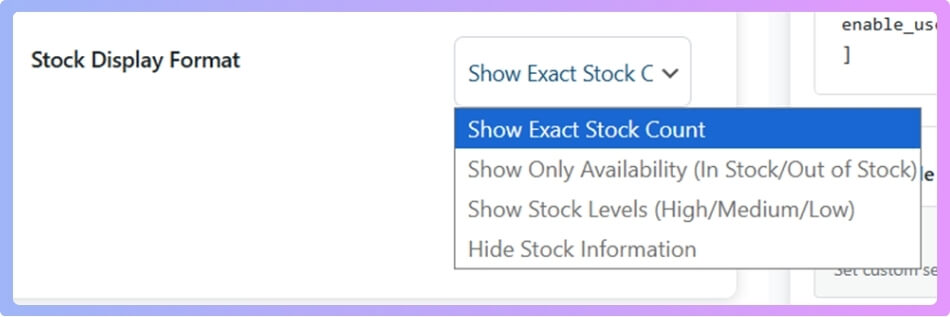
These settings let you choose how much stock detail you want customers to see.
Bonus Feature: Location-Wise Stock Management
If you have multiple store locations or warehouses, this plugin can also show location-based stock status. That means customers can see which products are available at their nearest store.
By following these steps, you can easily display out-of-stock products in WooCommerce and even customize how they appear. If you manage multiple store locations, using the Multi Location Product & Inventory Management for WooCommerce plugin will give you more control and help keep your store inventory organized.
Pros and Cons of Showing Out of Stock Products
Sometimes store owners wonder if they should show out-of-stock products or hide them. Both choices have their own good and bad sides. Showing them can help with trust and stock planning, but can also upset buyers. The table below shows the main pros and cons clearly.
| Pros (Advantages) | Cons (Drawbacks) |
| Builds trust through transparency | May disappoint shoppers who wanted the item |
| Helps track demand for popular items | Can make your shop look less stocked |
| Keeps SEO value for product pages | Might confuse visitors if not clearly marked |
| Lets shoppers sign up for restock alerts | Can slow down browsing if many items are unavailable |
| Encourages return visits once items restock | Might give a poor first impression to new visitors |
| Supports upselling with related product links | Requires extra work to manage and update messages |
| Shows your store is honest about inventory status | May reduce conversions if people leave disappointed |
| Helps you plan better stock levels | Could clutter category pages with too many unavailable items |
Out of stock items can be useful if you handle them wisely. Keeping them visible builds trust, but you must also keep the page clean and clear. Always mark them properly and offer restock alerts. This balance keeps your store honest and easy for shoppers to use.
Common Problems When Out of Stock Products Don’t Show
Sometimes, store owners get confused when out of stock items vanish from their shop. This can make it hard to track products or show shoppers what’s coming soon. The issue can happen for small reasons that are easy to fix. Read below to find out what causes this and how to solve it.
Wrong Catalog Settings
Often, the main reason is that product settings hide unavailable items. In WooCommerce, you can fix this by going to Settings, then Products, and checking Inventory options. Make sure “Hide out of stock items” is not selected. Once turned off, your unavailable products will appear again.
Theme Conflicts
Some themes block or filter unavailable products by default. When this happens, you might not see them even if the settings are right. Try switching to a default theme like Storefront to test. If items appear, your main theme may need an update or a small code tweak to fix the issue.
Caching Problems
Cached data can stop updates from showing right away. When products go out of stock, the system may still show the old page. Clear your website and browser cache to refresh product listings. Regularly clearing the cache keeps your shop display correct and up to date.
Plugin Interference
Too many plugins can cause display conflicts, especially inventory ones. Disable plugins one by one to see which one hides your products. Some stock management or filter plugins can block out of stock items by default. Once you find the cause, adjust its settings or contact support.
Outdated Product Data
Old or missing data can make products disappear from your catalog. If a product is missing stock numbers or linked variations, WooCommerce might skip showing it. Check each product page and make sure the stock data is complete. This small step often brings items back.
Out of stock products are still useful for tracking and customer trust. When they do not show, it’s usually a small fix in settings, theme, or cache. Take time to check each part step by step. Once fixed, your store will display every product clearly again.
Tips to Keep Customers Engaged with Out of Stock Items
Out of stock items do not have to mean lost shoppers. With the right tricks, you can still keep people interested in your store. Here are some simple ways to hold their attention until the item is available again.
- Add a “Notify Me” Button: Let shoppers sign up for restock alerts easily. It gives them a reason to come back later without searching again for the same item.
- Show Related Products: Offer close matches like other colors, sizes, or brands. It helps customers find an option they can buy right now without leaving your site.
- Display Restock Dates: Mention when you expect new stock to arrive. Even a rough date helps customers wait patiently instead of leaving your store for good.
- Use Email Alerts Smartly: Send short, friendly messages when the item returns. This makes buyers feel remembered and more likely to visit your shop again.
- Keep Product Pages Active: Do not remove unavailable items. Keeping them visible helps with search results and lets shoppers see what your store usually offers.
- Add Social Sharing Options: Let people share their favorite items, even when they are out of stock. This builds interest and spreads your product reach naturally.
- Offer Discount or Coupon Alerts: Give a small reward to people who sign up for restock emails. It builds loyalty and makes them eager to buy once it’s ready.
Keeping customers interested when products are unavailable takes a bit of care. If you plan to restock popular products soon, offering smart delivery options can help retain customers’ interest. For example, you can set up WooCommerce quantity based shipping to give discounts on bulk restock pre-orders or grouped purchases.
Commonly Asked Questions
Here are some common questions people ask when they want to learn how to show out of stock products in WooCommerce. These answers will help you understand how to manage, display, and customize unavailable products easily so your shop stays clear and customer-friendly.
How Can I Show Out of Stock Products Only in WooCommerce?
You can display only out of stock products by using WooCommerce’s built-in filter. Go to Products → All Products, then click on the Stock Status dropdown and choose Out of stock. This will show all unavailable items in your list. You can also create a special page or category to show these products to customers.
How Do I Add an Out of Stock Label to My Products?
WooCommerce automatically shows an “Out of Stock” badge when a product’s stock quantity is zero. If it doesn’t appear, check your theme settings under Appearance → Customize → WooCommerce → Product Catalog. You can also use a small plugin to style or move the badge to a better spot. This label helps customers clearly see which items are unavailable.
How Can I Display Out of Stock Products at the End of the List?
You can reorder your product display by adding a small code snippet or using a sorting plugin. The goal is to keep available products at the top while still showing unavailable ones below. Many shop owners use this setup to keep browsing smooth for buyers. It helps customers focus on what’s ready to buy first.
How Do I Stop Search Results from Hiding Out of Stock Products?
Sometimes search pages hide unavailable items by default. To fix this, open your WooCommerce settings and make sure “Hide out of stock items” is not selected. If you use a search plugin, check its visibility options too. Allowing out of stock items in search results helps shoppers see your full product range.
How Can I Show Out of Stock Products with a Grayed-Out Effect?
You can make unavailable products appear faded or dimmed to show they are out of stock. Some themes already include this style, but you can also adjust it with CSS or a visual plugin. The grayed-out look helps customers quickly spot unavailable items without removing them. It keeps your shop clean and easy to browse.
How Do I Display Out of Stock Products by Location?
If you have multiple stores or warehouses, use a plugin like Multi Location Product & Inventory Management for WooCommerce. It allows each location to show its own stock status. Customers can then see where a product is available near them. This feature is perfect for local pickup or regional stores.
How Can I Add a Custom Message for Out of Stock Items?
You can add a custom note like “Coming Soon” or “Restocking Soon” in the Product Data → Inventory section. Some themes also allow message editing under their display options. This small text can help reduce disappointment when an item isn’t available. It also keeps customers informed and patient while waiting.
Last Words
Out of stock items are not just about missing sales; they’re about keeping trust and customer interest alive. When shoppers see transparency and effort, it helps them feel valued. Honest updates, restock alerts, and friendly messages remind them that your store cares about their needs.
If you’re wondering how to show out of stock products in WooCommerce? It’s simple — just uncheck the “Hide out of stock items” box under inventory settings. You can also use a plugin for more control, such as showing unavailable items with badges or by location. This makes your store look complete and trustworthy.
Before you wrap up, always keep your stock details updated and clear. Add restock alerts, display expected dates, and use short, friendly messages. These small touches help you turn waiting shoppers into loyal customers. Keep your store active, stay consistent, and best wishes for growing your WooCommerce business.
