

WooCommerce makes it easy to sell both digital and physical products on any WordPress site without much setup. Store owners can manage items, track orders, and offer a smooth shopping experience. With many built-in features, WooCommerce supports flexible store design. You can also expand its power using useful tools and shortcodes.
If you’re wondering how to use every WooCommerce shortcode, the process is simple and flexible.
Add shortcodes to any page, post, or block to show products, carts, checkouts, or user accounts. By combining options like category, columns, limit, and order, you can build custom layouts without writing any code.
Want to design your WooCommerce store more easily? Keep reading to explore shortcode options for every need. Learn how to create dynamic pages quickly. Discover tips to make your store look clean and professional.
How Do Shortcodes Work in Your WooCommerce Store?
Shortcodes work in your WooCommerce store by giving you simple tools that add features without trouble for growth. You place a shortcode inside a page block and see instant changes that improve your store design today. Many store owners use shortcodes daily because they enjoy clear control and quick updates across different pages easily. You can combine shortcodes with helpful tools like WooCommerce product filters to create better layouts that attract shoppers.
Shortcodes help you build flexible pages that guide users through simple steps and support many store needs daily. You can change product lists or cart sections easily because shortcodes let you adjust things fast anytime today. Many people like shortcodes since they give quick ways to test ideas and improve shop pages daily. You gain more control with shortcodes because they make edits simple while keeping your layout clear and friendly.
Complete List of WooCommerce Shortcodes With Examples
WooCommerce provides several powerful shortcodes that help you display products, manage checkout features, and create custom store pages anywhere on your website. Here is the full list, organized by purpose, with clear descriptions and real examples.
Product Display Shortcodes
[[products]] – Display multiple products anywhere
What it does: Shows a product grid with filters like categories, tags, sale items, or featured items.
How to use: Add parameters like limit, columns, orderby, category, or on_sale.
Example:
[[products limit=”8″ columns=”4″ category=”t-shirts” orderby=”date”]]
[[product]] – Display a single product by ID or SKU
Example:
[[product id=”52″]]
[[product_page]] – Display the full product page layout
Example:
[[product_page id=”52″]]
[[product_category]] – Show products from a specific category
Example:
[[product_category category=”shoes” columns=”3″ per_page=”6″]]
[[featured_products]] – Show all featured products
Example:
[[featured_products limit=”4″ columns=”4″]]
[[sale_products]] – Show products on sale
Example:
[[sale_products limit=”6″ columns=”3″]]
[[best_selling_products]] – Display top sellers
Example:
[[best_selling_products limit=”5″]]
[[top_rated_products]] – Show top-rated items
Example:
[[top_rated_products limit=”5″ columns=”5″]]
[[recent_products]] – Display newest products
Example:
[[recent_products limit=”6″ columns=”3″]]

Cart, Checkout & Order Shortcodes
[[cart]] – Show the WooCommerce cart page
Example:
[[cart]]
[[checkout]] – Display the full checkout page
Example:
[[checkout]]
[[order_tracking]] – Allow customers to track orders
Example:
[[order_tracking]]
Customer Account Shortcodes
[[my_account]] – Shows account dashboard + login form
Example:
[[my_account]]
[[woocommerce_my_account]] [[Block-based theme variant]]
Example:
[[woocommerce_my_account]]
Add-to-Cart Shortcodes
[[add_to_cart]] – Add a specific product to cart
Example:
[[add_to_cart id=”25″]]
[[add_to_cart_url]] – Generates a direct add-to-cart link
Example:
<a href=”[[add_to_cart_url id=”25″]]”>Buy Now</a>
Category & Taxonomy Shortcodes
[[product_categories]] – Display product category grid
Example:
[[product_categories number=”12″ columns=”4″]]
Utility & Store Layout Shortcodes
[[woocommerce_cart]], [[woocommerce_checkout]], [[woocommerce_order_tracking]]
What they do: Alternate versions for block themes or older WooCommerce setups.
Examples:
[[woocommerce_cart]] [[woocommerce_checkout]] [[woocommerce_order_tracking]]
Deprecated or Legacy Shortcodes
[[Still work but not recommended in modern themes]]
- [[woocommerce_messages]]
- [[woocommerce_edit_account]]
- [[woocommerce_change_password]]
How to Use Every WooCommerce Shortcode?
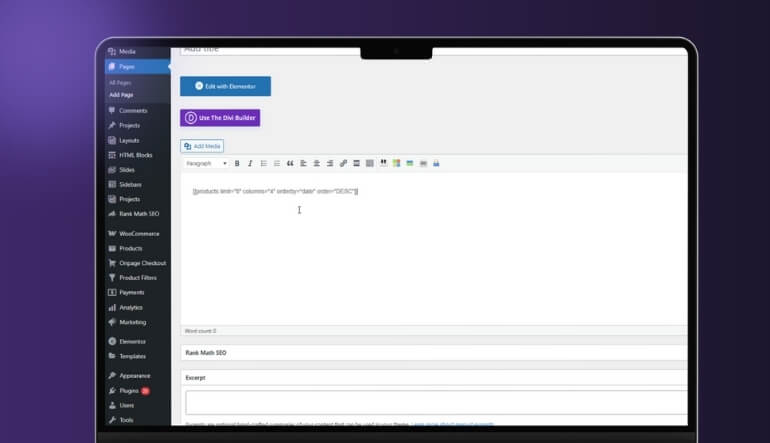
Shortcodes are tiny text snippets that you place into content areas to display products, carts, checkout forms, and more. Once you understand where to paste them and how each editor handles them, you can turn any page into a flexible store layout. Follow the steps below to start using WooCommerce shortcodes in different parts of your site.
Step 1: Using Shortcodes in the Classic Editor
- Go to Pages → Add New [[or edit an existing page]].
- In the main content editor, place your cursor where you want the output to appear.
- Type or paste the shortcode, for example:
[[products limit=”8″ columns=”4″]] - Click Publish or Update, then view the page on the frontend to check the layout.
Step 2: Using Shortcodes in the Gutenberg Block Editor
- Go to Pages → Add New and open the block editor.
- Click the + icon and search for the Shortcode block.
- Select it, then paste your shortcode into the block, such as:
[[sale_products limit=”6″ columns=”3″]] - Update or publish the page and preview how the shortcode renders on the site.
Step 3: Using Shortcodes in Elementor and Other Page Builders
- Open your page with Elementor [[or your chosen page builder]] and edit it normally.
- Drag a Shortcode or Text/HTML widget into the section where you want WooCommerce content.
- Paste your shortcode in the widget field; for example, if you want a special grid to sell electronics online with WooCommerce, you might use:
[[products category=”electronics” limit=”12″ columns=”4″]] - Click Update and use the live preview to confirm the shortcode displays correctly inside your custom layout.
Step 4: Using Shortcodes in Widgets – Sidebars, Footers, Headers
- Go to Appearance → Widgets [[or Appearance → Editor in block themes]].
- Add a Text or Shortcode widget to your sidebar, footer, or header area.
- Paste the shortcode inside the widget content area, for example:
[[featured_products limit=”4″]] - Save the widget and visit a page that displays that widget area to see the output.
Step 5: Using Shortcodes in Theme Template Files – Advanced
- Connect to your site via FTP or use the Theme File Editor in WordPress [[carefully, or via a child theme]].
- Open the template file where you want the shortcode to appear, such as page.php or a custom template.
- Insert the shortcode using PHP:
echo do_shortcode[[‘[[products limit=”4″ columns=”4″]]’]]; - Save the file, refresh the frontend page, and confirm the shortcode output appears in the exact spot you inserted it.
By combining these methods, you can place WooCommerce shortcodes almost anywhere and build highly customized store pages without writing complex code.
How to Add WooCommerce Shortcodes to Pages and Posts?
Here are two simple ways to add WooCommerce shortcodes when you want clear control over important page elements. These methods help you place product grids, carts, or checkout blocks anywhere you need them inside your store. You follow each step with care because shortcodes react fast and shape useful layouts:
Using the Gutenberg Block Editor
- You open your page inside Gutenberg and check the layout before adding any important shortcode block today. You tap the plus icon to find the shortcode block that helps place content anywhere quickly today.
- You type your shortcode inside the block and adjust spacing when you want a clean display today. You check the preview and confirm your shortcode appears right where your visitors expect clear content today.
- You edit the block area before saving changes because you want your shortcode output to look neat today. You update your page after checking alignment since layout issues fade when you correct simple mistakes today.
- You mix product shortcodes with other blocks when you design creative layouts that highlight your important items. You change limits or categories because different shortcode settings help shape unique pages that guide visitors today.
- You add multiple shortcodes on one page to create helpful combos that show many dynamic store sections. You review each shortcode placement again since smart position choices help users find products fast across pages.
Using the Classic Editor
- You open your post inside Classic Editor and check the writing area before placing your shortcode today. You paste the shortcode on a clean line because simple placement helps keep the page organized well.
- You adjust spacing around the shortcode since neat spacing helps your page look clear during quick visits. You save your page after checking placement since fast checks help you correct layout errors before publishing.
- You mix text with shortcodes while building sections that support clear reading moments for users across screens. You run quick previews to confirm content loads correctly because early checks give you control across pages.
- You keep your shortcode simple and place edits early when you build pages that need helpful clarity. You update your post after final review since these steps help your work stay clean during each publish.
Advanced Shortcode Parameters to Customize Layouts
WooCommerce shortcodes become far more powerful when you combine parameters that control product limits, layout structure, sorting, and category filtering. These parameters let you build custom product grids, dynamic displays, and tailored sections that highlight exactly what your shoppers need to see. Below is a clear guide on how each parameter works, followed by real examples that you can copy and use instantly. Here are the key parameters you can combine:
Limit — Control how Many Products Display
This sets the total number of products shown.
Example:
[[products limit=”8″]]
Columns — Change the Grid Layout
This controls how many products appear per row.
Example:
[[products columns=”4″]]
Paginate — Add Pagination to Large Product Lists
Use this when displaying many products across multiple pages.
Example:
[[products paginate=”true” limit=”12″]]
Order and Orderby — Custom Sorting Options
Sort products by date, rating, title, price, or popularity.
Examples:
[[products orderby=”date” order=”DESC”]] [[products orderby=”rating”]]
Category — Show Products from Specific Categories
Target specific product groups for custom landing pages.
Example:
[[products category=”shoes”]]
Real Combined Examples
Example 1: Four-Column Grid With Eight Newest Products
[[products limit=”8″ columns=”4″ orderby=”date” order=”DESC”]]
Example 2: Paginated Category Display for Electronics
[[products category=”electronics” limit=”12″ columns=”3″ paginate=”true”]]
Example 3: Best-Rated Products in a Clean Three-Column Layout
[[products orderby=”rating” limit=”6″ columns=”3″]]
Example 4: Featured Products With Custom Sorting
[[featured_products limit=”4″ columns=”4″ orderby=”title” order=”ASC”]]
Example 5: Sale Products With Pagination for Large Collections
[[sale_products limit=”9″ columns=”3″ paginate=”true”]]
How to Style and Customize WooCommerce Shortcodes With CSS?
CSS styling gives you strong control over WooCommerce shortcodes and helps your store pages feel really organized and friendly. You change layouts, spacing, colors, and button styles with simple rules so product lists stay clear and easy to browse.
Adjusting Layout and Columns With CSS
You control shortcode layouts by changing column counts and widths with simple CSS rules inside stylesheets. Add small custom classes to shortcode blocks, then adjust those classes for layout changes across different pages. You tweak tablet and mobile breakpoints so product grids stay readable, centered, and pleasant on smaller screens.
Tweaking Spacing Around Shortcode Sections
You edit margins and padding around shortcode sections so product grids breathe and feel on screens. Target wrapper elements with CSS selectors, then change top spacing to separate content blocks without awkward gaps. You experiment with gap sizes between cards and menus until the layout feels balanced, open, and comfortable.
Styling Buttons Inside Shortcode Output
You style shortcode buttons by changing background colors, rounded corners, and typography so they match the theme’s branding. Use CSS hover effects that lift or brighten buttons so shoppers notice important calls to action. You adjust padding and line height, then test button sizes until clicks feel easy on both thumbs.
Customizing Product Card Appearance
You customize product cards by styling titles, prices, and images so key product details stand out. Add thin borders or soft shadows around each item for stronger separation between neighboring product cards visually. You plan typography updates before you add a text field to a WooCommerce product page or feature.
Using Custom Classes for Targeted Styling
You create CSS classes for certain shortcode blocks when you want different layouts on specific pages. Assign these classes inside Gutenberg or page builders, then write focused CSS rules targeting those custom sections. You combine layout tweaks, spacing updates, and color changes to build reusable shortcode designs for future campaigns.
Common Problems With WooCommerce Shortcodes and How to Fix Them
These WooCommerce shortcode problems are explained in a clear way so you can fix them without any hassle. These points help you understand why displays break, why blocks fail, and why layouts change across pages when themes or plugins cause different unexpected conflicts inside your store.
Shortcode Not Executing Correctly
Shortcodes fail when extra spaces or strange characters interrupt normal output across different page areas. You check each shortcode line and remove formatting that hides core parts your store needs today. You test fresh pages to confirm that clean shortcode input works correctly without confusing your layout again.
Block Editor Not Rendering Shortcodes
Gutenberg blocks sometimes ignore shortcodes when mixed with blocks that handle custom dynamic content differently today. You insert a dedicated shortcode block and avoid mixing it inside complex containers that shift markup. You test previews gently and adjust placement to keep output visible inside cleaner editor layouts.
Product Grid Not Showing Items
Missing product grids happen when wrong categories or filters hide entire results from your shop display area. You check product visibility settings and confirm each item holds the correct categories that display across pages. You refresh permalinks and clear caches to restore full product lists without breaking ongoing designs.
Compatibility Issues With Themes or Plugins
Themes or plugins create conflicts when they rewrite templates or scripts that manage shortcode output today. You disable new plugins briefly and switch themes to locate problems before restoring normal settings. You update older tools because fresh versions fix broken layouts and unexpected behavior across store pages.
Shortcodes Breaking in Full-Site Editing Themes
FSE themes change templates that handle shortcode blocks differently during layout rendering across new designs. You place shortcodes inside template parts that support classic features rather than complex blocks. You adjust spacing and test different areas until the layout displays shortcode output cleanly across screens.
Frequently Asked Questions about Using Every WooCommerce Shortcodes
Here are some helpful FAQs that guide users who want to understand and use every WooCommerce shortcode. These questions cover extra areas that support layout control, shortcode placement, and customization options. Each answer gives clear guidance so you can apply shortcodes confidently across different pages.
Can I Use Multiple WooCommerce Shortcodes On A Single Page?
Yes, you can place multiple WooCommerce shortcodes on one page to create richer layouts with product grids, account sections, or checkout blocks. Just add each shortcode in a separate block or line, then preview the page to ensure everything displays correctly.
How Do I Combine Shortcodes With Page Builder Layouts?
You can use Elementor, Divi, or similar builders by adding a shortcode widget into any section you design. This lets you place product blocks inside custom layouts while keeping full builder control. Always test spacing and mobile behavior to ensure clean results.
Why Do My Shortcodes Work In Some Themes But Not Others?
Different themes handle shortcode styling and template structure differently, so some displays may appear broken. Switch briefly to a default WooCommerce-friendly theme to check compatibility. If the shortcode works there, your main theme likely needs updates or layout adjustments.
Can I Customize WooCommerce Shortcode Output Without Plugins?
Yes, you can adjust shortcode output by combining parameters like limit, columns, category, and order. Add custom CSS to refine layout spacing, button styles, or product card design. This approach gives strong flexibility without needing extra tools or complex extensions.
Do WooCommerce Shortcodes Work Inside Widget Areas Or Footer Sections?
Yes, you can place shortcodes inside sidebar, footer, or header widgets using a basic text widget. This helps you display featured products, sale items, or category blocks in helpful positions. Always check frontend results to ensure the widget layout remains tidy.
Final Thoughts
Shortcodes are small tools that help you show WooCommerce content without doing any coding. Knowing how to use every WooCommerce shortcode lets you add products, carts, and checkout forms to any page fast. You can use them with the Classic Editor, Gutenberg, or page builders like Elementor.
These shortcodes help you change your store layout easily by using simple settings. You can show only certain items, control the number of products, or change the page design. With a bit of practice, your store will look better and work more smoothly. This makes it easier for shoppers to find and buy products.
