

A WooCommerce store works best when it connects with customers in a personal way. Geolocation plays a big part in this by showing the right products, prices, and delivery options based on where shoppers are. That’s why many store owners often think about how to use geolocation to optimize a WooCommerce store.
Use geolocation in WooCommerce to show local currency, region-specific products, and location-based shipping. It also helps apply correct tax rates, offer localized discounts, auto-adjust site language, and improve marketing by targeting top customer regions. This increases user experience, conversions, and store efficiency.
Do you want to know how geolocation makes your WooCommerce store smarter and more useful? Keep reading, and you’ll find every important detail about using geolocation the right way in this article.
How to Use Geolocation to Optimize a WooCommerce Store?
Geolocation helps online stores show the right products, prices, and shipping options based on where the customer is. It also helps create a better shopping experience by making things more personal and relevant. Let’s look at how you can use geolocation in a WooCommerce store to make it more effective and user-friendly.
Show Local Currency Automatically
Geolocation can detect where a customer is from and display prices in their local currency. This helps in applying location-based product pricing in WooCommerce, so customers see the right prices based on where they live. It builds trust because people prefer to see prices they understand. This small change can increase your store’s sales and reduce cart abandonment.
Display Region-specific Products
With geolocation, you can show products that are available or popular in a customer’s region. For example, you can hide items that cannot be shipped to certain areas. It also helps in promoting seasonal or cultural products. This way, customers always see items that are relevant to them.
Offer Location-based Shipping Options
Geolocation helps show the best shipping methods for a customer’s address. You can set different shipping rates based on countries or cities. It makes checkout faster since customers see only the options that apply to them. This reduces confusion and helps you manage logistics more smoothly.
Set Regional Taxes Automatically
Taxes can differ from one region to another. Geolocation helps WooCommerce automatically apply the correct tax rates based on where a customer is. This saves time for both the seller and buyer. It also helps avoid legal issues related to incorrect tax charges.
Personalize Discounts and Promotions
You can use geolocation to create special offers for specific locations. For instance, give discounts to customers from cities where sales are low. This helps attract more buyers and balance your sales across regions. Personalized deals make customers feel valued and increase repeat purchases.
Adjust Language Based on Location
When a visitor lands on your store, geolocation can show the site in their preferred language. This improves understanding and builds a stronger connection with customers. A smooth shopping experience in their own language can help increase conversions. It’s also a simple way to make your store more global.
Improve Marketing Campaigns with Location Data
Geolocation data can help you learn where most of your customers come from. You can use this information to focus your ads or marketing campaigns in those areas. It also helps identify new markets to target. This way, you spend your marketing budget wisely and reach the right audience.
Tools and Plugins That Make Geolocation Easier in WooCommerce?
Geolocation helps online stores show products and prices based on where buyers live. It can also improve delivery speed by connecting customers to nearby stores. Using the right plugins makes this process easier and smoother for store owners. Let’s look at some useful tools and plugins that make managing locations simple and effective.
Multi Location Product & Inventory Management For WooCommerce
This plugin helps manage products and stock across different store locations. It lets you track inventory for each area separately and keep it updated. You can also show product availability based on customer location. It makes handling multi-location stores simple and well-organized.
WooCommerce Geolocation Plugin
WooCommerce’s built-in feature automatically detects customer locations. It adjusts prices, currency, and shipping options based on their region. It is easy to set up and works right after activation. It helps both small and large stores serve customers better around the world.
IP2Location Redirection
This plugin helps redirect users to the right store or page. It uses IP addresses to find where visitors come from. You can send users from different countries to specific pages or stores. It helps create a more personal shopping experience for each customer.
Geotargeting WP
With this plugin, you can display or conceal content according to the location of visitors. You can display country-specific offers, products, or messages. It’s great for stores that serve multiple regions or markets. It also helps you manage promotions for local buyers more easily.
GeoIP Detect
GeoIP Detect helps WooCommerce find a visitor’s country or city quickly. It works with other plugins to apply local taxes or shipping rates. You can also use it to show country flags or messages. It’s a lightweight and easy option for adding location-based features.
How to Enable Geolocation?
Depending on the location of your customers, geolocation enables your store to display products and inventory. It makes shopping smoother by letting buyers choose their nearest store. With the Multi Location Product & Inventory Management for WooCommerce plugin, you can enable this easily. Let’s go through the simple steps to set it up and make it work.
Step 1. Automatic Installation
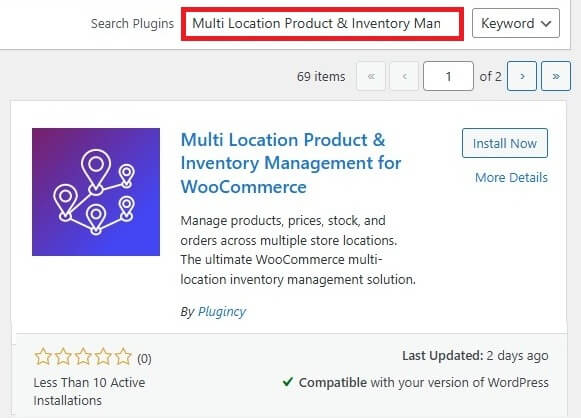
Go to Plugins → Add New from your WordPress admin panel. Type Multi Location Product & Inventory Management for WooCommerce in the search bar. Click Install Now and then Activate the plugin. Once done, open Location Manager from your admin menu to begin setting up your locations.
Step 2. Manual Installation
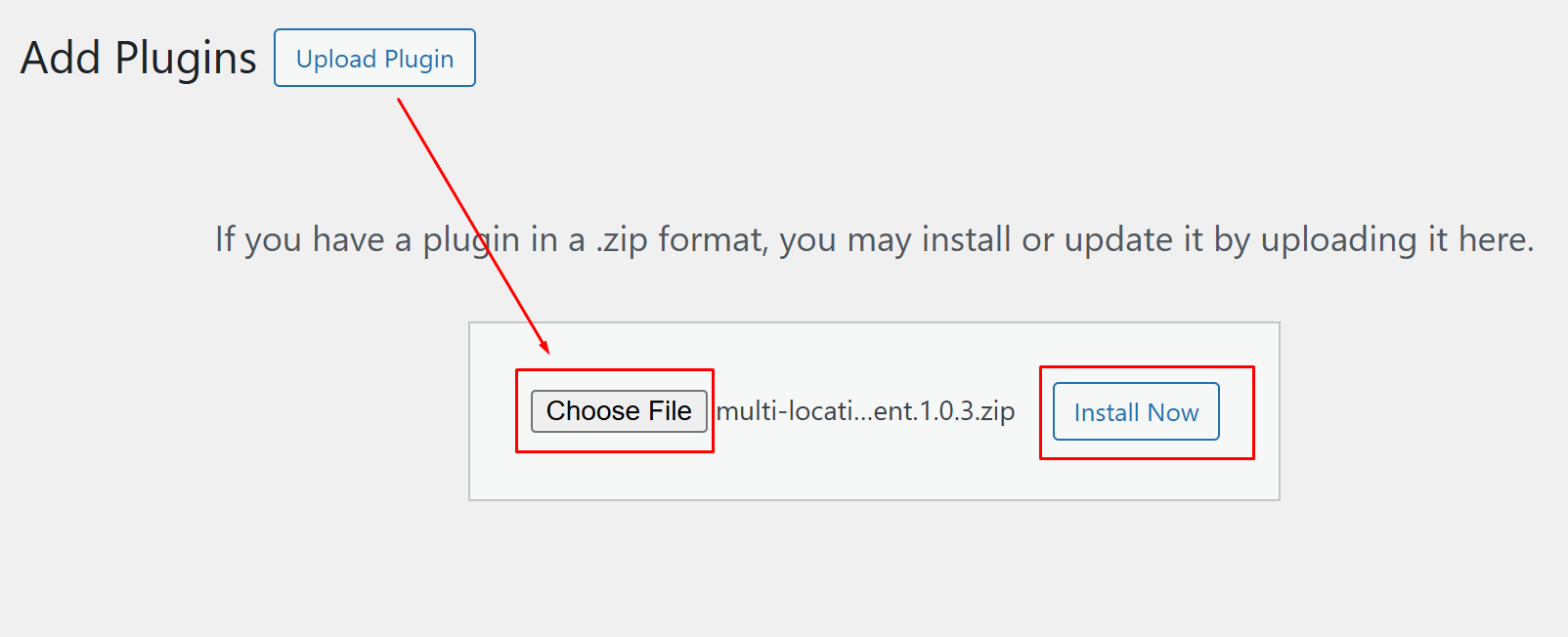
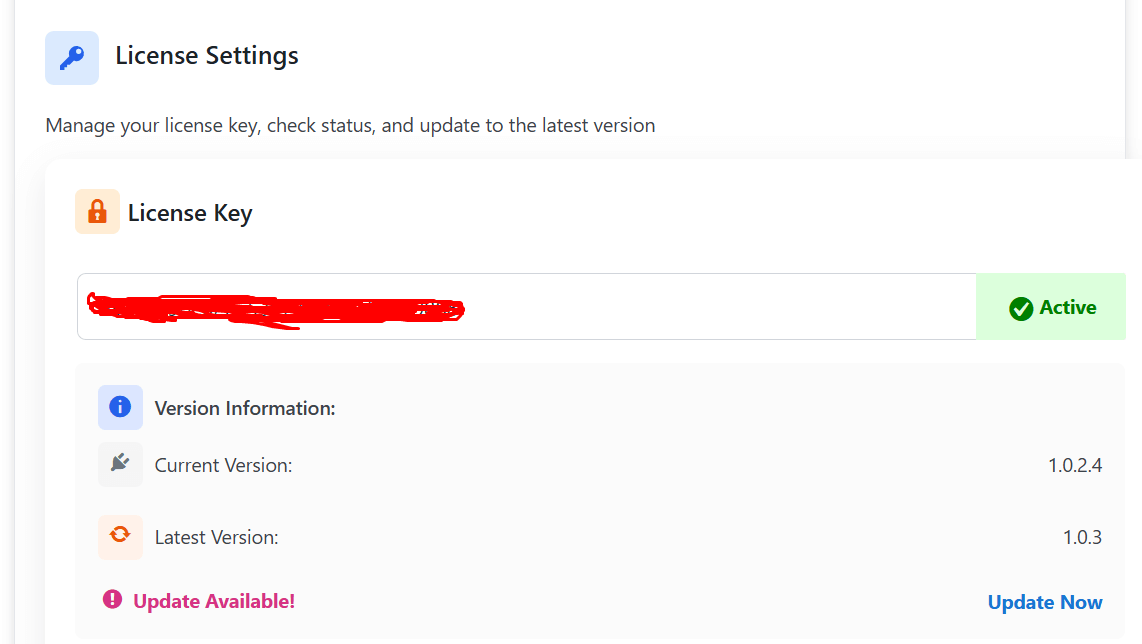
If you have the Pro version, download the ZIP file from the official website. In your WordPress dashboard, go to Plugins → Add New → Upload Plugin. Choose the ZIP file, click Install Now, and then Activate it. After activation, open the plugin settings and enter your license key to unlock full access.
Step 3. Configuration
After activation, open the settings panel inside Multi Location Product Management for WooCommerce plugin. You can now manage all your store locations, inventory rules, and stock settings. Go to Location Manage in your admin area to start adjusting the options. This is where you control your stores, warehouses, and product stock flow.
Create Store Locations
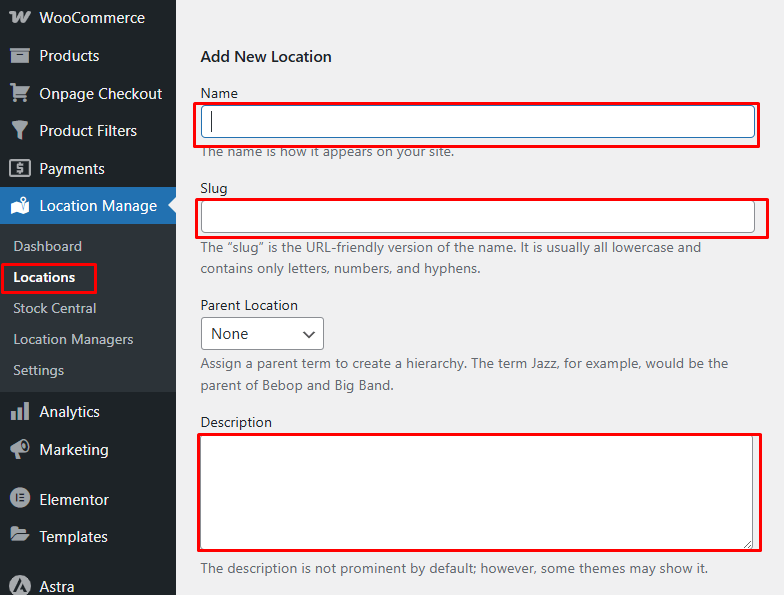
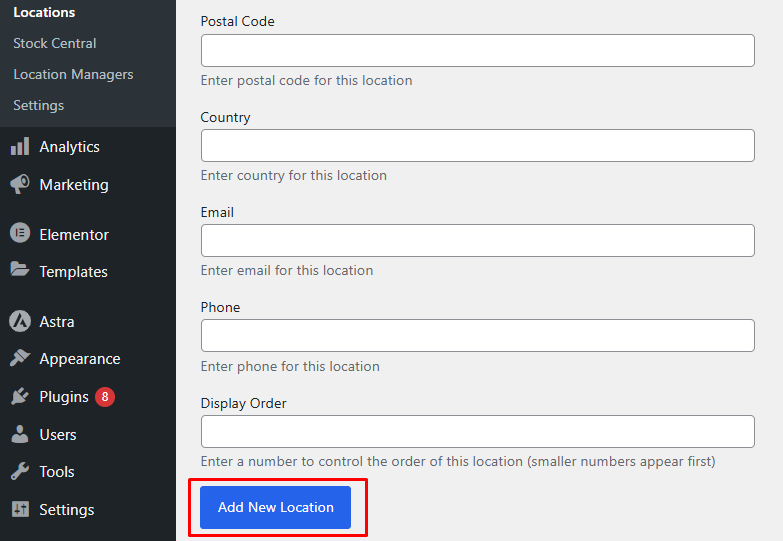
Go to Location Manage → Locations to add your store or warehouse details. Fill in the name, address, working hours, and contact information. Each location you create helps track stock levels and item movement. You’ll also be able to assign products to these locations later.
Configure General Settings
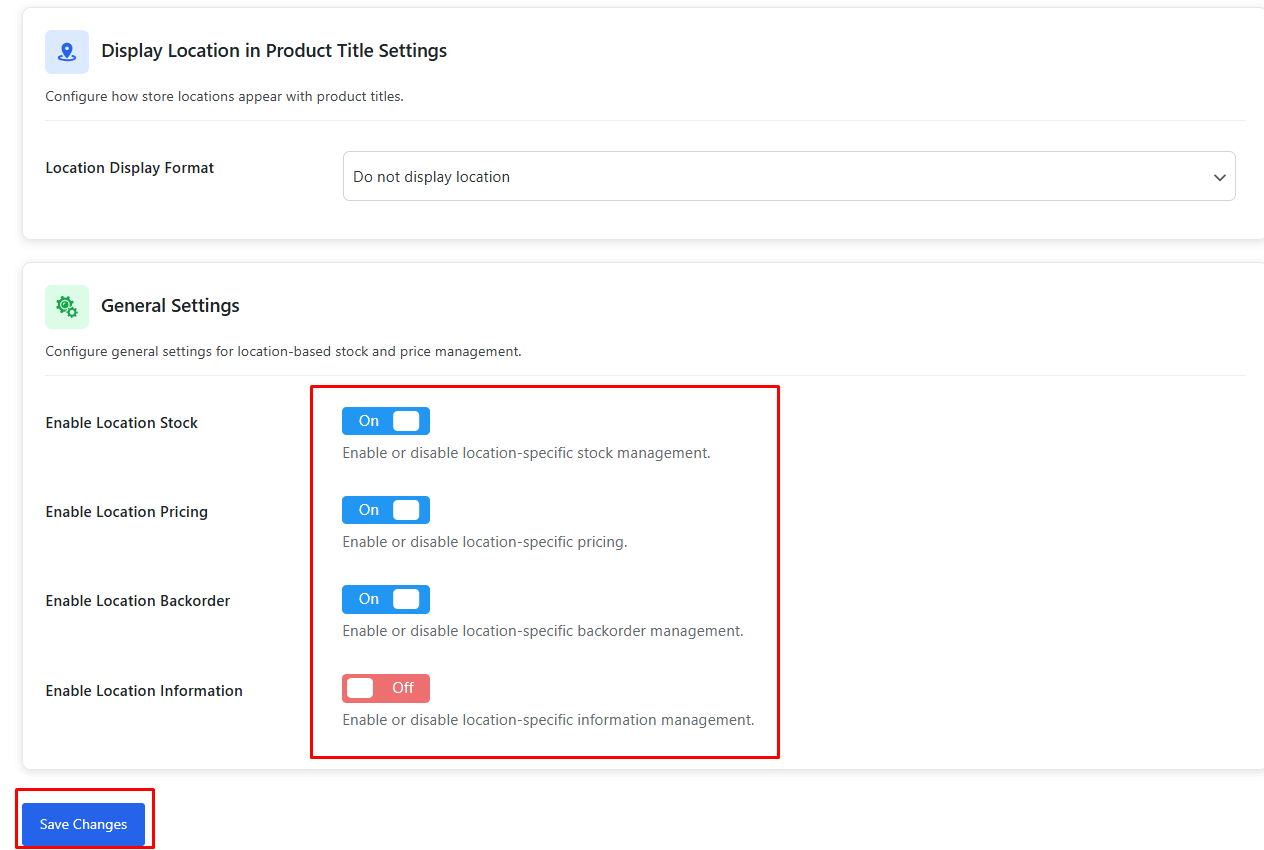
Open Location Manage → Settings and review all available options. You can set how your store syncs stock, handles inventory, and updates prices. Adjust the options to match how your store works day to day. Don’t forget to save your settings after making changes.
Assign Products To Locations
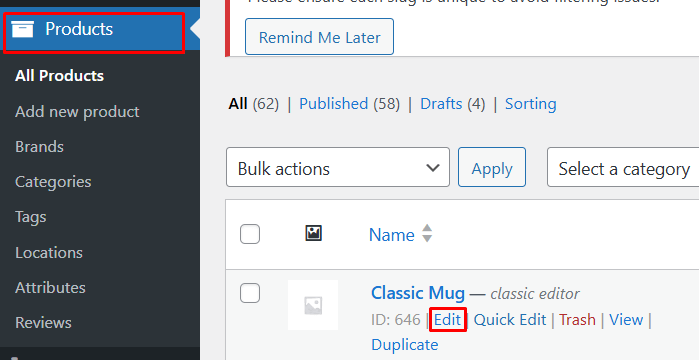
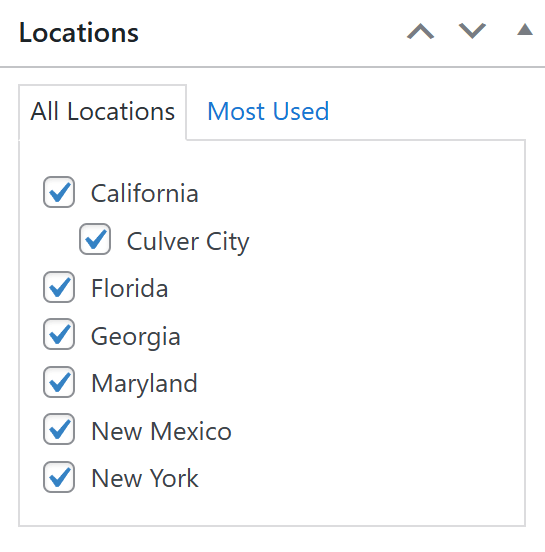
Open any product in your WooCommerce store to assign it to a location. Under the Locations section, select one or more places where the product is stored. This helps you manage stock separately for each area. You can edit these settings anytime if your stock changes.
Enable Geolocation in Your Store
To easily add a Geolocation to your store for customers, use this shortcode [[mulopimfwc_store_location_selector]]. You can add it to any page, post, or widget area. Go to Appearance → Widgets, open Header Builder Widget 1, paste the shortcode, and click Update.
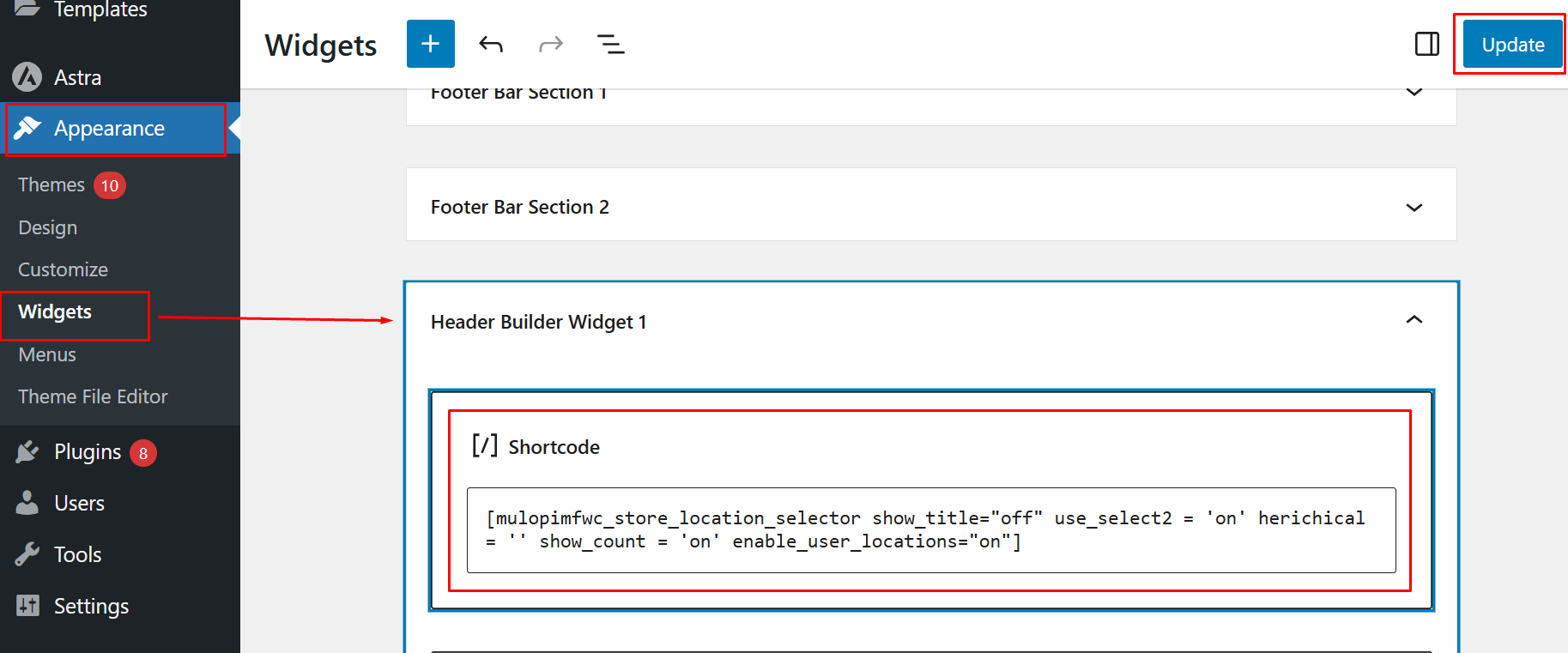
If you prefer adding it through code, use this line:
<?php echo do_shortcode(‘[mulopimfwc_store_location_selector]’); ?>
This lets shoppers choose their store while browsing products.
Test The Setup
After enabling geolocation, visit your store to test the feature. Check if customers can pick their location and see the correct product stock. Try switching between locations to confirm that stock updates properly. If something doesn’t work right, clear your cache and check your settings again.
Common Mistakes to Avoid When Using Geolocation
Geolocation is a great feature that helps improve your online store’s experience. It makes shopping more personal by showing the right products and prices. But when it’s not used correctly, it can cause problems for your customers. Let’s look at some common mistakes and learn how to avoid them below.
Ignoring Plugin Compatibility
Many store owners forget to check if their plugins work together. Some plugins can cause errors when used with geolocation tools. Always test new plugins before using them on your live site. This helps prevent conflicts that can break your store’s location features.
Using the Wrong Location Settings
Choosing the wrong default location can confuse your customers. It may show incorrect prices, shipping options, or taxes. Always double-check your location and currency settings in WooCommerce. Correct settings make sure your store shows accurate details for every visitor.
Not Testing Geolocation Features
Some store owners turn on geolocation but never test it. This can lead to broken location pickers or wrong results. After setup, visit your site from different devices to check how it works. Fixing small issues early can save time and prevent customer complaints later.
Forgetting to Use HTTPS
Geolocation works best with a secure HTTPS connection. Without it, your store may fail to detect customer locations properly. A secure setup also keeps user data safe and builds trust. Most hosting companies let you enable HTTPS for free with an SSL certificate.
Overcomplicating Location Rules
Adding too many location rules can slow down your website. It can also confuse users with extra steps or pop-ups. Try to keep your geolocation setup simple and easy to use. Focus only on the rules that improve shopping and stock accuracy.
Ignoring Customer Privacy
Some customers may not want to share their location right away. Forcing them to allow access can cause them to leave your site. Always give clear options and explain why you need their location. This keeps your store user-friendly and builds customer trust.
How Do You Know If Your Geolocation Settings Are Working?
Your store can display the correct products, costs, and shipping information with the aid of geolocation. So, it’s important to make sure your setup works correctly before going live. A small error can affect how your customers see and buy products. Below, we go over a few simple ways to check if geolocation is working correctly.
Test From Different Locations
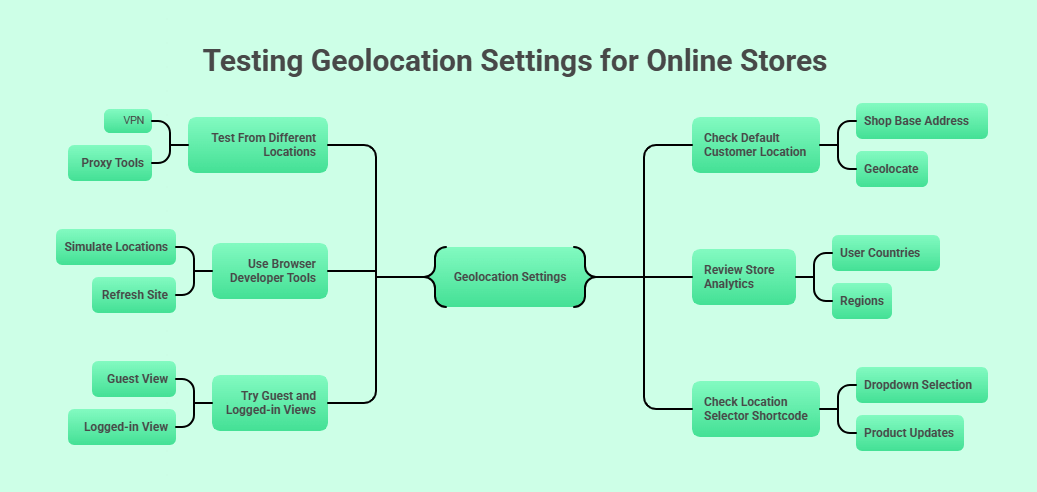
Use a VPN or proxy tool to test from various countries. This lets you see if your store changes prices or settings based on location. Check if taxes, currencies, and shipping options update correctly. Doing this helps confirm that your geolocation system responds as it should.
Check Default Customer Location
In WooCommerce, make sure your “Default Customer Location” is set correctly. Try switching between “Shop Base Address” and “Geolocate” options. Then reload your website and see if the store updates location details. If nothing changes, recheck your settings or clear your site cache.
Use Browser Developer Tools
You can test geolocation directly through your browser. Most browsers let you simulate locations in their developer tools. Open the tools, pick a country or city, and refresh your site. This is a quick way to test how your store reacts to location changes.
Review Store Analytics
Your website analytics can show if location tracking works. Check reports for user countries, regions, or cities. If you only see one location, your geolocation setup might not be active. Fixing this early helps you collect more accurate customer data.
Try Guest and Logged-in Views
Sometimes geolocation behaves differently for guests and logged-in users. Visit your store both as a guest and while signed in. Make sure both views display the correct prices and locations, and also track stock levels separately for each location in WooCommerce to ensure accuracy. If there’s a mismatch, update your plugin or settings to sync properly.
Check Location Selector Shortcode
If you added a location selector shortcode, make sure it loads fine. Select a new store or region from the dropdown and see if it updates. You should notice the products or stock changing based on that choice. If it doesn’t, confirm the shortcode is placed correctly on your page.
Frequently Asked Questions
Geolocation can make a big difference in how your WooCommerce store works. It helps show the right products, prices, and shipping options to every visitor. But many people still have questions about how it all fits together. Here are some common questions and clear answers to help you use geolocation more effectively.
What Is Geolocation in WooCommerce?
Geolocation in WooCommerce lets your store detect a visitor’s location. It helps show the right prices, taxes, and products based on where they live. This makes shopping easier and more personal for customers. It’s a built-in feature that can be improved using extra plugins.
Why Is Geolocation Important for Online Stores?
Geolocation helps customers see what’s truly available for them. It removes confusion about prices, shipping times, and product stock. It also helps stores follow regional tax rules correctly. Most of all, it creates a smooth and trusted buying experience.
Can Geolocation Work Without Any Plugins?
Yes, WooCommerce has a simple geolocation option built in. But it may not be enough for stores that have many warehouses or countries. You can use plugins to make it stronger and more flexible. They help manage products, stock, and pricing better across locations.
How Does Geolocation Affect Customer Trust?
Customers feel more comfortable when a store shows local details. It tells them the store understands their region and needs. Showing local currency, tax, and shipping builds confidence. This small change can increase both trust and sales.
What Happens If Geolocation Is Turned Off?
If geolocation is off, all visitors see the same store setup. Prices, stock, and shipping may look wrong for their area. It can lead to confusion and lost sales. Turning it on ensures every visitor sees accurate and local details.
Does Geolocation Slow Down a Website?
In most cases, it doesn’t work if set up properly. Using a reliable plugin and a fast hosting service helps a lot. Some caching settings may affect performance, but they can be adjusted. Testing your site after enabling geolocation keeps it running smoothly.
Can I Use Geolocation With Multi-Store WooCommerce Sites?
Yes, geolocation works well with multi-store setups. It helps send customers to the right regional store based on their location. This ensures they see the correct stock and shipping details. It’s perfect for businesses that sell in different countries or regions.
Conclusion
A well-set geolocation system does more than just show locations; it builds trust and makes shopping simple. When customers see the right prices, language, and delivery options, they feel more confident in your store. It’s these small, thoughtful changes that make a big difference in how people shop online.
Understanding how to use geolocation to optimize a WooCommerce store can turn a regular store into a smart, customer-focused one. With the right setup, you can manage stock better, personalize offers, and boost sales. Each step helps you connect your store with the right customers at the right time.
Now is the time to check your store settings, test your features, and see how well your system responds. A few small updates can make your WooCommerce store more personal, faster, and more effective. When geolocation works smoothly, your customers notice—and your sales numbers will too.
