

Multi-location stock only works when the storefront can react to changing inventory by warehouse, pickup point, or fulfillment context. Problems start when caching saves one version of that inventory-sensitive content and keeps showing it after the underlying stock conditions have already changed.
In this guide, we’ll explain everything related to multi-location inventory conflicts with caching plugins in WooCommerce, including causes and how to fix them. Keep reading to understand where the conflict starts and how to restore accurate stock visibility.

Why Multi-Location Inventory Is More Sensitive To Caching?
Multi-location inventory becomes more cache-sensitive because stock can change by warehouse, pickup point, or fulfillment context instead of staying tied to one fixed product quantity. That makes it easier for reused storefront content to fall out of step with live availability. In a setup like that, one saved stock view can quickly become inaccurate for another shopper.
- Stock can vary by warehouse instead of one shared quantity.
- Availability can change with pickup, delivery, or location selection.
- Shopper context can affect which inventory should appear.
- Cached content is built to reuse output, not refresh it live.
- One saved stock view may be wrong for another visitor.
- Location-based inventory needs faster stock refresh to stay accurate.
How To Tell If Caching Is Breaking Multi-Location Inventory?
Caching-related inventory conflicts usually do not appear as one obvious stock error. They often show up as location-based availability that changes at the wrong time or stays frozen after an update, which becomes easier to notice in stores using WooCommerce multi locations inventory management.
Before getting into the deeper cache layers behind the issue, it helps to look at the signs that usually confirm caching is interfering with multi-location stock.
- Admin And Storefront Stop Matching By Location: Stock changes correctly in admin, but the storefront still shows older availability for that location.
- Availability Changes After A Refresh: Product stock looks different after a reload even though no new inventory change actually happened.
- Different Shoppers See Different Stock States: Two users can see different availability for the same product under similar location conditions.
- Fulfillment Changes Do Not Refresh Stock Properly: Pickup, shipping, or location selection changes the expected stock, but the product page does not update correctly.
- Cache Clearing Fixes The Problem Temporarily: Stock display looks right after a purge, then falls back into the same mismatch later.
What Causes The Conflict?
This conflict usually starts when WooCommerce needs to show location-based inventory as live, changing data, but the cache keeps treating that inventory view like reusable content. Once that happens, the storefront can keep showing stock that belongs to an earlier location, an older inventory state, or the wrong fulfillment context.
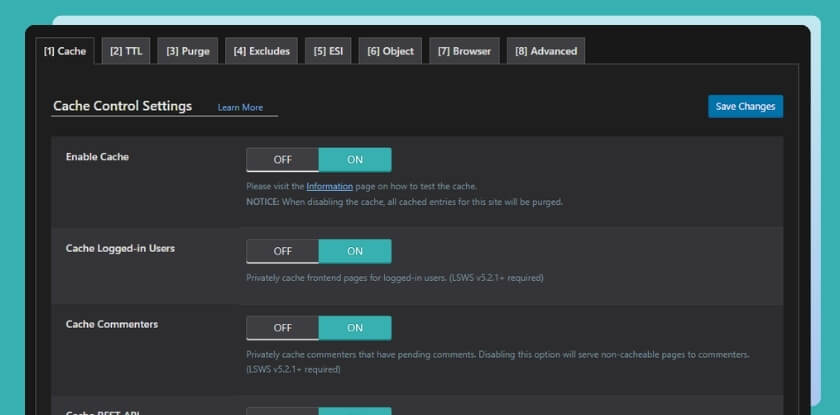
Stale Inventory Data Gets Reused
Cached product pages can keep serving older stock information even after a location-based quantity has already changed. That makes one warehouse, pickup point, or fulfillment source appear available longer than it really is.
Location Detection Stops Updating Properly
Many multi-location setups rely on geolocation, cookies, or location selection to decide which inventory should be shown. If caching freezes that location context, the storefront can end up serving one shopper’s stock view to other visitors.
AJAX Stock Refresh Does Not Stay Dynamic
Some multi-location inventory setups depend on AJAX to load live stock after the page appears. If those responses are cached or blocked from refreshing properly, the storefront can keep showing outdated availability instead of the latest location-based stock.
Cached Fragments Keep Old Availability Visible
Mini-cart content, stock notices, and other reusable fragments can continue showing older inventory messages after the real stock has already changed. This creates a mismatch between what shoppers see and what WooCommerce should be validating.
Cache Rules Ignore Inventory Context
Caching works best with static content, but location-based inventory depends on changing context. When cache rules do not account for warehouse selection, delivery method, pickup choice, or session-based inventory logic, the storefront can easily show the wrong stock state.
Compatibility Gaps Between Plugins Disrupt Live Stock Logic
Caching plugins and multi-location inventory tools do not always handle dynamic stock the same way. If both are trying to control what appears on the storefront without the right exclusions or live refresh behavior, inventory accuracy can break across locations.
Outdated Plugin Or Security Maintenance Increases Risk
Older inventory or caching plugins can create extra instability when location-based stock depends on dynamic logic. Weak maintenance, missed updates, or unresolved plugin issues can make these conflicts harder to trace and fix reliably.
How To Fix The Multi-Location Inventory Conflicts With Caching Plugins
Fixing this issue works best when the same problem areas are handled in the same order they usually break. That means starting with stale stock output, then addressing location detection, live stock refresh, cached fragments, cache rules, plugin compatibility, and long-term maintenance.
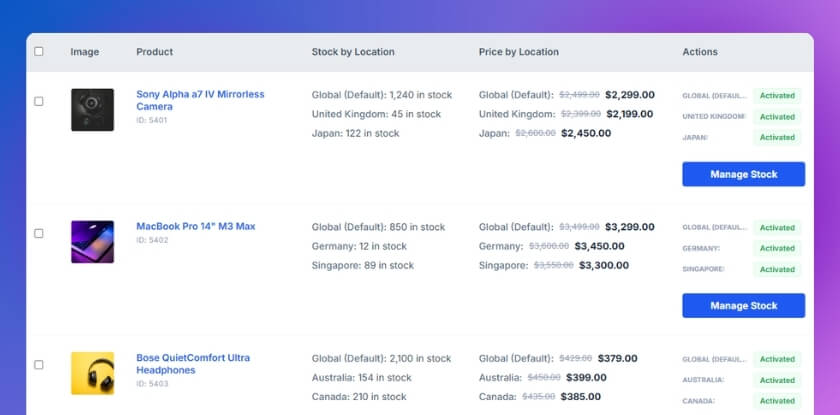
Stop Stale Inventory Data From Staying Visible
Cached product pages should not keep serving older location-based stock after inventory has already changed. If they do, shoppers can see stock that belonged to an earlier warehouse state instead of the latest availability.
Focus first on the most visible cache layers:
- Clear plugin cache, server cache, and browser cache.
- Purge CDN or edge cache if product pages are cached there.
- Retest the same product after a location-based stock change.
Keep Location Detection Out Of Cached Views
Location-based inventory only works when the storefront can keep reading the right warehouse or fulfillment context for each shopper. If that context gets frozen inside the cache, one saved stock view can start appearing for everyone.
Make the location logic more cache-aware:
- Bypass or reject cache when location-based cookies are present.
- Review geolocation, cookie, or session rules tied to stock display.
- Confirm each visitor can load stock based on their own location context.
Keep AJAX Stock Display Truly Dynamic
When stock updates depend on AJAX, those responses need to stay live instead of behaving like reusable cached content. Otherwise, the page may load while the stock message stays behind.
This is where dynamic stock handling matters most:
- Exclude inventory-related AJAX endpoints from cache.
- Use real-time stock display through AJAX where supported.
- Retest warehouse or fulfillment changes to confirm live updates appear correctly.
Refresh Fragment-Based Stock Elements Properly
Stock notices, mini-cart content, and similar fragments can stay visible after the actual inventory has already changed. That creates confusion because one part of the storefront updates while another still shows the older availability.
Give those partial elements special attention:
- Exclude stock-sensitive fragments from aggressive cache rules.
- Refresh mini-cart and availability fragments after inventory changes.
- Compare product page, mini-cart, and checkout stock behavior together.
Adjust Cache Rules Around Inventory Context
Dynamic inventory should not be treated like fully static page content. If cache rules ignore warehouse, pickup, shipping, or session-based stock conditions, the storefront can keep showing the wrong availability even when the inventory logic itself is correct.
Tighten the rules around context-driven stock:
- Exclude cart and checkout pages from cache completely.
- Review cache behavior on product pages showing location-based stock.
- Make sure fulfillment or session changes can trigger a fresh inventory view.
Run A Structured Conflict Test
Some conflicts only become clear when caching and inventory tools are tested in isolation. That helps show whether the stock problem is coming from cache behavior, plugin interaction, or another layer affecting the storefront.
Use a controlled test flow:
- Deactivate all plugins except WooCommerce and the inventory plugin.
- Activate the caching plugin and retest the conflict.
- Re-enable other plugins one by one to see when the issue returns.
Keep Inventory Plugins Updated And Reviewed
Multi-location inventory depends on plugins that often handle dynamic stock, location logic, and storefront behavior at the same time. If those tools are outdated or poorly maintained, the chance of conflicts and reliability problems grows.
Keep the setup safer and more stable:
- Update the inventory plugin and caching plugin regularly.
- Review changelogs and compatibility notes before major changes.
- Keep an eye on known security or maintenance issues that could affect stock logic.

Why Does This Conflict Become Harder To Ignore Over Time?
Caching and multi-location inventory may seem manageable at first, especially when the mismatch only appears occasionally. Over time, though, repeated location-based stock errors become more visible because they affect more storefront views, more fulfillment paths, and more customer decisions.
That is where the impact starts becoming harder to overlook across the store.
- Wrong Stock Feels Less Predictable: Shoppers can see availability that changes unexpectedly across locations, which makes the storefront harder to trust.
- Fulfillment Choices Become Riskier: Pickup, delivery, or warehouse-based options can look available at the wrong time and create confusion later.
- Cart And Checkout Friction Grows: A product may appear available earlier, then fail once the shopper moves deeper into the buying process.
- Storefront Consistency Starts Breaking Down: Product pages, cart views, and location-based stock messages can stop aligning with each other.
- Manual Fixes Stop Solving The Real Problem: Clearing cache repeatedly may help for a moment, but it does not create stable inventory accuracy.
- Customer Confidence Becomes Harder To Protect: Repeated stock mismatches make shoppers less likely to trust the availability shown on the store.
Better Control For Multi-Location Inventory And Cache-Sensitive Stock
Location-based stock becomes harder to manage once cached storefront content starts interfering with live inventory visibility. Multi location product management for WooCommerce gives stores a more structured way to keep stock clearer, more reliable, and easier to manage across changing locations and fulfillment contexts. Here are some of the ways it helps bring more control to the storefront:
- Location-Based Stock Stays Easier To Manage: Inventory can be handled more clearly across warehouses, pickup points, or fulfillment contexts.
- Storefront Availability Feels More Reliable: Product pages can stay closer to the stock that shoppers should actually see for their location.
- Inventory Logic Becomes Easier To Control: Stock display, location rules, and fulfillment behavior become easier to manage together.
- Manual Cache-Driven Fixes Become Less Frequent: A stronger inventory setup reduces the need to keep chasing repeated stock mismatches.
- Growing Stores Get A More Stable Workflow: Multi-location inventory becomes easier to trust as products, locations, and stock changes increase.
Frequently Asked Questions
Cache-related inventory issues often raise a few follow-up questions once the main conflict becomes easier to understand. These FAQs focus on the practical concerns store owners usually have when they want location-based stock to stay more accurate across the storefront.
Can This Conflict Affect Only Certain Locations And Not The Whole Store?
Yes, that can happen when the cached stock view is tied to one warehouse, pickup point, or fulfillment context instead of the full inventory setup. In that case, the problem may appear uneven across locations.
Why Does The Store Sometimes Look Fine Until A Customer Changes Fulfillment Options?
Changing pickup, shipping, or delivery context can trigger a different inventory path than the one shown on the first page load. That is why the conflict may only become visible after the shopper makes a location-based choice.
Can Performance Optimization Still Work With Location-Based Inventory?
Yes, but it needs the right balance. Stores can still benefit from caching, as long as inventory-sensitive content is handled in a way that does not freeze live stock visibility.
Why Does The Issue Keep Returning Even After A Cache Purge?
A cache purge may remove the wrong stock view for the moment, but the same conflict can come back if the cache rules are still treating dynamic inventory like reusable content.
When Does A Store Need A More Structured Multi-Location Inventory Setup?
That usually becomes clear when location-based stock depends on too many moving parts to stay accurate through small fixes alone. At that stage, a stronger inventory structure becomes the more reliable long-term option.
Final Takeaways
Now you know why multi-location inventory conflicts with caching plugins in WooCommerce happen and why the issue is rarely just about one wrong stock message. In most cases, the real problem starts when cached storefront content keeps showing inventory that should change by location, pickup point, or fulfillment context.
Getting that balance right is what matters. Stores still need performance, but they also need location-based stock to stay accurate. A more structured inventory setup makes it easier to keep storefront availability clearer, more reliable, and better aligned with real stock as the store grows.
