

When products move between different locations and updates are slow, managing stock across multiple warehouses can become stressful. It often creates small issues that grow into bigger ones over time. Many store owners look for simple ways to control these problems and keep everything steady, which is why they search for a helpful multiple warehouse inventory management guide.
Manage multiple warehouses in WooCommerce by using a centralized system with real-time stock updates, standard rules, and smart automation. Set reorder points, balance stock across locations, and track performance with key metrics. This improves shipping speed, reduces errors, and keeps your inventory accurate and customer service strong.
Readers who want clean steps and clear help will find useful details here. This article walks through every part of the system in simple words. It also shares the best tools and methods for a smooth setup so you can understand and apply them with confidence.
Multiple Warehouse Inventory Management Guide in Detail
Managing many warehouses can get tricky if stock tracking is not clear. You need one system that connects all warehouses and shows real-time updates. It helps track where items are and what needs restocking. Keep reading to learn how to make your WooCommerce store work smoothly with smart inventory tools.
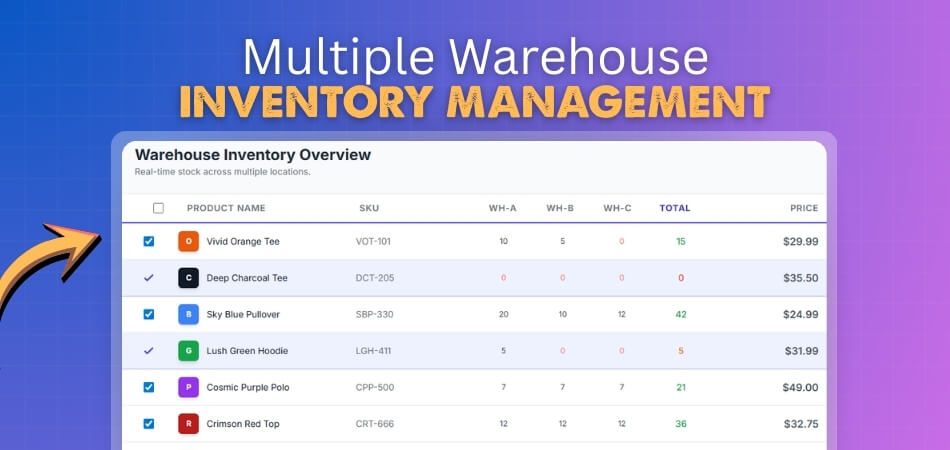
Centralized System for Better Control
Having one main system helps you manage all warehouses from one place. You can see stock levels across every location in real time. It saves time by avoiding manual updates and confusion. This is one of the biggest reasons to implement WooCommerce inventory tools for your online store.
Same Rules Across All Warehouses
When all teams follow the same steps, fewer mistakes happen. Standard operating rules keep receiving, storing, and shipping simple. It also helps new staff learn faster. Clear and shared rules make every warehouse run in the same easy way.
Automate Repetitive Work
Automation helps you save time and reduce human error. The system can assign orders to the best warehouse based on stock and distance. It also helps in faster order processing and better customer service. This creates a smooth and smart work routine.
Keep Stock at the Right Level
It’s important to stop overstocking or running out of items. Use reorder points that fit each warehouse’s needs. You can use data to know which products sell faster. This helps keep the right amount of stock in the right place.
Improve Transport and Layout
A smart warehouse layout can save time and effort. Arrange goods based on how often they are picked or shipped. Plan easy routes inside the warehouse to move goods faster. Also, manage inter-warehouse transfers with simple rules to fill stock gaps quickly.
Use Data to Plan Ahead
Analyzing sales data helps forecast demand in each area. You can plan which warehouse needs what items and when. It also helps reduce waste by preventing extra stock. This turns raw data into smart decisions that grow your business.
Track and Measure Performance
Keeping an eye on warehouse performance keeps everything in check. Use clear metrics like order accuracy, delivery time, and stock turnover. Regular reports help spot weak points early. This makes it easier to improve the whole system step by step.
Balance Stock Between Warehouses
Sometimes one warehouse runs out while another has too much. Use smart transfers to balance inventory between them. Automatic stock movement keeps all locations ready for orders. This helps improve delivery speed and lowers shipping costs.
Make Customers Happier
When products are in stock and ship quickly, customers stay happy. Fast and correct deliveries build trust in your brand. Having a clear system avoids delays and lost packages. A smooth process keeps both customers and your team stress-free.
Managing inventory across many warehouses takes planning and smart tools. When your WooCommerce store uses a single system, things stay organized and simple. Data helps make better choices and avoid stock problems. Start applying these steps today to keep your warehouses running smoothly.
Best Plugin You Can Use to Manage Multiple Warehouse Inventory for WooCommerce
Managing stock across multiple warehouses can be stressful when done by hand. A good plugin can take that load off your shoulders and keep everything accurate from one dashboard.
One of the best tools for this is Multi Location Product and Inventory Management for WooCommerce, a powerful system that helps you organize stock, orders, and reports across many locations.
This WooCommerce multi locations inventory management plugin makes store management faster, smarter, and mistake-free. Let’s have a look at how this plugin makes multi-location inventory easy to handle.
Dashboard
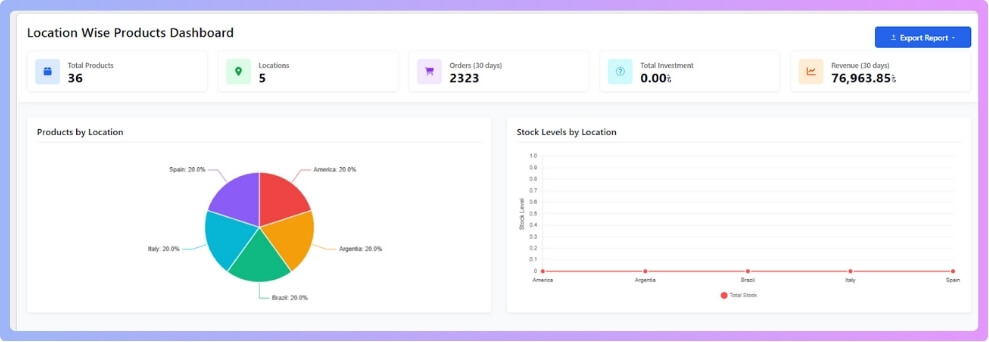
After installing the plugin, you’ll see a new menu called Location Manage in your dashboard. This section gives you a full overview of your products, locations, and store performance.
You can quickly check:
- Total products
- Total locations
- Orders, investments, and revenue
You’ll also see visual graphs that show how your store is performing, along with alerts for low-stock or out-of-stock products. If you want a report, you can export the data in CSV or Excel.
Dashboard Features
- Centralized admin interface for managing all locations
- Product location overview table
- Compatible with WooCommerce HPOS and REST API
- Secure AJAX operations for smooth performance
- Custom CSS customization
- Export reports to CSV or Excel
- Plugin settings backup, import, and export (Pro version)
This dashboard acts as your control center — everything is in one place, easy to understand, and quick to manage.
Location
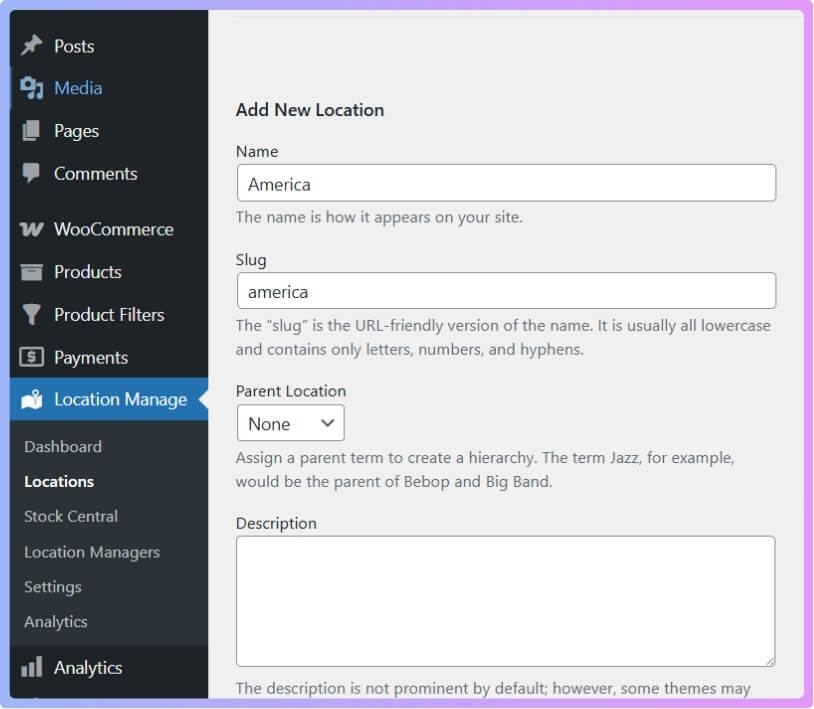
The Location section lets you create and organize your warehouses or branches. You can enter detailed information for each place, so you always know where your stock is stored.
You can add:
- Location name and description
- Opening and closing time
- Street address, city, state, postal code, country
- Email, phone, latitude, longitude
- Shipping zone and payment method
Location Management Features
- Create and manage unlimited locations
- Add complete business details (address, contact, working hours)
- Use parent-child (hierarchical) location structure
- Enable or disable specific locations anytime
- Assign one or multiple locations to a product
- Bulk assign locations to many products at once
Once added, you can assign stock to each warehouse and manage inventory separately, keeping your data organized and clear.
Stock Control
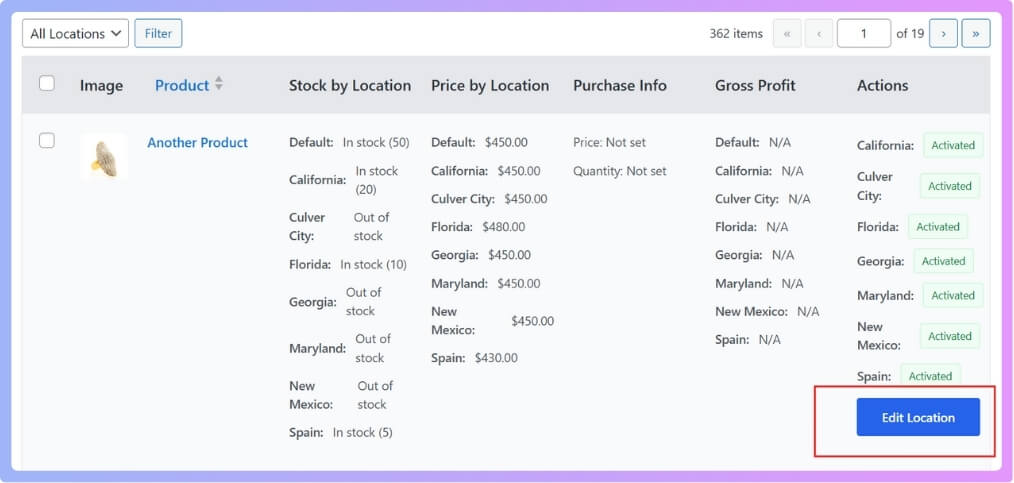
The Stock Control tab gives you a full view of your inventory across all locations. You can instantly see which products belong to which warehouse and what their stock levels are.
You can:
- Check stock per location
- Edit, remove, or add location assignments
- Filter by location or view all products at once
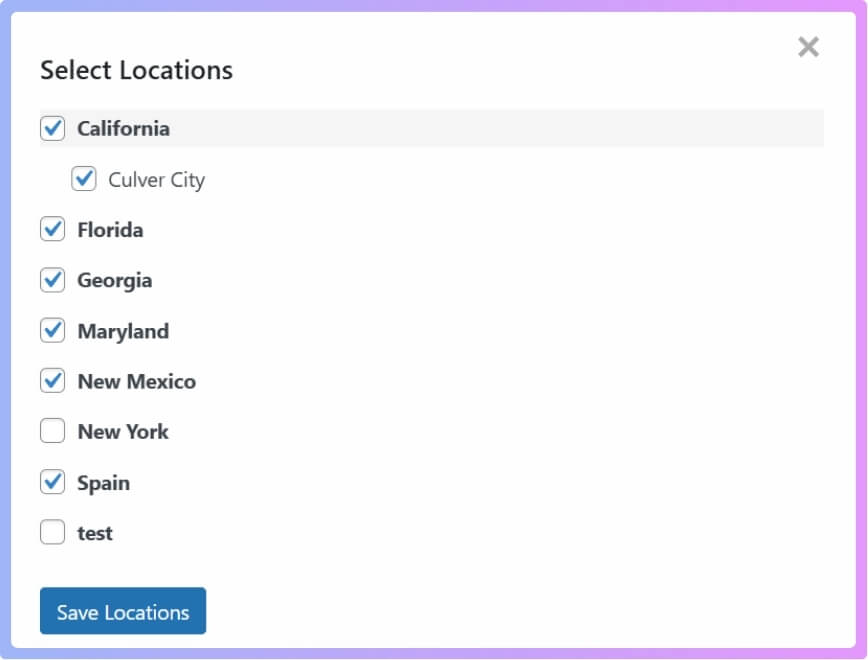
Location-Based Inventory Tracking
- Manage all stock from one central dashboard
- Set separate stock quantities per location
- Define regular, sale, and purchase prices per location
- Manage stock statuses (in stock, out of stock, backorder)
- Get low stock alerts per location
- Track purchase prices and profit margins
- Filter products by location
- Toggle product activation or deactivation per location
With these tools, you can easily balance your inventory, reduce waste, and make restocking decisions faster.
Location Manager
For large stores, managing everything alone is tough. That’s why this plugin includes a Location Manager system. You can add managers for specific warehouses and decide what access they have.
Managers can be allowed to:
- Manage Inventory
- View and Manage Orders
- View and Manage Products
- Run Reports
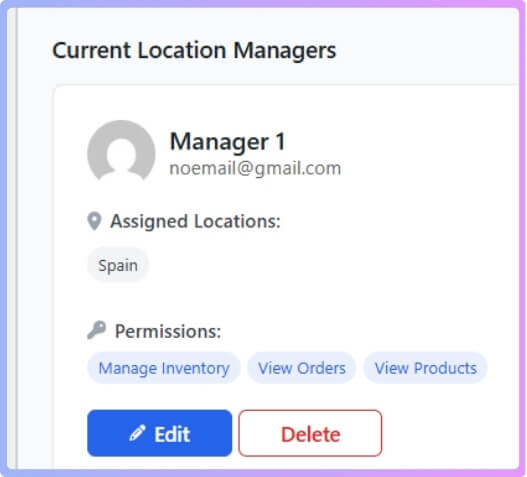
Team Management (Pro Feature)
- Create location manager roles with permission controls
- Assign users to specific store locations
- Restrict dashboard access by assigned location
- Send location-specific notifications
- Manage admin permissions for each user
To add a manager, go to Location Manager > Add New Location Manager, fill out their info, select permissions, and save.
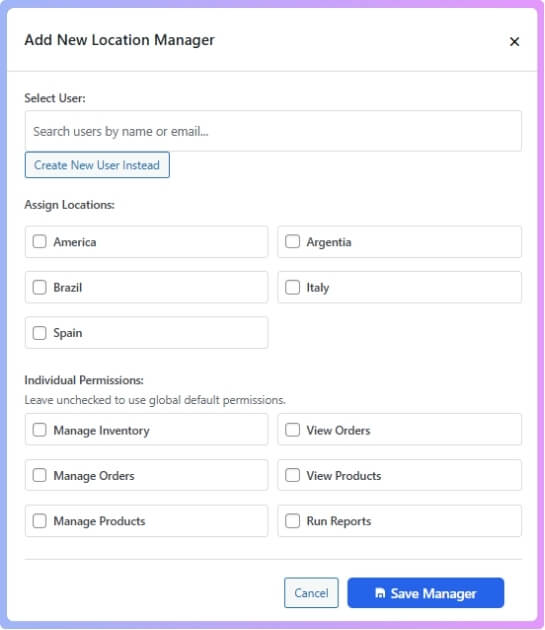
Then go to Users > All Users to set their password. Share their credentials so they can log in securely.
Settings
The Settings tab gives you complete flexibility to customize the plugin as you like. Every part can be adjusted to match your store’s needs.
Settings include:
- General
- Popup
- Product Visibility
- Order Fulfill
- Inventory
- Location-wise Everything
- User Experience
- Extensions
- Advance
Additional Technical Features (Pro)
- Enhanced REST API and WooCommerce Blocks integration
- Optimized SQL queries and caching
- Plugin license management and update system
- Usage analytics (GDPR compliant)
This section is perfect for fine-tuning your store operations without touching any code.
Frontend Display
The plugin also offers great options for how locations appear on your site.
Free Frontend Features
- Show location names in product titles
- Display location selectors as a dropdown, a list, or a button
- Fully responsive and customizable layout
- Show or hide location info on product and shop pages
- Use shortcode [mulopimfwc_store_location_selector] anywhere on your site
Advanced Frontend Display (Pro)
- Multi-level pop-up location selector
- Cascading menu for hierarchical locations
- Mobile-optimized pop-up interface
- Product sorting by location priority
These features make it easy for shoppers to view and select their preferred store location smoothly.
Customer Location Selection
This feature improves customer experience by letting buyers choose their nearest or preferred store location.
Key Features
- Customers can select their store location
- The plugin remembers the choice using cookies
- Products update automatically based on location
- Option to update the cart when changing location
- Choose how to display out-of-stock items (hide, gray-out, or badge)
Geolocation (Pro)
- Automatically detect the customer location using IP
- Display nearest available inventory
- Distance-based sorting (coming soon)
- Location-based product recommendations
This ensures customers always see relevant products that are actually in stock near them.
Order Management & Fulfillment
The plugin makes order tracking simple by linking each order with the customer’s selected location.
You can:
- Automatically tag orders with location
- Filter and manage orders by location in the admin
- See order count per location
- Use location-based fulfillment logic
This keeps your processing organized and ensures products ship from the correct warehouse every time.
Analytics
The Analytics section includes a full Location Analytics Dashboard for deep insights into store performance. You can study your business in detail and plan better.
Free Analytics Features
- View total orders, revenue, investment, and profits through graphs
- Monitor low stock and out-of-stock alerts
Advanced Analytics (Pro)
- Complete reporting by location
- Track inventory, orders, and revenue for each store
- Low stock and new product tracking
- Visual charts for orders, revenue, and profit
- Custom date range and scheduled reports (coming soon)
Analytics turns your numbers into useful data for smarter decisions.
Import & Export (Pro)
Managing data in bulk becomes easy with these tools:
- Export/import settings in JSON
- Export product data with all location info
- Bulk import product stock and prices by location
Coming Soon Features
The plugin continues to grow, and exciting new options are on the way:
- Centralized or independent inventory synchronization
- Location-based shipping, tax, and payment methods
- Location-specific discounts and promotions
- Location-based reviews and ratings
- SEO options for locations (titles, descriptions, structured data)
- Location-based invoices and email templates
- Store locator with Google Maps or OpenStreetMap
- Business hours and holiday management
- Multi-location order fulfillment and cross-location carts
With all these powerful free and pro features, Multi Location Product and Inventory Management for WooCommerce stands out as a complete, flexible, and dependable solution for any store that wants to manage multiple warehouses without confusion or errors.
How to Install the Plugin and Assign Products to the Location?
The Multi Location Product & Inventory Management for WooCommerce plugin helps you manage product stock and pricing separately for each store or warehouse. It comes in both free and paid (Pro) versions, and you can choose one based on your needs. Below is the complete process for installing the plugin and assigning products to locations.
System Requirements
Before you install, make sure your server meets the minimum version requirements.
If any of these are outdated, update them first to avoid installation errors.
| Requirement | Minimum Version |
| WordPress | 5.0 or higher |
| WooCommerce | 4.0 or higher |
| PHP | 7.2 or higher |
| MySQL | 5.6 or higher |
These versions ensure that the plugin works smoothly and avoids compatibility problems.
Installing the Free Version (from WordPress)
You can install the free version directly from your WordPress dashboard or manually using FTP. The dashboard method is faster and easier.
From your WordPress admin panel:
- Go to Plugins → Add New.
- In the search bar, type Multi Location Product & Inventory Management.
- Find the plugin in the list and click Install Now.
- Once it finishes installing, click Activate to enable the plugin.
After activation, you’ll see a new option in your dashboard menu called Location Manage. This is where you’ll control everything related to product locations.
Installing the Pro Version
If you’ve purchased the Pro version, the installation process is slightly different. The Pro version includes advanced features, and you’ll receive it as a ZIP file after purchase.
Here’s how to install it:
- Download the Pro plugin ZIP file from your account on the plugin’s website.
- Go to your WordPress dashboard and open Plugins → Add New → Upload Plugin.
- Upload the ZIP file and click Install Now.
- Once installed, click Activate Plugin.
- Next, go to Location Manage → Plugin License.
- Enter your license key (you’ll find this in your purchase confirmation email).
- Click Activate License to unlock all Pro features.
If you already have the free version installed, don’t worry. It will automatically deactivate when you install the Pro version, and all your data will remain safe.
Creating and Managing Locations
After the installation is complete, you need to set up your locations.
This allows you to assign products and manage stock for each one.
Go to Location Manage → Locations. Here, you can create new locations by filling in basic details such as:
- Location Name
- Description
Once you’ve entered the information, click Add New Location.
Your location will now appear in the list and will be available when assigning products.
Assigning Products to Locations
After creating your locations, you can assign them to specific products.
To do this, go to Products → All Products and open the product you want to edit.
If you’re adding a new one, click Add New Product instead.
On the product edit page:
- Scroll down to the right-hand side and find the Locations section.
- You’ll see a list of all the locations you created earlier.
- Select the locations where this product should be available.
You can also add a new location from this section if needed.
Setting Inventory and Prices by Location
Next, you need to set stock quantities and prices for each location.
Scroll down to the Product Data section and follow these steps:
- Click the Inventory tab.
- Check the option Track stock quantity for this product.
- Enter the total stock quantity for the product.
- Then open the Location Setting tab.
Here, you’ll see all the locations you selected earlier.
For each one, fill out:
- Stock Quantity – Number of items in that location
- Regular Price – The main selling price
- Sale Price – Discounted price, if applicable
- Backorders – Choose whether backorders are allowed
Once all details are added, click Update to save the changes.
Repeat the same process for each product individually. After everything is set up, your store will automatically show the correct product prices and stock status depending on the customer’s selected location. This setup ensures your inventory stays accurate and your customers always see the right availability for their region or store branch.
Common Challenges in Managing Multiple Warehouses
Handling more than one warehouse can feel confusing when things are not organized well. Small mistakes can grow fast and affect your store. These common challenges show why many sellers struggle and why tools can make everything smoother.
- Stock Mismatches: Differences between actual and recorded stock often confuse teams and cause problems because items appear available but are missing when orders arrive.
- Order Errors: Mistakes happen when staff pick the wrong items or locations due to unclear records, which increases refunds and slows down the entire order handling process.
- Tracking Delays: Slow updates across locations make it hard to know product movement in real time, which leads to confusion and late decisions for restocking important items.
- Communication Gaps: When teams in different warehouses do not share quick updates, mistakes increase because workers often act on old information that creates confusion during busy times.
- Lost Items: Products sometimes go missing when storage areas are crowded or not labeled well, which causes trouble when trying to match orders with the correct stock.
- Slow Restocking: Delays appear when warehouses do not report used stock quickly, which makes managers plan late and creates shortages that could be avoided with better updates.
- Wrong Priorities: Staff sometimes focus on less important tasks because they cannot see the real stock needs clearly, which causes missed sales and unhappy customers during busy periods.
These challenges often appear when warehouses grow and teams rely on manual updates. With better tools and clear communication, stores can avoid mistakes and keep products moving smoothly across every location without added stress today.
What Should You Do if Your Multiple-Warehouse Inventory Management Isn’t Going Well?
Managing many warehouses can sometimes feel messy and out of control. Stock mistakes, late deliveries, and poor updates can hurt your business badly. Many store owners face these problems every day and look for quick ways to fix them. Here are a few simple steps you can take to get things back on track.
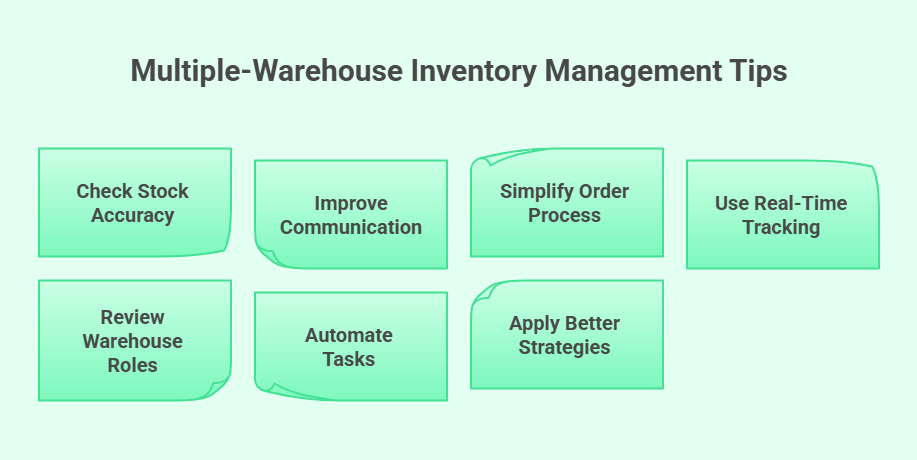
Check Your Stock Accuracy
Start by checking your actual stock against what your system shows. Small differences can grow into big problems if ignored. Make regular counts, update your records quickly, and keep each location’s list separate. This keeps your data clean and avoids confusion across different warehouses.
Improve Team Communication
A lot of stock mix-ups happen because teams don’t talk enough. Make sure warehouse staff, sales, and order teams share updates often. Simple tools like shared sheets or messages can help. Everyone should know when stock moves or runs low to avoid delays or wrong shipments.
Simplify Your Order Process
Complicated order steps can lead to mistakes and waste time. Keep things simple by setting clear picking, packing, and shipping rules. Every warehouse should follow the same system. When all teams follow the same pattern, orders move faster and errors drop.
Use Real-Time Tracking
If your stock updates are slow, it’s time to fix that. Real-time tracking helps you know what’s available and where. When data updates right away, managers can restock faster and avoid missing items during busy hours. This small change saves a lot of time.
Review Warehouse Roles
Sometimes, poor results happen because no one knows who does what. Define every role clearly so staff understand their tasks. Assign separate managers for big locations. This keeps people focused and avoids double work or missing updates.
Automate Repetitive Tasks
Doing everything by hand takes time and invites mistakes. Automate where possible, like restock alerts or low stock emails. This lets your team focus on bigger jobs. Automation also keeps your stock numbers more accurate without extra effort.
Apply Better Inventory Strategies
If your system often struggles with stock imbalances or slow order updates, applying proven WooCommerce inventory optimization strategies can help simplify processes and improve warehouse coordination. Use them to control inventory better, reduce costs, and make sure customers always get what they order on time.
When you organize your warehouses the right way, your business runs smoothly. Each small improvement builds a more reliable system over time. Keep your teams connected, review results often, and don’t wait too long to make changes. A strong inventory setup keeps your store ready for growth and happy customers.
FAQs About Multiple Warehouse Inventory Management Guide
Here are clear and simple FAQs to help readers understand the topic better. These questions cover important points that were not explained earlier and give extra support for anyone learning about managing many warehouses. Each answer is written in an easy and helpful way so readers can use the information without confusion.
How Does Multi Warehouse Inventory Help Reduce Shipping Costs?
Multi warehouse inventory helps lower shipping costs by sending orders from the closest warehouse. This reduces long-distance delivery fees and saves time. Customers receive their products faster, which makes them happier. It also helps you plan stock better, so goods stay closer to buyers.
Why Is Real Time Stock Visibility Important In Multi Warehouse Systems?
Real time visibility helps you see stock updates the moment they happen. This avoids selling items that are already sold out in another warehouse. It also helps you restock faster because you know exactly what is missing. With clear updates, your team makes fewer mistakes.
How Does Multi Warehouse Inventory Improve Delivery Speed?
When stock is spread across many locations, orders can be shipped from the nearest warehouse. This cuts delivery time and reduces delays. It also takes pressure off a single warehouse during busy days. Faster shipping builds stronger trust with customers.
Can Multi Warehouse Inventory Help With Seasonal Demand Changes?
Multi warehouse inventory makes it easy to move stock before the seasonal rush starts. You can place more items in areas where demand will rise. This stops stockouts during busy seasons. It also reduces stress because you prepare early with better planning.
What Is The Role Of Safety Stock In Multi Warehouse Inventory?
Safety stock is a small backup amount kept in each warehouse. It helps you avoid sudden stockouts when demand increases. This backup gives you time to reorder without losing sales. Safety stock keeps your business stable even when sales rise unexpectedly.
How Does Multi-Warehouse Inventory Support Business Growth?
As your business grows, more warehouses help you cover more places. This makes shipping faster and cheaper for new customers. You can also store more stock and handle more orders. A strong multi-warehouse plan supports long-term expansion.
Last Words
Running many warehouses can feel hard at first, but with clear steps and the right tools, things become simple and steady. When stock stays updated, teams communicate well, and orders move fast, your whole system works without stress. These ideas help you understand the full topic and give you the right direction for a smooth setup, which is the main goal of this multiple warehouse inventory management guide.
When you keep your system clean and check your results often, each warehouse works better over time. Try small changes like clearer roles, simple rules, and quick updates to make daily work easier. Keep focusing on steady progress, trust your plan, and improve as you grow. Wishing you smooth inventory days and great success ahead.
