

Manage stock levels, organize variations, and track products with WooCommerce Inventory Management. It’s designed to make running an eCommerce business easier by syncing inventory with orders and providing visibility into what’s available to sell. But as helpful as it is, does WooCommerce inventory management cover everything a growing store needs?
What are the limitations of WooCommerce inventory management?
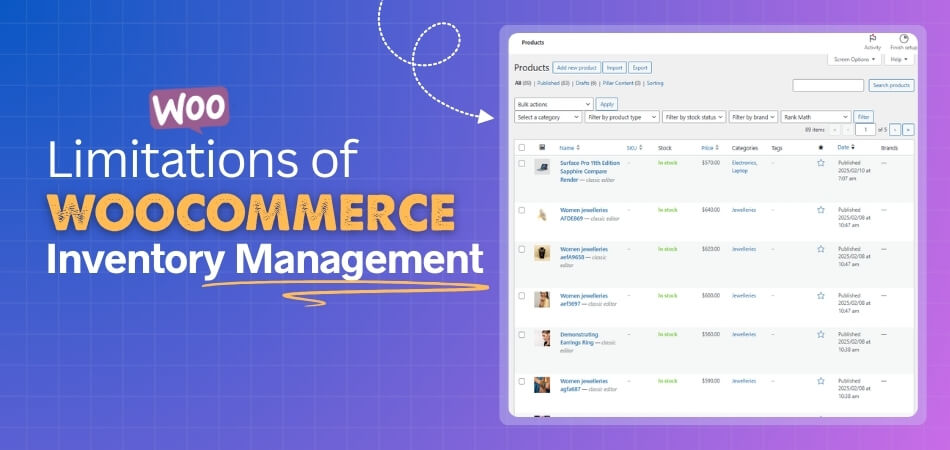
WooCommerce inventory management has some limitations. It cannot track raw materials or support multiple store locations. You must update the new stock manually. It struggles with product variations and bulk edits. It also lacks real-time stock updates, barcode support, and good reports. Big stores may need extra plugins.
Keep reading to discover how these limitations impact growing businesses and what you can do about them.
What Are the Limitations of WooCommerce Inventory Management?
WooCommerce Inventory Management is a simple tool built mainly for small online shops. It works well for basic stock control but struggles when businesses grow. Larger stores or manufacturers often face several problems that slow down daily operations and limit accuracy. Let’s find out some limitations of the WooCommerce inventory management.
No Raw Materials Tracking
- WooCommerce only tracks ready products, not the parts or materials used to make them. This makes it hard for sellers who build their own goods.
- Without this tracking, planning the supply becomes messy. Owners must use other tools to check raw stock.
No Multi-location Support
- The system cannot manage stock in more than one store or warehouse. Each place must be handled by hand.
- This makes it hard to know where items are kept. Mistakes happen when selling from many spots.
Manual Stock Updates for Additions
- WooCommerce updates stock after a sale, but not when new stock arrives. Owners need to add it by hand.
- Doing it often takes time and causes errors. It becomes tiring when you have many products.
Hard to Manage Product Variations
- Products with many styles, colors, or sizes are hard to manage. Each type needs extra work and time.
- Sellers must open every product and edit it one by one. It slows down updates during busy days.
No Bulk Editing
- WooCommerce doesn’t allow quick edits for many products together. Every change must be made one at a time.
- This wastes time for large stores. Owners need hours to update prices, stock, or details.
No Real-Time Stock Updates
- The stock count doesn’t always refresh right after a sale or return. This can show wrong numbers online.
- Shoppers might order something that’s gone. It causes confusion and more work for the seller.
Weak Reports and No Barcode Tool
- The reports in WooCommerce are basic. They don’t show clear data about suppliers or product trends.
- It also doesn’t have a barcode tool. Counting and checking products by hand takes longer.
Scalability Issues
- When a store gets big, WooCommerce may slow down. The site can lag as more data gets added.
- Many plugins make it heavier. Running a big store often needs stronger tools.
Integration Problems
- WooCommerce connects to other apps, but setup can be tricky. It may take time to sync the data correctly.
- Sometimes links between systems break or don’t match. That causes wrong stock numbers or delays.
Best Plugins to Add Raw Material Tracking to WooCommerce
Managing raw materials in WooCommerce is often tough without extra tools. Basic inventory plugins miss many features that growing stores need. Luckily, several smart plugins make tracking materials, stock, and warehouses easier to handle for every business size.
Multi Locations Inventory Management for WooCommerce
This plugin manages stock across several warehouses while showing real-time updates through a simple dashboard. You can view and edit details for each warehouse, keeping stock balanced everywhere. With Multi Location Inventory Management for WooCommerce, users can easily assign stock, shipping, and payments per location to match different regions. It helps growing brands handle multiple warehouses smoothly and maintain total control across all store locations.

ATUM Inventory Management
ATUM gives detailed stock control, raw material tracking, and supplier management in one place. The plugin supports multiple warehouses and makes restocking easy through an organized, spreadsheet-style editor. Its dashboard shows clear stock data for each item, saving time during updates and reports. ATUM also improves production tracking and helps sellers avoid missing supplies.
Katana MRP
Katana MRP works best for businesses that make their own products. It includes the bill of materials, production scheduling, and material tracking. The plugin gives total control of inventory from raw materials to finished goods. With Katana, store owners can plan production better and keep supplies balanced across every manufacturing step.
Smart Stock & Inventory Manager
Smart Stock & Inventory Manager helps control both raw materials and finished goods easily. It lets you update stock in bulk, which saves effort for big product lists. The plugin supports multi-stage tracking, helping you see how items move through different steps. It’s a good fit for stores handling assembly or production.
WooCommerce Multi Inventory Locations & Warehouses
With this plugin, store owners can create unlimited warehouses and manage stock easily using its smart stock manager. It automatically routes orders to the nearest inventory, reducing delays and shipping time. The plugin improves warehouse accuracy and reduces manual work for stock transfers. It’s ideal for stores managing several distribution points efficiently.
How to Handle Multi-location Inventory With WooCommerce?
Managing multi-location inventory in WooCommerce needs a smart setup to keep every warehouse, store, or branch working together. With the right tools and methods, sellers can track products, manage orders, and reduce stock errors easily. Let’s explore the best ways to handle it step by step.
Pick the Right Multi-location Inventory Plugin
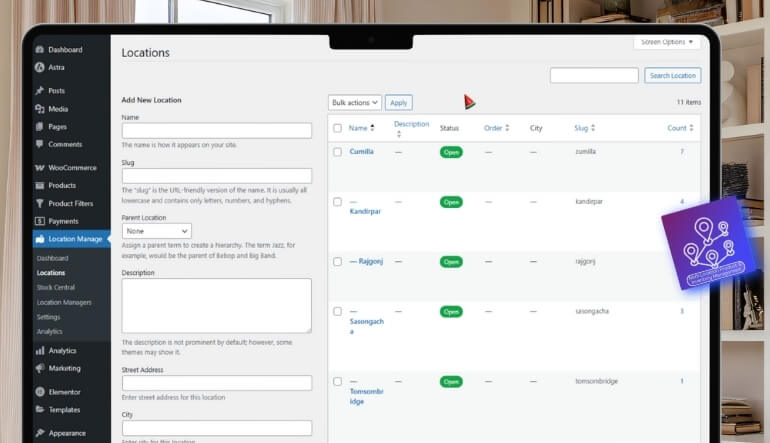
- Choosing the right plugin helps you control stock from different warehouses or stores with clear data access. Tools like Multi Location Product & Inventory Management for WooCommerce or WooCommerce Multi Locations Inventory Management make this process smooth.
- A reliable plugin offers location grouping, warehouse mapping, and quick setup features that improve tracking and visibility. It saves hours of manual updates and reduces confusion.
- It also supports flexible pricing, stock syncing, and reporting tools that suit both small and large eCommerce operations. Plugins simplify handling complex stock structures efficiently.
Set Up Warehouse and Store Locations
- Define every warehouse or branch as a separate location, including its address and operating information. This ensures accurate tracking and easy navigation.
- Group warehouses by region or city for quicker access and location-based inventory control. It simplifies restocking and shipment handling.
- Detailed setup supports smoother warehouse coordination and avoids mistakes during stock transfers. Teams can work better with clear location data.
Assign Stock for Each Location
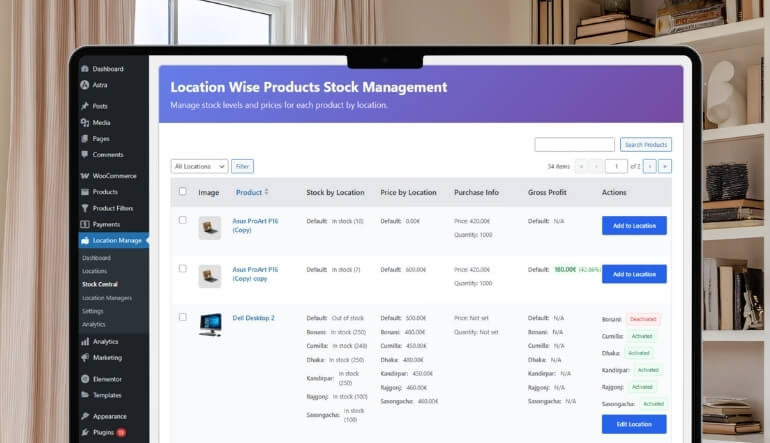
- Allocate stock quantities separately for each product in different warehouses. This prevents wrong counts and out-of-stock situations.
- The system tracks every location’s inventory in real-time, so sellers know when and where to refill items. It makes stock control easier.
- Managing stock separately per location improves transparency and helps plan supply movements more effectively. It also avoids selling unavailable items.
Use Geolocation and Customer Location Options
- Enable browser-based geolocation to detect where customers are located. It helps display the nearest available stock automatically.
- Let customers choose their preferred store location for pickup or delivery. This improves the shopping experience and builds trust.
- Using location tools keeps order routing fast and correct, ensuring customers always see the most accurate stock availability.
Add Location-Based Pricing and Shipping
- Configure different product prices for each location depending on local demand, costs, or taxes. It gives flexibility for markets.
- Offer shipping options based on warehouse distance, courier choice, or delivery zone. This reduces extra charges for customers.
- Adjust payment methods according to region and location type. It gives users a more personalized buying experience.
Create Order Fulfillment Rules
- Automate order routing so products come from the nearest warehouse, reducing delivery time and improving efficiency.
- Add manual override features to change fulfillment when needed. It gives admins better control during unusual stock situations.
- Smart rules keep warehouse loads balanced and prevent delays during busy periods. This builds stronger order management systems.
Use Centralized Dashboards and Reports
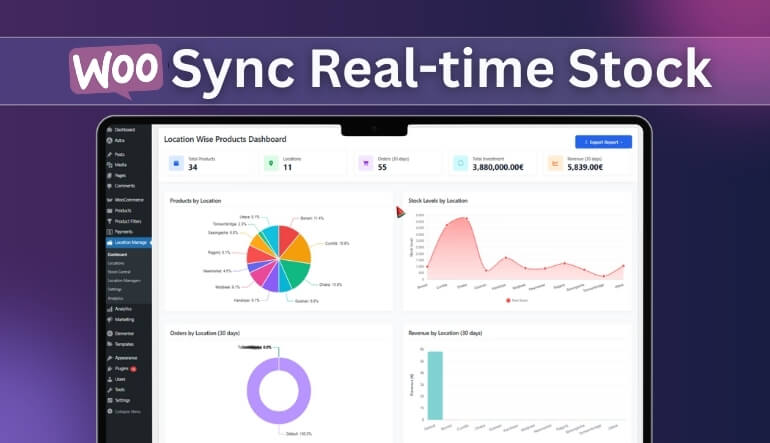
- A single dashboard helps view all warehouse stock in one place. It’s faster and more reliable for daily tracking.
- The dashboard gives low-stock alerts, order summaries, and refill recommendations. It supports smoother warehouse planning and restocking.
- You can export or import data in bulk to keep everything updated. It saves time when managing large inventories.
Keep Updating and Syncing Data Regularly
- Always sync stock data between all store locations to avoid differences between systems. It ensures consistent results across dashboards.
- Schedule automatic sync times for large warehouses with high product turnover. It helps keep all records current and accurate.
- Regular updates reduce the risk of wrong counts or missing items during sales. It keeps customer trust strong.
How to Automate Stock Replenishment for WooCommerce Stores?
Running an online store becomes tricky when your stock runs out faster than expected. It can make customers unhappy and reduce sales. That’s why automating stock replenishment helps you restock before products disappear. Let’s talk about simple ways to make this process smooth and worry-free.
Smart Inventory Plugins
Start by using inventory plugins that track your stock automatically. They can send alerts when items get low and even reorder products for you. Many tools connect directly with suppliers to refill stock without manual work. This helps you save time and avoid the stress of last-minute updates.
Reorder Level Setup
Set a minimum stock level for each product in your store. When the stock drops below that number, your system can remind you or place a reorder. This small setting can prevent running out of best-selling products. It keeps your business moving smoothly, even during busy seasons.
Supplier Integration
Connect your WooCommerce store with your main suppliers. Automated links let your store reorder items as soon as stock levels fall. It reduces human errors and speeds up restocking. This makes sure your products always stay available for customers who want them.
Real-Time Stock Updates
Real-time updates are a must if you have many products. They help you see what’s running low across all your locations. This can solve many WooCommerce multi location inventory challenges, especially when products move between warehouses. Live updates make decisions faster and keep your team informed at all times.
Bulk Stock Management
Updating one product at a time takes forever. Use bulk stock tools to edit, reorder, or update many items together. It helps you save energy and stay organized. With fewer manual steps, you can focus on improving your store instead of fixing stock errors.
Smart Forecasting
Look at your sales history to predict which products sell the most during certain times. Automated systems can use this data to plan future stock orders. It’s like having a smart assistant who knows what you’ll need next. This way, your shelves never go empty unexpectedly.
Centralized Dashboard
A single dashboard makes everything easier to control. It shows your stock status, low items, and restocking updates in one place. You can manage multiple warehouses, suppliers, and locations without switching between different pages. It keeps everything clear and simple to follow.
Alternatives to WooCommerce for Complex Inventory Needs
Managing a growing store can get tough when your inventory system can’t keep up. WooCommerce is great, but it has limits for complex needs. Bigger stores need tools that can handle more stock, locations, and advanced options. Here are some great alternatives to explore for stronger inventory control:
- Adobe Commerce (Magento): This powerful platform handles multi-store and multi-warehouse setups easily while managing complex pricing and B2B features smoothly. It fits large stores that need performance, deep customization, and perfect connection with ERP or CRM systems for complete control.
- BigCommerce: BigCommerce gives built-in catalog management, multi-storefront support, and multiple currency options without heavy plugin setups or slowdowns. It works best for mid-size to large brands needing speed, scalability, and global selling features out of the box.
- Zoho Inventory: Zoho Inventory helps manage stock across channels with easy syncing and clear warehouse transfers for smooth order tracking. It connects with WooCommerce and other platforms, making it great for growing online shops that manage products in many places.
- TradeGecko (QuickBooks Commerce): This cloud-based tool handles orders, stock, and pricing across multiple locations while supporting many currencies for flexible business use. It’s perfect for companies that want one simple system connected directly with WooCommerce for better organization.
- Veeqo: Veeqo keeps all warehouse tasks simple, from purchase orders to order tracking and automatic stock control. It helps warehouse teams work faster and manage complex product catalogs without errors or confusion.
How to Prevent Overselling and Sync Real-time Stock?
Keeping your stock updated is one of the most important parts of running an online store. When your inventory doesn’t match your sales, you risk selling items you don’t have. That can upset customers and create extra work for you. Let’s talk about how to stop that from happening in simple steps.
Stock Management Setting
Start by turning on the stock management feature in your WooCommerce settings. It helps you track every product automatically and keeps your numbers correct. This setting is easy to find and only takes a minute to enable. Once it’s active, WooCommerce starts watching your stock for every sale you make.
Stock Alerts
Set up email alerts for low stock and out-of-stock items. These messages help you restock products before they disappear. You can choose who gets these alerts, so your team never misses them. It’s a small step that saves a lot of time later.
Product-Level Control
Each product has its own inventory settings, so don’t forget to adjust them. You can set stock limits and stop people from buying when it’s sold out. Turning off backorders helps prevent unwanted purchases. It’s an easy way to make sure customers only buy what’s available.
Hold Stock Feature
Use the “Hold Stock” feature to reserve items in a shopper’s cart during checkout. This prevents others from buying the same item at the same time. You can set how long the stock stays on hold before it’s released. It keeps your store fair and organized.
Real-Time Syncing
Install a plugin that keeps your inventory synced in real-time. If you sell through many stores or websites, it’s a must-have. Tools like WooMultistore update your stock everywhere at once. They also work well with an inventory management system for multiple locations, keeping every warehouse perfectly in sync.
Variation Tracking
If your products come in different sizes or colors, use a plugin that tracks each variation. It makes sure that every version has its own correct stock count. Customers see exactly what’s available before buying. This avoids confusion and builds trust with your buyers.
Show or Hide Stock
You can show stock numbers on your product pages to create urgency. When shoppers see only a few left, they often buy faster. If something is sold out, you can hide it from your store until it’s restocked. That way, customers always see accurate options.
Frequently Asked Questions About the Limitations of WooCommerce Inventory Management
Managing inventory in WooCommerce is simple for small stores, but it becomes tricky as your business expands. Many users face limits with advanced stock control, reporting, and automation. Below are some frequently asked questions that explain these challenges clearly and simply.
Can WooCommerce Handle Large Product Catalogs?
WooCommerce can support many products, but performance drops as the catalog grows. Stores with hundreds of variations often experience slower updates. To manage this issue, many owners use caching or inventory plugins that improve speed and performance.
Does WooCommerce Support Barcode Scanning?
WooCommerce doesn’t come with barcode scanning features by default. Store owners must add plugins to use scanners for tracking. Without them, managing warehouse stock or processing large orders becomes slower and less accurate.
Can WooCommerce Track Product Expiry Dates?
No, WooCommerce doesn’t include expiry date tracking. Businesses selling perishable goods must install extra tools to monitor shelf life. These plugins send alerts and help remove expired items before they reach customers.
Is There a Built-In Purchase Order System?
WooCommerce doesn’t offer built-in purchase order management. Store owners have to handle supplier restocks manually or use separate extensions. This makes it harder to maintain an organized supplier chain without third-party support.
Can WooCommerce Manage Supplier Data?
By itself, WooCommerce doesn’t track supplier information or pricing details. To manage vendor lists and restock data, store owners depend on external plugins. Without those, supplier coordination can become messy and time-consuming.
Does WooCommerce Offer Batch or Lot Tracking?
Batch or lot tracking isn’t part of WooCommerce’s core features. Manufacturers and food sellers often need this function for traceability. Specialized inventory plugins fill this gap by recording and sorting batch numbers.
How Well Does WooCommerce Handle Returns and Restocks?
WooCommerce doesn’t automatically update stock after product returns. Sellers must manually add items back into inventory. This manual process increases mistakes and can lead to wrong stock counts over time.
Can WooCommerce Manage Complex Product Assemblies?
WooCommerce doesn’t support building or tracking assembled items from components. Stores that combine materials need manufacturing plugins. Without those, managing bundles or made-to-order products can be confusing.
Does WooCommerce Offer Forecasting for Stock Demand?
WooCommerce lacks built-in tools for predicting stock demand. Business owners need third-party systems to analyze past sales and trends. Forecasting plugins help maintain a balance between overstocking and running out of items.
Can WooCommerce Generate Advanced Inventory Reports?
Reporting in WooCommerce is basic and limited to simple stock views. It doesn’t offer supplier analytics or warehouse summaries. To get detailed reports, users often connect WooCommerce with advanced reporting extensions.
Wrap Up
Running an online store is easier when your stock is well-managed. WooCommerce helps with simple inventory work, but it struggles with bigger needs. Many sellers face problems like slow updates, missing reports, and too much manual work.
Knowing what are the limitations of WooCommerce inventory management helps you decide when to use better tools or helpful plugins. With small changes, you can track stock faster, manage many warehouses, and keep products updated in real time.
Picking the right tools makes your store easier to run, keeps customers happy, and helps your business grow smoothly.
