

Multi-location inventory management in WooCommerce allows you to manage and sync stock across several locations under one system. Instead of tracking everything from a single warehouse, you can assign products to different branches, stores, or fulfillment centers. This setup helps fulfill orders faster, reduce shipping costs, and maintain accurate stock levels everywhere.
For WooCommerce businesses that are scaling or handling orders from various regions, understanding multi-location inventory management is a crucial step. If you’re still wondering what is multi-location inventory management in WooCommerce, this guide will walk you through everything about it.
What Is Multi-Location Inventory Management in WooCommerce?
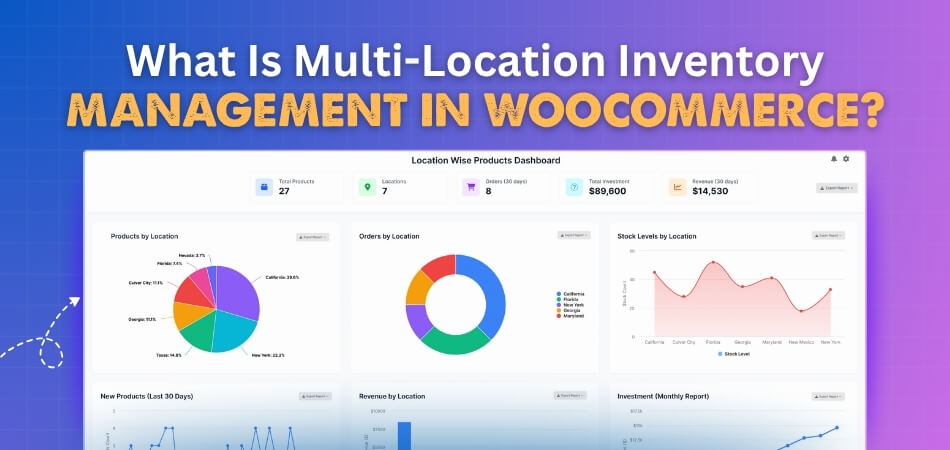
Multi-location inventory management in WooCommerce helps store owners organize and control stock across different warehouses, branches, or fulfillment centers from one dashboard. It acts as an efficient inventory management system for multiple locations, keeping inventory accurate, orders faster, and operations more efficient. Here’s a closer look at what it means and how it benefits WooCommerce businesses.
Centralized Stock Control
This system lets you manage all inventory locations from a single WooCommerce dashboard. You can view stock quantities, sales, and updates for each warehouse or store in one place, reducing confusion and saving time. It creates a clear picture of your total product availability across every location.
Independent Stock Tracking
Each location maintains its own inventory count instead of sharing a single global stock. When a sale happens, WooCommerce updates the quantity only for that specific warehouse or branch. This prevents stock mismatches and helps you identify which location needs restocking more accurately.
Automated Synchronization
Stock levels update automatically across all connected locations when an order is placed, refunded, or transferred. Real-time synchronization eliminates manual adjustments and ensures customers always see the correct stock quantity. It also helps your team avoid overselling or processing orders from locations that are out of stock.
Location-Based Order Fulfillment
Orders are fulfilled from the nearest or most suitable warehouse based on the customer’s address and stock availability. This feature reduces shipping costs, improves delivery times, and ensures faster order processing — helping you create a better experience for both local and international customers.
Flexible Product Assignment
You can assign specific products to individual locations depending on availability and demand. WooCommerce automatically tracks which warehouse holds what quantity, allowing you to prioritize sales or shipments from certain areas. This flexibility helps manage seasonal stock and high-demand products efficiently.
Improved Inventory Accuracy
By separating inventory data per location, you maintain more accurate records. Stock counts, movements, and transfers are tracked individually, reducing the chance of errors. It helps teams stay organized and gives customers confidence that what they see in stock online truly reflects availability.
Enhanced Reporting and Visibility
Multi-location systems provide detailed reports on product movement and performance at each site. You can monitor sales trends, identify fast-selling products, and plan restocks more effectively. Better insights into inventory behavior lead to smarter purchasing decisions and reduced waste.
Scalable Inventory Management
As your WooCommerce store expands, multi-location inventory management grows with you. Whether adding new warehouses, regional hubs, or pickup points, the system keeps all stock data unified and accurate. It supports long-term scalability while keeping inventory control simple and reliable across every location.
How Multi-Location Inventory Works in WooCommerce
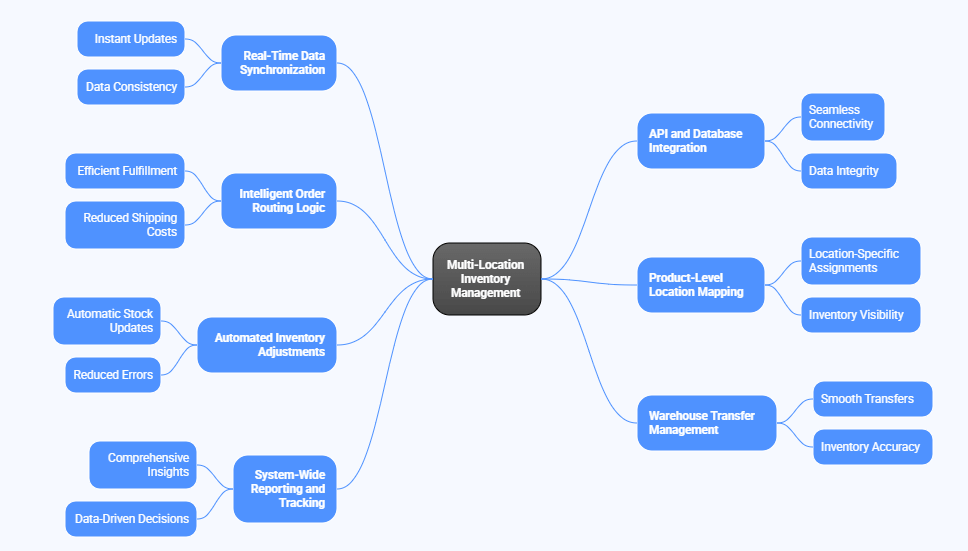
Multi-location inventory in WooCommerce operates through a connected system that manages data, stock, and orders across different warehouses in real time. Instead of handling everything manually, the system uses automated syncing and smart rules to keep your stock accurate and your operations efficient.
Real-Time Data Synchronization
WooCommerce constantly updates product quantities as soon as an order is placed or inventory is adjusted. Each warehouse or store location communicates directly with the main database, ensuring that stock levels are always up to date without manual entry.
API and Database Integration
Most multi-location inventory plugins use WooCommerce APIs to connect all inventory points. Each location has its own data node, allowing the system to process stock changes instantly. This integration keeps every part of your store, from product pages to order fulfillment, perfectly aligned.
Intelligent Order Routing Logic
When a customer checks out, WooCommerce automatically routes the order to the warehouse closest to their delivery address. The system evaluates stock availability, shipping distance, and location priority before confirming the order. This ensures smoother logistics and faster fulfillment.
Product-Level Location Mapping
Each product in WooCommerce can be mapped to one or multiple locations. Store owners can define exact quantities for every site, transfer items between them, or mark products as unavailable in certain regions. This makes stock control flexible and easy to manage.
Role of Product Filters for WooCommerce
Using product filters for WooCommerce can enhance visibility by letting customers filter products based on location or stock availability. This not only improves user experience but also helps direct orders toward in-stock locations, reducing failed checkouts or backorders.
Automated Inventory Adjustments
When returns, refunds, or transfers occur, WooCommerce automatically recalculates stock levels for each location. These changes update instantly on both the backend and product pages, keeping information consistent across the store.
Warehouse Transfer Management
For stores managing multiple warehouses, the system supports product transfers between locations. Admins can shift quantities, record movement history, and maintain accurate logs — all without affecting live product listings or creating stock mismatches.
System-Wide Reporting and Tracking
The system compiles live data from every location, giving you accurate reports on stock movement, sales trends, and performance by region. This helps identify which areas sell the most, where restocks are needed, and how to optimize logistics over time.
Benefits of Multi-Location Inventory Management in WooCommerce
Managing multiple stock locations isn’t just about convenience; it’s about efficiency, accuracy, and smarter fulfillment. Multi-location inventory management in WooCommerce helps store owners balance logistics, speed up delivery, and make better business decisions. Here are the key benefits it brings to your store.
Faster Order Fulfillment
By routing orders to the nearest warehouse or pickup point, multi-location inventory helps reduce shipping time. Customers get their products faster, and store owners spend less on delivery. This results in smoother order processing and an improved overall shopping experience.

Improved Stock Accuracy
Each location tracks its own inventory, eliminating the risk of mixing up quantities. This separation ensures every sale, return, and transfer is accurately reflected in real time. It keeps product availability consistent and reduces the chance of overselling.
Reduced Shipping Costs
Fulfilling orders from the warehouse closest to the buyer minimizes shipping distances. This cuts costs, reduces delivery delays, and improves customer satisfaction. It also allows you to manage region-specific promotions or local delivery options more effectively.
Better Customer Experience
Customers always see accurate stock levels and get faster deliveries based on location. Combined with WooCommerce features like customizing the order thank-you message in WooCommerce, you can personalize post-purchase communication based on where the order was fulfilled, creating a more connected and localized shopping experience.
Smarter Stock Distribution
You can analyze which regions sell faster and move products accordingly. Multi-location inventory makes redistribution easy; stock can be transferred between warehouses as needed. This ensures popular products are always available where demand is highest.
Increased Sales Opportunities
When stock is spread across multiple warehouses, products are less likely to go out of stock. Customers can continue to buy from a different location even if one branch sells out. This consistent availability helps maximize sales potential.
Stronger Data Insights
Multi-location systems generate detailed reports showing stock movement, sales trends, and location-based performance. These insights help you forecast better, restock efficiently, and identify which regions need more focus for marketing or inventory expansion.
Scalability for Growing Businesses
As your WooCommerce store expands, multi-location inventory scales easily with it. Whether you add new warehouses, stores, or fulfillment partners, the system keeps everything connected and organized, allowing your business to grow without losing control over inventory accuracy.
Setting Up Multi-Location Inventory in WooCommerce
Setting up multi-location inventory in WooCommerce is simpler than most store owners expect. With the right plugin and a clear structure, you can manage stock across warehouses, stores, or pickup locations with ease. Here’s how to get started and make your system work efficiently.
Choose the Right Multi-Location Plugin
Start by selecting a reliable plugin designed for WooCommerce. We chose multi location product & inventory management for WooCommerce, which supports multiple stock points, location mapping, and real-time synchronization. Install and activate it from your WordPress dashboard before moving to configuration.
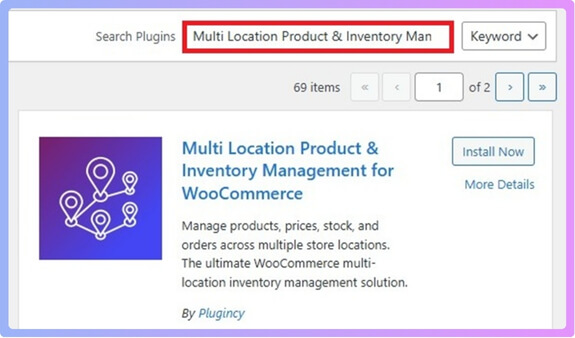
For the Pro version, download the ZIP file from the official website after purchase. Go to Plugins → Add New → Upload Plugin, select the ZIP file, and click Install Now. Once installed, click Activate and enter your license key in the plugin settings to unlock all advanced features.
Configure General Settings
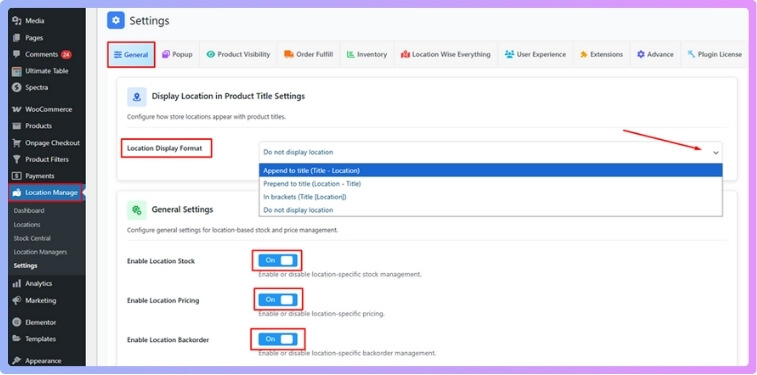
After installing the plugin, go to WooCommerce → Settings → Multi-Location Inventory to adjust the main options. Choose your Location Display Format, enable Location Stock to track quantities per warehouse, set Location-Based Pricing for regional variations, and configure Backorder permissions to control stock availability across multiple locations before adding your first inventory points.
Create and Name Locations
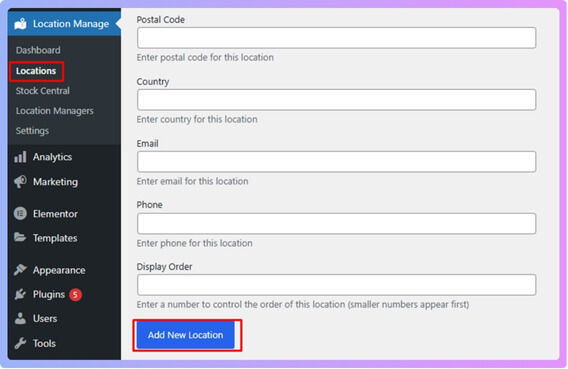
Once installed, go to the locations from the location manager and add your inventory location through the name, slug, description fields, along with street address, city, and more.
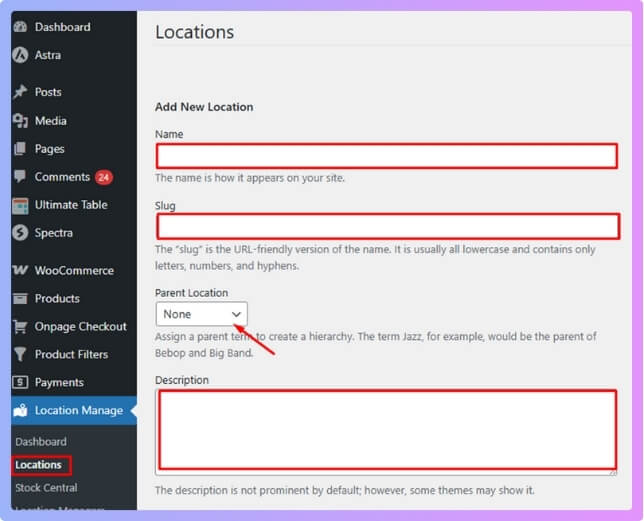
Give each one a unique name and address. This step helps WooCommerce identify where each order should be fulfilled from. Then, click on the “Add Location” button.
Assign Products to Locations
Open any product in WooCommerce and scroll to the “Locations” meta box. Assign one or more locations per product.
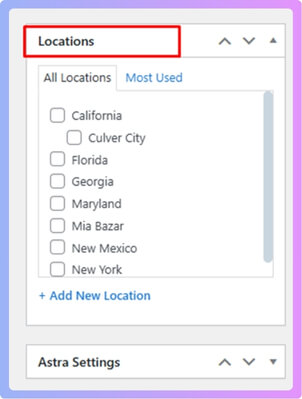
This ensures every store or warehouse manages inventory independently while syncing automatically across your WooCommerce system.
Manage Stock
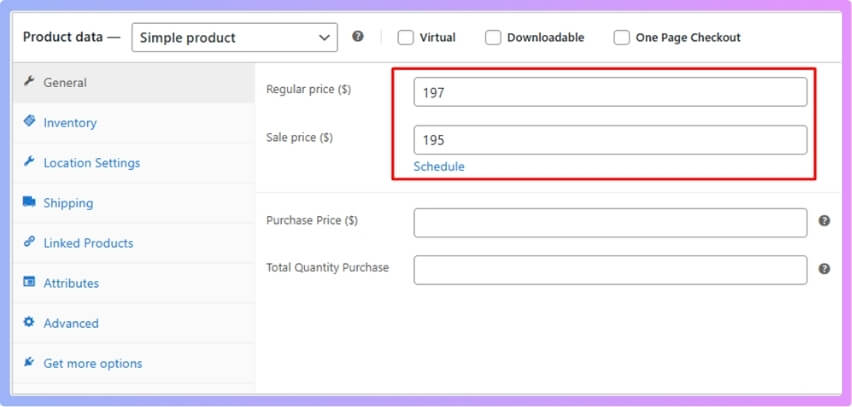
After product assignment, you can manage stock directly from Stock Central in your WooCommerce dashboard. This area lets you adjust quantities, update pricing, enable or disable backorders, and even transfer stock between warehouses.
Add a Location Selector on the Frontend
To let customers choose their preferred store or fulfillment point, use the location selector shortcode or PHP snippet:
[[mulopimfwc_store_location_selector]]
PHP Snippet (for theme templates):
<?php echo do_shortcode(‘[mulopimfwc_store_location_selector]’); ?>
This adds a dropdown on the frontend that dynamically updates product stock and pricing based on the selected location.
Test Before Going Live
Before enabling the system fully, perform a few test orders to confirm that stock updates correctly and orders route to the right location. Testing helps identify issues early and ensures your checkout process runs smoothly for real customers.
Tips for Managing Multi-Location Inventory in WooCommerce
Managing multiple inventory locations can become challenging as your store expands. The right approach helps maintain accuracy, speed, and performance. When data isn’t optimized, it can sometimes expose the limitations of WooCommerce inventory management, so applying these tips will keep your store fast, efficient, and well-organized.
Keep Location Names Clear and Consistent
Use short and descriptive names for each warehouse or store. Clear labeling helps staff quickly identify the right fulfillment point and prevents mistakes during stock transfers or order routing.
Review Stock Data Regularly
Check and update inventory data frequently to maintain accuracy. Regular reviews ensure your stock levels reflect real-time availability, reducing customer complaints and preventing overselling.
Use Low Stock Alerts Effectively
Set up low stock notifications for each warehouse based on product demand. Early alerts allow you to restock in time, ensuring that best-selling items remain available and checkout remains uninterrupted during high-traffic periods.
Enable Smart Order Fulfillment
Allow WooCommerce to automatically assign orders to the nearest or best-stocked warehouse. This automation reduces shipping costs and delivery time while maintaining efficient operations without manual tracking.
Track Product Performance by Region
Analyze which regions sell the most and which products need better distribution. Understanding sales trends by location helps you balance inventory, improve marketing, and plan targeted restocking strategies.
Sync Inventory Before Major Sales
Before launching discounts or promotions, verify that all stock data across locations is synced. Inaccurate or delayed updates can cause errors, missed orders, or contribute to WooCommerce slow loading during busy sale periods.
Backup and Test Your Setup Regularly
Create regular backups of your WooCommerce setup, including inventory data and plugin configurations. Testing on a staging site ensures that updates or changes don’t cause conflicts or disrupt live operations.
Train Staff on Inventory Procedures
Ensure that everyone involved in stock management knows how to update quantities, transfer products, and process orders correctly. Well-trained staff help maintain smooth, accurate inventory operations across all locations.
Conclusive Words
So, now you know what is multi-location inventory management in WooCommerce and why it matters for growing online stores. It gives you the flexibility to manage stock across different warehouses, ensure accurate availability, and deliver products faster, all while keeping everything connected in one place.
By organizing your inventory per location, you reduce errors, save time, and improve customer satisfaction. Orders are fulfilled from the nearest or most efficient warehouse, keeping operations smooth and shipping costs lower.
In the bigger picture, multi-location inventory management helps your WooCommerce store stay organized, scalable, and dependable. It’s one of the smartest ways to keep your business efficient as you grow and reach more customers.
