

Operating multiple stores online can sound exciting, but managing stock across all of them can quickly turn into a headache. The numbers you see may not match what’s actually in your inventory. Many store owners face this issue and wonder, “Why is my WooCommerce inventory always inaccurate with multiple stores?
Your WooCommerce inventory is often inaccurate with multiple stores because it lacks built-in multi-location support. Stock updates don’t sync across stores in real time, leading to mismatched counts. Other issues include simultaneous orders, human errors, return handling delays, and poor team coordination.
Continue reading this article to learn about every reason for inaccurate WooCommerce inventory and how it affects your store’s performance across multiple locations.
Why Is My WooCommerce Inventory Always Inaccurate With Multiple Stores?
It can be challenging to manage inventory across several WooCommerce stores. You might see numbers that do not match even after updates. This happens because WooCommerce does not track inventory across many store locations by default. Let’s look at the main reasons behind this problem below.
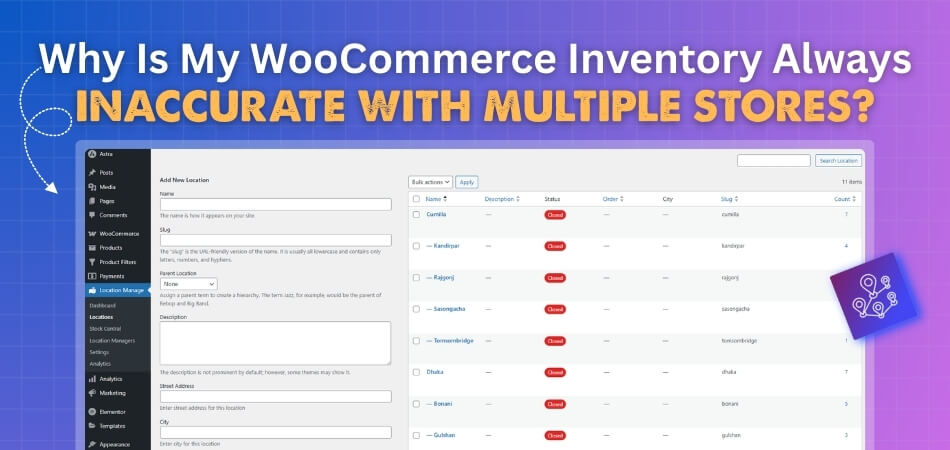
Missing Multi-Location Support
WooCommerce is built to handle one main stock count per product. It does not track inventory separately for each store location. This is where the importance of multi-location management in WooCommerce becomes clear, as missing this feature causes problems when managing several stores. When one store sells an item, the other stores might not see the update right away. This causes mismatched numbers between stores and leads to inaccurate records.
Orders Happen at the Same Time
When two customers buy the same last item almost at once, both orders may go through before WooCommerce updates the stock. This “race” between orders causes negative stock or missing items. Since WooCommerce updates only after an order completes, small timing gaps can easily throw off your stock count.
Human Errors in Stock Updates
Manual work often leads to mistakes. It is easy to type the wrong number, skip an update, or forget to adjust stock after a new shipment. These small errors pile up over time and make your records unreliable. Even one missed entry can cause big differences across stores.
Problems With Return Handling
Returned products are often handled the wrong way. Sometimes they are added back to stock late or marked incorrectly. This makes your available stock look higher or lower than it really is. In busy stores, poor return tracking is one of the most common causes of wrong inventory numbers.
No Real-Time Stock Visibility
WooCommerce does not show real-time updates across multiple stores. By the time the system refreshes, sales or returns might have already changed your numbers. This delay makes it hard to know the true stock level. As a result, you may think you have more or less stock than you actually do.
Poor Team Coordination
When several people manage stock across different stores, mistakes often come from poor communication. If one person forgets to update or share changes, the rest of the team will see outdated numbers. This lack of coordination between locations leads to repeated mismatches in inventory counts.
Methods for Testing and Safely Resolving WooCommerce Inventory Issues
Inventory problems in WooCommerce can cause lost sales and wrong stock counts. Before fixing them, you must first test and find what is wrong. Careful testing helps you avoid more issues while making changes. Let’s look at simple and safe methods to test and resolve these problems below.
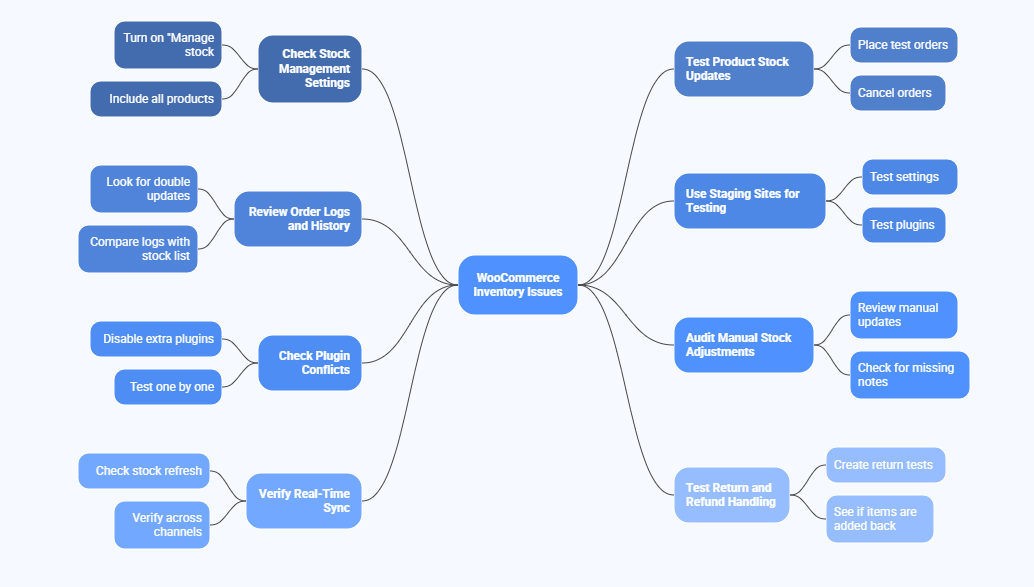
Check Stock Management Settings
Start by reviewing your stock settings inside WooCommerce. Make sure the “Manage stock” option is turned on for each product. Incorrect or missing settings can cause wrong inventory updates. Checking this helps you see if the system is tracking stock correctly and if any products are not included in the process.
Test Product Stock Updates
You can test inventory updates by placing small test orders. Try adding and canceling orders to see how the stock count changes. This shows if WooCommerce updates stock right after each order. Doing this simple test helps you understand how your store behaves during real-time order changes.
Review Order Logs and History
Look at your order logs in WooCommerce to find unusual changes. If you see double updates or missing records, that may point to system errors. Comparing logs with your stock list helps you locate where numbers do not match. This step is key to finding hidden problems before they grow.
Use Staging Sites for Testing
Testing on your live store can cause data loss or wrong updates. A staging site lets you test without affecting real customers. You can safely check settings, plugins, or sync tools there. Once you confirm that the changes work, you can move those updates to your live store.
Check Plugin Conflicts
Plugins can sometimes cause stock errors or delays in updates. Disable extra plugins and test one by one to find the problem. If your inventory sync works fine after disabling one, that plugin is likely the cause. Identifying plugin conflicts saves time and avoids future inventory issues.
Audit Manual Stock Adjustments
Manual changes often lead to wrong counts if not logged properly. Review every manual stock update from your team. Look for missing notes or mismatched numbers in product records. Making sure each manual update is correct helps keep your stock consistent and accurate over time.
Verify Real-Time Sync
Make sure your inventory sync system updates instantly when orders happen. Delays in syncing can cause overselling or empty stock. Check if stock numbers refresh across all connected stores or channels. Verifying real-time sync helps you confirm that your system is working as expected.
Test Return and Refund Handling
Returns and refunds can easily affect stock accuracy. Create a few return tests to see if items are added back correctly. Sometimes WooCommerce does not restore stock after refunds, which leads to gaps. Testing this helps you catch errors in return processing before they harm your real stock count.
How Does a WooCommerce Multi-Location Inventory Management Plugin Maintain Stock Accuracy?
Handling stock across many store locations can be tricky in WooCommerce. Without proper tools, stock numbers can become wrong very fast. A multi-location inventory plugin helps keep everything in sync at once. Let’s go through how these plugins work to keep stock accurate below.
Tracks Stock in Real Time
A plugin designed for Multi Location Inventory Management for WooCommerce updates stock the moment an order is placed. It links every location to one main system, which refreshes numbers right away. This keeps your inventory balanced and prevents overselling. Real-time tracking is key to keeping your product counts correct across all stores.

Syncs Data Across All Locations
All store locations share one database through the plugin. When one branch sells an item, the plugin instantly updates the others. This prevents confusion and helps every store see the same numbers at once. Keeping all locations in sync ensures your stock stays balanced and accurate at every level.
Separates Stock by Location
Each location has its own stock list within the system. The plugin lets you assign products to specific warehouses or stores. This means orders are fulfilled only from places that have available stock. It helps reduce mistakes and improve accuracy for every store’s local inventory.
Updates Orders and Returns Together
Every time an order or return happens, the plugin records it instantly. It adds stock back when returns are approved and subtracts it when orders are confirmed. This balanced process keeps your numbers right. Without this, the stock may look higher or lower than it really is.
Avoids Human Error
Manual updates often lead to mistakes, but the plugin reduces this risk. Instead of typing or adjusting numbers by hand, everything updates automatically. This helps staff focus on other tasks while keeping records correct. The system also keeps a full log of every change made.
Gives Clear Stock Reports
You can view detailed stock reports for all your store locations. The plugin shows which items are running low or which locations need restocking. This helps you plan purchases and manage stock easily. Having clear, up-to-date reports ensures your WooCommerce inventory stays accurate and organized.
Multi-location inventory plugins play a big role in keeping WooCommerce stock accurate. They track data, update numbers, and prevent errors in real time. With each location connected, stores can run smoothly without stock confusion. Using such tools makes managing multiple stores simple, clear, and reliable every day.
Can a Centralized Inventory System in WooCommerce Fix the Problem?
Yes, a centralized inventory system in WooCommerce can help reduce stock mistakes across many stores. It connects every store to one shared database that updates stock in real time. This system keeps product counts the same everywhere, so no store sells items that are already sold somewhere else.
When inventory is stored in one place, updates become faster and clearer for everyone involved. Store managers can see live stock levels instead of waiting for manual reports. This helps avoid confusion, wrong numbers, and delayed updates that often cause lost sales or unhappy customers.
A central system also helps handle returns, transfers, and orders much more smoothly. Each change is tracked instantly, making it easy to find and fix issues. By keeping all records in one spot, WooCommerce stores can work together better, save time, and stay accurate without extra effort.
When Should You Switch to a Centralized Inventory System?
Running many stores can make stock management confusing and stressful. Numbers might not match, and orders may often overlap. A centralized inventory system brings everything together in one place for clear control. Let’s find out when it’s time to make that important switch below.

Stock Numbers Don’t Match
If each store shows a different stock count, that’s a warning sign. It means updates are not syncing properly between locations. A centralized system helps bring all stock data into one place. This makes your records consistent and avoids problems like overselling or canceled orders.
Orders Get Delayed
When order processing slows down, your system might be outdated. Delays often happen because stock details aren’t updated in real time. Using centralized inventory management for WooCommerce ensures orders are handled quickly and correctly. Customers get faster updates and fewer delays during busy times.
Frequent Overselling Problems
Selling items that are out of stock causes customer frustration. Overselling usually happens when your stores run on separate systems. A single, shared inventory database keeps everyone informed. With all stock data connected, you’ll know exactly what’s available before any sale happens.
Poor Return and Refund Tracking
When returns are handled in different systems, numbers become messy. It’s easy to miss adding stock back or to count it twice. A centralized setup tracks every return instantly and updates all locations. This keeps your stock count balanced and accurate at all times.
Growth Outpaces Your Current System
As your business expands, it becomes harder to manage inventory for multiple physical stores efficiently. More stores mean more data and a bigger chance for mistakes. Centralizing your inventory helps handle higher order volumes without stress. It keeps your system ready for growth and easier to manage.
Hard to Track Store Performance
If you struggle to see how each store performs, your system needs help. A central platform gathers all sales and stock data together. You can easily compare performance and find which stores need attention. Having one clear view helps you make smarter business decisions faster.
Staff Confusion During Stock Updates
When many people update stock across stores, confusion can build quickly. Wrong entries or missed updates happen often in manual setups. A centralized system reduces errors by letting everyone work on the same data. This creates a smoother, more reliable process for your team.
Frequently Asked Questions
Managing inventory in WooCommerce can get confusing, especially when you handle more than one store. Many people face similar issues, but don’t always know what’s really causing them. Below are some simple, clear answers to common questions that can help you understand things better.
Why Does WooCommerce Struggle To Handle Large Product Inventories?
WooCommerce can slow down when managing thousands of products, especially if many stores share the same data. Without proper optimization, it struggles to process real-time stock updates. This delay can lead to mismatched counts, slow order processing, and missing stock updates during busy times.
Can Server Speed Affect WooCommerce Inventory Updates?
Yes, a slow or overloaded server can cause serious inventory sync delays. When your website takes too long to process data, WooCommerce may not update stock instantly. This often results in old information being displayed, which leads to wrong numbers and potential overselling.
How Do Outdated Plugins Affect Stock Accuracy?
Using outdated plugins can create conflicts within WooCommerce. Old versions may not sync properly with your latest settings or third-party tools. These conflicts can cause double entries, skipped updates, or failed stock reductions after orders, leading to confusing and unreliable inventory data.
Does Website Traffic Impact Stock Updates?
High website traffic can overload your system if your hosting plan is limited. When many people shop at once, WooCommerce might delay stock adjustments. This short delay can cause items to appear available even though they’ve already sold out during the rush.
Why Does My Stock Sometimes Reset To Old Numbers?
This usually happens when caching tools or backups restore outdated data. Some systems automatically pull older versions of product information. If that data overwrites new stock levels, your store ends up showing old numbers that don’t reflect your real inventory.
How Do Third-Party Marketplaces Affect WooCommerce Stock?
If you sell on marketplaces like Amazon or eBay and they aren’t synced properly, your stock can get mixed up. Orders from those sites might not update WooCommerce immediately, causing different counts across platforms. Proper integration is important to keep all data consistent.
Can API Delays Affect Multi-Store Inventory?
Yes, when stores connect through APIs, slow response times can delay stock changes. If one store updates faster than another, it shows different numbers. Monitoring API speed and connection health helps maintain smooth and accurate inventory syncing.
Ending Words
When you think about why is my WooCommerce inventory always inaccurate with multiple stores, the answer usually points to missing connections. Each store runs separately, which makes updates slow and mismatched. These small gaps in syncing cause big confusion in stock numbers and sales.
Once stock updates fail to flow in real time, every order becomes a guessing game. Managers see wrong counts, returns get mixed up, and customers may face canceled orders. It slowly affects trust and daily operations across stores.
Knowing how WooCommerce handles multiple stores helps you spot the real cause. Recognizing the limits of its stock tracking system is the first step. With this awareness, you can plan smarter, manage better, and keep your inventory accurate everywhere.
