

A local inventory ad displays which products are in stock at local stores near nearby shoppers. They connect online searches with real-world stores and help people find what they need faster. You might be wondering why need local inventory ads for ecommerce business.
Local inventory ads help e-commerce stores attract nearby shoppers by showing real-time stock in local search results. These ads boost in-store visits, improve trust, increase sales, and connect online searches with store pickups. They also provide data insights and give local businesses a clear edge over hidden competitors.
Do you want to know how Local Inventory Ads can help your store grow both online and offline? Keep reading, because this article covers every important detail about how these ads work, what you need to set them up, and the mistakes to avoid.
Why Need Local Inventory Ads for Ecommerce Business?
Local shoppers often look online before they buy from a store near them. Many stores miss these shoppers because their products do not show in local search results. This is where local inventory ads play a very strong part online. Read below to see why these ads help and how they support your business.
Better Search Reach
People often want items fast, so they look for stores close by. Local inventory ads place your items in front of these shoppers at the right time. This helps them find your store and your items with ease. More people can reach you when your products appear right inside search results.
Good Store Traffic
Real-time stock details help people plan a store visit with trust. These ads show if an item is ready for pickup without delay. When shoppers see this clear info, they are more likely to walk in. This simple step helps bring steady foot traffic to your shop.
Higher Sales Growth
Many people want to buy without waiting for delivery. This ad type helps connect them to your store when they are ready to spend. They find items fast and feel sure they can get them right away. Both in-store and online sales often rise with this setup.
Smooth Shopping Feel
Clear stock details help people feel sure before they leave home. They enjoy a simple path from search to store without any wasted time. Good info at the right moment makes shopping feel easy. This also builds trust that keeps customers coming back again.
Strong Local Brand Feel
People often feel safer buying from stores they can visit. Showing your stock and store info online makes it easier to trust. Your brand looks active, clear, and ready to serve nearby buyers. This simple boost can help you win more local eyes.
Less Market Pressure
Many stores still do not use these useful ads. When your store shows up with real-time stock, you stand out fast. People notice your items first because they see clear and helpful info. This gives you a strong edge over shops that stay hidden.
Helpful Data Insights
You can see which search terms lead shoppers to your store. You also get clear info on clicks, visits, and sales patterns. This data helps you shape your plans and fix weak spots. It becomes easier to understand what people want in your area.
Easy Link Between Online and Store
These ads help connect online search with real store action. People see your items online, then pick them up without delay. The process feels simple and smooth for them. This connection keeps your store active in both online and offline spaces.
Local inventory ads help your shop show up at the right moment. They guide people from a quick search to a real store visit. They also boost trust by giving clear and simple info. Use this setup to bring more local shoppers to your business with ease.
Best Plugin You Can Use to Manage Multiple Warehouse Inventory for WooCommerce
Handling stock in several warehouses can feel tiring when you try to manage everything by hand. With the right plugin, you can take away a lot of that stress and keep your inventory neat from one place. One helpful tool for this is the Multi Location Product and Inventory Management for WooCommerce plugin. It gives you an easy way to control stock, track orders, and view reports for all your locations in one system.
This WooCommerce multi-location inventory plugin makes your store much easier to run. It helps you work faster, stay organized, and avoid common mistakes. Using a reliable WooCommerce inventory management plugin also ensures accurate stock tracking, automatic updates, and better control over multiple warehouse locations.
Dashboard
Once you install the plugin, you will notice a new tab in your dashboard called Location Manage. This area shows you a clear picture of how your products and locations are doing. It also helps you understand your store’s overall activity.
Inside this section, you can quickly see:
- Total number of products
- Total number of locations
- Orders, investments, and revenue
It puts all the important details in front of you so you can manage your store without stress.
You will also find simple visual graphs that help you understand how your store is doing at a glance. The plugin shows alerts when products are running low or completely out of stock, so you can act before it becomes a problem. If you need a report, you can download all the data in CSV or Excel format with just a click.
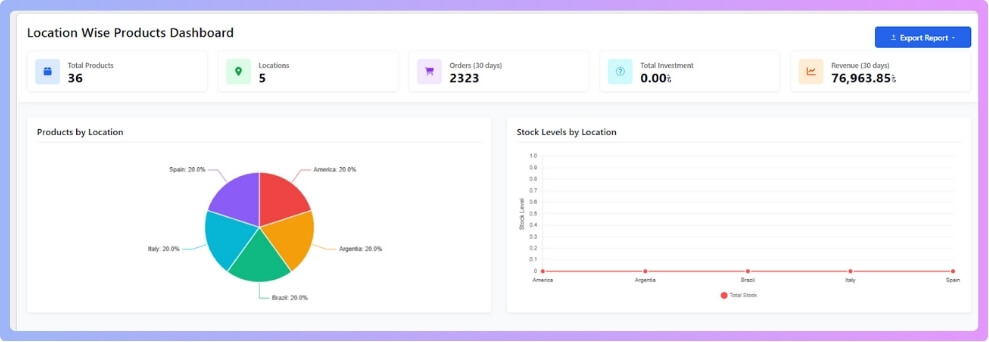
This dashboard works like your main control room. Everything you need is gathered in one clean space, easy to read, and quick to manage.
Location
You can set up and organize all your warehouses or branches in the Location section. You can fill in complete details for each place, which makes it easier to track where your stock is kept.
You can add information like:
- Location name and a short description
- Opening and closing hours
- Full address including street, city, state, postal code, and country
- Email and phone number
- Latitude and longitude
- Shipping zone and payment method
This keeps every location well organized, so nothing gets confusing when managing your stock.
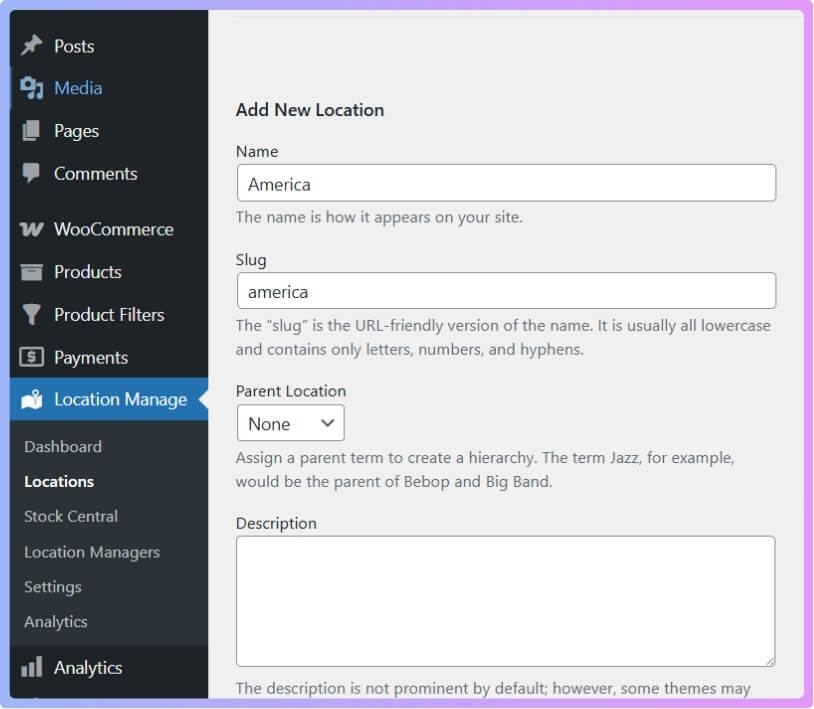
After setting up your locations, you can give each warehouse its own stock levels and manage them separately. This keeps everything neat, organized, and simple to track.
Stock Control
You can view your inventory in every location by clicking on the Stock Control tab. You can quickly see which products are stored in each warehouse and how much stock is available.
With this tab, you can:
- View stock levels for each location
- Edit, remove, or add product location assignments
- Filter products by location or view everything in one list
This makes it easy to keep your inventory accurate and up-to-date.
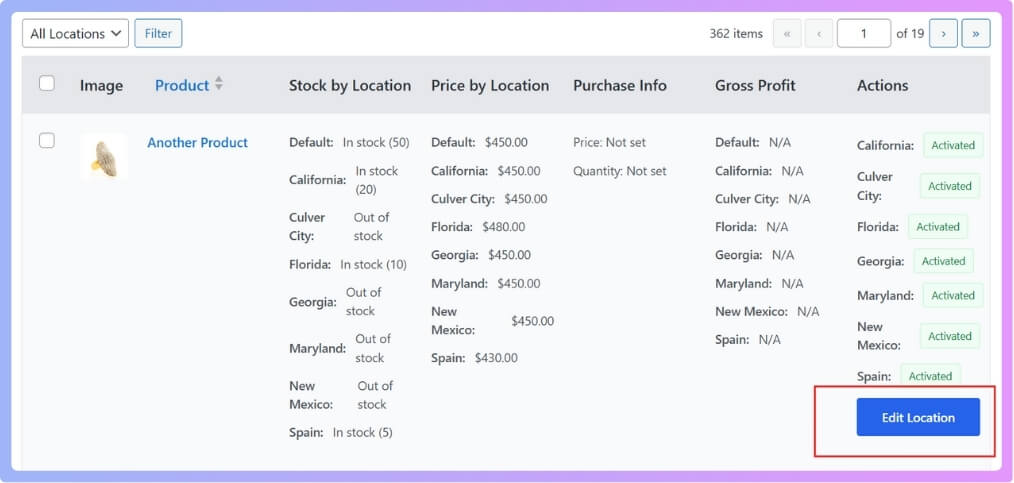
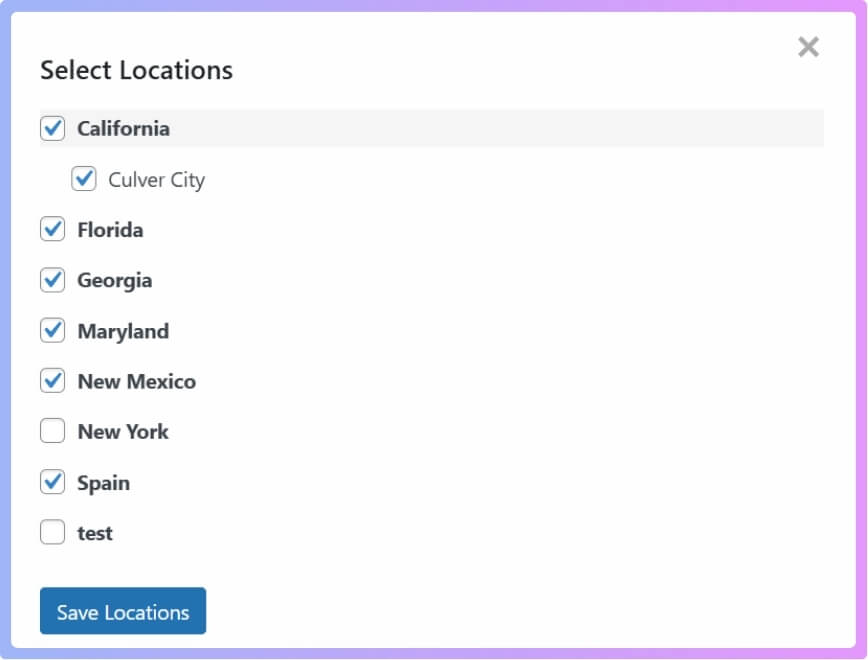
These features help you keep your inventory balanced, cut down on waste, and make smarter restocking choices without delay.
Location Manager
If your store has many warehouses, handling everything by yourself can be hard. This plugin solves that by offering a Location Manager feature. You can assign managers to specific locations and choose what they are allowed to do.
Managers can be given permission to:
- Manage inventory
- View and manage orders
- View and manage products
- Run reports
This helps you share responsibilities while keeping full control over who can access what.
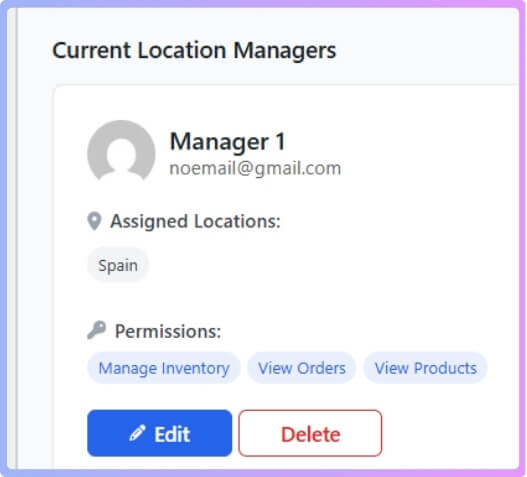
This gives you a clean and organized way to manage your team while keeping everything secure.
To add a new manager, just go to Location Manager > Add New Location Manager, enter their details, choose the permissions you want them to have, and then save. It only takes a moment to set everything up.
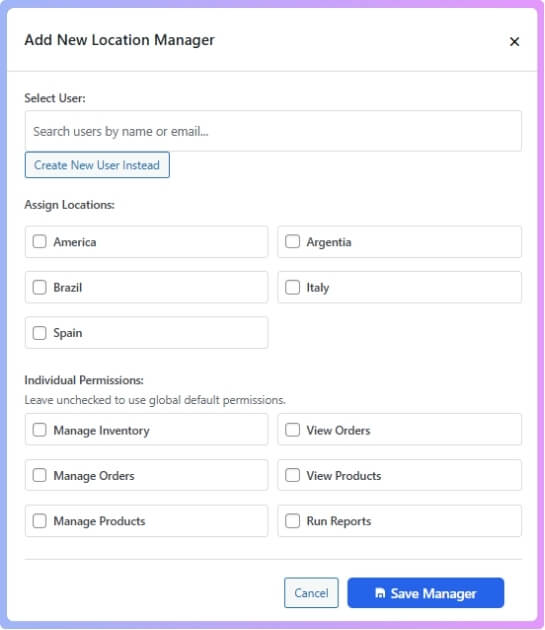
Next, go to Users > All Users to set a password for the manager you created. After that, you can share their login details with them so they can access the dashboard safely.
Settings
The Settings tab gives you full control to adjust the plugin the way you want. Every option can be customized to match how your store works.
You can manage settings for:
- General options
- Popups
- Product visibility
- Order fulfillment
- Inventory rules
- Location wise settings
- User experience
- Extensions
- Advance options
This whole section helps you fine-tune your store without touching any code.
You can:
- Automatically tag orders with their location
- Filter and manage orders by location in the admin panel
- Check how many orders each location has
- Use location based rules for fulfillment
This helps orders ship from the correct warehouse with no mix ups.
Analytics
The Analytics area includes a full Location Analytics Dashboard. It helps you understand how each location is performing so you can plan better.
Analytics turns your store data into easy insights that help you make better decisions.
Import and Export (Pro)
Managing large amounts of data becomes simple with bulk tools:
- Export or import settings in JSON
- Export product data with all location details
- Bulk import stock and prices for each location
With all these free and premium features, Multi Location Product and Inventory Management for WooCommerce works as a strong and reliable solution for any store that wants to handle multiple warehouses without stress or mistakes.
Difference Between Local Inventory Ads and Standard Shopping Ads for for Ecommerce Businesses
Many people mix up Local Inventory Ads and Standard Shopping Ads, but they serve different goals. Both help promote products online, yet one focuses on store visits while the other targets online buyers. Knowing their differences helps you pick the best plan for your store. The table below shows a simple comparison.
| Feature | Local Inventory Ads (LIAs) | Standard Shopping Ads |
| Main Focus | Shows products available at nearby physical stores | Promotes products sold online only |
| Purpose | Connects online shoppers with local, in-stock items | Drives traffic to online product pages |
| Availability Info | Displays real-time store availability | Shows only online stock status |
| Location Targeting | Targets users near your store’s location | Targets users searching online anywhere |
| Customer Action | Encourages store visits or local pickup | Encourages online purchase or delivery |
| Displayed Details | Includes store name, address, hours, and directions | Includes product image, price, and seller name |
| Performance Tracking | Tracks both online clicks and in-store visits | Tracks only online clicks and conversions |
| Best For | Businesses with both online and physical stores | Businesses that operate only online |
Local Inventory Ads give your store a strong local reach by showing real-time stock nearby. Standard Shopping Ads, on the other hand, are great for boosting online sales. Both are useful, but choosing the right one depends on your business setup and sales goals.
Key Requirements to Set Up Local Inventory Ads for for Ecommerce Businesses
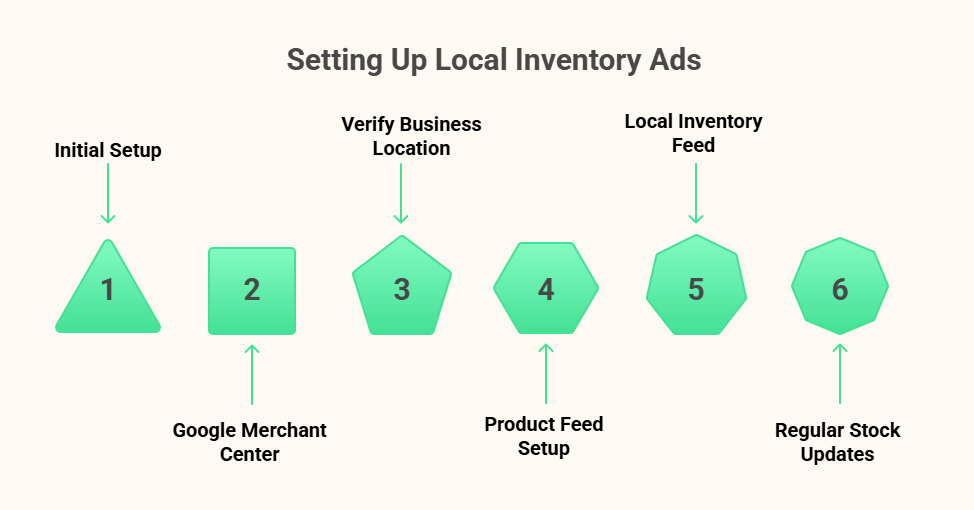
Setting up Local Inventory Ads can look hard at first, but it’s not. You just need to connect a few tools and share the right details. These ads work best when your online and store data stay in sync. Let’s look at what you need to get everything ready the right way.
Google Merchant Center Account
To start, you must have a Google Merchant Center account. This platform helps you upload and manage your product data. It connects your online store with Google Ads so your listings can show properly. Make sure your account is verified and active before moving to the next steps.
Verified Business Location
Your store’s physical address must be confirmed by Google. This step allows your ads to show real store details like location and hours. It also builds trust with customers who want to visit your shop. Check that your address is the same across all your business listings.
Product Feed Setup
You’ll need a product feed that includes all key details. This feed should list your product name, image, price, and store availability. When setting up local inventory ads, it’s important to structure your product data correctly and optimize categories for local ads so that search engines display the most relevant items to local shoppers. Keep the feed neat and accurate for the best results.
Local Inventory Feed
Along with your main feed, you must create a local inventory feed. This feed shows which items are available at each store location. It includes product IDs, store codes, and stock counts. Keeping this feed up to date helps your ads stay correct in real time.
Regular Stock Updates
Your stock levels must be updated often to match real availability. Outdated data can lead to wrong listings, which may confuse buyers. Automatic updates through your system or plugin work best for this task. It helps customers trust your store and improves ad accuracy.
Keeping all these parts working together makes your ads show the right info every time. With the correct setup, your products appear to the right people nearby. This helps both your online and in-store sales grow faster. Use these steps to keep your Local Inventory Ads running smoothly and effectively.
Common Mistakes to Avoid When Running Local Inventory Ads for for Ecommerce Businesses
Running Local Inventory Ads can bring great results when done right. But small mistakes can waste money and lower your reach. Many stores lose clicks or trust because of wrong data or setup. Let’s go through some common errors and how to avoid them for better ad results.
Outdated Product Information
Wrong or old product data is one of the biggest problems. If your product price, stock, or details are not updated, your ads can mislead buyers. Always sync your feed daily or use an automated update system. This helps your listings stay fresh and builds trust with shoppers.
Incorrect Store Details
Sometimes, stores forget to update their physical address or hours. This can confuse people who plan to visit after seeing an ad. Make sure your Google Business Profile and store data match your real information. This step helps customers find you without any trouble.
Poor Keyword Targeting
Choosing weak or wrong keywords can waste your ad money fast. Focus on keywords that match both your products and location. Try using simple terms people search for when shopping nearby. This helps your ads reach buyers who are more likely to visit or order.
Hiding Out-Of-Stock Products
One major mistake businesses make is hiding unavailable products from their catalog. Instead, you can show out of stock products in WooCommerce to let customers know when items will return and avoid confusion in your local ads. This keeps your catalog honest and encourages buyers to check back later.
Ignoring Performance Reports
Many store owners forget to check how their ads are doing. Skipping reports means missing chances to improve your setup or fix weak points. Use Google Ads data to see which items and locations perform best. This helps you spend smarter and plan better for future ads.
Paying attention to small details can make your Local Inventory Ads much stronger. Keeping your data current and your store info correct saves time and money. These simple habits help your ads reach real buyers near you. Stay active with updates, and your ads will keep bringing good results.
Commonly Asked Questions
Local Inventory Ads can be confusing when you first hear about them. Many store owners want to know how these ads work, what benefits they bring, and how they can fit into their business. To make things easy, here are some common questions and simple answers that explain everything you should know about why Local Inventory Ads are helpful for eCommerce businesses.
How Do Local Inventory Ads Help Small Businesses Grow?
Local Inventory Ads help small stores reach people searching nearby. They show which products are available in your store right now, making it easier for buyers to visit. This builds trust and helps smaller shops compete with bigger online sellers. It’s a simple way to bring real customers straight to your shop.
Can Local Inventory Ads Increase Customer Trust?
Yes, they can. When shoppers see real-time stock and store details, they know your business is genuine. It makes them more likely to visit your store instead of just browsing online. Clear and honest product details also help customers feel confident about their purchase.
How Do Local Inventory Ads Support Online And Offline Sales Together?
These ads connect online searches with real store visits. Shoppers can see your products online and then pick them up at your shop. This makes shopping faster and smoother for buyers. It also helps your business gain both online and in-store sales at the same time.
Do Local Inventory Ads Work For Stores With Multiple Branches?
Yes, they work perfectly for stores with more than one location. Each branch can show its own stock, prices, and availability. This helps customers find which store has what they need nearby. It also reduces confusion and keeps your product listings clear for everyone.
What Type Of Businesses Benefit Most From Local Inventory Ads?
Stores that sell physical goods and have one or more local outlets benefit the most. Examples include clothing shops, electronics stores, and furniture sellers. These ads work best for businesses that want to bring people from online searches to in-person visits. Even small shops can see great results.
Are Local Inventory Ads Expensive To Run?
Not really. You can set your own budget based on your business size. The cost depends on how many clicks or views your ads get. Since these ads target people who are ready to buy, they often bring a better return on your spending compared to normal online ads.
How Long Does It Take To See Results From Local Inventory Ads?
Results often appear within a few weeks after setup. Once your product data and store info are approved by Google, your ads can start showing quickly. Many businesses see more store visits and calls soon after. With time and regular updates, the results keep improving.
Can Local Inventory Ads Work During Seasonal Sales?
Yes, they are very useful during special sales or holiday seasons. They help you show what’s available at nearby stores when people are actively shopping. You can update your stock and offers to attract more buyers. This makes your sales campaigns stronger and more visible in local searches.
How Do Local Inventory Ads Improve The Shopping Experience?
They make it easier for shoppers to find what they want nearby. Buyers can check prices, see store hours, and confirm stock before leaving home. This saves them time and reduces frustration. The smoother the shopping process, the happier your customers will be.
Last Words
Local Inventory Ads help stores connect online shoppers with real store products. They build trust, boost in-store visits, and help people find what they need faster. These ads make your business visible locally and increase both online and offline sales. That’s the simple answer to why need local inventory ads for ecommerce business.
To get the best results, always keep your product data and store info updated. Use clear keywords, track ad performance, and stay consistent with stock updates. These simple steps will help your business grow smoothly. Wishing you great success with your store and your future ad campaigns.
