

If you find your WooCommerce checkout page not working, the fastest way to fix it is to check for plugin or theme conflicts, clear all cache layers, and confirm that your checkout settings are configured correctly.
Start by disabling non-essential plugins, switching to a default WooCommerce-ready theme, and clearing cache from your site, server, and CDN. If the checkout loads after these steps, you’ve identified a conflict and can re-enable items one by one to pinpoint the source.
Quick support always helps during checkout issues, so the guide ahead breaks everything down in a simple, practical way. You’ll find clear steps you can follow at your own pace, making it easier to identify what’s wrong and get customers checking out again without stress.
Why is Your WooCommerce Checkout Page Not Working?
Knowing the root causes behind checkout issues helps you fix the problem faster and avoid repeating the same mistakes. Most checkout failures come from conflicts, incorrect settings, or the environment your site runs on. The points below explain the most common reasons your checkout breaks and how each one affects the user experience.

Plugin Conflicts That Interrupt Checkout Scripts
Conflicting plugins often break the checkout because they override or block scripts WooCommerce needs to load fields, totals, or payment methods. Plugins related to payments, optimization, or security can easily clash with each other. Even a small conflict can stop AJAX from working and leave the checkout unresponsive.
Theme Issues That Break Core WooCommerce Functions
Themes that aren’t fully compatible with WooCommerce can cause missing fields, broken layouts, or a non-working “Place Order” button. Outdated template files or recent theme updates often trigger these issues. When a theme overrides core WooCommerce functions incorrectly, the checkout stops behaving the way it should.
Caching or Optimization Tools Affecting Dynamic Checkout Data
Checkout pages rely on constantly updating information, so caching usually causes trouble. Cached versions of the checkout can show outdated totals, hide payment options, or freeze the page. Optimization settings that merge or compress scripts can also break WooCommerce’s AJAX functions, leading to slow or stuck checkout behavior.
Incorrect Checkout Configuration or Missing Shortcodes
Wrong page assignments or missing checkout shortcodes often lead to redirect loops or incomplete forms. If the checkout page doesn’t contain the correct block or shortcode, WooCommerce can’t load the required elements. These small configuration mistakes easily break the flow and stop customers from completing their orders.
Payment Gateway Errors or Invalid Setup Details
Payment gateways fail when API keys are wrong, settings don’t match your store currency, or the plugin is outdated. These issues often cause missing payment methods or failed “Place Order” attempts. Even a minor misconfiguration can block the payment process and prevent customers from finishing their purchase.
Server Limitations, SSL Problems, or Security Restrictions
Low PHP memory, outdated PHP versions, or strict server rules can stop WooCommerce from processing checkout requests. SSL issues may cause browsers to block payment fields for security reasons. Firewalls or security plugins can also block AJAX calls or payment callbacks, quietly breaking the checkout behind the scenes.
How to Fix WooCommerce Checkout Problems (Step-by-Step)
Fixing checkout issues becomes much easier when you follow a clear sequence instead of jumping around randomly. Each step below targets one possible cause, helping you identify the exact problem and fix it without confusion. Working through the steps in order gives you the best chance of restoring a smooth and reliable checkout flow.
Step 1: Disable All Non-Essential Plugins
Plugin conflicts are a leading cause of checkout failures, so the first step is to disable every plugin except WooCommerce. After turning them off, test the checkout again to see whether the issue disappears. If the page starts working, reactivate plugins one by one. The moment the checkout breaks again, you’ve found the conflicting plugin and can decide whether to update, replace, or remove it.

Step 2: Switch to a Default WooCommerce-Compatible Theme
Themes can override core WooCommerce templates and scripts, often breaking payment fields or disabling order buttons. Switching temporarily to a theme like Storefront helps confirm whether your theme is causing the issue. If checkout works perfectly after switching, you know the theme needs an update or contains outdated template files that no longer match the current WooCommerce version.
Step 3: Clear All Cache Layers (Plugin, CDN, Hosting, Browser)
Caching creates serious problems for checkout pages because they rely on dynamic, real-time data. Clear your plugin cache, host cache, CDN cache, and your browser cache. Also, exclude checkout and cart pages from caching completely. Once cleared, reload the checkout page. Many issues, such as missing fields, outdated totals, or frozen buttons, vanish as soon as cached versions are removed.
Step 4: Check for JavaScript Errors and Failed AJAX Requests
JavaScript errors break important checkout functions like loading totals or validating customer inputs. Open your browser’s inspector and look for red error messages. Failed AJAX requests often show up when a plugin blocks scripts or when optimization settings merge JavaScript incorrectly. Finding the exact error helps you identify which plugin, function, or script is causing the checkout to fail.
Step 5: Confirm WooCommerce Page Settings and Shortcodes
Incorrect page assignments can cause redirect loops, blank sections, or missing checkout fields. Go to WooCommerce → Settings → Advanced and verify that the checkout page is correctly assigned. If using the classic layout, make sure the page includes woocommerce_checkout shortcode. Fixing these settings often resolves issues instantly, especially when the checkout page was accidentally overwritten or changed.
Step 6: Review Payment Gateway Credentials and Plugin Status
Payment gateways break when API keys are wrong, currencies don’t match, or plugins are outdated. Open your payment settings, recheck the credentials, and ensure the gateway plugin is updated. Missing payment methods or unresponsive “Place Order” buttons often point to a gateway problem. Updating the gateway or resetting credentials usually restores proper function.
Step 7: Improve Stability With a Simplified Checkout Layout
A complicated checkout layout with too many scripts increases the chances of conflicts. Many store owners use a cleaner, more stable setup with tools like a Woocommerce One Page Checkout plugin, which reduces steps and minimizes script interference. A simpler design often prevents future checkout failures and improves your conversion rate without requiring extra technical maintenance.
Common WooCommerce Checkout Problems You’ll Likely Face (With Fixation)
Checkout issues often appear without warning, and many store owners face the same set of recurring problems. Knowing these common failures makes it easier to identify what’s wrong and fix it quickly before customers give up on their purchase. The points below highlight the issues you’re most likely to encounter and how they usually appear.

Checkout Page Freezing or Loading Forever
A checkout that keeps spinning without completing usually points to a JavaScript or AJAX conflict. This problem often starts after a new plugin is installed or updated. The page tries to load totals or payment options, but gets stuck halfway. Clearing optimization settings or disabling conflicting plugins generally fixes this quickly.
Missing Payment Methods or Hidden Payment Fields
Many store owners face payment gateway issues, especially after updating gateway plugins or changing currencies. Customers may see no payment options at all, which instantly stops the buying process. Checking API keys, disabling caching on checkout pages, and updating the gateway plugin usually brings the payment methods back.
Place Order Button Not Responding
A non-working “Place Order” button is one of the most frustrating issues because everything looks fine until the final click. This usually happens when a theme or plugin overrides validation scripts. The button becomes unresponsive even though the form is filled correctly. Fixing script conflicts or switching to a default theme helps resolve WooCommerce Buy Now button issue.
Checkout Redirecting Back to the Cart or Home Page
Unexpected redirects often point to misconfigured checkout settings or incorrect page assignments. Sometimes, caching or security plugins mistakenly block parts of the checkout request and force the user back to the cart. Checking WooCommerce’s page settings and excluding checkout pages from caching typically solves this issue.
Fields Not Updating or Totals Not Refreshing
WooCommerce relies on AJAX to update shipping, taxes, and order totals. When these fields fail to refresh, customers see outdated or completely wrong totals. This usually happens after a plugin conflict or script optimization. Disabling minification or optimization tools often restores smooth calculations and fixes the refreshing issue.
Checkout Page Showing Errors or Warning Messages
PHP warnings, “Invalid nonce,” or “Unable to process payment” messages indicate a deeper technical issue. These errors can come from outdated template files, broken custom code, or gateway misconfigurations. Checking error logs, updating templates, and disabling recent changes helps identify what triggered the warning.
Your Checkout Still Broken? Here’s What to Try Next
Sometimes, checkout problems stay even after trying the usual fixes. When that happens, it helps to take a deeper look and follow a few extra steps that go beyond basic troubleshooting. These suggestions will guide you toward identifying hidden issues and finding the right support to get your checkout fully working again.
Check Your Server Error Logs for Clues
Server logs often reveal hidden errors that don’t show up on the checkout page. These messages can point directly to the script, plugin, or function causing the issue. Checking logs through your hosting panel or File Manager gives you clearer direction, especially if the problem is related to PHP or server resources.
Temporarily Disable All Custom Code or Snippets
Custom snippets inside functions.php or a code snippet plugin can silently break checkout scripts. Even a small change can interrupt AJAX or validation. Disabling all custom code temporarily helps you confirm whether something you added earlier is causing the issue. If checkout works afterward, you’ve found the source.
Run a Deep Plugin Conflict Test in Troubleshooting Mode
Using a troubleshooting mode allows you to test plugins safely without affecting your live visitors. This helps you check conflicts more thoroughly because each plugin loads independently. Testing this way often reveals hidden compatibility problems that normal activation and deactivation might miss.
Switch to a Fresh Checkout Layout or Template
Sometimes the existing checkout layout becomes too modified or outdated. Switching to a clean, default checkout template helps you see whether the design itself is breaking the page. A cleaner layout usually loads fewer scripts, making it easier to isolate what’s going wrong behind the scenes.
Contact Your Hosting Support for Server-Level Checks
Some issues come from restrictions or limitations on the server. Hosting support can check things like PHP memory, firewalls, mod_security rules, and blocked AJAX calls. These problems are not always visible from WordPress. Getting your host to review them often uncovers issues you wouldn’t find alone.
Reach Out to Plugin or Theme Developers for Direct Help
If you’ve narrowed the problem down to a specific plugin or theme, contacting the developer saves time and avoids guesswork. They can check compatibility issues, patches, or known bugs. Developer support often provides quick solutions or temporary fixes that help restore your checkout faster.
How to Prevent WooCommerce Checkout Problems in the Future?
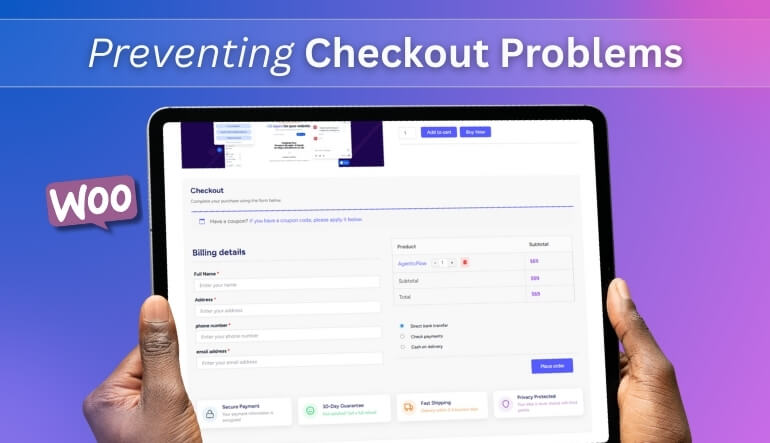
Preventing checkout issues is easier than fixing them repeatedly. A few steady habits can help your store stay stable, avoid sudden conflicts, and maintain a smooth buying experience. The points below highlight practical steps that reduce the chances of running into checkout-related problems again.
Keep WooCommerce, Themes, and Plugins Updated Regularly
Updates often include bug fixes, security improvements, and important compatibility changes. Staying updated protects your store from unexpected conflicts, especially after major WooCommerce releases. Using a staging site for testing ensures new updates don’t interfere with your checkout flow before going live.
Exclude Critical Pages From All Forms of Caching
Caching dynamic pages often leads to broken totals, missing fields, or payment gateway visibility problems. Make sure your caching plugin, CDN, and hosting platform exclude the checkout, cart, and account pages completely. This single action prevents many issues that usually frustrate customers during payment.
Use Only Trusted Themes and Lightweight Plugins
Reliable themes and lightweight plugins reduce the risk of script conflicts. Overloaded setups can break essential checkout functions when multiple tools try to modify the same elements. Keeping your installation clean and removing unused plugins helps maintain a consistent and stable checkout experience.
Verify Payment Gateway Settings After Every Update
Small adjustments in API keys, currency settings, or gateway versions can interrupt the payment flow. Reviewing your gateway setup after updates ensures everything works as expected. Running a test payment helps you catch errors early and prevents customers from facing failed transactions.
Monitor Hosting Resources, PHP Versions, and SSL Health
Low memory limits, old PHP versions, or SSL certificate issues can quietly block checkout functions. Regular server checks help you avoid hidden errors that affect payment forms or slow down the process. Keeping your environment up to date helps ensure a safe and reliable checkout.
Test the Checkout Flow After Any Change to the Site
Even small updates, such as enabling a plugin or altering settings, can affect how checkout behaves. Completing a quick test order helps you confirm whether totals update, fields load correctly, and payments go through. Regular testing keeps your store running smoothly and catches issues before customers do.
Frequently Asked Questions About WooCommerce Checkout Issues
Check out issues that often raise new questions once you start troubleshooting. These FAQs give you clear, practical guidance without repeating earlier content, helping you understand what else might influence how your checkout behaves and what steps you can consider next.
How Do I Know If My Hosting Plan Is Strong Enough for WooCommerce Checkout?
A solid hosting plan should handle checkout activity smoothly, even during traffic spikes. If customers experience delays only at checkout or you notice frequent timeouts, your hosting may be limiting performance. Choosing a WooCommerce-friendly host usually makes the checkout faster and more reliable for visitors.
Can Too Many Plugins Make the Checkout Page Unstable?
Running too many plugins increases the chance of conflicts, especially when several tools load scripts on the same page. Even well-built plugins can clash when combined. Keeping only essential plugins helps maintain a lighter setup and reduces the risk of unexpected checkout behavior.
Is It Safe to Use Custom Checkout Fields or Design Tweaks?
Custom fields and design changes are safe when tested properly, but they can create issues if added without checking compatibility. Adjustments to layout or form behavior may interrupt normal checkout flow. Testing these changes in a staging environment ensures they work smoothly before going live.
Why Do Checkout Issues Appear Only for Some Customers and Not Others?
Certain problems surface only under specific conditions, such as device type, browser version, or location-based settings. A checkout working fine on one device may break on another. Testing across multiple devices and browsers helps uncover issues you wouldn’t see in your own setup.
Should I Worry About Security Plugins Affecting the Checkout?
Strong security tools sometimes block legitimate checkout actions if they interpret them as unusual activity. Features like firewalls, bot filtering, or rate limits can interfere with WooCommerce processes. Adjusting sensitivity settings or whitelisting essential scripts usually keeps the checkout running smoothly and securely.
Do Checkout Problems Affect SEO or Paid Ads Performance?
While checkout issues don’t directly harm SEO rankings, they impact conversions and ad results. A broken or slow checkout reduces sales, increases bounce rates, and wastes your ad spend. Fixing checkout problems leads to better user experience and stronger performance from both organic and paid traffic.
Conclusion
Dealing with a WooCommerce checkout page not working issue can be stressful, especially when it interrupts sales and slows down customers. The good news is that most problems come from a few predictable areas, and following a clear troubleshooting path usually leads you to the cause without much guesswork. Focusing on conflicts, configurations, and small technical details helps you restore the checkout faster and with more confidence.
To keep your checkout running smoothly in the long term, focus on regular updates, careful testing, and avoiding unnecessary plugin clutter. These simple habits prevent unexpected breakdowns and help your store maintain a reliable purchasing experience. With the steps and insights shared in this guide, you’ll be better equipped to maintain a stable, customer-friendly checkout flow.
