

Is your WooCommerce Buy Now button not showing on product or shop pages? This issue can directly affect your sales because the Buy Now button is designed to reduce checkout steps and help customers purchase faster. When it disappears, users are forced to go through the full cart process, which often increases drop-offs and lowers conversion rates.
In most cases, this problem is caused by theme conflicts, plugin misconfiguration, or missing direct checkout functionality. Sometimes, the issue appears as the WooCommerce buy now button not working, especially when scripts or product settings are not aligned properly. In this guide, you will learn the exact reasons behind the issue and how to fix it step by step while keeping your store optimized for performance and conversions.
Quick Answer
If your WooCommerce Buy Now button not showing, it is usually caused by a few common configuration or system issues. Identifying these early helps you fix the problem faster without unnecessary troubleshooting.
- Buy Now button feature is not enabled or plugin is missing
- Theme does not support direct checkout or overrides WooCommerce templates
- Product type or stock status restricting button display
- JavaScript or AJAX errors breaking button functionality
- Plugin conflict affecting checkout or product page behavior
To fix this, check your Buy Now settings, confirm product configuration, test for theme or plugin conflicts, and ensure your direct checkout setup is working properly.
What “WooCommerce Buy Now Button Not Showing” Actually Means
Before fixing the issue, it is important to understand what is really happening behind the scenes. The Buy Now button is not always part of default WooCommerce behavior, and in many cases, it depends on plugins or custom setups. Because of this, even a small misconfiguration can stop it from appearing or working properly.

Button Not Visible on Product Page
In some cases, the Buy Now button does not appear at all. This usually means the feature is not enabled, the plugin is missing, or the theme is not rendering the button correctly.
WooCommerce Buy Now Button Not Working
Sometimes the button appears but does nothing when clicked. This often points to JavaScript or AJAX issues that prevent the checkout action from triggering.
Button Showing Only on Certain Products
You may notice the button works for simple products but not for variable or grouped products. This happens because some setups require specific configurations for different product types.
Button Hidden by Rules or Conditions
Certain plugins or custom rules may hide the button based on stock status, user roles, or product conditions, which can make it seem like the button is missing.
Understanding the exact behavior helps you identify whether the issue is related to setup, compatibility, or system conflicts.
Common Reasons Buy Now Button Is Not Showing
Now that you understand how the issue appears, let’s break down the most common reasons behind it. In most WooCommerce stores, the Buy Now button depends on additional setup, so even a small misconfiguration can stop it from displaying or working properly.
Buy Now Feature Not Enabled
Many stores assume WooCommerce includes a Buy Now button by default, but it often requires a plugin or custom setup. If the feature is not enabled, the button will not appear at all.
WooCommerce Direct Checkout Button Not Showing
If you are using a direct checkout setup, incorrect configuration can prevent the button from rendering. This usually happens when the plugin is installed but not properly activated or assigned to product pages.
Product Type Limitations
Some setups only support simple products. Variable, grouped, or external products may not show the Buy Now button unless additional configuration is completed.
Theme Does Not Support Button Placement
Certain themes override WooCommerce templates and may not include the required hooks to display custom buttons. This can completely hide the Buy Now button from the product page.
Plugin Conflicts
Plugins related to checkout, cart, or product display can conflict with each other. This may result in the WooCommerce buy now button not working or disappearing completely.
JavaScript or AJAX Errors
Frontend script errors can stop the button from loading or functioning. Even if the button is present, it may not respond when clicked.
Most issues come from feature setup, theme compatibility, or plugin conflicts, so identifying the root cause is key to fixing it quickly.
Check Buy Now Button Settings First
Before going into advanced fixes, start with the basic configuration. In many cases, the issue happens because the Buy Now feature is not properly enabled or assigned. These small settings control whether the button appears and works correctly.
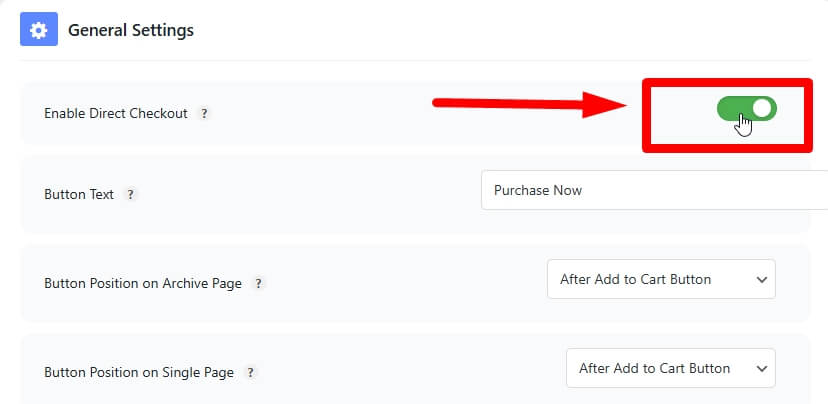
Enable Buy Now or Direct Checkout Feature
If you are using a plugin to add the Buy Now button, go to its settings and make sure the feature is enabled. Some plugins keep it disabled by default until you configure it manually.
Verify Button Placement Settings
Check where the button is set to appear. It may be configured for product pages only, or specific categories. If placement is limited, the button may not show where you expect it.
Check Product-Level Settings
Some plugins allow enabling or disabling the Buy Now button per product. Open a product and confirm that the option is active. If disabled at product level, it will not appear on the frontend.
Review Redirect Behavior
Make sure the button is configured to redirect users directly to checkout. If redirect settings are missing or broken, it can cause the WooCommerce buy now button not working issue.
Always check plugin and product-level settings first because many issues come from simple configuration mistakes.
Product Type & Stock Restrictions
After checking settings, the next step is to review product type and stock conditions. These factors directly control whether the Buy Now button appears and functions properly. Many stores face issues here without realizing it.
Simple vs Variable Products
Buy Now buttons usually work best with simple products. For variable products, customers must select options like size or color first. If no variation is selected, the button may not appear or may not work correctly.
Required Variation Selection
If your product has variations, WooCommerce requires a valid selection before enabling purchase actions. Without this, the WooCommerce buy now button not working issue can occur even if the button is visible.
Out of Stock Products
If a product is marked as out of stock, WooCommerce may hide purchase-related buttons depending on settings. This includes the Buy Now button, which relies on availability to function.
Backorder Configuration
If backorders are enabled but not properly configured, the button may behave inconsistently. Ensure backorders are allowed and clearly set to maintain visibility.
External and Grouped Products
Some product types like external or grouped products do not support direct checkout behavior in the same way. This can cause the WooCommerce direct checkout button not showing issue unless additional customization is applied.
Product type and stock rules silently control button behavior, so always verify these before moving to advanced fixes.
Theme Compatibility Issues
After checking product settings, the next important layer is your theme. Many WooCommerce themes customize product page layouts, and this can directly affect whether the Buy Now button appears or not. Even if everything is configured correctly, a theme can override or block the button.
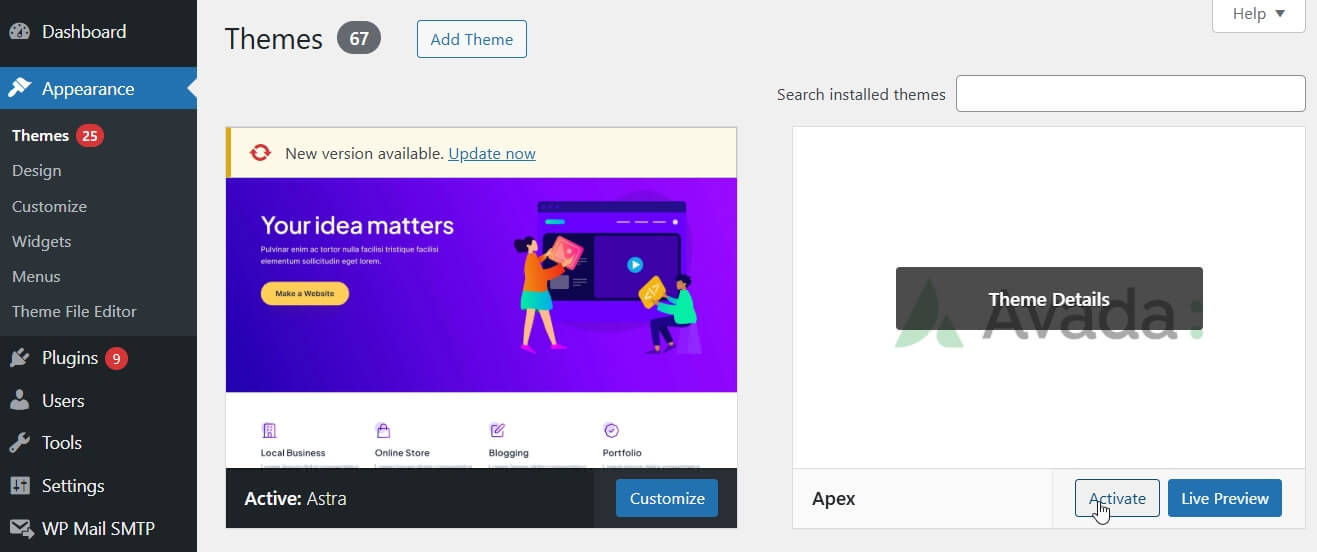
Theme Overrides WooCommerce Templates
Some themes replace default WooCommerce template files. If the required hooks or functions are missing, the Buy Now button will not render on the product page.
Missing Action Hooks
Buy Now buttons are usually added using WooCommerce hooks. If your theme does not include standard hooks like add-to-cart areas, the button placement will fail.
Custom Product Page Builders
If you are using a page builder to design product pages, it may not include support for custom buttons. This can cause the WooCommerce direct checkout button not showing issue.
CSS or Design Conflicts
Sometimes the button exists but is hidden due to CSS styling issues. It may be invisible, misplaced, or overlapped by other elements.
How to Test Theme Issues
Switch temporarily to a default WooCommerce theme like Storefront. If the button appears, your current theme is the cause and needs adjustment.
Theme-level issues are common because they control layout and hooks, so always test compatibility when the button is missing.
Plugin Conflict Troubleshooting
After checking theme compatibility, the next step is to identify plugin conflicts. WooCommerce stores often use multiple plugins for checkout, cart, and product display, and even a small conflict can stop the Buy Now button from appearing or working properly. This step helps you isolate the exact issue.

Disable Plugins One by One
Start by deactivating all plugins except WooCommerce and your Buy Now or direct checkout plugin. Then reactivate them one by one and check the button each time. This helps you quickly find which plugin is causing the conflict.
Check Checkout and Cart Plugins
Plugins that modify checkout flow or cart behavior are the most common source of conflict. They can override default WooCommerce actions and prevent the Buy Now button from functioning correctly.
Review Performance and Cache Plugins
Caching or optimization plugins can delay or block scripts required for the button. If the WooCommerce buy now button not working, try clearing cache or temporarily disabling these plugins.
Inspect Custom Functionality Plugins
If you are using code snippet plugins or custom features, they may interfere with button hooks or redirect behavior. Review any custom logic related to checkout or product pages.
Test with Minimal Setup
Keep only essential plugins active and test the button. If it works in a minimal setup, you can confidently identify the conflict as you re-enable plugins.
Plugin conflicts are one of the most common causes, so testing step by step helps you find the exact issue without guessing.
Fix JavaScript & AJAX Errors
If the Buy Now button is visible but not working, the issue is often related to JavaScript or AJAX errors. These errors can block button actions, prevent redirection, or stop the checkout process from triggering properly. Fixing them is essential for restoring full functionality.
Check Browser Console for Errors
Open your browser developer tools and go to the console tab. Look for red error messages. These errors often indicate missing scripts or conflicts that break the WooCommerce buy now button not working functionality.
Resolve JavaScript Conflicts
Multiple plugins or themes can load conflicting scripts. This can stop the button from responding when clicked. Identifying and removing the conflicting script usually fixes the issue.
Verify AJAX Functionality
Buy Now buttons often rely on AJAX to add products to cart and redirect to checkout instantly. If AJAX is broken, the WooCommerce direct checkout button not showing or not responding issue can occur.
Add this small code example inside the Fix JavaScript & AJAX Errors section.
Check if AJAX Add to Cart Is Enabled
add_action(‘wp_footer’, function () {
if (is_product()) {
?>
<script>
document.addEventListener(‘DOMContentLoaded’, function () {
if (typeof wc_add_to_cart_params === ‘undefined’) {
console.warn(‘WooCommerce AJAX add to cart script is not loading.’);
} else {
console.log(‘WooCommerce AJAX add to cart script is working.’);
}
});
</script>
<?php
}
});
Where to Add It
Add this code using a safe code snippet plugin or inside your child theme’s functions.php file.
This code checks whether WooCommerce AJAX add-to-cart scripts are loading on the product page. If the script is missing, your Buy Now button may not redirect or respond properly. Use this snippet for debugging only, then remove it after confirming the issue.
Disable Script Optimization Temporarily
Performance plugins that minify or combine JavaScript files can sometimes break functionality. Disable these features temporarily to check if the button starts working.
Update Theme and Plugins
Outdated plugins or themes may use incompatible scripts. Updating everything to the latest version can resolve hidden JavaScript errors.
JavaScript and AJAX errors are common in advanced setups, so checking them ensures your Buy Now button works smoothly.
Step-by-Step Fix Checklist
Use this checklist to find and fix the issue quickly. Go through each step one by one instead of changing multiple settings at the same time.
Enable the Buy Now Feature
Check your Buy Now or direct checkout plugin settings and make sure the feature is enabled. If the option is disabled, the button will not appear on product pages or shop pages.
Confirm Button Placement
Review where the button is allowed to display. Some plugins let you show it on single product pages, shop pages, category pages, or selected products only.
Check Product Type
Test the button on a simple product first. If it works there but not on variable products, the issue may be related to variation selection or product type support.
Verify Stock Status
Make sure the product is in stock. If the item is out of stock, WooCommerce may hide purchase-related buttons, including the Buy Now button.
Test Theme Compatibility
Switch temporarily to a default WooCommerce-friendly theme. If the button appears, your active theme is likely blocking the button placement.
Disable Conflicting Plugins
Deactivate checkout, cart, cache, and optimization plugins one by one. Then test the button after each change to find the conflict.
Check JavaScript Errors
Open the browser console and look for script errors. Broken JavaScript or AJAX issues can cause the WooCommerce buy now button not working problem.
Clear Cache and Retest
Clear plugin cache, browser cache, server cache, and CDN cache. Then open the product page in a private browser window and test again.
A step-by-step checklist helps you fix the issue safely without breaking other WooCommerce functionality.
Best Way to Add Buy Now Button in WooCommerce
If the Buy Now button is missing because WooCommerce does not include this feature by default in your setup, the best solution is to use a reliable direct checkout plugin. This gives you more control over button placement, redirect behavior, and checkout flow without editing core files.
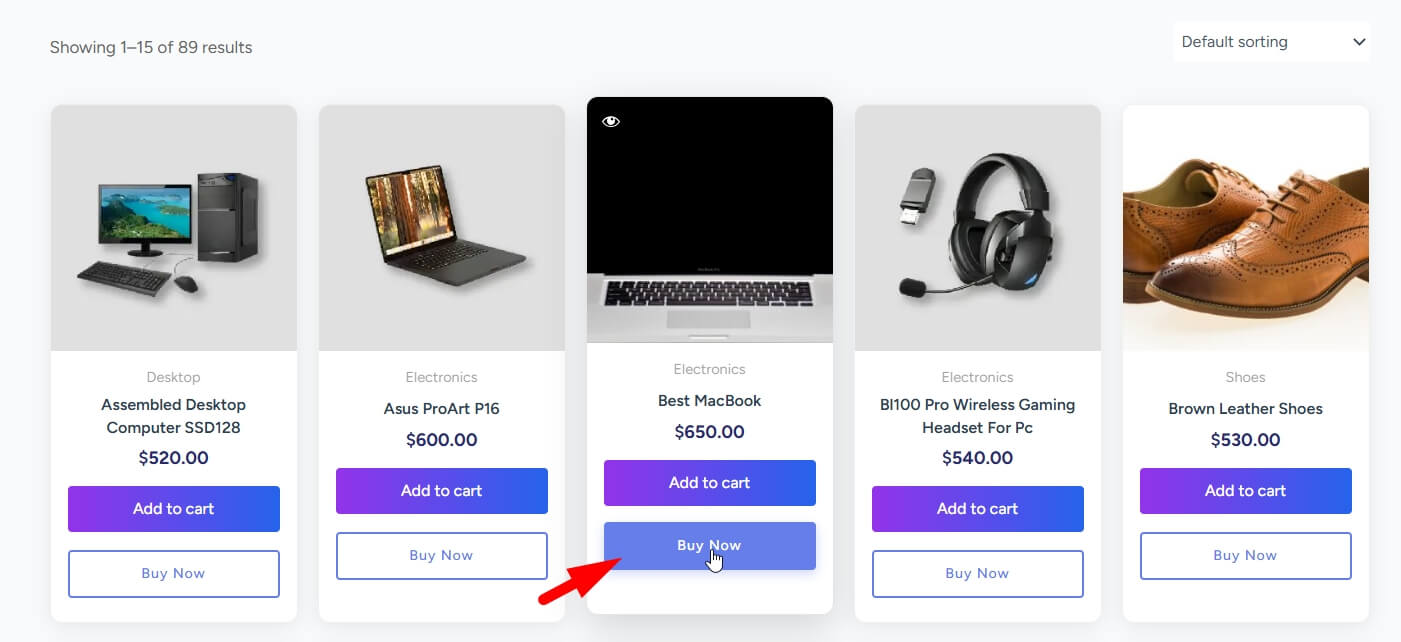
Use a Quick Checkout for WooCommerce Plugin
A quick checkout for WooCommerce plugin lets you add a Buy Now button that sends customers directly to checkout. This reduces extra cart steps and helps users complete purchases faster.
Enable Direct Checkout Flow
Direct checkout removes unnecessary friction by skipping the cart page. This is useful for stores that sell simple products, digital products, single-item offers, or landing page campaigns.
Control Button Placement
A good plugin should let you display the Buy Now button on product pages, shop pages, category pages, or selected products. This helps you match the button with your store layout and buying journey.
Keep the Checkout Process Simple
The goal is not only to show the button but also to make the buying process smooth. A clean Buy Now setup can improve user experience, reduce cart abandonment, and support better conversion rates.
Recommended Solution
For store owners who want a simple and conversion-focused setup, One Page Quick Checkout for WooCommerce by Plugincy can help add direct checkout behavior, improve purchase flow, and make the Buy Now experience easier to manage.
A proper Buy Now setup should improve both button visibility and the customer checkout journey.
How to Add Buy Now Button Using One Page Quick Checkout for WooCommerce by Plugincy
If your WooCommerce Buy Now button not showing, one of the easiest and most reliable ways to fix it is by using a direct checkout plugin. One Page Quick Checkout for WooCommerce by Plugincy allows you to add a Buy Now button without coding and control the full checkout flow from a single dashboard.
Below is a simple step-by-step guide to set it up properly.
Step 1: Install (Free Version)
To fix the WooCommerce Buy Now button not showing, the first step is installing the plugin that enables direct checkout functionality. The free version is easy to set up and works without any coding.
Follow these steps to install it correctly:
- Go to your WordPress Admin Dashboard and navigate to Plugins
- Click on Add New Plugin
- In the search bar, type One Page Quick Checkout for WooCommerce
- Click Install Now, then click Activate once installation is complete
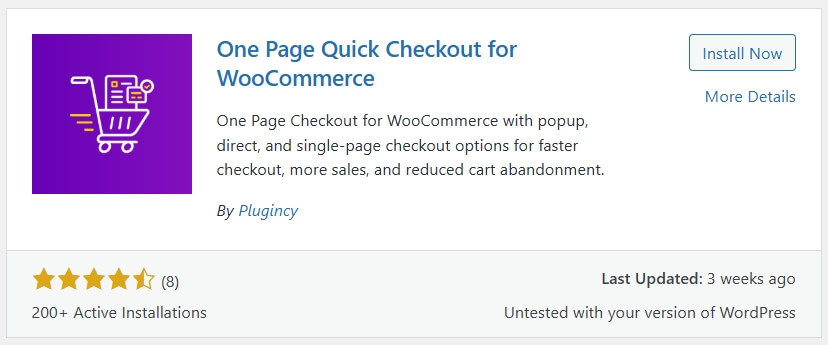
After activation, the plugin will automatically add its settings to your WooCommerce dashboard, where you can configure the Buy Now button and direct checkout options.
Step 2: Install (PRO Version)
If you are using the PRO version, installation requires uploading the plugin file manually. This gives you access to advanced features and better control over fixing the WooCommerce Buy Now button not showing issue.
Follow these steps carefully:
- Go to the plugin’s official website and purchase the PRO version
- After purchase, download the ZIP file from the email or your account dashboard
- Go to your WordPress dashboard → Plugins → Add New
- Click Upload Plugin, select the ZIP file, and click Install Now
- Once installed, click Activate
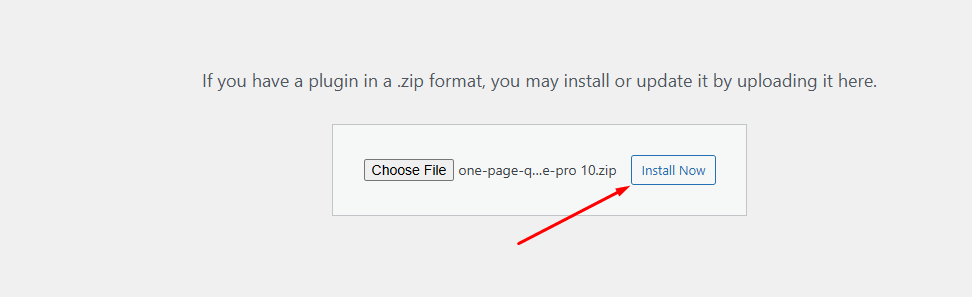
After activation:
- Go to Onpage Checkout → Plugin License
- Enter your license key to unlock all PRO features
Step 3: Enable Direct Checkout to Show Buy Now Button
After installing the plugin, the next step is to enable direct checkout. This is the core feature that adds the Buy Now button and fixes the WooCommerce Buy Now button not showing issue.
Follow these steps:
- Go to your WordPress dashboard
- Open Onpage Checkout → Direct Checkout
- Enable the Direct Checkout option
- Click Save Changes

What This Setting Does
Enabling direct checkout will:
- Add the Buy Now button to your product pages
- Skip the cart and send users directly to checkout
- Fix WooCommerce direct checkout button not showing issues
- Improve checkout speed and user experience
Now visit your product page and test it. You should see the Buy Now button appearing and working properly. If the button is still missing, clear cache and recheck your settings.
Enabling direct checkout is the key step that activates Buy Now functionality and improves conversion flow.
Step 4: Fix Button Position and Text Settings
If the WooCommerce Buy Now button not showing even after enabling direct checkout, the issue is usually related to button placement or text configuration. These settings control where and how the button appears on your store.
Follow these checks carefully:
Check Button Position Settings
Go to:
Onpage Checkout → Direct Checkout
Make sure the following options are set correctly:
- Button Position on Archive Page: Set to After Add to Cart Button
- Button Position on Single Product Page: Set to After Add to Cart Button
If these positions are not selected, the button may not appear at all.
Fix Button Text Setting
Next, check the button label:
- Find the Button Text option
- Make sure it is set exactly to Buy Now
- Click Save Changes after updating
Incorrect or empty button text can sometimes prevent the button from displaying properly.
Final Check
After saving all settings:
- Refresh your product page
- Clear cache if needed
- Test the button again
You should now see the Buy Now button appearing and working correctly on your WooCommerce store.
Why This Step Matters
Correct positioning and text settings ensure:
- Button is visible in the right location
- Fixes WooCommerce buy now button not working issues
- Improves user interaction and conversions
Button placement and text configuration are critical for visibility, so always verify these settings if the button does not appear.
If these were set incorrectly, fix them and click Save Changes.
Also, check the Button Text setting. If the text is not exactly “Buy Now,” change it to Buy Now, then click Save Changes again. After saving your changes, refresh your store page and test again. The Buy Now button should now appear and work properly on your WooCommerce store.
Buy Now Button Features in One Page Quick Checkout Plugin
If you are trying to fix the WooCommerce Buy Now button not showing, it is important to understand what features this plugin actually provides. The Buy Now functionality is not just about showing a button, it controls the full checkout experience.
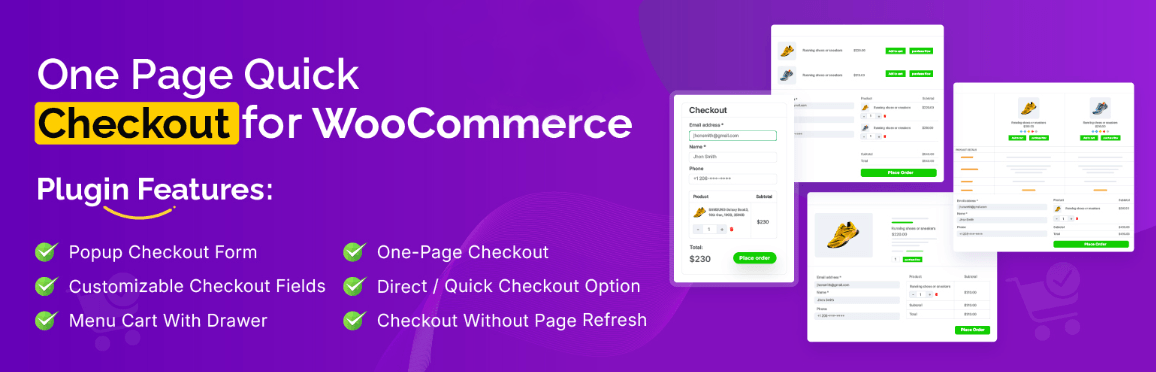
Here are the key features that make it effective:
Instant Direct Checkout
The plugin adds a Buy Now button that sends users directly to checkout without going through the cart page. This helps reduce steps and improves purchase speed, especially for single-product purchases.
Flexible Button Placement
You can display the Buy Now button on:
- Product pages
- Shop page
- Category pages
This ensures the button appears exactly where customers are ready to take action.
Works with Multiple Product Types
The plugin supports simple products and can be configured for variable products as well. This helps fix cases where the WooCommerce direct checkout button not showing for certain product types.
Custom Button Text and Style
You can change the button text, design, and position to match your store layout. This improves visibility and user interaction without needing custom code.
Skip Cart Functionality
Instead of sending users to the cart, the button takes them straight to checkout. This removes friction and helps reduce cart abandonment.
Smooth AJAX-Based Experience
The plugin uses AJAX to handle actions quickly without page reloads. This ensures the Buy Now button works smoothly and avoids delays or broken actions.
Compatible with Most Themes and Plugins
It is built to work with standard WooCommerce hooks, which helps avoid common conflicts that cause the WooCommerce buy now button not working issue.
Why This Matters for Your Store
Using a proper Buy Now system helps you:
- Fix missing or broken button issues
- Improve checkout speed
- Increase conversion rates
- Create a smoother shopping experience
A complete Buy Now feature setup improves both functionality and conversions, not just button visibility.
Buy Now vs Default Checkout
Understanding the difference between a Buy Now button and the default WooCommerce checkout flow helps you decide which approach is better for your store. Each method impacts user experience, speed, and conversion differently.
| Feature | Buy Now Button | Default WooCommerce Checkout |
| Checkout Flow | Direct to checkout (skip cart) | Cart → Checkout process |
| Speed | Faster purchase | Slower, multi-step |
| User Effort | Minimal clicks | More steps required |
| Best For | Single product, fast buying | Multi-product shopping |
| Conversion Rate | Higher for quick decisions | Lower due to friction |
| Mobile Experience | Smooth and fast | Can feel lengthy |
| Setup Requirement | Requires plugin or setup | Default WooCommerce feature |
When to Use Buy Now Button
If your goal is faster conversions, especially for single-product pages or campaigns, a Buy Now button is highly effective. It removes distractions and shortens the buying journey.
When Default Checkout Is Better
If customers usually purchase multiple items, the default cart and checkout process gives them flexibility to review and adjust their order before payment.
Choosing the right checkout flow depends on your product type and how you want users to complete their purchase journey.
FAQ
Why is my WooCommerce Buy Now button not showing?
This usually happens because the feature is not enabled, the required plugin is missing, or the theme does not support button placement. It can also be caused by product type limitations or plugin conflicts.
Why is my WooCommerce buy now button not working?
If the button appears but does nothing, it is often due to JavaScript or AJAX errors, incorrect redirect settings, or conflicts with other checkout or cart plugins.
Does WooCommerce include a Buy Now button by default?
No, WooCommerce does not always include a Buy Now button by default. In most cases, you need a plugin or custom setup to enable direct checkout functionality.
Why is the direct checkout button not showing on some products?
This can happen with variable or grouped products where selections are required before purchase. It may also be due to plugin settings or product-level restrictions.
How do I add a Buy Now button in WooCommerce?
You can add it using a direct checkout or quick checkout for WooCommerce plugin. These tools allow you to skip the cart and send users directly to checkout.
Final Thoughts
The WooCommerce Buy Now button not showing issue can impact your sales more than expected because it removes a fast and direct purchase option from your store. Instead of guessing, follow a structured approach by checking settings, product types, theme compatibility, plugins, and JavaScript behavior step by step.
Fixing this issue is not only about making the button visible. It also improves your checkout speed, reduces friction, and supports higher conversion rates. Many stores see better performance when they properly implement direct checkout instead of relying only on the default cart flow.
If you want a long-term solution, focus on a stable setup that combines proper configuration with a reliable direct checkout system. This ensures your Buy Now button works consistently across all products and devices.
A working Buy Now button improves both user experience and conversions, so fixing it should be a priority for any WooCommerce store.
