

Inventory management plays a big part in keeping any WooCommerce store steady and simple. Many store owners want clear steps that help them avoid stock trouble and daily stress. You might feel the same when items sell fast or sit too long. This is why you may look for 10 WooCommerce inventory management tips to better manage your store.
To manage WooCommerce inventory better, store owners should activate stock tracking, set low stock alerts, and use tools to auto-update levels. Regular stock checks, clean item organization, and using sales reports help improve accuracy. Adding rules for returns and using just-in-time methods also keeps things smooth. All these steps work together to reduce waste and stop delays.
Want to know if your store is on the right path with stock? Or curious if you’re doing things the right way or missing easy wins? Continue reading this article to get the answers you need. You’ll find all the simple and useful tips right here.
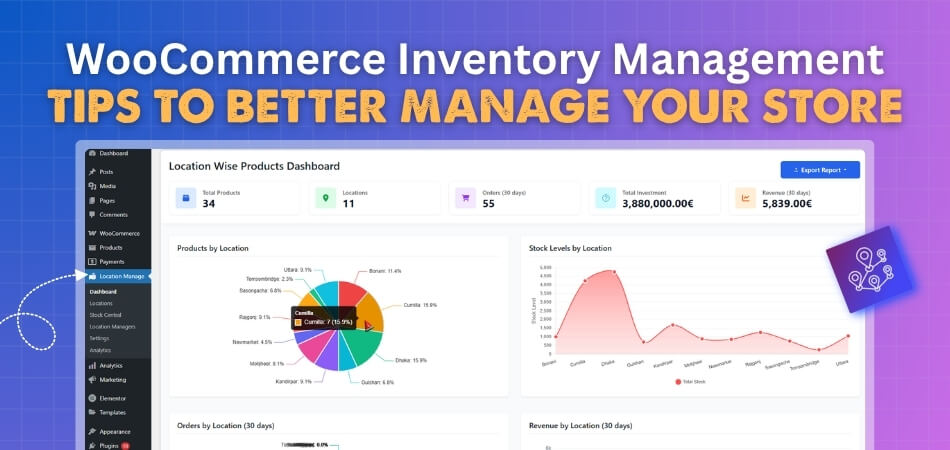
10 WooCommerce Inventory Management Tips to Better Manage Your Store
Managing inventory in an online store can be challenging at times. You may lose sales if you run out of popular products. Too much stock can also waste money and space. Read below to learn ten simple tips to manage your WooCommerce inventory better.
1. Activate and Set Up Stock Management for Specific Items
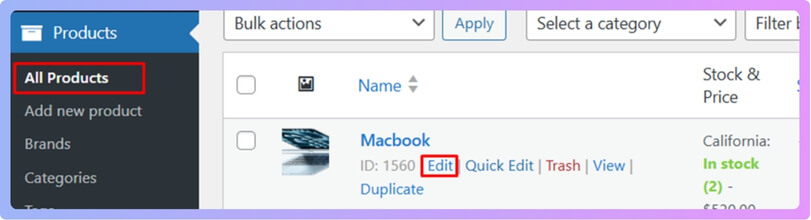
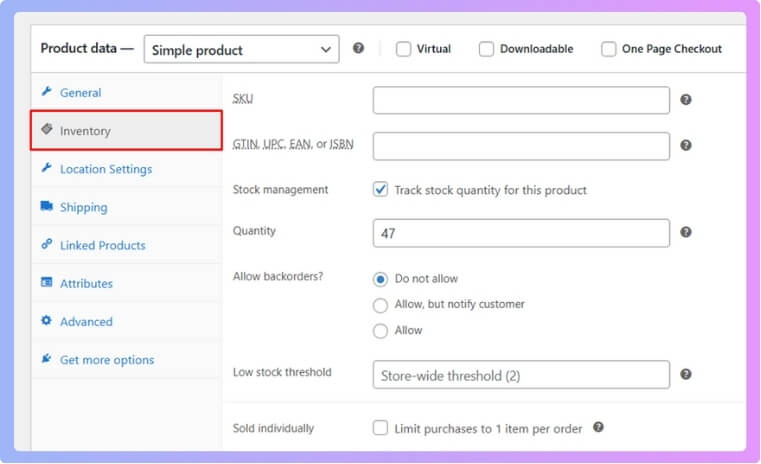
To set up stock control for a product, go to Products > All Products and open the item you want to edit. In the Product data box, click Inventory and turn on the stock management option. After that, add a unique SKU, set the starting stock amount, and choose a low stock level. You can also decide if you want to allow backorders or only sell the item when it is in stock.
2. Set Up Low Stock Thresholds and Notifications
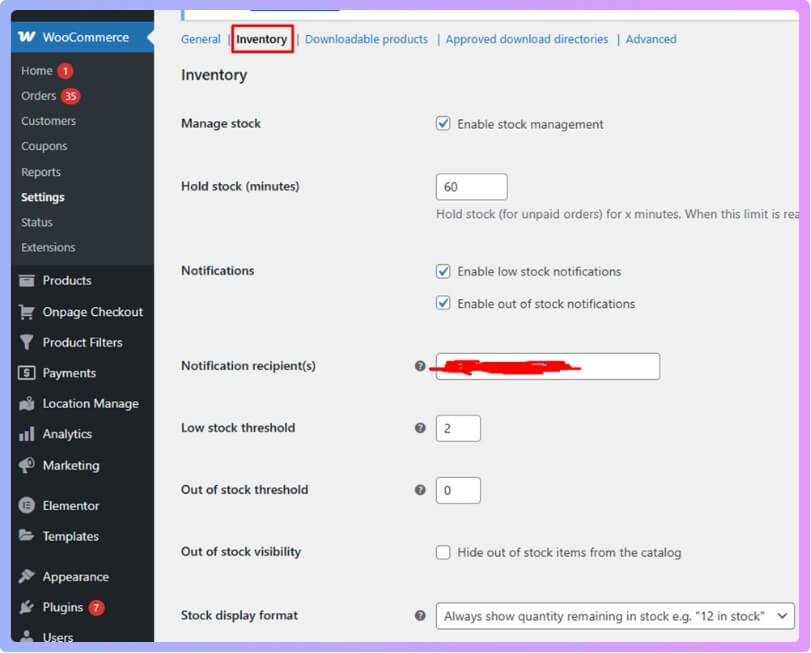
You can set a global low stock alert by going to WooCommerce > Settings > Products > Inventory. Once you choose your low stock number, WooCommerce will send you a notice when any item drops below that level. This helps you refill products on time and avoid running out.
3. Track Stock Automatically
Keeping track of stock by hand can take too long. You can use plugins to update stock counts when orders come in. These tools also adjust stock when you add new items. Some even update both simple and variable products. This cuts down on mistakes and saves you time.
4. Do Regular Stock Checks
Even with automation, it’s smart to check your stock often. Doing small counts helps you match digital numbers with real items. You can also spot missing or extra products early. This helps stop problems before they affect orders. Regular checks make your inventory more reliable.
5. Use Sales Reports
WooCommerce gives you helpful stock and sales reports. You can see what sells fast and what doesn’t move. This helps you plan better and order smartly. You can also use plugins that show profit and stock data clearly. Reports guide you to make smart business choices.
6. Keep Your Inventory Organized
A good system helps you keep track of products easily. For example, use FIFO for perishable goods so old stock sells first. For non-perishable goods, you can use LIFO instead. Both systems keep your stock flow smooth and easy to handle. Good organization saves time and reduces errors.
7. Try A Just-in-Time System
This method keeps stock levels low and fresh. You order new items only when they’re needed. It cuts storage costs and saves money. But it works best when your suppliers are reliable. JIT keeps your store lean and efficient without overstocking.
8. Use Technology to Automate Processes
Many tools can help you update stock across different places. Some plugins even support multi location inventory management for WooCommerce, which makes it easier to control stock in many areas. You can sync items, track levels, and avoid manual updates. The right tool saves time and keeps your store running well.
9. Create Clear Stock Rules
Every store needs clear stock rules to stay organized. Write down how you’ll handle new arrivals, returns, and low stock alerts. A set process keeps your team on the same page. Clear rules reduce confusion and mistakes in the long run.
10. Focus on Customer Needs
When stock runs out, customers lose trust fast. Always try to keep key products available. If you allow backorders, tell customers clearly about delays. Keeping open communication builds trust even when items are low. A happy buyer often returns to shop again.
Why Inventory Management Matters in WooCommerce?
Inventory management helps your store run in a steady way. It keeps your stock in the right amount each day. It also helps you avoid lost sales and upset buyers. Keep reading to learn why good inventory management matters and how it helps your store grow:
Better Stock Control
Running a store online needs close watch on all items in stock. Good control helps you plan what to buy and when to buy it. You also avoid delays that can upset buyers. With simple tools, you can manage inventory in WooCommerce with variable products and track each item with ease. Many shop owners use WooCommerce inventory management to keep things steady.

Fewer Lost Sales
Shoppers do not like empty product pages or late orders. When items run out, people may leave your site at once. This can stop you from growing your shop. A smart stock plan helps you refill items on time. This keeps buyers happy and builds trust in your store.
Lower Storage Costs
Holding too much stock can waste space and money. Many shops buy more than they need and then get stuck with slow items. A clear stock limit helps you avoid this problem. You can order items only when needed. This keeps your storage costs low and simple to handle.
Faster Order Fulfillment
Orders move faster when your stock levels stay correct. There is no need to search for missing items or cancel orders. Your team can pack and ship in less time. Buyers get their items sooner and leave good reviews. This makes your store look more reliable.
Stronger Business Planning
Stock data helps you plan for both slow and busy days. You can see which items sell fast and which ones do not. This helps you plan the next set of orders with less stress. Clear stock reports guide better choices. Over time, your store becomes easier to run.
Fewer Product Errors
Product mistakes can confuse buyers and hurt your name. Wrong stock levels lead to wrong orders or late refunds. A good tracking setup keeps your product list clean and correct. You can update all items in one place with ease. This reduces errors and saves you time.
Improved Customer Trust
When your store shows correct stock levels, buyers feel safe. They know their orders will arrive without delay. This trust grows with each smooth order and leads to more sales. Clear stock updates also help buyers choose the right items. Over time, trust becomes one of your best strengths.
What Are Some Common Inventory Mistakes Store Owners Should Avoid?
Many store owners face inventory issues without seeing the root cause. These mistakes may look small at first, but they can grow fast. When stock steps are ignored, the store becomes hard to handle. Here are some simple mistakes to avoid and how to fix them.
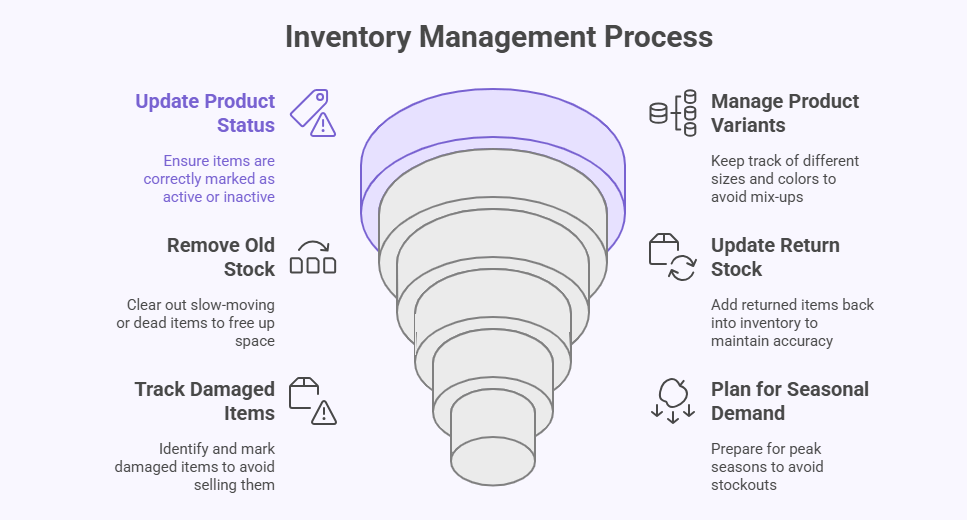
Forgetting to Update Product Status
Some owners forget to mark items as active or inactive. This leads to items showing as ready even when they are not. Buyers get confused when they order something that cannot be shipped. A quick check of product status helps stop the problem early. Simple steps like this keep your store clear and easy to run.
Mixing Up Product Variants
Variants can be tricky when sizes or colors look similar. Many owners update one part but forget the others. This leads to wrong stock counts and missed sales. Small notes or clear labels help you avoid these mix-ups. Clean variant details also help buyers pick the right item with ease.
Not Removing Old or Dead Stock
Old or slow items often sit in storage for months. Many owners avoid removing them, hoping they will sell later. This blocks space and hides fast-moving items. A simple clean-up plan helps fix this quickly. When you clear old stock, your store becomes easier to manage.
Missing Return Stock Updates
Returned items often come back in good condition. But many owners forget to add them back into stock. This makes the numbers look lower than they are. A quick return check helps fix this problem. When return steps are clear, you can keep stock counts clean and correct.
Not Tracking Damaged Items
Some items get damaged during packing or shipping. If these are not marked properly, they are still counted as sellable. This leads to wrong stock numbers and delayed orders. A small damaged-items list helps prevent this issue. Clear tracking makes your stock count more reliable.
Overlooking Seasonal Demand
Demand changes during holidays or sale seasons. Many owners forget to plan for these peaks. This causes sudden stockouts when buyers rush in. A simple look at past seasons can guide your next plan. When you prepare early, your store stays ready for busy days.
Is Inventory Management Plugin a Convenient Way for Store Owners to Manage Their Stores?
Yes, using an inventory plugin can be a simple and helpful way for store owners who want easier daily work. It lets them update stock levels fast without checking each item page or making mistakes that slow things down today. The plugin keeps numbers correct because it changes stock counts automatically once orders come in or items get returned easily. This helps store owners save time and focus on clear tasks that improve sales, order speed, and overall customer happiness.
Many store owners enjoy plugins because they reduce manual work and stop small errors that often become bigger stock problems. The tool also helps when a store sells many products since it keeps everything neat and simple to manage each. Owners can check clear reports to see which items move fast, which items slow down, and what needs restocking soon. These simple reports guide smart choices that keep shelves filled, customers satisfied, and the whole store running smoothly during busy.
Plugins also help when store owners handle returns because they update numbers right away and prevent wrong stock counts later. This support keeps stores clear and steady even when orders rise quickly or when products move faster during high traffic. Store owners can also use simple settings to plan alerts that warn them early when certain products start getting low. With these tools in place, store teams avoid stress and keep everything smooth, safe, and easy for shoppers and owners.
How to Know if the Inventory Tips You’re Following Are Working?
Some tips work well, while others bring no change at all. Many store owners follow advice without checking if it helps or not. Small signs often show if the steps are really working. Keep reading below to see how to know if your inventory tips are helping.
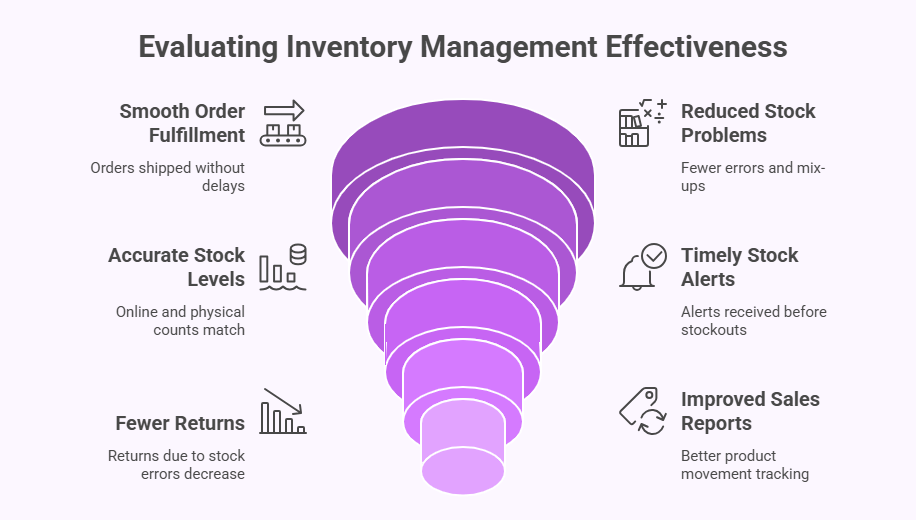
Orders Are Smooth and on Time
If orders ship fast without delay, that’s a good sign. You should rarely cancel an order due to missing stock. Smooth order flow shows your system is working well. This also means customers are happy with fewer problems and fast delivery.
Less Time Spent Fixing Stock Problems
You may notice fewer stock mix-ups or wrong product counts. That means you spend less time fixing errors after each sale. A clear and working system should lower your daily stock stress. When it works, your time goes to growth instead of patching mistakes.
Stock Levels Match the Real Numbers
Check if your online stock counts match your actual stock on hand. When your system helps with managing inventory across locations, the numbers stay more accurate and easy to track. Accurate counts help you avoid sudden sellouts or wasted stock. This balance keeps your store smooth and simple to manage every day.
You Get Low Stock Alerts on Time
When the stock drops, you should get alerts before it’s too late. That gives you time to refill before you lose sales. Good alerts also help you reorder smartly and stay ahead. This is a sign that your setup is doing its job well.
Fewer Returns Caused By Stock Mistakes
Watch how many returns happen due to wrong or missing items. If that number drops, your stock plan is working right. This saves time and keeps your buyers happy with their order. Less stress for you, and more trust from them.
Sales Reports Show Better Product Movement
Look at the reports to see which products are moving faster. When top items sell steadily, your tips are helping. This means your planning and restocking choices are smart. Good sales flow shows your store is on the right track.
Frequently Asked Questions
This FAQ section gives quick and clear answers to common stock questions. Each answer helps you handle your WooCommerce store with less stress. You will find simple tips you can apply right away. Read below to learn solutions that keep your stock steady and easy to manage.
How Can I Keep My Stock Data Clean Over Time?
You can keep your stock data clean by checking it often and keeping records simple. Clear names and correct product details help stop mix-ups that cause wrong counts. When data stays neat, you can update items faster and avoid confusion. Clean stock data also makes reports easier to read and trust.
Why Is It Helpful To Group Products Into Categories?
Grouping products helps you find items faster when checking stock or placing orders. Clear groups make it simple to view counts, see sales trends, and find slow items that need action. When everything is sorted into the right place, you save time every day. This small step helps your whole store work better.
Why Should I Check My Stock Before Running Sales?
Running sales without checking stock can lead to quick sellouts and upset buyers. Checking stock early helps you refill items or remove products that are too low. This keeps orders smooth during the sale. It also helps you handle large traffic without last minute problems.
How Can I Handle Stock For Newly Added Products?
When adding new items, start by setting clear names, SKUs, and stock levels. This helps you track each item from the first day. Good setup reduces mistakes later when orders begin. When new products enter your store clean and correct, your whole system stays stable and simple to run.
Why Do Product Photos Affect Stock Accuracy?
Product photos help you spot the correct item during checks. When items look similar, photos help avoid sending the wrong one. Clear photos guide your team during packing and counting, keeping numbers right. Strong visuals make stock control easier, especially when many items look alike.
How Can I Use Tags To Improve Stock Control?
Tags help you sort products by features, seasons, or uses. This makes it easy to find groups of items during checks. With tags, you can track how certain item types sell. Organizing with tags also helps you plan restocking based on trends you can see quickly.
Why Stock Limits Help During High Traffic?
During busy days, many shoppers buy the same item fast. If you set stock limits, you avoid selling more items than you have. This protects your store from sudden errors and refund problems. It also keeps your shoppers safe from false stock numbers.
Conclusion
A smooth store becomes much easier to run when you follow simple stock habits that work every day. Good tracking, clear alerts, and smart tools help you stay ahead before small issues grow. These steps also make your store feel more steady and stress-free.
When you use clean methods to manage items, you make room for better sales and happier buyers. Your stock stays ready, your orders stay quick, and your team works with less confusion. This helps your store grow without losing control of your products.
If you want real results, start applying the 10 WooCommerce inventory management tips to better manage your store. These steps guide you toward a cleaner system, smoother days, and a store that stays ready for every shopper.
