

Are you looking for an easy way to resolve cart issues in your WooCommerce store? You can do that by understanding how to solve WooCommerce empty cart error and applying a few easy steps that refresh the cart system.
Simple actions like clearing caches, fixing page settings, resetting permalinks, and checking shortcodes can help your cart save items the right way again. When these parts work well, shoppers can move through the checkout without losing their cart items.
If your cart continues to appear empty or behave strangely, you’re in the right place. In this article, we’ll walk you through clear steps that help you fix the error fast and keep your store running smoothly.
What Causes the WooCommerce Empty Cart Error?
Unexpectedly empty WooCommerce carts confuse both store owners and shoppers, especially when products disappear right after being added. Cart issues often trace back to cookie conflicts, theme problems, or overly aggressive caching setups. Below is a clear look at the most common reasons behind the problem and how each one disrupts the cart process.
- Theme Conflicts: Some themes are not coded to fully support WooCommerce features like the cart system. When this happens, your cart items may disappear before checkout.
- Caching Problems: Server-side or plugin-based caching can prevent cart data from updating correctly. This often leads to empty carts even after adding products.
- Cookie Blocking: If a browser or server blocks cookies, WooCommerce can’t track your session properly. Without session tracking, cart contents are lost.
- Plugin Compatibility: Not all plugins work well with WooCommerce or each other. Conflicts between plugins can break cart functionality and remove items.
- HTTPS/SSL Issues: Switching between HTTP and HTTPS can confuse sessions. If URLs aren’t consistent, WooCommerce might think the cart is for a different user.
- Outdated Software: Running older versions of WooCommerce, WordPress, or plugins can lead to bugs. These bugs might affect how the cart behaves during sessions.
How to Solve WooCommerce Empty Cart Error?
Sometimes the WooCommerce cart stops working the way it should, and this can create trouble during checkout. The good news is that most fixes are simple and take only a few minutes. Here are the best ways to solve the empty cart problem without much stress.
Quick Fixes
Clear Caches
Clear your browser cache, cookies, and the cache from your site’s caching plugin. Old or stored data often stops WooCommerce from saving cart items correctly. Doing this gives your cart a fresh start so it can load new sessions without trouble.
Flush Permalinks
Go to WordPress > Settings > Permalinks and click “Save Changes” without changing anything. This resets your site’s link structure and fixes broken routing paths. If pages were not loading the right way, this simple step often solves it quickly.

Using Plugins
Try using checkout improvement plugins when your cart acts strangely. A good option is One Page Quick Checkout for WooCommerce, which many store owners like. These plugins often fix cart issues by reducing page reloads and improving the cart flow.
Clear Customer Sessions
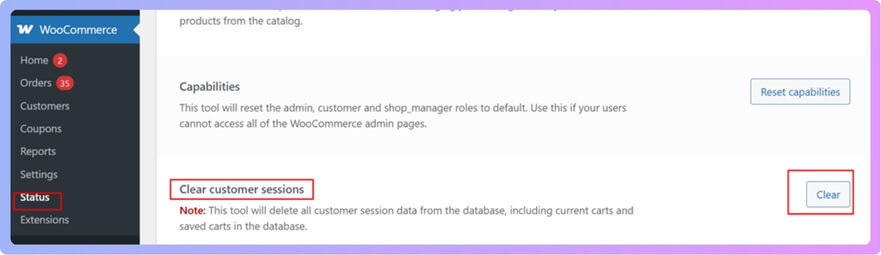
Go to WooCommerce > Status > Tools and click “Clear customer sessions.” This removes old or stuck cart sessions that may cause items to disappear. It helps your website create fresh sessions for each visitor without errors.
Page and Shortcode Checks
Check WooCommerce Page Settings
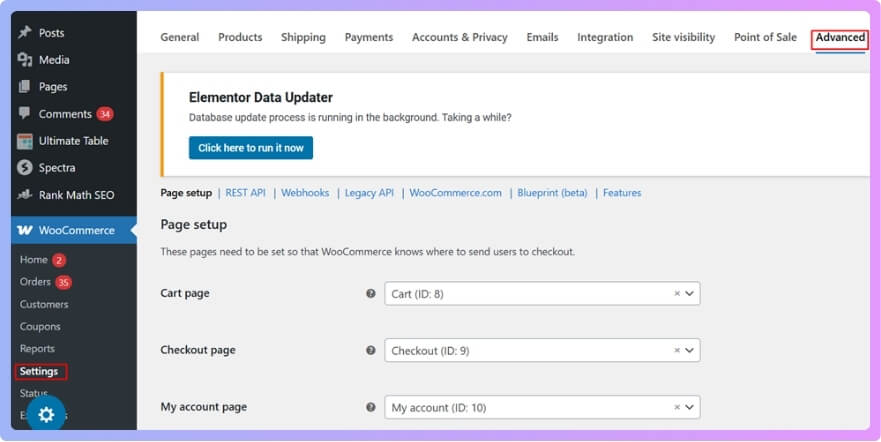
Open WooCommerce > Settings > Advanced and make sure Cart, Checkout, and My Account pages are correctly assigned. If they are missing, pick the correct pages from the dropdown. When these pages are not linked properly, WooCommerce cannot store cart details correctly.
Verify Shortcodes
Check that your Cart page contains the shortcode woocommerce_cart and your Checkout page has woocommerce_checkout. These shortcodes make the pages function the right way. Without them, the cart and checkout pages may show errors or fail to load content.
Use the Default WooCommerce Pages Tool
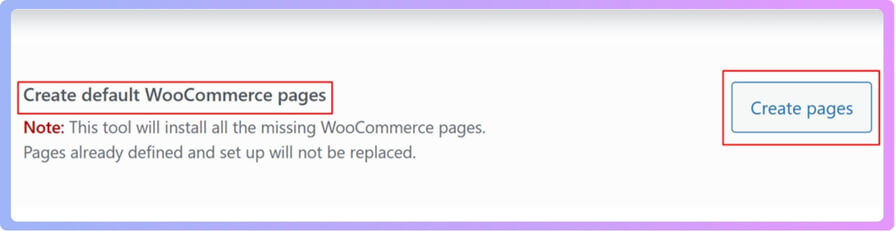
If any pages are missing or broken, use the “Create default WooCommerce pages” tool under WooCommerce > Status > Tools. This feature rebuilds the original WooCommerce pages for you. It is helpful when pages get deleted, overwritten, or damaged during updates.
Conflict Troubleshooting
Switch Themes
Switch to a default WordPress theme like Storefront or Twenty Twenty Five. This helps you see if your current theme is causing cart problems. Some themes are not fully compatible with WooCommerce, which leads to empty carts.
Deactivate Plugins
Turn off all plugins except WooCommerce and test your cart again. If it works now, reactivate plugins one by one to spot the conflicting one. A single plugin with a bad script can stop WooCommerce from saving cart data.
Check WooCommerce System Status
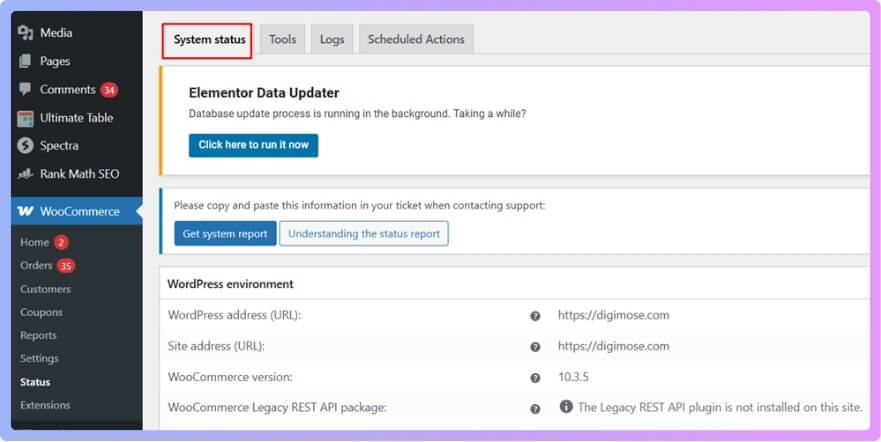
Go to WooCommerce > Status and check for red alerts or warnings. These messages point out outdated templates, errors, or missing settings. Fixing these issues often restores normal cart behavior and prevents more problems later.
Try these fixes and test the cart after each one. Most of the time, one of them will solve the problem fast.
Could Payment Gateway Settings Trigger the Empty Cart Issue?
Many store owners feel confused when the cart suddenly becomes empty during checkout, and payment settings can sometimes play a hidden part. Small mistakes inside these settings may interrupt the cart flow and stop items from staying in place. These issues often appear when gateways load slowly or fail to share needed data with the store during important steps.
Some payment plugins use session data that must stay stable, and any mismatch can break the normal cart process. When the system cannot read those sessions, the cart may reset before the order even begins. This is why many people try to fix payment-related cart problems in WooCommerce by checking their gateway setup carefully and making sure everything works well together.
A wrong API key, an outdated gateway plugin, or a blocked callback can trigger unexpected cart clearing at the worst time. These small errors can stop the gateway from completing basic checks needed to hold items in the cart. Keeping payment settings updated, tested, and connected helps prevent these sudden cart problems and supports a smoother checkout process each time.
Best Way to Detect the Root Cause of WooCommerce Empty Cart Error
The empty cart issue can feel very confusing at first. Many people think it is a small glitch, but it often has clear causes. You can find these causes with a few simple checks that work well. Keep reading these steps to understand where the problem truly comes from.
Read WooCommerce Logs
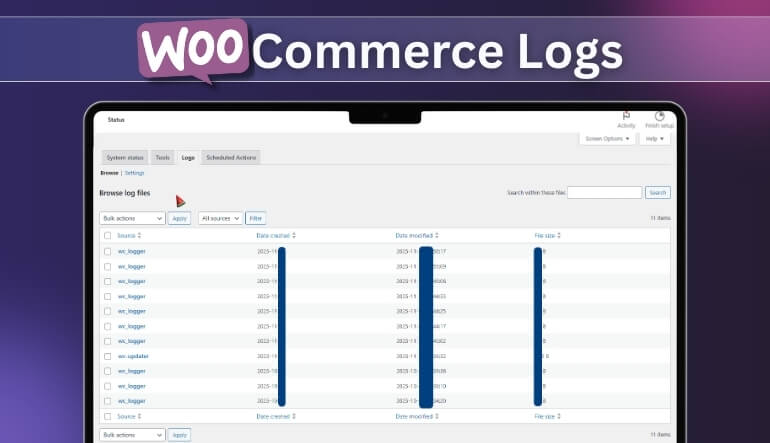
You can learn a lot by checking the logs inside WooCommerce because they record errors from plugins and checkout tasks. These logs help you see hidden issues that break the cart or block normal sessions. They also show warnings that point to missing files or failed actions. When you read them with care, the main problem becomes much easier to find.
Use Console Errors
Your browser console is a great place to look for broken scripts that stop the cart from saving items. It shows errors that load when you click the cart or checkout page. These errors often come from themes, plugins, or missing files. Watching the console helps you narrow down the cause without guessing anything.
Use the Network Tab to Check Cookies
The network tab helps you see if cookies are blocked or not saved correctly. Cookies store cart data, so any break here can clear the cart at once. You can check each request to see if the cookie loads or fails. This simple test shows if your cart problem comes from a cookie issue.
Test in Incognito Mode
Testing the shop in incognito mode helps you see if your browser settings cause the cart issue. This mode uses a clean session with no stored cache or cookies. It removes old data that may block your cart from working. If the cart works here, you know the issue is from stored browser data.
Use Query Monitor
Query Monitor helps you see slow scripts or failed calls that break the cart flow. It shows errors from plugins, database queries, or missing hooks. You can quickly spot things that go wrong when you add items to the cart. This tool makes it easier to track where the issue starts.
Are Other Elements on the Product Page Also Breaking?
Some store owners notice other parts of the product page acting strangely when the cart stops working. Elements like images, tabs, or stock notes may load wrong or disappear without warning. These small signs often show deeper problems linked to scripts or plugin settings that fail to work together.
Many issues start when scripts clash and break small page parts that should load smoothly for everyone. This can also affect buttons or layout blocks that fail at random times during normal use. Some users look for a missing Buy Now button fix after noticing that other interactive features also stop working at the same time.
Broken product details, slow variation changes, or missing size options can also point to script errors. These errors can block calls needed to load important data that the page must show for the buyer. When several features stop at once, it’s easier to check all parts and see what fails first.
When Should You Contact Hosting Support or Developers?
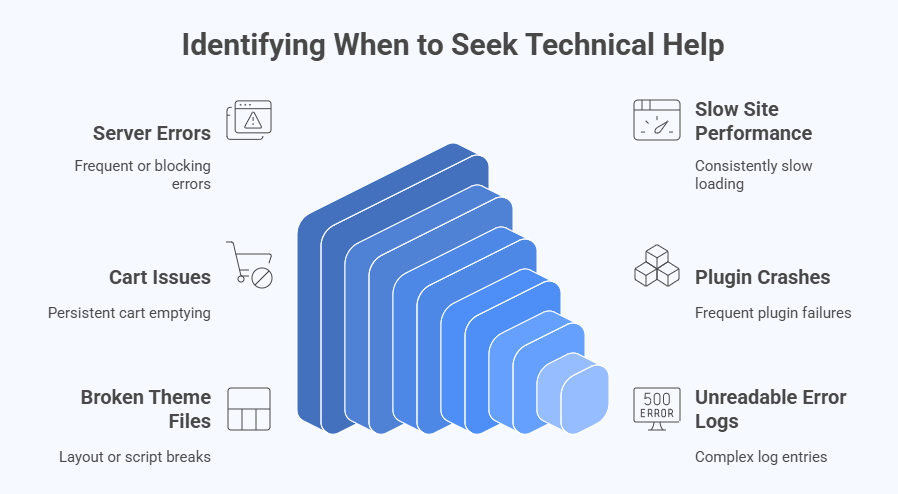
Many people feel unsure about the right time to ask for help. It can be hard to tell when the issue is too big. Some problems look small but need deeper checks from skilled people. Read the points below to know when support is the best step.
Server Errors Keep Showing
You may need help when server errors appear often or block parts of your store. These errors can stop pages from loading or freeze simple tasks. Hosting teams can check logs and tools that you cannot see. They can also fix server parts that break without clear signs.
Site Feels Slow All Day
A slow site can mean trouble inside your server, not your theme. This can happen even when your pages do not have many items. Hosting support can check memory and load levels that slow your store. They can also tell you if your plan needs more power.
Cart Issues Do Not Stop
If your cart still empties after many tests, you may need deeper checks. Some server settings block cookies or sessions without showing clear errors. A hosting team can find these small breaks fast. They can also help fix cart drops linked to poor session files.
Plugins Keep Crashing
Plugins can break when files fail or calls time out without warning. A developer can check the code to find the real issue. They can repair functions that fail under heavy load. This step helps stop more errors from stacking up.
Theme Files Look Broken
Themes can break when updates fail or files get changed by mistake. A developer can scan these files safely without harming your store. They can spot code lines that cause layout breaks or script stops. This help is useful when simple tests do not work.
Error Logs Look Hard
Error logs can feel hard to read when they show long lines. Hosting support can read these logs and explain what they mean. They can match events with server actions that caused the break. This makes it easier to understand where the trouble starts.
Frequently Asked Questions
When your WooCommerce cart doesn’t work right, many questions come up. You might wonder what’s causing it or what else to check. Some fixes are quick, but others need a little more detail. These FAQs will clear things up and guide you step-by-step.
Why Does the Cart Work on Some Devices But Not Others?
This issue often happens when different devices store different data or use different browser rules. Some devices may block cookies or hold old cache that stops the cart from saving items the right way. Testing with a clean browser helps you see where the problem starts. After that, you can update the settings so all devices work the same way again.
Can Incorrect Timezone Settings Affect My Cart?
Timezone settings can cause strange issues when sessions expire too early or too late. If your site uses the wrong timezone, sessions may close faster than expected. This can make the cart look empty even when items were added a moment ago. Fixing the correct timezone helps WooCommerce track user sessions without errors.
Could a CDN Setup Cause the Empty Cart Problem?
A CDN sometimes caches pages that should stay dynamic. When the cart page gets cached, the session does not update, and this causes the cart to clear. You can fix this by excluding cart and checkout pages from CDN caching. This helps WooCommerce load fresh data every time a user adds something.
Does Server Migration Cause Cart Data Loss?
A recent server move may break sessions or fail to copy some settings. This makes WooCommerce lose track of saved cart items. In many cases, session folders may not move correctly during the migration. Fixing paths and checking session storage folders helps restore normal cart behavior.
Why Does the Cart Clear After Adding Multiple Items?
This might happen when session storage is limited or a script fails after several actions. When WooCommerce cannot save new data, it resets the entire cart. Checking session limits on the server helps prevent this. You can also test plugins to see which one breaks after repeated actions.
Does High Traffic Cause Empty Cart Problems?
High traffic can overload sessions and make the server drop them. When the session drops, WooCommerce cannot keep items in the cart. Upgrading your plan or using better caching rules helps. It ensures the server handles more users at once.
Why Does the Cart Reset After Login?
If the login page and store pages use different cookies, the cart resets when you switch between them. This usually happens when something forces new sessions. Fixing cookie paths helps users keep items after login. You can test this by comparing both cookie sets.
Conclusion
Sometimes small issues create big trouble in an online store, but most cart problems are easier to fix than they look. With the right steps and a little patience, you can bring your cart back to normal. These simple checks help you take control without feeling stressed.
When you understand how the cart works, it becomes easier to find the real cause. You can test themes, plugins, and browser settings to see what breaks first. This approach guides you toward a clear answer instead of guessing.
If you want a simple path for How to Solve WooCommerce Empty Cart Error? Just follow the methods you learned above. Each step pushes you closer to a smooth and stable checkout. With steady testing and the right tools, your store can run better than before.
