

WooCommerce plugins add powerful features that help store owners customize their websites for better performance and flexibility. These plugins manage everything from payments and shipping to marketing and product options. As stores grow, plugin interactions can become tricky. Ensuring plugins work smoothly together is key to avoiding errors.
If you’re wondering how to sync inputs between different plugins in WooCommerce, the solution involves using mapped meta keys, custom hooks, or automation tools like WP Fusion and Uncanny Automator. These methods let your plugins share data accurately, avoid conflicts, and keep your store running smoothly with clean, synced customer and order info.
Want to simplify your plugin setup and reduce manual work? Keep reading to explore simple ways to sync plugin data. Learn how smart tools connect everything behind the scenes. Improve store performance by keeping plugin inputs working together correctly.
Why Sync Inputs Between Plugins in WooCommerce?
Running a WooCommerce store means using a lot of different plugins to make things work smoothly. These plugins often collect or use the same kind of information. But if they don’t share that information properly, things can get messy fast. That’s why it’s important to make sure all plugin inputs work together without confusion. Here are the key reasons:
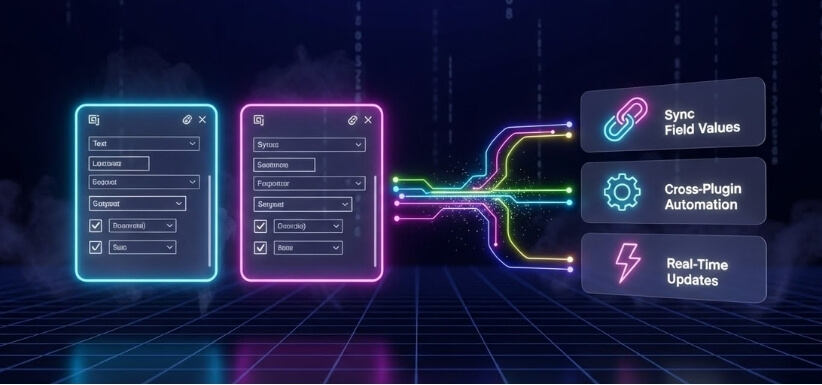
No More Data Gaps
When plugins don’t share data, some information gets stuck in one place. For example, a form plugin might collect a phone number, but it doesn’t show up in the order details. This is called a data gap. It means some info is stored in one plugin but is missing in another. Syncing inputs between plugins fills these gaps so that data flows smoothly everywhere. You get one clear set of details without jumping between tools.
Avoiding Big Mistakes
Sometimes, if inputs don’t match, errors can happen. For example, if your stock plugin says a product is available, but your checkout plugin says it’s sold out, customers can’t buy it. That makes people leave your site and never come back. When plugins sync their inputs, they all show the same up-to-date info. This helps stop mistakes and makes sure everything works the way it should.
Better Workflow, Less Hassle
Managing a store is already a lot of work. When plugins don’t talk to each other, store owners have to fix things by hand. That takes time and energy. But synced inputs make everything easier. You update something once, and it shows up in every plugin. This saves time, reduces extra steps, and keeps your daily tasks simple and quick.
Happier Customers
People like it when your store works well. If someone enters their address at checkout, and it shows up in the shipping plugin without asking again—that’s a smooth experience. Customers don’t like repeating the same things. When your plugins are synced, buyers enjoy a faster, easier shopping experience. And when customers are happy, they come back more often.
Real-Time Info Sync
Plugins that work together keep information fresh. Let’s say a customer updates their phone number during checkout. If all plugins are synced, that number updates everywhere—shipping, invoices, and support tools. With real-time input syncing, there’s no need to fix things later. It’s all automatic, and your store always shows the correct details.
Multi-System Store Setup
Many big stores use tools that handle different tasks. You might have one plugin for shipping, one for payments, and another for inventory. Keeping all of them in sync is key. A good example is using Multi Location Product Management for WooCommerce when managing products in different locations. If the plugins aren’t synced properly, stock numbers or delivery info could be wrong. So syncing inputs keeps the whole system connected and reliable.
Faster Store Performance
When data doesn’t sync, plugins might keep checking or asking for the same thing. That slows down your site. If all inputs are connected and shared, your store runs faster. Customers won’t have to wait long for pages to load or updates to show. A fast store keeps buyers happy and improves your store’s performance, especially during big sales or busy hours.
How to Sync Inputs Between Different Plugins in WooCommerce?
Syncing inputs between WooCommerce plugins keeps your store smooth and error-free. It saves time, prevents mistakes, and helps plugins share correct data. Whether you use CRM, inventory, or form plugins, syncing makes everything work together. Here’s a simple guide to help you set it all up step by step.
Step 1: List Plugins and Inputs
Begin by noting the plugins you use and what data they share. This could be customer details, stock levels, or shipping zones. Make a short list so you know exactly what needs syncing. This helps you focus clearly on what must be connected between the tools.
Step 2: Check Plugin Settings
Look through each plugin’s settings or guides to see if it already supports syncing. Some plugins, like CRMs or email tools, offer built-in integration features. Use these before trying other methods. You might save time by using what the plugin already includes for linking data.
Step 3: Use Connector Tools
When plugins don’t talk directly, try a plugin connector or automation tool. You can use Uncanny Automator for WordPress tasks or Zapier for outside apps. These tools let you link actions like syncing form data with CRMs. Pick the tool that works best with your setup.
Step 4: Set Up Webhooks
Webhooks help you sync plugin inputs the moment something happens. In WooCommerce, you can trigger data sharing when a new order is made. Go to settings and create a webhook using a real event. That event pushes data to another plugin for real-time syncing without delay.
Step 5: Write Custom Code
If you need a special setup, custom code may be the right way. Add your code inside your child theme’s functions file. Use WooCommerce actions or filters to pull and send the data. Be sure your code talks to the correct plugin using its endpoint.
Step 6: Run Test Scenarios
Place a few test orders or update some stock numbers. Then check if the data appears correctly across plugins. If something looks off, use WooCommerce logs to find the issue. This helps make sure your syncing setup actually works well and doesn’t break anything else.
Step 7: Keep Setup Updated
As you grow, your plugins and sync needs might change. So keep checking that your setup still works. Update the tools you use often to avoid bugs or problems. Don’t forget to test things after updates to keep everything running right for your customers.
Essential Tools and Plugins for Input Synchronization
Keeping different WooCommerce plugins in sync doesn’t have to be hard or technical. There are powerful tools that help you sync inputs between plugins without writing code. These tools are easy to use and save lots of time. Below are some of the best ones you should definitely check out.
Multi Location Product & Inventory Management for WooCommerce
This plugin is perfect if you manage products across many locations. It helps keep stock numbers updated across warehouses, stores, or shipping zones. Along with handling inventory, it also works well when combined with features like product bundle pricing, ensuring accurate stock levels even for grouped items. This prevents overselling and displays the correct stock based on the buyer’s location.
- Free vs. Paid: Free & premium both available (Premium starts from $79, version features some additional benefits)
- Best for: Businesses with multiple stock points needing accurate inventory syncing across plugins like shipping or checkout tools.
Uncanny Automator
Uncanny Automator connects your WordPress plugins so they talk to each other easily. For example, when someone fills out a form, it can send that info to a CRM plugin or WooCommerce customer profile. You can set “triggers” and “actions” using a simple setup page—no coding needed.
- Free version: Limited features
- Pro version: Full plugin-to-plugin automation
- Best for: Automating actions between plugins like forms, memberships, and WooCommerce checkout.
WP All Import/Export
This plugin helps you import or export product, order, or customer data in bulk. It’s very helpful when syncing inputs between plugins that don’t directly connect. You can use it to adjust data fields and match values across systems by using CSV files.
- Free version: Available with basic functions
- Pro version: Needed for WooCommerce-specific features
- Best for: Bulk syncing and managing data across large plugins or databases.
WooCommerce Webhooks
Webhooks let you sync plugin inputs instantly when something happens—like a new order or customer update. You don’t need to write custom code. Just go to WooCommerce > Settings > Advanced > Webhooks, set a trigger, and add the destination URL. It sends data straight to another plugin or system.
- Built-in: Comes free with WooCommerce
- Best for: Real-time input syncing between WooCommerce and plugins that accept webhook data.
Challenges in Syncing Inputs Across WooCommerce Plugins
WooCommerce plugins help store owners add more features, but syncing inputs between them is not always simple. Since WooCommerce is modular, different plugins may not work well together. Here are the most common problems people face while trying to sync inputs across multiple plugins.
- Plugin Compatibility Issues: Plugins may not support the same input fields or data types, which creates confusion and errors during syncing. This usually happens when plugins are built by different developers or follow different coding rules.
- Different Data Formats: One plugin might use a text format while another needs numbers or structured fields like dropdowns or checkboxes. These format mismatches cause input errors and prevent the data from syncing correctly.
- Slow Site Performance: When too many plugins try to sync inputs in real time, it can slow down your site noticeably. This lag makes the store hard to use, especially during heavy traffic or large sales events.
- Conflicts After Updates: Plugin updates can change how input fields work, causing old syncing setups to break unexpectedly. If one plugin changes its structure, others that depend on it may no longer work properly.
- Missing Field Mapping: Without clear mapping between fields, plugins won’t know where to send or receive input data. This leads to missing or incomplete information across the system, especially in customer or order fields.
- JavaScript Conflicts: Many plugins use JavaScript to control inputs, and they can clash with each other on the same page. This causes fields to stop working or show wrong values when users interact with them.
- Lack of Documentation: Some plugins don’t explain their input setup well, making it hard to know how to connect them properly. Without good documentation, syncing becomes a guessing game that wastes time.
Troubleshooting Sync Issues in WooCommerce
Sync issues in WooCommerce often arise when integrating plugins for data exchange, such as inventory management, payment gateways, or external services like Google Merchant Center, Square, or Mailchimp. These can manifest as failed data transfers (e.g., products not updating), cron job failures (scheduled tasks not executing), or stuck processes. Common causes include API connection problems, plugin conflicts, server limitations, or misconfigurations. Below, I’ll outline common errors, diagnostic steps, debugging tools, and when to escalate to a developer.
Common Errors and Symptoms
Here’s a table summarizing frequent sync-related errors, their symptoms, and potential causes based on WooCommerce troubleshooting practices:
| Error Type | Symptoms | Potential Causes |
| Failed Data Transfers | Products/orders not updating; API errors in logs; incomplete syncs. | Invalid API keys, network timeouts, data format mismatches, or rate limits from external services. |
| Cron Job Failures | Scheduled syncs (e.g., inventory updates) are not running; delayed emails or renewals. | WP-Cron disabled, server cron misconfigured, high site traffic overloading tasks, or failed Action Scheduler events. |
| Stuck Sync Processes | Sync progress bar frozen; no new data after initiation. | Cache buildup, plugin conflicts, or incomplete database migrations. |
| Plugin Conflicts | Intermittent failures; errors only with specific plugins active. | Incompatible code between plugins or themes is overriding hooks/filters. |
Other issues might include permission errors (e.g., file/folder access) or JavaScript conflicts affecting frontend syncs.
Troubleshooting Steps
Follow these sequential steps to identify and resolve issues. Start with the basics before diving deeper.
- Review WooCommerce Logs: Go to WooCommerce > Status > Logs in your WordPress dashboard. Look for entries related to your sync plugin (e.g., “square” or “mailchimp”). Errors like “API request failed” or “Cron event skipped” will point to the problem. Enable debug mode in the plugin settings if available (e.g., for Square: WooCommerce > Settings > Payments > Square > Enable Debug Log).
- Verify Connections and Settings: Check API keys, webhooks, or integration credentials in the plugin settings. For external services, test the connection (many plugins have a “Test Connection” button). Ensure your site’s URL is correctly set in WooCommerce > Settings > General, and that SSL is enabled for secure data transfers.
- Clear Caches and Reset Data: Use WooCommerce > Status > Tools to clear transients or plugin-specific caches (e.g., “Clear WooCommerce.com cache” for Google integrations). For stuck syncs, regenerate feeds or reset sync data via the plugin’s tools (e.g., “Clear Square Sync” in Square plugin).
- Test for Conflicts: Temporarily deactivate other plugins and switch to a default theme (e.g., Storefront) to isolate the issue. Reactivate one by one while monitoring sync behavior. Also, test in a staging environment to avoid live site disruptions.
- Manually Trigger Syncs: For cron-related issues, use the Action Scheduler (built into WooCommerce): Go to WooCommerce > Status > Action Scheduler > Pending, find relevant events (e.g., “wc_square_sync_orders”), and click “Run” to execute manually. If WP-Cron is failing, set up a real server cron job via your hosting panel (e.g., replace WP-Cron with a command like wget -q -O – https://your-site.com/wp-cron.php?doing_wp_cron every 5-15 minutes).
- Monitor Performance: Check server resources (CPU, memory) via your hosting dashboard. High traffic or large datasets can cause timeouts—increase PHP memory limits in wp-config.php (e.g., define(‘WP_MEMORY_LIMIT’, ‘256M’);).
Debugging Tools
- WooCommerce Built-in Tools: The Status page provides system reports, logs, and tools for clearing data. Use the Scheduled Actions tab to inspect cron jobs.
- WP Debug Mode: Add define(‘WP_DEBUG’, true); and define(‘WP_DEBUG_LOG’, true); to wp-config.php to log errors to /wp-content/debug.log. This captures PHP-level issues during syncs.
- Query Monitor Plugin: Free plugin that profiles database queries, hooks, and HTTP requests. Install it to identify slow or failing sync operations.
- Browser Developer Tools: For frontend issues, open browser console (F12) and check for JavaScript errors during sync initiation.
- External Log Viewers: Tools like Log Viewer plugins or server logs (e.g., Apache/Nginx error logs) for deeper insights.
When to Seek Developer Help
If the above steps don’t resolve the issue, such as persistent API failures despite valid credentials, custom code conflicts (e.g., modified hooks in functions.php), or server-specific problems (e.g., cron jobs failing due to hosting restrictions), it’s time to consult a professional. Seek help if:
- You’re dealing with custom integrations or heavy modifications.
- Errors involve database corruption or large-scale data mismatches.
- Basic troubleshooting takes more than a few hours without progress. Resources include WooCommerce support forums, plugin developers’ tickets, or hiring via platforms like Upwork or Codeable. Provide them with log excerpts, system reports, and steps you’ve already tried for faster resolution.
Best Practices for Maintaining Synced Inputs Long-Term
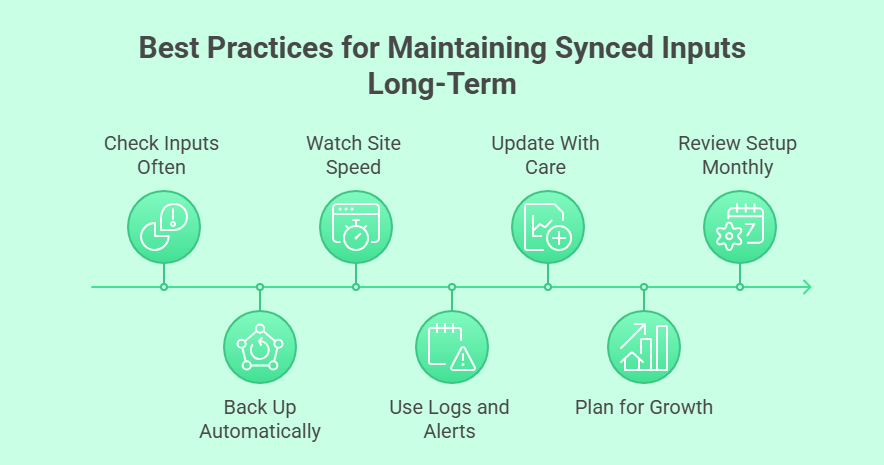
Keeping synced inputs working well over time is just as important as setting them up. Things can break if you don’t watch them regularly. A small error today can turn into a big problem later. To keep everything smooth, follow some easy habits that make a big difference.
Check Inputs Often
Make it a habit to check if your plugins are still syncing data correctly. Sometimes, small updates can change how fields behave. A quick test once a week can catch issues before they mess up orders or customer info. Even five minutes of checking can save you hours later.
Back Up Automatically
Mistakes happen when syncing tools go wrong or crash suddenly. That’s why automatic backups are so important. Use a backup plugin that saves your website and its data every day. If something breaks, you can restore the site fast without losing orders, customer info, or synced inputs.
Watch Site Speed
When syncing gets heavy, it can slow down your store. This makes users wait longer and hurts sales. To keep your store fast, use caching plugins, clean unused data, and upgrade your hosting if needed. Fast websites are not just nice—they’re key for smooth syncing too.
Use Logs and Alerts
Most good syncing tools let you see logs of what they do. These logs show what worked and what failed. Turn on email alerts or system messages to get notified when syncing stops. Don’t wait until a customer complains—find out before it affects anyone.
Update With Care
Plugin updates bring better features, but they can also break syncing if things change too much. Always test updates on a copy of your site first. If everything looks good, then update your live site. This one simple step keeps your store safe and running fine.
Plan for Growth
As your store grows, syncing needs grow too. More orders mean more data moving around. Make sure your tools and plugins can handle that without slowing down. For example, if you’re running a bike rental store in WooCommerce, you’ll need syncing tools that can handle multiple rentals and returns fast.
Review Setup Monthly
Even if things work today, they might not work tomorrow. Once a month, review your syncing setup to make sure it still fits your store. Maybe you added a new plugin or changed how orders work. A monthly review keeps everything updated and working together.
FAQs About Sync Plugin Inputs in WooCommerce
Syncing inputs between plugins in WooCommerce helps your store run better by keeping data accurate and up to date. Many store owners have questions about how this works and what tools they should use. Here are five helpful FAQs with clear answers.
Can I Sync Form Data With WooCommerce Checkout Fields?
Yes, you can sync form data with checkout fields using tools like Uncanny Automator or WP Fusion. These plugins allow you to map input fields from form builders to WooCommerce fields without coding. Just set the triggers and actions to match.
Do All WooCommerce Plugins Support Input Syncing?
Not all plugins support syncing by default. Some offer built-in options, while others require automation tools or custom code. Always check plugin documentation or look for third-party sync plugins to create a smooth data-sharing connection between tools.
How Can I Sync Inputs Between Free and Paid Plugins?
You can use connector plugins like Zapier or WP All Import to sync inputs across both free and paid plugins. These tools let you pass data between plugins even if they weren’t designed to work together, keeping your data consistent.
Will Syncing Inputs Slow Down My WooCommerce Store?
It depends on how syncing is done. Real-time syncing may slightly impact speed during peak times. To avoid issues, use lightweight tools, enable caching, and test sync performance regularly to keep your store running fast and smoothly.
What Happens If Input Syncing Fails Mid-Process?
When syncing fails, data might not update in the target plugin, which causes missing or outdated info. Use plugins with error logging and alerts to quickly detect sync failures. Always test changes and keep regular backups to prevent bigger problems.
Closing Remarks
Syncing plugin inputs doesn’t need to be hard. With a few easy steps, your store can work better and faster. Learning how to sync inputs between different plugins in WooCommerce helps you stop errors, save time, and give your customers a smoother experience.
When plugins share data the right way, you don’t have to fix problems by hand. This makes your job easier every day. Keep things simple by using tools that connect your plugins. Test your setup often to avoid surprises later. When everything works together, your store stays strong, quick, and ready to grow without trouble.
