

WooCommerce product shows in stock, but checkout fails when the product page shows the item as available, but checkout blocks the purchase during final validation. This usually happens when stock display, variation data, quantity rules, shipping conditions, cache, or plugin logic do not match the real conditions required to complete the order.
In this guide, you’ll see what usually causes that mismatch, where checkout validation tends to break, and what helps visible product availability stay closer to real purchase approval so shoppers are less likely to face last-minute checkout surprises.
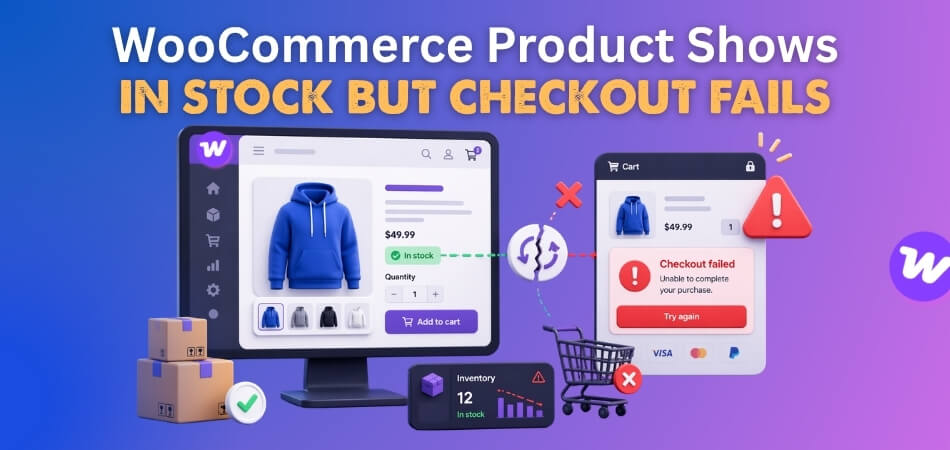
Why Product Availability And Checkout Approval Can Disagree
Product availability and checkout approval can disagree when the storefront is showing broad stock visibility, but checkout is validating the exact conditions required to complete the order. That means a product can look ready to buy earlier in the journey, while the final purchase step applies stricter checks before allowing payment.
A few common gaps usually create that mismatch:
- Product pages may show general availability too broadly.
- Checkout may apply stricter purchase validation later.
- Variation selection may change what is actually purchasable.
- Quantity limits may only fail at the final step.
- Live stock can change after the product page loads.
- Shipping or user conditions may block the order later.
- Plugin logic may affect checkout more than the storefront stock display.
Common Signs The Product Is Available but Not Truly Purchasable
Visible stock can make a product look ready to buy, but checkout does not always agree. When those two signals stop lining up, the problem usually starts showing up through repeated checkout failure, inconsistent product behavior, or order blocking that feels out of place compared with what the shopper saw earlier.
Some of the most common signs include:
- Checkout Rejects A Product That Looks Available: Product pages show the item in stock, but checkout still refuses to let the order go through.
- Cart Accepts The Item, Then Stops Later: Product goes into the cart normally, but the purchase fails further along in the buying process.
- One Variation Causes The Problem More Often: Parent product still looks available, while one selected option fails during final checkout checks.
- Only Certain Quantities Trigger The Issue: Smaller amounts work without trouble, but larger quantities start getting blocked near the end.
- Shipping Choice Changes Whether It Works: One delivery method allows the order, while another leads to checkout failure.
- Different Shoppers See Different Results: One customer can complete the order, while another gets stopped on the same product.
- Trouble Starts After A Store Change: Plugin updates, theme edits, or stock-rule changes can make the mismatch show up more clearly.
Where The Purchase Validation Usually Fails
Checkout problems like this usually begin when the product page and the final order check stop following the same rules. Stock may look available earlier in the buying journey, but once WooCommerce verifies the exact product, quantity, variation, gateway, and order conditions, the purchase can still be blocked.
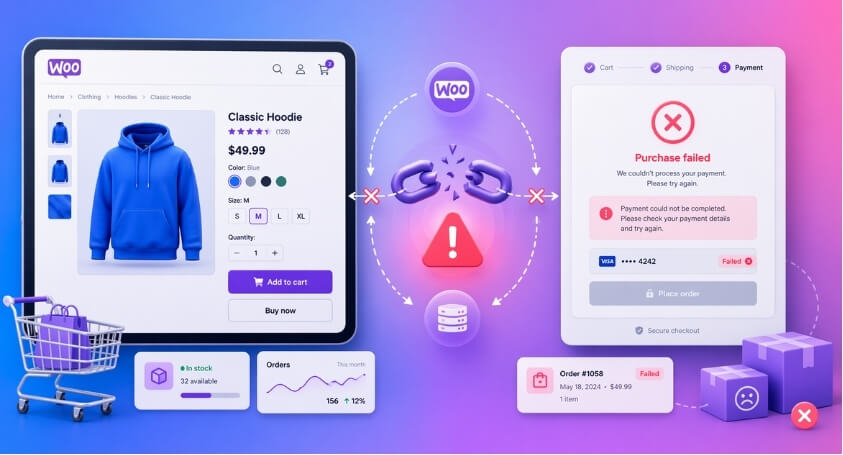
Several weak points commonly create that mismatch.
Product Page Stock Is Broader Than Real Sellable Stock
Product pages often show a simpler version of availability than checkout does. That can make an item look ready to buy even when the exact order conditions do not fully support the purchase.
- Product pages may show stock too generally.
- Checkout may validate sellability more strictly.
- Visible availability may not match final order approval.
Variation Data Stops Matching The Real Product Setup
Variation products can look fine on the storefront while one selected option fails later in checkout. Even small setup inconsistencies can make a purchasable-looking variation break at the final step.
- One variation may carry outdated stock data.
- Selected options may no longer match saved variation data.
- Re-saving the product can sometimes refresh broken variation data.
Stock Management Or Variation Stock Is Not Fully Aligned
Checkout can fail when stock settings are only partly configured or no longer match the actual variation setup. That often happens when stock management is enabled unevenly across the product and its options.
- Stock management may not be fully enabled.
- Variation stock levels may be inaccurate.
- Product-level and variation-level stock may not stay aligned.
Checkout Rechecks Availability More Strictly
WooCommerce may allow the product page and cart to show the item as available, then apply a deeper check during checkout. That final validation can reject the order even when earlier steps looked normal.
- Quantity limits may fail later in the flow.
- Live stock may change before payment is submitted.
- Final checkout checks may be stricter than cart checks.
Cache Keeps Product Availability Out Of Date
Availability messages can stay visible longer than the real stock situation behind them. When cached product or checkout data lags behind, shoppers may reach the last step with outdated expectations.
- Server or plugin cache may keep stale stock visible.
- WooCommerce transients may need clearing.
- Checkout may pull fresher data than the product page.
Payment Gateway Validation Breaks At The Final Step
Sometimes the product is still purchasable, but the order fails once the payment layer begins validating the checkout request. In those cases, the stock message is not the real problem.
- API keys may be incorrect or incomplete.
- SSL may not be working properly.
- Gateway mode may still be set to test instead of live.
Plugin Or Theme Conflicts Change Purchase Validation
Storefront behavior and checkout behavior can drift apart when another plugin or theme customization changes how the product is validated. That often becomes visible only at the final purchase step.
- Third-party logic may alter purchasability rules.
- Theme customizations may affect stock or variation behavior.
- Conflict testing can reveal hidden checkout interference.
Shipping, Location, Or Fulfillment Rules Block The Order
Some products stay purchasable only under certain delivery or fulfillment conditions. When those rules are not reflected clearly on the product page, checkout becomes the place where the mismatch shows up.
- Shipping choices may change whether the item can be ordered.
- Fulfillment rules may block the product late.
- Location-based stock may not match displayed availability.
Third-Party Checkout Tools Override Default Validation
Custom checkout builders, funnel tools, and replacement checkout flows can apply different rules from the standard WooCommerce process. That can make a product appear available until the order reaches the altered checkout logic.
- Custom checkout tools may override default validation.
- Replacement flows may handle stock checks differently.
- Final purchasability may no longer follow standard WooCommerce behavior.
How To Fix WooCommerce Product Shows In Stock but Checkout Fails?
Fixing this issue usually means bringing product-page availability, variation data, stock settings, cache, gateway behavior, and checkout validation back into sync. Working through the same layers in the order the mismatch usually appears makes it easier to find the real cause and reduce failed purchases at the final step. Here are the main fixes to work through.
Make Product Availability Match Real Sellable Stock
Products should not look ready to buy unless the order can actually go through under the customer’s real purchase conditions. When visible availability is broader than true sellability, checkout becomes the place where the mismatch shows up.
- Check whether the product page is showing stock too broadly.
- Compare visible availability with actual checkout approval.
- Review whether the current purchase conditions still allow the item.
Refresh Variation Data And Recheck Product Setup
Variation issues often appear when one option looks available on the storefront but fails during checkout validation. Re-saving the product can help refresh variation data when saved options, stock values, or variation records are no longer lining up cleanly.
- Edit the product and click Update to refresh variation data.
- Recheck variation attributes and saved option values.
- Confirm the selected variation still matches the product setup.
Review Stock Management And Variation Stock Levels
Checkout can fail when stock management is enabled unevenly or when variation-level quantities are inaccurate. Product-level stock settings and variation-level stock values need to stay aligned if checkout is going to approve the item consistently.
- Confirm Enable stock management is active in WooCommerce.
- Recheck stock settings on affected variations.
- Review whether variation stock levels are accurate.
Test How Checkout Revalidates The Product
Earlier steps in the buying flow may accept the item before checkout applies a stricter final check. Testing how the product behaves at the last step helps reveal whether quantity rules, live stock changes, or final validation are blocking the order.
- Try the same product with different quantities.
- Check whether checkout fails only at the final step.
- Compare cart behavior with final checkout approval.
Clear Cache And Refresh Inventory Data
Cached inventory messages can make the product page show outdated availability after the real stock situation has changed. Clearing WooCommerce transients, plugin cache, and server-level cache helps bring visible stock closer to real checkout conditions.
- Clear WooCommerce transient cache.
- Clear plugin, server, and browser cache.
- Retest after cached stock data is fully refreshed.
Verify Payment Gateway Settings And API Access
Sometimes the product is still purchasable, but the order fails when the payment layer starts validating the request. Gateway settings, API access, SSL, and test/live mode should all be checked before assuming the stock message is the only issue.
- Verify payment gateway API keys.
- Confirm SSL is active and working properly.
- Check that the gateway is not still in test mode.
Test For Plugin Or Theme Conflicts
Plugin or theme conflicts can change how purchasability is checked between the storefront and checkout. Conflict testing helps reveal whether another layer in the store is altering availability, variation behavior, or final checkout validation.
- Switch to a default theme such as Twenty Twenty-Five.
- Deactivate plugins except WooCommerce.
- Reactivate tools one by one and retest.
Review Shipping, Location, Or Fulfillment Conditions
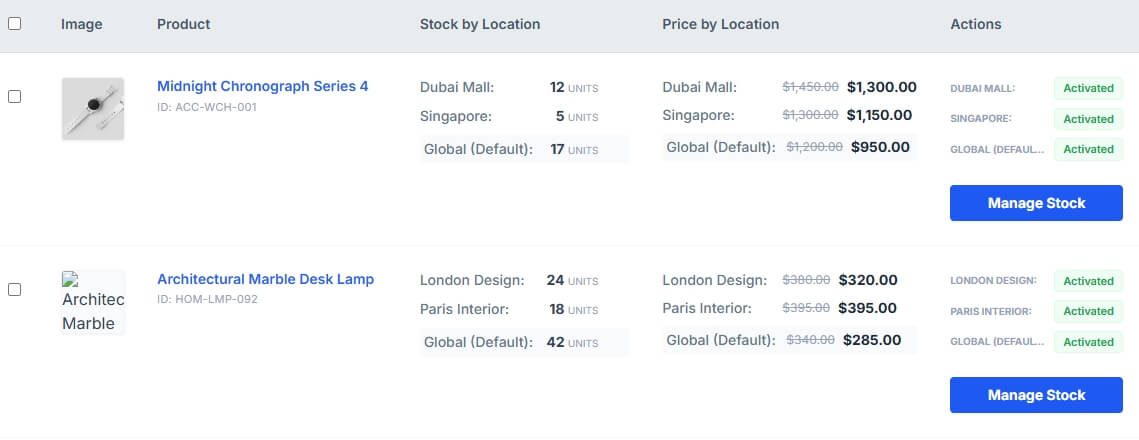
Products may stay purchasable only under certain delivery, pickup, or fulfillment conditions. Stores using WooCommerce multi locations inventory management can benefit from clearer location-based stock and fulfillment logic, especially when checkout approval depends on the exact source that needs to fulfill the order.
- Recheck shipping conditions tied to the product.
- Test pickup, delivery, or fulfillment options separately.
- Compare displayed stock with location-based purchase rules.
Check Third-Party Checkout Replacements
Custom checkout tools, funnel builders, and alternative checkout flows may apply different validation rules than standard WooCommerce. If the default flow and the modified flow do not treat the product the same way, checkout can fail even when the product still looks available.
- Test the product with custom checkout tools disabled.
- Review replacement checkout plugins carefully.
- Compare the default WooCommerce flow with the modified one.

How To Compare Product Availability With Real Checkout Behavior?
Visible stock only matters when the same product can still pass checkout under real purchase conditions. Comparing what appears on the product page with what WooCommerce allows at the final step helps show whether availability and real purchasability are actually staying aligned. These checks can make that comparison much clearer.
- Check The Product Page First: Note the stock message, variation status, and any purchase conditions shown before adding the item to the cart.
- Follow The Same Item Through Checkout: Add the product normally and see whether checkout still allows the order under the same conditions.
- Test One Variation On Its Own: Review one selected option separately to see whether variation-level availability still matches final checkout approval.
- Try More Than One Quantity: Compare smaller and larger quantities to catch cases where the product looks available but fails later.
- Compare Delivery Or Pickup Choices: Test different fulfillment options to see whether the checkout result changes under another order context.
- Check The Product Before And After Login: Compare the result across account states to catch approval changes tied to user-specific conditions.
- Repeat The Flow After Refreshing Store Data: Recheck the same product after clearing cache or refreshing product data to compare the result.
- Watch Where Approval Stops Matching Availability: Note the exact step where the product still looks available, but checkout no longer agrees.
How Better Inventory Structure Helps Product Availability Stay More Accurate?
Product availability becomes easier to trust when stock logic stays closer to the real conditions that decide whether an item can actually be purchased. Stores using multi location inventory management for WooCommerce can benefit from a clearer inventory structure, especially when stock visibility, variation availability, and fulfillment logic all need to stay aligned from product page to checkout.
That kind of structure helps in a few important ways:
- Keeps displayed stock closer to real sellable inventory.
- Reduces mismatch between product pages and checkout.
- Makes variation availability easier to keep accurate.
- Helps fulfillment-based stock logic stay clearer.
- Supports more consistent availability across locations.
- Lowers last-step purchase surprises for shoppers.
- Makes product availability easier to trust overall.
Frequently Asked Questions
Questions like these usually come up once the main mismatch is understood, especially when the product looks available but the final order still does not go through. These answers help clarify a few related concerns without repeating the core fixes already covered.
Why Does The Product Page Look Fine Until The Final Step Fails?
Product pages usually reflect what the store is ready to show upfront, while checkout is where WooCommerce verifies whether the order can really go through under the exact purchase conditions.
Can This Problem Affect Simple Products Too, Or Only Variations?
It can affect both. Variations often expose the issue more clearly, but simple products can also fail when checkout conditions no longer match the availability shown earlier.
Why Does The Same Product Work One Day And Fail The Next?
Stock conditions, reserved inventory, cached availability, plugin behavior, or order context can all shift over time. That can make the same product behave differently from one checkout attempt to another.
Can Checkout Fail Even When The Product Is Not Actually Out Of Stock?
Yes. Availability can still look correct while another rule blocks the purchase later. That can include fulfillment conditions, quantity limits, or checkout-specific validation.
Why Does This Issue Matter So Much For Conversion?
Problems like this happen at the point where shoppers are closest to placing the order. When the final step no longer matches what the product page suggested, it can break confidence and lead to abandoned purchases.
Final Thoughts
Few checkout problems feel more frustrating than seeing a product look available all the way through the buying journey, only for the order to fail at the final step. When WooCommerce product shows in stock but checkout fails, the real issue is usually not the stock message alone, but the gap between what the storefront shows and what checkout is actually willing to approve.
Closing that gap makes the store easier to trust. When product availability stays closer to real purchase conditions, shoppers face fewer last-minute surprises, and the path from product page to completed order feels much more dependable.
