

WooCommerce stock not updating after order usually means the sale is recorded, but the product quantity does not change the way it should after checkout. That can leave inventory counts inaccurate, create fulfillment confusion, and make products look more available than they really are.
In this guide, we’ll break down why stock stays unchanged after an order, where the update process usually fails, and what store owners can do to restore more reliable inventory updates in WooCommerce.
What It Means When WooCommerce Stock Does Not Update After Order
An order can go through normally in WooCommerce while the product quantity stays unchanged afterward. Instead of reflecting the sale in inventory, the system leaves stock where it was before checkout, which makes product availability less reliable for both customers and store staff.
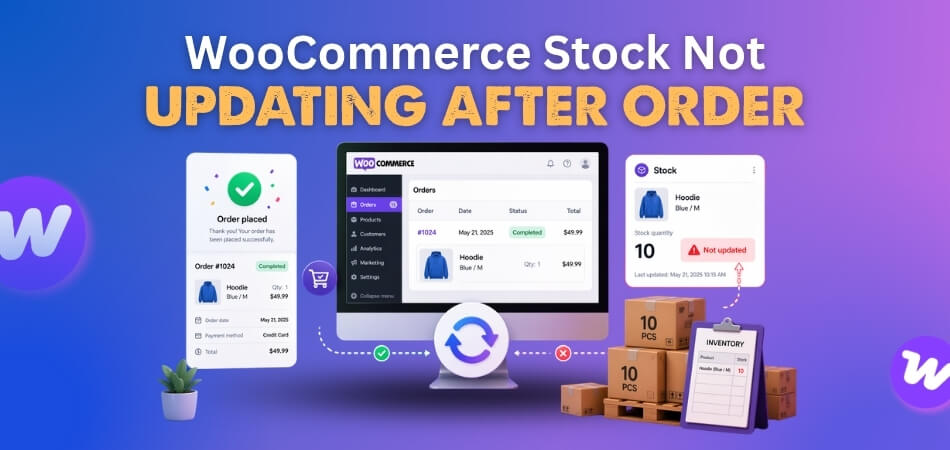
Here is what that usually means in practice:
- The order is recorded, but the stock quantity does not change.
- WooCommerce completes the sale without updating inventory properly.
- Products may stay available longer than the actual stock allows.
- Staff may notice the issue only during fulfillment or stock review.
- Manual stock checks may become more frequent after new orders.
- Inventory records can slowly drift away from real product movement.
Common Signs WooCommerce Is Not Updating Stock After Checkout
Stock update problems do not always appear through obvious inventory errors right away. In many WooCommerce stores, the issue becomes visible through repeated order activity, unchanged quantities, and stock behavior that no longer matches what should happen after checkout.
Here are some of the most common signs to watch for:
- Orders Are Paid But Inventory Stays The Same: Completed or paid orders appear normally, but product quantity remains unchanged after checkout finishes.
- Stock Changes Only After Manual Admin Edits: Inventory updates happen only when someone adjusts the product manually inside WooCommerce afterward.
- Some Products Update While Others Do Not: One item reduces stock correctly, while another keeps the same quantity after sale.
- Variation Stock Behaves Differently From Simple Products: Simple products may update normally, while variation-based products leave stock unchanged after checkout.
- Frontend And Admin Quantities Stop Matching: Product availability shown on the storefront no longer reflects the quantity visible in admin.
- Stock Looks Reduced Briefly And Then Returns: Inventory appears to drop after order placement, then returns to the previous quantity later.
- Confirmed Orders Leave Products Fully Available: Customers complete purchases, but the same products still look fully purchasable afterward.
- The Problem Started After A Store Change: A gateway, plugin, or checkout update may have disrupted the normal stock update flow.
Where WooCommerce Usually Fails To Update Stock After The Order?
Stock usually fails to update after an order when WooCommerce records the sale, but something interrupts the inventory change that should follow it. In many stores, that break happens around order status, stock settings, product-level tracking, caching, conflicting plugins, or inventory data that is no longer syncing cleanly in the background. Here are the most common places where the update flow tends to fail.
Order Status Never Reaches The Stock-Reducing Trigger
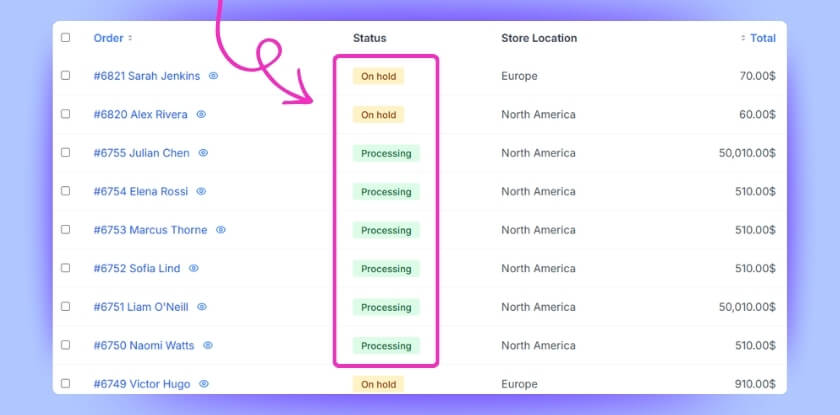
WooCommerce usually reduces stock only after the order moves into a stock-triggering status, such as Processing or Completed. If the order stays in Pending Payment, Failed, or another non-triggering state, the stock quantity may never decrease.
Stock Management Is Disabled In WooCommerce Settings
Global inventory control needs to be active before WooCommerce can reduce stock automatically. If stock management is turned off under WooCommerce > Settings > Products > Inventory, the store may record the order without updating product quantities.
Product Or Variation Stock Tracking Is Not Enabled
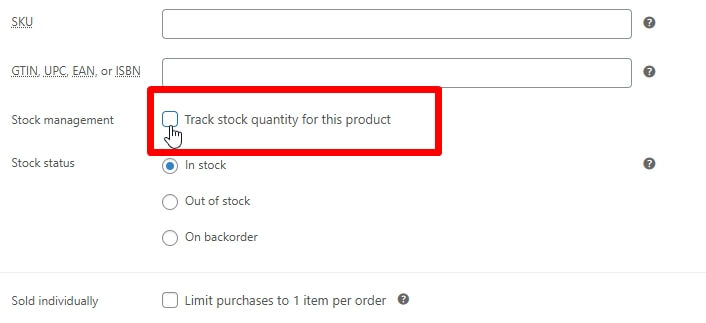
Stock cannot reduce properly if the individual product is not set up to track it. When Manage stock is left unchecked in the product’s Inventory tab, or variation-level stock is missing, WooCommerce may complete the order without changing inventory.
Product Setup Does Not Support Quantity-Based Deduction
Some products look available without actually using quantity-driven stock control. Blank stock fields, manual stock status, or incomplete variation configuration can leave WooCommerce without the right structure to reduce inventory after checkout.
Payment Confirmation Does Not Complete The Expected Workflow
A successful payment does not always mean WooCommerce finishes the stock update step correctly. Delayed gateway responses, missing callbacks, or non-standard checkout handling can interrupt the normal flow that should reduce stock after the order is placed.
Stock Is Reduced And Then Restored Later
Sometimes WooCommerce deducts stock briefly, then adds it back afterward. Failed payment signals, timeout rules, duplicate gateway notices, or automatic order cancellation can make it look like stock never updated at all.
Cached Data Makes Inventory Look Unchanged
Stock may actually update in the database while the storefront or admin view still shows an older quantity. Page cache, browser cache, fragment cache, or object cache can all make inventory appear unchanged even after WooCommerce has already reduced it.
Plugins Or Themes Interrupt The Default Stock Update Logic
Third-party plugins and theme-level customizations can interfere with the default inventory workflow. A checkout plugin, payment extension, inventory tool, or theme override may change how WooCommerce handles stock updates after the order is placed.

Product Lookup Tables Or Inventory Data Are Out Of Sync
WooCommerce depends on internal data structures to keep product availability and stock records aligned. If lookup tables or related inventory data stop syncing properly, stock updates may behave inconsistently even when the order flow itself looks normal.
Logs Or Error Records Reveal A Hidden Update Failure
Some stock update problems do not appear clearly on the storefront or product page, but they do leave traces in WooCommerce logs. Error records can reveal gateway failures, hook conflicts, or other background issues that interrupt stock updates after checkout.
Fixes That Restore Stock Updates After Order
Restoring stock updates after an order usually means fixing the exact step where WooCommerce stops carrying the inventory change through to completion. In many stores, that break comes from order status flow, disabled stock tracking, payment interruptions, or data mismatches that prevent the quantity from updating the way it should. Follow these fixes in detail.
Make Sure Orders Reach A Stock-Reducing Status
WooCommerce usually updates stock only after the order reaches a status that triggers deduction. If affected orders stay in Pending Payment, Failed, or On Hold, the quantity may never change after checkout.
- Review recent affected orders and check which status they reach after purchase.
- Confirm paid orders are moving into Processing or Completed when appropriate.
- Recheck custom order workflows that may skip or delay the normal stock-reducing trigger.
Enable Stock Management In WooCommerce Settings
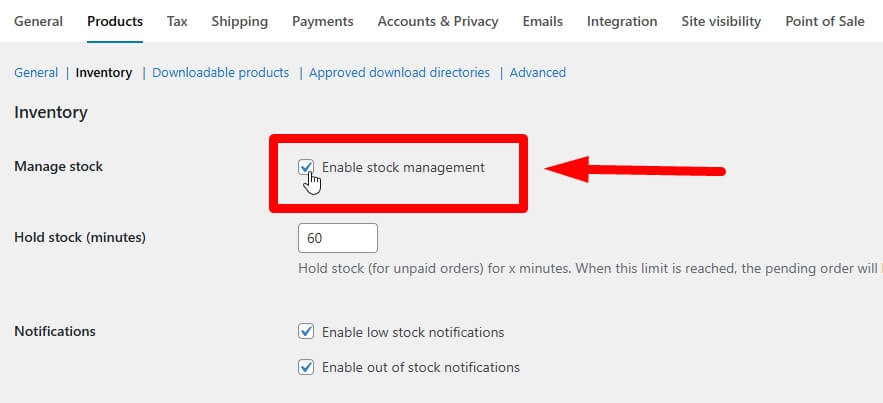
Global inventory control must be active before WooCommerce can reduce stock automatically. If stock management is disabled under WooCommerce > Settings > Products > Inventory, the store may record the order without updating quantities.
- Go to WooCommerce > Settings > Products > Inventory.
- Confirm Enable stock management is checked.
- Save the settings and retest a product that previously failed to reduce stock.
Turn On Product And Variation-Level Stock Tracking
WooCommerce cannot reduce stock properly if the affected product is not configured to track it. This includes both simple products and individual variations that use separate inventory values.
- Open the product and go to the Inventory tab.
- Make sure Manage stock is enabled for the product where needed.
- For variable products, check the Variations section and confirm each relevant variation has stock assigned correctly.
Fix Product Setup So WooCommerce Can Deduct Quantity Properly
Some products appear available without being set up for real quantity-based stock deduction. Blank quantity fields, manual stock status overrides, or incomplete variation setup can leave WooCommerce without the right structure to update inventory after the order.
- Review stock quantity fields and make sure they contain usable values.
- Check whether manual stock status settings are overriding quantity-based inventory logic.
- Re-save incomplete or inconsistent product setups before testing again.
Confirm Payment Flow Completes The Expected Trigger
A successful payment does not always mean WooCommerce finishes the inventory update step correctly. Delayed gateway responses, missing callbacks, or non-standard checkout behavior can interrupt the normal process that should reduce stock after purchase.
- Review the payment method used on affected orders.
- Check whether gateway callbacks, webhooks, or order confirmations are completing properly.
- Compare stock behavior across different payment methods to see whether the issue is gateway-specific.
Stop Unwanted Stock Restoration After Checkout
Sometimes stock is reduced and then added back again later, which makes it look like no update ever happened. This can happen when timeouts, failed-payment signals, duplicate gateway notices, or auto-cancel rules restore the quantity after checkout.
- Check whether the product quantity drops briefly and then returns.
- Review timeout rules, cancellation settings, or duplicate payment notifications.
- Confirm stock is not being restored automatically after the order first updates it.
Clear Cached Stock Views And Retest
Stock may update correctly in the database while older values continue showing on the storefront or even in admin-related views. Page cache, browser cache, fragment cache, and object cache can all make inventory appear unchanged when it has actually updated behind the scenes.
- Clear page cache, browser cache, and object cache.
- Retest the affected product in a fresh session or private window.
- Compare the live product view with the latest backend inventory value after the order.
Remove Plugin Or Theme Conflicts Affecting Stock Updates
Third-party plugins and theme-level changes can interrupt the default stock update workflow without showing a clear error on the product page. Conflict testing helps confirm whether another part of the store is interfering with the update process.
- Temporarily disable non-WooCommerce plugins and retest the order flow.
- Switch to a default WooCommerce-compatible theme such as Storefront for testing.
- Re-enable tools one by one if the stock update starts working again.
Regenerate Product Lookup Tables And Sync Inventory Data
WooCommerce relies on synced product data to keep stock updates accurate after orders. For stores using multi location inventory management for WooCommerce, keeping lookup tables aligned helps inventory updates stay more reliable across products and stock sources.
- Go to WooCommerce > Status > Tools.
- Run Regenerate product lookup tables.
- Retest the affected product after the lookup tables finish rebuilding.

Review Logs To Find Hidden Stock Update Failures
Some stock update problems leave no obvious storefront clue, but they do appear in the system logs. Reviewing the logs can help uncover gateway errors, hook conflicts, or background failures that stop WooCommerce from updating inventory after checkout.
- Go to WooCommerce > Status > Logs.
- Look for stock, payment, or order-processing errors around affected orders.
- Compare log timestamps with failed stock updates to find patterns that point to the real break in the workflow.
What Better Stock Update Control Should Look Like In WooCommerce?
Stock updates should feel predictable, not like something you have to double-check after every order. Once checkout finishes, inventory should move with it in a way that stays consistent across products, payment flow, and admin records. Better stock update control in WooCommerce makes that process easier to trust, easier to manage, and far less dependent on manual follow-up.
| Before Better Stock Update Control | After Better Stock Update Control |
| Orders go through, but stock stays unchanged after checkout. | Orders reduce stock consistently once the right update trigger is reached. |
| Inventory updates depend on manual checks or repeated admin edits. | Stock changes happen automatically with less need for manual correction. |
| Product, variation, or global stock settings behave inconsistently. | Stock tracking stays aligned across store settings, products, and variations. |
| Payment flow can complete without updating the inventory properly. | Payment and order flow connect more cleanly to stock deduction behavior. |
| Cached values make the stock look unchanged or delayed. | Inventory visibility stays closer to the latest product quantity. |
| Plugins or theme changes quietly interfere with stock updates. | Stock behavior becomes easier to test, monitor, and keep stable over time. |
| Product data and lookup tables drift out of sync. | Inventory data stays more structured and dependable after orders. |
| Staff lose confidence in stock records during fulfillment. | Teams can trust stock values more during packing, planning, and review. |
Better Stock Update Accuracy With Multi Location Product & Inventory Management
Stronger inventory performance depends on more than just reducing stock after a sale. For stores handling inventory across branches, warehouses, or pickup points, WooCommerce multi locations inventory management helps keep post-order stock movement more organized, more visible, and easier to track when order activity becomes more complex.
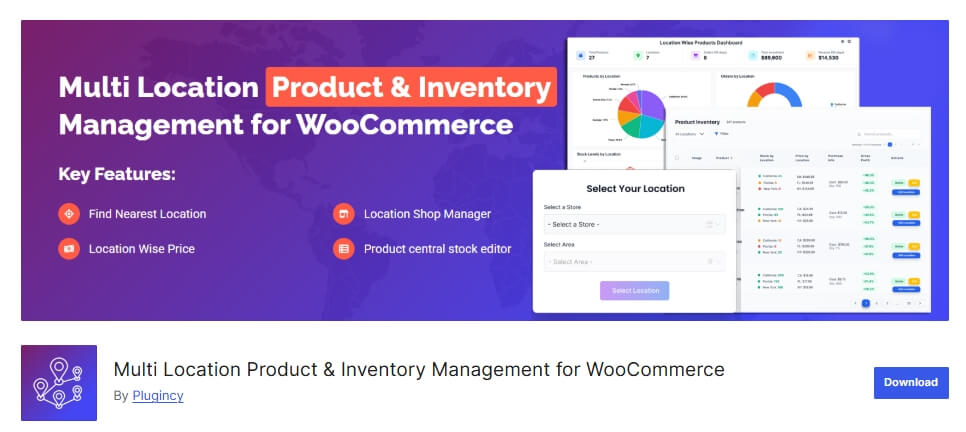
Here is how it supports better stock update accuracy:
- Keeps stock updates clearer across locations.
- Makes post-order inventory changes easier to track.
- Reduces gaps between orders and stock records.
- Supports cleaner variation-level stock handling.
- Improves visibility after checkout.
- Keeps inventory data more consistent.
- Reduces manual stock follow-up.
- Strengthens inventory control in WooCommerce.
Frequently Asked Questions
Stock update problems after checkout often lead to a few practical questions beyond the main causes and fixes. Below are five relevant FAQs that help clarify related WooCommerce behavior without repeating the same troubleshooting steps already covered.
Can WooCommerce Update Stock At Different Times For Different Orders?
Yes. Stock updates can happen differently depending on order flow, payment method, product type, or custom store logic. That is why one order may reduce inventory normally while another leaves stock unchanged.
Why Does The Issue Sometimes Affect Only Certain Products?
Some products rely on different stock settings, variation setup, or inventory structure than others. That can make the problem appear limited to specific products even when the broader stock workflow is involved.
Can Stock Look Unchanged Even If WooCommerce Already Updated It?
Yes. Cached product data, delayed refresh, or older inventory views can make stock appear unchanged for a while, even when the actual backend value has already moved.
Does This Problem Always Mean WooCommerce Failed Completely?
Not always. Sometimes the stock update happens late, gets restored afterward, or looks unchanged because another layer in the store is showing older data. That is why the issue needs to be checked carefully before assuming the deduction never happened.
When Does This Become A Bigger Inventory Management Problem?
It becomes bigger once unchanged stock starts affecting fulfillment, product availability, repeated manual checks, or confidence in the inventory data across the store.
Final Thoughts
Inventory issues are easier to overlook when orders keep coming in normally, but the real problem starts once stock no longer reflects what the store has actually sold. WooCommerce stock not updating after order can quietly distort product availability, slow down fulfillment decisions, and make routine inventory checks harder than they should be.
Fixing the immediate cause matters, but long-term reliability comes from keeping post-order stock movement accurate, visible, and easier to trust. Once that workflow is more stable, WooCommerce becomes much easier to manage as products, orders, and inventory complexity continue to grow.
