

WooCommerce cart removes products automatically when items disappear from the cart without the customer removing them. This usually happens because of session problems, product or variation validation issues, plugin conflicts, cart refresh errors, or rules that cause WooCommerce to reject items before checkout.
That behavior can interrupt the purchase flow, confuse shoppers, and make cart activity harder to trust. This guide explains what causes the problem, where it usually starts, and what helps keep the cart stable through checkout.
Why WooCommerce Cart Removes Products Automatically?
WooCommerce cart removes products automatically when something in the cart flow no longer allows the item to stay valid. A product may disappear even though the customer did not remove it, which usually points to a problem with sessions, product data, cart validation, or conflicting cart behavior.
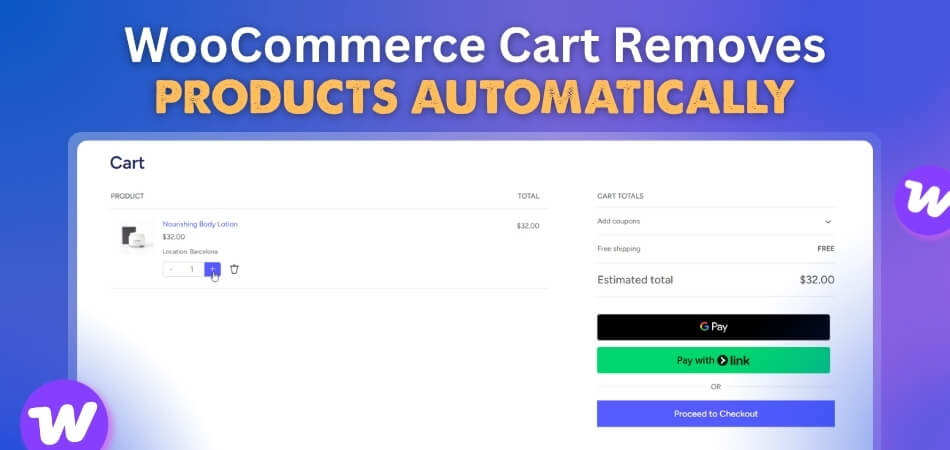
This kind of issue often starts when WooCommerce rechecks the cart and decides the product no longer fits the conditions needed to remain there. Some of the most common reasons include:
- Cart sessions may expire or reset too early.
- Product or variation data may no longer match the cart.
- Stock or purchase rules may reject the item during refresh.
- Plugin or theme conflicts may interrupt normal cart behavior.
- Broken AJAX updates may desync the cart contents.
- Custom cart rules may remove products automatically.
- Login, coupon, or shipping changes may trigger revalidation.
What Should Happen In A Normal WooCommerce Cart
Normal WooCommerce cart behavior should keep valid products in place while the shopper browses, updates quantities, or moves toward checkout. Unless a real product or purchase rule blocks the item, the cart should stay steady and predictable throughout the buying process. That expected behavior usually includes the following:
- Stable Product Retention: Products should remain in the cart until the shopper removes them or WooCommerce blocks them for a valid reason.
- Clean Quantity Updates: Changing the quantity should update the cart normally without causing the selected product to disappear.
- Consistent Variation Selection: Chosen variations should stay valid after refresh and continue matching the product options already selected.
- Reliable Cart Persistence: Cart contents should remain consistent during normal browsing, page loads, and standard navigation across the store.
- Smooth Checkout Continuity: Moving from the cart to checkout should keep valid items in place without silent product removal.
- Isolated Cart Changes: Updating one item in the cart should not remove other unrelated products unexpectedly.
Where WooCommerce Cart Removal Usually Starts?
Unexpected cart item removal usually begins when one part of the cart flow stops behaving the way WooCommerce expects. Instead of keeping the product in place until checkout, the cart may recheck the item, fail validation, or load outdated cart data and drop it without a clear message to the shopper. These breakdown points commonly lead to that kind of behavior.
Plugin Or Theme Conflicts Interrupt Cart Behavior
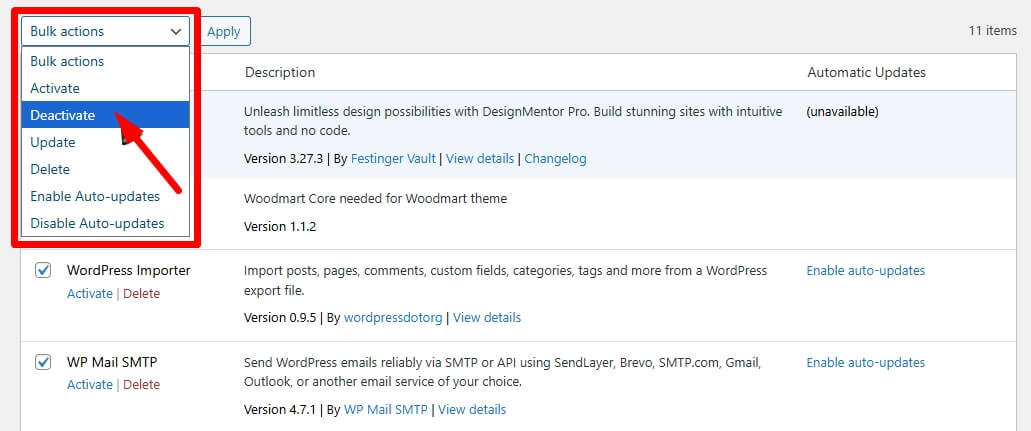
Third-party plugins and theme-level customizations can interfere with the way WooCommerce keeps products in the cart. Conflicts often become more noticeable when cart, checkout, inventory, or variation logic is being modified by multiple tools at the same time.
Caching Keeps The Cart Out Of Sync
Caching can make the cart look empty, outdated, or inconsistent, even when the real cart data has not changed the same way underneath. When page cache, browser cache, or server-level cache keeps older cart data visible, products may appear to disappear without a clear reason.
Cart Sessions Expire Before The Shopper Finishes
Cart contents may be removed when the WooCommerce session ends earlier than expected. If the shopper stays inactive too long or the session settings are not working properly, items can disappear before checkout is completed.
Product Or Variation Data No Longer Matches The Cart
Cart issues can start when the product in the cart no longer matches the data WooCommerce expects to validate. A variation may no longer align with its selected options, or the product setup may have changed after the item was already added.
Stock Changes Make The Product Invalid
Products can be removed from the cart when the stock status changes before checkout is finished. If the item becomes unavailable while still in the cart, WooCommerce may no longer allow it to stay there.
Auto-Remove Cart Rules Or Plugins Are Active
Some stores use plugins or custom rules that remove cart items automatically after a time limit or under certain conditions. When those rules are active, products may disappear even though the shopper did not remove them manually.
Persistent Cart Behavior Creates Inconsistencies
Persistent cart behavior can create unexpected cart changes when saved cart contents do not stay aligned across sessions, devices, or account states. This becomes more noticeable when the same user moves between different login states or site environments.
Third-Party Cart Or Checkout Tools Replace Default Logic
Alternative checkout tools, funnel plugins, and custom cart replacements can change how WooCommerce handles product retention. Once that default behavior is replaced, products may be removed in ways that do not follow the normal WooCommerce cart flow.
How To Fix WooCommerce Cart Removing Products Automatically?
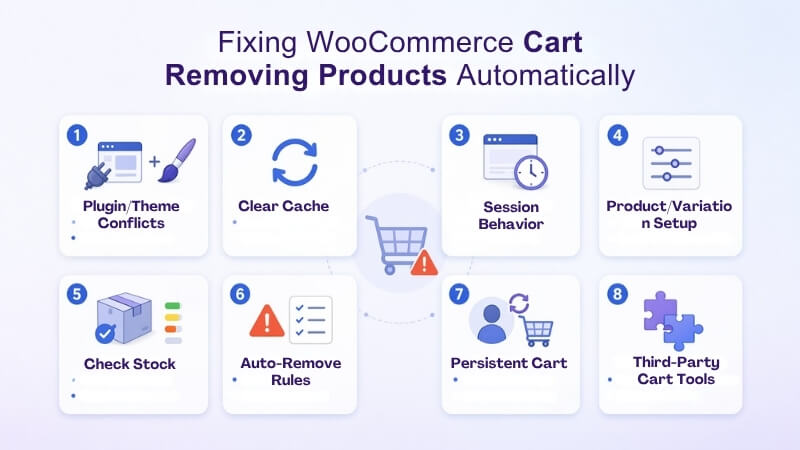
Keeping cart items in place usually means correcting the same cart layers that cause products to disappear in the first place. In most stores, that starts with conflict testing, then moves through cache, session behavior, persistent cart behavior, and any third-party tools that change default WooCommerce cart logic. Working through those areas in order makes it easier to find the real cause and restore more stable cart behavior.
Test For Plugin Or Theme Conflicts First
Plugin and theme conflicts are one of the most common reasons products disappear from the cart unexpectedly. Cart, checkout, inventory, variation, and optimization tools can all interfere with normal WooCommerce cart behavior when they overlap or handle cart actions differently.
- Create a staging site before deeper testing.
- Switch to the Storefront theme temporarily.
- Disable all non-WooCommerce plugins first.
- Reactivate tools one by one and retest.
Clear Cart-Related Cache And Retest
Cached cart data can make products look removed even when the underlying cart behavior is different. This becomes more noticeable when caching plugins, browser cache, CDN cache, or server-level cache keep showing outdated cart states.
- Clear plugin, browser, and server cache.
- Purge CDN cache if one is active.
- Retest the cart in a private window.
- Check whether refreshed cart data stays stable.
Review WooCommerce Session Behavior
Cart items can disappear when the session ends too early or resets before checkout is finished. Session-related issues often show up after inactivity, page changes, or unusual browsing behavior that causes WooCommerce to stop recognizing the active cart correctly.
- Review WooCommerce session-related settings.
- Check whether the cart clears after inactivity.
- Test the cart after waiting between actions.
- Compare results across different browsers.
Check Product And Variation Setup Carefully
Cart validation can fail when a product or variation no longer matches the data WooCommerce expects. Changes in variation attributes, product configuration, or purchase conditions can make an item invalid after it has already been added.
- Recheck variation attributes and options.
- Confirm the selected product data still matches.
- Test one simple product and one variation.
- Re-save products with inconsistent setup.
Confirm Stock Still Allows The Product
Stock changes can make a cart item invalid before checkout finishes. Stores using WooCommerce multi locations inventory management should also check whether location-based stock availability is affecting whether the product can stay in the cart.
- Confirm the item is still in stock.
- Recheck quantity limits and purchase rules.
- Test low-stock items separately.
- Watch whether stock changes trigger removal.
Remove Auto-Remove Cart Rules If Active
Some stores use plugins or custom rules that intentionally remove products after a time limit or under certain conditions. When those rules are active, the cart may behave exactly as configured, even though it feels broken from the shopper’s side.
- Check for auto-remove cart plugins.
- Review custom cart-clearing rules or snippets.
- Disable timed removal behavior and retest.
- Look for hidden cart condition rules.
Review Persistent Cart Behavior
Persistent cart issues can show up when saved cart contents do not stay aligned across login states, devices, or site environments. This can make items appear, disappear, or reset in ways that feel inconsistent to the shopper.
- Test cart behavior before and after login.
- Compare results across devices if needed.
- Review how saved cart data is being handled.
- Disable persistent cart behavior for testing if necessary.
Check Third-Party Cart Or Checkout Tools
Alternative checkout tools, funnel builders, and custom cart systems can replace or override the normal WooCommerce cart flow. When that happens, products may be removed by external logic rather than standard WooCommerce behavior.
- Test with custom checkout tools disabled.
- Review cart and checkout replacement plugins.
- Compare default cart behavior against modified flow.
- Recheck item retention from cart to checkout.

How To Test Whether Cart Stability Is Restored?
Stable cart behavior should hold up across normal shopper actions, not just look correct once after a change. The goal here is to confirm that valid products remain in place consistently as the cart updates, reloads, and moves closer to checkout. These practical checks can help confirm whether the cart is behaving more reliably again.
- Start With One Simple Product: Add a standard product, revisit the cart, and check whether it stays in place through normal page movement.
- Check One Variation On Its Own: Test a single variation separately and confirm the selected option remains intact after cart interaction.
- Move Through A Normal Cart Flow: Go from product page to cart and then toward checkout without changing the item itself.
- Change Quantity And Watch The Result: Adjust the quantity once or twice and confirm the product remains in the cart afterward.
- Compare Logged-In And Logged-Out Behavior: Test the same item under both states to catch cart changes tied to account behavior.
- Try A Coupon During The Process: Apply and remove a discount code to see whether pricing changes affect item retention.
- Use A Fresh Browser Session: Open a clean private window and check whether the cart behaves the same way there.
- Test On More Than One Device Type: Compare the cart flow on desktop and mobile to catch environment-specific removal behavior.
- Repeat The Same Test More Than Once: Run the same sequence again to see whether the result stays consistent over time.
- Check The Cart After Routine Store Activity: Revisit the cart after normal browsing, product viewing, or short inactivity to confirm items still remain.
What Makes Cart Behavior More Reliable Over Time?
Cart behavior feels more reliable when shoppers can move through the store without seeing products disappear for reasons they do not understand. Fewer interruptions during refreshes, quantity updates, login changes, and checkout steps make the cart easier to trust from start to finish.
Stores using multi location inventory management for WooCommerce can also benefit from clearer stock handling when cart checks depend on location-based availability.
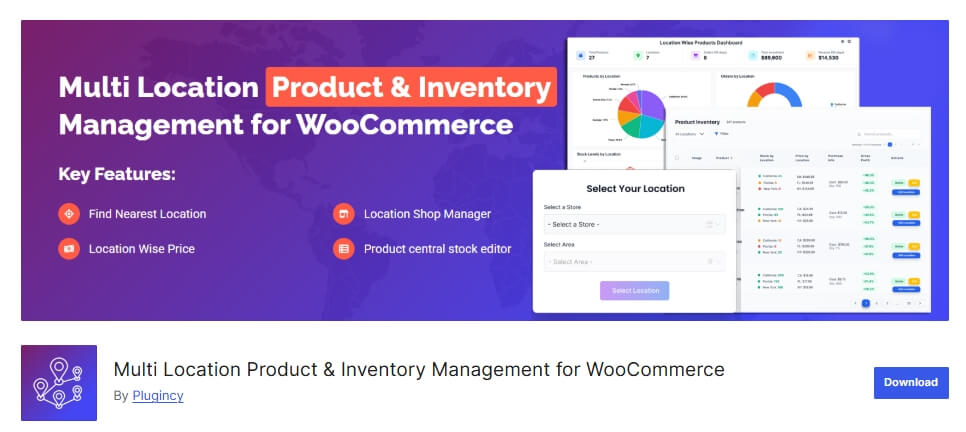
Over time, that kind of consistency usually comes from a steadier cart flow.
- Products stay in place more consistently during normal browsing.
- Cart updates create fewer unexpected interruptions.
- Variation selections hold up more smoothly.
- Checkout steps feel less disruptive to active items.
- Customer actions trigger fewer confusing cart changes.
- Location-based stock checks are easier to handle.
- Overall, cart behavior becomes easier to trust.
Helpful Tips To Reduce Unexpected Cart Item Removal
Unexpected cart issues are easier to manage when the store is checked in small, practical ways before shoppers start running into the same problem. Regular attention to product changes, cart flow, and store updates can help reduce avoidable disruptions and keep the cart behaving more consistently. These habits can make that easier over time:
- Retest The Cart After Store Changes: Check cart behavior after plugin updates, theme edits, or checkout changes.
- Watch Recently Edited Products Closely: Review items after variation, pricing, or purchase-setting updates.
- Keep Cart Testing Part Of Routine Checks: Test common cart actions regularly instead of waiting for complaints.
- Review High-Traffic Products More Often: Pay closer attention to products that get added to carts most often.
- Check Cart Flow On More Than One Device: Compare cart behavior across desktop, mobile, and different browsers.
- Look For Patterns In Customer Complaints: Repeated cart issues often point to one shared trigger.
- Keep Cart Rules Easy To Track: Fewer hidden conditions make cart behavior easier to understand and manage.
- Review Cart Behavior During Busy Periods: Heavier traffic can make weaker cart behavior easier to notice.
Frequently Asked Questions
Cart problems often leave store owners with a few follow-up questions even after the main causes and fixes are clearer. These FAQs cover related concerns that can help round out the topic without repeating the same troubleshooting steps already discussed.
Why Do Cart Problems Sometimes Affect Only Certain Products?
Some products rely on settings, options, or purchase conditions that other items in the store do not use. That can make one product behave differently in the cart even when the rest of the catalog seems normal.
Can Cart Removal Problems Be Harder To Notice On Busy Stores?
Yes. Higher traffic can make small cart issues show up more often, but it can also make the pattern harder to spot at first because the problem may appear inconsistent.
Why Does The Problem Sometimes Seem Random To Shoppers?
From the shopper’s side, the cart usually just looks unstable. When products disappear without a clear message, the issue feels random even if the same trigger is happening in the background each time.
Can Cart Behavior Change After Routine Store Updates?
Yes. Changes to the theme, plugins, checkout flow, or product setup can affect how the cart behaves, even when those updates do not seem directly related to cart functionality.
Why Is Cart Stability So Important Before Checkout?
Cart stability helps shoppers feel confident that the products they chose will still be there when they are ready to buy. When that flow feels unreliable, it can interrupt the purchase decision before checkout even begins.
Final Thoughts
Few things interrupt purchase intent faster than a cart that stops holding onto the products a shopper just chose. Once WooCommerce cart removes products automatically starts affecting the cart flow; even simple actions can feel uncertain and make the store harder to buy from with confidence.
Steadier cart behavior brings a much better shopping experience with it. Products stay where customers expect them, the path to checkout feels less frustrating, and the store becomes easier to trust when it matters most.
