

WooCommerce multi-location inventory not updating usually means stock changes are not syncing correctly across warehouses, stores, or pickup locations. One location may show the latest quantity while another keeps outdated inventory data, which can affect fulfillment accuracy, stock visibility, and order routing.
This issue often comes from location mapping errors, delayed sync behavior, variation setup gaps, caching, or conflicts in the inventory workflow. This guide explains what causes the problem, how to identify where updates are failing, and what helps restore more reliable stock accuracy across locations.
Why WooCommerce Multi-Location Inventory Stops Updating?
WooCommerce multi-location inventory stops updating when stock changes stop staying in sync across warehouses, stores, or pickup locations. One location may show the latest quantity while another still reflects older inventory, which can create fulfillment confusion and make location-based stock harder to trust.
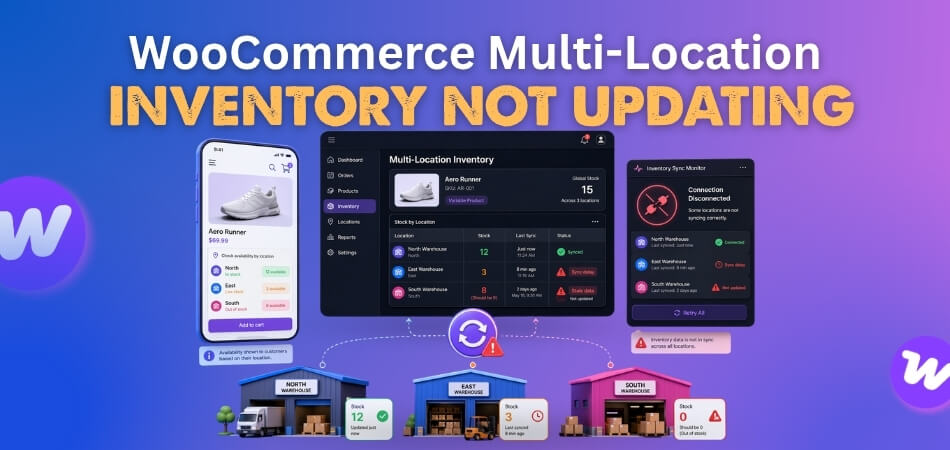
This usually happens when the update flow breaks between the selected stock source and the final inventory display. Even when stock changes in the background, the right location does not always refresh the way it should.
Some of the most common reasons behind that disconnect include:
- WooCommerce may still be reading from the wrong stock source.
- The selected warehouse may not stay tied to the order properly.
- Variation stock may not be fully managed at the location level.
- Transfers may update one location but not the other cleanly.
- Background sync may be delayed or interrupted.
- Cached stock data may keep older quantities visible.
- Manual edits may disrupt the normal location-based inventory flow.
How Multi-Location Inventory Updates Are Supposed To Work?
Multi-location inventory updates in WooCommerce should keep stock moving accurately at the location level whenever a sale, transfer, or manual stock change happens. That means the right warehouse, store, or pickup point should update at the right time, and the latest quantity should remain consistent across inventory records and stock displays. Here’s how it’s supposed to work.
- Location-based stock setup: Each product should have stock assigned to the correct warehouse, store, or pickup location.
- Order and stock source connection: Every sale or stock movement should stay tied to the right inventory source.
- Correct inventory record update: The stock change should save to the exact location record it is meant to affect.
- Synchronized stock visibility: Updated quantities should appear consistently across backend inventory views and customer-facing product availability.
- Variation-level location tracking: Each variation should stay linked to the right stock values for each assigned location.
- Two-way transfer updates: Stock transfers should reduce one location and increase the other without leaving mismatched quantities.
- Shared inventory logic: Every inventory layer should keep following the same source of truth across the store.
Where Multi-Location Inventory Updates Usually Break Down?
WooCommerce multi-location inventory updates usually break down when stock is not tracked, synced, or refreshed correctly at the location level. A warehouse, store, or pickup point may stop reflecting the latest quantity because stock management is disabled, sync tasks fail, or external inventory connections fall out of sync. Some of the most common breakdown points include the following.
Stock Management Is Disabled In WooCommerce Or On The Product
Location-based inventory cannot update reliably when stock tracking is turned off in WooCommerce settings or disabled on the affected product. Even a well-configured multi-location setup can fail when the store is not actively managing stock at the level where updates should happen.
Multi-Location Plugin Settings Are Misconfigured
Multi-location inventory depends on plugin rules that control stock sources, warehouse behavior, and update timing. When those settings are incomplete, outdated, or misaligned, stock changes may stop reaching the correct location consistently.

Warehouse Assignment Does Not Stay Saved With The Order
Inventory updates often fail when the selected warehouse or fulfillment point is not stored clearly in the order data. WooCommerce may complete the sale, but the stock change may never apply to the location that was meant to fulfill it.
Cron Jobs Or Scheduled Sync Tasks Fail
Some multi-location inventory systems rely on scheduled tasks to process updates across locations. When cron jobs stop running, run late, or fail in the background, stock changes can remain delayed or never sync properly.
Plugin Or Theme Conflicts Interrupt Inventory Logic
Third-party plugins and theme customizations can disrupt how WooCommerce handles stock updates. A conflict in checkout flow, product data, or inventory refresh logic can prevent location-based quantities from updating the way they should.
Cache Keeps Older Stock Quantities Visible
Stock may update correctly in the backend while older values remain visible on the storefront. When page cache, object cache, or related performance layers are not refreshed properly, multi-location inventory can look unchanged even after the real quantity has moved.
Variation Stock Is Not Fully Managed By Location
Variable products often create location-level stock issues when each variation is not configured consistently across warehouses or stores. One variation may update properly while another continues showing outdated inventory.
API Or External Inventory Connections Stop Syncing
Stores that connect WooCommerce to POS systems, ERPs, or other external inventory tools can run into update failures when those connections stop syncing cleanly. Inventory may change in one system while the location-level stock in WooCommerce remains outdated.
CSV Imports Or Manual Updates Skip Location Rules
Bulk imports and manual stock edits can create mismatches when they update quantity without following the normal location-based inventory structure. That can leave default stock refreshed while warehouse-specific stock remains inaccurate.
Outdated Plugin Versions Cause Inventory Sync Issues
Older plugin versions can introduce bugs, compatibility issues, or broken sync behavior that affect location-based stock updates. Keeping the multi-location inventory plugin updated helps reduce avoidable discrepancies and improves update reliability.
How To Stabilize Multi-Location Inventory Updates Over Time?
WooCommerce multi-location inventory updates become more reliable when stock tracking, plugin settings, warehouse assignment, sync behavior, cache, variation handling, and external connections all work together correctly. Once those layers stay aligned, the right warehouse, store, or pickup location is much more likely to reflect the latest stock accurately. Here are the main areas to work through.
Restore Stock Management At The Store And Product Level
Multi-location inventory cannot stay stable if WooCommerce is not actively tracking stock where updates need to happen. Even when location-based inventory is configured, disabled stock management at the store or product level can stop updates from reaching the right place and make the whole inventory flow less dependable.
- Enable Manage stock in WooCommerce settings.
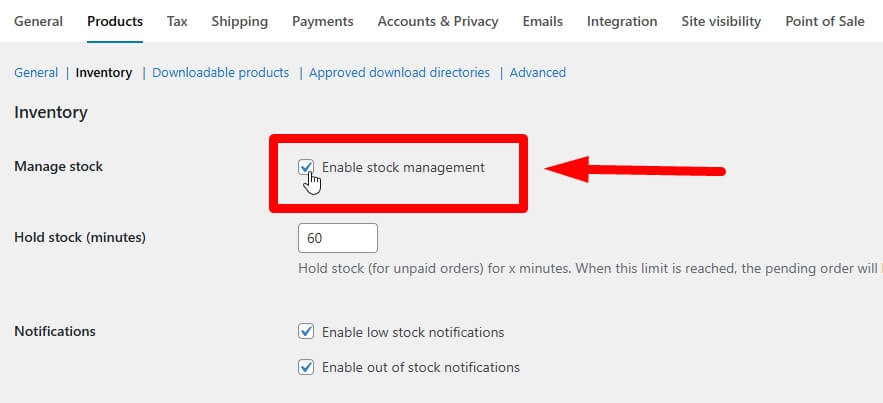
- Check stock tracking on affected products.
- Re-save incomplete product stock settings.
Correct Multi-Location Plugin Settings
Location-based inventory depends on plugin rules that control stock assignment, update behavior, and sync timing. A well-configured WooCommerce inventory management plugin can make that process more dependable by keeping location mapping, stock source priority, and sync behavior more consistent across warehouses and stores.
- Review location mapping settings.
- Check stock source priority rules.
- Confirm sync timing matches the setup.
Keep Warehouse Assignment Saved With The Order
Inventory updates become unstable when the selected warehouse or fulfillment point does not stay attached to the order clearly. If the order completes without reliable location data, the stock deduction may not apply to the source that was actually meant to fulfill it.
- Check whether the warehouse is saved in the order.
- Match the saved location to the deducted stock.
- Test shipping and pickup flows separately.
Get Scheduled Sync Tasks Running Properly
Some multi-location setups rely on cron jobs or scheduled sync tasks to keep stock aligned across locations. When those background processes stop running, run late, or fail quietly, inventory changes can remain delayed and make stock accuracy harder to trust.
- Check whether sync tasks are running.
- Review delayed or failed cron activity.
- Retest after task execution is confirmed.
Remove Plugin Or Theme Conflicts From The Update Flow
Conflicts between plugins, themes, and customizations can interrupt the normal inventory workflow without making the real cause obvious right away. Even when the multi-location setup looks correct, another layer in the store may still be interfering with how updates are saved or refreshed.
- Disable non-essential plugins and retest.
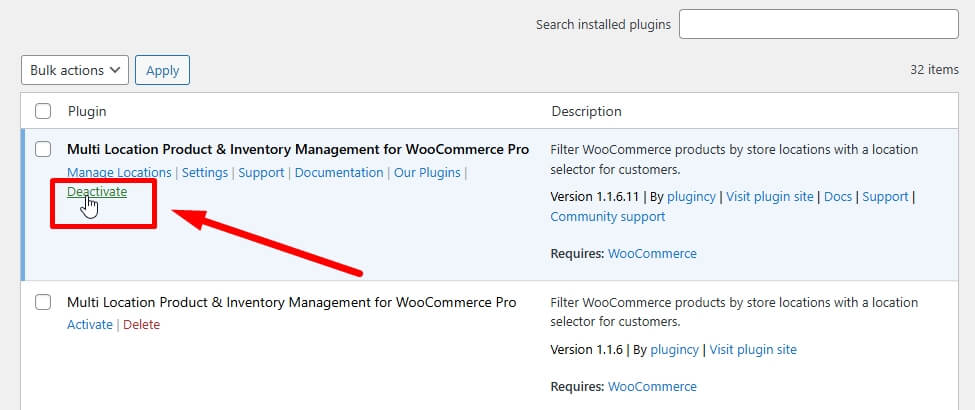
- Switch themes if needed for testing.
- Recheck stock behavior after each change.
Clear Cache And Refresh Visible Inventory Data
Location stock may update correctly in the backend while older values remain visible on the storefront or in other customer-facing stock areas. When cache is involved, the problem can look like a failed inventory update even though the real quantity has already changed.
- Clear page, object, and CDN cache.
- Refresh inventory-related product views.
- Run a manual sync if available.
Manage Variation Stock More Consistently By Location
Variable products often need more careful setup because each variation can behave like its own stock unit across locations. When that structure is only partially configured, one variation may update properly while another continues showing outdated warehouse-level quantities.
- Check stock settings on each variation.
- Confirm location quantities per variation.
- Retest variation purchases after saving.
Verify API And External Inventory Connections
Stores connected to POS systems, ERPs, or other external inventory tools can fall out of sync when those connections stop communicating cleanly. In that case, the stock may update in one system while WooCommerce continues showing older location-based quantities.
- Check whether the connection is active.
- Review recent sync activity and API errors.
- Confirm inventory matches across systems.
Fix CSV Imports And Manual Update Methods
Bulk imports and manual stock edits can destabilize inventory when they update quantity without following the normal location-based structure. That often leaves one stock layer refreshed while warehouse-specific inventory remains inaccurate or incomplete.
- Review CSV headers and SKU mapping.
- Check import structure for location rules.
- Avoid edits that bypass warehouse logic.
Keep The Multi-Location Inventory Plugin Updated
Older plugin versions can introduce bugs, compatibility problems, or outdated sync behavior that affect location-based stock updates. Keeping the plugin current helps reduce avoidable discrepancies and makes long-term inventory behavior easier to stabilize.
- Update to the latest stable version.
- Check compatibility after major updates.
- Retest inventory flow after updating.
How To Test Whether Multi-Location Inventory Updates Are Working Again?
Accurate location-based stock should keep matching real inventory movement after the fixes are in place. What matters here is not a one-time correct result, but whether the stock stays dependable across normal order flow, transfers, and day-to-day inventory activity. These checks can help confirm whether the update flow is stable again.
- Test A Product Across Multiple Locations: Use one product linked to more than one warehouse, store, or pickup point.
- Confirm The Intended Location Updates: Check whether the expected stock source reflects the latest quantity change after the test.
- Compare Frontend And Backend Stock Views: Make sure visible product availability matches the latest location-based inventory record.
- Check Variation Behavior Separately: Review whether each affected variation reflects the correct quantity at the assigned location.
- Test Different Fulfillment Paths: Compare results across shipping, pickup, or location-based fulfillment methods used in the store.
- Verify Location Transfer Accuracy: Confirm both origin and destination locations reflect the expected quantity after a stock movement.
- Review Repeated Update Consistency: Run the same test more than once to see whether results stay stable.
- Watch For Delayed Inventory Changes: Check whether stock updates appear immediately or only after a noticeable delay.
- Compare Live Results With Expected Movement: Make sure the final inventory result matches the product movement that actually occurred.
- Check Inventory Stability After Routine Activity: Review whether stock remains accurate after normal orders, edits, or location changes.
Better Stock Visibility Across Locations With Multi Location Product & Inventory Management
Clear stock visibility matters even more when inventory is spread across multiple warehouses, stores, or pickup points. When location-based stock is easier to track, the store can respond to product movement with more confidence and fewer inventory blind spots.
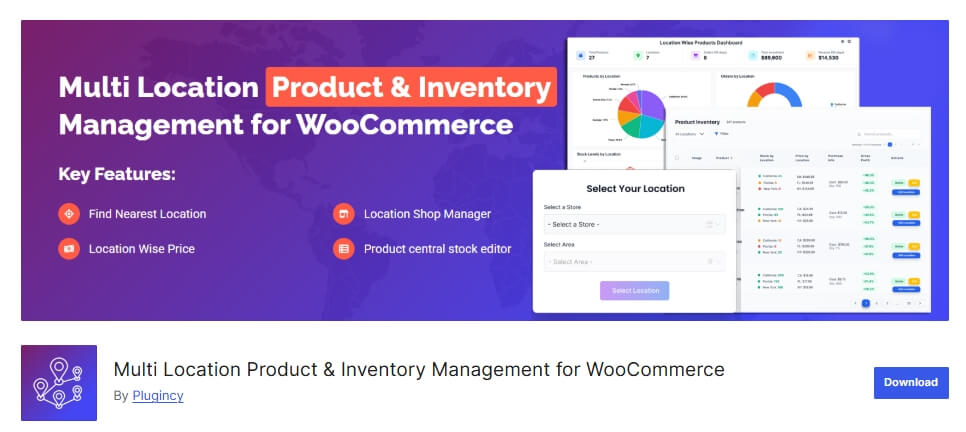
That is where multi location product management for WooCommerce becomes especially useful, because a stronger location-level inventory structure makes stock easier to read, follow, and trust across the store.
- Keeps warehouse-level stock easier to see.
- Makes location-based quantities easier to track.
- Helps product movement stay more visible.
- Reduces confusion between stock sources.
- Improves visibility across stores and pickup points.
- Keeps the variation stock clearer by location.
- Makes inventory changes easier to follow.
- Supports more reliable stock awareness over time.
Frequently Asked Questions
Multi-location inventory problems often lead to a few follow-up questions once the main causes and fixes become clearer. These FAQs cover related concerns that help expand the topic naturally without repeating the same troubleshooting steps already discussed.
Can Total Stock Look Correct While One Location Is Still Wrong?
Yes. Total stock can appear normal even when one warehouse, store, or pickup point is still showing the wrong quantity. That usually makes the issue harder to notice at first because the overall inventory number looks fine while the location-level data stays inaccurate.
Why Do Location-Based Inventory Issues Become Harder To Manage As The Store Grows?
More locations usually mean more stock sources, more fulfillment paths, and more inventory relationships to keep aligned. As that structure becomes larger, even a small mismatch can create wider visibility problems across the store.
Are Transfers Between Locations More Likely To Expose Inventory Problems?
Often, yes. Transfers put more pressure on the inventory flow because stock has to leave one location and appear correctly at another. When that movement is not reflected cleanly, mismatches become easier to spot.
Can One Product Create Confusion Across Multiple Locations?
Yes. A single product with location-specific stock issues can affect how inventory looks across several stock points, especially when that product is active in more than one warehouse or store at the same time.
Why Is Location-Based Stock Visibility So Important For Daily Operations?
Clear stock visibility helps teams make better decisions around fulfillment, availability, replenishment, and product movement. When location-level inventory is easier to trust, routine store activity becomes easier to manage with fewer surprises.
Final Thoughts
Small inventory gaps become much more frustrating when they spread across multiple locations. A number that looks fine in one place but feels unreliable in another can slow down routine decisions and make stock harder to work with than it needs to be. That is why WooCommerce multi-location inventory not updating is worth fixing at the source instead of working around it again and again.
Better location-based inventory brings more clarity to everyday store operations. When stock is easier to read across warehouses, stores, and pickup points, product movement becomes less confusing, and the store becomes easier to run with confidence.
