

Stock not deducting from correct location in WooCommerce is a common inventory issue where an order reduces stock from the wrong warehouse, branch, or pickup location instead of the actual fulfillment source. That can lead to stock mismatches, inaccurate availability, overselling, and fulfillment problems, especially for stores managing products across multiple locations.
In this guide, we’ll cover why this happens, how to identify the cause, and what to do to fix wrong location-based stock deduction in WooCommerce. Read on to understand where the inventory logic breaks and how to prevent the same issue from disrupting future orders.
What “Stock Not Deducting From Correct Location” Means in WooCommerce
When stock is not deducted from the correct location in WooCommerce, an order reduces inventory from the wrong warehouse, branch, or pickup point instead of the location that should actually fulfill it. In a multi-location setup, this leads to stock mismatches, inaccurate availability, and fulfillment decisions based on the wrong inventory data.
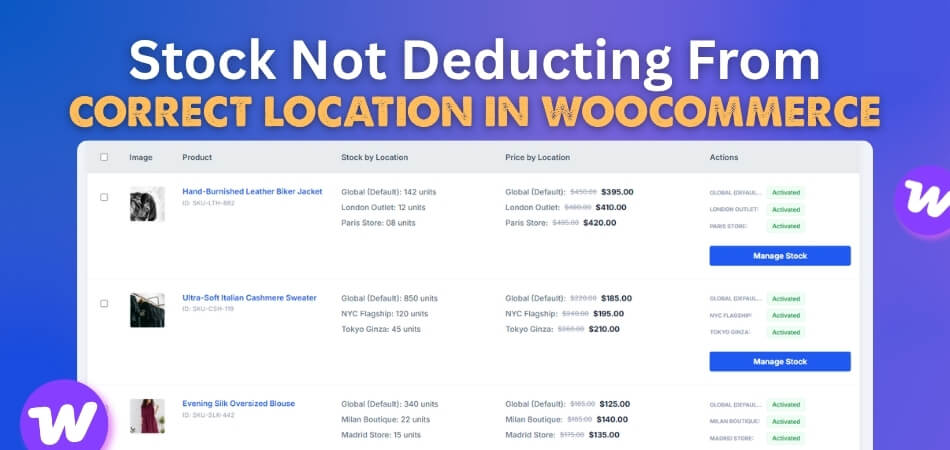
Here is how that usually shows up in real store operations:
- Stock may be reduced from the default location instead of the selected one.
- Customer location choice may not connect properly to inventory deduction.
- One branch may lose stock while the actual fulfillment location stays unchanged.
- Product availability may no longer match real location-wise inventory.
- Store staff may process orders using the wrong stock source.
- Repeated manual stock adjustments may become necessary.
Common Signs Stock Is Being Deducted From the Wrong Location
Wrong location-based stock deduction usually does not appear as one isolated mistake. In most WooCommerce stores, it shows up through repeated inventory mismatches, confusing fulfillment patterns, and stock numbers that no longer reflect what is actually available at each location.
Here are some of the most common signs to watch for:
- Orders Always Reduce Stock From One Default Location: Even when customers choose a different branch, warehouse, or pickup point, inventory keeps decreasing from the same default source instead of the intended fulfillment location.
- Selected Branch Stock Stays Unchanged After Checkout: Orders appear successful, but the stock level at the customer’s chosen location does not move, which makes location-based inventory records inaccurate almost immediately.
- Another Warehouse Loses Stock For Unrelated Orders: A branch or warehouse that did not process the order still shows reduced inventory, creating confusion for staff and making future stock planning less reliable.
- Variable Products Deduct Inventory From The Wrong Location: Product variations such as size, color, or style may reduce stock from the wrong branch when location mapping is incomplete, or inventory rules are not configured properly.
- Location-Wise Stock No Longer Matches Actual Availability: The stock shown inside WooCommerce starts drifting away from what is physically available at each location, making inventory counts harder to trust over time.
- Manual Stock Corrections Become Part Of Routine Work: Store managers or staff keep adjusting quantities by hand after orders, which usually signals that the deduction logic is failing somewhere in the workflow.
- Customers See Misleading Availability By Location: A product may appear available for pickup or delivery from a branch that should already be low in stock because the wrong location was deducted earlier.
- Fulfillment Decisions Become Harder To Trust: Teams may hesitate when processing orders because the system no longer gives a reliable picture of which location actually has the stock available.
Why Is the Stock Not Deducting From Correct Location in WooCommerce?
Stock is usually deducted from the wrong location in WooCommerce when the inventory setup is incomplete, the selected location is not properly tied to stock logic, or a plugin setting overrides how location-based stock should work. In multi-location stores, even a small configuration gap can cause inventory to be reduced from the wrong branch, warehouse, or default stock source. Here are the details.
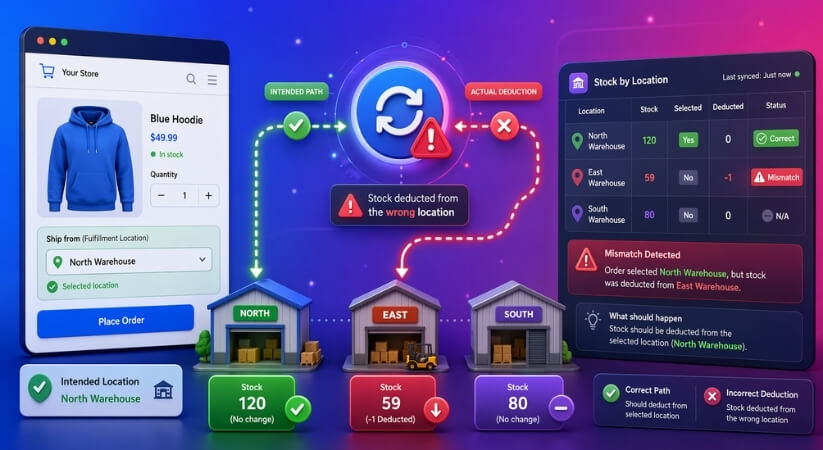
Stock Management Is Not Enabled Properly In WooCommerce
Wrong location-based deduction can start with a basic inventory setup issue. If stock management is not enabled globally in WooCommerce or not turned on at the product level, stock updates may not behave consistently across locations.
Products Are Not Assigned To The Correct Stock Location
Many multi-location setups depend on products being mapped to specific branches or warehouses. When a product is left unassigned, WooCommerce may deduct stock from a fallback source or fail to follow the intended location logic.
Default Location Rules Override The Actual Fulfillment Source
Some inventory plugins rely on a default location when no stricter rule is applied. If that default setting takes priority over the selected branch or warehouse, stock may keep reducing from the same source regardless of where the order should be fulfilled.
Frontend Location Selection Is Not Passed Correctly
Customers may choose a branch, pickup point, or delivery source on the frontend, but that choice does not always carry through to the stock deduction process. When the selected location is not properly connected to the order flow, the wrong inventory source may be selected.
Plugin Location Lock Settings Are Misconfigured
Certain stock location plugins include settings that control how frontend location selection behaves, including options that lock the storefront to a default location. If those rules are configured incorrectly, they can force stock deduction from the wrong warehouse or branch.
Variable Products Are Not Managed At The Variation Level
Variable products often need stock management enabled for each individual variation, not just the parent product. If variation-level inventory settings are incomplete, location-based stock deduction may break for size, color, or style combinations.
Location-Wise Inventory Data Is Outdated Or Incomplete
Imported stock, synced inventory, or older product data can leave location records inconsistent across the store. When location-based quantities are outdated or only partially updated, stock deduction may follow inaccurate data instead of real branch availability.
Plugin Conflicts Or Custom Logic Disturb Inventory Routing
Checkout plugins, fulfillment tools, cache layers, and older custom code can all interfere with how stock is reduced. In these cases, the order may follow conflicting logic instead of the location-based inventory path the store actually needs.
Order Status Rules Trigger Deduction At The Wrong Stage
Some stores deduct stock when an order reaches a specific status rather than at the same point every time. If that workflow is misaligned with the location logic, stock may update too late, too early, or from the wrong source altogether.
Quick Fixes To Correct Wrong Location-Based Stock Deduction In WooCommerce
When stock is not deducted from the correct location in WooCommerce, the fix usually starts with matching each inventory setting to the way your store actually routes orders. In many cases, the problem comes from disabled stock management, missing location assignments, or plugin rules that keep pushing deductions back to the wrong warehouse or branch.
Below are the most important fixes to check after identifying the likely causes:
Enable Stock Management Properly In WooCommerce
Start with the core inventory settings, because location-based stock deduction cannot work reliably when the main stock controls are incomplete. WooCommerce should have stock management enabled globally, and the affected products should also have stock management turned on at the product level.
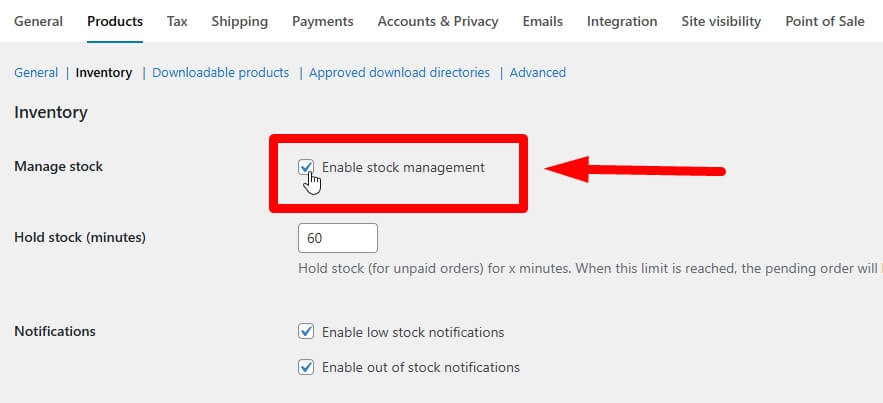
- Go to WooCommerce > Settings > Products > Inventory and confirm stock management is enabled.
- Open the product edit screen and make sure Manage stock is checked in the product inventory settings.
- Recheck stock quantity fields to confirm the product is actually using inventory tracking.
Assign Products To The Correct Stock Location
In multi inventory management for WooCommerce setups, products need to be linked to the correct warehouse, branch, or pickup source. When a product is left unassigned, the system may fall back to a default location or fail to deduct stock from the intended source.
- Review each affected product and confirm it is mapped to the right stock location.
- Check whether some products were added later without being assigned to a location.
- Recheck branch-level stock values so the correct location has usable inventory data.
Recheck Default Location Rules In Plugin Settings
Many stock location plugins use a default warehouse or fallback location when no stronger instruction is available. If that rule is too aggressive, WooCommerce may keep deducting stock from the same source even when another location should fulfill the order.
- Review default warehouse or branch settings in the plugin.
- Check whether fallback deduction rules are turned on.
- Confirm the intended fulfillment source has priority when customers choose a different location.
Fix How Frontend Location Selection Is Passed Through Checkout
Customers may select a branch, pickup point, or delivery source on the frontend, but that choice must continue through the full order flow. When the selected location is not carried properly into the order data, stock deduction may follow the wrong inventory source.
- Check whether the selected location is being saved and passed through checkout.
- Review the order data to confirm the chosen fulfillment source is recorded correctly.
- Test whether the selected location still appears correctly after the order is placed.
Review Frontend Location Lock Settings
Some inventory plugins include settings that lock the storefront to a default location or control how frontend location selection behaves. If these rules are configured incorrectly, they can override the branch the customer actually chose.
- Review any setting that locks the frontend to a default location.
- Check whether frontend default location settings are forcing the wrong stock source.
- Make sure the visible customer location matches the location used for deduction.

Turn On Stock Management For Each Variation
Variable products often need separate stock handling at the variation level. Even if the parent product looks correct, one missing variation setting can cause size, color, or style options to deduct stock from the wrong branch.
- Open each variation and confirm stock management is enabled where needed.
- Check whether variation-level stock is assigned to the correct location.
- Test a few variation orders separately instead of assuming the parent product settings cover everything.
Refresh Or Correct Location-Wise Inventory Data
Imported stock data, partial syncs, or older product records can leave location-based inventory incomplete. When branch quantities are outdated, stock deduction may follow the wrong numbers or behave inconsistently across products.
- Recheck imported stock quantities for each location.
- Confirm sync tools are updating all branches, not just one default source.
- Correct incomplete product records before testing new orders.
Remove Plugin Conflicts And Old Custom Logic
Inventory plugins do not always work cleanly alongside checkout customizations, shipping tools, cache layers, or older snippets. When multiple systems try to control routing or stock updates, the wrong location can be reduced even if the core setup looks correct.
- Temporarily disable conflicting plugins and test again.
- Review old code snippets related to stock, checkout, or fulfillment logic.
- Check whether caching or custom order handling is interfering with location-based deduction.
Recheck Order Status-Based Stock Deduction Rules
Some stores reduce stock only when an order reaches a certain status, which can create problems when that timing does not match the intended location-based fulfillment flow. If stock is deducted too early, too late, or at the wrong stage, the system may pull inventory from the wrong source.
- Review when stock deduction is triggered in your WooCommerce workflow.
- Check whether location-based inventory logic depends on a specific order status.
- Make sure deduction timing matches the point where the correct fulfillment location is confirmed.
Why Manual Stock Corrections Do Not Solve The Real Problem?
Manual stock corrections may help balance numbers temporarily, but they do not fix the reason WooCommerce is deducting inventory from the wrong location in the first place. When the underlying location logic stays broken, the same deduction errors keep returning with new orders, making inventory harder to manage over time.
Here is why manual corrections are not a real long-term fix:
- They Only Fix The Outcome: Manual edits correct stock numbers after the mistake instead of stopping the wrong deduction itself.
- The Same Error Can Repeat: Future orders may keep reducing stock from the wrong location again and again.
- Staff Workload Keeps Growing: Teams spend more time adjusting inventory manually instead of managing fulfillment efficiently.
- Inventory Trust Starts Dropping: Location-wise stock records become harder to rely on for daily order decisions.
- Human Error Becomes More Likely: Frequent manual edits increase the chance of new mistakes in stock counts.
- Customer Availability Can Stay Inaccurate: Shoppers may still see stock that does not match real branch inventory.
- Fulfillment Decisions Stay Unstable: Teams may process orders using stock data that no longer feels dependable.
- Scaling Becomes Harder To Manage: More locations create more correction work when the core issue remains unresolved.
What A Better Multi-Location Inventory Setup Should Handle?
Reliable stock control should do more than reduce inventory after an order is placed. For stores managing products across branches or warehouses, WooCommerce multi locations inventory management should connect location selection, stock deduction, and fulfillment logic in one consistent flow so inventory stays accurate at every location. Here is what a better multi-location inventory setup should handle:
- Deduct stock from the exact location chosen for fulfillment.
- Keep separate inventory records for each warehouse or branch.
- Match frontend location selection with backend stock deduction.
- Support variable products across different stock locations.
- Show accurate location-wise stock availability to customers.
- Reduce fallback deductions from the wrong default location.
- Keep inventory updates consistent after imports or syncs.
- Help store staff trust stock data during fulfillment.
- Scale more cleanly as the number of locations grows.
Frequently Asked Questions
Stores dealing with location-based inventory issues often run into the same follow-up questions after checking settings and fixing obvious configuration gaps. Below are some of the most relevant FAQs to help clarify how WooCommerce handles location-based stock and what store owners should pay attention to as operations grow.
Does WooCommerce Handle Multi-Location Stock Deduction Natively?
WooCommerce can manage stock at the product level, but it does not natively provide advanced location-based stock deduction for multi-warehouse or multi-branch setups. Stores that need inventory to reduce from a specific fulfillment location usually rely on a dedicated multi-location inventory system or plugin.
Can One Order Use Inventory From More Than One Location?
That depends on the inventory setup being used. Some stores route an order through one selected warehouse or branch only, while more advanced systems may support split fulfillment. When the setup is too limited, WooCommerce may still pull stock from a single default source even when multiple locations exist.
Why Does The Correct Location Show Stock, But The Order Uses Another One?
That usually means the display logic and the deduction logic are not fully connected. A store may show stock by branch on the frontend, but the actual stock reduction rule may still follow a different warehouse priority, fallback rule, or fulfillment path in the background.
Should Every Location Have Separate Inventory Records?
Yes, separate inventory records are important in multi-location setups. Shared or loosely managed stock values make it harder to know which branch actually has available inventory, especially when orders, pickups, and local deliveries are handled from different places.
When Should A Store Move To A Better Multi-Location Inventory Setup?
A store usually needs a stronger setup once manual corrections become frequent, stock mismatches start affecting fulfillment, or orders regularly need to be routed across multiple branches or warehouses. Growth across locations often makes basic inventory workflows too unreliable to manage accurately.
Final Thoughts
Stock not deducting from correct location in WooCommerce is rarely just a small inventory mistake. Once stock starts reducing from the wrong branch or warehouse, it can affect fulfillment accuracy, customer trust, and the reliability of your entire location-based inventory workflow.
Fixing the issue starts with identifying where the deduction logic is breaking, but long-term stability depends on having a setup that keeps location selection, stock updates, and fulfillment decisions aligned. For stores managing inventory across multiple branches, stronger location-based control makes day-to-day operations easier to trust and much easier to scale.
