

WooCommerce allows orders when out of stock usually means the store is still treating a sold-out product as purchasable somewhere between the product page, cart, and checkout. That can lead to overselling, delayed fulfillment, cancelled orders, and frustrated customers who completed a purchase for an item that was no longer truly available.
In this guide, we’ll look at why sold-out products can still stay purchasable in WooCommerce, where the stock-blocking process usually fails, and what store owners can do to stop invalid orders before they go through. Keep reading to see how to tighten stock control and make availability more reliable across the buying flow.
What It Means When WooCommerce Allows Orders When Out Of Stock
WooCommerce allows orders when out of stock, which means a sold-out product is still being treated as purchasable somewhere in the buying flow, even though the store should already be blocking the order. Instead of stopping the sale at the right moment, the product remains available through the cart, checkout, or both.
Here is what that usually means in practice:
- A product can still be added to the cart after it has stopped selling.
- Checkout may continue even when the item is no longer truly available.
- Stock quantity and product availability may no longer match properly.
- Customers may place successful orders for items the store cannot fulfill.
- Staff may only discover the issue after payment or order review.
- Refunds, delays, or apology emails may follow after the purchase goes through.
Common Signs WooCommerce Is Not Blocking Sold-Out Products Properly
Sold-out products usually do not stay purchasable because of one obvious error. In many WooCommerce stores, the issue starts showing up through repeated buying behavior, stock mismatches, and order problems that suggest the product is still being treated as available longer than it should be.
Here are some of the most common signs to watch for:
- Products Stay Purchasable After Reaching Zero Stock: Customers can still view the item as available and continue the purchase even after the remaining quantity has already blocked the sale.
- Add To Cart Still Works For Unavailable Items: A product that should no longer be sellable still gets added to the cart, which signals that the first stock-blocking step is not working correctly.
- Checkout Accepts The Last Unit More Than Once: More than one customer may successfully place an order for the same final unit when stock validation does not stop the second purchase in time.
- Stock Status Shows Out Of Stock But Orders Still Go Through: The product page or inventory record may already reflect an out-of-stock state, while checkout continues treating the item as purchasable.
- Customers Complete Orders The Store Cannot Fulfill: Orders go through successfully, but staff later discover that the item was no longer available to ship, prepare, or deliver.
- Refunds And Apology Emails Start Increasing: Repeated order cancellations, refunds, or follow-up emails often point to a stock-blocking problem that is allowing unavailable products to keep selling.
Where WooCommerce Usually Fails To Block The Order?
WooCommerce usually fails to block an out-of-stock order when the product is still being treated as sellable somewhere in the buying process. In many cases, that happens because backorder settings allow the purchase intentionally, stock tracking is incomplete, or the store does not recheck availability strongly enough before the order is placed. Look at the most common failure points below.
Backorder Settings Still Mark The Product As Sellable
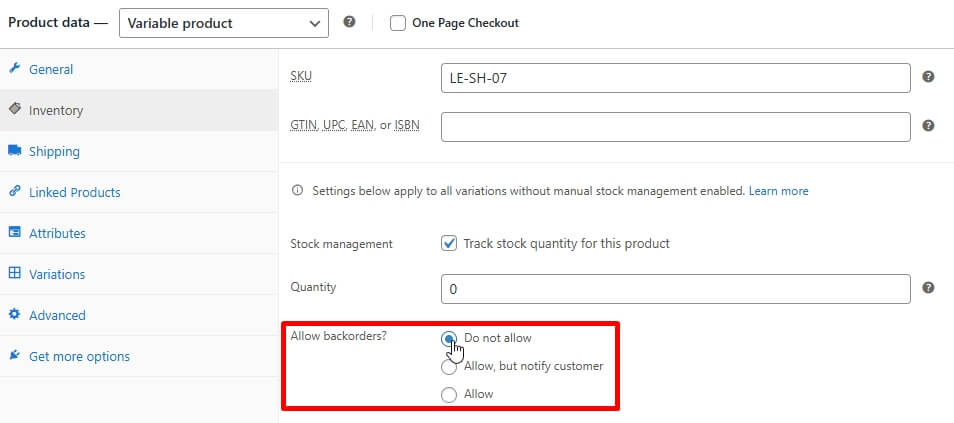
WooCommerce can continue accepting orders for an out-of-stock item when backorders are enabled in the product inventory settings. If Allow or Allow, but notify customer is selected instead of Do not allow, the product may still stay purchasable even after stock reaches zero.
Stock Tracking Is Not Enabled For The Product
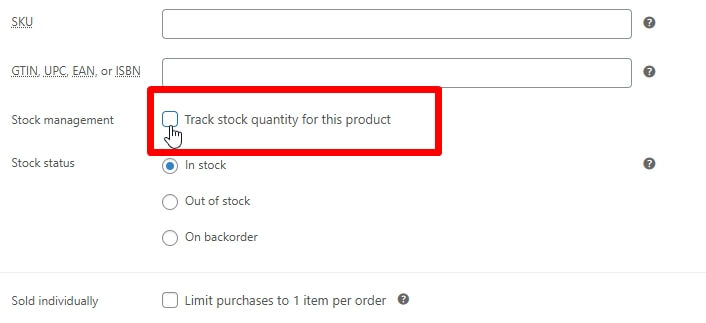
Stock blocking depends on WooCommerce tracking the product correctly. If Manage stock? is not enabled in the product’s Inventory tab, WooCommerce may not have the right stock data available to stop the order at the right time.
Stock Quantity And Stock Status Do Not Match
A product may still appear sellable when the quantity and the stock status are no longer aligned. That disconnect can leave the item available in the buying flow even though the actual inventory condition should already block the sale.
Add-To-Cart Validation Does Not Stop The Product Early Enough
A sold-out product should be stopped before it moves deeper into the buying process. If add-to-cart validation is too weak or delayed, the product may still enter the cart even though it should no longer be purchasable.
Check out Rechecks Stock Too Late In The Buying Flow
Some orders slip through because the final stock check happens too late. By the time WooCommerce tries to confirm availability again, another order may already have taken the remaining inventory.
Variation-Level Inventory Settings Leave Gaps
Variable products need stock control at the exact variation level the customer is purchasing. If WooCommerce is not checking the selected variation properly, one option may still be purchasable after it should have been blocked.
Cached Availability Keeps Older Product Data Active
Product pages, cart fragments, or checkout-related cache can keep showing older availability data longer than they should. That makes a sold-out item look sellable even after inventory has already changed.
Plugins Or Custom Logic Change Default Stock Blocking
Some plugins or custom code can override how WooCommerce handles stock validation. Backorder tools, pre-order features, waitlist plugins, or checkout customizations may change when the store blocks the purchase and when it still allows it.
Backorder And Out-Of-Stock Logic Are Being Treated The Same Way
Out of stock and backorder do not mean the same thing. A true out-of-stock product should usually stop selling, while a backorderable product may still be intentionally purchasable because the store expects future restocking.
Fixes That Stop WooCommerce From Accepting Sold-Out Orders
Stopping WooCommerce from accepting sold-out orders usually requires correcting the exact setting or validation step that still treats the product as sellable. In most cases, the issue comes from backorders, stock tracking gaps, delayed checkout checks, cached availability, or plugin logic that overrides normal stock blocking. To fix the problem properly, work through the checks below in the same order as the most common failure points.
Turn Off Backorders Where They Should Not Apply
WooCommerce can intentionally keep a sold-out product purchasable when backorders are enabled. In the product’s Inventory tab, Allow backorders usually gives you three choices: Do not allow, Allow, and Allow, but notify customer. If a product should stop selling as soon as stock reaches zero, the backorder setting needs to reflect that clearly.
- Go to WordPress Dashboard > Products, open the product, and click the Inventory tab.
- Make sure Manage stock? is enabled so WooCommerce can track availability correctly.
- Set Allow backorders to Do not allow for products that should not remain purchasable after stock runs out.
- Use Allow only when the product should stay purchasable without blocking the sale.
- Use Allow, but notify customer when you want to accept the order but make the backorder status clear to the customer.
Enable Stock Tracking For The Product
Stock blocking depends on WooCommerce having active stock tracking at the product level. If stock is not being managed properly, the store may not have enough information to stop the order before checkout succeeds.
- Open the affected product and confirm Manage stock? is checked in the Inventory tab.
- Review the product’s quantity field to make sure stock is being tracked with a real value.
- Recheck the same settings for products that were imported, duplicated, or edited in bulk.
Align Stock Quantity With Stock Status
A product can stay purchasable longer than it should when the quantity and the visible stock status stop matching. That mismatch makes it easier for the storefront and checkout flow to behave differently from the actual inventory condition.
- Compare the product’s stock quantity with its current stock status.
- Correct any product showing In stock when quantity has already reached zero.
- Re-save the product after updating both values so WooCommerce refreshes the inventory state properly.
Strengthen Add-To-Cart Stock Validation
A sold-out item should be blocked before it moves deeper into the buying process. If the product still enters the cart after inventory should have stopped the sale, the first protection layer needs closer attention.
- Test whether the product can still be added to the cart after stock reaches zero.
- Review any custom add-to-cart behavior, AJAX cart logic, or theme-level changes that may weaken stock blocking.
- Confirm the storefront stops the purchase before the customer gets too far into the order flow.
Make Checkout Recheck Stock At The Right Time
Some products stay purchasable because WooCommerce performs the most important stock check too late. If another shopper buys the remaining inventory first, checkout may still accept the next order before availability is updated strongly enough.
- Test the last available unit from two sessions to see how checkout handles the final stock check.
- Review whether payment, cart refresh, or custom checkout steps are delaying stock validation.
- Confirm WooCommerce checks live availability again before the order is completed.
Fix Variation-Level Inventory Settings
Variable products need stock control at the exact variation level the customer selects. Parent-level settings alone often leave room for one option to stay purchasable after it should already be blocked.
- Open the product variations and review stock settings for each option.
- Make sure stock tracking is enabled where variation-level inventory matters.
- Check the backorder setting for each variation as well, not only the parent product.
- Test individual sizes, colors, or styles to confirm sold-out variations stop selling correctly.
Clear Cached Availability Across The Buying Flow
Cached availability can leave sold-out products looking buyable longer than they should. Even if the inventory has changed on the admin side, older product or cart data may still keep the item purchasable on the frontend.
- Clear product-page, cart, and checkout cache after stock changes.
- Exclude availability-sensitive pages or AJAX actions from aggressive caching where needed.
- Retest the product from a clean session to confirm live stock data is now being used.
Remove Plugin Or Custom Logic That Overrides Stock Blocking
Extra store logic can change how WooCommerce decides whether a product is still sellable. Plugins for pre-orders, waitlists, custom checkout flows, bundles, or stock automation can all affect the point at which the sale should be blocked.
- Review recently added plugins that influence stock, checkout, or product availability.
- Check custom snippets that change add-to-cart or stock validation behavior.
- Temporarily disable conflicting logic and retest whether sold-out products are still accepted.
- Use specialized tools such as a waitlist or an advanced WooCommerce inventory management plugin only when they match the store’s intended sales flow.
Separate Backorder Rules From True Out-Of-Stock Products
Backorderable products and truly unavailable products should not be handled the same way. Backorder usually means the product is expected to be restocked, while a true out-of-stock item should normally stop selling until inventory becomes available again.
- Decide which products should support backorders and which should stop selling completely.
- Use Allow, but notify customer when future restocking is expected, and the customer should be informed clearly.
- Keep products set to Do not allow when no continued sales should happen after the stock runs out.
- Review customer-facing messaging so shoppers understand whether they are buying a delayed item or a currently available one.
Why Cancelling The Order After Purchase Is Not A Real Fix?
Cancelling an out-of-stock order after purchase may close one immediate problem, but it does not fix the reason WooCommerce allowed the product to stay purchasable in the first place. As long as the stock-blocking logic remains weak, the same issue can keep affecting future customers, orders, and inventory decisions.
Here is why post-purchase cancellation is not a reliable long-term fix:
- The Sale Already Went Through: The product should have been blocked before payment, not corrected after the order was placed.
- Customer Trust Can Drop Quickly: Buyers may lose confidence after completing a purchase that the store later cannot fulfill.
- Refund Work Keeps Increasing: Staff may need to handle more cancellations, payment reversals, and follow-up messages than necessary.
- The Same Problem Can Repeat: Future shoppers may still buy the same sold-out product if the blocking issue stays unchanged.
- Support Pressure Starts Growing: Order issues often create more customer questions, manual review, and avoidable service work.
- Inventory Decisions Become Harder To Trust: Teams may hesitate when stock records and real product availability no longer match clearly.
- Overselling Turns Into A Pattern: Repeated cancellations usually point to a stock validation gap, not a one-time mistake.
How Multi Location Product & Inventory Management Solves This Issue?
Stronger stock control starts with keeping product availability, sellable stock, and order validation connected across the full buying flow. Multi location product & inventory management helps reduce out-of-stock orders by giving stores better control over stock visibility, location-based quantities, and the inventory logic that supports more reliable purchasing decisions.

Here is how it helps solve the issue more effectively:
- Keeps stock quantities organized more clearly across different inventory locations.
- Improves visibility into what is actually available before the order goes through.
- Reduces mismatches between product availability and real stock records.
- Supports more accurate handling of variable and complex products.
- Helps store owners manage inventory updates with better consistency.
- Makes stock-related decisions easier to trust during checkout and fulfillment.
- Reduces the risk of overselling as product volume and order activity increase.
- Creates a stronger foundation for more reliable WooCommerce inventory control.
Frequently Asked Questions
Stores dealing with sold-out products that still remain purchasable often run into a few follow-up questions once the main stock-blocking issue becomes clear. Below are five relevant FAQs that help explain related WooCommerce behavior without repeating the same causes and fixes already covered.
Does WooCommerce Check Stock Before The Order Is Completed?
WooCommerce does perform stock-related checks, but the result depends on how the product is configured and whether anything in the buying flow weakens or delays that validation. If stock rules, product settings, or extra store logic are not aligned properly, the order may still go through.
Can A Product Show As Available Even When It Should No Longer Be Sold?
Yes. A product may still appear buyable if the visible availability, sellable status, and real inventory condition are no longer updating in sync. That can make the storefront look correct in one place, while another part of the buying flow still allows the purchase.
Are Variable Products More Likely To Stay Purchasable By Mistake?
They can be. Variable products rely on more detailed stock handling because each option may have its own availability, sellable state, or inventory rule. That creates more room for one variation to stay purchasable even when it should already be blocked.
Can A Store Intentionally Keep Selling An Item After Stock Runs Out?
Yes. Stores may choose to keep selling certain products through backorders or similar workflows when future restocking is expected. In that case, the product is not being sold by mistake, but the customer should still receive clear messaging about delayed availability.
Why Does This Problem Matter Beyond One Incorrect Order?
Because the issue affects more than a single sale. Once unavailable products keep slipping through, the store can face repeated refunds, avoidable support work, weaker customer trust, and less reliable inventory decisions across future orders.
Final Thoughts
WooCommerce allows orders when out of stock when stock rules, product availability, and checkout validation no longer stay aligned through the full buying flow. Once sold-out products remain purchasable, stores can face overselling, cancelled orders, customer frustration, and more support work than necessary.
Fixing the issue starts with tightening the points where the product is still treated as sellable, but long-term stability comes from using a setup that keeps stock control more accurate and dependable. Stronger inventory visibility and validation make it much easier to stop unavailable products from slipping through again.
