
Location URL settings in WooCommerce plugins generally refer to configuration options that allow store owners to restrict or customize user access based on their geographic location. These settings, often found in geolocation or restriction plugins, enable redirecting users to specific URLs based on country, state, or IP, or enabling geolocation caching. In the Multi Location Product & Inventory Management for WooCommerce plugin, Location URL Settings provide flexibility in how location-based URLs are structured and managed, ensuring smooth navigation and accurate inventory display across multiple store locations.
Benefits
Activating and configuring Location URL Settings offers several advantages:
- Improved User Experience: Customers are redirected to the correct store location seamlessly.
- Better Organization: URLs are structured to reflect location-specific inventory.
- Enhanced Tracking: Query parameters allow for detailed analytics and marketing tracking.
- Scalable Structure: Path prefixes enable clean organization for multiple store locations.
How to Set Up a Location URL?
Let’s see how you can set up this option.
Step 1: Access Location URL Settings
To begin, you need to locate the settings within your WooCommerce dashboard.
- From your dashboard, go to Location Manage > Settings > Location Info Management.
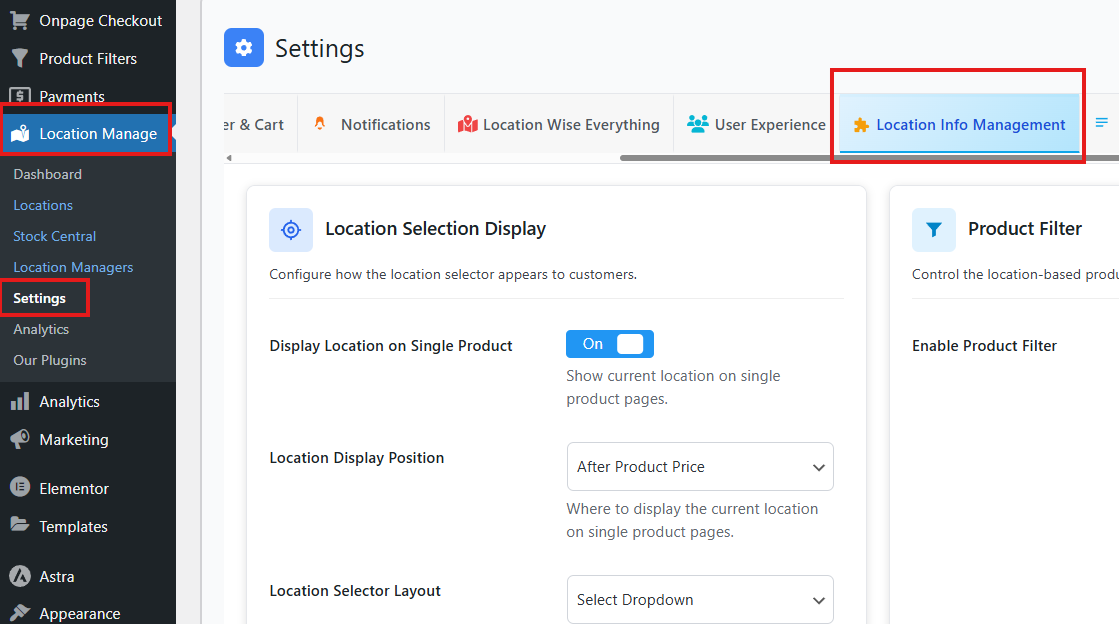
- Scroll down until you find the section named Location URL Settings.
- Toggle the option Enable Location in URLs to On.
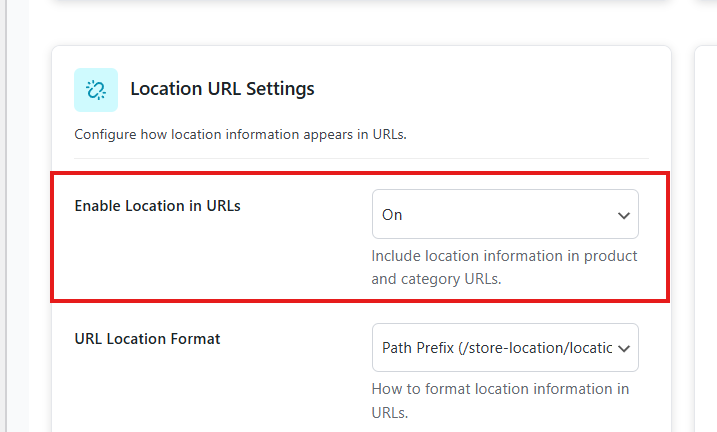
This step is crucial because enabling location in URLs activates the feature, allowing you to configure how your store handles location-based navigation.
Step 2: Choose URL Location Format
Once enabled, you will see the option URL Location Format. Here, you can select between two formats: Query Parameter or Path Prefix.
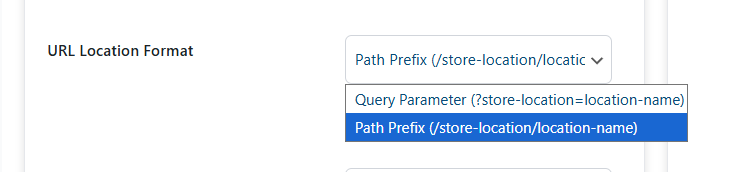
Query Parameter
A query parameter (also known as a query string) is a set of key-value pairs appended to the end of a URL to send additional information to a web server.
Structure:
- Separator (?): The question mark separates the main URL path from the query parameters.
- Key-Value Pair (=): Each parameter has a name (key) and a value, joined by an equals sign (e.g., q=laptop).
- Multiple Parameters (&): Multiple pairs are separated by an ampersand (e.g., ?q=laptop&sort=price).
Common Uses:
- Filtering and Sorting: Narrowing down results on e-commerce sites or databases.
- Search Queries: Passing search terms from a search bar to the server.
- Pagination: Identifying which page of results a user is viewing (e.g., ?page=2).
- Tracking: Identifying the source of a click for marketing and analytics using UTM parameters.
Path Prefix
A path prefix URL is a segment added to the beginning of a URL path—immediately following the domain—to organize site content, manage routing, or serve apps from subdirectories rather than the root.
Key Aspects:
- Structure & Organization: They allow for organizing content (e.g., /docs, /api, /blog).
- Application Hosting: Useful when a site is hosted in a subdirectory (e.g., example.com/site2/ instead of example.com/).
- Routing & Proxying: Web servers and API gateways use them to route requests to specific services.
- Relative Asset Loading: They ensure static assets like CSS and JavaScript are loaded correctly from the sub-folder.
Common Examples: /blog/, /api/, or /.well-known/ for hosting mandatory metadata.
Comparison Table
| Situation | Query Parameter | Path Prefix |
|---|---|---|
| Filtering products by category or price | ✔️ Best choice | ❌ Not suitable |
| Search queries and pagination | ✔️ Recommended | ❌ Not ideal |
| Marketing tracking with UTM codes | ✔️ Perfect fit | ❌ Not applicable |
| Organizing store locations under clean URLs | ❌ Less organized | ✔️ Highly recommended |
| Hosting multiple sub-sites or services | ❌ Not applicable | ✔️ Best choice |
Selecting the right format ensures your WooCommerce shop operates efficiently and provides a clear structure for users.
Step 3: Edit Location URL Prefix
After choosing your format, you can edit the Location URL Prefix.
- Enter a prefix such as
store-location. - Example: If you set the prefix to
store, your URL might look likestore-name.example.com.
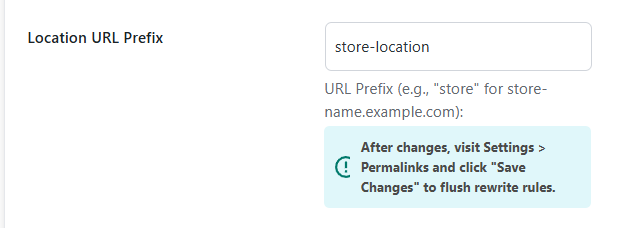
This step is important because it defines how your store’s location URLs will appear, making them more user-friendly and organized. Click on Save Changes.
Testing the Feature
After saving, it is essential to test the feature to confirm everything works as expected.
- Visit your website and navigate through location-based pages.
- If the changes do not appear correctly, go to your dashboard.
- Navigate to Settings > Permalinks.
- Click Save Changes to flush rewrite rules.
- Refresh your site page again.
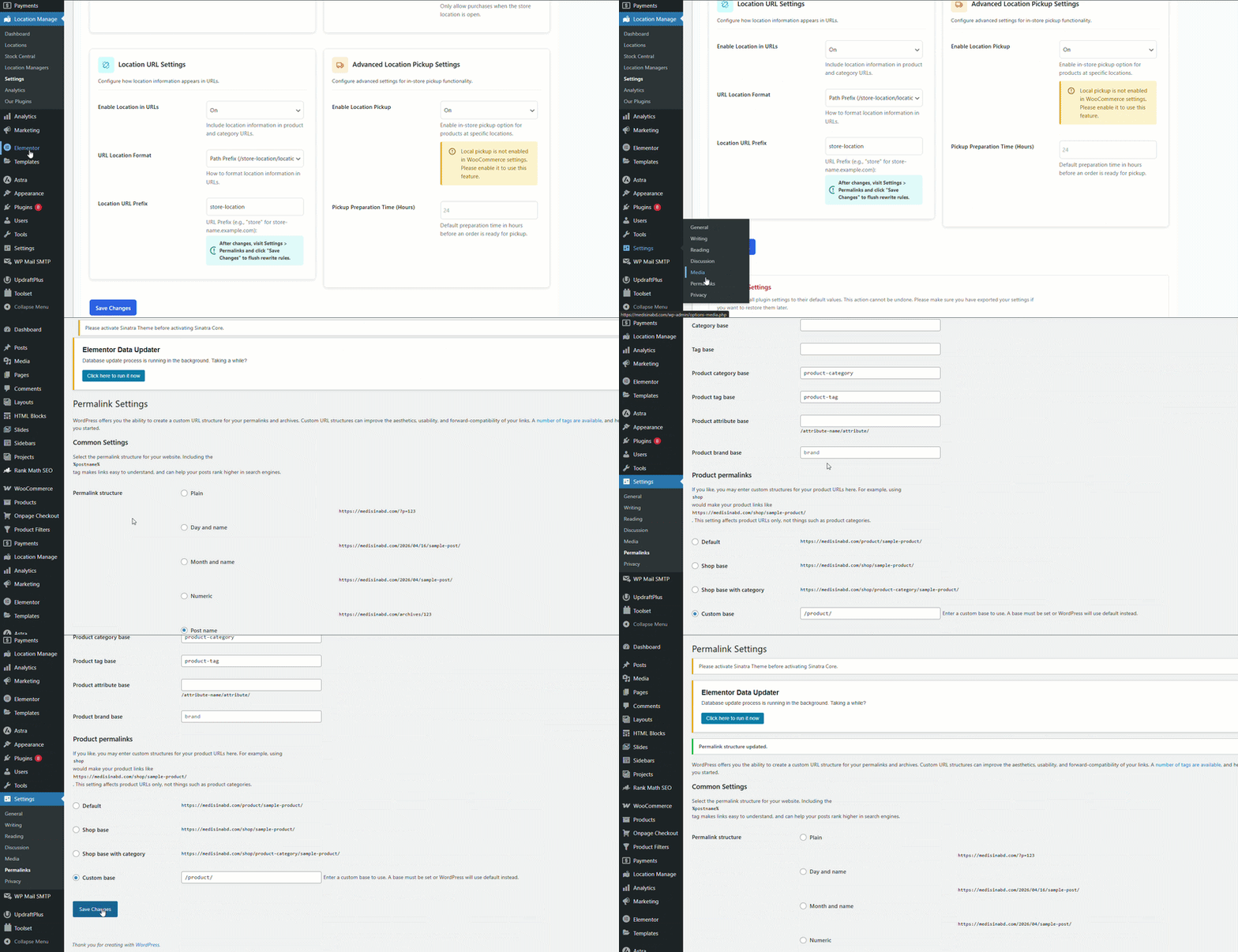
Testing ensures that your configuration is properly applied and that customers experience smooth navigation.
Location URL Settings in the Multi Location Product & Inventory Management for WooCommerce plugin provide powerful tools to control how location-based URLs are structured. Whether you choose query parameters for flexibility or path prefixes for clean organization, these settings enhance usability, tracking, and scalability.