

If your product variations are not showing, the quickest way to fix this is to check your attribute setup, ensure variation prices are added, confirm stock status is correct, and make sure no conflicting scripts or plugins are blocking the variation form. These are the most common triggers behind the issue people search for when looking for how to fix variations not showing in WooCommerce.
Once you confirm these core settings, you can move on to deeper checks such as theme overrides, cached pages, or mismatched attribute terms. Understanding how your store structure affects product visibility will help you keep variations stable, especially when using tools to show variations on the shop page in WooCommerce.
Main Causes and How to Fix Variations Not Showing in WooCommerce?
Before fixing the problem, it helps to understand the most common reasons variations disappear or fail to load correctly. These issues usually come from small misconfigurations or conflicts that affect how WooCommerce reads your product settings. Below are the key causes you should check first.
Attributes Not Set for Variation Use
When attributes are added but not marked as Used for Variations, WooCommerce cannot connect them to actual variation options. Even if the attributes appear on the product page, the variation form will remain empty until this setting is corrected.
Quick Fix:
- Go to Product Data
- Open Attributes
- Enable Used for Variations
- Save attributes
- Go back to Variations and regenerate options if needed
Missing Prices on Variations
WooCommerce automatically hides any variation that has no price assigned. A product may look properly configured, but missing or unsaved pricing information prevents the variation from appearing on the front end. Checking each variation for complete pricing often solves this immediately.
Quick Fix:
- Open Variations tab
- Expand each variation
- Add regular or sale price
- Save changes
- Reload the product page to confirm visibility
Out of Stock Variation Values
If all variations are marked out of stock, the dropdowns will show no available options. This can happen after bulk edits, imports, or inventory syncing. Confirming stock status for each variation ensures WooCommerce displays them correctly to your customers.
Quick Fix:
- Check stock status for every variation
- Set each one to In Stock
- Update product
- Disable Manage Stock on the parent product if not needed
Plugin or Script Conflicts
Plugins that modify product pages or add custom scripts can interrupt the variation loading process. This is especially common when using tools that handle dynamic sorting or filtering, including setups built around AJAX product filters for WooCommerce. Disabling conflicting scripts often resolves the issue.
Quick Fix:
- Disable suspected plugins one at a time
- Refresh the product page after each deactivation
- Identify the plugin causing the issue
- Keep it disabled or replace it with an alternative

Theme Template Overrides
Some themes override default WooCommerce templates, and outdated files can break variation functionality. When these overrides do not match the current WooCommerce version, the variation form may fail to load or respond. Updating or resetting these templates usually restores proper behavior.
Quick Fix:
- Switch to the Storefront theme temporarily
- Check if variations appear
- Update outdated WooCommerce template files
- Contact the theme developer if updates are unavailable
Incorrect Product Type Selection
If a variable product is accidentally switched to a Simple Product, the entire variation configuration stops working. This can happen during quick edits or imports. Switching it back to Variable Product instantly restores the variation settings and structure.
Quick Fix:
- Switch the product back to Variable Product
- Revisit the Attributes and Variations tabs
- Save the product
- Confirm that variation fields reappear
Cached Pages Blocking Updates
Page caching tools may display an outdated version of the product page where variations do not appear. Clearing your cache or excluding product pages from caching ensures WooCommerce loads fresh variation data every time a customer views the product.
Quick Fix:
- Clear your entire site cache
- Purge CDN cache if you use one
- Exclude product pages from caching
- Refresh the product page in an incognito window
An issue with variations often links back to these core reasons. Once you understand which setting or conflict is responsible, the troubleshooting process becomes much easier and your product pages load correctly for every customer.
Advanced Fixes for Persistent Variation Problems
If the basic steps did not solve your issue, the problem is likely deeper. These advanced fixes cover edge cases that many guides do not mention, but often become the real reason variations fail to load correctly.
WooCommerce Transients and Object Cache Blocking Variations
WooCommerce relies on transients to store variation data, and when these stored values become outdated or corrupted, variations may stop loading on the front end. This often happens after bulk edits, imports, or plugin updates that affect product data.
Fix:
- Go to WooCommerce → Status → Tools
- Clear the template cache
- Clear all WooCommerce transients
- Refresh the product page
- If your site uses Redis or Memcached, ask your host to flush the object cache temporarily
CDN, Minification, and Security Plugins Blocking AJAX Requests
Content delivery networks and optimization plugins sometimes block the scripts WooCommerce needs to load variations. This is common when JavaScript minification or script combining is active. As a result, the variation form cannot run the AJAX request needed to display available options.

Fix:
- Disable JavaScript minification for testing
- Turn off script combining or defer settings
- Whitelist the WooCommerce variation script (wc-add-to-cart-variation.js)
- Disable features like Rocket Loader or similar tools
- Refresh the product page after applying the changes
Template Overrides Causing Variation Form Breakage
Some themes override WooCommerce template files such as variable.php, add-to-cart-variation.php, or single-product.js. If these overrides become outdated after an update, they can break the variation form and stop the selection process entirely.
Fix:
- Go to WooCommerce → Status → Templates
- Look for outdated template warnings
- Replace the overridden files with the default WooCommerce versions
- Test the product page again to confirm the variation form works
Variations Not Loading Due to Server Limits or Large Product Sets
Stores with many attributes or large variation sets often exceed server limits. When PHP cannot process the number of variation combinations, WooCommerce may stop loading options entirely. This issue appears more often in stores that also use features to show popular products in WooCommerce because these tools add extra load to the product page.
Fix:
Ask your hosting provider to increase the following server limits:
max_input_vars = 5000
memory_limit = 512M
max_execution_time = 300
post_max_size = 64M
Increasing these values ensures WooCommerce has enough resources to process and display large variable products without timing out.
Special Cases Most Store Owners Miss
Some variation issues occur even when everything seems correctly configured. These situations usually appear after imports, translations, or visual enhancement changes. Understanding these hidden cases can help you solve variation problems that do not fit the usual patterns.
Variations Disappear After CSV Import or API Sync
When importing variable products, WooCommerce expects the parent product, attributes, and variation IDs to match perfectly. If any of these relationships are incorrect or missing, WooCommerce may hide the variations on the front end. This often happens with bulk imports or third-party inventory syncing.
Fix:
- Ensure attribute slugs match exactly between parent and child variations
- Re-import the product with the correct parent and variation relationships
- Regenerate variations manually if needed
Multilingual Stores Breaking Variations
In multilingual setups such as WPML or Polylang, translated attribute terms sometimes do not link correctly to the original product. When the translated version does not match the original attribute slug, WooCommerce cannot identify valid variations.
Fix:
- Sync all product attributes across languages
- Ensure translated attribute slugs match the primary language
- Re-save variations after syncing to rebuild the mapping
Variation Swatches Showing but Variations Not Loading
In some cases, swatches appear correctly on the page, but selecting them does not trigger the variation form. This usually means the visual swatch plugin is displaying the design layer, but the underlying WooCommerce variation script is not responding.
Fix:
- Temporarily disable the swatch option to test behavior
- Verify whether the default dropdowns appear and load properly
- Re-enable the swatch feature after confirming the configuration works
If you are using swatches together with tools that help you show variations on the shop page in WooCommerce, make sure they are compatible with variable products and follow WooCommerce’s standard variation handling to avoid display issues.
How to Avoid Variation Problems Forever?
Once your variations are fixed, keeping them stable requires a few simple habits. These practices help prevent conflicts, broken attributes, or outdated templates from causing the same issues again. By following these steps, you can maintain a smooth and reliable variation system in the long run.
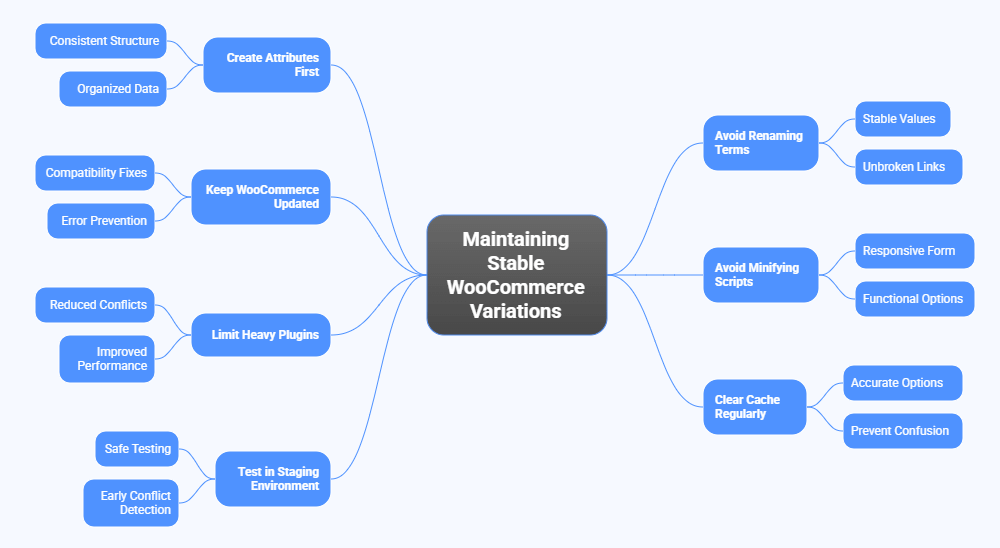
Create Attributes Before Adding Variations
Setting up attributes first ensures WooCommerce builds variation combinations correctly. When attributes are defined early, their structure stays consistent, reducing the risk of mismatched values or missing options later. It also keeps your product data organized and easier to manage.
Do Not Rename or Delete Attribute Terms Later
Renaming or removing attribute terms after creating variations often breaks the relationship between attributes and variation data. WooCommerce depends on stable values to match combinations. Keeping terms unchanged prevents broken variation links and avoids display issues on the product page.
Keep WooCommerce and Your Theme Updated
Many variation problems come from outdated templates or scripts in older versions of themes and WooCommerce. Updating regularly ensures you have the latest compatibility fixes and avoids errors that stop the variation form from loading. This simple step prevents multiple recurring issues.
Avoid Minifying Core WooCommerce Scripts
JavaScript minification can interfere with the scripts responsible for loading variation options. Excluding core WooCommerce files from minification keeps the variation form responsive and functional, especially when using tools that help you show variations on the shop page in WooCommerce properly.
Limit Heavy Plugins on Product Pages
Plugins that add extra features, custom fields, or design layers can overload the product page and delay variation logic. Keeping unnecessary plugins disabled reduces conflicts, improves performance, and lowers the chance of scripts interfering with variation loading.
Clear Cache After Updating Product or Attribute Data
Cached product pages often show outdated variation states. Whenever you update attributes, pricing, or stock, clearing your cache ensures customers see the correct variation options. This simple habit prevents confusion and keeps your product page accurate.
Test New Tools in a Staging Environment
Installing plugins or features directly on a live site can lead to unexpected variation issues. A staging environment allows you to test new tools safely before going live. This helps catch conflicts early and protects your store from sudden display problems.
Consistency and careful updates go a long way in preventing variation errors. By following these essential practices, your WooCommerce store will handle variations more reliably, ensuring customers always see the correct options without interruptions.
Frequently Asked Questions
Before closing the guide, it helps to answer a few extra questions that store owners often ask after fixing their variation issues. These questions cover common doubts that usually come up once everything on the product page starts working again.
Can I Change Variation Images Without Affecting Existing Options?
Yes, you can update variation images without breaking your existing settings. Just make sure the variation remains linked to the correct attribute values. After updating the image, refresh the product page to confirm it displays properly.
Do Large Variation Sets Slow Down My Product Pages?
Very large variation groups can slow down loading if your server limits are low. WooCommerce needs enough resources to process the data. Increasing server values or splitting complex products into smaller sets helps keep pages fast.
Why Do My Variations Look Different Between Mobile And Desktop?
Some themes use different layouts for mobile screens, which can change how variation fields appear. If the styles are inconsistent, check your theme settings first. Testing with a default theme helps confirm whether the issue comes from custom templates.
Is It Safe To Use Swatches And Custom Selectors With Variable Products?
Yes, it is safe as long as the swatch tool follows WooCommerce’s default variation rules. Problems only occur when a plugin adds scripts that override the variation form. Testing it once on a staging site reduces the risk of display issues.
Do I Need To Rebuild Variations After Updating WooCommerce?
Most updates do not require rebuilding variations. However, if you notice missing fields or unusual behavior after an update, re-saving the variations can refresh the data. It is a simple step that often fixes small glitches.
Concluding Lines
Fixing variation issues becomes easier once you understand how WooCommerce handles attributes, pricing, stock, and scripts. Most problems are small mistakes that can be solved with a little checking, and following the steps in this guide gives you a clear path for how to fix variations not showing in WooCommerce.
After your variations are working again, keeping your store updated and avoiding risky changes helps you prevent the same issues in the future. A simple habit of reviewing product pages and testing new tools can save you from many hidden problems later.
