

Are your woocommerce variations not showing when customers try to select options like size, color, or style? This issue can completely block the buying process because users cannot choose the product variation they need.
In many cases, this appears as a missing dropdown, empty variation options, or selections that do not respond. The problem is usually caused by missing prices, unlinked attributes, incorrect product type settings, or even plugin and cache conflicts. The good news is that these are common setup issues and can be fixed quickly once identified. In this guide, you’ll learn how to find the exact cause and restore your variation display step by step.
Quick Answer
WooCommerce variations usually don’t show when key setup pieces are missing or misconfigured. The most common causes are no price set on variations, attributes not linked to variations, or the product not set as a Variable product. Cache, theme conflicts, or large variation limits can also hide options.
Fix it by ensuring each variation has a price, enabling “Used for variations” on attributes, creating variations from attributes, and clearing cache.
Quick Checklist (Fast Troubleshooting)
Use this quick checklist to fix the issue without deep debugging:
- Set prices for all variations: Variations without a price are hidden by default.
- Verify attributes are linked: In the Attributes tab, enable “Used for variations” for each attribute.
- Confirm product type is Variable: Go to Product Data and select Variable product.
- Create variations properly: Use “Create variations from all attributes” in the Variations tab.
- Clear cache completely: Clear browser cache, site cache, and CDN cache.
- Check large variation limits: If a product has too many variations, WooCommerce may not load them properly.
This checklist targets the most common causes, helping you resolve variation display issues quickly before moving to advanced fixes.
How WooCommerce Variation Issues Show Up?
Before jumping into deeper fixes, it helps to recognize how this problem shows up in real stores. Different behaviors point to different root causes, so identifying the exact pattern can save time.
No Variation Dropdown Visible
Customers open the product page but do not see any options like size or color. This usually happens when the product type is not set correctly or attributes are not configured for variations.
Dropdown Shows but Options Are Missing
The variation selector is visible, but no options appear inside it. This is often caused by attributes not being linked to variations or variations not being created properly.
Variations Do Not Change Price or Image
Users can select an option, but nothing updates. This indicates JavaScript issues, theme conflicts, or incomplete variation data.
Works in Backend but Not on Frontend
Variations look correct in the admin panel but do not appear for customers. This usually points to caching problems, theme overrides, or plugin conflicts.
Some Variations Are Missing
Only a few options show while others are hidden. This can happen due to missing prices, out-of-stock settings, or limits caused by too many variations.
Understanding how the issue appears helps you match it with the correct cause and apply the right fix faster.

What Causes Variations Not to Show?
Now that you’ve identified how the issue appears, let’s break down the actual causes. Each cause comes from a different part of your WooCommerce setup, so understanding these layers will help you fix the problem faster.
Missing Prices on Variations
WooCommerce hides variations that do not have a price. Even if everything else is configured correctly, variations without prices will not appear on the frontend.
Where to check:
- Product → Variations tab
- Ensure every variation has a price assigned
Attributes Not Linked to Variations
Attributes must be explicitly enabled for variations. If the “Used for variations” option is not checked, WooCommerce cannot generate variation options.
Where to check:
- Product → Attributes tab
- Enable “Used for variations”
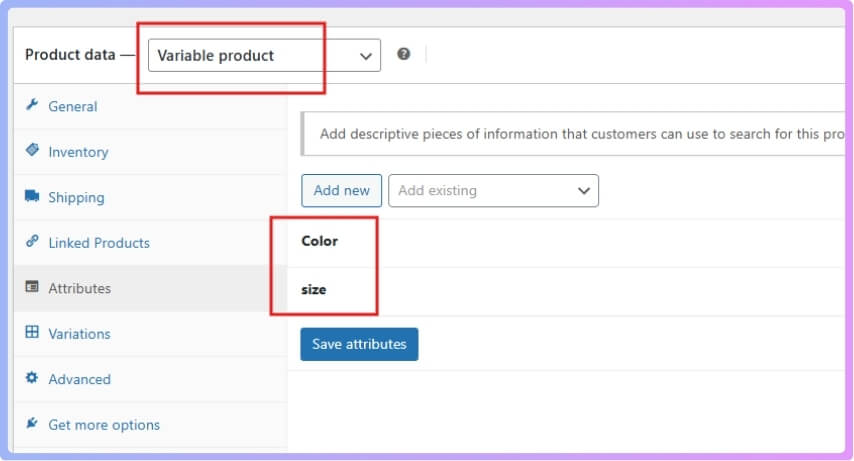
Product Type Not Set to Variable
If the product is set as a simple product, WooCommerce will not show variation options.
Where to check:
- Product Data → Select Variable product
Variations Not Created Properly
Even with attributes added, variations must be generated manually or automatically.
Where to check:
- Product → Variations tab
- Click Create variations from all attributes
Out-of-Stock or Hidden Variations
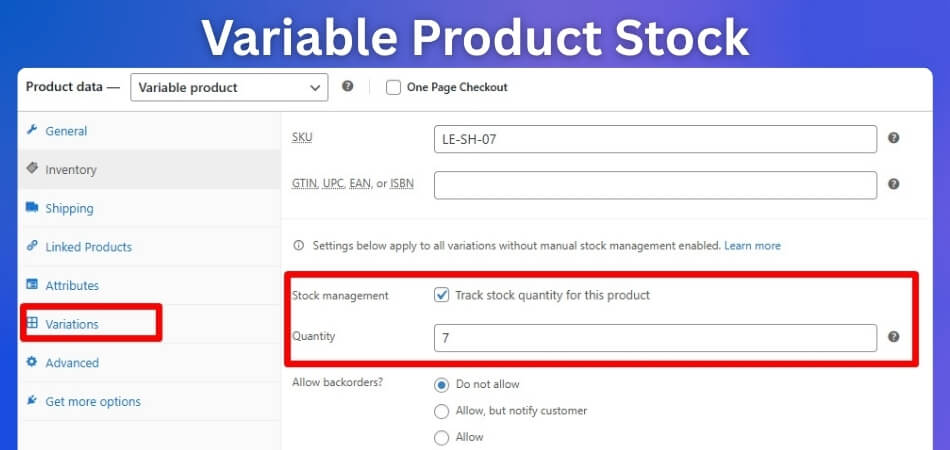
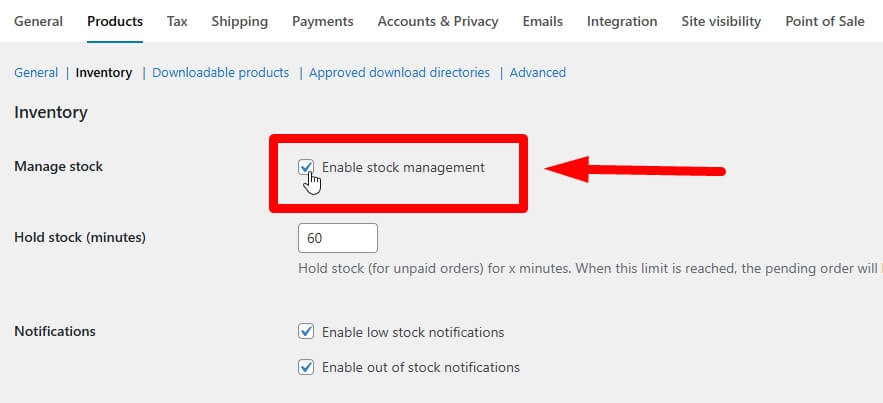
If stock management is enabled and variation stock is zero, WooCommerce may hide those options depending on settings.
Where to check:
- Variation stock status
- WooCommerce → Settings → Inventory
Too Many Variations (Limit Issue)
Products with a large number of variations can cause loading issues. WooCommerce may not display all options if limits are exceeded.
Where to check:
- Product → Variations count
- Hosting or AJAX variation threshold
Plugin or Theme Conflicts
Custom themes or plugins can override variation scripts or block dropdown functionality.
Where to check:
- Switch to default theme
- Disable plugins one by one
Cache or CDN Interference
Cached pages may prevent updated variation data from appearing on the frontend.
Where to check:
- Clear browser, plugin, and CDN cache
Variation issues usually come from configuration or visibility settings, so identifying the exact cause helps you fix it quickly and accurately.
Fix WooCommerce Variations Not Showing (Complete Setup Guide)
Fixing missing variations in WooCommerce is not just about clicking settings. You need to make sure each part of the variation system is properly connected, from product type to attributes, pricing, and frontend behavior. Follow this guide step by step and test after each stage.
Step 1: Set Product Type to Variable
Everything starts with the product type. WooCommerce only shows variation options when the product is set as a Variable product.
Where to check:
- Edit Product → Product Data dropdown
If your product is set as “Simple product,” WooCommerce will completely ignore variation settings, even if attributes exist. Changing this to “Variable product” activates the variation system.
Step 2: Configure Attributes Correctly
Attributes define what options users can select, such as size or color. However, simply adding attributes is not enough.
Where to check:
- Edit Product → Attributes tab
You must enable “Used for variations”. Without this, WooCommerce treats attributes as informational only, not selectable options. This is one of the most common reasons why dropdowns appear empty.
Step 3: Create Variations from Attributes
After setting attributes, WooCommerce still needs actual variation entries.
Where to check:
- Edit Product → Variations tab
Click “Create variations from all attributes” or add them manually. Without this step, WooCommerce has no data to display in the dropdown, even if attributes are configured correctly.
Step 4: Add Price and Stock to Each Variation
WooCommerce requires each variation to have complete data before showing it.
Where to check:
- Edit Product → Variations → Open each variation
If a variation does not have a price, WooCommerce hides it automatically. The same can happen with stock settings depending on your configuration. Even properly created variations will not appear if they are incomplete.
Step 5: Review Visibility and Inventory Rules
Sometimes variations exist but are hidden due to global settings.
Where to check:
- WooCommerce → Settings → Inventory
- Product → Catalog visibility
If “Hide out-of-stock items” is enabled and all variations are out of stock, the dropdown may disappear entirely.
Step 6: Clear Cache and Refresh Frontend
Even after fixing everything, you might not see changes immediately due to caching.
Where to clear:
- Browser cache
- Cache plugin
- CDN (Cloudflare, etc.)
Caching can serve old product data, making it seem like variations are still missing.
Step 7: Check Theme and Plugin Behavior
If everything is configured correctly but variations still do not show, the issue is likely external.
What to do:
- Switch to a default theme like Storefront
- Disable plugins one by one
Themes and plugins can override WooCommerce scripts, break dropdown functionality, or block variation updates.
Step 8: Handle Large Variation Limits
WooCommerce has limits when handling a large number of variations.
Where to check:
- Product → Variations count
If a product has too many combinations, WooCommerce may not load them properly or may slow down significantly.
What to do:
- Reduce unnecessary variations
- Simplify attribute combinations
Pro Insight
Most variation issues are not technical bugs. They are caused by:
- Missing price
- Attributes not linked
- Variations not generated
Fixing these correctly solves the issue in most cases.
Understanding how WooCommerce variations work at each step ensures you can fix display issues confidently without relying on trial and error.
Why This Issue Matters for Your Store
After fixing the variation problem, it’s important to understand its real impact. When variations do not show, it does not just affect display, it directly affects sales, user experience, and trust.
Customers Cannot Select Product Options
Variations allow users to choose size, color, or other options. If these are missing, customers cannot complete their purchase, even if the product is available.
Direct Loss of Sales
When users cannot select a variation, they often leave the page. This results in lost revenue because the buying process is blocked at a critical step.
Poor User Experience
A missing or broken variation selector creates confusion. Users expect to see product options instantly, and when they do not, it makes the store feel unreliable.
Increased Bounce Rate
Visitors who cannot interact with the product properly are more likely to leave immediately, increasing bounce rate and reducing engagement.
Lower Customer Trust
If customers cannot select options or see incomplete product information, they may lose confidence in the store and avoid returning.
Negative Impact on Mobile Users
Mobile users rely heavily on simple selection interfaces. If variations do not load correctly, mobile experience becomes frustrating and leads to higher drop-off rates.
Many store owners focus on adding products but overlook variation setup. In reality, properly configured variations are essential for converting visitors into buyers. Ensuring variation options are visible and functional improves user experience, increases conversions, and builds trust in your WooCommerce store.
Default Variation Setup vs Optimized Variation Setup
After fixing the issue, it’s important to understand why variation problems happen in the first place. In many WooCommerce stores, variations are set up quickly without proper structure, which leads to display issues, slow loading, or missing options.
Key Differences Explained
| Feature | Default Setup | Optimized Setup |
| Attribute Configuration | Basic, often incomplete | Properly structured and linked |
| Variation Creation | Manual or inconsistent | Fully generated and validated |
| Price & Stock Setup | Sometimes missing | Always defined for each variation |
| Display Reliability | Can break or hide options | Stable and consistent |
| Performance | Slower with many variations | Optimized for speed |
| User Experience | Confusing or limited | Smooth and clear selection |
Why Default Setup Causes Issues
Many store owners add attributes but forget to link them to variations or generate variation data. In other cases, variations are created but left incomplete without prices or stock details.
This creates a situation where WooCommerce has partial data, and instead of showing broken options, it hides them completely. That’s why variations seem to disappear even though they exist in the backend.
What an Optimized Setup Improves
An optimized variation setup ensures that every attribute, variation, and data point is connected properly. It also keeps variation data clean and manageable, especially for products with multiple options.
This results in:
- Reliable dropdown display
- Faster loading
- Accurate product updates (price, image, stock)
- Better user experience
Recommended Improvement
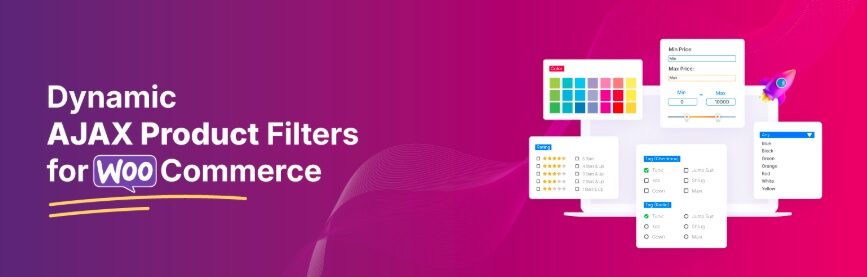
If your store has many variable products, improving how variations are displayed and filtered can make a big difference.Dynamic AJAX Product Filters for WooCommerce
Why This Helps
- Improves variation visibility across products
- Enhances filtering by attributes like size and color
- Reduces confusion for users
- Provides smoother interaction without reload
Which Setup Should You Choose?
- If You Have Few Variations: Default setup can work if everything is configured correctly and products are simple.
- If You Manage Many Variable Products: An optimized setup becomes essential to maintain performance and avoid display issues.
- If You Want Better User Experience: A clean and reliable variation system helps users select options quickly and complete purchases without confusion.
A properly optimized variation setup ensures consistent display, better performance, and a smoother buying experience for your WooCommerce store.
FAQ
Below are the most common questions users ask about WooCommerce variation issues. These are structured to match real search queries and improve AI Overview visibility.
Why are my WooCommerce variations not showing?
This usually happens when the product is not set as a variable product, attributes are not linked to variations, or variations are missing key data like price or stock. Fixing these settings typically resolves the issue.
Why is my variation dropdown empty?
An empty dropdown often means attributes are added but not enabled for variations, or variations were not created from those attributes. WooCommerce needs both to display options.
Do variations need a price to show?
Yes, WooCommerce hides variations without a price. Each variation must have a valid price to appear on the frontend.
Why do variations show in admin but not on the product page?
This is usually caused by caching, theme conflicts, or JavaScript issues. Clearing cache and testing with a default theme can help identify the problem.
Can plugins affect variation display?
Yes, plugins related to filters, performance, or product customization can interfere with variation scripts and hide options.
Is there a limit to WooCommerce variations?
Yes, products with too many variations can cause performance issues or prevent options from loading properly. Reducing variation count can fix this.
Final Thoughts
The woocommerce variations not showing issue is usually caused by simple configuration mistakes rather than complex errors. Once attributes, variations, and product settings are properly connected, the issue becomes easy to fix.
For long-term stability, keep your variation setup clean, avoid unnecessary complexity, and test your product pages regularly. This ensures your customers can select options easily and complete their purchases without frustration.
Ensuring variation visibility improves user experience, reduces confusion, and helps customers complete purchases smoothly.
