

WooCommerce store owners often get confused when customers complete a purchase but land on an Order Received page that shows “Page Not Found.” This error usually appears because of broken permalinks, missing checkout endpoints, caching conflicts, or incorrect page settings.
Fix the WooCommerce Order Received Page Not Found error by confirming the correct page and endpoint in WooCommerce settings, refreshing permalinks, clearing all caches, and resetting customer sessions. Check shortcodes, regenerate missing WooCommerce pages, verify payment gateway URLs, and test for theme or plugin conflicts to restore the confirmation page.
Want detailed guides on how to fix WooCommerce order received page not found? Keep reading to get clear and simple ways to fix the problem fast. This will help your checkout run smoothly and keep your customers from getting confused.
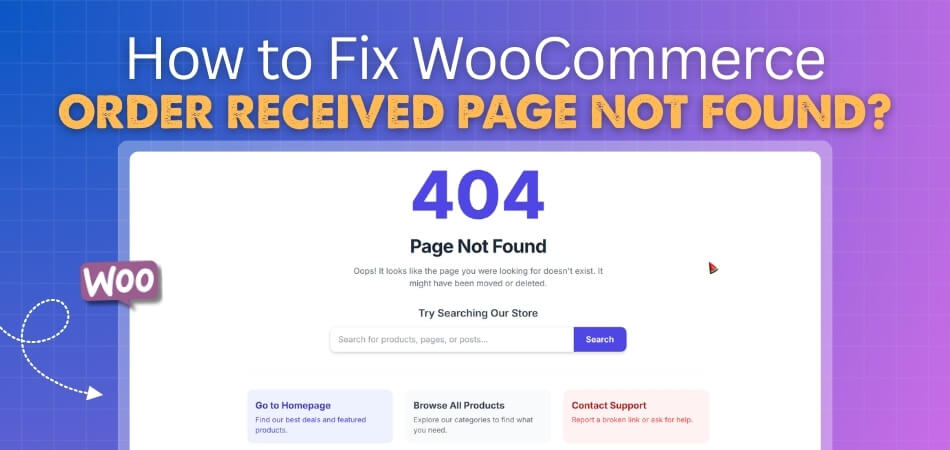
Main Reasons for WooCommerce Order Received Page Not Found
When customers place an order on a WooCommerce store, they expect to land on a clear confirmation page. But sometimes, they hit a “Page Not Found” error instead. This can be frustrating for both customers and store owners, especially when everything else seems to work fine. Here are the main reasons why this happens:
- Broken or Incorrect Permalink Settings: WooCommerce depends on permalinks to create order pages. If permalinks are not set right, the page can’t be found.
- Order Confirmation Page Not Set: WooCommerce uses a specific page for showing order success. If it’s missing or not selected, errors will show up.
- Theme Conflicts with WooCommerce Templates: Some themes override WooCommerce pages poorly. This causes layout problems or makes the page vanish completely.
- Plugin Conflicts Breaking Page Load: Installed plugins might break how WooCommerce loads the final order page. These can stop scripts or even block redirection.
- Deleted or Missing Thank You Page: The “Thank You” page may have been trashed or deleted. Without it, WooCommerce doesn’t know where to send users.
- Caching Plugins Showing Old or Wrong Pages: Caching tools may store broken or outdated versions of pages. This leads to customers seeing missing or incorrect links.
- Issues with SSL or HTTPS Redirection: If the site doesn’t handle HTTPS redirects well, users may land on a broken link. This happens especially during payment redirects.
- Outdated WooCommerce or WordPress Versions: Running older versions may trigger errors with page routing. Updates often fix bugs tied to missing pages.
How to Fix WooCommerce Order Received Page Not Found?
When someone finishes a purchase on your WooCommerce store, they expect to land on a proper confirmation page. But sometimes the “Order Received” page shows a missing page error. This problem is usually linked to a few settings or conflicts, and you can fix it by checking the procedures below.
Check WooCommerce Page Settings
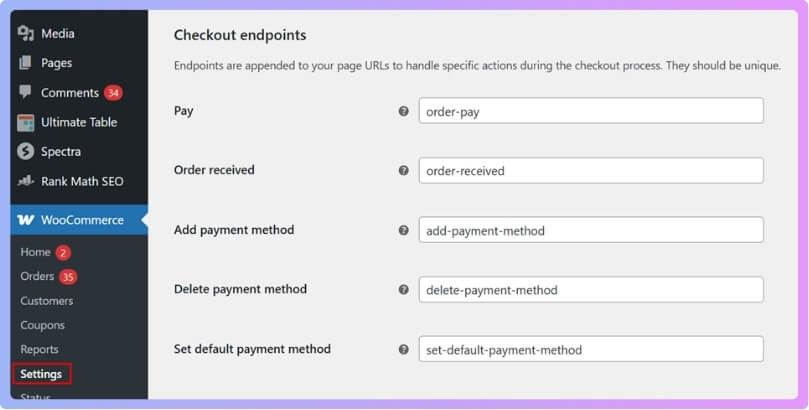
Go to WooCommerce > Settings > Advanced and review the Page setup section carefully. Make sure the correct page is chosen for the “Order received page,” the endpoint is set to order-received, and save your changes so WooCommerce knows where to send customers.
Clear Caches and Refresh Permalinks
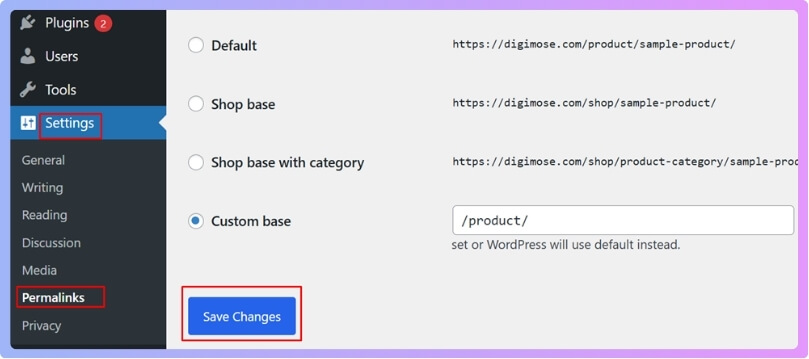
Open Settings > Permalinks and press “Save Changes” to rebuild the rewrite rules even if you didn’t change anything. Next, to rule out stored old data, clear your browser’s cache, your hosting provider’s server cache, and your caching plugin. You can also test the page in a private window.
Use WooCommerce Troubleshooting Tools
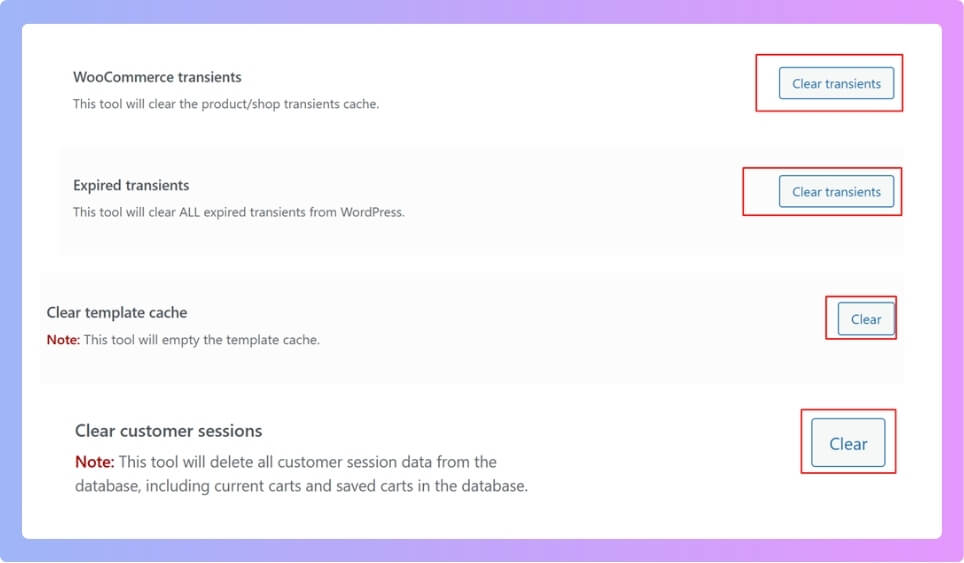
Go to WooCommerce > Status > Tools and clear different caches like WooCommerce transients, expired transients, and template cache. You can also reset all customer sessions using the “Clear customer sessions” option, which helps solve issues caused by stuck session data.
Check for Theme or Plugin Conflicts
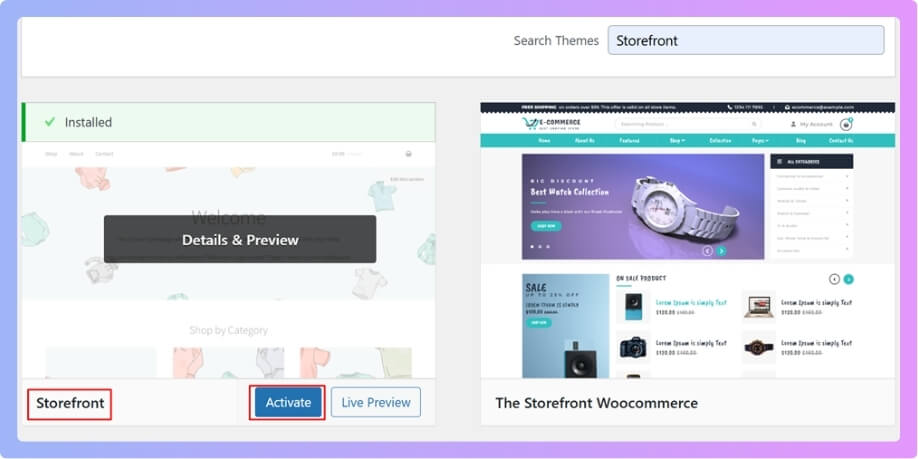
Switch to a default theme like Storefront for a moment to see if your main theme is causing the error. Disable all extra plugins, especially checkout tools like the Direct Checkout for WooCommerce Plugin, and turn them back on one by one until you find the one causing the conflict.
Verify Payment Gateway Settings
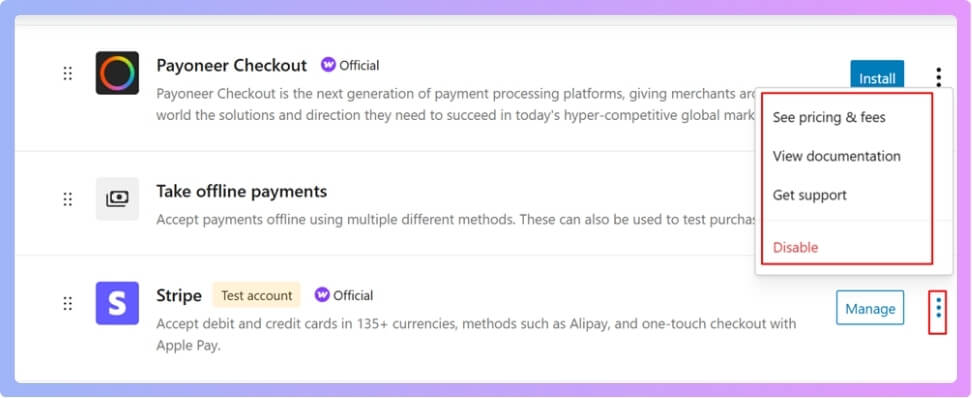
Go to WooCommerce > Settings > Payments and make sure your payment methods are turned on and set up the right way. Look closely for any wrong return URLs, missing links, or extra symbols that could break the final redirect to the “Order Received” page.
Check Page Shortcodes and Regenerate Pages
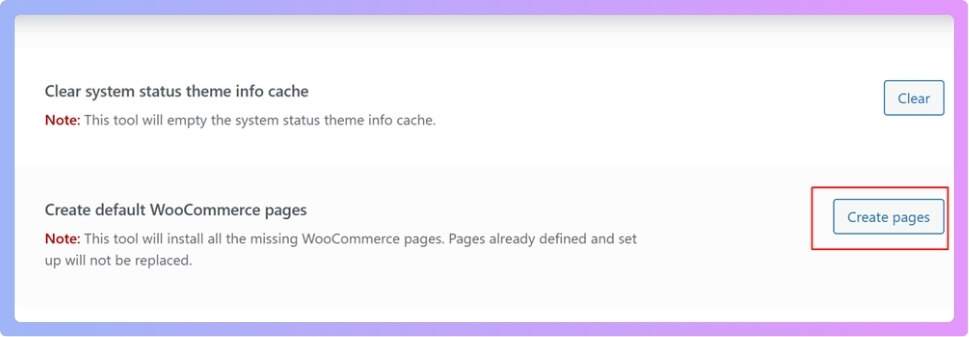
Open the Cart, Checkout, and My Account pages and confirm they have the correct shortcodes added inside them. If these pages look empty or broken, use the Install WooCommerce pages tool in WooCommerce > Status > Tools to recreate any missing pages automatically.
Fixing the “Order Received” page error helps create a smoother shopping experience. Once these settings are checked, the page should work as expected without showing errors.
Could Plugin Conflicts Affect Both Checkout and Order Pages?
Plugin issues can cause problems on both checkout and order pages because they sometimes change how important parts of the site work together. When plugins clash, they may stop key features from loading correctly during the checkout process. This kind of conflict can confuse the system and create strange issues that customers do not expect while placing orders.
Some plugins try to control the same parts of the checkout experience, and this can create mixed signals in the system. When this happens, you might notice problems like payment not displaying on checkout or broken steps during order completion. These issues often appear suddenly because plugin updates or new settings can trigger hidden conflicts.
Order pages may also fail because some plugins change page rules, routing paths, or scripts that WooCommerce depends on. Even small changes inside a plugin can break the final order page and show missing page errors. Checking plugins carefully can help find the exact cause and prevent more checkout issues later.
When Should You Ask for Professional Help?
The right time to get expert help can feel unclear sometimes. Many people try fixing issues alone but still face the same problems. Some errors require skills that most users do not have daily. Read below to know when outside help makes sense for your site.
Slow Fixes Not Working
You may fix small issues yourself, but some problems return often. When simple steps no longer work, it means something deeper is wrong. A skilled expert can check the cause fast and guide you with clear steps. This helps you stop wasting time trying many random fixes alone.
Checkout Problems Blocking Orders
You might notice issues in checkout that stop buyers from paying. These problems can push customers away and reduce your sales. A trained person can look at your setup and catch settings you may miss. Getting help early saves you from a larger loss later.
Errors After Updates
Some updates change how parts of your site work together. When updates break features, it can be hard to guess the cause. A specialist can test each part and find what changed. Their help can bring your site back to normal without long delays.
Theme Or Plugin Clashes
Sometimes themes and plugins can fight with each other and break features. These clashes can stop pages from loading or change how things appear. An expert knows how to test each item the right way. This keeps your store running without strange errors showing up.
Security Risks Or Data Warnings
If you see signs of unsafe activity or strange alerts, you need help fast. These issues can harm your site if left alone. A trained person can scan everything and remove hidden risks. Quick help keeps your data safe and your store working fine.
Can You Customize the Order Received Page After Fixing It?
Customizing the order received page is possible once the main issue is fixed correctly. Many store owners like adding simple details that help buyers feel clear after ordering. You can change the layout or text carefully without breaking the page again.
Small design edits let you guide buyers toward helpful information or future steps easily. Some people add short notes, support links, or simple thank-you messages. These changes help buyers feel comfortable while giving them clear next steps after payment.
Extra elements like order tips or quick links can also make the page more useful. You can try adding light styling or simple blocks that match your store design. Making small updates helps the page feel friendly and improves the overall checkout experience.
How to Test the Checkout Flow Without Real Orders?
Testing your checkout flow is simple when you use the right steps. You do not need real orders to check things. Most tools let you test every part safely and easily. Read below to learn simple ways to test your checkout flow.
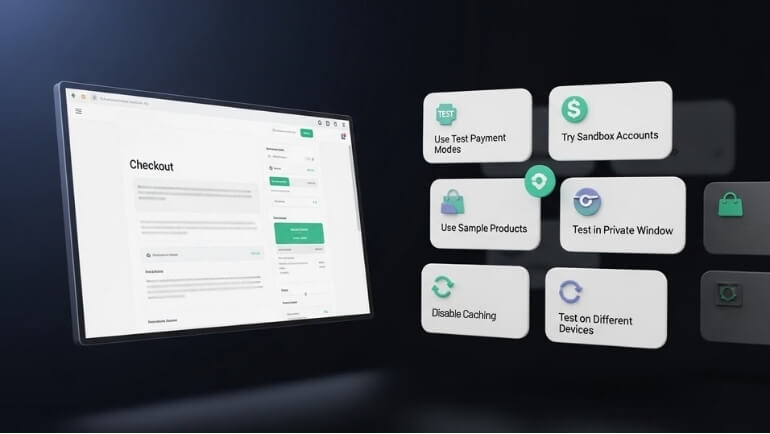
Use Test Payment Modes
Most payment tools offer test modes that let you place fake orders. You can use these modes to check each step and even enable bank transfer payments in WooCommerce for safe testing without spending money. This method helps you see how your checkout works from start to finish. It also makes sure payment buttons work and the order page loads fine.
Try Sandbox Accounts
Payment sites like PayPal and Stripe offer sandbox accounts for testing. These accounts let you try payments in a safe space. You can test full checkout steps without using real cards. This is a simple way to find issues before customers see them.
Check With Sample Products
Simple sample products help you test your checkout flow quickly. You can set a low price or make a free item. Doing this helps you test the whole process without stress. It lets you see if each page loads and works correctly.
Use Private Browser Windows
Testing in a private window helps you see fresh results. This stops saved data from changing how pages load. You can check how the checkout looks for new users. It also helps you catch problems that normal browsing may hide.
Disable Caching During Tests
Turning off caching helps you see real updates during tests. Cached pages may hide new changes or show old data. You want to view the latest version of each page. This makes it easier to find small issues in the checkout steps.
Test On Different Devices
Checking your checkout on many devices helps you spot problems. Phones, tablets, and laptops may show pages differently. You can see how buttons, forms, and pages respond. Testing this way helps you give every user a smooth checkout.
Frequently Asked Questions
Sometimes fixing one issue leads to more questions, especially when dealing with order and checkout pages. Below are common questions people often ask when working with WooCommerce order errors.
Can Multi-Step Checkout Plugins Cause Issues
Multi-step tools change how the checkout works and may break the final redirect. If the plugin sends users to the wrong step, the order page cannot load. Checking settings often solves the issue. Simple checkout flows work best.
How Do Wrong User Roles Affect The Order Page
If user roles have missing rights, some parts of the order page may not load. WooCommerce needs basic rights to show details. Fixing role permissions often helps. Good rights keep every part of the page visible.
Why Does The Page Fail When Cookies Are Blocked
Cookies store small data needed for the order summary. If cookies fail or are blocked, the page cannot show the right details. Checking cookie settings fixes many errors. A working cookie system helps the page load fully.
What If Orders Save But The Page Still Breaks
Sometimes the order is saved, but the page does not load. This means the problem is in the display step, not the order itself. Fixing links, templates, or settings usually solves it. Stored orders stay safe even when the page fails.
Can Old Payment Logs Break The Final Page
Old or large logs can slow the system and delay the final page. When logs pile up, WooCommerce takes longer to respond. Clearing them helps the page load faster. Small logs make the checkout smoother.
Why Does The Page Fail After Changing Domains
New domains often need updated settings in WooCommerce. If paths do not match, the order page breaks. Updating your links helps everything work right. Domain changes must include checkout updates.
Can Wrong Order Status Stop The Page From Showing
Some pages load only when the order has the correct status. If the status fails to update, the final page may not appear. Fixing status rules helps the system work smoothly. Good status updates guide the page correctly.
How Do Hidden Cache Rules Cause Page Errors
Hidden server cache rules can store outdated versions of your order page. This keeps showing the broken version even when you fix it. Clearing deep cache levels helps show the updated page. Fresh cached data makes the page open normally.
Conclusion
It can feel stressful when your store shows a broken page after checkout. Customers may get confused, and you might lose orders. But don’t worry — this problem has clear and simple solutions.
If you’re trying to figure out how to fix WooCommerce Order Received Page Not Found, start by checking settings, clearing cache, and testing plugins. Small errors in these areas often cause the page to break. Taking time to go through each step makes a big difference.
You deserve a store that works smoothly from cart to thank you. When the final page works right, it builds trust and keeps buyers happy. Follow the steps above and enjoy fewer errors and more successful orders.
