

Product category issues can make a store feel empty even when everything is set up right. Many store owners face this problem and feel unsure about the cause. You may want to understand this better and learn how to fix WooCommerce product category not showing.
If WooCommerce product categories are not showing, ensure products are properly assigned to categories, check your theme supports category display, confirm the correct shop page is set, enable showing categories in the customizer, clear cache, and disable conflicting plugins. These steps usually resolve the issue quickly.
Are you curious to know what steps can help you fix this problem in a clear and easy way, so your shop shows categories the right way? Keep reading because this article shares every simple step you need to understand and solve this issue without stress.
How to Fix WooCommerce Product Category Not Showing?
If your product categories are not showing on your WooCommerce store, the issue is usually with display settings or empty categories. Follow these steps carefully to fix it.
Step 1: Check Product Category Display Settings
To start, go to your WordPress dashboard and open:
Appearance > Customize > WooCommerce > Product Catalog
Here, you will find two important options that control how your shop page and categories appear.
- Shop Page Display
- Set this option to Show categories or Show categories and products.
- This makes sure your main shop page displays categories instead of (or along with) individual products.
- Category Display
- Set this to Show subcategories if you want to display child categories within parent ones.
- This ensures all nested product categories are visible.
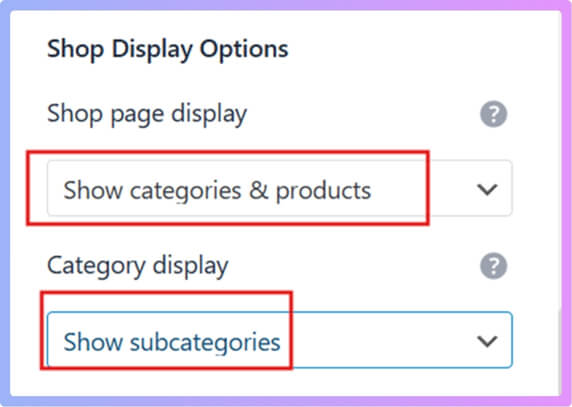
After changing these settings, click Save and then check your shop page again. Most of the time, this fixes the issue right away.
Step 2: Understand Why WooCommerce Hides Empty Categories
Even in newer WooCommerce versions, empty categories are hidden by default. Categories will only appear if:
- They contain at least one product, or
- Your theme is coded to display empty categories.
If a category has no products, it won’t show. To test, simply add one temporary product to that category and then check your store again. If it appears, the issue is that WooCommerce hides empty categories by default.
Step 3: Show Empty Categories Using a Small Snippet
If you want to show all categories, even the ones that have no products, you can add a small code snippet to your theme.
This snippet forces WooCommerce to show empty categories everywhere on your site, including widgets, menus, archives, and category lists.
Add the following code to your functions.php file or use a plugin that allows custom snippets:
// Show empty product categories everywhere add_filter( ‘woocommerce_product_categories_widget_args’, function( $args ) { $args[‘hide_empty’] = 0; return $args; }); add_filter( ‘woocommerce_product_subcategories_args’, function( $args ) { $args[‘hide_empty’] = 0; return $args; }); add_filter( ‘woocommerce_product_categories_args’, function( $args ) { $args[‘hide_empty’] = 0; return $args; });
This code ensures that empty product categories remain visible in:
- Category widgets
- Category grids
- Shop pages
- Menus that display product categories
Two Safe Ways to Add the Code
There are two simple and safe ways to use the code snippet above.
Method 1: Use Code Snippets Plugin (Easiest and Safe)
If you’re not comfortable editing theme files, this is the best option.
- Go to Plugins > Add New
- Search for Code Snippets
- Click Install and then Activate

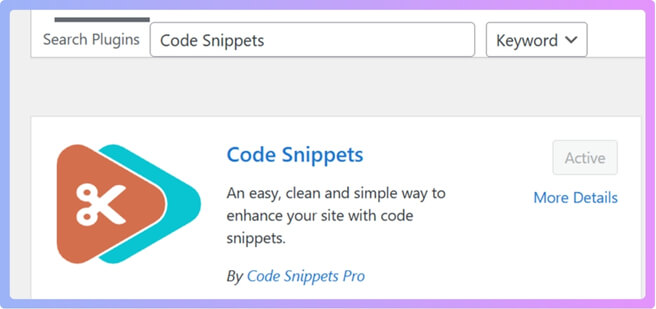
After installation:
- Go to Snippets in your dashboard.
- Click Add New.
- Give it a name like Show Empty Categories.
- Paste the full code provided above.
- Choose Run everywhere.
- Click Save and Activate.
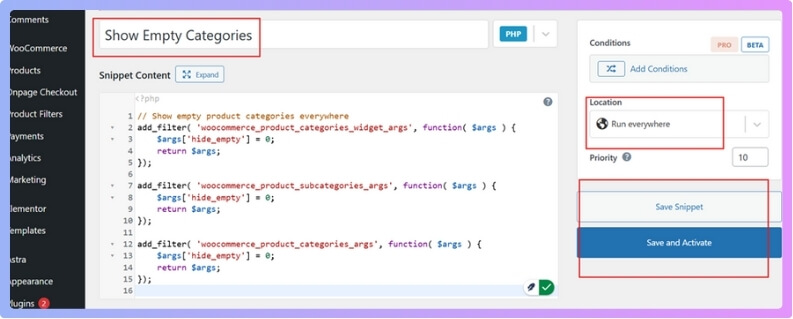
Once activated, your empty product categories will now appear across your site.
Method 2: Add Code in functions.php (Theme File)
Only use this method if you’re confident about editing theme files.
- Go to Appearance > Theme File Editor.
- On the right side, select functions.php.
- Scroll to the bottom of the file.
- Paste the code snippet there.
- Click Save File.
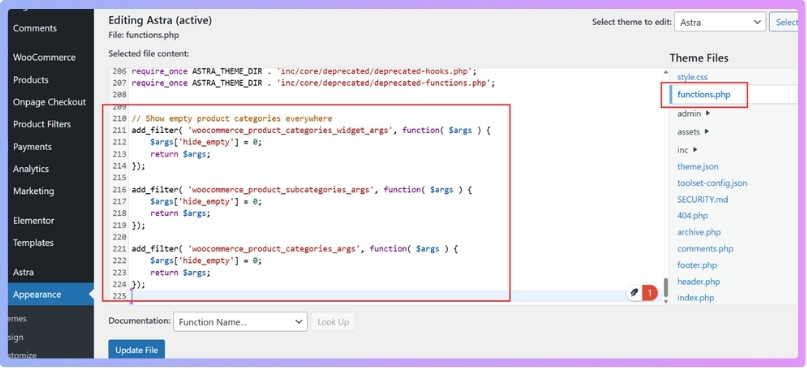
Important Note: If you update your theme later, this code might be removed. To avoid losing it, use a child theme or the Code Snippets plugin instead.
Step 5: If None of These Work — Use a Plugin
If your product categories still don’t appear after checking settings and adding the snippet, you can use a plugin to manage category filters.
For this guide, use the Dynamic AJAX Product Filters for WooCommerce plugin. It has both free and pro versions, and you can pick the one that suits your needs. Using an Ajax Product Filter for Woocommerce helps your store update products instantly without page reloads, creating a faster and smoother shopping experience for customers.
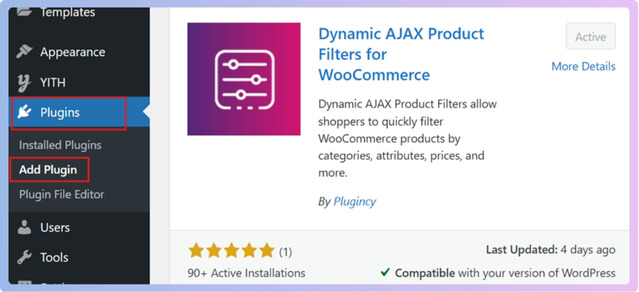
Installation (Free Version)
- Go to WordPress Admin Dashboard > Plugins
- Click Add New Plugin
- In the search bar, type Dynamic AJAX Product Filters for WooCommerce
- Click Install Now and then Activate
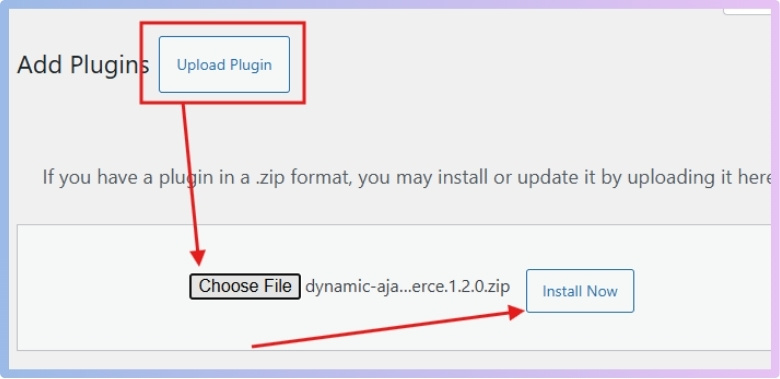
Installation (PRO Version)
- Go to Plugins > Add New Plugin
- Click Upload Plugin
- Choose the plugin ZIP file
- Click Install Now, then Activate
Enable Category Filter
Once the plugin is installed, you can now show category filters.
- Go to Product Filters > Form Manage.
- Find the option “Show Category” and turn it On.
- Click Save Changes.
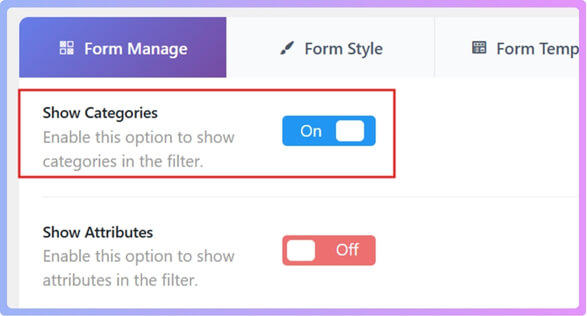
Now, the category filter should appear on your store.
If you want, you can also customize how it looks:
- Go to Form Style.
- Choose Category Options.
- Select your preferred style for category display.
- Click Save Changes again.

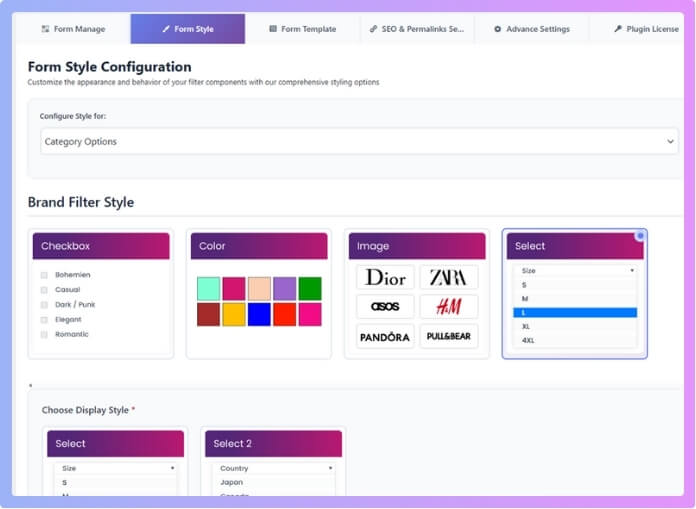
Small issues in WooCommerce can hide product groups without clear signs. You can fix most display problems with a few calm checks. These simple steps help your shop look clean and easy to use. Try each fix above and get your full store view back.
Common Reasons Why WooCommerce Product Categories Disappear
Sometimes WooCommerce hides product categories for small and easy reasons. Many store owners see this problem and feel confused at first. Most of the time, the issue comes from basic settings or display rules. Keep reading to learn the simple checks that can bring your categories back.
Missing Category Setup
Some stores lose categories when products are not linked to them. WooCommerce hides any category that has no items inside it. You can fix this by editing each product and making sure it has the right category. Sometimes, missing or outdated tools can cause display issues. Installing the essential plugins for WooCommerce can help keep your product categories and other key store features working smoothly.
Wrong Display Settings
Shop pages may hide categories when the catalog options are not set correctly. You need to check the shop page display rules inside the customizer and make sure they show categories. Some themes change these rules when you update them. A quick review of the settings often solves this problem without extra work.
Theme Related Issues
Theme bugs can block category lists from showing on the front page. This happens when the layout file fails to load the correct template. You can test this by switching to a basic theme for a short time. If the lists show up, your main theme likely needs an update or repair.
Plugin Conflicts
Some plugins change how product archives load and hide categories by mistake. You can test this by turning off all extra plugins and checking the shop page again. Turn them back on one by one until the problem returns. This simple check helps you find the plugin that needs a fix or replacement.
Cache Problems
Old cached pages can hide new changes in your shop layout. You should clear your cache from your plugin and your browser and then reload the shop page. Some hosts also use server cache that you can clear from your panel. After this, the missing categories often show up again.
Many small issues can cause your WooCommerce categories to vanish. The points above help you find the one blocking your shop layout. You can use them as a quick list when this problem shows up. Follow the checks, and you will bring back your category list with ease.
How to Check if Your Theme Supports WooCommerce Categories?
Some themes do not show WooCommerce categories the way you expect. This can happen when the theme uses its own layout rules or hides some parts. You can check a few simple things to see if your theme supports categories. Read the steps below to understand how to test this the easy way.

Check Theme Features
Many themes do not load full WooCommerce features by default. You can check this by opening the theme details page and looking for WooCommerce support in the feature list. Some themes only support basic product pages and skip category layouts. A theme with full support will usually show shop, category, and product templates.
Try Switching to a Default Theme
Testing a default theme helps you see if your main theme is blocking category pages. You can switch to Storefront or Twenty Twenty Four for a moment and check the category list. If it shows up right away, your main theme is missing some WooCommerce layout files. This test is fast and gives a clear answer.
Look for Theme Display Settings
Many themes place shop and category options inside the customizer. You can open the theme settings and look for controls for catalog views, category grids, or shop layouts. Some themes hide these tools inside extra panels, so check each section. Missing tools here often mean the theme limits category support.
Check Theme Template Files
Some themes load custom templates that replace WooCommerce category pages. These files can hide sidebars, grids, or the category list. You can check the theme folder for template overrides inside the WooCommerce folder. If you see many custom files, the theme may be blocking normal category display.
Review Menu and Widget Areas
Some themes stop product category widgets from showing in sidebars or menus. You can try adding a product category widget to a sidebar to see if it loads. If nothing shows, the theme may not support WooCommerce category widgets. This quick test helps you understand how the theme handles category blocks.
Theme support for WooCommerce categories is easy to check with these steps. Each point helps you see if the theme uses the right layout or hides important parts. You can use these tips any time your shop layout acts strangely. Follow them to find out if your theme needs updates or a better match.
Best Practices to Avoid Category Problems in the Future
Many stores face small category problems that hurt the shopping flow. You can avoid these issues with simple checks done at the right time. These checks take little time but save you from bigger trouble later. Follow the steps below to keep your shop running smoothly and clearly.
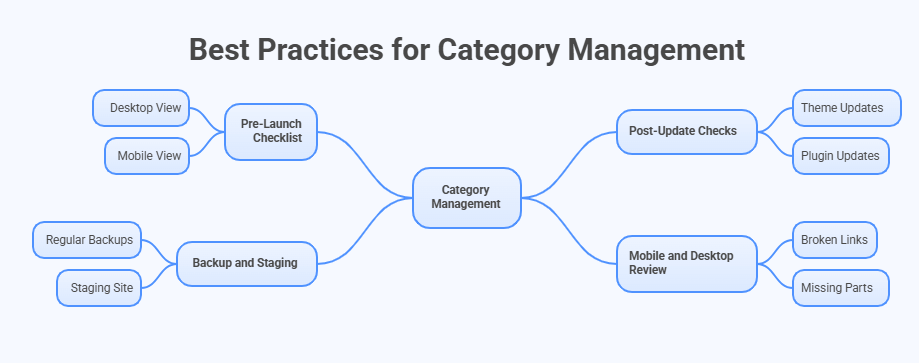
Pre-Launch Checklist
A quick check before opening your shop can prevent many small errors. Look at your shop page on both desktop and mobile views. Make sure category links, menu links, and filters open the right pages. Check widgets and product lists to confirm items show in the correct spots. This small step helps stop category issues early.
After Theme Or Plugin Updates
Updates often change small parts of your shop layout or product display. Open your shop page and look at two or three main categories. Add a simple item to the cart and move to checkout quickly. If anything looks odd, fix it before customers see it. This habit keeps your store safe after each update.
Backup And Staging Tips
A simple backup keeps your shop safe if something breaks during updates. A staging site lets you test big changes without hurting your live store. Try new themes, templates, or large plugin updates in this safe space. Many store owners use this step to avoid stress during changes. Regular testing here can prevent hard-to-fix issues.
Why Category Checks Matter
Small mistakes in categories often make products hard to find. This can hurt sales when shoppers cannot reach the right item page. Regular site maintenance, updates, and fixing slow WooCommerce pages can help your product categories load properly and prevent display errors in the future. Keep an eye on small changes after updates. These little checks protect your shop each week.
Mobile And Desktop Review Tips
Different screens can change how categories load or show. Always open your store on a phone and a laptop to compare views. Look for broken links or missing parts that only appear on one device. A quick refresh can show problems fast. This helps keep your store clear for all users.
These simple habits can help keep your categories working without stress. Small checks save you from big problems later on. Make time to review your store often so things stay clear. Use these steps to keep your shop fast, steady, and easy to use.
FAQs About How to Fix WooCommerce Product Category Not Showing?
If your WooCommerce product categories are not showing, you might still have a few questions about what causes this issue and how to keep your store running smoothly. Here are some common questions and answers to help you understand and fix the problem easily.
Why Are My WooCommerce Categories Not Updating After Adding Products?
Sometimes categories don’t update right away because of caching or delayed refresh. Clear both your website cache and browser cache, then reload the page. Also, check if your product is assigned to the correct category. Once cleared and checked, your new categories should show properly.
Can Missing Category Images Stop Them From Showing?
Yes, some themes hide categories if there’s no image added. Go to your product category settings and upload a clear image for each one. Then, refresh your shop page and see if the missing categories appear. This small step often helps fix invisible category blocks.
Why Do Categories Show On Desktop But Not On Mobile?
Your theme layout might use different display settings for mobile views. Open your website customizer and check the mobile layout preview. Make sure the category grid or menu is enabled for mobile. If not, turn it on or adjust your theme’s responsive settings.
How Can I Check If A Plugin Is Hiding My Categories?
Some plugins can change how your shop or product lists display. You can test this by deactivating all extra plugins and checking your shop page again. If the categories appear, reactivate plugins one by one until the issue returns. The plugin you last turned on is likely the one causing the problem.
Do Categories Disappear After Importing Products?
Yes, sometimes during import, products are added without linking to categories. After importing, edit a few products and make sure each one has the right category selected. Update the products and check your shop again. Once fixed, your categories should show normally.
Can WooCommerce Category Pages Go Missing After A Theme Update?
Yes, theme updates can change how shop pages load or override templates. If this happens, switch to a default theme like Storefront to test. If your categories return, it means your main theme needs an update or repair. You can then contact the theme developer for help.
Why Are My Categories Not Showing In The Shop Menu?
Sometimes, categories are not added to the menu by default. Go to Appearance > Menus and manually add the product categories you want. Save your menu, then check the shop page. Once added, your categories will appear in the navigation.
Can Wrong Page Links Stop Categories From Showing?
Yes, if your shop or category pages are linked incorrectly, they might not load the right view. Go to WooCommerce > Settings > Products and check the “Shop page” option. Make sure it’s set to the right page and save changes. After this, your categories should appear again.
Last Words
Many small settings and hidden rules inside WooCommerce can make your product categories disappear, but each issue has a simple fix. By checking your display options, making sure categories are not empty, testing your theme, and using helpful tools, you can bring everything back in place. These steps make your shop look clean and easy for visitors, and now you know how to fix WooCommerce product category not showing.
Keeping your store healthy becomes much easier when you check it often and update things with care. Always test new themes, watch how your pages load, and clear cache when something looks strange. Stay calm while fixing small issues and use safe tools when needed. Keep your store tidy, follow these simple tips, and I wish you the best as you grow your online shop.
