

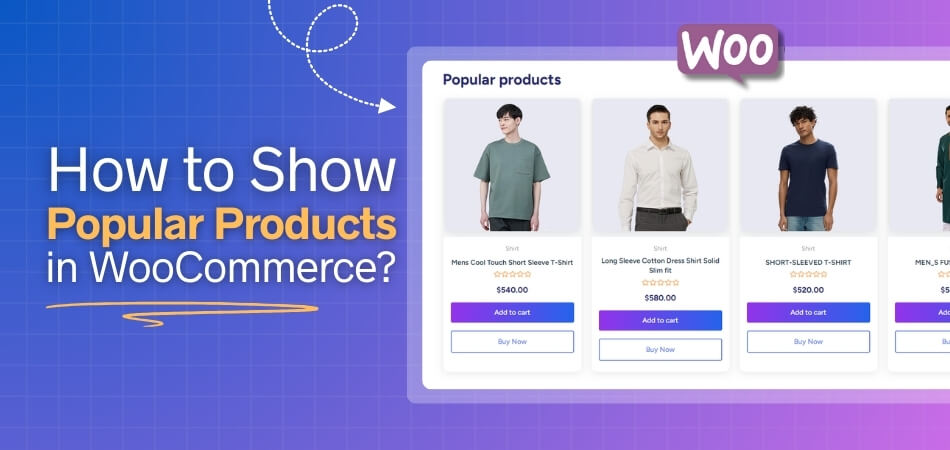
Wondering how to show popular products in WooCommerce in the best way? You can use the [[products]] shortcode with orderby=”popularity” to display popular products on any page or post. Alternatively, you can add a Popular Products widget to your sidebar or footer by going to Appearance > Widgets.
If you want to go further, set up a manual product list or create a custom product table to feature your top items dynamically. For a step-by-step guide on how to make the most of these options, keep reading the whole article.
How to Show Popular Products in WooCommerce?
1. Use the [Products] Shortcode with “orderby=popularity”
A quick and easy way to display popular products on any page or post is by using the [[products]] shortcode with the orderby=”popularity” parameter. This method doesn’t require any extra plugins, and you can display the top products based on their popularity directly on your site. Here’s how to use it:
- Go to your WordPress page or post editor. Add the following shortcode: [[products limit=”5″ columns=”5″ orderby=”popularity”]]
- limit=”5″: Specifies how many products to display.
- columns=”5″: Determines how many columns are shown.
- orderby=”popularity”: Orders the products by their sales popularity.
This method is ideal for stores with a small inventory or when you prefer manually controlling which products are highlighted.
2. Add a Popular Products Widget
Another simple method is using a Popular Products widget. WooCommerce includes widget options that let you feature best-selling items in your sidebar or footer, making them visible to customers as they browse other pages of your store. Here’s how you can add it:
- Navigate to Appearance > Widgets in your WordPress dashboard.
- Find the Popular Products widget (or similar widget, depending on your theme).
- Drag and drop it into the sidebar or footer section of your site.
- Customize the widget settings to match your needs, then save the changes.
This method automatically updates the popular products based on real-time sales data, so you don’t need to manually adjust the list.
3. Using Plugins for Popular Product Displays
For a more automated solution, plugins can help you dynamically display popular products based on sales or views. With the right plugin, you can make sure your best-sellers are always highlighted without manual updates.
- WooCommerce Product Recommendations: This plugin allows you to automatically show the best-selling products on various pages, like your homepage, shop page, or product pages. The products are displayed based on real-time data, meaning your store’s most popular items are always showcased.
- Custom Product Tables or Grids: If you want more control over the layout, you can use plugins that allow you to create custom product tables or grids. These tables can display popular products, sorted by factors like popularity, rating, or sales, and can be placed on any page of your store.
Displaying Popular Products Based on Customer Reviews
Customer reviews are a powerful tool for influencing purchasing decisions. Not only do they provide valuable feedback, but they can also help identify your most popular products. Displaying these top-rated products based on customer reviews can encourage more shoppers to make purchases and boost trust with reviews. Here’s how you can effectively highlight the best-selling items using customer reviews:
Highlight Top-Rated Products on Your Homepage
Displaying products with the best reviews on your homepage can immediately attract attention to high-quality, customer-approved items. Featuring these products prominently helps build trust with potential buyers, as they’ll see that others have had positive experiences with those items.

Use Product Pages to Feature Customer Ratings
Ensure that customer reviews are easily visible on product pages, especially those with high ratings. You can set up your product pages to automatically show “Top Rated” products based on reviews, making it clear which items have been favored by previous customers.
Create a “Best Seller by Reviews” Section
You can create a dedicated section on your website, like a “Best Sellers by Reviews” list, where you showcase products that have received the highest ratings. This section can automatically update based on review data, keeping your store dynamic and relevant.
Incorporate Verified Purchase Badges
Adding a “Verified Purchase” badge next to reviews boosts authenticity and trust. Customers are more likely to trust reviews when they see that they come from real buyers who have made an actual purchase. Highlighting these reviews can help increase conversion rates for your popular products.
Showcase Review Counts for Popular Products
Showing the number of reviews next to top-rated products helps customers see not only the rating but also the level of customer engagement. High-quality products with many positive reviews naturally attract more buyers, further solidifying their popularity.
Integrate Customer Reviews in Product Filters
Integrate customer reviews into your product filters by allowing customers to sort products by rating. This helps shoppers easily find top-rated products based on reviews, making it easier for them to discover your best-selling and most trusted items.
Use Reviews to Build Social Proof
Incorporating reviews into your product descriptions and on product images helps build social proof. The more positive reviews your products have, the more confident customers will feel in making a purchase, creating a cycle of trust and increasing sales.
How to Ensure Your Best Sellers Are Displayed in WooCommerce?
Displaying your best-selling products prominently in WooCommerce is essential for driving sales and enhancing the customer experience. If your top products aren’t showing up as expected, here are several strategies to ensure they are properly highlighted:
Set the Correct Product Categories and Tags
Ensure your best-sellers are properly categorized and tagged. Products with clear and accurate category associations are more likely to show up where customers expect them. Update your product categories or add specific tags like “Best Seller” or “Trending” to make them stand out.
Highlight Best Sellers in Product Descriptions
One way to ensure your best sellers stand out is by mentioning them within product descriptions. For example, include phrases like “Top-Selling Product” or “Customer Favorite” in the product text. This reinforces the popularity and importance of the item when customers view the product page.
Use Custom Badges or Labels
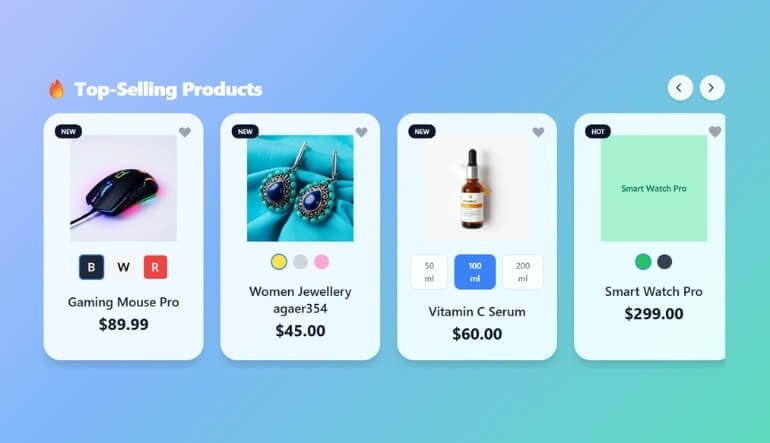
Create custom badges or labels such as “Best Seller” or “Popular Now” and display them on the product images of your top products. This draws attention to these items, and the visual appeal of badges encourages customers to check out your best-performing products.
Ensure Best Sellers Are Featured in Promotions
When running promotions or sales, make sure your best-selling products are included in the highlighted categories. Use banners, sliders, or promotional sections on your homepage or product pages that spotlight these items during special events or limited-time offers.
Utilize a Dynamic “Popular Products” Page
Consider creating a dedicated “Popular Products” page on your store where all top-selling products are grouped. This page can dynamically update based on sales performance, allowing customers to easily browse through your store’s most popular items.
Optimize Product Search and Filters for Best Sellers
Adjust your product search and filtering settings to make sure top-selling products are prioritized in the results. Set filters to allow customers to sort by popularity or “most viewed,” helping them find best-selling items quickly.
Monitor Analytics and Adjust Display Settings Regularly
Regularly check your WooCommerce analytics to track the performance of products. If certain items start performing better than others, adjust their display settings or move them to more prominent areas in your store to reflect their rising popularity.
Avoid Overloading Your Store with Too Many Popular Products
While showing your best-sellers is important, avoid overcrowding your store with too many “top products” at once. Instead, curate a select few to showcase in a featured section. This ensures that popular products stand out rather than getting lost in a sea of options.
Common Issues With Product Display in WooCommerce
While WooCommerce offers many ways to display popular products, sometimes issues arise that prevent them from showing correctly. Below are some common problems and their solutions:
- Product Variations Not Showing: Variations like size or color might not appear if they’re not properly configured. You can fix variations not showing in WooCommerce by checking that all variations have attributes and stock set up correctly, and ensure the parent product is properly linked.
- Out-of-Stock Products Still Showing: If out-of-stock products are still visible, adjust your inventory settings to hide them automatically or enable backorders for items that can be restocked soon, preventing these products from cluttering your store.
- Caching Issues: Caching plugins may serve outdated product pages, causing products to disappear or show incorrectly. Clear your cache regularly or disable caching plugins temporarily to ensure that your store displays the most current product listings.
- Incorrect Shortcodes or Widget Settings: Using incorrect shortcodes or widget settings can cause product display issues. Double-check your shortcode syntax, especially attributes like orderby=”popularity”, and ensure that widgets are set up to dynamically update popular products.
- Theme Conflicts: Sometimes, your theme might conflict with WooCommerce settings, preventing products from displaying. Test with a default WordPress theme like Twenty Twenty-One to see if the issue is related to your current theme’s compatibility with WooCommerce.
Tips for Improving Product Discovery in WooCommerce Stores
Enhancing product discovery in your WooCommerce store is essential to driving sales and keeping customers engaged. By ensuring that customers can easily find products they want, you increase the likelihood of a purchase. Here are some effective tips for improving product discovery:
- Use Product Filters for Better Navigation: Set up effective product filters for WooCommerce to let customers sort products by price, ratings, or popularity. This helps them find exactly what they need, improving their shopping experience and increasing conversions.
- Organize Products with Clear Categories: Ensure your products are divided into logical, easy-to-navigate categories. This allows customers to quickly browse and find what they’re looking for, streamlining the shopping process.
- Enable Search Autocomplete for Faster Discovery: Activate search autocomplete to suggest relevant products as customers type in the search bar. This speeds up the discovery process and helps them find products without having to finish typing.
- Highlight Popular and Best-Selling Products: Feature best-selling products prominently on the homepage or category pages. This guides customers toward popular items and encourages them to buy proven favorites.
- Add Related Products for Cross-Selling: Show related products on product pages to help customers discover complementary items. This increases their chances of finding something else they want, boosting sales and product visibility.
- Optimize Product Listings with Clear Descriptions and Images: Use clear, concise product descriptions and high-quality images to make it easier for customers to decide if a product meets their needs, improving both product discovery and confidence in purchasing.
Frequently Asked Questions (FAQs)
If you’re still unsure about how to display your popular products based on customer reviews or have any lingering questions, we’ve got you covered. This FAQ section provides answers to some of the most common queries related to showcasing best-selling products and using reviews effectively.
How Can I Show Popular Products Based on Customer Reviews in WooCommerce?
To display popular products based on customer reviews, you can manually create a “Best Sellers by Reviews” section or use product filters that allow customers to sort products by highest-rated. This can be done through custom product listings or widgets on your store.
Can I Display Popular Products Automatically in WooCommerce?
Yes, you can use WooCommerce product recommendation plugins or custom shortcodes to automatically display products based on their popularity, ratings, or reviews. These plugins dynamically update, making sure the most trusted products are always visible.
Do Customer Reviews Affect My Product Ranking in WooCommerce?
While customer reviews don’t directly affect your WooCommerce product ranking in search engines, they do influence the visibility and trustworthiness of a product. Positive reviews can encourage customers to purchase, which indirectly boosts product visibility within your store.
Can I Add a “Top Rated” Badge to Products Based on Reviews?
Yes, you can manually or automatically add a “Top Rated” badge to your best-selling or highest-rated products. This can be done through WooCommerce settings or by using a plugin that adds badges based on customer reviews and ratings.
What If My Best-Selling Product Has Negative Reviews?
If a popular product has negative reviews, it’s important to address customer concerns. Respond to the reviews, offer solutions, and possibly adjust product descriptions or features. Displaying customer reviews helps build trust, but managing negative feedback properly is key.
How Do I Filter Products by Reviews in WooCommerce?
You can use product filters for WooCommerce to allow customers to filter products by ratings and reviews. This makes it easy for shoppers to find top-rated products and provides a smoother browsing experience.
How Do I Encourage More Reviews for My Best-Selling Products?
To encourage more reviews, send follow-up emails asking for feedback, offer small incentives like discounts for leaving reviews, or make it easy for customers to leave reviews directly after their purchase. The more reviews a product receives, the more visible it becomes.
Should I Display Reviews on All Products, Even Those That Are Not Best-Sellers?
Yes, displaying reviews on all products can help improve product credibility and trust. Even if a product is not a best-seller, positive reviews can convince customers to purchase, and reviews provide valuable insights for product improvements.
Final Thoughts
Incorporating popular products into your WooCommerce store is a great way to engage customers and drive more sales. By using a combination of shortcodes, product filters, and customer reviews, you can easily highlight your best-selling items and ensure they are visible to your customers. Whether you choose to manually display products or automate the process with plugins, showcasing your top products can significantly boost user experience and trust in your store.
Now that you know how to show popular products in WooCommerce, it’s time to put these strategies into practice and watch your store thrive!
