

To understand how to show variations on the shop page in WooCommerce, the simplest approach is to use a plugin that displays variations in the product loop, adjust theme settings that support variation visibility, or add a small code snippet that outputs each variation directly on archive pages. These options let shoppers choose variations without opening the product page.
Displaying variations on the shop page makes browsing easier, reduces extra clicks, and helps customers quickly identify the exact option they want. Since WooCommerce hides variations by default, this guide covers multiple practical methods, plugins, code-based solutions, layout ideas, UX improvements, and troubleshooting steps to help you enable variation display smoothly.
What WooCommerce Variations Are and Why They Don’t Show by Default
WooCommerce variations are different versions of a product created from attributes like size, color, material, or weight. Each variation acts as a child product with its own price, image, and stock settings, allowing store owners to offer multiple options under one main product listing.

WooCommerce hides variations on the shop page for several reasons:
- Preventing Layout Overload: Displaying every variation directly on the shop page can overwhelm buyers with too many choices. WooCommerce avoids this clutter by showing only parent products, requiring users to open product pages to explore detailed options.
- To Maintain Faster Loading Speeds: Variations often include unique images and pricing. Showing them all together increases data requests and slows page performance. WooCommerce limits this to ensure smoother browsing, especially for stores with large catalogs or high-resolution product photos.
- Keeping Browsing Flow Simple: Some stores benefit from displaying only the main product to guide customers through a clean, organized layout. This helps avoid confusion, though it may require shoppers to make extra clicks to discover all available product options.
- To Balance Display and Usability: WooCommerce prioritizes a streamlined shop page by default. While this reduces visual complexity, many store owners prefer showing variations upfront to make shopping faster, reduce friction, and help customers confidently choose the right version.
How to Show Variations on the Shop Page in WooCommerce?
Showing product variations directly on the shop page can make browsing easier and help customers find the right option faster. Instead of opening each product page one by one, shoppers can view colors, sizes, and other choices right from the main catalog. Here are the easiest methods to display variations without expert help.

Method 1: Show Variations Using a WooCommerce Plugin (Beginner-Friendly)
Using a WooCommerce plugin is the easiest and most beginner-friendly way to display variations on the shop page. These tools handle all the heavy lifting, automatically detecting variable products and making your variations visible without any coding.
- Install a variation-display plugin from your WordPress dashboard: Go to Plugins → Add New and search for a plugin that supports variation visibility on archive pages. Install and activate it. These plugins automatically detect your variable products and prepare them for shop-page display.
- Enable variation visibility inside the plugin settings: Most plugins include an option like “Show variations on shop page,” “Show variations in loop,” or “Display variations as products.” Turn this on to make variations appear directly on category, archive, and shop pages.
- Choose how variations should appear on the shop page
Select your preferred style:- Individual variation cards
- Swatches under the parent product
- Dropdown selectors
- Image-based variation previews
This determines how customers interact with variations before opening the product page.
- Decide whether to hide or keep the parent product: Some owners prefer showing only variations, especially for products with many colors or sizes. Others keep the parent product visible, depending on how their product filters for WooCommerce handles variation-level visibility and filtering across the catalog. Adjust visibility settings based on what suits your catalog layout.
- Customize variation elements to match your layout: Plugins usually let you modify swatch size, colors, labels, variation thumbnails, and Add to Cart behavior. You can also enable dynamic price changes and image switching when different variations are selected.
- Save settings and refresh your shop page to confirm visibility: After updating the settings, check your shop page to confirm that variations display correctly. Adjust spacing, layout, or visual style if you want a neater or more intuitive appearance.
Method 2: Show Variations Using Custom Code (Advanced/Developer-Friendly)
For those comfortable with coding, using a custom code solution gives you full control over how variations are displayed on the shop page. This method is ideal for advanced users who want to fully customize their store’s layout and functionality.
- Add code to the functions.php file: Insert a custom snippet into your theme’s functions.php file to loop through variable products and display each variation on the shop page.
- Loop through and display variations: The code will extract variation details like size, color, and price, and display each variation as an individual product, complete with an image, price, and Add to Cart button.
- Add selection options on the shop page: Use dropdown menus or swatches to let customers select variations without needing to navigate to the product page. This can be done with simple HTML and CSS.
- Option to hide the parent product: You can choose to hide the parent product entirely, leaving only the variations visible. Alternatively, you can keep the parent product visible alongside the variations.
- Customize variation display: With custom code, you have the flexibility to adjust how variations are displayed, such as changing image sizes, adding hover effects, or modifying the layout to suit your design.
- Ensure mobile responsiveness: Test how the variations appear on mobile devices to ensure a seamless experience. Custom code may require tweaks to ensure everything looks good and functions well on all screen sizes.
- Optimize performance: Displaying numerous variations can affect page load speed. To prevent performance issues, ensure your code is optimized and consider using caching or lazy loading for images.

Method 3: Show Variation Swatches on the Shop Page
Variation swatches are a popular choice for displaying product options like color, size, material, or pattern. This method allows customers to instantly view and select variations directly on the shop page without navigating to the individual product page.
- Install a variation swatch plugin: To display variation swatches, install a WooCommerce plugin that supports swatches for attributes like color, size, and style. A few plugins are there that make it easy to add visual selection options.
- Configure swatch display options: Once installed, configure the swatch settings to choose the attribute(s) you want to display (e.g., color, size, texture). You can set swatches to show as color boxes, images, or labels.
- Customize swatch style and layout: Plugins allow customization of swatch size, shape, and layout to match your store’s design. You can modify swatch styles (round, square, or custom shapes) to fit the visual appeal of your products.
- Enable swatches for product categories: Show swatches for individual variations or group them under the parent product. For product-heavy stores, you can display swatches on category pages, making it easier for customers to compare options.
- Ensure swatch compatibility on mobile devices: Make sure swatches are easy to tap and interact with on mobile screens. Test the swatches to ensure they remain responsive and accessible on all devices.
Method 4: Improve Filtering When Showing Variations
When variations are displayed on the shop page, the filtering system becomes more powerful and effective. Customers can refine their choices by attributes like color, size, material, price, weight, and more, helping them quickly locate the version they want.
- Filters work best when variations are treated as separate items: By displaying variations separately on the shop page, customers can filter results by specific attributes like “Red” or “Large.” This ensures that only relevant products appear, streamlining the browsing experience and keeping the shop page organized.
- Enhance user experience with attribute-based filters: Allow shoppers to filter by key attributes such as color, size, and material. This gives customers control over their selection process, making it easier for them to find the product that matches their preferences.
- Integrate filters for weight-based products: If your store sells products by weight or uses weight-based attributes, filters are essential. Customers can refine searches based on weight, ensuring they find the right product faster. WooCommerce weight-based selling enhances variation navigation by enabling weight-based filtering.
- Ensure filters are updated when variations are selected: Make sure that when customers choose a variation, the filter results update accordingly. This helps avoid confusion and ensures that the user experience remains smooth. If variations are shown as separate products, ensure filters do not display unnecessary parent items.
- Maintain a clean and organized catalog layout: Good filtering ensures that your catalog stays clean and manageable. It helps prevent overwhelming customers with too many choices while guiding them directly to the variations they want.
SEO Considerations When Showing Variations on Shop Pages
When displaying variations directly on the shop page, SEO becomes a crucial factor. While showing variations can enhance visibility, it may also lead to duplicate content issues. Proper SEO strategies ensure that variations are indexed correctly and are not seen as separate pages by search engines. Here are the key SEO practices to focus on when showing variations on your WooCommerce shop page.

Use Canonical Tags to Avoid Duplicate Content
If you display variations as separate products, it may cause duplicate content issues. To avoid this, use canonical tags pointing to the parent product, which helps Google understand that variations are part of the main product, preventing them from being indexed as individual pages.
Index Significant Variations Separately
If the variations differ significantly (like fragrances, colors, or materials), they might warrant separate indexing. In such cases, adjust the titles, descriptions, and URLs for each variation. This can help improve rankings for specific variations and allow customers to find exactly what they’re looking for.
Optimize Attribute-Level SEO for Weight-Based Products
For stores selling weight-based products, attribute-level SEO can enhance visibility. By optimizing variations with specific weights or sizes, you can help search engines better understand product differences, improving the chances of your variations ranking individually for relevant queries.
Common Problems and How to Fix Them?
While showing variations on the shop page can enhance the shopping experience, it may come with certain challenges. Below are some common issues store owners face and how to resolve them effectively.
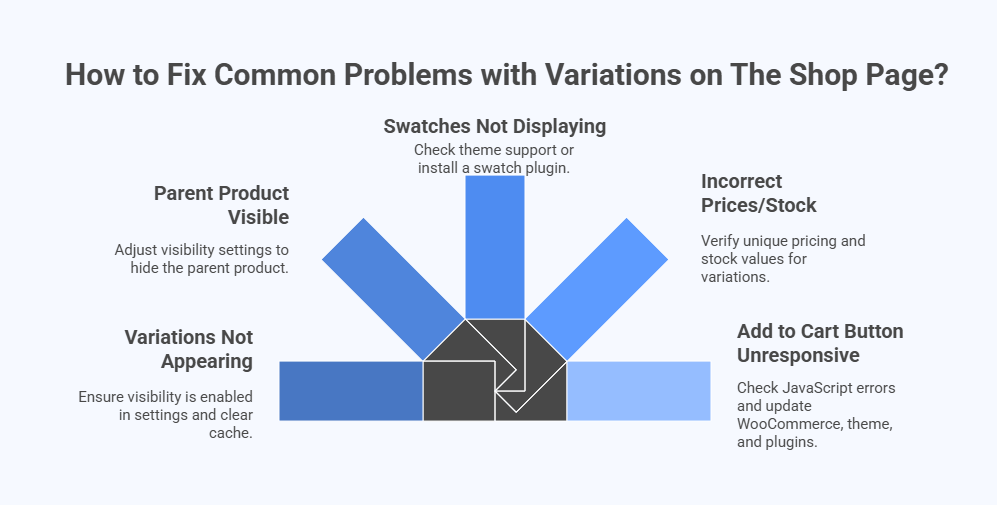
Variations Not Appearing on the Shop Page
If variations aren’t showing up on the shop page, it could be due to theme settings or plugin conflicts. To fix variations not showing in WooCommerce, ensure that variation visibility is enabled in the plugin or theme settings. Clear any cache if necessary.
Parent Product Appears Alongside Variations
Sometimes, the parent product remains visible along with its variations, which can cause confusion. Adjust the visibility settings in your plugin or custom code to hide the parent product, displaying only the variations for a cleaner, more streamlined page.
Variation Swatches Not Displaying Correctly
Variation swatches may not display as expected due to incompatible themes or conflicting plugins. Ensure that your theme supports swatches or install a dedicated variation swatch plugin. Test across devices to ensure the swatches are responsive and functional.
Incorrect Prices or Stock Information for Variations
Price or stock discrepancies between parent products and variations can confuse customers. Double-check that your product variations have unique pricing and stock values. If using a plugin, verify that it is syncing the correct data from WooCommerce product settings.
Add to Cart Button Not Working for Variations
If the “Add to Cart” button is unresponsive for variations, it may be due to JavaScript or AJAX issues. Check for JavaScript errors in the console and ensure that your WooCommerce version, theme, and plugins are fully updated to avoid compatibility issues.
FAQs About Showing Variations on the Shop Page
If you’re considering showing variations on the shop page or have already set it up, you might have some lingering questions. Here are the answers to the most common concerns and troubleshooting tips to help you make the most of this feature.
Can I Use Variation Plugins With Any WooCommerce Theme?
Yes, most variation plugins work with popular WooCommerce themes. However, compatibility may vary with some custom or older themes. Always check the plugin documentation to ensure it will work with your theme before installing it.
Will Showing Variations Directly on the Shop Page Slow Down My Site?
Displaying variations may slow down your site, especially if you have many variations or images. To minimize this, optimize your images and use caching to improve speed. Always test performance after enabling variations to ensure a smooth browsing experience.
How Do I Manage Inventory for Variations on the Shop Page?
Managing inventory for variations is easy in WooCommerce. Each variation has its own stock management, which you can control under the product settings. This ensures each variation has accurate stock levels displayed on the shop page.
Can I Display Price Differences for Variations on the Shop Page?
Yes, most plugins allow you to display price changes directly on the shop page when variations are selected. This feature enhances transparency, so customers can see the price difference between sizes, colors, or materials. It helps improve the shopping experience by setting clear expectations.
How Do I Add Variation Images for Each Option?
Adding variation images is simple in WooCommerce. Under each variation in the product settings, you can assign a unique image that will change when the customer selects a specific option. This visually helps customers understand the differences between variations like color or style.
Concluding Words
Learning how to show variations on the shop page in WooCommerce can significantly improve the shopping experience for your customers. By displaying variations directly on the shop page, you reduce the number of steps needed for customers to select the options they want, making it quicker and easier for them to purchase.
Whether you choose a plugin, custom code, or variation swatches, there are multiple ways to enhance product visibility and navigation. By implementing these methods, you’ll streamline your store and improve customer satisfaction, ultimately boosting your store’s performance and sales.
