

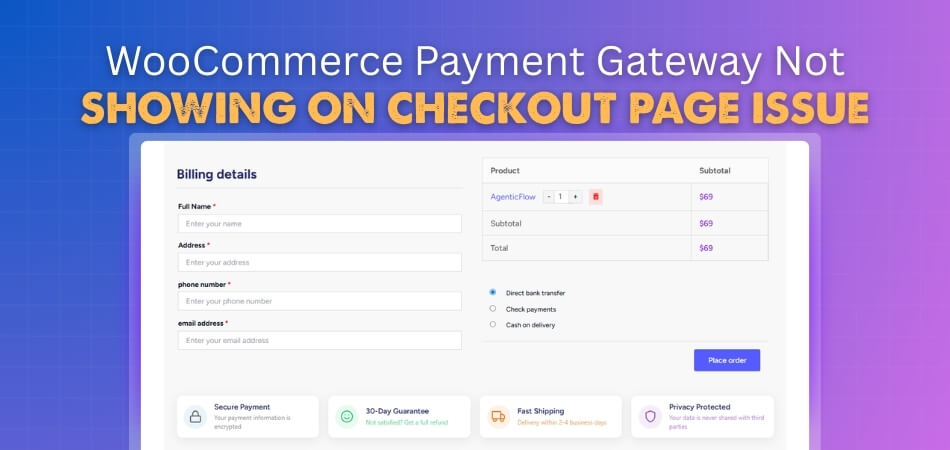
When you face the WooCommerce payment gateway not showing on checkout page issue, you should first check your payment settings and make sure the gateway is enabled. Clearing the cache or turning off plugins that may cause conflicts can also solve the problem quickly. Sometimes, the checkout block or wrong page setup can hide payment options without warning. If none of these fixes it, updating the gateway plugin or checking server logs often solves the issue right away.
Still worried about why your payment gateway is missing and what could cause this, or how to fix it fully? You’re not alone. This guide explains every reason and step you need to check. Keep reading and you’ll find all the answers you need in one place.
WooCommerce Payment Gateway Not Showing on Checkout Page Issue
Sometimes a payment option does not show up during checkout, and this can be confusing. Most of the time, it happens because of a simple setting or a small conflict inside your website. Below you will find the common reasons and how you can fix them step by step.
Payment Gateway Not Enabled or Set Up Properly
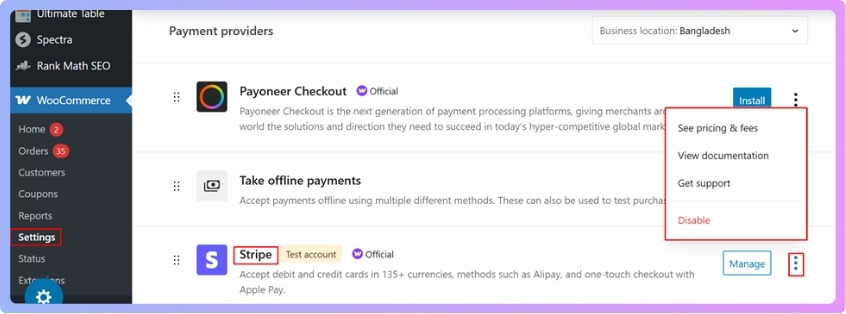
Make sure the payment option is turned on. Go to WooCommerce > Settings > Payments and check if the gateway is enabled. Then click the gateway name and confirm that all required details, like API keys or email, are correct. If anything is missing, the gateway may not show up.
Checkout Block Not Supported
WooCommerce now has a new Checkout Block. Some older payment gateway plugins do not support it yet.
What you can do:
- Check if you are using the Checkout Block on your checkout page.
- If yes, switch back to the Classic Checkout shortcode.
- Update your payment gateway plugin so it supports the new checkout style.
If the plugin is outdated, it may simply not appear on the page.
Plugin or Theme Conflicts
Sometimes another plugin or even your theme can block the payment gateway from showing.
You can test this by:
- Turning off all plugins except WooCommerce and the payment gateway.
- If the gateway appears, turn on other plugins one by one to find the problem.
- You can also switch to a default theme like Twenty Twenty Four to check if your main theme is causing the issue.
Using a staging site or the Health Check & Troubleshooting plugin makes this safe to do.
Wrong Checkout Page Setup
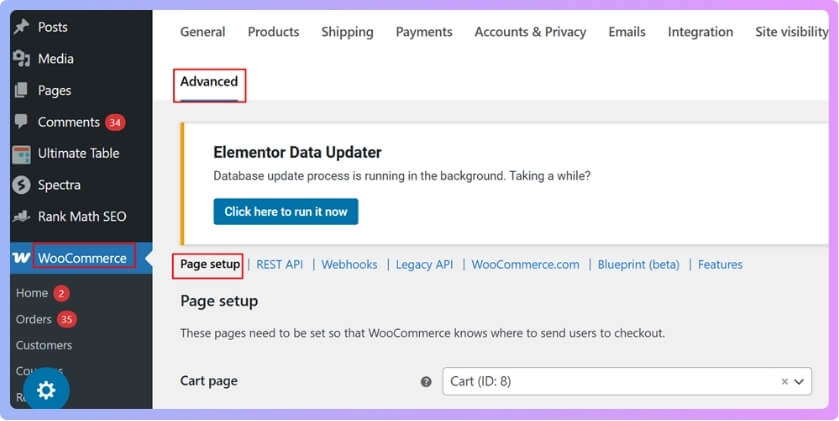
WooCommerce needs to know which page is your real checkout page. Check it by going to: WooCommerce > Settings > Advanced > Page setup. Make sure the Checkout page option is set to your actual checkout page. If it is wrong, your payment options may not load.
Cache Problems
Cache can keep showing an old version of your site.
Try clearing:
- Your caching plugin
- Browser cache
- Server cache (if your hosting provider provides it)
Once you clear all caches, check the checkout page again.
Country or Currency Restrictions
Some payment gateways do not work in every country or with every currency.
Check your gateway settings to confirm:
- The allowed countries
- The currency you selected in WooCommerce
If the gateway does not support your setup, it will stay hidden.
Server Errors or Code Problems
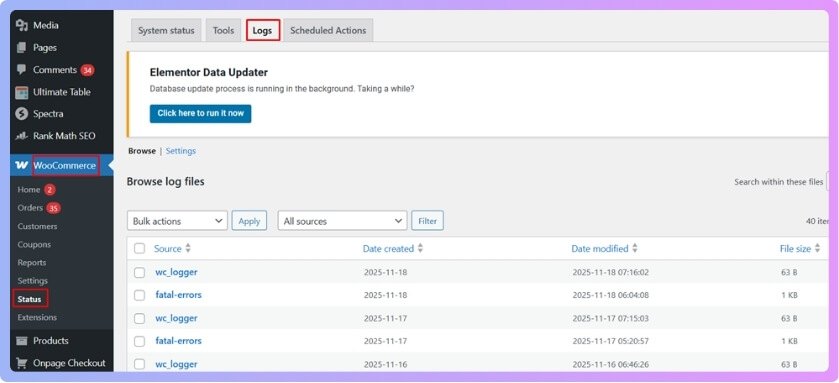
If none of the above steps work, there may be an error in the background. You can check logs here: WooCommerce > Status > Logs. Look for any errors related to the payment gateway. Your hosting provider’s error logs can also help you understand the problem.
By going through these troubleshooting procedures, you can easily find the cause and fix checkout page gateway issue in WooCommerce without much confusion. This will help you understand why the payment option is not showing during checkout.
Does Simplifying the Checkout Process Fix Missing Payment Options?
Yes, simplifying the checkout process can fix missing payment options in many cases because a cleaner layout reduces the chances of elements failing to load. When the checkout page is overloaded with steps, fields, or scripts, payment gateways may not appear correctly or may fail during loading. Streamlining the checkout removes these obstacles and helps WooCommerce display all available options without errors.
Speed and clarity make a big difference during checkout. Long forms or unnecessary fields slow down the page and can trigger conflicts that hide payment buttons or entire gateways. A lighter layout loads faster, reduces script clashes, and keeps the system stable while customers move through the final steps.
Using WooCommerce 1 Page Checkout can combine the cart and payment sections, giving everything in one place for quicker access. With a single page, it’s easier to test, update, and fix any issues without searching through multiple settings or plugin areas. This simple setup makes it more likely that all payment gateways will appear correctly without extra problems.
Default or Plugin-Based Troubleshooting: Which One is Best?
When fixing WooCommerce problems, you usually have two choices: stick with default settings or use extra plugins. Both options can help, but each has its own benefits and downsides. The table below compares them based on different aspects to help you decide what fits best.
| Aspect | Default Troubleshooting | Plugin-Based Troubleshooting |
| Ease of Use | Simple to use for those familiar with WordPress settings. | Often easier for beginners with user-friendly interfaces. |
| Setup Time | No extra setup needed, everything is already built in. | Needs time to install and configure the right plugin. |
| Control & Flexibility | Gives full manual control but may need more knowledge. | Plugins offer quick options, but may limit advanced settings. |
| Compatibility | Less risk of conflicts with your theme or other plugins. | May cause issues if not updated or poorly coded. |
| Performance Impact | Usually light on resources and doesn’t slow down the site. | Can add load to your site, depending on the plugin. |
| Features | Basic tools only, good for simple issues. | Comes with extra tools like debug logs, conflict tests, and reports. |
| Updates & Support | Managed by the WordPress and WooCommerce teams. | Depends on the plugin developer for updates and fixes. |
| Best For | Those who prefer direct control and minimal setup. | Users who want fast solutions with guided help and extra features. |
When Should You Contact the Payment Gateway Support Team?
Reaching the payment gateway support team is important when you face issues that you cannot solve with normal steps. They can check things on their side and help you understand what is really causing the problem. Below are clear points that explain when you should reach out for their help.
- System Loading Problems: You should reach out when your payment gateway keeps failing to load, even after checking all basic settings and options. This step helps confirm whether the issue comes from their side or something deeper inside your store setup needs attention.
- Pending Transaction Delays: Contact them when transactions show as pending for long periods and nothing moves forward despite setup and verified account details. Their team can check logs on their end and confirm if any verification step or security filter is blocking processing.
- Repeated Payment Declines: Reach out when customers report repeated payment declines, though their cards work elsewhere and your website shows no visible errors. Support teams can check card network responses and verify if the decline originates from gateway settings or external banking issues.
- Refund Processing Failures: Seek help when refund requests fail to process correctly, and your dashboard keeps showing an incomplete status without a clear explanation available. Their team can confirm refund limits, check logs, and help identify why certain transactions refuse to complete within the expected time.
- Currency Mismatch Problems: Reach them when you face currency mismatch problems that prevent specific payment methods from showing even after adjusting country settings. Support agents can review currency restrictions and confirm whether certain methods require special configurations before appearing on your checkout page.
- Errors After Updates: Contact support when your gateway plugin causes errors after updates, and nothing resolves the problem through settings or caching steps. They can guide you through deeper checks, confirm plugin compatibility, and offer solutions that stop repeated breakages after every update.
What Other Checkout Problems Can Appear With Payment Gateway Errors?
Many stores face checkout problems that seem small at first. These issues can hide deeper trouble inside the payment system. Slow pages or stuck steps can also start from simple payment errors. The following describes the connections and growth of these issues:
Slow Loading on the Checkout Page
Some checkout pages load slowly when the payment system has trouble responding to your store. This delay can stop the page from showing all steps the way it should. Shoppers may think the page is stuck and leave the site early. Slow loading can also break small scripts that help the page work. You can learn more about checkout fixes by checking simple settings or updates.
Order Steps Not Completing
A payment error can stop an order from moving to the next step. When this happens, the shopper might try to resolve missing order confirmation page issues by clicking again, but nothing moves forward. The page may stay in the same place and never confirm the order. This can also create double attempts that confuse the store. Checking logs can help you see where the step failed.
Cart Not Updating Properly
Some carts freeze when the payment system sends bad or late data. The cart may not refresh the final amount or tax values. Shoppers may see wrong totals that make them leave the page. This simple error can grow into missing items or wrong prices. Fixing the payment setup can stop these mistakes.
Buttons Not Responding
Sometimes, checkout buttons stop working because the site waits for payment data. If that data does not load, the button seems broken. Shoppers may click, but nothing moves to the next step. This makes the whole checkout feel stuck or empty. A small update to the payment plugin often fixes this issue.
Wrong Error Messages Showing
Payment errors can cause checkout pages to show messages that do not match the problem. Shoppers might see warnings about fields that are already filled. These mixed messages make checkout harder and less clear. Some people may think they typed something wrong. Resetting the gateway or clearing the cache often fixes wrong warnings.
Checkout Page Refreshing Without Reason
Some payment issues force the checkout page to refresh on its own. This can clear form fields and make shoppers start again. If it keeps refreshing, the page may never finish the order. These sudden reloads can break the whole checkout flow. Checking plugin conflicts can help stop this loop.
Shipping Options Not Appearing
Payment errors sometimes block other parts of checkout, like shipping details. If the page cannot load payment rules, it may hide shipping choices too. This makes the checkout feel incomplete or broken. Shoppers cannot finish their order without those options. Solving the payment issue often brings shipping choices back.
Fixing the Payment Gateway Issue Early on the Checkout Page: What Benefits Can You Get?
Payment problems slow down the checkout process for many store owners. These problems can scare buyers and stop store sales quickly. Fixing the issue early can keep the checkout safe and steady. Read below to see the clear benefits you can get.
Faster Checkout Flow
A quick fix helps the checkout load faster for every buyer visiting your store. Slow pages can confuse people and make them leave early. Payment errors often cause hidden delays that break small parts of the page. Fixing them keeps each step smooth and simple. A faster page also helps more orders finish without trouble.
More Successful Orders
When payment problems are fixed early, orders have a better chance of going through. A broken payment step can stop buyers from completing their order. Even a small delay can make the order fail without warning. Early fixes lower these risks and keep the process clear. This means happier buyers and more finished orders.
Fewer Cart Abandonments
Shoppers leave the site fast when checkout steps do not work right. A slow or broken payment option makes people lose trust. When the page does not load or shows errors, buyers stop trying. Fixing these issues early keeps the checkout safe to use. This reduces lost carts and helps more people finish buying.
Better Store Stability
A stable checkout keeps your whole store running well during busy times. Payment issues can spread and cause other parts to break. These problems may stop loading scripts or slow the site down. Fixing them early keeps the site working with fewer errors. A stable setup also helps plugins run the way they should.
Easier Troubleshooting Later
Early fixes help you avoid bigger problems that take more time and stress. Waiting too long can make errors stack up and grow worse. A small issue today may turn into a bigger one tomorrow. Fixing things early keeps your workload lighter and cleaner. This also helps you understand issues before they spread.
How to Test Your Checkout After Fixing the Problem?
Testing your checkout helps you make sure everything works right. It shows if any part still needs fixing or checking again. A clean test can stop future issues before they get bigger. You can follow the easy procedure listed below.
Make a Test Order
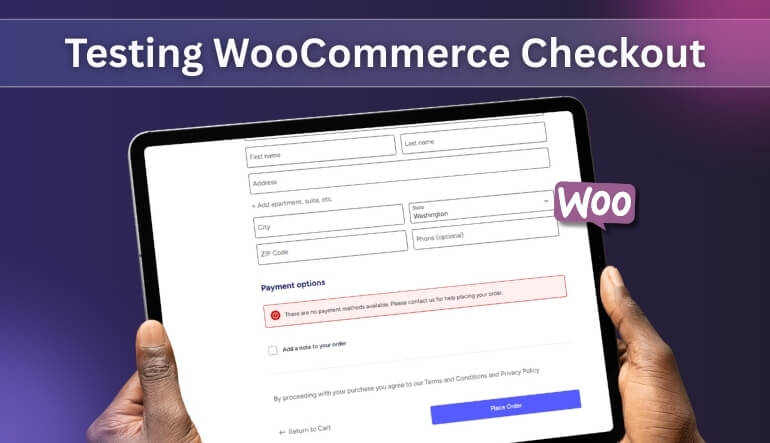
Running a test order helps you see the full checkout in real action. You can check if each step loads fine and moves forward. This also shows if the payment option works without errors. Try using a small test product so everything is simple to follow. A smooth test order means your fixes are working well.
View Logs
Checking logs helps you see hidden errors that do not appear on the page. These logs record small issues that may affect the checkout later. You can find lines that show slow parts or broken calls. Most gateways also add clear notes for failed steps. Reading these logs helps you confirm the checkout is safe.
Check Email Confirmation
After the test order is done, check the email you receive. This shows if the system sends order emails right on time. Missing emails may mean another issue still needs fixing. A correct email also shows that the order data is saved well. This step helps you confirm that the full order flow is working.
Check the Gateway Dashboard
Looking at the gateway dashboard helps you see if the payment went through. You can check the order status and confirm the payment record. If the dashboard shows errors, you may need small tweaks. A clean record means the payment step worked fine. This check gives you a clear view of the payment side.
Test on Mobile
Testing on a phone helps you see if the checkout works on small screens. Some pages load more slowly on mobile and can show new issues. You can tap each button and see if the steps move well. A test on WiFi and data can show more results. This helps you make sure all buyers can pay easily.
Commonly Asked Questions
You may still have a few questions after learning about the checkout and payment issues. This FAQ section gives simple answers to common doubts many store owners face. Read through them to understand things better and keep your store running smoothly.
Can a Slow Hosting Server Hide My Payment Gateways?
Yes, slow hosting can delay or block important calls that the payment system needs. When these calls fail, your gateway may not show at checkout. A weak server struggles to load scripts needed for payment tools. Upgrading hosting or enabling better caching helps reduce these delays and keeps payment options visible.
Why Does My Gateway Fail Only During Busy Hours?
When your site has many visitors, the server works harder to load everything. If it cannot handle the load, payment tools may stop working. Some gateways also limit high-volume requests, causing random failures. Checking hosting strength and enabling load support helps keep payment tools active during busy times.
Can Too Many Security Plugins Block Payment Gateways?
Yes, heavy security rules may block payment scripts by mistake. These blocks can break the gateway connection and stop it from loading. Some security tools misread payment callbacks as unsafe. Adding the gateway URLs or IPs to the allow list can bring everything back to normal.
Why Does My Payment Gateway Work in Sandbox But Not Live Mode?
Sandbox mode uses test servers that behave differently from live servers. When you switch to live mode, wrong credentials or blocked callbacks can cause failures. Many store owners forget to change their API keys to live keys. Double-checking settings helps your gateway function properly in real purchases.
Can a Coupon Code Stop a Payment Method From Showing?
Yes, some gateways block payments when coupon rules do not match their limits. If a coupon is set for a specific product or amount, the gateway may hide itself when the rule breaks. Removing the coupon during testing helps confirm if this is the issue.
What Happens If My SSL Certificate Is Not Fully Active?
Without proper SSL, your payment gateway may refuse to load for safety reasons. Gateways require secure pages to show sensitive fields. If your SSL is half-working or outdated, the gateway stays hidden. Reinstalling or renewing your SSL can bring the payment options back.
Can Incorrect Tax Settings Hide Payment Options?
Yes, if tax rules do not match the gateway’s country rules, the payment method may hide. Some gateways block checkout when the total becomes invalid due to incorrect tax values. Fixing tax rates helps the gateway appear again. Testing with different totals makes the issue easier to detect.
Final Thoughts
Many store owners deal with the WooCommerce payment gateway not showing on checkout page issue at some point. It can look complex, but most solutions turn out simple once you know where to check. A little time spent on early fixes can save many future headaches.
When the checkout works smoothly, buyers feel safe and complete their orders without stress. Clear steps, working payment buttons, and fast loading pages help build trust. Small fixes often create the biggest improvements in your store flow.
Keep testing your checkout, updating your tools, and watching for any new errors. With simple checks and care, your store can stay stable and easy for every buyer. A strong checkout leads to more sales and a better shopping experience.
