

A slow-loading store can be frustrating for both you and your customers. When visitors have to wait even a few extra seconds, they’re more likely to leave before completing a purchase. In today’s competitive online world, speed is no longer optional; it’s a key factor for success.
WooCommerce slow loading often happens due to poor hosting, heavy themes, or too many plugins running in the background. Even unoptimized images or outdated databases can add unnecessary weight to your site. The result? Slower performance, lower search rankings, and fewer sales.
Fortunately, fixing these speed issues isn’t as complicated as it sounds. With the right optimizations and smart maintenance, your store can load faster and perform better. Keep reading to discover the exact causes behind slow performance and learn simple, effective ways to speed up your WooCommerce store.
WooCommerce Slow Loading: Why It Happens?
Is your WooCommerce store taking too long to load, causing visitors to leave before checking out? A slow site can harm user experience, reduce conversions, and even affect your SEO ranking. Every second counts in online shopping, and understanding what slows your site is the first step toward fixing it. Let’s explore the common reasons behind WooCommerce slow loading before moving into practical solutions.
Weak or Shared Hosting Environment
Your hosting server plays a major role in how fast your WooCommerce store loads. Shared hosting often lacks the resources needed to handle product pages, images, and customer traffic efficiently. Switching to managed or VPS hosting can improve speed and stability, ensuring smoother product browsing and faster checkout.
Heavy Themes or Page Builders
Visually rich themes may look impressive, but often come with large files and unnecessary scripts. These slow down page rendering, especially on mobile. Lightweight, performance-optimized themes are always better choices. Before installing any theme, check how it performs with WooCommerce product filters and large product catalogs.
Too Many Plugins or Poor Coding
Plugins extend store functionality, but too many can overload your website. Poorly coded ones may conflict with WooCommerce scripts, causing longer response times. Keep only essential plugins and ensure they are updated regularly. Deactivating unnecessary ones can instantly boost loading speed and prevent script conflicts.
Unoptimized Images and Media
High-resolution product images make your site look attractive, but can slow it down dramatically if not optimized. Always compress images before uploading and use modern formats like WebP. Implementing lazy loading helps content load progressively, allowing users to interact faster without waiting for the entire page to render.
Bloated or Outdated Database
Over time, your database collects unused data such as old orders, transients, and revisions. This bloat slows down query execution and page loading. Regularly cleaning and optimizing the database keeps your WooCommerce store responsive and efficient. Tools like WP-Optimize can simplify this process safely.
No Caching or CDN Setup
Caching temporarily stores data so your pages load faster for returning visitors. Without it, WooCommerce regenerates pages every time they’re opened, increasing server load. A Content Delivery Network (CDN) further speeds things up by delivering content from servers closer to the user’s location.
A slow WooCommerce store isn’t permanent. By identifying the causes early, you can implement effective fixes in the next steps. In the following section, we’ll explore proven methods to optimize your WooCommerce store for better speed and consistent performance.
How to Optimize WooCommerce for Better Speed?
A fast WooCommerce store not only improves user experience but also increases conversion rates and search rankings. Even small tweaks can make a big difference in how quickly your store loads. If your website feels sluggish, optimizing its performance can help you deliver a smoother and more professional shopping experience. Let’s look at the most effective steps you can take to speed up your WooCommerce store.
Image Compression and Lazy Loading
Large product images are often the biggest cause of slow websites. Compressing images before uploading can reduce file size without affecting quality. Use plugins like Smush or ShortPixel to automate this process. Enabling lazy loading ensures images load only when visible on the screen, improving overall page speed.

Enabling Caching for Faster Delivery
Caching stores preloaded versions of your web pages, allowing visitors to see content faster. You can use caching plugins like WP Rocket, W3 Total Cache, or server-level caching offered by managed hosting providers. Proper caching reduces load times significantly and keeps your WooCommerce store running smoothly even during high traffic periods.
Using a Content Delivery Network (CDN)
A CDN distributes your site’s content across multiple servers worldwide. When customers visit your store, the CDN delivers data from the closest location, reducing latency. Popular CDNs like Cloudflare or BunnyCDN can be integrated easily with WooCommerce. This setup ensures faster delivery for global visitors and consistent speed across regions.
Minifying CSS and JS Files
Unnecessary spaces, comments, and formatting in CSS and JavaScript files can slow down your site. Minifying these files removes all extra data while keeping them functional. Tools like Autoptimize or WP Rocket can handle this automatically. Combined with caching, it reduces page weight and helps browsers process pages more efficiently.
Updating PHP and WooCommerce Version
Outdated software often slows down your site and causes compatibility issues. Always use the latest PHP version recommended by your host for maximum efficiency. Similarly, keep WooCommerce and your plugins updated. Newer versions often include performance improvements that make your store faster, safer, and more stable.
Disabling Unnecessary Scripts and Fonts
Themes and plugins sometimes load scripts or fonts on pages where they are not needed. This can slow down your store unnecessarily. Use plugins like Asset CleanUp or Perfmatters to disable them selectively. Doing this minimizes HTTP requests and ensures your store only loads what is required for each page.
By applying these optimization techniques, you can significantly enhance your store’s loading speed and user experience. Remember that optimization should work together with strong hosting and efficient plugin management, both of which we’ll explore in the next sections.
Hosting and Theme Performance: The Foundation of a Fast WooCommerce Site
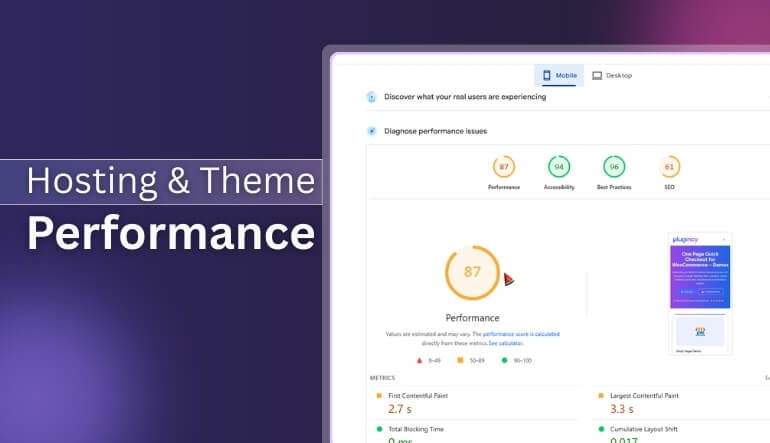
Your hosting and theme choices set the foundation for your WooCommerce store’s performance. Even if you optimize every image or plugin, poor hosting or a heavy theme can hold your site back. Selecting the right infrastructure ensures your website runs smoothly, loads quickly, and handles customer traffic efficiently. Let’s examine how hosting environments and theme quality impact overall WooCommerce performance.
Shared, VPS, and Managed Hosting Compared
Shared hosting is affordable but shares resources with many other websites, which can cause slow response times. VPS hosting offers dedicated resources and better performance. Managed WooCommerce hosting provides server-level optimization, security, and caching, making it ideal for stores with higher traffic or large product catalogs.
The Role of Server Resources and PHP Versions
A powerful server with adequate RAM and CPU helps your WooCommerce site load faster. Using the latest PHP version, such as PHP 8.2 or higher, significantly improves performance and reduces memory usage. Always ensure your hosting plan supports updated PHP versions and offers built-in caching for quicker responses.
The Impact of Themes on Site Speed
Themes determine how your website looks and how efficiently it runs. Heavy themes with multiple scripts and animations slow down page rendering. Lightweight and performance-focused themes, such as Astra, GeneratePress, or Storefront, deliver faster load times while maintaining a professional appearance and responsive design across all devices.
Choosing Optimized and Reliable Options
When selecting a hosting provider or theme, always look for features like integrated caching, CDN support, and compatibility with WooCommerce product filters. This ensures smooth performance, better user experience, and stable operation under varying loads. A combination of strong hosting and a clean theme gives your store a solid technical base.
Reliable hosting and an optimized theme are the building blocks of a fast, responsive WooCommerce store. Once these are properly set, you can focus on refining backend performance, which we’ll cover in the upcoming sections on plugins and database management.
Plugin Overload and Database Issues: Hidden Speed Killers
Many WooCommerce store owners focus on design and layout but overlook what happens behind the scenes. Excessive plugins and an overloaded database can silently slow down your website. These hidden factors often cause long loading times, unresponsive pages, and unexpected performance drops, especially during peak shopping hours. Here is how plugins and database issues can impact your WooCommerce speed.
Too Many Plugins Add Extra Load
Each plugin you install adds scripts, styles, and database queries. Having too many active plugins increases the number of requests your website must process. This overloads your server and slows down page rendering. Always keep only essential plugins and deactivate any that do not contribute to your store’s core functions.
Poorly Coded or Unused Plugins Create Conflicts
Not all plugins are built with performance in mind. Poorly coded plugins can conflict with WooCommerce scripts or each other, causing delays and errors. Unused or inactive plugins still take up resources and may cause vulnerabilities. Regularly audit your plugins and remove those that are outdated or unnecessary.
Cluttered Databases Cause Slow Queries
Over time, WooCommerce stores accumulate order data, post revisions, transients, and logs. These records increase the database size and slow down data retrieval. A cluttered database makes even simple operations sluggish. Using tools like WP-Optimize or Advanced Database Cleaner can safely remove old data and improve query speed significantly.
Monitoring Plugin Impact With Performance Tools
It’s important to identify which plugins slow down your website. Tools like Query Monitor or P3 Profiler help measure plugin performance by showing how much time each one adds to page loading. This makes it easier to decide which plugins to keep, update, or replace with faster alternatives.
By managing plugins wisely and maintaining a clean database, your WooCommerce store can perform faster and more reliably. In the next section, we will look at practical ways to reduce plugin bloat and eliminate unnecessary code for even smoother performance.
Tips for Reducing Plugin Bloat and Unused Code
Reducing plugin bloat is one of the simplest ways to make your WooCommerce store faster and more reliable. Every unnecessary plugin adds weight to your website and increases loading time. Cleaning up your plugins and unused code keeps your store efficient and helps prevent future performance issues. Here are some practical steps to keep your WooCommerce store lean and optimized.
- Keep Only Essential Plugins: Regularly review your installed plugins and deactivate those that are not directly supporting your store’s core functions. The fewer active plugins you have, the faster your WooCommerce site will load and perform.
- Replace Heavy Plugins With Lightweight Alternatives: Some plugins include extra features that your store might never use. Switch to lightweight or specialized alternatives that do one job efficiently without adding unnecessary scripts or styles to your pages.
- Disable Features You Don’t Use: Many plugins have optional settings that load extra scripts by default. Turn off the functions you don’t need to reduce requests and improve front-end performance across your WooCommerce product pages.
- Delete Unused or Inactive Plugins Completely: Even inactive plugins can affect performance and create potential security risks. Delete them instead of just deactivating, keeping your WordPress installation clean and lightweight for faster page response.
- Combine Functionalities Where Possible: Instead of using multiple plugins for related tasks, find one plugin that can handle several functions efficiently. This approach reduces code conflicts and helps your WooCommerce site process data faster.
- Use Tools to Disable Scripts Per Page: Plugins like Asset CleanUp or Perfmatters allow you to disable unnecessary scripts or styles on specific pages. This ensures each page loads only the code it needs, improving speed and stability.
If your store is facing display errors or visibility issues, optimizing plugins also helps in fixing products not showing on Shop Page WooCommerce by removing conflicts and improving database performance.
A cleaner setup always results in a faster WooCommerce store. By regularly reviewing your plugins and trimming unused code, you create a smoother, lighter shopping experience that keeps both users and search engines happy. In the next section, we’ll discuss how to maintain long-term performance for consistent results.
Maintaining Long-term Performance in Your WooCommerce Store
Keeping your WooCommerce store fast is not a one-time task. It requires consistent care, updates, and monitoring. Regular maintenance ensures that your website remains stable, secure, and responsive as your business grows and traffic increases. The goal is to maintain performance while avoiding common slowdowns over time.
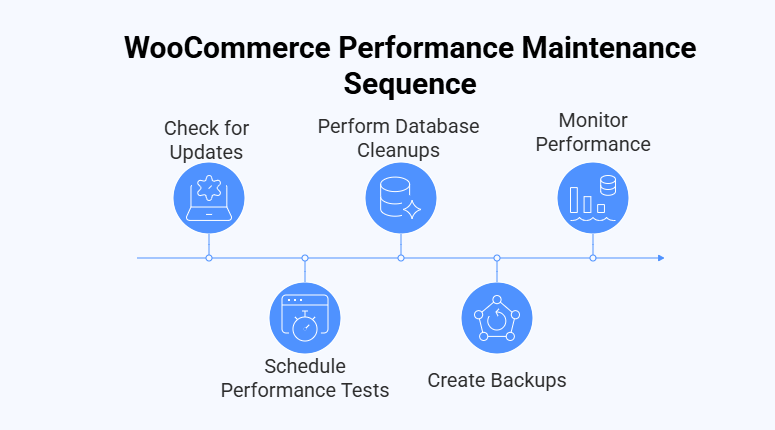
Let’s explore the key habits and practices that help sustain WooCommerce speed in the long run.
Regular Updates for Plugins, Themes, and WooCommerce
Outdated plugins, themes, and WooCommerce versions can slow down your store and create security risks. Make it a routine to check for updates weekly or bi-weekly. Updated versions often include bug fixes and performance improvements that help your store stay optimized and compatible with the latest WordPress setup.
Schedule Monthly Performance Tests and Database Cleanups
Running regular performance tests helps identify issues before they affect your customers. Use tools like GTmetrix or Google PageSpeed Insights to monitor your site’s health. Monthly database cleanups and a quick check WooCommerce product data table keep your store lightweight and ensure faster query processing.
Create Backups Before Major Updates
Before updating WooCommerce or essential plugins, always back up your website. Backups protect you from potential data loss or conflicts that may occur after updates. Use reliable backup plugins or your hosting provider’s backup system to ensure your files and database remain safe and recoverable.
Continuous Monitoring With Performance Tools
Monitoring tools like UptimeRobot or Pingdom can track your store’s uptime and speed in real-time. These alerts help you react quickly if your site experiences slowdowns or downtime. Continuous monitoring ensures that performance remains consistent even during high traffic periods or new feature additions.
Maintaining long-term WooCommerce performance means committing to regular updates, cleanups, and monitoring. A fast store is not built overnight but maintained through consistent attention and care. Keep optimizing, testing, and refining because a fast, reliable WooCommerce store builds lasting trust and higher customer satisfaction.
Frequently Asked Questions
Speed optimization often raises a few practical questions for WooCommerce store owners. Below are some of the most common ones that go beyond the basics and help you maintain a fast, reliable, and user-friendly online store in the long term.
How Can I Test My WooCommerce Store Speed Accurately?
You can use free tools like GTmetrix, Pingdom, or Google PageSpeed Insights to check your store’s speed. These tools show what slows your site and give suggestions for improvement. Testing regularly helps you track performance changes after updates or new plugin installations.
Does Using Too Many Product Variations Slow Down WooCommerce?
Yes, having hundreds of variations for a single product can increase database queries and slow down your site. Try splitting large products into smaller listings. Using variation optimization plugins can also help reduce loading time without affecting user experience.
How Often Should I Clean My WooCommerce Database?
It’s good practice to clean your database at least once a month. Regular cleanup removes old orders, revisions, and temporary data that take up space. This simple maintenance task helps keep your website responsive and ensures smooth performance.
Can a CDN Improve Loading Speed for Local Visitors Too?
Yes, a CDN benefits both global and local users. It delivers your content from the closest available server, reducing waiting time. Even if most of your traffic is local, a CDN ensures steady speed and reliability during busy hours.
What Is the Best Image Format for WooCommerce Products?
The best format for product images is WebP because it keeps high quality with a smaller file size. If that’s not available, use optimized JPEGs. Smaller images load faster and help customers browse your store more comfortably.
How Can I Keep My WooCommerce Store Fast During Traffic Peaks?
Use caching, a CDN, and a good hosting plan that can handle sudden traffic surges. Also, keep plugins minimal and scripts optimized. This combination ensures your store remains fast and responsive even during special promotions or sale events.
Are Page Builders Bad for WooCommerce Speed?
Not necessarily, but some page builders load unnecessary scripts and styles. Choose lightweight builders like Elementor or Gutenberg and disable unused widgets. Proper configuration helps you enjoy design flexibility without hurting WooCommerce site performance.
Concluding Words
WooCommerce Slow Loading can seem like a small issue at first, but it has a big impact on your store’s performance and customer satisfaction. A fast, responsive site keeps visitors engaged and encourages them to complete their purchases confidently.
By understanding what slows your store down and applying the right fixes, you can improve speed, reliability, and overall user experience. From better hosting to cleaner plugins and optimized images, every step counts toward smoother performance.
Remember, website speed isn’t a one-time task but an ongoing process. Regular maintenance, updates, and monitoring will help your WooCommerce store stay fast and efficient. Keep optimizing, stay consistent, and watch your online store deliver better results every day.
