

A stock status filter helps shoppers see only products that are currently available for purchase. Instead of clicking into items that cannot be bought, users can filter results by In Stock, Out of Stock, or On Backorder, which reduces frustration and improves buying flow.
In this guide, you will learn how to add WooCommerce filter by stock status using built-in options and advanced AJAX filtering methods. We will also cover common issues, conversion impact, and SEO considerations so that availability filtering improves usability without harming performance or indexing.
Quick Answer
WooCommerce stock status filters work by filtering products based on availability settings. To add one, you need a filter that can read in-stock, out-of-stock, or backorder product states and display them on shop or category pages.
Use the steps below to confirm that stock-based filtering is visible and working correctly. Advanced setups are explained later in the guide.
- Make sure stock management is enabled in WooCommerce
- Use a filter widget, block, or AJAX filter that supports stock status
- Add the filter to the shop or category layout
- Test filtering for In Stock and Out of Stock products
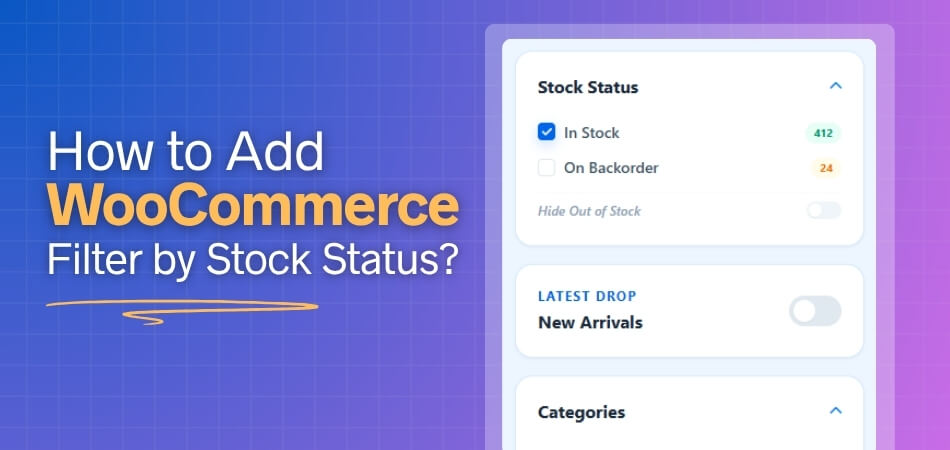
What Does WooCommerce Filter by Stock Status Mean?
WooCommerce filter by stock status means allowing shoppers to narrow product results based on product availability. Instead of viewing every product in a catalog, customers can choose stock-based options such as In Stock, Out Of Stock, or On Backorder to find products that match their buying intent.
Stock status filtering is different from showing the exact stock quantity. A stock quantity tells how many units are available, while stock status tells whether a product can be purchased, is unavailable, or can be ordered later.
For example, if a shopper only wants products ready to ship, they can select In Stock and remove unavailable items from the product grid. If your store accepts backorders, shoppers can also filter products that are not currently available but can still be ordered.
When Stock Status Filters Are the Right Choice
Stock status filters work best for WooCommerce stores where product availability changes often, inventory is limited, or customers need to find purchasable items quickly. They help shoppers avoid unavailable products and keep the buying journey focused.
This type of filter is most useful when availability directly affects the purchase decision, and shoppers are ready to act instead of casually browsing.
Stock status filtering works best when:
- Products go out of stock frequently
- Immediate purchase or fast checkout matters
- Customers leave after seeing unavailable items
- Backorders are part of the buying process
- Seasonal or limited-stock products need clearer browsing
Unlike rating, color, or brand filters, stock status filters remove non-actionable products from the shopping path. This helps customers focus on items they can buy now or order based on your store’s availability rules.
Stock status filters are ideal when product availability matters more than comparison or discovery.

Preparing Your Store Before Setting Up Stock Status Filter
Before adding a stock status filter, make sure WooCommerce has accurate inventory data to filter from. A stock filter can only work properly when product availability, backorder rules, variation stock, and catalog visibility settings are configured correctly.
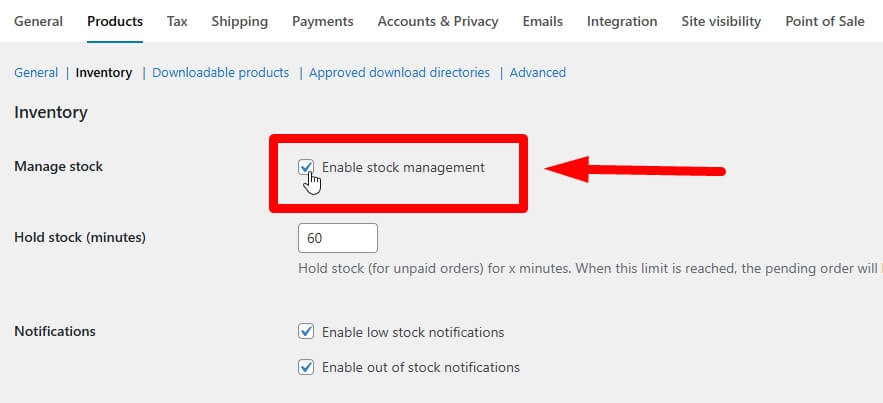
Step 1: Enable Stock Management
Start by checking whether WooCommerce stock management is active. This allows your store to track inventory and assign product availability more reliably.
Step-by-Step Setup: Inventory Settings
- Go to WooCommerce → Settings
- Open Products → Inventory
- Enable stock management if your store tracks product quantities
- Review low-stock and out-of-stock settings
- Save the changes
Step 2: Set the Correct Stock Status for Products
Each product should have the right availability status before you add a filter. If the product stock status is wrong, the filter may show incorrect results.
Step-by-Step Setup: Product Level
- Go to Products → All Products
- Edit a product
- Open Product Data → Inventory
- Set the stock status as In Stock, Out Of Stock, or On Backorder
- Update the product
Step 3: Review Backorder Settings
Backorder settings affect whether products can still be purchased when stock is unavailable. Check this carefully if your store allows customers to order items before restock.
Step-by-Step Setup: Backorders
- Open the product inventory settings
- Find the backorder option
- Choose whether backorders are allowed
- Decide whether customers should be notified
- Save or update the product
Step 4: Check Variable Product Stock
Variable products may use separate stock settings for each variation. Review these settings so the stock filter does not show misleading results.
Step-by-Step Setup: Variations
- Edit the variable product
- Open Product Data → Variations
- Review each variation’s stock status
- Check variation-level stock quantity if enabled
- Update unavailable or backordered variations
- Save the product
Step 5: Decide Whether Out-of-Stock Products Should Stay Visible
Before adding the filter, decide whether unavailable products should still appear in the catalog. Some stores hide out-of-stock items, while others keep them visible for restock interest, waitlists, or product comparison.
Step-by-Step Setup: Catalog Visibility
- Go to WooCommerce → Settings → Products → Inventory
- Find the option to hide out-of-stock items from the catalog
- Enable it if you only want purchasable products visible
- Leave it disabled if you want shoppers to see unavailable products
- Save the settings
Stock status filters depend on accurate inventory settings. Review product stock status, backorders, variable products, and out-of-stock visibility before adding the filter to your shop page.
How to Add WooCommerce Filter by Stock Status: 3 Proven Methods
Once stock data is ready, add the stock status filter to the shop, category, or product archive layout. The exact method depends on whether your store uses classic widgets, block templates, or an Ajax product filter plugin. Here are the details of each method to add WooCommerce filter by stock status to your store.
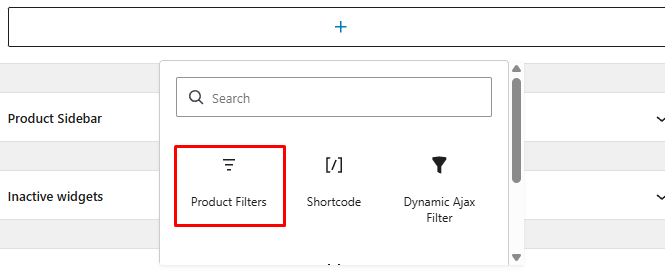
Method 1: Add Stock Status Filter Using Widget
Classic WooCommerce themes usually rely on sidebar or widget areas for product filters. This method works well when your shop page already has a sidebar, and you only need a simple stock status filter without advanced styling or AJAX behavior.
Step-by-Step Setup
- Go to Appearance > Widgets
- Open the Shop Sidebar or product archive sidebar
- Add Product Filters or the available stock filter widget
- Keep the stock filtering options to show
- Save the widget area
- Test the filter on the storefront
Method 2: Add Stock Status Filter Using WooCommerce Block
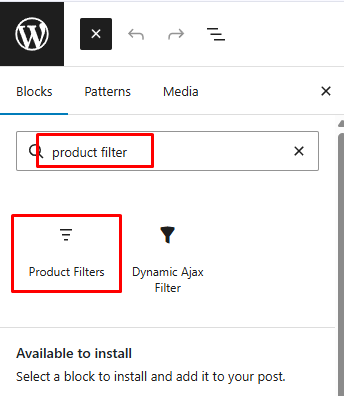
Block-based WooCommerce stores handle product filters inside templates instead of traditional sidebars. This method is better when your shop or product catalog layout is managed through the Site Editor and filters need to appear inside the page structure.
Step-by-Step Setup
- Go to Appearance > Editor
- Open Templates
- Choose Shop, Product Catalog, or the product archive template
- Add the Product Filters block
- Keep the stock filter inside the block
- Save the template
- Test the filter on the shop page
Method 3: Use AJAX Stock Status Filtering (Recommended)
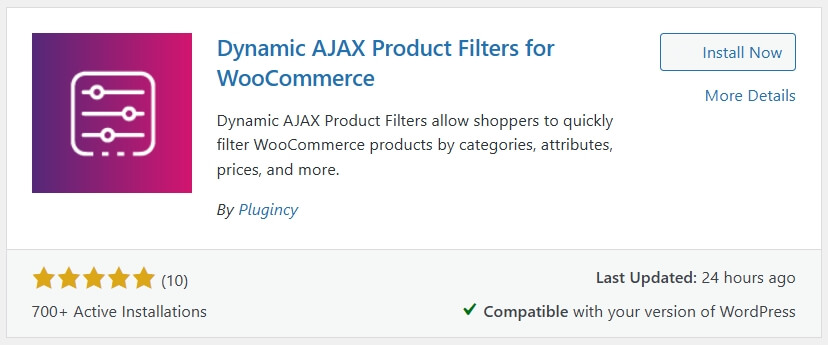
AJAX stock filtering is better for stores where shoppers need faster availability-based results without waiting for full page reloads. Plugins like dynamic Ajax product filters for WooCommerce give more control over filter placement, display style, and stock-based browsing across larger catalogs. Here’s the process.
Step 1: Install the Plugin
Free Version
- Go to Plugins > Add New Plugin
- Search for Dynamic AJAX Product Filters for WooCommerce
- Click Install Now
- Click Activate
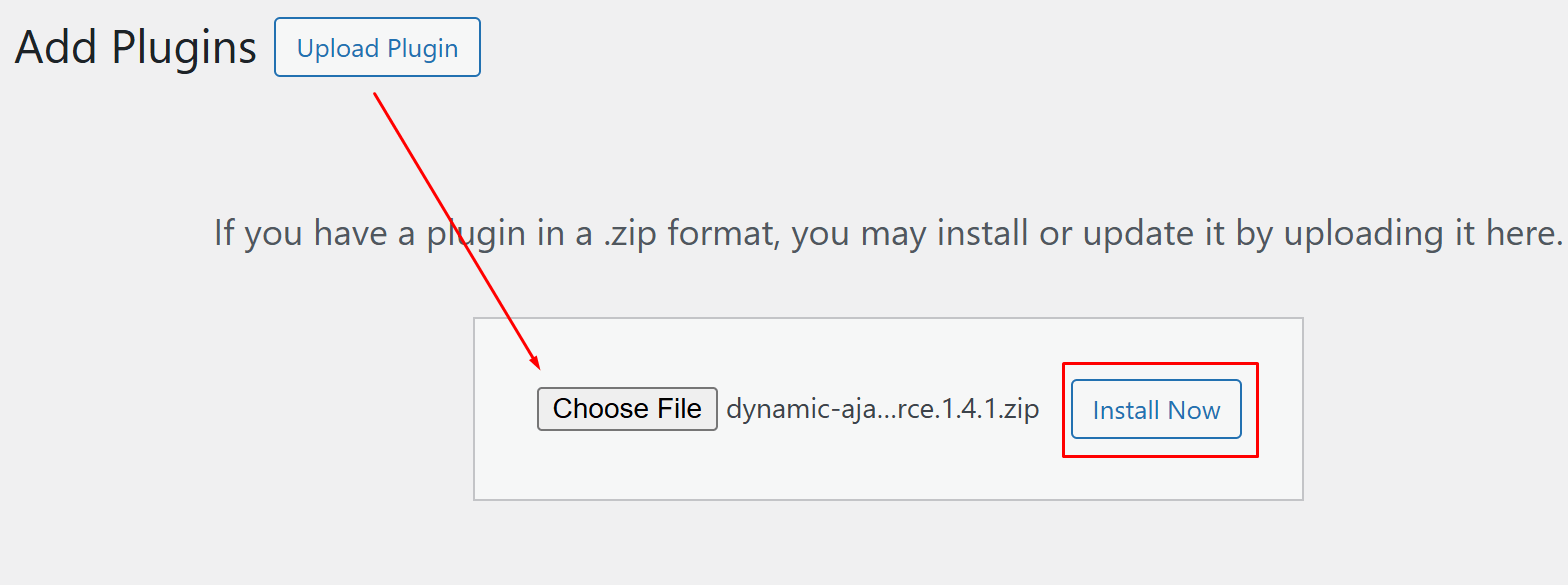
Pro Version
- Download the Pro ZIP file from the official source
- Go to Plugins > Add New Plugin > Upload Plugin
- Upload the ZIP file
- Click Install Now
- Click Activate
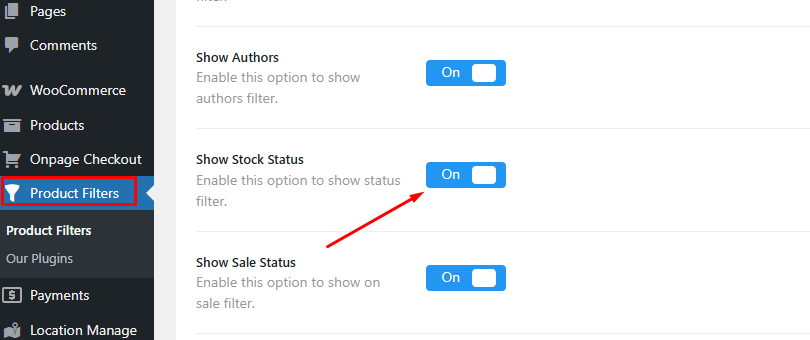
Step 2: Enable Stock Status Filtering
- Go to Product Filters > Form Manage
- Find the stock status filter option
- Enable it for the filter form
- Save the settings
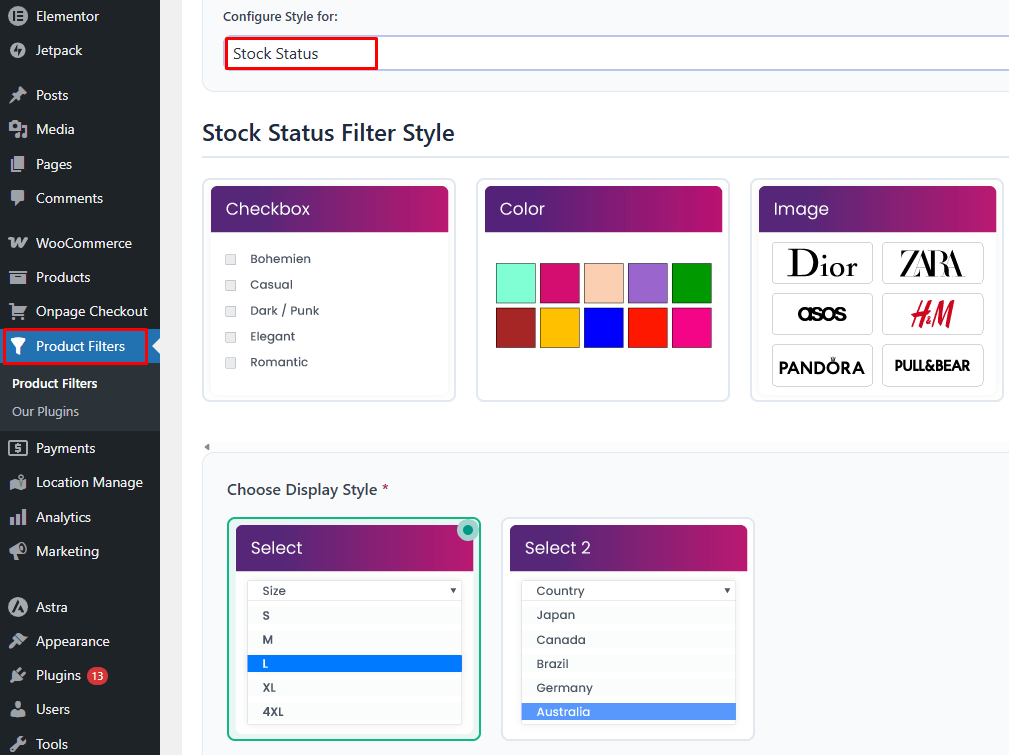
Step 3: Choose the Filter Display Style
- Go to Product Filters > Form Style
- Open the stock status filter style settings
- Choose the display style based on the filter style
- Save the style settings
Step 4: Add the Filter to the Storefront
- Open the shop page, category page, sidebar, or product archive section
- Insert the shortcode: [[plugincy_filters]]
- Save or update the page
- Test the filter on desktop and mobile
Hiding Out-of-Stock Products in WooCommerce
WooCommerce lets you hide out-of-stock products from shop and category pages through inventory settings. This is useful when you only want customers to see products that are currently available, but it works differently from a stock status filter because shoppers cannot choose availability options themselves.
Step-by-Step Process
- Go to WooCommerce > Settings
- Open Products > Inventory
- Find Out of stock visibility
- Enable Hide out of stock items from the catalog
- Click Save changes
- Visit the shop page and check whether unavailable products are hidden
This setting helps keep the catalog focused on buyable products. However, stores that accept backorders, collect restock interest, or want customers to compare unavailable items may prefer a stock status filter instead of hiding out-of-stock products completely.
Which Method Should You Choose
Choose the stock status filter method based on your WooCommerce theme, catalog size, and filtering needs. Widget and block methods are useful for basic store layouts, while AJAX stock filtering is better for larger catalogs where shoppers need faster results without full page reloads.
| Method | Best For | Main Benefit | Limitation |
| Widget Method | Classic themes and sidebar layouts | Simple setup through widget areas | Limited layout and behavior control |
| Block Method | Site Editor and block-based stores | Fits modern WooCommerce templates | Options depend on Product Filters block support |
| AJAX Stock Filtering | Larger catalogs and mixed availability | Faster filtering without full page reloads | Requires plugin setup |
Key Takeaway:
Use widgets for classic sidebars, blocks for Site Editor layouts, and AJAX filtering when stock-based browsing needs to be faster and more flexible.
Available Stock Filter Options to Show
Show stock filter options that match how customers buy from your store. Most WooCommerce stores should highlight In Stock products first, while Out Of Stock and On Backorder options should appear when they support restock interest, preorders, or flexible buying decisions. With a WooCommerce Ajax product filter plugin, you can present these options in a smoother, more shopper-friendly way.
| Stock Option | When to Show It | Best For |
| In Stock | When shoppers need products available for immediate purchase | Most WooCommerce stores |
| Out Of Stock | When unavailable products still have value for browsing, restock alerts, or comparison | Stores with waitlists or restock interest |
| On Backorder | When customers can still order products before restock | Preorder, made-to-order, or supply-based stores |
| Low Stock | When limited availability helps create urgency | Seasonal, limited-edition, or fast-moving products |
Show In Stock for most stores, add On Backorder when customers can still order, and use Out Of Stock only when unavailable products still serve a purpose.
Conversion Tips for Stock Status Filters
Stock status filters can improve WooCommerce conversions by helping shoppers find products they can act on immediately. When availability is clear, customers waste less time on unavailable items and move faster toward products they can buy, backorder, or compare with confidence.
Use the following tips to make stock status filtering more useful for shoppers and more effective for conversions.
- Place In Stock First: Show the most actionable option first so shoppers can quickly filter products that are ready to purchase.
- Use Clear Availability Labels: Use simple labels such as In Stock, Out Of Stock, and On Backorder so customers understand each option immediately.
- Avoid Showing Useless Stock States: Do not display Out Of Stock if unavailable products have no restock, waitlist, preorder, or comparison value.
- Support Backorder Decisions: If backorders are allowed, make the On Backorder option visible and explain expected availability on product pages.
- Keep Mobile Filtering Easy: Use a dropdown, collapsible filter group, or slide-out filter panel so stock options do not push products too far down.
- Match Filters With Product Badges: Use consistent stock labels on product cards so shoppers see the same availability message before and after filtering.
- Test High-Intent Categories: Add stock filters first to categories where availability matters most, such as seasonal products, limited items, fast-moving goods, or B2B catalogs.
- Combine With Fast Checkout Paths: Stock filters work better when available products lead to a smooth product page, cart, and checkout experience.
Troubleshooting: When Stock Filter Is Not Working
When a WooCommerce stock filter is not working, the issue usually comes from incorrect stock status, filter placement, visibility settings, cache, or variation inventory. Check product stock data first, then confirm the filter is added to the right shop, category, widget, or template area.
| Problem | Likely Cause | Fix |
| Stock Filter Does Not Appear | Added to the wrong layout area | Place it in the correct sidebar, shop page, or product archive template |
| In Stock Shows No Products | Products are not marked in stock | Check Product Data > Inventory and update stock status |
| Out Of Stock Products Still Appear | Catalog visibility allows them | Review WooCommerce > Settings > Products > Inventory |
| Backorder Results Look Wrong | Backorder rules are inconsistent | Check product and variation backorder settings |
| Variable Products Filter Incorrectly | Variation stock settings differ | Review stock settings for each variation |
| AJAX Filter Does Not Update | Cache or scripts block filtering | Clear cache and check script optimization settings |
| Mobile Filter Is Hard To Use | Layout is not mobile-friendly | Use dropdown, collapsible, or off-canvas filtering |
Most stock filter issues come from wrong stock settings, misplaced filters, cache conflicts, or variation-level inventory problems.
FAQs About WooCommerce Filter by Stock Status
WooCommerce stock status filters help shoppers narrow products by availability, but store owners often have related questions about backorders, variable products, visibility, and performance. These FAQs cover practical details that matter after the basic filter setup is complete.
Can Stock Status Filters Work With Variable Products?
Yes, stock status filters can work with variable products, but variation inventory must be configured correctly. If each variation has separate stock rules, review the availability settings for every variation before testing the filter.
Should I Show Backorder Products in Stock Filters?
Show backorder products only when customers can still place orders and the expected availability is clear. If backorders create confusion or long delays, it may be better to keep them separate from regular in-stock products.
Can I Use Stock Filters on Category Pages Only?
Yes, stock filters can be placed on specific category pages if your theme, block layout, or filter plugin supports category-level placement. This is useful when availability matters more in some product groups than others.
Do Stock Status Filters Affect Store Speed?
Stock filters can affect speed on large catalogs, especially when combined with many other filters. AJAX filtering, caching, optimized queries, and clean product data can help keep the browsing experience faster.
Should Out-Of-Stock Products Be Indexed by Search Engines?
Out-of-stock products can stay indexed if they have long-term value, restock demand, or useful product information. Temporary or low-value unavailable pages should be handled carefully to avoid thin or outdated search results.
Final Note
Stock-based filtering works best when availability is accurate, easy to understand, and visible at the right point in the shopping journey. Shoppers should be able to tell quickly which products are ready to buy, which ones are unavailable, and which ones can still be ordered.
Learning how to add WooCommerce filter by stock status helps you turn inventory data into a better browsing experience. Set up stock statuses carefully, choose the filter method that fits your store layout, and use AJAX filtering when your catalog needs faster, smoother availability-based product discovery.
