

Seeing the right stock in WooCommerce admin should mean your storefront shows the same thing, but that is not always what happens. With WooCommerce stock updates in admin but not frontend, the inventory change is usually saved correctly, while customers still see an older stock message, the wrong availability, or a product page that no longer reflects the latest stock update.
This guide helps you verify where the mismatch is happening, narrow down which display layer is responsible, and restore a frontend stock view that reflects the latest admin update more reliably.
Why Admin Stock And Frontend Stock Can Show Different Results?
Admin and frontend stock do not always move through the same display path in WooCommerce. That is why the saved inventory can be correct in the dashboard while the storefront still shows a different stock state. Before looking at the deeper display issues, it helps to understand the main reasons those two views stop matching.
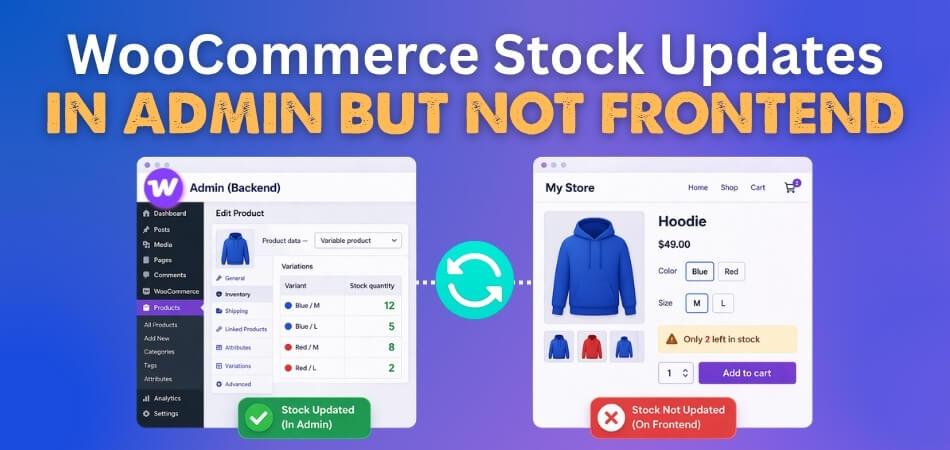
- Admin Reads Saved Stock More Directly: The dashboard usually reflects the latest stored inventory without passing through extra storefront display layers.
- Frontend Passes Through Display Logic: Product pages often load stock through themes, templates, plugins, or other presentation-related output rules.
- Stock Messages Are Not Always Raw Quantities: The storefront may translate quantity into labels like in stock, low stock, or unavailable.
- Cached Pages Can Delay Visible Changes: A product page may keep serving an older stock message even after the admin value updates.
- Variation Selection Can Affect What Appears: Variable products may change the visible stock state based on the option a customer selects.
- Different Storefront Areas Can Load Stock Differently: Shop pages, product pages, and cart elements may not all refresh stock in the same way.
How To Confirm The Stock Mismatch Is Real
Before treating this as a frontend stock issue, it helps to confirm that the mismatch is actually happening across the store view and not just in one limited spot. A quick check at this stage makes the rest of the troubleshooting process much clearer.
- Compare the product quantity in admin with the stock shown on the live product page.
- Check whether logged-in admins and guest visitors see the same stock message.
- Test the same product on the shop page, product page, and cart view.
- See whether the mismatch affects one product or several products.
- Refresh the page and check whether the stock message changes after a hard reload.
Common Causes And Fixes For WooCommerce Stock Updates In Admin But Not Frontend
This kind of stock mismatch usually happens when WooCommerce saves the inventory change correctly, but the storefront keeps pulling an older, delayed, or rewritten version of that stock state. The real issue is often not the stock edit itself, but the layer that controls what shoppers still see afterward.
Once the mismatch is confirmed, the next step is to check the most common points where frontend stock display falls out of sync with the latest admin update.
Cached Product Pages Keep Showing Older Stock
Frontend stock can stay wrong when cached product pages continue serving an older availability message after the admin value has already changed. This is one of the most common reasons the dashboard looks correct while the live store still shows stale stock.

Fix:
- Clear your caching plugin cache.
- Purge server-level cache if active.
- Refresh the product page in a private browser window.
Server-Side Cache Holds Stale Inventory Data
Some stores keep serving older stock data through Redis, LiteSpeed, Cloudflare, or other server-side caching layers. In that case, clearing only the WordPress cache may not be enough to bring the frontend in line with the latest inventory update.
Fix:
- Check whether server-side caching is active.
- Purge Redis, LiteSpeed, or CDN cache if used.
- Retest the same product after clearing every cache layer.
Product Lookup Tables Are Out Of Date
WooCommerce may save the stock change correctly while the lookup data used by the storefront stays behind. When that happens, frontend stock can remain wrong even though the admin quantity already reflects the latest update.
Fix:
- Go to WooCommerce > Status > Tools.
- Run Regenerate product lookup tables.
- Reload the affected product and compare frontend stock again.
Stock Display Settings Do Not Match What You Expect
Sometimes the issue is not the saved stock value, but how WooCommerce is set to display it. If the stock display format is not aligned with what you expect to show on the storefront, the frontend message can feel incorrect even when the quantity is saved properly.
Fix:
- Go to WooCommerce > Settings > Products > Inventory.
- Review the Stock display format setting.
- Adjust it if you want the storefront to show stock more clearly.
Theme Or Plugin Output Changes The Stock Message
Some themes and plugins present stock information through their own display logic instead of showing WooCommerce output in a more direct way. That makes it important to confirm that frontend stock stays clear and consistent, especially on stores using a WooCommerce multi locations inventory management plugin.
Fix:
- Switch to a default theme temporarily.
- Disable non-WooCommerce plugins during testing.
- Retest the product to see whether the stock message changes.

Product Data Needs A Fresh Save
In some cases, the stock update exists in admin, but the storefront does not fully refresh until the product is saved again. This can happen after edits, imports, or sync delays that leave the frontend reading older product data.
Fix:
- Open the affected product in admin.
- Click Update again without changing anything major.
- Check whether the frontend stock message refreshes afterward.
Variable Product Stock Is Managed At The Wrong Level
Variable products need stock to be handled at the correct level for the frontend to show the right availability. If the variation stock is incomplete or only the parent product is being relied on, the storefront can show the wrong stock message even when the admin looks updated.
Fix:
- Check stock settings on each variation.
- Make sure variation-level stock is managed where needed.
- Confirm the parent product is not masking variation availability.
Custom Code Or Hooks Override Frontend Stock Output
Custom snippets in functions.php or other theme/plugin hooks can change how stock is displayed without affecting the stored quantity itself. That makes the admin value look right while the storefront still follows custom output rules instead.
Fix:
- Review recent stock-related snippets or custom hooks.
- Disable custom stock display logic during testing.
- Retest the product after removing the override.
What To Check After The Fixes?
Frontend stock is only fully back on track when the live store reflects the same inventory state as the admin across the views shoppers actually use. After applying the fixes, the goal is to confirm that stock visibility now stays aligned instead of slipping back into the same mismatch.
- Match Admin And Frontend Stock: Confirm the live product page now reflects the latest stock saved in the WooCommerce admin.
- Compare Guest And Logged-In Views: Make sure both visitors and logged-in users now see the same stock message.
- Review Shop And Product Pages Together: Verify that catalog listings and single product pages now show the same availability.
- Test Variation-Based Stock Display: For variable products, make sure each selection now shows the correct stock state.
- Align Cart And Product Availability: Confirm the cart behavior now matches the availability shown on the product page.
- Retest After A New Stock Update: Make sure the same mismatch does not return after the next inventory change.
When Frontend Stock Visibility Becomes Harder To Control
Frontend stock can look manageable in a smaller store, but it becomes harder to keep accurate once inventory changes happen more often across more products and locations. At that point, the challenge is no longer just fixing one mismatch. It becomes making sure the storefront keeps showing the right stock state without constant checking.
- Frequent Stock Changes: Stock messages become easier to miss when inventory changes happen throughout the day. What looks correct after one update can quickly fall behind after the next.
- Larger Product Catalogs: A growing catalog means more product pages, more category views, and more stock-sensitive areas to keep aligned. That makes frontend mismatches harder to catch before customers notice them.
- Variable Product Display: Variable products add another layer because the visible stock message can change with each selection. One incorrect variation display can make the whole product feel unreliable to shoppers.
- Multiple Selling Locations: Stock visibility gets more difficult when availability depends on different branches, warehouses, or pickup points. The storefront has to reflect the right stock state without creating confusion across locations.
- Extra Display Layers: Themes, plugins, and AJAX-based elements can all influence how stock appears on the storefront. That creates more room for the live stock message to drift away from the saved admin value.
- Manual Review Limits: Manual checking may work for a small store, but it becomes much harder as operations grow. Repeated stock reviews take time and still do not guarantee that every mismatch will be caught.
Better Frontend Stock Control With Multi Location Product & Inventory Management
Keeping frontend stock accurate gets harder when inventory has to stay aligned across changing quantities, different selling locations, and multiple product views at once. In that kind of setup, stronger stock control is not just about updating inventory. It is about making sure the storefront keeps reflecting the right availability with less guesswork.
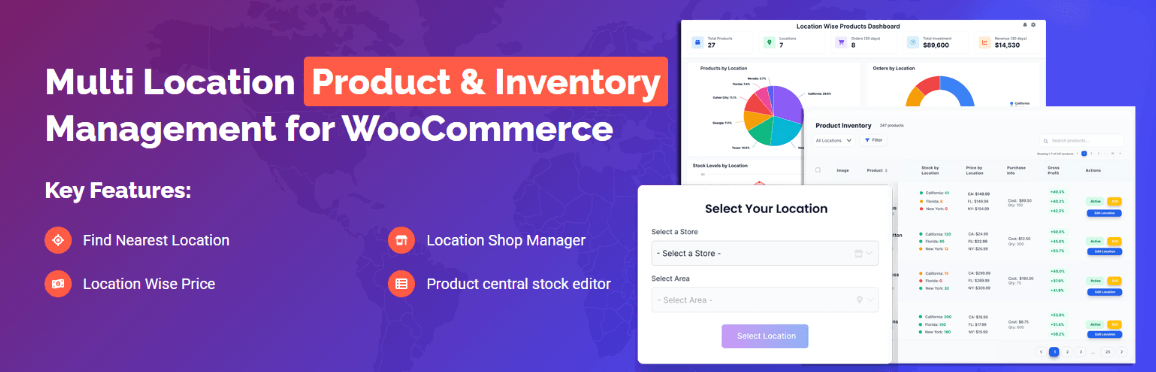
Stores facing that kind of pressure often need a more structured inventory flow, and multi location product management for WooCommerce gives them a clearer way to manage that visibility across the storefront.
- Stock display stays closer to live inventory conditions.
- Location-based availability becomes easier to manage clearly.
- Storefront visibility feels more stable after stock changes.
- Product pages reflect stock with better consistency.
- Inventory workflows become easier to trust as stores grow.
Frequently Asked Questions
Frontend inventory issues often lead to a few follow-up questions once the main cause becomes clearer. These FAQs focus on the practical concerns store owners usually have when they want product availability to stay more accurate and dependable across the storefront.
Why Does The Frontend Sometimes Show The Wrong Stock Only For Certain Users?
Different users do not always load the storefront the same way. Logged-in admins, regular visitors, and returning users can see different stock states depending on how the page is being served.
Can Stock Look Correct On The Product Page But Wrong Somewhere Else?
Yes, that can happen when different storefront areas use different display paths. A product page, shop page, or cart view may not all refresh stock in the same way.
Why Does The Mismatch Sometimes Come Back After It Looks Fixed?
A frontend stock issue can return when the next stock update passes through the same delayed display path again. That is why one successful refresh does not always mean the wider problem is gone.
Does Product Complexity Make Frontend Stock Harder To Keep Accurate?
Yes, because stock visibility becomes harder to manage when products have variations, multiple display states, or more than one inventory source behind them.
When Does Frontend Stock Need A More Structured Setup?
That usually becomes clear when stock visibility depends on too many moving parts to trust simple fixes alone. At that stage, stores often need a setup that keeps the inventory display more consistent across the storefront.
Final Thoughts
WooCommerce stock updates in admin but not frontend usually points to a visibility gap rather than a failed inventory edit. The stock change may already be saved correctly in WooCommerce, while the storefront still shows an older or differently interpreted stock state.
Once that starts happening repeatedly, quick fixes alone become harder to trust. A more structured inventory flow gives store owners better control over stock visibility, steadier frontend accuracy, and a more reliable way to keep product availability aligned across the store.
