

WooCommerce inventory not reducing automatically usually happens when stock reduction is not triggered at the correct stage of the order process. This can be caused by incorrect order status settings, delayed payment confirmation, disabled stock management, or conflicts with caching and plugins. In most cases, fixing stock timing and ensuring a proper order flow resolves the issue quickly.
Quick Answer: WooCommerce Inventory Not Reducing Automatically
WooCommerce inventory usually does not reduce automatically when stock management settings are off, the order status does not trigger stock deduction, payment is delayed, or another plugin interrupts the checkout process. In some cases, caching, custom code, or inventory rules can also stop stock from updating correctly after an order is placed.
- Stock reduction is tied to order status
- Payment delays can prevent stock updates
- Stock management may be disabled
- Plugins or cache can interrupt the process
How WooCommerce Stock Issues Appear in Real Orders?
Before fixing the issue, it’s important to understand how it shows up in real scenarios. These patterns indicate that WooCommerce stock is not reducing on order as expected.
- Orders complete but stock remains unchanged: Customers can place orders successfully, but inventory does not decrease. This leads to inaccurate stock tracking and increases the risk of overselling.
- Stock updates only after manual intervention: Inventory changes only when you manually update product data or adjust the order status, indicating that automatic stock reduction is not being triggered.
- Multiple orders accepted for limited stock: WooCommerce continues accepting orders even when stock should have reached zero, which usually points to delays in stock reduction timing.
- Stock reduces inconsistently across products: Some products update correctly while others do not, suggesting differences in configuration or conflicts at the system level.
When WooCommerce Reduces Stock (Order Flow Explained)
WooCommerce does not always reduce stock immediately after an order is placed. Inventory updates depend on how your store handles order status, payment confirmation, and stock management settings.
- Stock reduction depends on order status: WooCommerce reduces stock only when an order reaches a defined status such as “processing” or “completed.” If an order remains in pending or failed status, stock will not be reduced automatically.
- Payment method can delay stock updates: Some payment gateways require confirmation before completing the order. This delay can postpone stock reduction, making it appear that WooCommerce stock is not decreasing automatically.
- Stock management settings control automation: If automatic stock management is disabled at the global or product level, WooCommerce will not update inventory automatically, even when orders are successfully placed.
This is why WooCommerce inventory not reducing automatically is often related to order flow timing rather than product configuration alone.

Where WooCommerce Stock Reduction Fails in the Workflow?
Instead of listing generic reasons, this section highlights the key control points where WooCommerce stock reduction fails during the order workflow.
- Order status does not progress correctly: If orders remain stuck in pending payment or failed status, WooCommerce does not trigger stock reduction. This results in inventory mismatches and creates the impression that stock is not updating.
- Stock management is disabled at global or product level: When stock tracking is turned off in WooCommerce settings or at the product level, the system ignores inventory changes completely, even when orders are placed successfully.
- Checkout flow is modified by plugins or custom logic: Custom checkout solutions or plugins can bypass WooCommerce’s default stock reduction triggers. This prevents inventory from updating automatically during the order process.
- Background processes or cron jobs are not running: WooCommerce relies on scheduled tasks to handle some updates. If cron jobs fail or are delayed, stock updates may not execute properly, leading to WooCommerce inventory not reducing automatically.
These failure points show that WooCommerce inventory not reducing automatically is often caused by interruptions in the order workflow rather than issues with product setup alone.
Fix WooCommerce Inventory Not Reducing Automatically (Action Steps)
Use these practical steps to restore automatic stock reduction and ensure WooCommerce updates inventory correctly during the order process.
- Enable automatic stock management globally: Go to WooCommerce settings and ensure stock management is enabled. Without this, WooCommerce will not track or update inventory automatically.
- Set the correct stock reduction timing: Configure WooCommerce to reduce stock when an order is placed instead of waiting for payment confirmation, especially if your store uses delayed payment methods.
- Verify order status transitions: Make sure orders move from pending to processing or completed correctly. If orders get stuck, stock reduction will not be triggered.
- Disable conflicting checkout plugins temporarily: Test your store without custom checkout plugins to identify if they are bypassing WooCommerce’s default stock update process.
- Clear cache and WooCommerce sessions: Remove cached data from your site, server, and CDN to ensure real-time stock updates are reflected correctly on the frontend.
These steps directly address the most common causes of WooCommerce inventory not reducing automatically and help restore accurate stock updates.
Advanced Troubleshooting for WooCommerce Stock Reduction Issues
WooCommerce updates inventory through a sequence of events triggered during the order lifecycle. When an order is placed, the system must validate the product, confirm payment or order status, and then execute stock reduction.

If any step in this process is delayed, skipped, or interrupted, WooCommerce inventory will not update automatically. This is why issues like WooCommerce inventory not reducing automatically are often caused by workflow interruptions rather than simple product configuration problems.
WooCommerce Stock Update Flow: Triggers vs Failure Points
| Trigger Event | Expected Action | Failure Point | Result |
|---|---|---|---|
| Order Created | Prepare stock reduction | Order stuck in pending status | No stock update |
| Payment Confirmed | Reduce stock | Payment gateway delay | Delayed stock update |
| Order Processing | Final stock deduction | Hook or plugin conflict | Stock not reduced |
| Cache Refresh | Display updated stock | Cached or outdated data | Incorrect stock shown |
This breakdown shows that WooCommerce inventory not reducing automatically is usually caused by failures in the stock update workflow rather than a single configuration issue.
Best Practices to Ensure Reliable WooCommerce Stock Updates
To prevent WooCommerce inventory not reducing automatically, it’s important to maintain a stable setup where stock updates are triggered consistently across your store.
- Use real-time stock reduction settings: Configure WooCommerce to reduce stock at the right stage of the order process. Real-time updates help prevent delays that can cause inventory mismatches.
- Ensure consistent order status flow: Make sure orders move smoothly from pending to processing or completed. Proper order flow ensures that stock reduction triggers without interruption.
- Avoid modifying WooCommerce core checkout logic: Customizing the checkout process without understanding stock triggers can break inventory updates. Keep core logic intact unless necessary.
- Use a reliable inventory management solution: For stores with complex checkout flows, multiple products, or high traffic, using a structured solution like Plugincy helps maintain accurate stock updates across orders, payments, and real-time inventory changes without conflicts.
Following these practices helps maintain consistent inventory behavior and prevents WooCommerce stock not decreasing automatically issues in the long run.
Recommended Solution: Multi Location Product & Inventory Management for WooCommerce
For stores managing inventory across multiple warehouses, stores, or fulfillment centers, a dedicated solution like Multi Location Product & Inventory Management for WooCommerce by Plugincy provides complete control over stock operations.
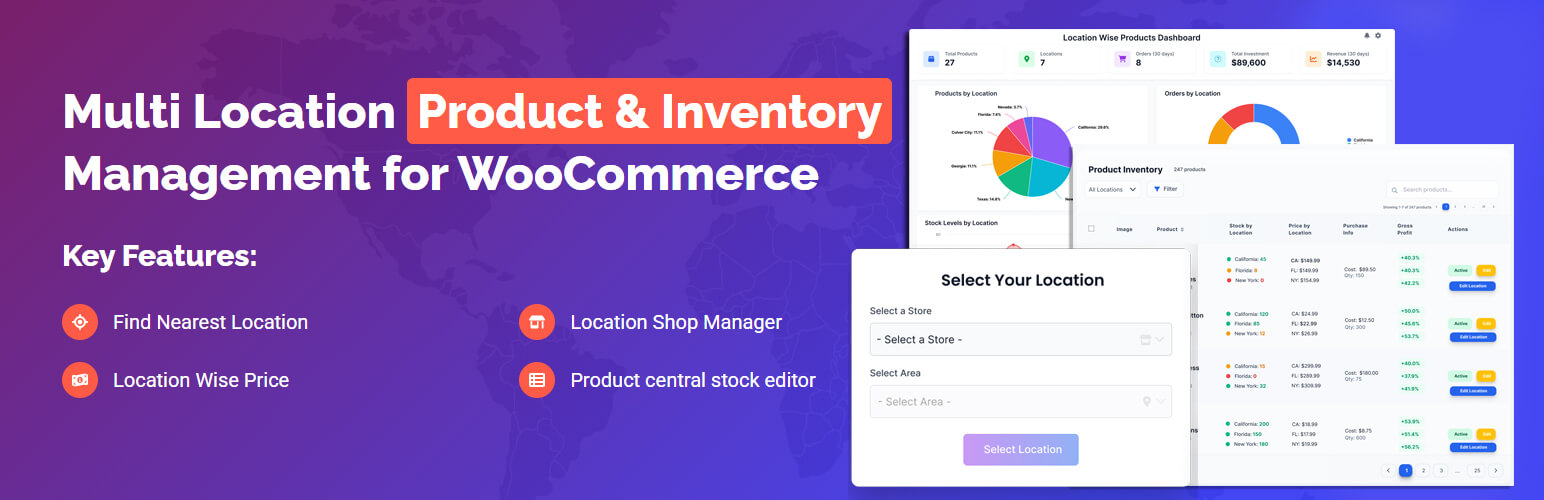
This type of plugin allows you to track and manage inventory separately for each location while maintaining a centralized system. It ensures that stock is reduced correctly based on order flow, location selection, and real-time availability.
Key Benefits
- Centralized multi-location stock control: Manage inventory across multiple warehouses or stores from a single WooCommerce dashboard with location-based stock tracking.
- Separate stock quantities per location: Each product can have different stock levels depending on location, helping prevent overselling and stock mismatch issues.
- Smart order fulfillment and stock deduction: Orders can be fulfilled from the nearest or selected location, ensuring accurate stock reduction and faster delivery.
- Real-time inventory updates across all locations: Keeps stock synchronized automatically, reducing the risk of WooCommerce inventory not reducing automatically issues.
Why It Helps Fix Your Issue
When WooCommerce inventory is not reducing automatically, the problem often comes from complex order flows, multiple locations, or delayed stock triggers.
Using a structured system like Plugincy ensures:
✔ Stock updates happen in real time
✔ Orders reduce stock from the correct location
✔ Inventory remains consistent across checkout, payment, and fulfillment
FAQ: WooCommerce Inventory Not Reducing Automatically
Why is WooCommerce stock not reducing on order?
Stock reduction depends on order status and payment confirmation. If orders remain pending or payment is delayed, WooCommerce will not update inventory automatically.
Does WooCommerce reduce stock before or after payment?
It depends on your configuration. You can set WooCommerce to reduce stock at order placement or after payment confirmation, depending on your checkout flow.
Can payment gateways affect stock updates?
Yes, delayed or failed payment confirmation can prevent WooCommerce from triggering automatic stock reduction, especially in real-time inventory setups.
How do I fix WooCommerce inventory not reducing automatically?
Enable stock management, check order status flow, adjust stock reduction timing, and test for plugin or caching conflicts to restore automatic updates.
Final Thoughts on WooCommerce Inventory Issues
When WooCommerce inventory is not reducing automatically, the issue is usually linked to how and when stock reduction is triggered during the order process. Instead of focusing only on product settings, it’s important to look at the full workflow, including order status, payment timing, and system behavior.
Once these elements are aligned, WooCommerce can update stock accurately and consistently. Fixing this issue not only prevents overselling but also improves customer trust and ensures a smoother checkout experience for your store.
A stable inventory system ensures your store runs efficiently without stock errors or lost sales opportunities.
