

WooCommerce stock goes negative mainly due to overselling settings, delayed stock updates, or conflicts between plugins and inventory sync systems. When multiple orders are processed at the same time or stock is not reduced instantly, WooCommerce may allow more purchases than the available quantity, resulting in negative stock values.
This issue is quite common in stores with high traffic, multiple integrations, or manual stock management. In most cases, it is not a core WooCommerce bug but a configuration or synchronization problem. Understanding why WooCommerce stock goes negative is the first step to applying the right fix and preventing future inventory errors.
Quick Answer: Why WooCommerce Stock Goes Negative
If you need a fast explanation, here are the most common reasons behind WooCommerce negative stock issues:
- Overselling or Backorders Enabled: When backorders are allowed, WooCommerce continues accepting orders even after stock reaches zero. This is useful for pre-orders but can easily lead to negative stock if not managed properly.
- Delayed Stock Reduction During Checkout: WooCommerce may reduce stock only after payment confirmation instead of at checkout. During this delay, multiple customers can purchase the same product, causing inventory to go below zero.
- Concurrent Orders During High Traffic: When several users place orders at the same time, WooCommerce may not update stock instantly for each transaction. This creates a race condition where multiple orders reduce the same stock simultaneously.
- Plugin or API Sync Conflicts: Third-party plugins or external inventory systems can interfere with stock updates. If synchronization fails or delays occur, WooCommerce may not reflect accurate stock levels, leading to inconsistencies.
- Manual Stock Management Errors: Incorrect stock entries, bulk updates, or manual adjustments can also cause negative stock values. Even small mistakes in product-level settings can affect overall inventory accuracy.
Common Reasons and Solutions for WooCommerce Negative Stock
To fix WooCommerce stock goes negative issues effectively, you need to understand both the cause and the solution together. Below are the most common real-world scenarios along with practical fixes to prevent inventory errors.
Concurrent orders (race condition during checkout)
When multiple customers try to purchase the last available product at the same time, WooCommerce may process both orders before updating stock. This creates a race condition where inventory drops below zero, especially in high-traffic stores or flash sales.
Solution:
Use stock reservation plugins or implement a queue-based checkout system to lock stock when a user adds items to the cart or begins checkout.
Backorders enabled (overselling configuration)
If backorders are allowed, WooCommerce continues to accept orders even after stock reaches zero. While this is useful for pre-orders or dropshipping, it often causes WooCommerce stock to go negative if not carefully controlled.
Solution:
Go to product inventory settings and set backorders to “Do not allow” to prevent overselling.
Pending payments and stock hold timing issues
WooCommerce temporarily holds stock for pending orders. If a customer does not complete payment, the system may release the stock back, but delays or incorrect timing can create inconsistencies and negative values.
Solution:
Navigate to: WooCommerce → Settings → Products → Inventory → Hold Stock (minutes)
Adjust the timing or disable it based on your checkout behavior.
WooCommerce data sync or reporting glitch
Sometimes stock appears negative due to outdated analytics or lookup tables rather than actual inventory loss. This usually happens after bulk updates, plugin conflicts, or failed synchronization processes.
Solution:
Go to: WooCommerce → Status → Tools
Then run:
- Recount orders
- Clear analytics cache
How to Fix Existing Negative Stock in WooCommerce
If your inventory already shows negative values, you need to correct it before applying preventive fixes. These steps help restore accurate stock levels and avoid further inconsistencies.
- Manual stock adjustment from product settings: Go to the product editor, open the Inventory tab, and update the stock quantity to match your actual inventory. This is the fastest way to fix small errors and immediately correct WooCommerce negative stock values.
- Reverse or adjust incorrect orders: If stock went negative due to incorrect order processing or ERP system sync, you may need to adjust order statuses. Updating order data or reversing fulfillment actions can automatically restore stock and fix inconsistencies.
WooCommerce Stock Behavior: Before vs After Fix
| Scenario | Before Fix | After Fix |
|---|---|---|
| Stock Handling | Goes negative | Stops at zero |
| Checkout | Allows overselling | Blocks excess orders |
| Sync | Delayed/inconsistent | Real-time accurate |
| User Experience | Confusing | Reliable |
Now that you understand the causes and solutions, the next step is to identify whether your store is currently facing this issue.
Key Signs of WooCommerce Negative Stock Issue
Before applying any fix, it’s important to confirm whether your store is actually facing a WooCommerce stock management issue. These key indicators will help you quickly identify if WooCommerce stock goes negative due to configuration, sync, or system-level problems.
Stock shows negative values (e.g., -1, -2)
When your product inventory displays negative numbers, it clearly indicates that WooCommerce stock goes negative. This usually happens when overselling is enabled or when stock updates are delayed, allowing more purchases than available inventory during checkout or payment processing.

Orders are accepted beyond available stock quantity
If customers can place orders even after stock reaches zero, it is a strong sign of backorders or overselling settings being active. While useful in some cases, it often leads to WooCommerce negative stock issues if not properly configured.
Inventory does not match actual stock levels
When your WooCommerce dashboard shows different values than your real inventory, it usually points to a synchronization issue. This can be caused by plugin conflicts, API delays, or manual stock updates not being properly applied across the system.
Reports and analytics show incorrect stock data
If your reports display inconsistent or inaccurate stock values, it may indicate that WooCommerce lookup tables or analytics data are out of sync. This can create confusion and lead to poor inventory decisions if not fixed.
Stock issues increase during high traffic or sales periods
If negative stock problems become more frequent during peak traffic, it usually indicates concurrency issues. Multiple users placing orders at the same time can cause stock inconsistencies when WooCommerce fails to update inventory in real time.
Is It Intentional or a Bug? Understanding WooCommerce Negative Stock Behavior
Before fixing the issue, it’s important to understand whether WooCommerce stock going negative is intentional or a result of a system problem. This helps you avoid unnecessary fixes and ensures you apply the correct solution based on your store setup.
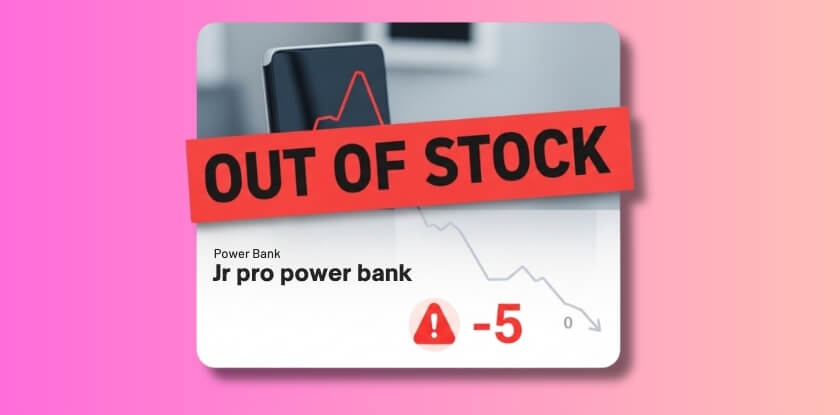
Intentional (Allowed Overselling)
- Backorders are enabled in product settings: When backorders are allowed, WooCommerce continues to accept orders even after stock reaches zero. This behavior is intentional and useful for pre-orders or dropshipping models, but it naturally causes WooCommerce stock to go negative if not monitored properly.
- Dropshipping or pre-order business model: Some stores intentionally allow negative stock because products are sourced after purchase. In this case, WooCommerce stock goes negative by design, and it does not indicate a system error but rather a business logic decision.
Unintentional (Fix Required)
- Inventory sync issues between systems: When WooCommerce is connected with external tools or APIs, stock updates may not sync properly. Delays or failures in synchronization can cause incorrect stock levels, resulting in WooCommerce negative stock issues.
- Session delay or checkout timing problems: If WooCommerce does not update stock instantly during checkout, multiple users may purchase the same product at the same time. This delay often leads to stock dropping below zero, especially in high-traffic environments.
- Misconfigured stock management settings: Incorrect product-level settings, disabled stock management, or wrong backorder configurations can cause unexpected behavior. Even small misconfigurations can result in WooCommerce stock going negative without the store owner realizing it.
Quick Fixes to Stop WooCommerce Stock Going Negative
If you want to stop WooCommerce stock going negative quickly, start with these practical fixes. These steps target the most common causes and can resolve the issue without requiring complex technical changes.
- Disable overselling or backorders: Go to your product inventory settings and set backorders to “Do not allow.” This prevents WooCommerce from accepting orders once stock reaches zero and is the fastest way to stop negative stock issues caused by overselling.
- Enable real-time stock reduction: Make sure WooCommerce reduces stock immediately when an order is placed, not after payment confirmation. This reduces the risk of multiple users purchasing the same stock before it updates.
- Check product-level stock settings: Review each product’s inventory configuration to ensure stock management is enabled and values are correct. Misconfigured settings at the product level are a common reason for WooCommerce stock management issues.
- Clear cache and sync inventory data: Cached data can delay stock updates and show incorrect values. Clear your site cache, server cache, and CDN cache, then ensure inventory data is properly synchronized across all systems.
- Test without conflicting plugins: Disable plugins one by one, especially those related to inventory, checkout, or caching. Plugin conflicts often interfere with stock updates and can cause WooCommerce stock to go negative unexpectedly.
Long-Term Fixes for Accurate WooCommerce Stock Management
If you want to permanently stop WooCommerce stock going negative, you need to fix the system at a deeper level. These long-term solutions focus on improving stock accuracy, preventing overselling, and ensuring real-time synchronization across your entire store.
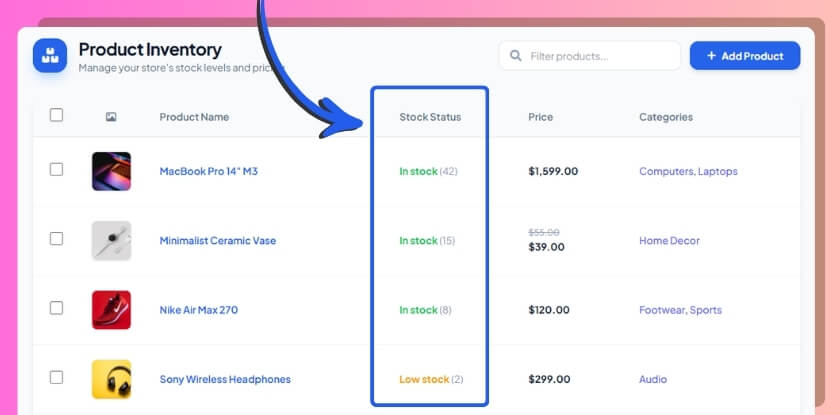
Enable stock locking mechanism for concurrent orders
WooCommerce does not always lock stock instantly when multiple users are checking out at the same time. Enabling a stock reservation or locking mechanism ensures that once a product is added to the cart or checkout begins, that stock is temporarily reserved, preventing WooCommerce stock from going negative during high traffic.
Use reliable inventory management plugins
Advanced inventory plugins like Multi Inventory Management for WooCommerce provide better control over stock updates, synchronization, and reporting. They help reduce WooCommerce stock management issues by ensuring that stock levels are updated accurately across all products, especially in stores with large catalogs or multiple sales channels.
Optimize checkout flow for real-time stock updates
Delays in stock reduction during checkout can cause multiple users to purchase the same item. Optimizing your checkout process to reduce stock instantly when an order is placed helps prevent WooCommerce negative stock issues and improves overall inventory accuracy.
Configure webhooks and API synchronization properly
If your store is connected to external systems like ERP or inventory tools, incorrect API or webhook configuration can delay stock updates. Ensuring real-time synchronization between WooCommerce and external systems is essential to avoid mismatched inventory and negative stock values.
Use high-performance hosting for session stability
Your hosting environment directly affects how WooCommerce handles sessions and stock updates. Poor hosting can delay database operations and cause stock inconsistencies. Using a high-performance, WooCommerce-optimized hosting setup helps maintain stable and accurate inventory management.
Performance and Technical Insight Behind WooCommerce Stock Behavior
To understand why WooCommerce stock goes negative, it’s important to look at how stock handling works internally. WooCommerce does not always update stock instantly, and this delay can create conflicts when multiple actions happen at the same time.
Below is a simplified explanation of how the system works and where problems usually occur.
How WooCommerce Handles Stock
- Stock reduction on order or payment: WooCommerce can reduce stock either when an order is placed or after payment is completed, depending on your settings. If stock is reduced too late, multiple customers may purchase the same product before inventory updates.
- Where delay happens in the system: Delays can occur during checkout, payment processing, or API synchronization. These delays create gaps where stock appears available even though it has already been purchased by another user.
- Why negative stock occurs during concurrency: When multiple users place orders at the same time, WooCommerce processes each request separately. Without stock locking, each order may reduce the same stock value, causing inventory to go below zero.
Stock Flow vs Failure Points (Technical Breakdown Table)
| Step | Expected Behavior | Failure Issue | Result |
|---|---|---|---|
| Product Added to Cart | Stock remains available until checkout | No stock reservation in cart | Multiple users can add same item |
| Checkout Initiated | System prepares to validate stock | Delay in validation process | Stock not locked during checkout |
| Order Placed | Stock is reduced immediately | Stock reduction delayed | Multiple orders reduce same stock |
| Payment Processing | Order confirms and updates inventory | Payment delay or failure | Stock released or miscounted |
| Data Sync / Reporting | Inventory reflects real-time values | Sync failure or outdated cache | Incorrect or negative stock shown |
Recommended Tools to Prevent WooCommerce Negative Stock
Using the right tools can help you avoid WooCommerce stock management issues and maintain accurate inventory across your store. These tools improve synchronization, prevent overselling, and provide better control over stock behavior.
Inventory management plugins for advanced stock control
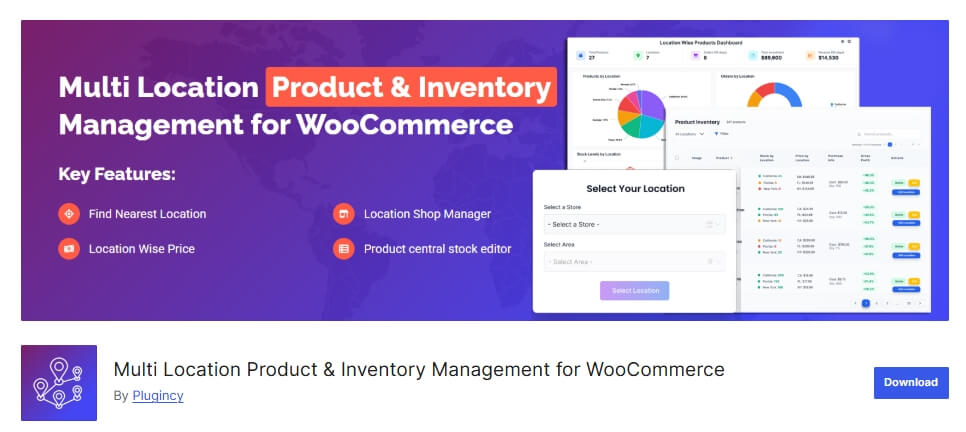
This multi location product management for WooCommerce plugin helps manage stock across multiple products and locations, ensuring real-time updates and preventing WooCommerce stock from going negative in complex store environments.
Sync tools for real-time inventory updates
If your store is connected to external systems like ERP or POS, sync tools ensure that stock levels are updated instantly across all platforms, reducing the risk of mismatched inventory.
Reporting tools for monitoring stock accuracy
Analytics and reporting tools help you track stock changes, identify inconsistencies, and detect negative stock issues early before they impact your store operations.
Best Practice Recommendation to Prevent WooCommerce Negative Stock
If your store handles frequent orders, high traffic, or multiple integrations, relying only on default WooCommerce settings may not be enough. Using a reliable system ensures that your stock remains accurate and prevents WooCommerce stock from going negative due to delays or conflicts.
Plugincy – Best All-in-One WooCommerce Stock and Checkout Optimization Solution
- Real-time stock synchronization across your store: Plugincy ensures that stock levels are updated instantly during checkout, API sync, and user interactions. This eliminates delays that often cause WooCommerce stock goes negative issues, especially in high-traffic environments or multi-channel stores.
- Prevents overselling with smart stock control logic: The system helps block orders when stock reaches zero unless explicitly allowed. This prevents WooCommerce negative stock issues caused by backorders, race conditions, or misconfigured inventory settings.
- Stable and optimized checkout flow for accuracy: By improving how checkout handles stock updates, Plugincy reduces conflicts between multiple users placing orders at the same time. This ensures consistent stock behavior and avoids concurrency-related inventory problems.
Frequently Asked Questions About WooCommerce Negative Stock
To help you quickly resolve common concerns, here are answers to frequently asked questions related to WooCommerce stock going negative and how to fix it.
Why does WooCommerce allow negative stock?
WooCommerce allows negative stock when backorders are enabled or when stock updates are delayed. This is often intentional for certain business models, but in most cases, it results from configuration issues or synchronization delays.
How to stop WooCommerce overselling?
Disable backorders in product settings and ensure stock is reduced in real time during checkout. You should also use stock reservation or locking mechanisms to prevent multiple users from purchasing the same inventory.
Does WooCommerce reduce stock on order or payment?
WooCommerce can reduce stock either when an order is placed or after payment is completed, depending on your configuration. Choosing the right timing is important to avoid stock delays that lead to negative inventory.
How to fix WooCommerce stock mismatch?
To fix stock mismatches, clear WooCommerce cache, recount orders, and ensure API or plugin synchronization is working correctly. Regular monitoring and proper configuration help maintain accurate inventory levels.
Final Thoughts on WooCommerce Stock Going Negative
WooCommerce stock goes negative is not usually a core platform issue but a result of configuration gaps, delayed updates, or system conflicts. Once you fix stock handling logic, synchronization, and checkout behavior, the problem becomes much easier to control.
Instead of relying only on quick fixes, focus on building a stable system where stock updates happen in real time and all components work together smoothly. This not only prevents inventory errors but also improves customer trust and reduces order-related issues.
