

WooCommerce variations not reducing stock usually happens when stock management is not properly configured at the variation level. Unlike simple products, variable products require stock to be managed individually for each variation, and if this setup is incorrect, WooCommerce may not reduce stock after orders are placed. This issue often appears as WooCommerce variation stock not updating even though orders are completed successfully. In most cases, it is not a system bug but a configuration or logic issue between parent products, variations, and stock management settings.
Check These First if Variation Stock Is Not Updating
Before diving into advanced fixes, you should quickly verify these common configuration issues. Most WooCommerce variation stock problems are caused by incorrect settings rather than technical errors.
- Stock management is disabled at the variation level: If “Manage stock” is not enabled for each variation, WooCommerce will not track or reduce stock for that variation. This is one of the most common reasons why WooCommerce variations are not reducing stock properly.
- Stock is managed at parent level instead of variation level: WooCommerce allows stock to be managed either at the product level or per variation. If stock is set at the parent level, variation stock may not update correctly, causing confusion and incorrect inventory behavior.
- Variation stock quantity is not set or is empty: Even if stock management is enabled, WooCommerce requires a specific quantity for each variation. If this field is empty or set incorrectly, the system will not reduce stock during checkout.
- Backorders or stock settings are misconfigured: If backorders are enabled or stock limits are not enforced, WooCommerce may continue accepting orders without reducing variation stock properly. This often looks like WooCommerce manage stock variation not working.
- Theme or plugin is overriding variation behavior: Some themes or plugins modify how WooCommerce handles product variations. If they override stock-related functions, it can prevent stock from reducing correctly after an order is placed.
How WooCommerce Handles Variation Stock?
To fix WooCommerce variations not reducing stock, you first need to understand how WooCommerce actually manages stock for variable products. Unlike simple products, variation stock is handled at a more granular level, and even a small misconfiguration can stop stock from updating correctly.
Parent Product vs Variation Stock Logic
- Parent product does not control stock by default: In variable products, the parent product acts only as a container for variations. WooCommerce does not reduce stock at the parent level unless explicitly configured. This is why WooCommerce variation stock not updating often happens when stock is mistakenly managed at the wrong level.
- Each variation has its own stock quantity: Every variation (size, color, etc.) must have its own stock value. When a customer purchases a specific variation, WooCommerce reduces stock only for that variation, not the parent product or other variations.
Where WooCommerce Stores Variation Stock
- Stock is stored per variation ID: WooCommerce assigns a unique ID to each variation and tracks stock based on that ID. If the variation is not properly linked or configured, WooCommerce cannot update stock, which leads to WooCommerce manage stock variation not working issues.

When Stock Is Reduced in WooCommerce
Stock reduction depends on order settings
WooCommerce can reduce stock at different stages:
- When order is placed
- When payment is completed
If this timing is delayed or misconfigured, variation stock may not reduce correctly, especially during high order activity.
Why Variation Stock Fails to Update
- Mismatch between variation selection and stock mapping: If attributes are not correctly matched or variation IDs are misconfigured, WooCommerce may not recognize which variation was purchased. This results in no stock reduction even though the order is completed.
Variation Stock Flow
| Step | Expected Behavior | Common Problem | Result |
|---|---|---|---|
| Variation Selected | Correct variation ID is identified | Attribute mismatch | Wrong variation or no stock update |
| Add to Cart | Variation linked to cart item | Missing variation mapping | Stock not tracked |
| Checkout | System prepares to reduce stock | Delay in validation | Multiple orders allowed |
| Order Placed | Stock reduces for selected variation | Stock not assigned to variation | No stock reduction |
| Order Completed | Final stock update confirmed | Sync or hook issue | Stock remains unchanged |
Common Variation-Level Stock Issues in WooCommerce
Now that you understand how WooCommerce handles variation stock, the next step is to identify the exact issues that prevent stock from reducing correctly. These problems are usually specific to variation setup, not general WooCommerce behavior.
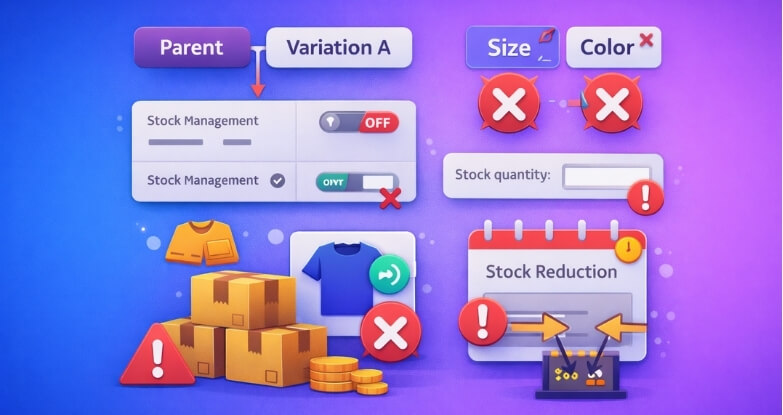
Stock management is enabled at the wrong level (parent vs variation)
One of the most common issues is managing stock at the parent product level instead of individual variations. WooCommerce does not automatically reduce stock at the parent level for variable products, so if variation-level stock is not enabled, it can appear as if stock is not reducing at all.
“Manage stock” option not enabled for each variation
Even if stock management is enabled globally, each variation must have “Manage stock” turned on individually. If this setting is disabled, WooCommerce will not track or reduce stock for that variation, leading to WooCommerce variation stock not updating issues.
Variation stock quantity is missing or incorrectly set
WooCommerce requires a valid stock quantity for each variation. If this field is empty, zero, or incorrectly configured, the system cannot reduce stock during checkout. This is a simple but often overlooked cause of WooCommerce manage stock variation not working.
Incorrect attribute or variation mapping
If product attributes are not properly assigned or variations are not correctly generated, WooCommerce may fail to match the selected variation with its stock data. This results in no stock reduction even though orders are successfully placed.
Stock reduction timing is misconfigured
WooCommerce allows stock to be reduced at different stages, such as order placement or payment completion. If this timing is set incorrectly, variation stock may not update immediately, creating the impression that stock is not reducing.
Variation is not linked properly to inventory system or plugin
When using external inventory systems or plugins, variations must be correctly mapped to the inventory source. If this mapping fails, WooCommerce cannot sync stock updates properly, resulting in incorrect or unchanged variation stock levels.
Quick Fix Checklist to Resolve WooCommerce Variation Stock Issues
“If your store uses Multi Location Product Management for WooCommerce, these checks become even more important to keep variation stock accurate at every location. In most cases, the issue can be fixed by correcting a few key settings. Use this checklist to quickly identify and resolve the problem.
Enable “Manage stock” for each variation
Go to your product variations and make sure “Manage stock” is enabled individually. WooCommerce does not track stock unless this option is turned on, so this is the first and most important step to fix WooCommerce variation stock not updating.
Set stock quantity for every variation
Ensure that each variation has a valid stock quantity assigned. If the quantity field is empty or set incorrectly, WooCommerce cannot reduce stock during checkout, which leads to variation stock not reducing issues.
Disable parent-level stock management
If stock is managed at the parent product level, WooCommerce may not update variation stock correctly. Switch to managing stock at the variation level to ensure accurate inventory tracking for each product option.
Turn off backorders if not required
Backorders allow customers to purchase products even when stock reaches zero. If you want to prevent WooCommerce variation stock from going negative or not updating, set backorders to “Do not allow” in inventory settings.
Check global stock settings in WooCommerce
Navigate to WooCommerce → Settings → Products → Inventory and confirm that stock management is enabled globally. If this setting is disabled, WooCommerce will not reduce stock for variations or simple products.
Test with a simple product for comparison
Create a simple product and test stock reduction. If it works correctly, the issue is likely specific to variation configuration rather than a global WooCommerce problem.
Clear cache and refresh product data
Clear your website cache, browser cache, and any CDN cache. Cached data can delay stock updates and make it appear as if WooCommerce manage stock variation not working, even when it is functioning correctly.
Advanced Debugging for WooCommerce Variation Stock Issues
If basic fixes do not resolve the problem, you need to debug how WooCommerce is handling variation stock internally. At this level, the issue is usually related to hooks, database mapping, or third-party integrations interfering with stock updates.
Verify stock reduction hooks are working properly
WooCommerce uses hooks like woocommerce_reduce_order_stock to reduce stock after an order is placed. If a plugin or custom code overrides or disables these hooks, variation stock will not update. Check your theme functions.php and installed plugins to ensure these hooks are not modified or blocked.
Check variation ID mapping in orders
Each variation has a unique ID, and WooCommerce reduces stock based on that ID during order processing. If the variation ID is missing or incorrectly mapped in the order data, WooCommerce cannot update stock. You can inspect this from the order details or database to confirm correct variation assignment.
Debug with WooCommerce order logs and status changes
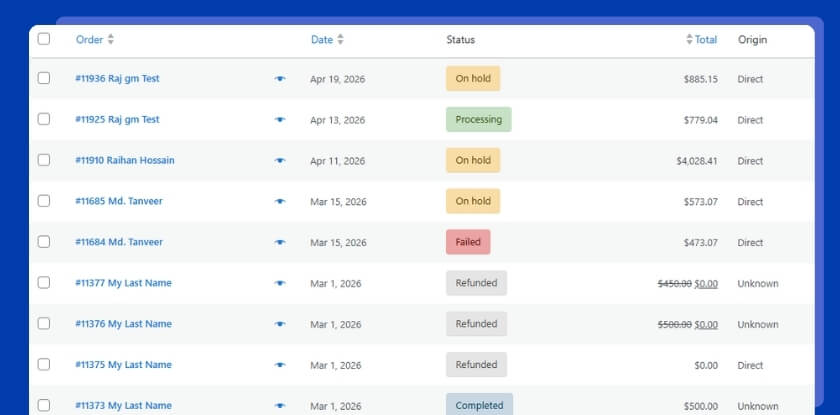
Sometimes stock is not reduced because orders remain in pending or failed status. WooCommerce only reduces stock at specific stages based on your settings. Review order logs and test different order statuses (processing, completed) to see when stock reduction should occur.
Test REST API or external system synchronization
If your store uses ERP, POS, or external inventory tools, variation stock may not update due to API sync delays or failures. Test whether stock changes in WooCommerce are being pushed and pulled correctly. Misconfigured APIs are a common cause of WooCommerce variation stock not updating.
Inspect database values for stock fields
WooCommerce stores stock values in post meta fields like _stock and _manage_stock for each variation. If these values are missing or incorrect in the database, stock updates will fail. Checking the database directly helps confirm whether the issue is at the data level.
Enable WooCommerce debugging and error logs
Turn on debugging in WooCommerce and WordPress to capture errors related to stock handling. Logs can reveal hidden issues such as plugin conflicts, failed queries, or hook errors that prevent variation stock from reducing correctly.
Variation Stock Debug Flow
| Debug Step | What to Check | Possible Issue | Expected Fix |
|---|---|---|---|
| Hook Execution | Stock reduction hooks | Hook overridden or disabled | Restore default WooCommerce hooks |
| Variation Mapping | Variation ID in order | Incorrect variation assignment | Fix product attributes and variations |
| Order Status | When stock reduces | Wrong reduction timing | Adjust stock reduction settings |
| API Sync | External system updates | Delayed or failed sync | Fix API/webhook configuration |
| Database Values | Stock meta fields | Missing or incorrect values | Update or repair stock data |
Variation Stock Flow in WooCommerce (Where It Breaks)
To properly fix WooCommerce variations not reducing stock, you need to understand the full flow of how stock moves from selection to order completion. The issue usually happens at a specific step where WooCommerce fails to connect the variation with its stock data. Below is a simplified breakdown of the variation stock flow and the most common failure points.
WooCommerce Variation Stock Flow vs Failure Points
| Step | Expected Behavior | Where It Breaks | Result |
|---|---|---|---|
| Variation Selected | Customer selects correct variation (size, color) | Attribute mismatch or incomplete variation setup | Wrong variation or no stock tracking |
| Add to Cart | Variation ID is linked to cart item | Variation not properly mapped | Stock not associated with cart |
| Checkout Initiated | WooCommerce validates variation stock | Delay in validation or missing stock data | Multiple users can proceed |
| Order Placed | Stock reduces for selected variation | Stock not assigned at variation level | No stock reduction |
| Order Processing | System confirms and updates inventory | Hook or plugin conflict | Stock update fails |
| Order Completed | Final stock value is stored | Sync or cache issue | Stock remains unchanged |
Most WooCommerce variation stock not updating issues do not happen randomly. They occur because one of the steps in this flow fails to execute properly. If you identify where the process breaks, you can fix the exact problem instead of guessing or applying unnecessary changes.
Plugin & Theme Conflicts Affecting WooCommerce Variation Stock
Even when your variation settings are correct, WooCommerce variations may still not reduce stock due to conflicts with plugins or your active theme. These conflicts often override default WooCommerce behavior and interrupt how variation stock is tracked and updated.
- Checkout or cart plugins overriding variation logic: Some advanced checkout or AJAX cart plugins modify how products are added to the cart. If they fail to pass the correct variation ID, WooCommerce cannot link the order to the variation stock, which results in WooCommerce variation stock not updating after purchase.
- Inventory or multi-location plugins mismanaging variation stock: Plugins designed for WooCommerce multi locations inventory management do
not fully support variation-level stock handling. If variation mapping is incorrect, stock updates may apply to the wrong product or fail entirely. - Theme overriding WooCommerce variation templates: Custom or poorly coded themes often override WooCommerce templates like
single-product.phpor variation scripts. If these overrides break the variation selection process, WooCommerce may not detect the correct variation during checkout, preventing stock reduction. - AJAX or quick view features not passing variation data: Features like quick view, popup add-to-cart, or AJAX-based product loading sometimes skip proper variation selection logic. If variation data is incomplete or missing, WooCommerce cannot reduce stock correctly after the order is placed.
- Caching or optimization plugins interfering with dynamic variation data: Caching plugins can store outdated variation data, especially on product pages. This may cause WooCommerce to process incorrect stock values or fail to update variation stock in real time, leading to inconsistent inventory behavior.
How to Identify Plugin or Theme Conflict
To confirm whether a conflict is causing WooCommerce variations not reducing stock, follow these steps:
- Switch to default theme (Storefront): This helps you determine if your current theme is affecting variation behavior.
- Disable all plugins except WooCommerce: Test variation stock behavior with only WooCommerce active. If it works, the issue is caused by another plugin.
- Enable plugins one by one: Gradually activate plugins and test stock reduction after each one. This helps identify the exact plugin causing the issue.
- Check variation selection during checkout: Ensure the correct variation is being selected and passed to the cart and order. If not, the issue is likely in frontend scripts or plugin behavior.
Best Practice Recommendation to Fix WooCommerce Variation Stock Issues
If your store uses variable products, multiple plugins, or advanced checkout flows, relying only on default WooCommerce settings may not be enough. Variation-level stock handling is more complex, and even small delays or conflicts can cause WooCommerce variations not reducing stock problems. Using a reliable system helps ensure accurate stock updates, prevents inconsistencies, and maintains a smooth checkout experience.
Plugincy – Best All-in-One WooCommerce Variation Stock & Checkout Optimization Solution
- Accurate variation-level stock management: Plugincy ensures that each variation is properly tracked and updated based on its unique ID. This eliminates issues where WooCommerce variation stock not updating due to incorrect mapping or missing variation data during checkout.
- Real-time stock reduction during checkout: The system reduces stock instantly when an order is placed, preventing delays that often cause WooCommerce manage stock variation not working issues. This is especially important for stores handling high traffic or flash sales.
- Prevents variation mismatch and incorrect stock updates: Plugincy helps maintain correct variation selection and mapping between product attributes and inventory. This ensures that the right variation stock is reduced after purchase, avoiding common WooCommerce variation stock errors.
- Stable integration with plugins and external systems: The solution is built to work smoothly with inventory tools, APIs, and multi-location setups. This reduces conflicts that typically break variation stock updates and ensures consistent synchronization across your store.
Frequently Asked Questions About WooCommerce Variation Stock Issues
To help you quickly resolve common concerns, here are answers to the most important questions related to WooCommerce variations not reducing stock and how to fix them effectively.
Why are WooCommerce variations not reducing stock after an order?
This usually happens when stock management is not enabled at the variation level or when WooCommerce cannot correctly map the selected variation to its inventory. In some cases, plugin or theme conflicts can also prevent stock from updating properly after checkout.
Does WooCommerce reduce stock for variations automatically?
Yes, WooCommerce reduces stock automatically for variations, but only if “Manage stock” is enabled and a stock quantity is set for each variation. If these settings are missing or misconfigured, WooCommerce variation stock not updating issues can occur.
Should I manage stock at product level or variation level?
For variable products, it is best to manage stock at the variation level. Each variation represents a unique product option, and WooCommerce relies on variation-specific stock values to update inventory accurately during orders.
Why does variation stock work for simple products but not variable products?
Simple products use a single stock value, while variable products require separate stock management for each variation. If variation settings are incomplete or incorrect, WooCommerce manage stock variation not working problems may occur.
Can plugins cause WooCommerce variation stock issues?
Yes, plugins that modify checkout, inventory, or product behavior can interfere with variation stock handling. If variation stock is not reducing correctly, testing with plugins disabled can help identify the conflict.
Final Thoughts
WooCommerce variations not reducing stock is rarely a core system bug. In most cases, it is caused by incorrect variation settings, stock misconfiguration, or conflicts with plugins and themes. Once you understand how WooCommerce handles variation-level stock and fix the underlying issues, maintaining accurate inventory becomes much easier. Focus on proper configuration, real-time stock updates, and stable integrations to ensure your store runs smoothly without inventory errors.
