

Do you want to hide private products from your WooCommerce store or specifically hide private products from WooCommerce shop page without deleting them? This is a common requirement when managing client-specific items, internal listings, or products that should not be visible to general customers.
WooCommerce offers built-in visibility controls, but depending on your configuration, private products may still appear in shop listings, category pages, or search results. This can create confusion and affect your store’s presentation. To avoid that, you need to apply the right visibility method. In this guide, you’ll learn how to control product visibility properly and hide private products step by step.
Quick Answer
To hide private products from your WooCommerce store, set the product status to Private or change catalog visibility to “Hidden.” This ensures the product does not appear in public areas like the shop page or search results. If you need more control, you can combine visibility settings with user roles or filtering rules.

Quick Methods To hide Private Products
Before going step by step, here are the most effective ways to manage visibility:
- Use Private product status: Keeps products visible only to admin or authorized users
- Set catalog visibility to Hidden: Helps you hide private products from WooCommerce shop page and search
- Control visibility by user roles: Show products only to specific users or customers
- Use code for custom behavior: Best for advanced or custom store setups
- Use a plugin for flexible control: Ideal for scaling and managing complex visibility rules
Understanding all available methods helps you choose the right approach based on your store needs and level of control.
Methods to Hide Private Products from WooCommerce Store
Below are all practical ways to hide private products. Each method works differently, so follow the one that fits your goal.
Method 1: Use “Private” Product Status
This is the simplest built-in WooCommerce option.
How to do it:
- Go to Products → All Products
- Click Edit on the product
- In the Publish panel, change visibility to Private
- Click Update
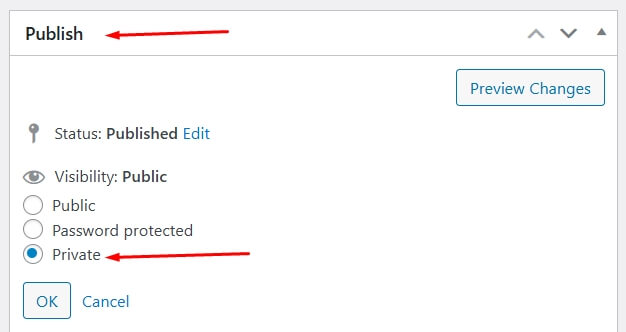
What happens:
- Product is hidden from all public users
- Only admin and authorized users can see it
Best for:
- Internal products
- Client-specific items
Method 2: Use Catalog Visibility Settings
This method controls where the product appears.
How to do it:
- Edit product
- Find Catalog visibility
- Select Hidden
- Update product
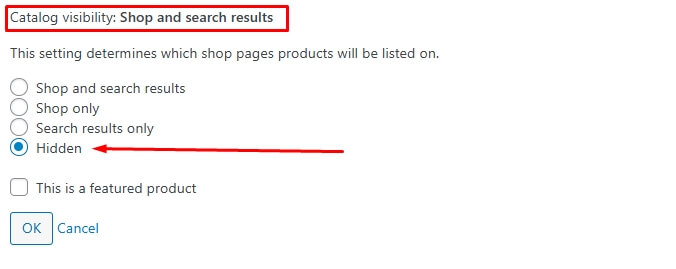
What happens:
- Product is removed from shop page and search
- Still accessible via direct link if needed
Best for:
- When you want to hide private products from WooCommerce shop page
Method 3: Hide Products Using User Roles
Use this if you want only specific users to see products.
How to do it:
- Install a role-based visibility plugin
- Assign product visibility rules by user role
What happens:
- Product is visible only to selected users
- Hidden from general visitors
Best for:
- Wholesale stores
- Membership-based products
Method 4: Hide Products Using Categories
You can group private products in a hidden category.
How to do it:
- Create a category (e.g., “Private Products”)
- Assign products to this category
- Do not display this category in menus or shop
What happens:
- Products are not easily discoverable
- Only accessible via direct link
Best for:
- Managing multiple private products at once
Method 5: Use Password Protection
WooCommerce allows restricting access with a password.
How to do it:
- Edit product
- In Publish settings, select Password protected
- Set a password
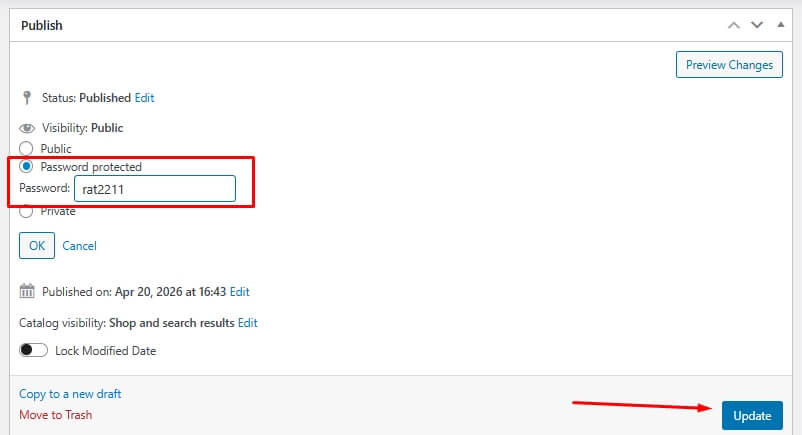
What happens:
- Product is hidden until password is entered
Best for:
- Client-specific access
- Private sales
Method 6: Hide Products Using Stock Settings
WooCommerce can automatically hide out-of-stock products.
How to do it:
- Go to WooCommerce → Settings → Inventory
- Enable Hide out-of-stock items
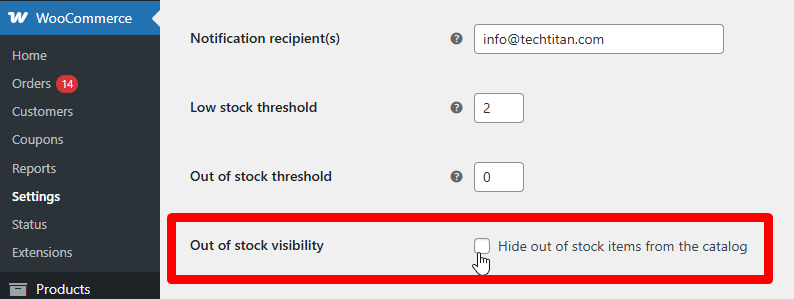
What happens:
Products with zero stock are hidden
Best for:
- Temporary hiding without changing visibility
Method 7: Remove Products from Navigation
Sometimes products appear because they are linked in menus.
How to do it:
- Go to Appearance → Menus
- Remove product/category links
What happens:
- Users cannot access product through navigation
Best for:
- Preventing accidental visibility
Method 8: Hide Products Using Code (Advanced)
For full control, use a custom code snippet.
How to do it:
Add code to functions.php or use Code Snippets plugin
add_filter(‘pre_get_posts’, ‘hide_private_products_from_shop’);
function hide_private_products_from_shop($query) {
if (!is_admin() && $query->is_main_query() && is_shop()) {
$query->set(‘post_status’, ‘publish’);
}
}
What happens:
- Only published products show on shop page
- Private products are automatically hidden
Best for:
- Developers
- Custom WooCommerce setups
Method 9: Use Plugin for Full Control (Recommended)
If your store is large or complex, plugins give better flexibility.
Recommended: Dynamic AJAX Product Filters for WooCommerce
Why This Helps
- Control visibility dynamically
- Combine filtering + hiding
- Manage large catalogs easily
How to Choose the Right Method
- Simple need: Use Private status or Catalog visibility
- User-based access: Use role-based control
- Bulk management: Use categories
- Advanced control: Use code or plugin
Using the right method ensures your private products stay hidden while keeping your WooCommerce store organized and easy to manage.
Where and When to Hide Private Products
Now that you know how to hide products, it’s important to understand when you should actually use private product visibility. This helps you apply the right method instead of hiding products unnecessarily.
For Client-Specific or Custom Orders
If you create products for individual clients, keeping them private ensures only you or the intended user can access them. This prevents other customers from seeing irrelevant or restricted items.
For Work-in-Progress Products
When adding new products, you may not want them visible immediately. Setting them as private allows you to complete descriptions, pricing, and images before publishing.
For Exclusive or Restricted Items
Some products are meant only for selected users, such as members, wholesale buyers, or VIP customers. Private visibility helps you control access without affecting the rest of your store.
For Testing and Development
During testing, temporary products should not appear in your live store. Keeping them private ensures your storefront remains clean and professional.
For Better Store Organization
Hiding internal or unused products helps reduce clutter and improves user experience. Customers can focus only on relevant and available products.
Real Insight:
Many store owners leave unused or draft products visible by mistake. Using private visibility correctly keeps your store clean and avoids customer confusion.
Using private product visibility at the right time helps maintain a clean storefront and ensures customers only see relevant products.
Default vs Advanced Product Visibility Control
After learning how to hide private products, it’s helpful to understand the difference between basic WooCommerce controls and more advanced visibility options. This will help you decide which approach fits your store setup.
Key Differences Explained
| Feature | Default WooCommerce Visibility | Advanced Visibility Control |
| Setup Complexity | Simple | Moderate to advanced |
| Control Level | Basic (Private / Hidden) | Flexible (rules, conditions) |
| User Role Access | Limited | Full control |
| Bulk Management | Manual | Automated |
| Scalability | Suitable for small stores | Ideal for large stores |
When Default Settings Are Enough
WooCommerce’s built-in options like Private and Hidden work well when:
- You need to hide a few products
- You manage a small store
- You don’t require role-based access
These settings are quick and easy to apply without extra tools.
When You Need Advanced Control
As your store grows, visibility requirements become more complex.
You may need:
- Role-based product access
- Dynamic visibility rules
- Bulk product control
- Filter-based hiding
This is where advanced solutions become more effective.
Recommended Solution for Better Control
For flexible and scalable visibility management: Dynamic AJAX Product Filters for WooCommerce
Why This Helps
- Manage visibility dynamically
- Combine filters with product control
- Improve user experience
- Handle large catalogs efficiently

Which Option Should You Choose?
- If You Have a Small Store: Default WooCommerce settings are enough for basic visibility control.
- If You Manage Many Products: Advanced tools help you manage visibility efficiently without manual work.
- If You Need Role-Based Access: Plugins or custom logic are required for full control.
Choosing the right visibility method ensures your products are shown only where needed while keeping your WooCommerce store organized and scalable.
Common Mistakes When Hiding Private Products
Before or after applying methods, users often make small mistakes that break visibility control. Highlighting these helps readers avoid confusion.
- Not Updating the Product: Many users change visibility but forget to click Update, so changes never apply.
- Confusing “Private” with “Hidden”: Private products are restricted by user role, while Hidden products are removed from shop and search. Mixing these can lead to wrong results.
- Ignoring Cache: Even after hiding a product, it may still appear due to cached pages.
- Leaving Products in Visible Categories: Products may still be discoverable if their categories are publicly visible.
Avoiding common mistakes ensures your product visibility settings work correctly without unexpected results.
How to Test If Products Are Truly Hidden
Many guides skip this, but testing is critical.
Check in Incognito Mode
Open your store in private browsing to simulate a real visitor.
Test Shop and Search Pages
Make sure the product does not appear in:
- Shop page
- Category pages
- Search results
Test Direct URL Access
Confirm whether the product is accessible via direct link or fully restricted.
Test Different User Roles
Login as different users (admin vs customer) to verify visibility behavior.
Proper testing ensures your visibility settings are working across all scenarios and user types.
When NOT to Hide Products
- Seasonal Products: Instead of hiding, consider keeping them visible for SEO value.
- High-Traffic Products: Hiding popular products may reduce conversions.
- Products with Backlinks: If a product has backlinks, hiding it may waste SEO authority.
Knowing when not to hide products helps you maintain both visibility and SEO performance.
FAQ
Here are the most common questions users ask about hiding private products in WooCommerce.
How do I hide private products from WooCommerce shop page?
You can set the product’s catalog visibility to Hidden or mark it as Private. This ensures the product does not appear on the shop page or in search results for regular users.
Are private products visible to customers?
No, private products are only visible to admin or authorized users. Regular visitors cannot see them on the frontend.
Can I hide a product without deleting it?
Yes, WooCommerce allows you to hide products using visibility settings without removing them from your store.
Can I hide products from shop but keep them accessible via link?
Yes, by setting catalog visibility to Hidden, the product will not appear on the shop page but can still be accessed directly via URL.
Can I hide products for specific users only?
Yes, you can use role-based visibility control through plugins to show or hide products based on user roles.
Why are hidden products still visible sometimes?
This usually happens due to caching, theme overrides, or plugin conflicts. Clearing cache and checking theme behavior can fix this.
Final Thoughts
Hiding private products in WooCommerce is not just about removing them from view. It’s about controlling how your products are presented to different users while keeping your store clean and organized.
By using the right visibility method, you can ensure that only relevant products are shown to customers, while private or internal items remain hidden. This improves user experience and keeps your storefront professional.
Proper product visibility management helps maintain a clean store, improves user experience, and ensures better control over how products are displayed.
