

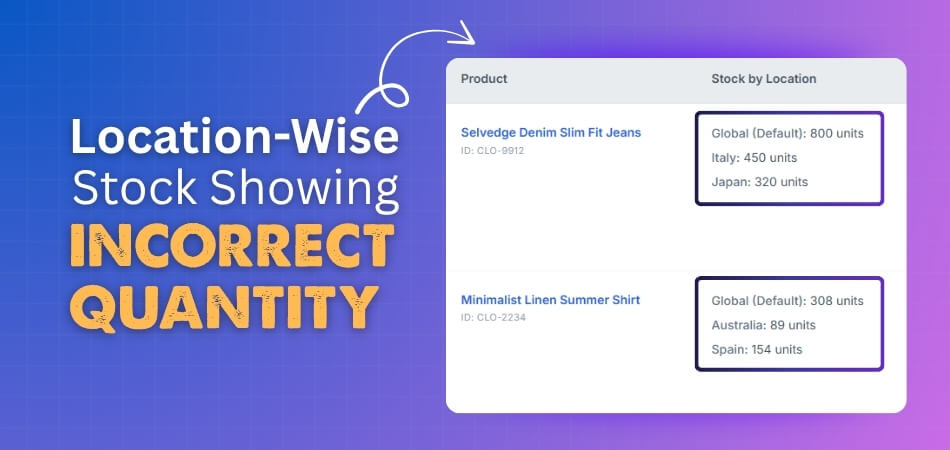
Location-Wise stock showing incorrect quantity in WooCommerce is often a sign that your store’s location-based inventory flow is out of sync. When stock values, location rules, and order handling stop working together, WooCommerce can end up showing the wrong quantity for a branch, warehouse, or pickup point.
Even a small mismatch can lead to overselling, poor fulfillment decisions, and unreliable stock visibility across the store. This guide explains why location-wise quantities become inaccurate, where the disconnect usually starts, and how to make stock behavior more reliable across every location
When Location-Based Stock Numbers Stop Matching Reality
Location-wise stock problems in WooCommerce start when the quantity shown for a warehouse, branch, or pickup point no longer matches what that location can actually fulfill. Sometimes the mismatch appears on the product page during order processing or when staff verifies stock internally. Once different parts of the store stop reflecting the same location-based inventory, stock becomes less reliable and more difficult to control.
Here are some of the most common ways this issue appears:
- A branch appears to have stock that is no longer available
- One location keeps getting selected even when another holds the stock
- Product page quantities do not match internal inventory records
- Local pickup availability looks correct until an order is placed
- Variable products show inconsistent stock behavior across locations
Why Does Location-Wise Stock Showing Incorrect Quantity in WooCommerce Happens?
Location-wise stock showing incorrect quantity in WooCommerce usually happens when stock updates, location rules, and storefront display stop following the same inventory flow. Instead of one clear stock source, different parts of the store start showing different numbers. That is when branch-level quantities become harder to trust.
Stock Management Settings Are Not Fully Aligned
If stock management is not enabled properly in WooCommerce or on the product itself, location-based quantities can become unreliable. A store may look like it is tracking stock correctly, while some products are still following different inventory rules in the background.
Total Stock And Location Stock Do Not Match
A common issue in multi-location setups is when the main product quantity does not match the combined stock assigned to each location. That creates confusion because one part of the store may rely on the total stock, while another reflects the location quantities.
Cached Pages Keep Showing Old Stock
Sometimes the stock value has already changed, but the storefront still shows an older number. This often happens when page cache, server cache, or CDN cache delays the updated quantity from appearing right away.
Plugin Conflicts Interfere With Stock Updates
When more than one plugin affects stock handling, location rules, or product availability, they can interfere with each other. That can stop stock from updating correctly across the product page, cart, or order flow.
Location Rules Are Not Configured Properly
A location-based inventory setup may include rules for stock deduction, location visibility, fallback branches, or out-of-stock behavior. If those settings are not configured correctly, WooCommerce may show the wrong quantity for a specific location or keep using the wrong branch.
Stock Reduction Happens Too Late
In some stores, stock is not reduced as early as it should be during the order process. That delay can leave a location looking available for too long, especially when orders are coming in quickly.
Variable Product Stock Gets Out Of Sync
Variable products are more complex because stock may need to be managed by both variation and location. If those two layers are not set up properly, some options may show the correct quantity while others do not.
Imports Or Sync Tools Update Stock Inconsistently
CSV imports, API connections, and other stock sync tools can update one part of the inventory before another. That can leave temporary gaps between the saved stock, the displayed stock, and the location quantities.
Simultaneous Orders Create Timing Gaps
When multiple customers order the same item at nearly the same time, stock can fall out of step more easily. This is more noticeable with fast-selling products or low stock at a specific location.
Repeated Stock Errors Point To Deeper Update Problems
If the same mismatch keeps happening, the issue may go beyond what is visible on the product page. In those cases, the stock update process itself may be failing somewhere during imports, syncs, or order handling.
How To Fix Location-Wise Stock Showing Incorrect Quantity in WooCommerce?
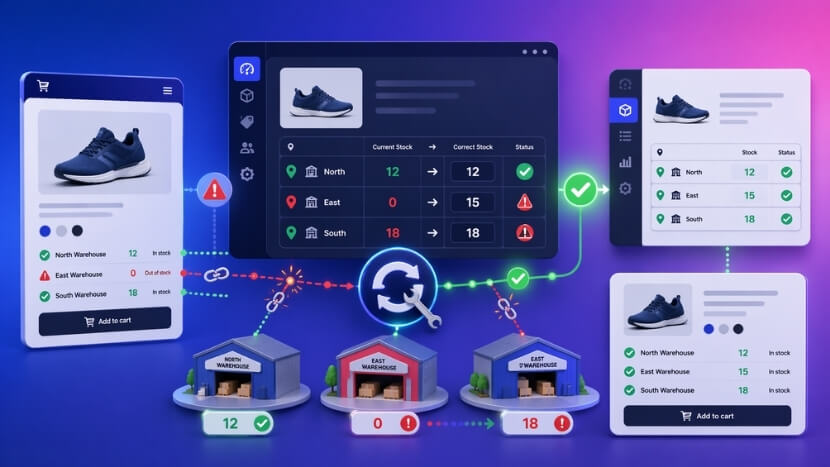
Fixing incorrect location-wise stock in WooCommerce usually starts with correcting the part of the inventory flow that has stopped updating properly. In some stores, the issue comes from basic stock settings. In others, it comes from outdated cache, plugin conflicts, stock reduction timing, or mismatched location rules. Working through the fixes in the same order as the likely causes makes the problem easier to trace and resolve.
Recheck Stock Management Settings First
If stock management is not fully enabled, location-wise quantities can stay unreliable no matter what else you adjust. Start by confirming WooCommerce is set to manage stock globally, then review the affected products to make sure they are using the intended inventory settings.
Focus on:
- global stock management settings in WooCommerce
- product-level stock management
- stock status on affected products
- whether the product is following shared stock or location-based stock logic
Bring Total Stock And Location Stock Back Into Sync
When the main product quantity and the combined location quantities do not match, WooCommerce can end up showing different stock values in different places. The fix is to decide which quantity structure your store should rely on and make sure the total stock reflects that setup consistently.
Check for:
- products where total stock does not match location quantities
- manual edits made only at the product level
- imports that update one stock layer but not the other
- variation products using a different stock structure than simple products
Clear Cache And Refresh Inventory Data
Sometimes the stock has already been corrected, but the storefront still shows an older quantity. In that case, the issue may be visual rather than inventory-related. Clear all caching layers and refresh stock-related data so the latest quantity can appear across the store.
This should include:
- page cache
- server cache
- CDN cache
- plugin cache
- WooCommerce inventory-related refresh tools where needed
Test For Plugin Conflicts
If multiple plugins are affecting stock, availability, or order behavior, one of them may be interrupting location-wise updates. A clean conflict test helps identify whether the wrong quantity is caused by your main inventory plugin or by another tool interfering with it.
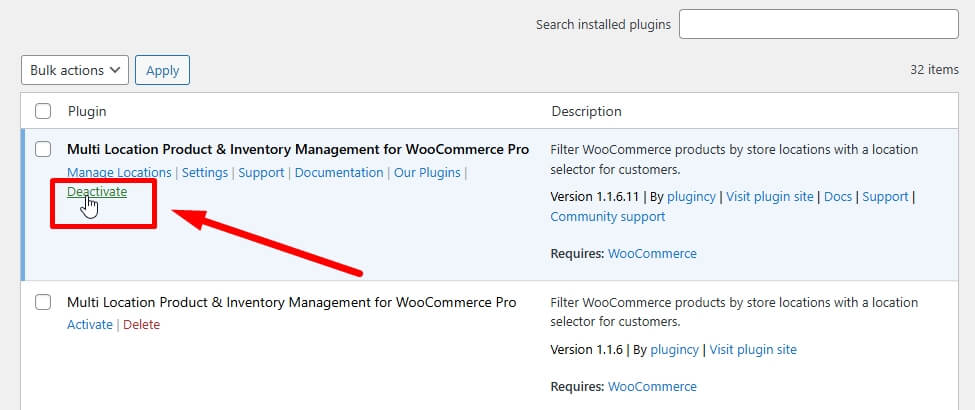
A practical way to test this is to:
- deactivate unrelated plugins one by one
- keep WooCommerce and the location-based inventory plugin active
- retest stock behavior after each change
- review custom code affecting stock or location selection
Review Location-Based Stock Rules Carefully
A location-wise setup often depends on rules that control how stock is displayed, which branch stays selectable, and how out-of-stock locations behave. If those rules are off, the wrong location can stay active or show a quantity that no longer matches reality.
Review settings related to:
- stock deduction by location
- location visibility
- fallback location selection
- out-of-stock location behavior
- frontend display of branch stock
Make Sure Stock Reduction Happens At The Right Time
If stock is reduced too late in the order process, a location may keep looking available longer than it should. This is especially risky for stores with steady orders or low stock at specific branches. Stock should be reduced at the point that best matches how your store actually reserves inventory.
Pay attention to:
- when WooCommerce reduces stock
- whether deduction happens at processing or completion
- whether reserved stock stays available too long
- whether branch-level stock updates immediately after an order
Recheck Variable Product Stock Setup
Variable products need extra attention because stock may be managed by both variation and location. If those settings are not aligned, one variation may show the correct quantity while another stays wrong. The fix is to review parent, variation, and location-level stock behavior together instead of separately.
Look at:
- whether stock is managed at parent or variation level
- whether each variation has the correct location quantities
- whether frontend variation switching updates stock correctly
- whether one variation behaves differently from the others
Review Imports And External Sync Tools
If stock is updated through CSV files, APIs, or external systems, the mismatch may keep returning until that process is corrected. Imports and sync tools should update stock in a way that keeps total quantity, location quantity, and storefront visibility aligned.
Check whether:
- imports update location quantities directly
- total stock changes without location stock updating
- sync jobs run with delays
- external systems overwrite newer stock values
Reduce Timing Issues During Simultaneous Orders
Fast-moving products can expose timing gaps when multiple customers order at nearly the same time. If this happens often, review how long stock stays reserved and whether low-stock locations are getting tied up longer than necessary.
This is worth checking when:
- the same item is ordered repeatedly in a short period
- one branch has very limited stock
- abandoned carts hold inventory too long
- stock availability changes too slowly during busy sales periods
Check Logs If The Same Error Keeps Returning
If the visible stock mismatch keeps coming back after normal fixes, the real problem may be deeper in the stock update process. WooCommerce status logs can help uncover errors related to imports, sync events, stock deduction, or plugin behavior that are not obvious from the storefront alone.
Final Checklist After Fixing Incorrect Location-Wise Stock in WooCommerce
Once the main fixes are done, the next step is making sure the stock flow now stays consistent across product pages, location rules, and order activity. This final check helps confirm that the issue is actually resolved, not just temporarily hidden.
- Compare Frontend And Admin Stock: Make sure the quantity shown to shoppers matches what staff see for the same product and location.
- Check One Product Across Multiple Locations: Confirm each branch or warehouse now shows its own correct stock instead of mixed or repeated values.
- Place A Real Test Order: Verify the order uses the expected location and the quantity changes where they should.
- Review Variation Behavior Again: Make sure each option reflects the correct location-based availability after the fixes.
- Retest Local Pickup Availability: Confirm pickup options now match the stock actually available at that branch.
- Check Recent Imports Or Sync Activity: Make sure no outside update is pushing older stock values back into the store.
- View The Product As A Guest User: Confirm the public-facing stock display is accurate outside the admin session.
- Watch The Next Few Live Orders Closely: Check that stock stays stable after real customer activity, not only during testing.
- Confirm Staff Are Following One Update Workflow: Stock accuracy is easier to maintain when everyone uses the same process.
- Review Your Current Inventory Setup As A Whole: If your store depends on WooCommerce multi location inventory management, make sure the setup now supports clear location-based stock control without overlap.

Native WooCommerce Limitations That Lead To Location-Wise Stock Problems
Native WooCommerce handles standard inventory well, but location-wise stock becomes harder to manage once separate quantities are needed across multiple branches, warehouses, or pickup points. Without built-in location-based stock logic, accuracy can start slipping as the setup becomes more complex. Here are the common gaps that lead to the problems.
- Single Stock Structure: WooCommerce is built around a core product stock setup, which is harder to adapt when each location needs its own quantity.
- No Built-In Location Logic: Separate stock by branch or warehouse is not managed natively through a complete location-based inventory system.
- Limited Fulfillment Awareness: Stock display and order handling do not automatically follow location-specific fulfillment rules.
- More Complex Variation Handling: Variable products become harder to manage when stock needs to be tracked by both option and location.
- Greater Reliance on Extra Setup: Multi-location stores often need additional rules, custom workflows, or dedicated tools to keep stock accurate.
- Manual Workarounds Break More Easily: Spreadsheet edits, shared stock logic, or partial custom setups become harder to manage as locations and orders increase.
A More Reliable Way To Manage Location-Based Stock In WooCommerce
Correcting the visible quantity is only part of the job. What matters more is whether the stock structure behind it can keep pace as products move across different branches, warehouses, or pickup points. When that structure stays too fragmented, the same mismatch can keep returning in different forms.
That is why stores with more complex inventory needs often move toward multi location product management for WooCommerce instead of relying on disconnected adjustments. Here’s how it helps.
- Stock stays easier to manage across separate locations.
- Availability becomes easier to match with real branch inventory.
- Order flow can stay closer to the location actually fulfilling the product.
- Variation-heavy catalogs become easier to handle with more consistency.
- Daily inventory work depends less on repeated corrections.
- Growth becomes easier to support without making stock accuracy harder to maintain.
Frequently Asked Questions
Location-based stock issues often raise a few follow-up questions even after the main causes and fixes are clear. The questions below cover related concerns store owners usually have when they want better stock visibility, smoother operations, and fewer inventory surprises across multiple locations.
Can Customers See Different Stock Depending On The Location They Choose?
Yes. In a location-based setup, stock visibility can change depending on the branch, warehouse, or pickup point connected to the customer’s selection. That is why the same product may not always show the same availability to every shopper.
Does Local Pickup Make Stock Errors More Noticeable?
Yes. Local pickup tends to expose stock issues faster because customers expect the selected location to reflect real, ready-to-collect inventory. Even small mismatches become easier to spot when pickup availability does not match what staff can actually fulfill.
Are Fast-Moving Products More Likely To Show Location-Wise Stock Problems?
Yes. Products that sell quickly across multiple locations tend to reveal stock gaps sooner because quantities change more often. The faster the stock moves, the easier it becomes for weak inventory flow to fall behind.
Can Staff Actions Affect Location-Based Stock Accuracy?
Yes. When different team members update inventory in different ways, stock accuracy becomes harder to maintain. A location-based setup works more smoothly when inventory changes follow one consistent process across the store.
When Should A Store Move Beyond A Basic Stock Setup?
That usually becomes necessary when one shared stock structure no longer reflects how the store actually operates. Multiple branches, warehouse-based fulfillment, local pickup, and variation-heavy catalogs often make a more location-aware inventory setup much more practical.
Final Takeways
Location-Wise stock showing incorrect quantity in WooCommerce is usually a sign that stock visibility, location logic, and order flow are no longer aligned. Once that happens, even small inventory gaps can turn into overselling, fulfillment confusion, and stock records that are harder to trust across different locations.
Long-term accuracy depends on tightening the inventory flow behind the numbers, not just correcting the visible quantity. With a clearer location-based setup in place, WooCommerce becomes easier to manage, easier to grow, and less likely to fall into the same stock mismatch again.
