

Location-wise stock for WooCommerce helps store owners manage product quantities separately for each branch, warehouse, pickup point, or service area instead of relying on one shared stock number for the whole store. This setup improves stock accuracy, supports location-based fulfillment, and makes it easier to show customers where a product is actually available.
In this guide, you’ll learn how location-wise stock for WooCommerce works, why default inventory control often falls short for multi-location stores, what features matter most, and how better stock visibility by location can improve fulfillment accuracy and the customer buying experience.
What Is Location-Wise Stock for WooCommerce?
Location-wise stock for WooCommerce means managing product quantities separately for each branch, warehouse, pickup point, or service area instead of keeping one shared stock count for the whole store. It gives store owners a clearer view of where items are actually available and helps match inventory with real fulfillment locations.
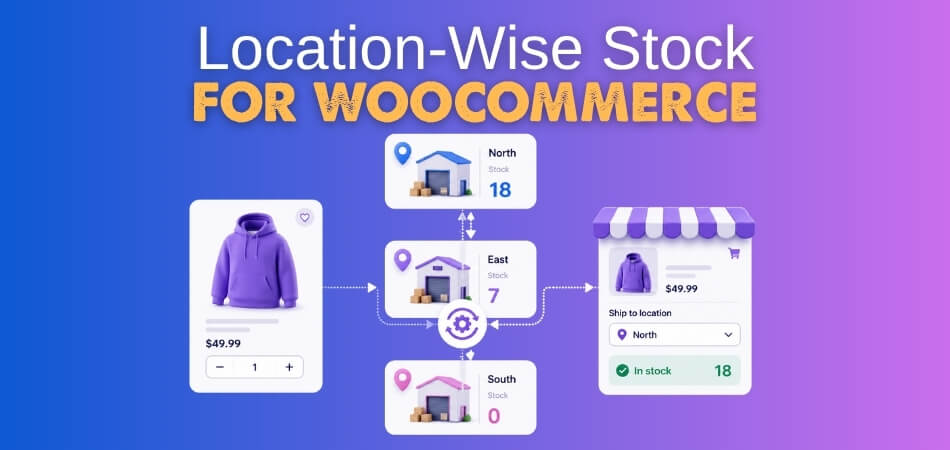
Here are the main ways it works in a multi-location store.
- Each location can have its own stock quantity for the same product
- Stock availability becomes more accurate for branches and warehouses
- Customers can see where a product is available before ordering
- Pickup and local delivery decisions become easier to manage
- Store owners get better control over multi-location inventory
- It reduces errors caused by using one combined stock number for all locations
Why Store Owners Need Stock by Location?
Store owners need stock by location when the same product is stored, sold, or fulfilled from more than one place. Instead of relying on one shared inventory number for the entire store, location-based stock makes it easier to track real product availability by branch, warehouse, or pickup point. Here are the main reasons businesses benefit from managing stock by location.
- Better Stock Accuracy: Each location keeps its own inventory count, so stock levels reflect what is actually available in that specific branch or warehouse.
- Reduced Overselling Risk: Orders are less likely to be accepted from a location that does not have enough stock to fulfill them.
- Improved Pickup Management: Customers can select a store or pickup point based on real product availability instead of estimated stock.
- More Reliable Local Fulfillment: Delivery and branch-based order handling become easier when stock is tied to the correct location.
- Clearer Inventory Visibility: Store owners can quickly see which locations are well-stocked and which ones need replenishment.
- Better Support for Store Growth: As more branches, warehouses, or service areas are added, stock by location keeps inventory management more organized.

Problems With Standard WooCommerce Inventory for Multi-Location Stores
Standard WooCommerce inventory works well for stores that manage stock from one place, but it becomes harder to rely on when products are stored or fulfilled from multiple locations. Without location-level stock control, inventory stays too generalized, which can create gaps between what the store shows and what each branch or warehouse can actually fulfill.
Here are the main problems multi-location stores often face.
- One shared stock number for all locations
- No branch-level stock visibility
- Pickup availability is harder to manage
- Orders can be tied to the wrong location
- Stock deduction lacks location accuracy
- Manual updates increase stock errors
- Fulfillment decisions become less reliable
Features to Look For in a Location-Wise Stock Solution
Choosing the right WooCommerce multi locations inventory management solution matters because not every WooCommerce inventory tool is built to handle multi-location operations properly. Strong functionality should support accurate stock tracking, cleaner fulfillment control, and better visibility across branches, warehouses, or pickup points.
Here are the key features worth looking for.
- Separate Stock By Location: Each product should support its own quantity for every branch, warehouse, or pickup point.
- Location-Based Stock Deduction: Order quantities should be reduced from the exact location assigned to fulfillment.
- Branch-Wise Availability Display: Product availability should be shown based on the selected or relevant location.
- Pickup Location Support: Customers should be able to choose a pickup point with stock visibility tied to that selection.
- Centralized Inventory Control: Store owners should be able to manage all locations from one WooCommerce dashboard.
- Order-To-Location Assignment: Orders should be linked to the right branch or warehouse for more accurate fulfillment.
- Scalable Multi-Location Setup: The system should stay manageable as more stores, warehouses, or service areas are added.
Which Plugins Provide the Best Feature Set for Location-Wise Stock in WooCommerce?
Selecting the right plugin depends on how deeply your store needs to manage stock by location. Some plugins are built for full multi-location inventory control, while others focus more on pickup locations, product storage visibility, or multi-inventory handling. Here is a quick look at some of the most relevant WooCommerce solutions.
| Plugin | Multi-Location Stock | Location-Based Pricing | Customer Location Selection | Pickup Support | Auto Stock Allocation / Deduction |
| Multi Location Product & Inventory Management for WooCommerce (Plugincy) | Yes | Yes | Yes | Yes | Yes |
| Multi Inventory Management for WooCommerce (Addify) | Yes | Yes | Yes | Not emphasized | Yes |
| Local Pickup Plus | Limited | No clear pricing focus | Yes | Yes | Limited |
| Stock Locations for WooCommerce | Yes | Not emphasized | Yes | Basic / indirect | Yes |
| ATUM Inventory Management | Partial / internal location tracking | Not emphasized | No clear customer selector focus | No clear pickup focus | No clear branch-wise auto deduction focus |
How to Set Up Location-Wise Stock for WooCommerce (Step by Step)
For most WooCommerce stores, a plugin-based setup is the most practical way to manage stock by branch, warehouse, or pickup point. We recommend using multi locations inventory management for WooCommerce by Plugincy for easy setup, smart features, and customization. Follow the steps to set up location-wise stock for your store easily.
Step 1: Install And Activate The Plugin
Start from your WordPress admin dashboard and install the version that matches your setup.
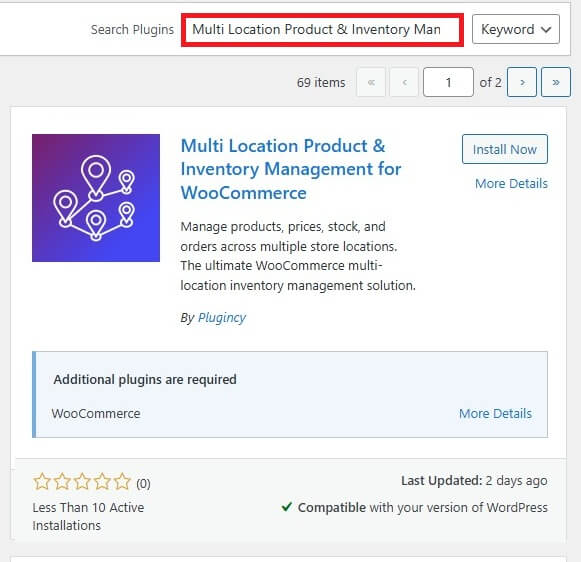
Free Version Installation
The free version can be installed directly from the WordPress plugin directory.
- Go to Plugins → Add New
- Search for Multi Location Product & Inventory Management for WooCommerce
- Click Install Now
- Click Activate
Pro Version Installation
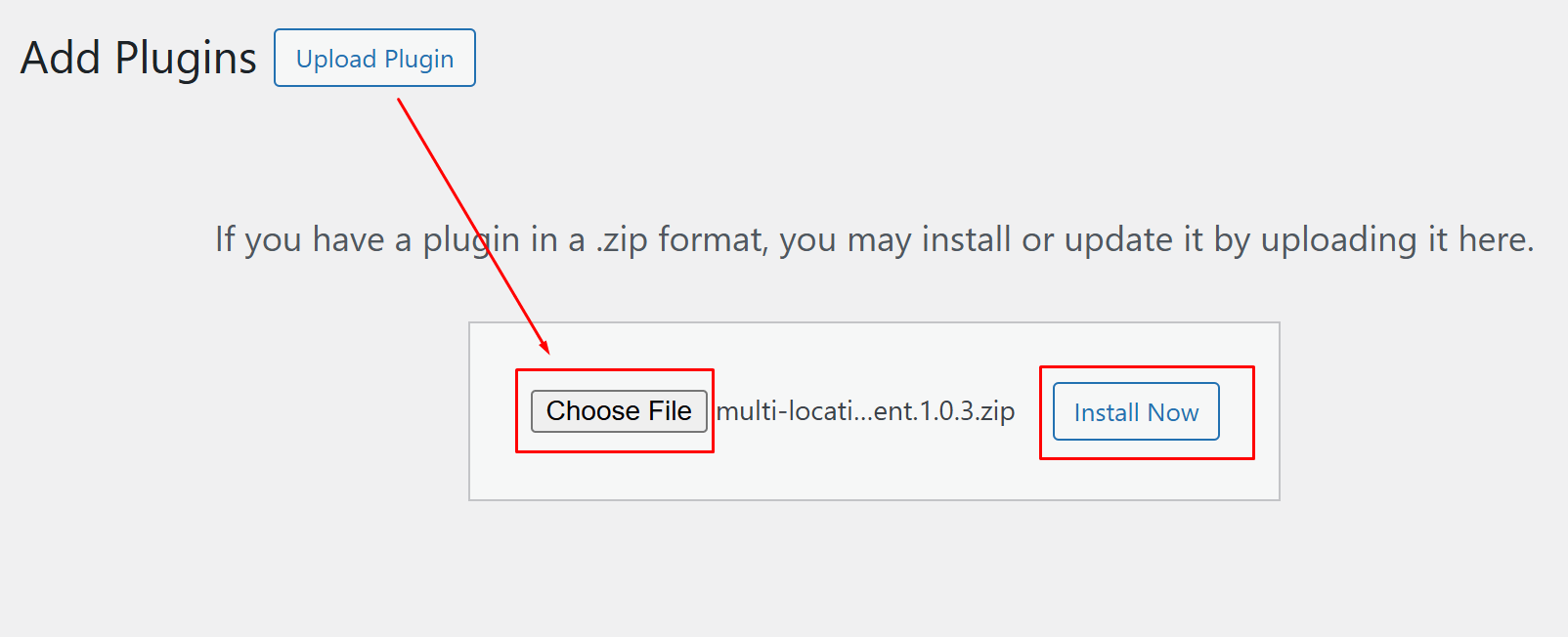
The pro version can be added by uploading the plugin ZIP file from the same area.
- Go to Plugins → Add New
- Click Upload Plugin
- Select the pro plugin ZIP file
- Click Install Now
- Click Activate
Step 2: Create Store Locations
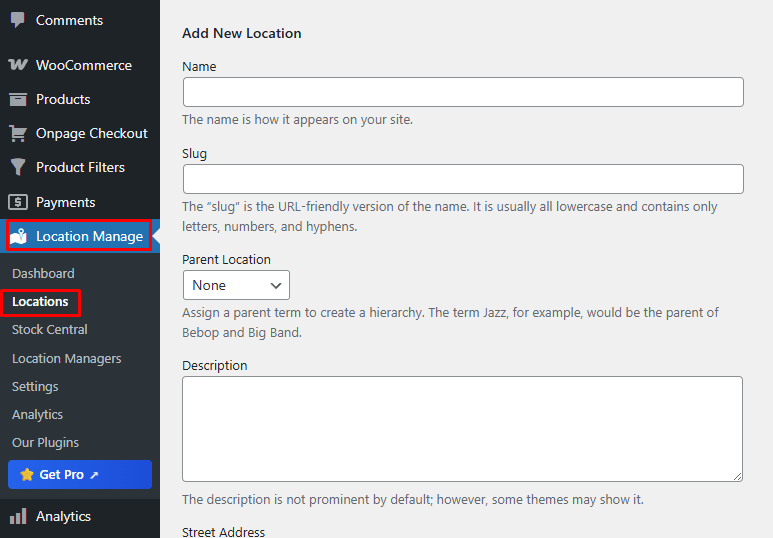
After activation, add the locations you want to manage inside WooCommerce. These can be stores, warehouses, or pickup points.
- Go to Location Manage → Locations
- Add the location name, address, business hours, and contact details
- Save the location
- Repeat the process for each store or warehouse
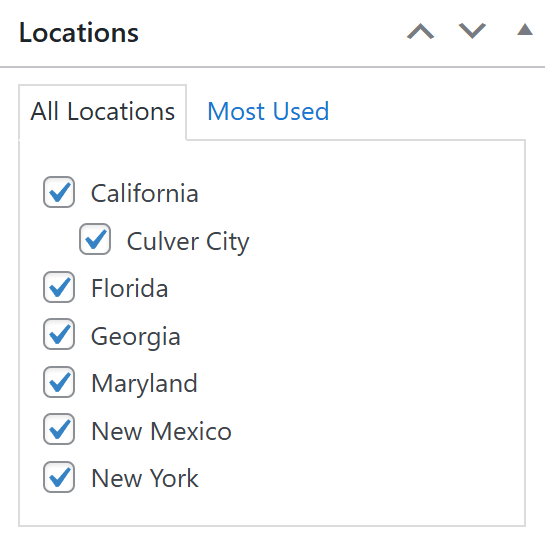
Step 3: Assign Products To Locations
Once the locations are ready, link products to the places where they should be available.
- Open any product from your WooCommerce catalog
- Locate the Locations panel
- Mark one or more locations for that product
- Save or update the product
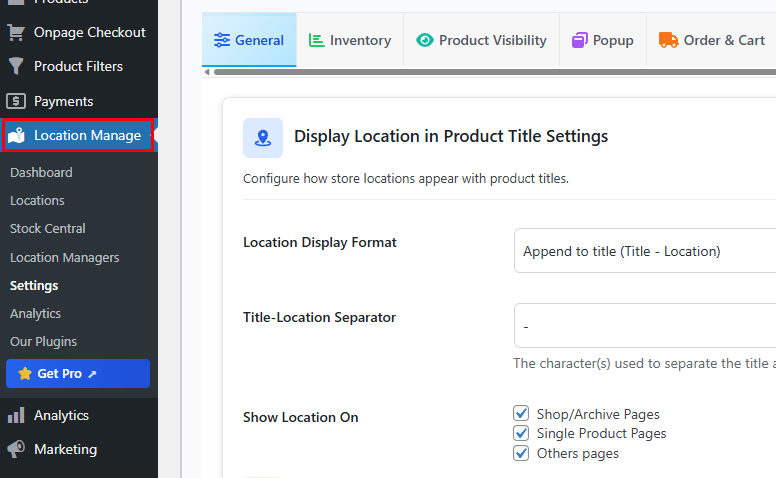
Step 4: Configure General Settings
Next, review the plugin settings so location behavior, inventory syncing, and pricing updates work the way your store needs.
- Go to Location Manage → Settings
- Review each available option
- Adjust the location settings
- Adjust the inventory sync settings
- Adjust the price update settings
- Save your settings
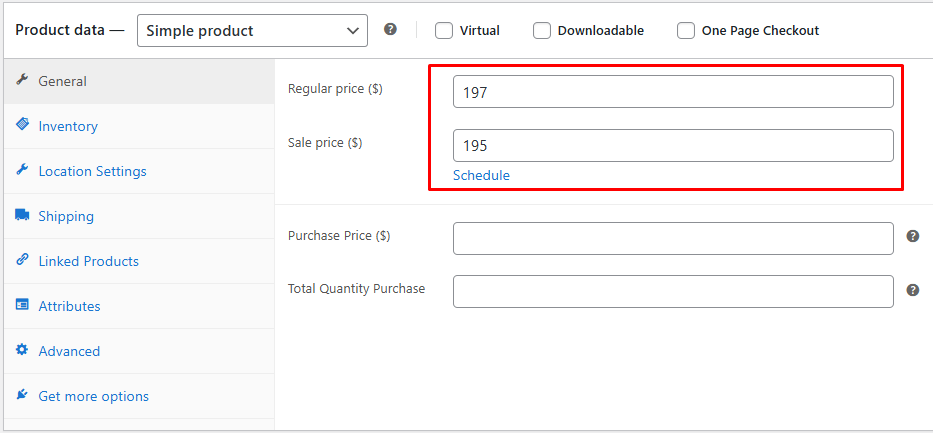
Step 5: Manage Stock And Prices
Now define how each branch or warehouse should handle product quantity, pricing, and backorders.
- Assign the stock quantity for each store or warehouse
- Assign the price for each store or warehouse
- Choose the backorder setting for each store or warehouse
- Revise those values whenever needed
Step 6: Place the Location Selector on a Page or Post
To let shoppers choose a location from the front end, insert the selector shortcode into any page or post.
- Copy [mulopimfwc_store_location_selector]
- Paste it into the page or post where you want it to appear
- Save or publish the content
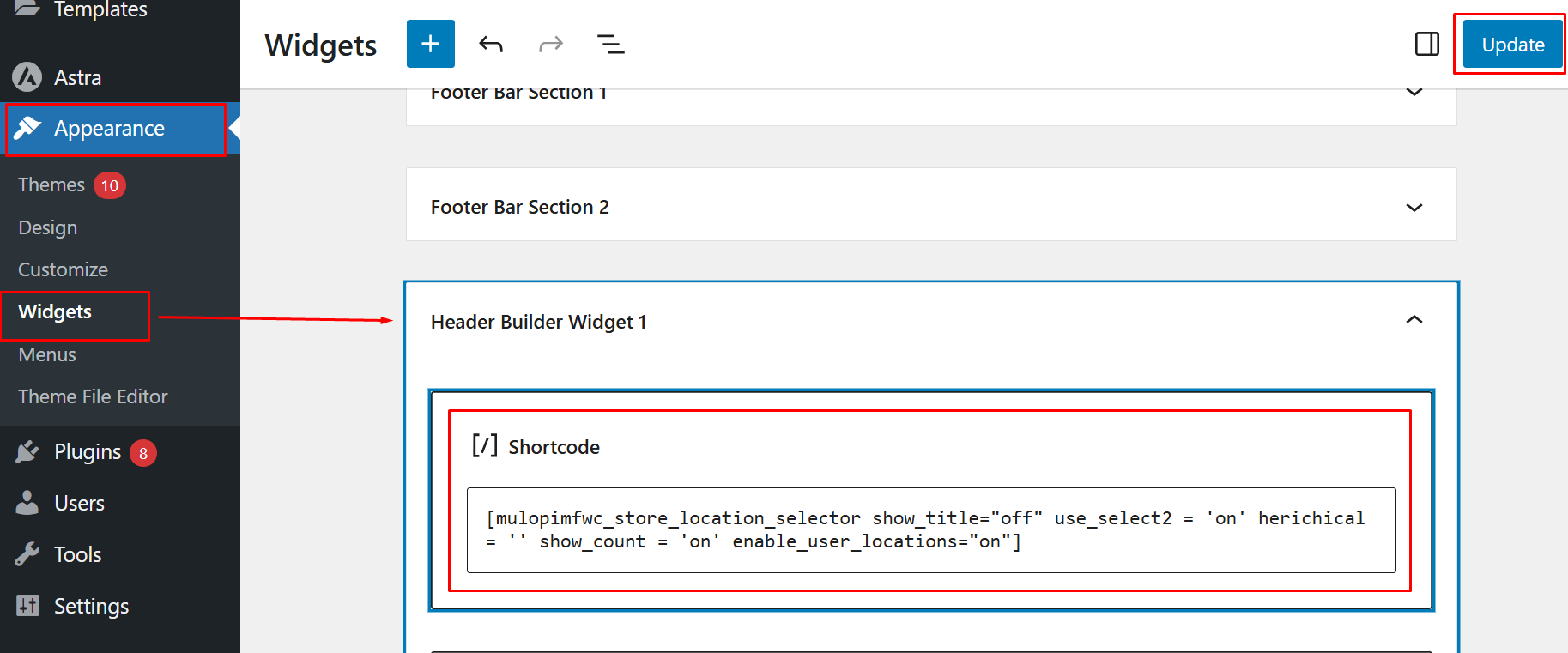
Step 7: Show the Location Selector in a Widget Area
If you want the selector visible in a widget section, add it there instead.
- Go to Appearance → Widgets
- Open Header Builder Widget 1
- Paste [[mulopimfwc_store_location_selector]]
- Click Update
Step 8: Insert the Location Selector Through Code
For theme-level placement, add the selector directly inside the relevant template file.
- Use <?php echo do_shortcode(‘[mulopimfwc_store_location_selector]’); ?>
Step 9: Test the Full Setup
Before using it on a live store, confirm that location-based behavior works properly across the storefront.
- Open your shop page and select a location
- See whether the products, prices, and stocks refresh correctly
- Make sure each location displays the correct information
Common Use Cases for Location-Wise Stock in WooCommerce
Location-wise stock in WooCommerce is most useful when the same store manages inventory across more than one selling or fulfillment point. It helps businesses keep product availability tied to the right branch, warehouse, or pickup location instead of relying on one shared stock number. Here are some of the most common situations where this setup adds real operational value.
- Multi-Branch Retail Stores: Each store can manage its own inventory while showing customers availability based on the selected branch.
- Warehouse-Based Fulfillment: Different warehouses can hold separate stock quantities for faster routing and more accurate order handling.
- Local Pickup Businesses: Customers can choose a pickup point and view stock based on that specific location.
- Regional Delivery Operations: Stores serving multiple delivery zones can manage product availability according to regional inventory coverage.
- Franchise-Oriented Store Networks: Each franchise location can control its own stock without affecting quantities shown for other locations.
- Hybrid Online And Offline Stores: Businesses selling both online and in-store can keep branch inventory aligned with digital orders.
- Seasonal Or Temporary Selling Points: Pop-up locations or temporary outlets can carry separate stock without changing core store inventory.
Best Practices for Managing Stock Across Multiple Locations
Managing stock across multiple locations works best when inventory rules stay clear, updates stay consistent, and each branch or warehouse follows the same structure. To keep the system reliable over time, follow these practical best practices.
- Use Clear Location Names: Keep branch, warehouse, and pickup point names consistent so staff and customers can identify them easily.
- Update Stock Regularly: Refresh inventory values often to reduce mismatches between actual stock and storefront availability.
- Assign Products Carefully: Link products only to the locations where they are truly stocked or fulfilled.
- Keep Pricing Rules Organized: Maintain location-based pricing carefully so branch-specific values stay accurate and easy to manage.
- Review Low-Stock Patterns: Track which locations run low more often so replenishment decisions become faster and better informed.
- Match Stock With Fulfillment Logic: Make sure pickup, delivery, and order routing follow the correct location-based inventory rules.
- Test Frontend Location Selection: Check that product, stock, and price updates respond correctly when customers switch locations.
- Audit Data Across Locations: Review store-wide inventory data regularly to catch incorrect quantities, pricing gaps, or assignment mistakes early.
FAQs About Location-Wise Stock in WooCommerce
Many store owners understand the basic idea of location-wise stock, but still have practical questions about how it affects daily operations, store growth, and customer experience. Here are some relevant questions readers often ask before choosing or expanding a location-based stock system.
Can Location-Wise Stock Work for Both Physical Stores and Warehouses?
Yes, it can work for both. A location-based stock setup can treat retail branches, warehouses, pickup points, or other fulfillment centers as separate inventory sources inside the same WooCommerce store.
Is Location-Wise Stock Useful for Small WooCommerce Stores?
Yes, especially if the store manages inventory from more than one place. Even a small business can benefit from clearer stock visibility and better control when products are stored across multiple locations.
Can Different Locations Have Different Product Availability?
Yes. One location can carry a product while another does not, which helps stores manage branch-specific stock, seasonal demand, or limited inventory more accurately.
Does Location-Wise Stock Help With Expansion Planning?
Yes. It gives store owners a clearer view of how inventory performs by location, which can help when opening new branches, adjusting stock distribution, or improving fulfillment coverage.
What Makes a Location-Wise Stock Setup Easier to Manage Long Term?
Clear location structure, consistent stock updates, organized pricing rules, and regular inventory reviews all make a multi-location setup easier to maintain as the business grows.
Final Thoughts
Running a WooCommerce store across multiple branches, warehouses, or pickup points becomes far more reliable when stock is connected to the right location instead of being handled as one combined total. Clearer stock visibility, more accurate availability, and better fulfillment control all help create a smoother experience for both store owners and customers.
Location-wise stock for WooCommerce gives multi-location stores a more practical way to manage inventory, pricing, and product availability from one system. For businesses aiming to improve stock accuracy and support location-based operations more effectively, it offers a stronger foundation for growth, fulfillment, and customer confidence.
