

If you want to add a New Arrivals filter in WooCommerce, the main goal is to help shoppers quickly find products that were added recently. This can be done by defining what counts as “new,” such as products published within the last 7, 14, or 30 days, and then showing those items through a filter or AJAX-based product filtering system.
In this guide, you will learn how to add filter by New Arrivals in WooCommerce, which method works best, where to place it on shop pages, and what to check if it does not behave as expected. Keep reading to see the simplest way to highlight recent products without creating a confusing shopping experience.
Quick Answer
WooCommerce does not include a built-in New Arrivals filter by default. To add one, you need to define a recent product period, create a way to identify those products, and display them through a compatible product filter or custom setup. In many stores, the easiest method is to use an AJAX-based filtering solution that can show recently added products on the shop or category pages.
- Define what counts as new
- Choose a filtering method that supports recent products
- Place the filter on the shop or category pages
- Test it with recently published products
What Does a New Arrivals Filter Do in WooCommerce?
New Arrivals filters help shoppers find products added recently to the store. Most setups use publish date and a defined time window, such as the last 7, 14, or 30 days, to decide which items should appear.
Unlike filters built for price, size, color, or ratings, New Arrivals filtering is meant to surface freshness. Returning visitors often use it to check what has changed since their last visit instead of browsing the full catalog again.
Example:
One shopper visits a fashion store every weekend. Rather than scrolling through hundreds of products, they use the New Arrivals filter to see items added in the last 14 days and spot the latest drops faster.
When New Arrivals Filters Are the Right Choice
New Arrivals filters are most effective when product freshness directly affects user interest.
They work best when:
- Products are added frequently
- Returning visitors are common
- Drops, launches, or updates matter
- Inventory changes week to week
Unlike discount filters, New Arrivals filters create interest through novelty, not savings.
How to Add a New Arrivals Filter in WooCommerce: 7 Simple Methods
WooCommerce does not include a built-in New Arrivals filter, so stores use sorting, manual grouping, plugins, or custom logic to show recently added products. In many cases, AJAX product filters for WooCommerce offer the most practical way to highlight new products while keeping shop pages smoother and easier to use. Explore the 7 methods below to find the setup that fits your store best.
Method 1: Use Default Sorting by “Newest” (Limited)
Default WooCommerce sorting can show recently published products first, but it works as a sorting option rather than a true New Arrivals filter. This method is useful when you want a simple starting point without adding plugins or custom code.
Step 1: Open WooCommerce settings
- Go to WooCommerce → Settings
- Open the Products section
Step 2: Make sure product sorting is available
- Check that the product sorting dropdown is enabled on shop pages
- Confirm shoppers can change the product order from the front end
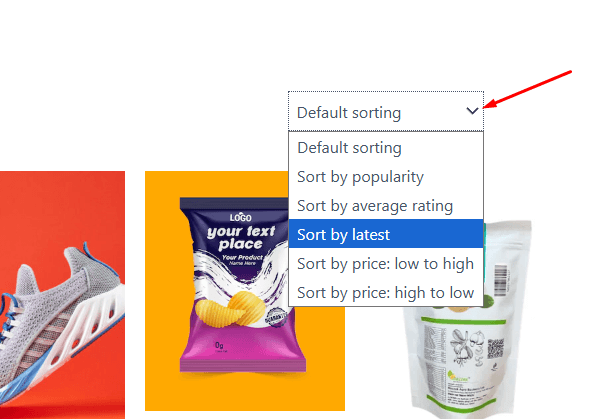
Step 3: Use Sort by latest on the shop page
- Visit the shop page or a product category page
- Open the sorting dropdown
- Select Sort by latest
Step 4: Check the product order
- Make sure recently published products appear first
- Compare a few older and newer products to confirm the sorting works properly
Method 2: Manual Category or Tag Method
Manual category or tag setup can work as a simple New Arrivals solution when you want more control over which products appear. Instead of relying on publish date alone, this method lets you group selected products under a dedicated New Arrivals label and show them as a separate browsing option.
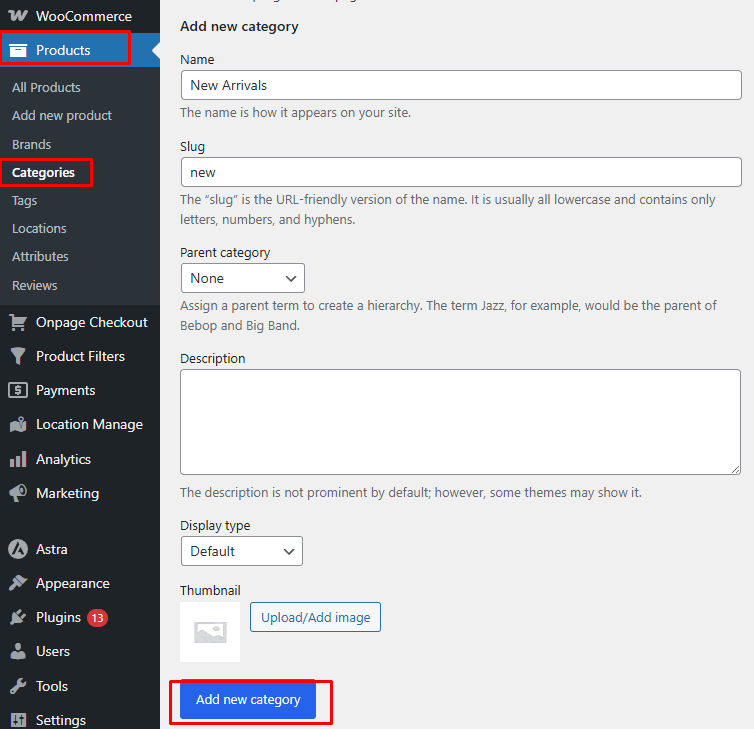
Step 1: Create a New Arrivals category or tag
- Go to Products → Categories or Products → Tags
- Create a new category or tag named New Arrivals
- Save the new term
Step 2: Assign products manually
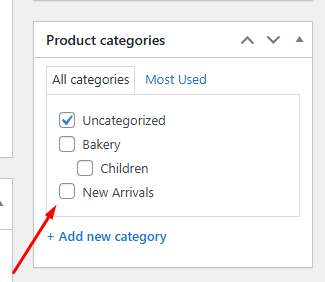
- Open the products you want to feature
- Add the New Arrivals category or tag
- Update each product
Step 3: Display the New Arrivals page
- Link the category or tag page from your menu, banner, or shop navigation
- Make it easy for shoppers to open that product group
Step 4: Keep the list updated
- Remove older products when they are no longer new
- Add newly published products regularly
- Check the page often so it stays relevant
Limitations of this method
- Needs manual updates
- Easy to forget over time
- Not based on automatic date rules
- Less practical for large catalogs
- Works more like a product group than a true filter
Method 3: Attribute-Based Filtering (Widget Method)
Attribute-based filtering can help surface selected products through WooCommerce’s built-in filter widgets, but it is not a true New Arrivals system by default. This method works only if you manually create and maintain an attribute that marks products as new.
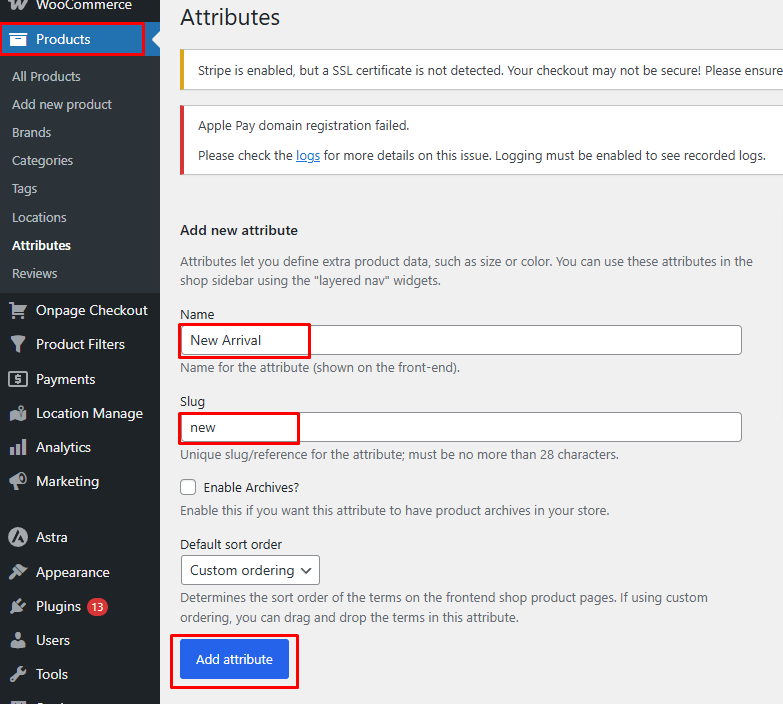
Step 1: Create a New Arrivals attribute
- Go to Products → Attributes
- Create a new attribute such as New Arrivals
- Save the attribute
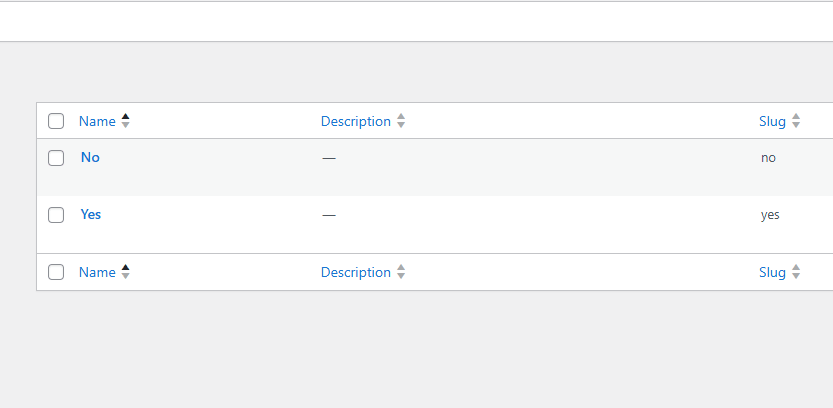
Step 2: Add an attribute term
- Open the attribute terms
- Add a value such as Yes or New
- Save the term
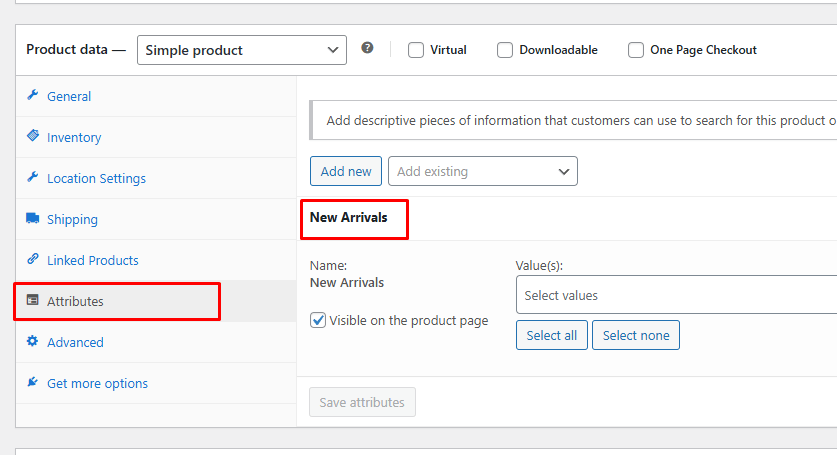
Step 3: Assign the attribute to products
- Edit the products you want to include
- Add the New Arrivals attribute
- Assign the term you created
- Update the products
Step 4: Add the filter widget
- Go to Appearance → Widgets
- Add Filter Products by Attribute to the shop sidebar or filter area
- Choose the New Arrivals attribute as the filter source
Step 5: Test the filter
- Visit the shop page
- Select the New Arrivals attribute filter
- Confirm that only matching products appear
Limitations of this method
- Requires manual product updates
- Depends on attribute setup, not publish date
- May reload the page instead of filtering instantly
- Often limited by theme or widget behavior
- Works better as a basic workaround than a dynamic new-products filter
Method 4: Block Theme Filtering
Block theme filtering gives you a built-in way to place product filter blocks inside WooCommerce shop templates. This method can help display filter controls in block-based layouts, but it still has limited flexibility for a true New Arrivals filter unless your setup includes a way to define recent products clearly.
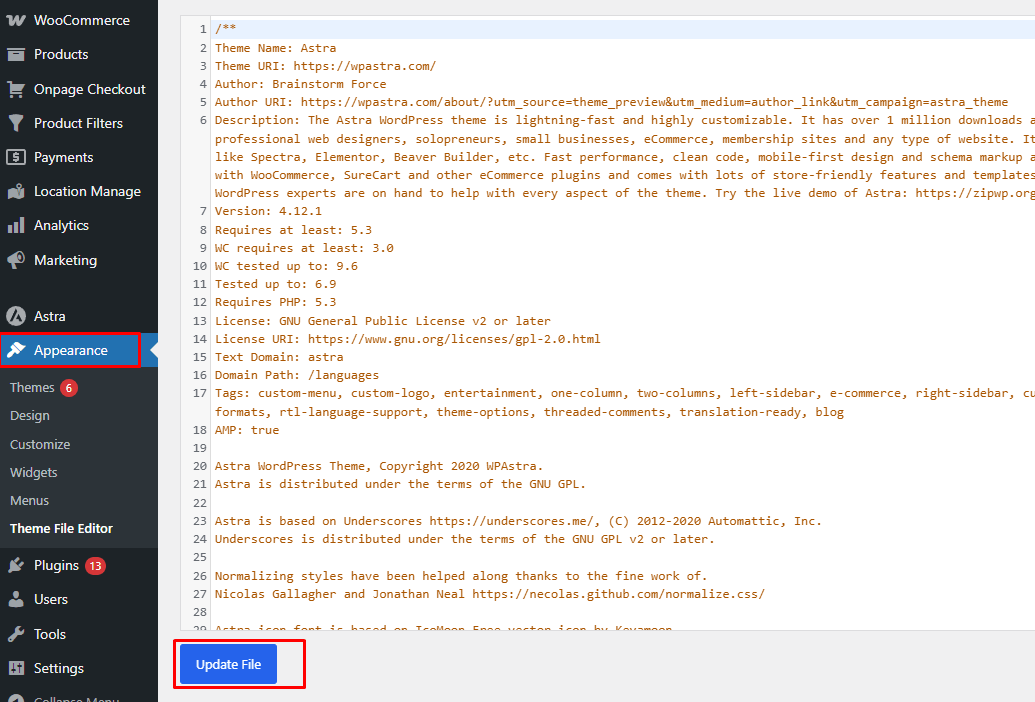
Step 1: Open the Site Editor
- Go to Appearance → Editor
- Open the block theme editor
Step 2: Open the shop or archive template
- Select the Shop, Product Catalog, or a product category template
- Choose the template where you want the filter to appear
Step 3: Insert a product filter block
- Add a relevant WooCommerce filter block
- Choose a block that fits your layout and filtering needs
Step 4: Select the filter source
- Configure the block settings
- Choose the available source, such as attribute, stock, or visibility, if supported by your setup
Step 5: Save and test the layout
- Save the template changes
- Visit the shop page
- Confirm the filter appears correctly and works as expected
Limitations of this method
- Limited customization
- No advanced date-based logic by default
- Depends on block theme support
- Not a full AJAX filtering system
- Better for layout control than advanced filtering
Method 5: AJAX-Based Filtering (Recommended Method)
AJAX-based filtering is the most practical way to create a real New Arrivals filter in WooCommerce. Instead of only sorting products or grouping them manually, this method lets shoppers filter recent products dynamically without reloading the page. In this setup, we will use Dynamic AJAX Product Filters for WooCommerce.
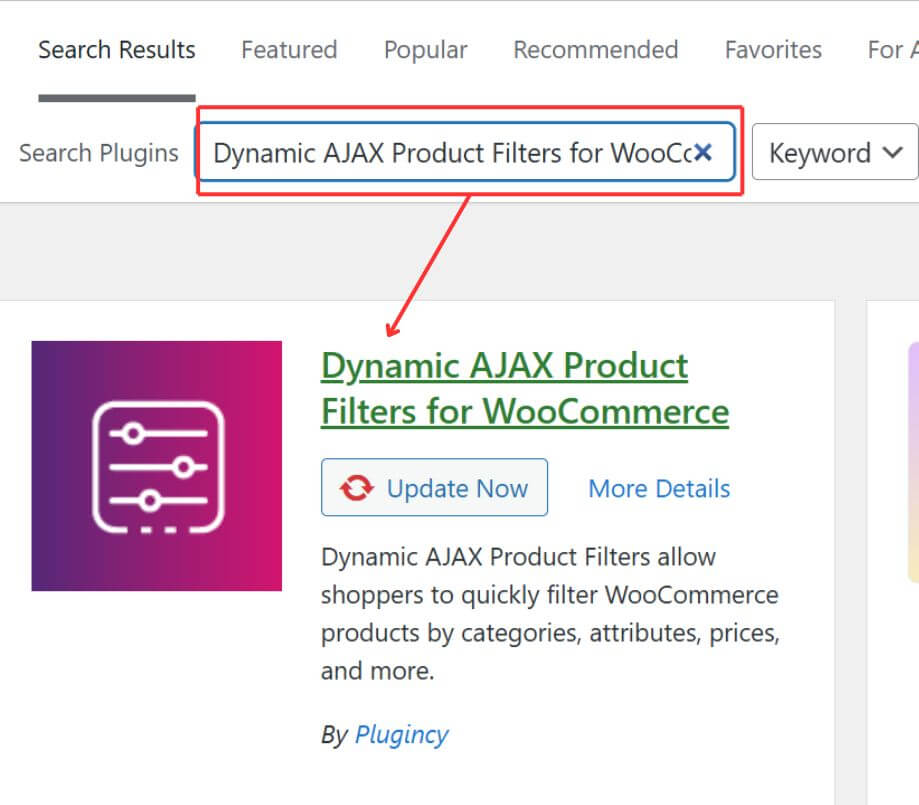
Step 1: Install and activate the Plugin
- Go to Plugins → Add New Plugin
- Search for Dynamic AJAX Product Filters for WooCommerce
- Click Install Now
- Click Activate
Step 2: Open the filter settings
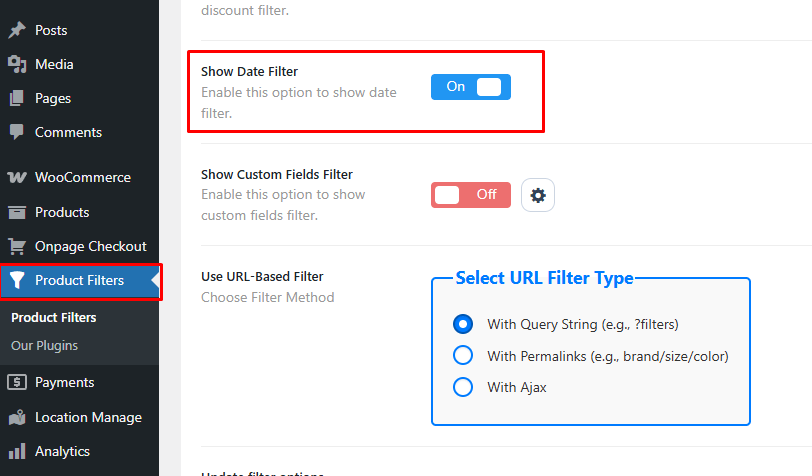
- Go to Product Filters from the WordPress dashboard
- Open the main filter settings area
- Select the filter method with Ajax
- Toggle on the Show Date Filter option
- Save Changes
Step 3: Configure the Filter Style
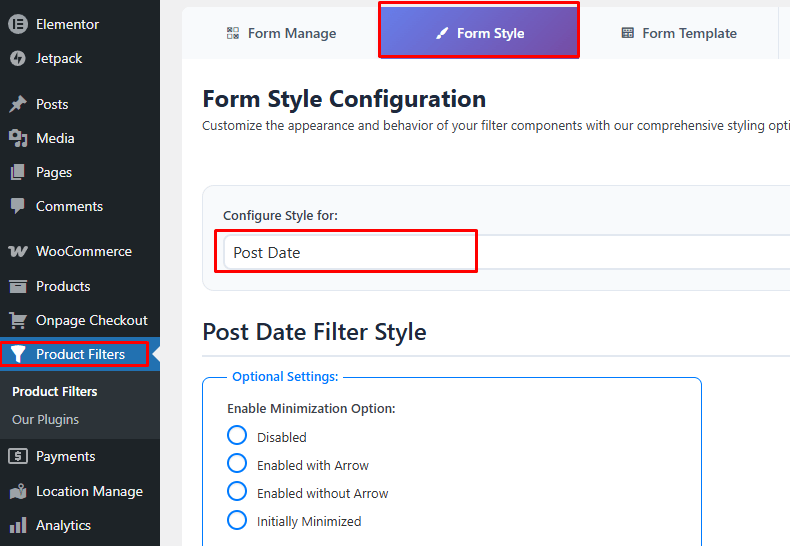
- Go to the Form Style tab from product filters
- Configure Optional settings and how long products should stay under New Arrivals
Step 4: Style the filter
- Open the Form Style tab
- Adjust the filter layout so it matches your shop design
- Save the styling changes
Step 5: Display the filter on shop or category pages
- Copy the plugin shortcode
- Paste it into your shop page, category page, sidebar, or filter area
- Add it with the [plugincy_filters] Shortcode block in the block editor
- Or place it with an Elementor Shortcode widget if needed
Step 6: Test the filtering behavior
- Visit the shop page
- Apply the New Arrivals filter
- Check that recently added products appear correctly
- Confirm the results update without a full page reload
Step 7: Test the filtering behavior
- Visit the shop page
- Apply the New Arrivals filter
- Check that recently added products appear correctly
- Confirm the results update without a full page reload
Method 6: Admin-Only Filtering (Back-End)
Admin-only filtering helps store owners sort and review products inside the WooCommerce dashboard, but it does not create a New Arrivals filter for shoppers. This method is useful for internal product management when you want to check recently added items from the back end.
Step 1: Open the product list
- Go to Products → All Products
- Open the main product management screen
Step 2: Use the available admin filters
- Filter products by category, stock status, product type, or other available options
- Sort the list to review recently added products more easily
Step 3: Use it for store management tasks
- Review newly published items
- Check product updates before featuring them
- Manage store inventory and catalog changes
Limitations of this method
- Not visible to shoppers
- Does not create a storefront filter
Method 7: Developer / Custom Query Method
Custom query setup is the most flexible way to build a New Arrivals filter in WooCommerce, but it is also the most technical. This method works by defining what counts as new in code and then modifying the product query to return only products that match that rule.
Step 1: Define what counts as new
- Decide the time range for new products, such as 7, 14, or 30 days
- Use publish date as the rule for deciding which products should appear
Step 2: Modify the WooCommerce product query
- Use WP_Query or pre_get_posts
- Add logic that checks the product publish date
- Limit results to products inside your chosen time window
Step 3: Apply the condition to the right pages
- Run the custom query on the shop page, category pages, or both
- Keep the logic limited to the areas where the New Arrivals filter should work
Step 4: Render the filtered results
- Output the matching products in your template
- Make sure the product grid still works with your theme layout
- Test the results on desktop and mobile
Is There a Way to Add More Context to New Product Filters?
Yes, there is a way to add more context to new product filters and make them work better for your store. You can do this by grouping your new items using labels, tags, or product attributes. When products are organized well, shoppers can find what they want much faster. It helps them see what’s fresh and exciting right when they land on the shop page. This also improves the shopping experience and keeps people on your site longer.
You can also add helpful details like release date, product type, or season to give filters more meaning. Using a custom taxonomy filter in WooCommerce lets you create custom filters based on unique product features. These filters are easy to manage and let you stay in control of what appears under “New Arrivals.” It works great if your store has many categories and frequent product updates.
When New Arrivals Filters Increase Conversions?
New Arrivals filters increase conversions when shoppers want to find fresh products quickly instead of browsing older catalog items first. They are especially useful in stores where repeat visits, product drops, seasonal updates, or fast-changing inventory influence buying decisions.
These filters tend to work best for:
- Fashion and lifestyle stores
- Electronics and gadget stores
- Seasonal or trend-driven products
- Catalogs with frequent product updates
- Stores with returning shoppers

SEO Considerations for New Arrivals Filters in WooCommerce
New Arrivals filters can improve product discovery, but they should be handled carefully from an SEO perspective. Since “new” products change often, these filtered views are usually better treated as navigation features rather than long-term landing pages.
Here are the main SEO considerations:
- Avoid indexing New Arrivals filter URLs
- Keep product pages and core category pages indexable
- Treat filtered New Arrivals views as temporary navigation
- Avoid creating crawlable duplicate URL variations
- Use AJAX filtering where possible to reduce indexable filter URLs
- Do not build an SEO strategy around time-sensitive filter pages
- Focus SEO value on stable category and product URLs instead
What to Index vs What Not to Index
| Scenario | Index | Noindex | Why |
|---|---|---|---|
| Product pages | ✔ | Core SEO pages | |
| Category pages | ✔ | Structural value | |
| New Arrivals filter URLs | ✔ | Time-sensitive | |
| AJAX New Arrivals views | ✔ | Navigation only |
Conversion Tips for New Arrivals Filters
New Arrivals filters work better when they make recent products easy to spot and easy to narrow down. To get more value from them, focus on clarity, timing, and filter usability.
- Time Window: Keep the “new” period short, such as 7 to 14 days, so the filter feels timely
- Filter Combinations: Let shoppers refine new products with category, price, brand, size, or a discount filter in WooCommerce for better product discovery
- Placement: Show the filter in a visible area on the shop or category page so shoppers notice it quickly
- Definition of New: Use one clear rule so shoppers understand why certain products appear in the filter
- Product Testing: Check the filter with recently published products to confirm the results stay accurate
- Filter Load: Avoid too many filter options so the shop page stays clear, focused, and easier to use
- Mobile Use: Make sure the filter works smoothly on smaller screens and does not create extra friction
Troubleshooting: When the New Arrivals Filter Is Not Working
New Arrivals filters usually fail because of date logic, product assignment, placement, or filter configuration issues. Start with the basics below to find where the setup is breaking. Here’s the quick troubleshooting checklist:
| Problem | Likely Cause | Fix |
| No products appear | No products match the current “new” time window | Expand the date range or publish newer products |
| Old products still appear | Products are grouped manually and were not removed | Update the category, tag, or attribute assignments |
| Filter appears but does nothing | Filter logic is not connected to recent-product rules | Recheck the filter source and the recent-product setup |
| Works on one page only | Filter was placed only on a specific template or layout | Add or adjust the filter on the correct shop or archive pages |
| Filter does not show at all | Shortcode, block, or widget was placed in the wrong area | Move it to a visible shop, sidebar, or category filter section |
| Results reload the full page | AJAX is not enabled or not supported in that setup | Enable AJAX filtering or use a compatible filtering method |
| Wrong products are shown | “New” is defined inconsistently across the store | Use one clear rule, such as the last 7, 14, or 30 days |
| Filter looks broken on mobile | Theme or layout is not handling the filter area well | Test the mobile layout and adjust the filter placement or styling |
FAQs: WooCommerce New Arrivals Filter
New Arrivals filtering often raises a few practical questions beyond setup. These quick answers cover common points store owners run into when deciding how to manage, display, and maintain recent-product filtering in WooCommerce.
Can A New Arrivals Filter Work With Variable Products In WooCommerce?
Yes, a New Arrivals filter can work with variable products. In most setups, the parent product is treated as the main product record, so the filter usually follows the parent product’s publish date rather than each variation separately.
How Long Should A Product Stay Under New Arrivals?
That depends on how often your catalog changes. Many stores use a shorter window for fast-moving inventory and a slightly longer one for slower update cycles, as long as the rule stays consistent across the store.
Can I Show A New Arrivals Filter Only On Certain Pages?
Yes, many setups allow you to place the filter only on selected shop, category, or landing pages. This can be useful when recent-product discovery matters in some parts of the store more than others.
Does A New Arrivals Filter Work Better Than A “Sort By Latest” Option?
They serve different purposes. Sorting changes the order of all visible products, while a New Arrivals filter narrows results to products that match your recent-product rule, which gives shoppers a more focused browsing path.
Can I Combine A New Arrivals Filter With Other WooCommerce Filters?
Yes, a New Arrivals filter can be used alongside other filters such as category, price, stock, size, or brand. This usually makes the filter more useful because shoppers can narrow fresh products more precisely instead of viewing a broad list.
Final Thoughts
Knowing how to add filter by New Arrivals in WooCommerce helps you give shoppers a faster way to find recently added products without browsing the full catalog. The right method depends on how often your store updates, how much automation you want, and how flexible the filtering experience needs to be.
For most stores, AJAX-based filtering is the most practical option because it creates a smoother and more usable New Arrivals experience. Simpler methods can still work, but they usually need more manual effort and offer less control.
