

WooCommerce category filter not working usually means shoppers cannot narrow products by category correctly, which makes browsing harder and can reduce sales. This problem often happens because of incorrect category assignments, theme or plugin conflicts, caching issues, or broken AJAX filtering.
In this guide, we will walk through everything related to how to fix WooCommerce category filter not working, including the most common causes and advanced prevention measures you can take.
Quick Checks
When the category filter stops working, the problem is usually caused by setup errors, cache, theme conflicts, or plugin issues. Start with these quick fixes before moving into deeper troubleshooting.
- Check product category assignments
- Clear website, plugin, and browser cache
- Test the filter after disabling other plugins
- Switch temporarily to a default WooCommerce theme
- Confirm the filter widget or block is placed correctly
- Update WooCommerce, theme, and filter-related plugins
- Check whether AJAX filtering is failing on the shop page
Common Reasons WooCommerce Category Filter Is Not Working
WooCommerce category filters usually stop working because of category setup errors, theme or plugin conflicts, caching, AJAX failures, or shop page configuration problems. The filter may appear on the page, but the product results do not update the way they should.
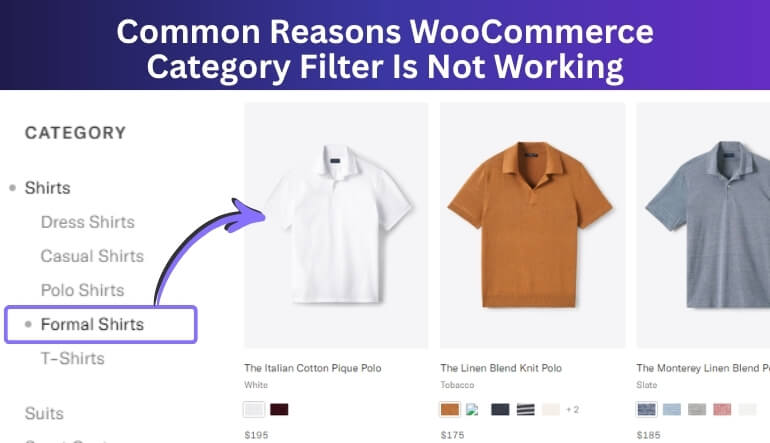
To understand where the issue starts, look at the most common causes below.
Incorrect Product Category Assignments
The category filter depends on products being assigned to the correct categories. If products are uncategorized, assigned incorrectly, or missing category terms, the filter may show the wrong products or fail to narrow results properly.
Filter Widget or Block Placement Issues
The filter may be visible but not connected to the correct shop or archive product loop. This often happens when the widget, block, or sidebar element is placed in the wrong area of the store layout.
Theme Compatibility Problems
Some WooCommerce themes override default shop and archive templates in ways that affect filter behavior. An outdated or poorly optimized theme can prevent the category filter from working properly, especially with AJAX-based filtering.
Plugin Conflicts
Another plugin may interfere with product queries, filtering logic, or front-end scripts. This is common with search plugins, page builders, optimization tools, and extra WooCommerce extensions.
Caching Problems
Cached pages can make the filter appear broken even when the setup is correct. Browser cache, site cache, server cache, or CDN cache may keep showing older product results instead of updated filtered results.
Broken AJAX Requests
Many category filters rely on AJAX to update products without reloading the page. If a request fails or a JavaScript error appears, the filter may stop responding, keep loading, or return no visible change.
Hidden or Incorrect Catalog Visibility Settings
A product may belong to the right category but still not appear in filtered results if its catalog visibility is limited. Hidden, draft, private, or excluded products can make the filter seem inaccurate.
Outdated WooCommerce or Extension Files
Older versions of WooCommerce, filter plugins, or themes can break compatibility across the shop page. Once files fall out of sync, category filtering may stop working as expected.
Custom Code or Template Override Conflicts
Custom snippets, modified queries, or overridden WooCommerce template files can interrupt how category filtering works. Even small code changes can affect product archive behavior and break filter results.
Shop Page or Permalink Configuration Issues
Incorrect shop page settings or permalink problems can also affect filtering. If the product archive is not configured properly, the category filter may not load or apply results correctly.
How to Fix WooCommerce Category Filter Not Working Easily?
WooCommerce category filter problems usually come from a few common issues, such as wrong category setup, placement errors, theme or plugin conflicts, cache, or outdated settings. The good part is that most of these problems can be fixed by checking each one carefully.
To make the process easier, go through the fixes below one by one.
Check Product Category Assignments
The category filter depends on products being linked to the correct categories. Wrong, missing, or incomplete assignments can make the filter show inaccurate results or fail to narrow products properly.
- Open the product edit screen in WooCommerce
- Check that the correct categories are selected
- Remove incorrect or unnecessary category assignments
- Update the product and test the filter again
Verify Filter Widget or Block Placement
A category filter may appear on the page but still not work properly if it is placed in the wrong widget area, sidebar, or template location. This can prevent it from connecting to the active product loop.
- Check where the filter widget or block is placed
- Make sure it appears on the correct shop or archive page
- Confirm it is linked to the main product listing area
- Save changes and reload the page
Test for Theme Compatibility Problems
Some themes override WooCommerce shop and archive templates in ways that affect filter behavior. A theme conflict can stop the category filter from updating product results correctly.
- Temporarily switch to a default WooCommerce-compatible theme
- Test the category filter again
- Compare the results with your original theme active
- Review any customized archive or shop template files
Disable Plugin Conflicts
Another plugin may interfere with product queries, scripts, or filter logic. This is especially common with search plugins, page builders, caching tools, and extra WooCommerce extensions.
- Deactivate non-essential plugins one by one
- Test the category filter after each change
- Focus on search, builder, cache, and filtering-related plugins
- Reactivate plugins carefully after testing
Clear Cache and CDN Files
Cached files can make the category filter look broken even after the real problem has been fixed. Old cache may keep serving outdated product results instead of refreshed filtered content.
- Clear site cache
- Clear browser cache
- Clear plugin, server, and CDN cache
- Reload the shop page and test the filter again
Check AJAX Errors on the Shop Page
Many WooCommerce category filters rely on AJAX to update products without a full page reload. If AJAX requests fail, the filter may keep loading, stop responding, or show no visible changes.
- Open the browser console on the shop page
- Select a category and watch for JavaScript errors
- Check for failed AJAX requests
- Confirm whether the product list updates correctly
Review Product Catalog Visibility
A product may be in the right category but still stay out of filtered results because of catalog visibility settings. Hidden, private, draft, or excluded products can make the filter seem inaccurate.
- Edit the products that should appear in filtered results
- Confirm they are published
- Check catalog visibility settings
- Make sure stock or display rules are not hiding them
Update WooCommerce, Theme, and Filter Plugins
Outdated WooCommerce files, themes, or filtering extensions can create compatibility issues that break category filtering. Keeping everything updated helps restore normal behavior across the shop page, especially if you rely on AJAX product filters for WooCommerce to deliver faster and smoother category-based browsing.
- Update WooCommerce core
- Update the active theme
- Update your filter and shop-related plugins
- Test the category filter after all updates
Inspect Custom Code and Template Overrides
Custom code changes can affect how product archives and category filtering work. Even small edits to queries, hooks, or template files can break filter functionality.
- Review custom snippets added to functions.php or custom plugins
- Check for overridden WooCommerce template files
- Look for changes affecting product queries or archive behavior
- Remove or isolate anything interfering with the filter
Review Shop Page and Permalink Settings
Shop page setup and permalink configuration can affect how filtered URLs and archive pages behave. Incorrect settings may prevent the category filter from loading or applying results properly.
- Confirm the correct page is assigned as the WooCommerce shop page
- Go to Settings > Permalinks and click Save Changes
- Check that product archive pages load correctly
- Test the category filter again after refreshing settings
How to Test Whether the WooCommerce Category Filter Is Working Properly?
Testing after the fixes helps confirm the issue is fully resolved. These checks can show whether your WooCommerce category filter functionality is working properly across the store.
| Test Check | What to Confirm |
| Single Category Test | Only matching products appear |
| Multiple Category Test | Each category shows the correct results |
| Shop and Archive Pages | The filter works on both page types |
| Product Updates | Results refresh properly after selection |
| Desktop and Mobile | The filter works across all devices |
| Logged-In and Logged-Out Users | Results stay consistent for both views |
| Cache Check | Cleared cache does not change expected results |
| Other Active Filters | The category filter works with other filters |
| Hidden Product Check | Draft or hidden products do not appear |
| Post-Update Test | The filter still works after updates |
How to Prevent WooCommerce Category Filter Problems in the Future?
Preventing category filter issues is usually easier than fixing them later. A few regular checks and better store maintenance habits can help keep filtering accurate, fast, and consistent as your catalog grows. To reduce the chance of future problems, follow the best practices below.
- Keep Product Categories Organized: Make sure products are always assigned to the correct categories so the filter can return accurate results.
- Avoid Unnecessary Filter Overlap: Running too many filters, search, or layout tools at the same time can create conflicts and break normal category behavior.
- Use Compatible Filtering Tools: Choose a reliable WooCommerce Ajax product filter plugin that works well with your theme, WooCommerce version, and other shop features.
- Update WooCommerce, Themes, and Plugins Carefully: Regular updates help prevent compatibility issues, but it is also smart to test filtering after every major change.
- Clear Cache After Store Changes: Clear site, browser, plugin, server, and CDN cache whenever you update products, categories, templates, or filter settings.
- Review Shop Page Layout Changes: Changes to sidebars, widgets, blocks, or custom templates can affect where the filter appears and how it works.
- Test Filters on Different Devices: Check category filtering on desktop and mobile from time to time to catch layout or usability issues early.
- Watch for Plugin or Theme Conflicts: Test new plugins and design changes carefully before leaving them live on the store.
- Limit Risky Custom Code Changes: Small edits to shop templates, queries, or WooCommerce hooks can affect filtering, so review them carefully before publishing.
- Retest After Major Catalog Updates: Large product imports, category edits, or store restructuring can affect filter accuracy, so it helps to test again after big changes.

Developer Troubleshooting Tips for WooCommerce Category Filters
Some category filter issues need more than basic setup checks. A closer look at scripts, queries, template overrides, and filter logic can help developers find the exact source of the problem.
Use the checks below to troubleshoot the issue more deeply.
- Check Browser Console and AJAX Requests: Open the browser console and network tab to see whether JavaScript errors or failed AJAX requests appear when a category is selected.
- Review Product Query Changes: Check custom pre_get_posts, tax_query, or archive query changes that may interfere with how category filters return products.
- Audit Theme Template Overrides: Review overridden WooCommerce shop, archive, and sidebar templates to make sure they are not breaking filter output or product loop behavior.
- Inspect Hook and Script Conflicts: Look at custom hooks, enqueued scripts, and missing dependencies that may stop the filter from loading or updating results correctly.
- Test Custom Filter Logic Carefully: Stores using custom category filters in WooCommerce should verify that category terms, URLs, and product queries remain properly aligned.
- Check Cache and Template Version Mismatches: Inspect object cache, plugin cache, and outdated WooCommerce template overrides that may cause category filter behavior to break.
Final Thoughts
Fixing WooCommerce category filter issues usually involves checking product category assignments, filter placement, theme or plugin conflicts, cache, AJAX behavior, and shop page settings. Once these areas are corrected, the filter can show the right products and respond properly across your store.
Understanding how to fix WooCommerce category filter not working helps improve product discovery, reduce shopper frustration, and keep category browsing smooth and reliable. Even a few targeted fixes can make your store easier to use and more effective.
