

Is your WooCommerce product search not working when customers try to find products? This issue can frustrate users quickly because search is one of the fastest ways to discover items in your store. When it fails, customers may leave without exploring further.
In many cases, the problem appears as WooCommerce search not showing products or returning empty results even when items exist. This is usually linked to visibility settings, indexing, or system conflicts rather than a major error. In this guide, you’ll learn the real causes and step-by-step fixes to restore accurate and reliable product search.
Quick Answer
WooCommerce product search usually fails when product visibility is restricted, search indexing is outdated, or plugins interfere with default queries. Cached search results can also return empty or incorrect results. Check product visibility, clear cache, and rebuild the search index to restore accurate results quickly.
Quick Fixes
If you want a fast solution without deep troubleshooting, try these steps first:
- Ensure products are visible: Set catalog visibility to “Shop and search results” so products can appear in search.
- Clear all cache layers: Remove browser, plugin, server, and CDN cache to prevent outdated search results.
- Check product status: Make sure products are published. Draft or private products will not appear in search.
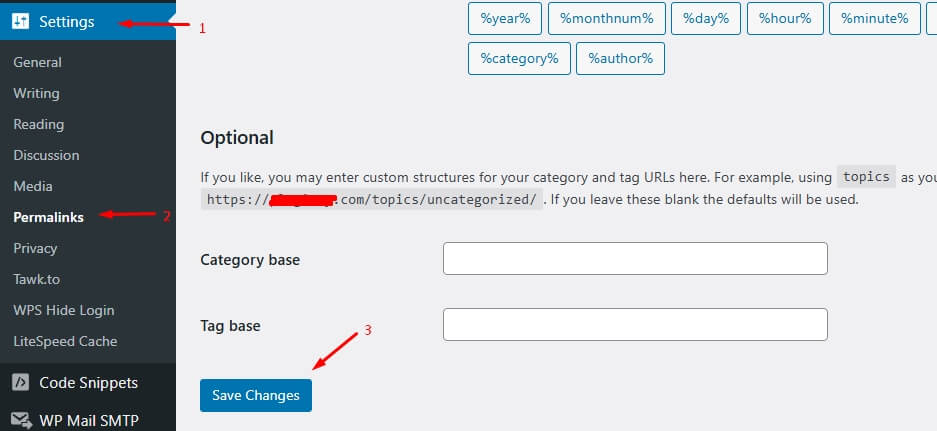
- Re-save permalinks: Go to Settings → Permalinks and click Save Changes to refresh URL rules.
- Disable conflicting plugins: Temporarily turn off search, filter, or SEO plugins to detect conflicts.
- Test with a default theme: Switch to a default theme to identify theme-related search issues.
Starting with quick fixes helps resolve most search issues instantly before moving into deeper troubleshooting steps.
What “Product Search Not Working” Actually Means
Before fixing the issue, it’s important to understand what “search not working” really means. In most cases, the search function is not completely broken, it just fails to return accurate or expected results.
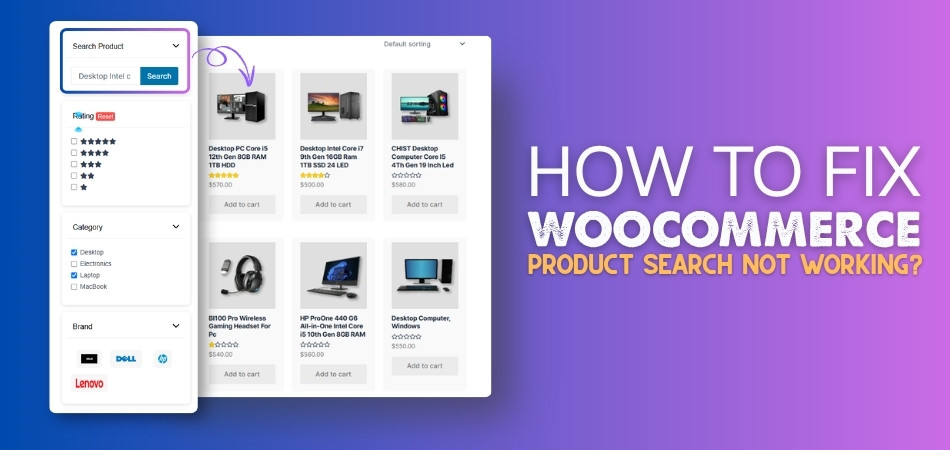
Sometimes users search for a product but get no results at all, even though the product exists in the store. This is commonly seen as WooCommerce search not returning results and usually points to visibility or indexing problems.
In other situations, the search shows unrelated products or only partial matches. This indicates that the search query is not properly processing product data such as titles, descriptions, or keywords.
There are also cases where search works for admin users but fails for visitors, which often signals caching, session handling, or plugin conflicts affecting how results are displayed.
Common Scenarios Where WooCommerce Search Fails
Before moving into deeper fixes, it helps to see how this issue appears in real situations. These scenarios will help you quickly match your problem and move toward the right solution.
- Search Returns No Results: Customers type the exact product name, but nothing shows up. This usually happens when products are hidden, not indexed properly, or excluded from search visibility.
- Search Shows Irrelevant Products: Results appear, but they do not match the search query. This often indicates weak product data, missing keywords, or limitations in default WooCommerce search logic.
- Works for Admin but Not for Visitors: Search works fine when logged in as admin, but regular users cannot find products. This is commonly caused by caching, user role restrictions, or plugin conflicts.
- Search Works on Desktop but Fails on Mobile: If search behaves differently across devices, it usually points to JavaScript issues, theme conflicts, or mobile-specific layout problems.
- Only Some Products Are Searchable: Certain products appear in search while others do not. This often happens due to product visibility settings, stock status, or incomplete product data.
Recognizing the exact scenario helps you narrow down the issue faster and apply the most effective fix without unnecessary steps.
What Causes WooCommerce Search to Fail?
Now that you’ve seen the common scenarios, let’s break down the real causes behind search issues. These are grouped by system level so you can quickly identify where the problem is coming from.

Product Visibility & Status Issues
If products are hidden, private, or excluded from the catalog, they will not appear in search results. Even if the product exists, WooCommerce will ignore it during search queries if visibility is restricted.
Search Data Not Updating Properly
Sometimes WooCommerce search stops working even when products exist, are published, and are set to appear in search results. This usually happens when internal product data is not refreshed correctly.
When WooCommerce cannot access updated product information, search results may appear empty, incomplete, or inconsistent. This is not always a visible error but a background data issue.
Common Triggers:
- Product data not synced after updates
- Temporary data stored too long
- Internal lookup tables not refreshed
What It Affects:
- Search accuracy
- Product visibility in results
- Backend and frontend search consistency
Weak or Missing Product Data
WooCommerce search depends heavily on product titles, descriptions, and keywords. If product data is incomplete or not optimized, search may return irrelevant results or fail to match queries properly.
Search Index & Database Issues
Sometimes search fails even when everything looks correct. This happens when product data is not properly indexed or the database is outdated. Without proper indexing, WooCommerce cannot return accurate search results. In many cases, rebuilding the search index or updating the database resolves this issue.
Plugin Conflicts
Search-related plugins, filtering tools, or SEO plugins can override WooCommerce’s default search behavior. This may result in missing products, incorrect results, or broken search queries.
Cache & CDN Interference
Cached search pages can show outdated or incorrect results. If cache is not cleared or excluded properly, WooCommerce may display old search data instead of real-time results.
Theme or Template Issues
Custom themes may override search templates or queries. If the theme is not fully compatible with WooCommerce, it can break or limit search functionality.
Stock & Catalog Settings
If “hide out-of-stock items” is enabled, products that are out of stock will not appear in search. This can make it seem like search is not working even though it is filtering results based on settings.
Understanding these system-level causes helps you diagnose search issues accurately and apply the correct fix without unnecessary trial and error.
Complete Fix Guide (Quick + Detailed)
If your WooCommerce product search is not working, you need more than just quick fixes. This section walks you through both basic checks and deeper system-level troubleshooting so you can identify and fix the issue properly. Follow each phase carefully and test after every step to avoid unnecessary changes.
Phase 1: Quick Fixes (Fast Checks)
Start with these essential checks. These solve most issues without advanced debugging.
- Ensure products are published and searchable: Products must be set to visible in both catalog and search. Hidden, draft, or private products will never appear in results.
- Clear all cache layers completely: Clear browser cache, WordPress cache plugins, server cache, and CDN cache. Cached search results often display outdated or incorrect data.
- Re-save permalink structure: Go to Settings → Permalinks and click Save Changes. This refreshes URL rules and fixes broken search queries in some setups.
- Check product titles and keywords: Search depends heavily on product data. Use clear product names and include relevant keywords in titles and descriptions.
- Temporarily disable search-related plugins: Plugins for search, filters, or SEO may override default WooCommerce queries. Disable them briefly to check for conflicts.
Phase 2: Step-by-Step Fix (Deep Troubleshooting)
If the issue still exists, move into deeper system-level fixes.
1. Verify Product Visibility Settings
Go to the product edit page and review catalog visibility. Products must be set to appear in search results. If visibility is restricted or excluded, WooCommerce will ignore them even if they exist.
2. Improve Product Data for Accurate Matching
WooCommerce uses basic matching logic. If product titles, descriptions, or attributes are weak, search results become inaccurate. Add meaningful keywords that match real customer search behavior.
3. Rebuild Search Index (Critical Step)
If you are using a search plugin or large catalog:
- Rebuild the search index from plugin settings
- Ensure all products are included
Without proper indexing, WooCommerce cannot return accurate or complete search results.
4. Update WooCommerce Database
Go to WooCommerce → Status → Tools and run database updates. This step:
- Fixes missing product lookup data
- Updates search-related tables
- Improves query accuracy
Outdated database structures often cause silent search failures.
5. Refresh Product Data and Internal Cache
If search results are missing or incorrect, one of the most effective fixes is refreshing how WooCommerce stores product data. Go to WooCommerce → Status → Tools
Then perform:
- Clear temporary stored data/transients
- Remove expired cached entries
- Rebuild product lookup data
Why this works:
WooCommerce uses internal data tables to speed up search. If those become outdated, search cannot return correct results. Refreshing them restores proper behavior.
6. Check Product Status & Catalog Conditions
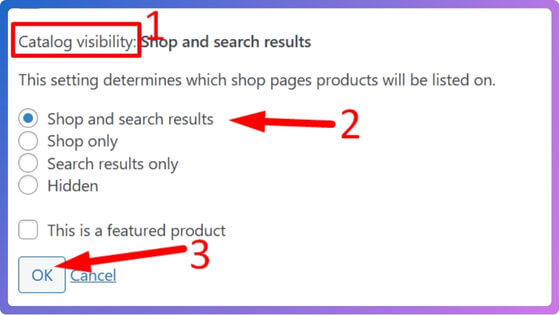
Ensure:
- Products are published
- Not set to private or draft
- Included in catalog/search
Also review conditions like:
- Hidden products
- Scheduled products not yet active
7. Fix SKU Search Limitations
By default, WooCommerce may not fully support SKU-based search depending on theme or setup.
- Test search using product title vs SKU
- Confirm your theme or plugin supports SKU queries
If SKU search fails, users may think search is broken.
8. Detect Plugin Conflicts (Systematically)
Disable plugins one by one and test search after each step. Focus on:
- Search plugins
- AJAX filter plugins
- SEO plugins
- Performance plugins
Even one conflicting plugin can override search queries completely.
9. Run System Logs for Hidden Errors
Some search problems are not visible on the frontend. They occur silently in the background. Go to WooCommerce → Status → Logs
What to look for:
- Unexpected errors during search
- Failed queries
- Plugin-related warnings
This step helps you detect issues that normal testing cannot reveal.
10. Test with Default Theme
Switch to a default theme like Storefront. If search works:
- Your theme is overriding WooCommerce search logic
- You may need to update or fix template files
Search behavior can change depending on active plugins and theme logic. If search improves after switching themes or disabling plugins, the issue is caused by a conflict rather than WooCommerce itself.
11. Review Cache & CDN Behavior
Search pages should never be cached aggressively.
- Exclude search URLs from caching
- Clear CDN cache (Cloudflare, etc.)
- Disable query caching for search pages
Caching systems can sometimes store outdated search results. To confirm this, temporarily disable caching, retry search queries, and check whether results update correctly. If search works after disabling cache, adjust caching rules instead of removing caching completely.
12. Check Out-of-Stock & Catalog Filtering Rules
If “Hide out of stock items” is enabled:
- Products may not appear in search
- Categories may seem empty
Review inventory settings carefully to ensure they match your store logic.
13. Check Memory Usage for Large Stores
In some cases, search issues are not caused by configuration, but by server memory limits. When WooCommerce runs search queries, it needs memory to process product data. If the memory limit is too low, the process may fail silently or return incomplete results.
Where to check:
WooCommerce → Status → System Status
Look for:
- WordPress memory limit
- PHP memory limit
Recommended levels:
- Minimum: 256MB
- Recommended: 512MB or higher
When to suspect this issue:
- Search works sometimes but fails randomly
- Results are incomplete
- Errors appear in logs
Pro Insight
Even if everything looks correct:
- Large product databases can slow search queries
- Poor indexing can break results silently
- Cached responses can override real-time data
That’s why testing each step is critical. For large stores, memory limits should also be checked because low memory can cause silent search failures.

Why This Issue Affects Your Store?
After fixing the technical side, it’s important to understand the real impact. When product search does not work properly, it directly affects how users interact with your store and how much you sell.
Customers Cannot Find Products Quickly
Search is one of the fastest ways for users to locate products. If it fails or shows incorrect results, customers may not find what they are looking for, even if it exists in your store.
Higher Bounce Rate
When users search for a product and get no results or irrelevant items, they often leave immediately. This increases your bounce rate and reduces engagement.
Loss of Sales Opportunities
Every failed search is a lost opportunity. Customers who cannot find products are less likely to browse further or complete a purchase.
Poor User Experience
A broken or inaccurate search system creates frustration. Users expect quick and relevant results, and when that expectation is not met, it damages trust in your store.
Negative Impact on SEO
Search behavior is part of user interaction signals. If users leave quickly due to poor search experience, it can indirectly affect your SEO performance and rankings.
Inaccurate Analytics Data
If users cannot find products through search, your analytics may not reflect real user intent. This makes it harder to optimize your store based on actual behavior. Many store owners focus only on design and products, but ignore search functionality. In reality, improving search can significantly increase conversion rates because it helps users reach products faster.
A reliable search system improves navigation, increases conversions, and ensures users can find products quickly without frustration.
Default WooCommerce Search vs Optimized Search
After fixing the issue, it’s important to understand why default search often struggles. WooCommerce’s built-in search is basic and works for small stores, but as your catalog grows, it may fail to deliver accurate and fast results.
Key Differences Explained
| Feature | Default WooCommerce Search | Optimized Search System |
| Result Accuracy | Basic keyword match | Smart and relevant matching |
| Search Speed | Slower with large catalogs | Faster and optimized |
| SKU Search Support | Limited or inconsistent | Fully supported |
| Filtering Integration | Minimal | Advanced filter + search combo |
| Handling Large Data | Weak performance | Built for scalability |
| User Experience | Standard | Smooth and interactive |
Why Default Search Becomes a Problem?
Default WooCommerce search mainly checks product titles and simple content. It does not always understand user intent or handle large datasets efficiently. As a result, users may see irrelevant products or no results at all.
What an Optimized Search System Improves
An optimized system enhances both accuracy and speed. It processes product data more effectively, supports advanced filtering, and delivers real-time results that match user expectations.
Edge Cases That Can Affect Search
Server Resource Limitations
Search operations require memory and processing power. If your server resources are limited, WooCommerce may fail to complete search requests.
Typical signs:
- Search returns no results randomly
- Slow or incomplete responses
- Backend errors without clear messages
What to check:
- Memory allocation
- Server response performance
Improvement direction:
- Increase memory limits, preferably 512MB or higher
- Optimize the server environment
- Reduce heavy background processes
Shared Hosting Performance Constraints
If your store runs on shared hosting, other websites may affect performance.
Possible behavior:
- Search works sometimes but fails under load
- Delayed or inconsistent results
What to do:
- Test on a clean environment
- Monitor performance during peak usage
Recommended Solution
If you want consistent and accurate search performance, using an advanced filtering and search system is the best approach. 👉Dynamic AJAX Product Filters for WooCommerce
Why This Helps
- Improves search accuracy with real-time filtering
- Displays results instantly without page reload
- Works well with large product catalogs
- Enhances user experience across devices
Which Approach Should You Choose?
- If You Have a Small Store: Default WooCommerce search may be enough if your product range is limited and well-structured.
- If Your Store Is Growing: As your catalog expands, search complexity increases. An optimized system helps maintain performance and accuracy.
- If You Want Better Conversions: A faster and smarter search experience helps users find products quickly, increasing the chances of purchase.
Upgrading your search system ensures better performance, improved user experience, and higher conversion potential as your store grows.
FAQ
Below are the most common questions related to WooCommerce search issues. These are structured to match real user queries and improve AI Overview visibility.
Why is WooCommerce product search not working?
This usually happens due to product visibility restrictions, outdated search indexing, plugin conflicts, or cached search results. Fixing visibility, clearing cache, and rebuilding the index often resolves the issue.
Why are products not showing in WooCommerce search?
Products may be hidden, set to private, or excluded from catalog visibility. It can also happen if products are not properly indexed or if out-of-stock settings hide them.
How do I fix WooCommerce search not returning results?
Start by checking product visibility and status, then clear cache and rebuild the search index. Also test for plugin or theme conflicts that may override search behavior.
Does cache affect WooCommerce search results?
Yes, cached search pages can show outdated or incorrect results. Clearing all cache layers ensures real-time search accuracy.
Can plugins break WooCommerce search?
Yes, search, filter, SEO, and performance plugins can interfere with default queries. Disabling plugins one by one helps identify the issue.
Why does WooCommerce search show wrong results?
This usually happens due to weak product data, poor keyword matching, or limitations in default search logic. Improving product titles and descriptions can help.
Does WooCommerce support SKU search?
SKU search may not work in all setups by default. It depends on your theme or search system. Some plugins are required for full SKU-based search support.
Final Thoughts
The WooCommerce product search not working issue is often caused by simple configuration problems, but it can also involve deeper system-level issues like indexing, caching, or plugin conflicts. Identifying the root cause is the key to fixing it effectively. If your store relies heavily on search for product discovery, improving search accuracy should be a priority. A reliable search system not only helps users find products faster but also improves engagement and conversion rates.
Memory-related issues can also create hidden performance bottlenecks, especially for larger stores. Checking WordPress and PHP memory limits helps ensure WooCommerce search works reliably under higher load conditions.
Optimizing product search ensures better navigation, higher user satisfaction, and stronger sales performance for your WooCommerce store.
